
Overview
This guide provides step-by-step instructions for transferring funds between your own accounts using different currencies through the iBusiness Web Portal.
This service allows you to transfer funds between your own eligible accounts and, where applicable, use an available FX Deal to process the transfer at a pre-agreed foreign exchange rate.
Step 1: Access Transfers
- Log in to iBusiness.
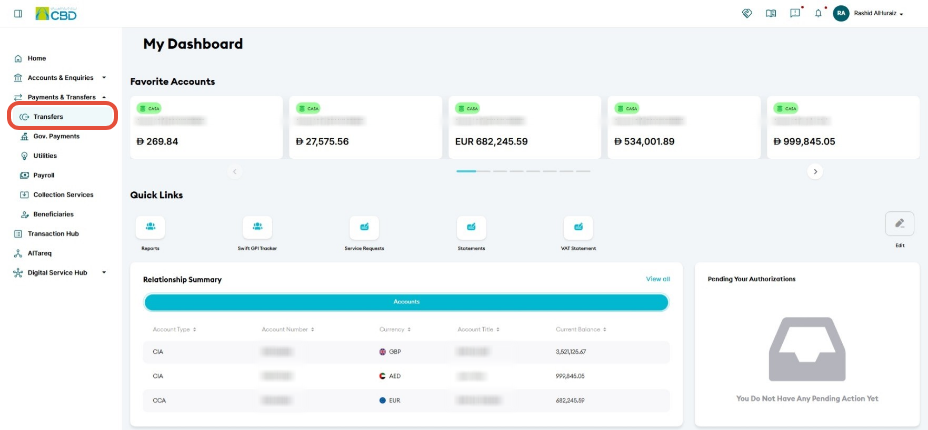
- Navigate to: Payments & Transfers ➜ Transfers
Step 2: Select Transfer Type
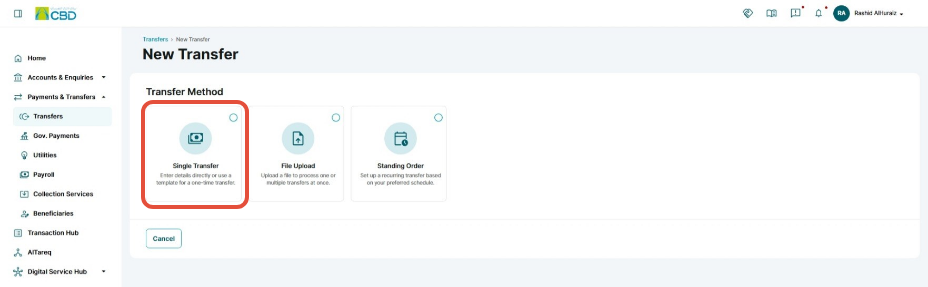
- Click Initiate Transfer.
- Select Single Transfer.
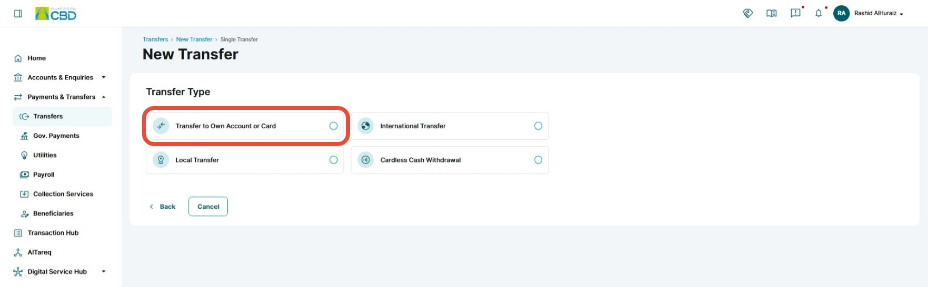
- Choose Transfer to Own Account or Card.
Step 3: Enter Transfer Details
Complete the transfer information.
Required Information
- Debit Account: The account from which the funds will be deducted.
- Credit Account: The account that will receive the funds.
- Transfer Amount: The amount to be transferred.
- Credit Reference: Enter a reference that will be associated with the receiving account (available for account-to-account transfers only).
- Debit Reference: Enter a reference that will be associated with the debit account (available for account-to-account transfers only).
Foreign Exchange (FX) Deal
If you have an active FX Deal:
- Select the applicable FX Deal Number.
- Verify the deal details before proceeding.
Note: The FX Deal option is only available when an eligible foreign currency deal has been booked and is applicable to the selected transfer.
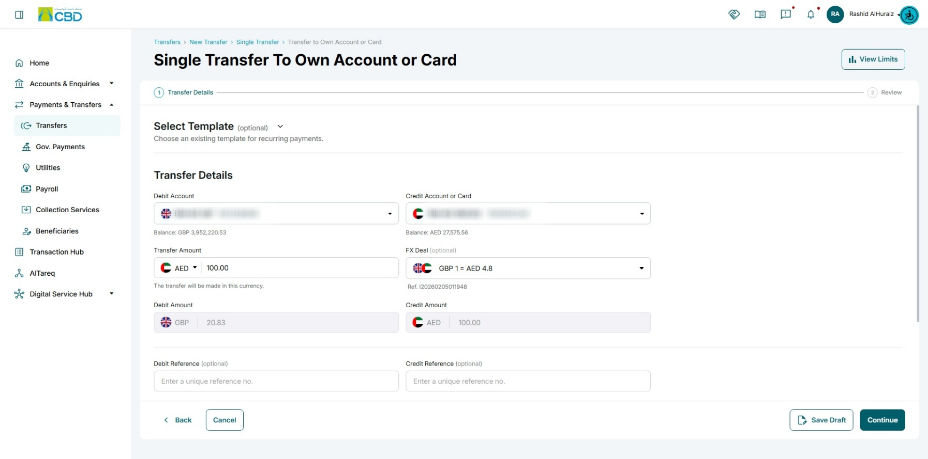
Once all required information has been entered, click Continue.
Step 4: Review and Submit
Review the transfer details carefully before submission.
Verify:
- Debit Account
- Credit Account
- Transfer Amount
- Currency
- FX Deal Details (if applicable)
You may also:
- Review the Terms and Conditions
- Add an Internal Note (optional)
To continue:
- Accept the Terms and Conditions.
- Click Submit.
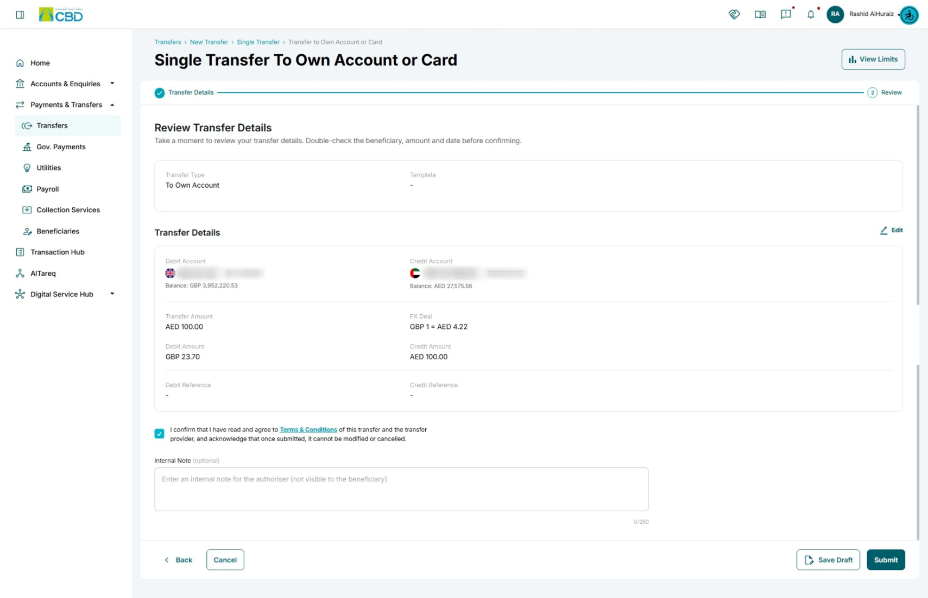
Important: Ensure the selected accounts, transfer amount, and FX Deal details are correct before submitting the transaction.
Step 5: Authenticate the Transaction
Complete authentication using one of the following methods:
CBD iBusiness Mobile App
- Approve the request using the CBD iBusiness Mobile App.
- Complete biometric authentication.
Google Authenticator
- Open the Google Authenticator application.
- Enter the generated One-Time Password (OTP).
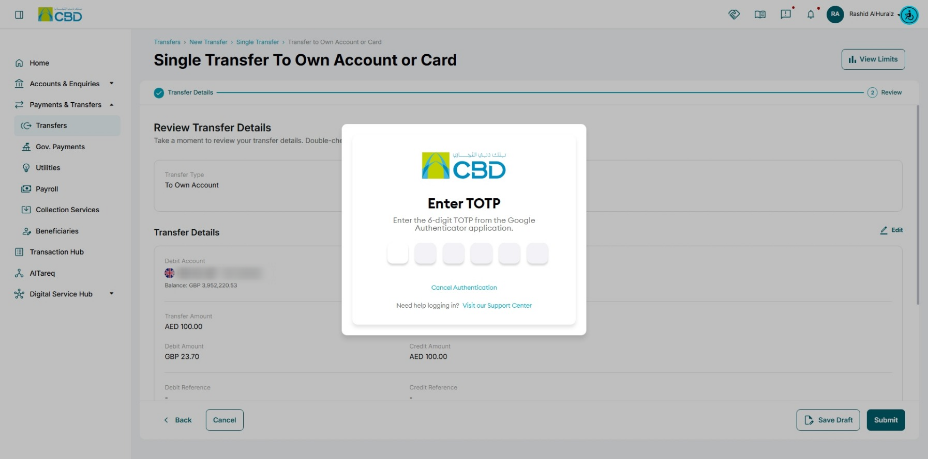
Step 6: Confirmation
After successful authentication:
- The transfer will be submitted for processing.
- A confirmation screen will be displayed.
- A unique reference number will be generated.
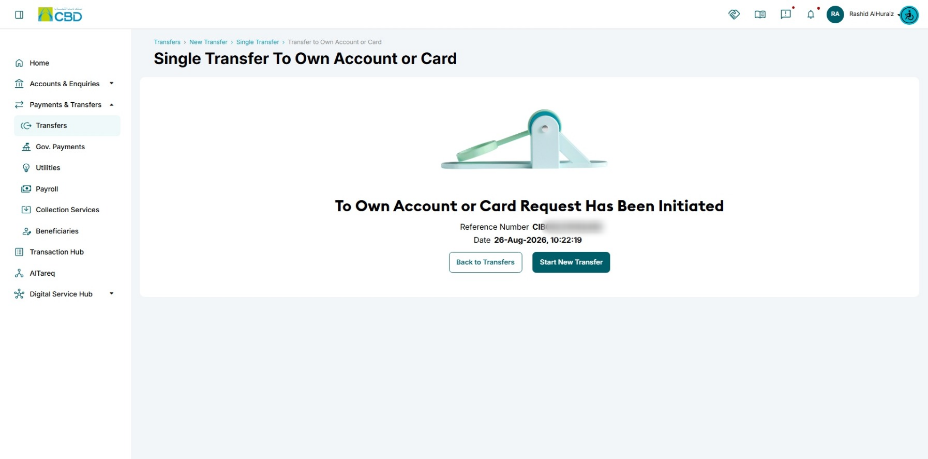
Use the reference number to track the transaction if required.
Support Notes / Best Practices
- Verify the debit and credit accounts before submitting the transfer.
- Ensure sufficient funds are available in the debit account.
- If using an FX Deal, verify that the selected deal matches the transfer currency and amount.
- Review all details carefully on the Summary Review screen before submission.
- Retain the transaction reference number for tracking and support enquiries.