
Overview
This guide provides step-by-step instructions for uploading and processing a Non-WPS Salary File through the iBusiness Web Portal.
This feature is used to process salary payments for employees through payroll
Step 1: Access Payroll Services
- Log in to iBusiness.
- Navigate to: Payments & Transfers ➜ Payroll ➜ Initiate Payroll
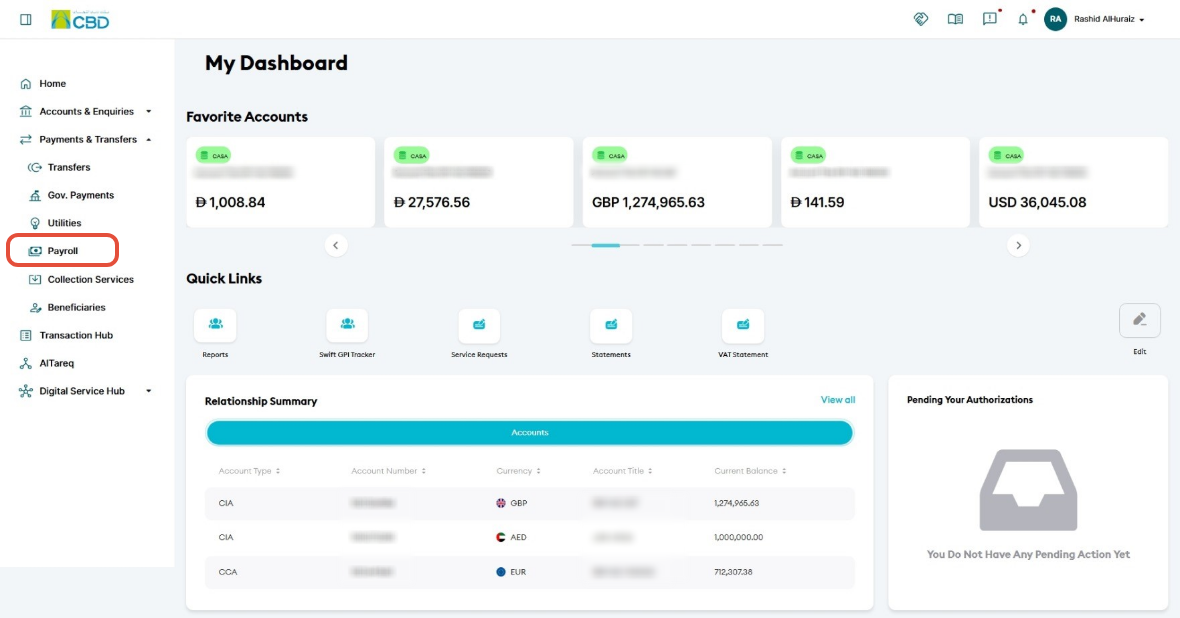
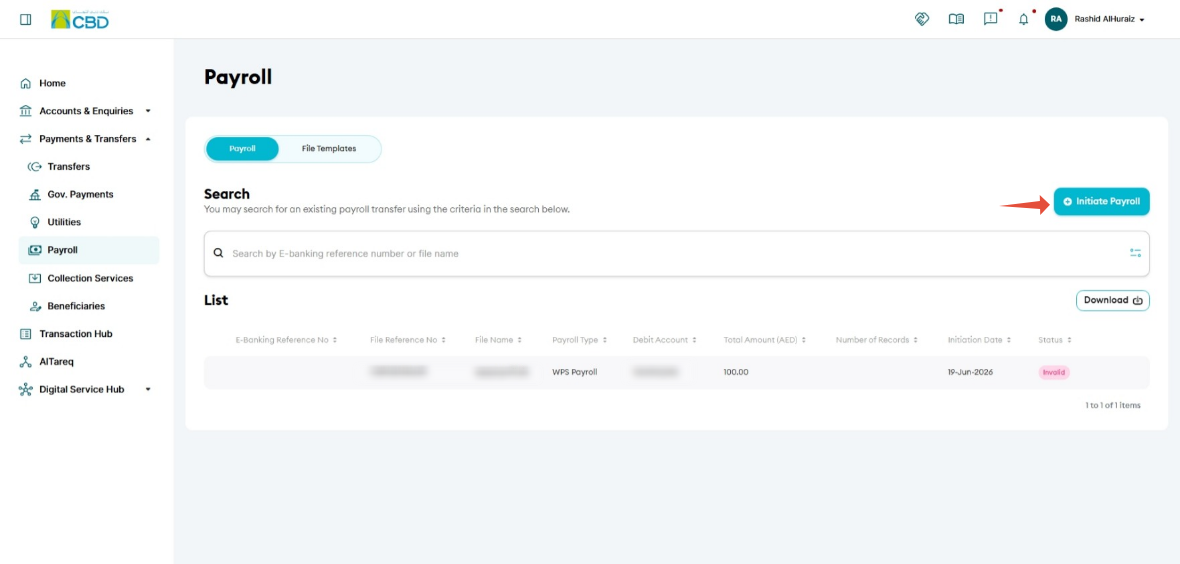
- Select the required Payroll Type
- Click Proceed.
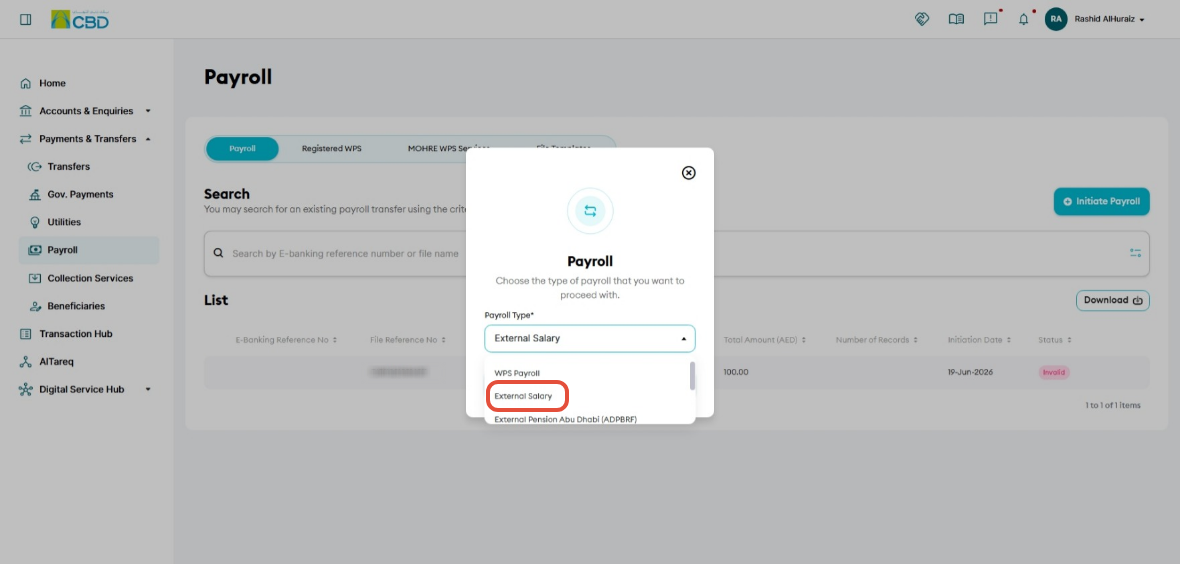
- Select Payroll type (below example is of External Salary Payroll) and click on Proceed.
Step 2: Enter Payroll Details
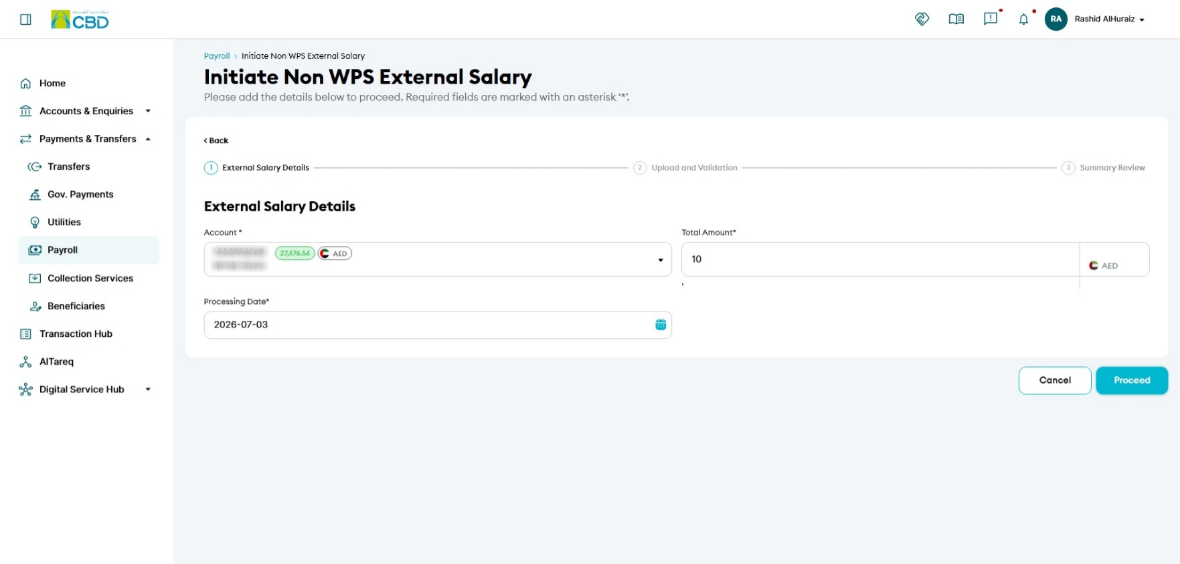
- Select the Debit Account from which the salary payments will be processed.
- Enter the Total Salary Amount contained within the payroll file.
- Select the Processing Date.
- Click Proceed.
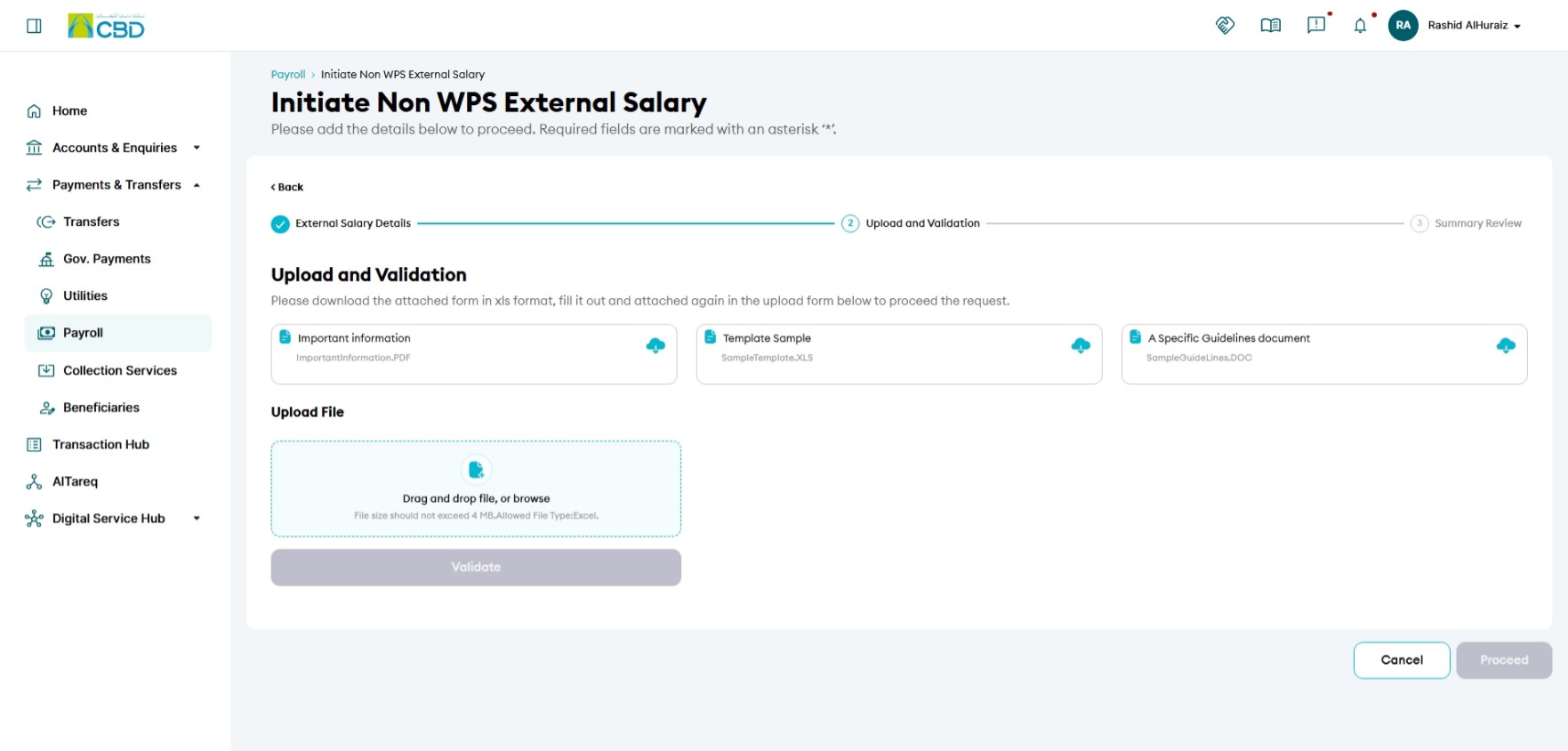
Step 3: Upload the Salary File
- Upload the salary file using either of the following methods:
- Drag and drop the file into the upload area.
- Click Browse and select the file from your device.
Helpful Resources
Before uploading the file, you can download the following resources:
- Download Sample Salary File: Provides a template that shows the required file format and mandatory fields.
- Download User Guide: Provides instructions and file preparation requirements to help ensure successful upload and processing.
Using the sample file and user guide is recommended, especially when creating a salary file for the first time. This helps reduce validation errors and ensures the file meets the required payroll format.
Step 4: Validate the File
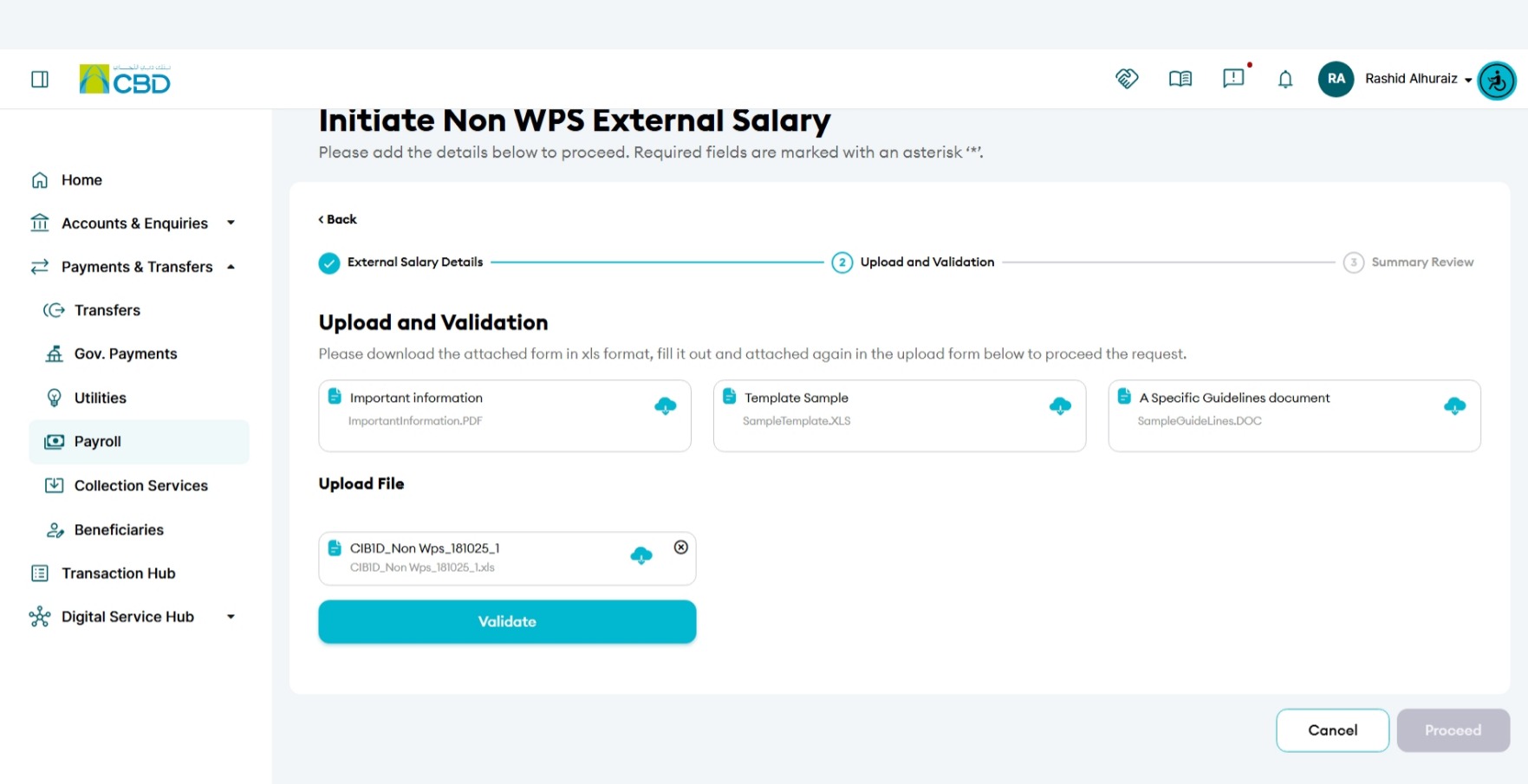
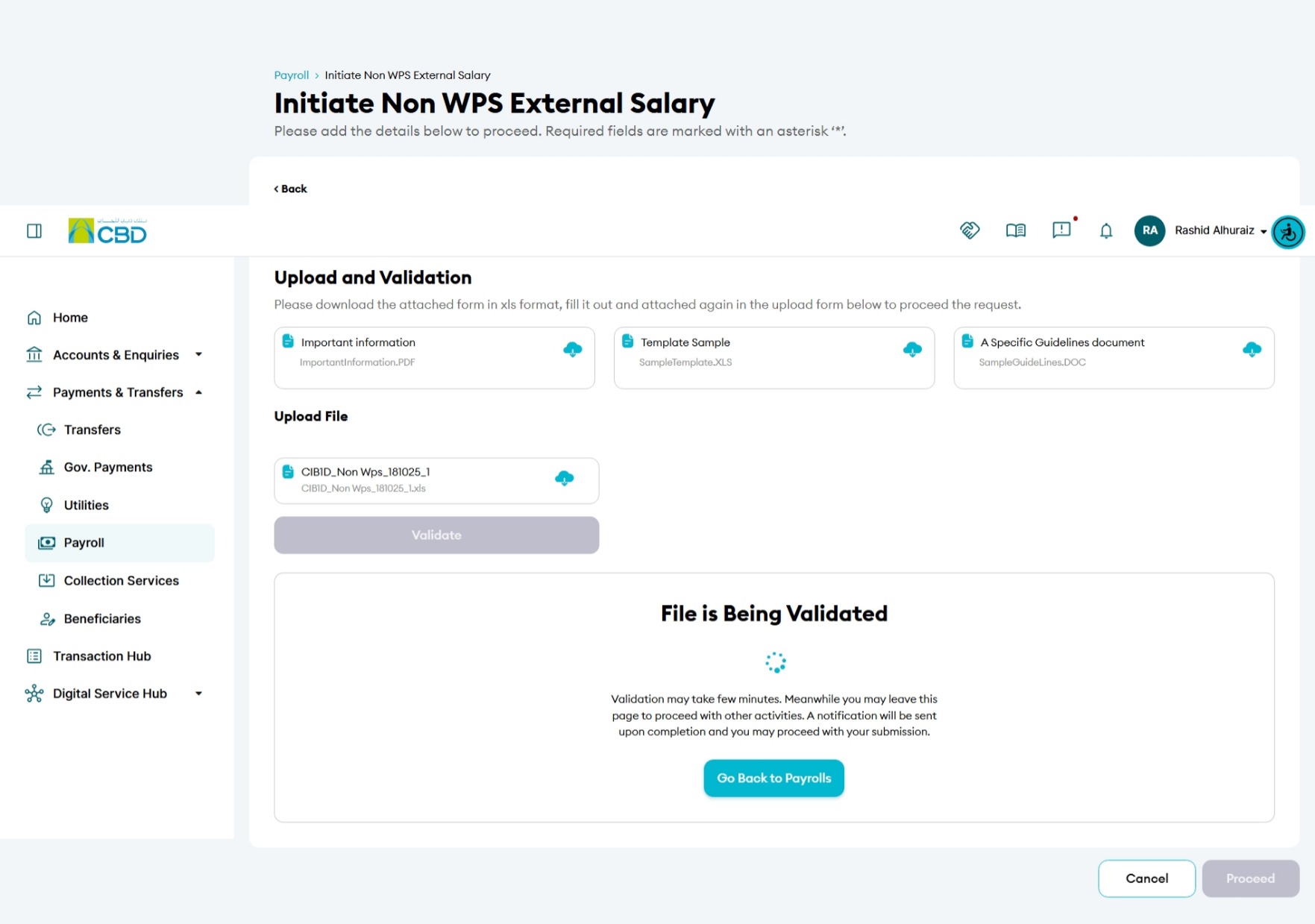
- Click Validate File.
- The system will start validating (it may take time)
If Validation Fails
If validation errors are detected:
- Review the error message displayed by the system.
- Correct the file accordingly.
- Re-upload the file.
- Run the validation process again.
Step 5: Validation Successful
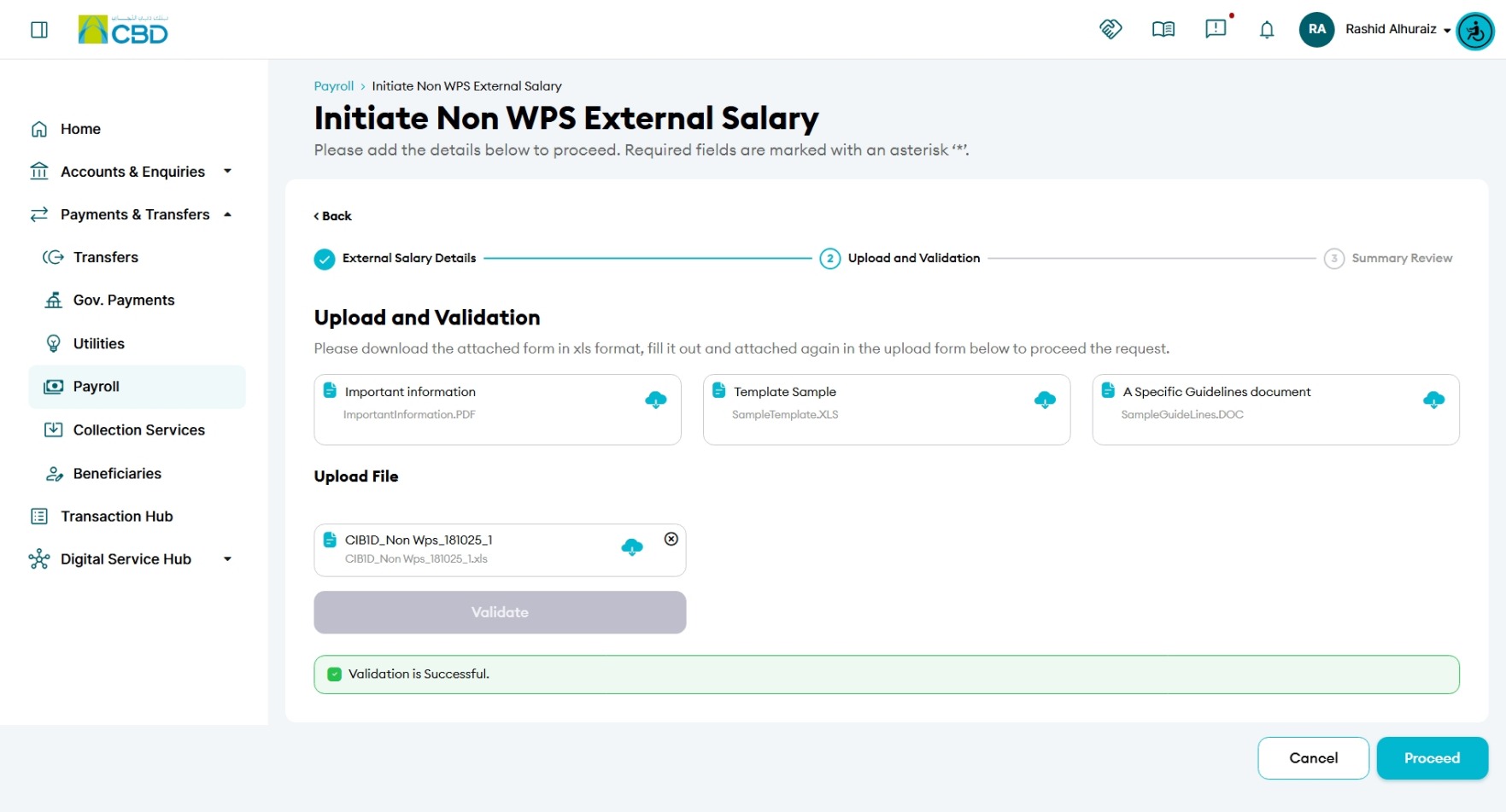
Once validation is completed successfully, the system will confirm that the salary file has passed all validation checks.
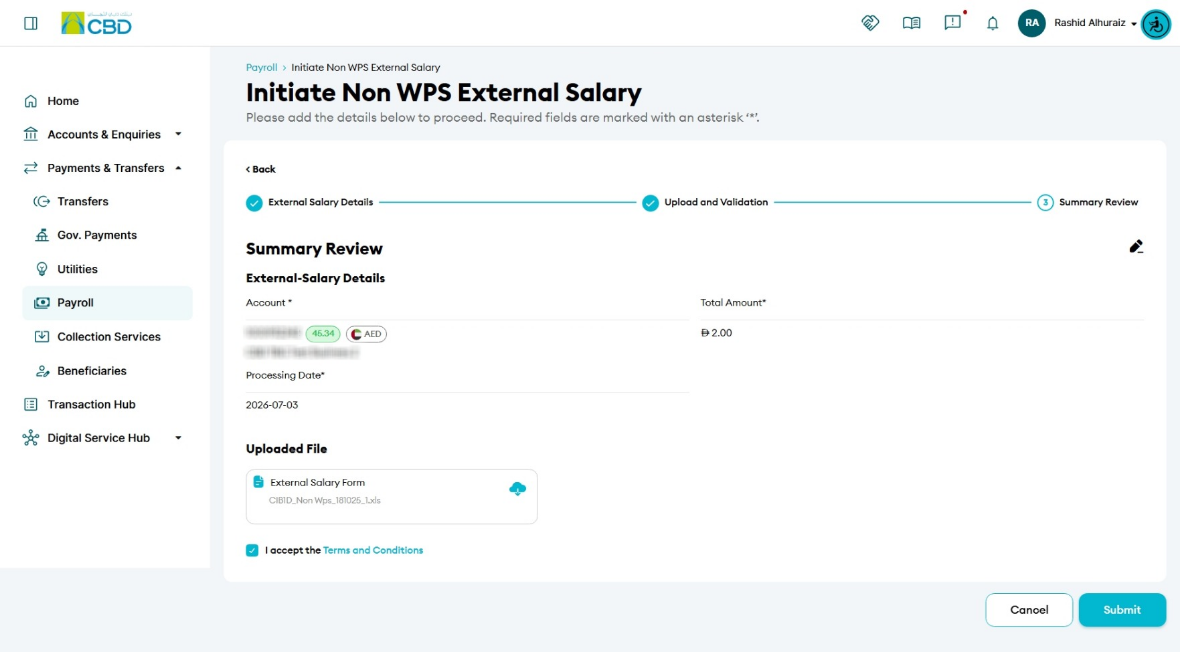
Step 6: Review and Confirm
- Review all payroll information carefully, including:
- Debit Account
- Processing Date
- Total Salary Amount
- Uploaded File Details
- Verify that all information is correct.
- Click Submit to continue.
Step 7: Authenticate the Request
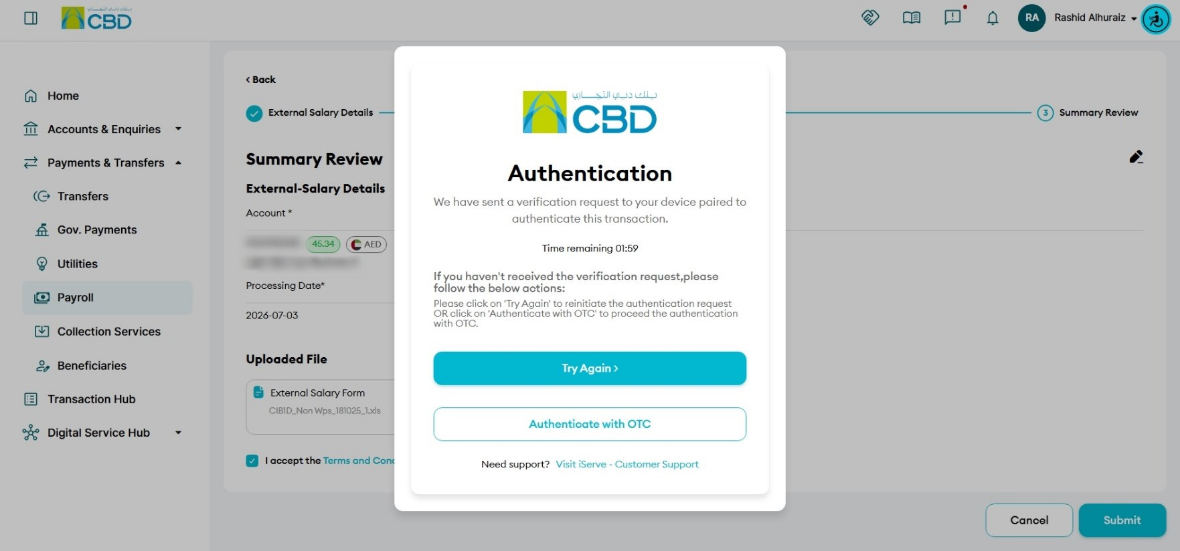
Complete authentication using one of the following methods:
iBusiness App Authentication
- A notification will be sent to the registered iBusiness Mobile App.
- Review the transaction details.
- Approve the request using biometric or device authentication.
Google Authenticator
- Open the Google Authenticator application.
- Enter the generated One-Time Password (OTP).
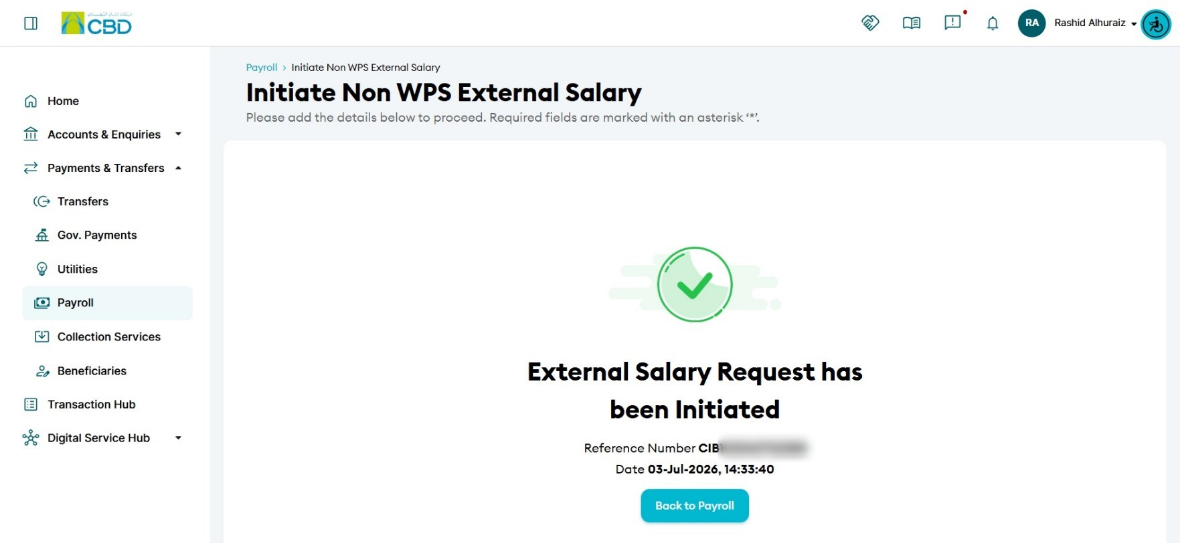
Upon successful authentication, the payroll request will be submitted for processing, and a reference number will be generated.
Step 8: Approval (If Maker–Checker Is Enabled)
If your organization uses a Maker/Checker approval workflow:
- The payroll request will be routed to the designated Approver.
- The Approver must:
- Log in to iBusiness
- Navigate to Transactions ➜ Pending Your Authorizations
- Locate the request under the transaction type Payroll.
- Review the payroll details.
- Select: Approve or Reject
The payroll will only be processed after all required approvals have been completed.
Support Notes / Best Practices
- Always use the latest salary file template provided by iBusiness.
- Ensure the total salary amount entered matches the amount in the uploaded file.
- Review all validation errors carefully before re-uploading the file.
- Verify that sufficient funds are available in the selected debit account before the processing date.
- Retain the generated reference number for future tracking and support enquiries.