
Overview
This guide provides step-by-step instructions for transferring funds between your own accounts or making a payment to your own card using the iBusiness Web Portal.
This transfer type allows you to move funds instantly between eligible accounts and cards linked to your profile.
Step 1: Navigate to Transfers
- Log in to iBusiness.
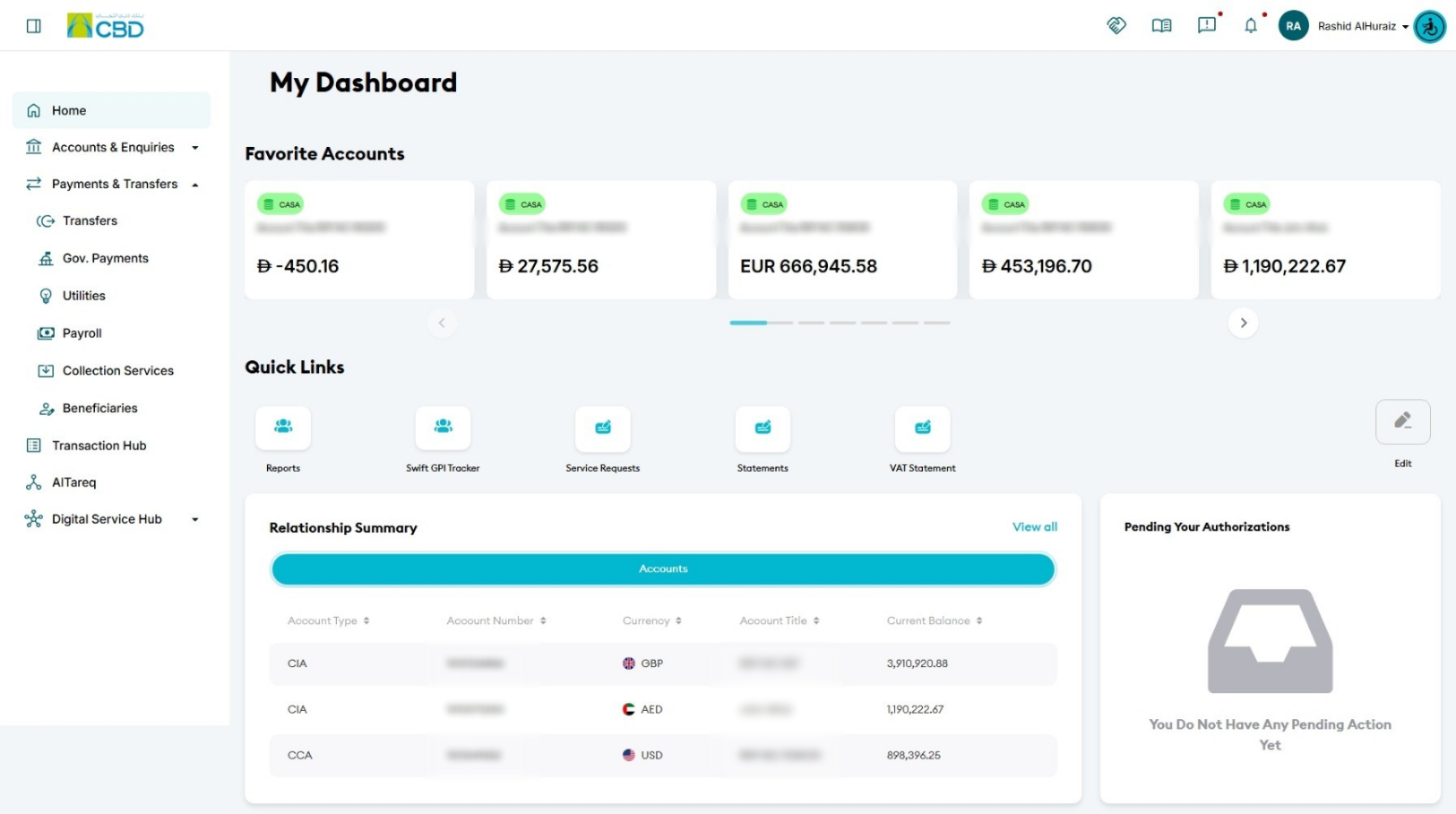
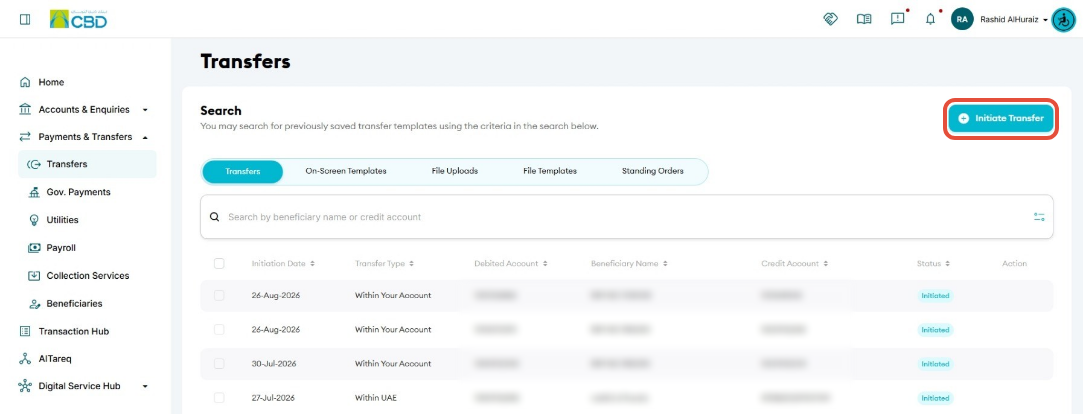
- Navigate to: Payment & Transfers ➜ Transfers ➜ Initiate Transfer
Step 2: Select Transfer Type
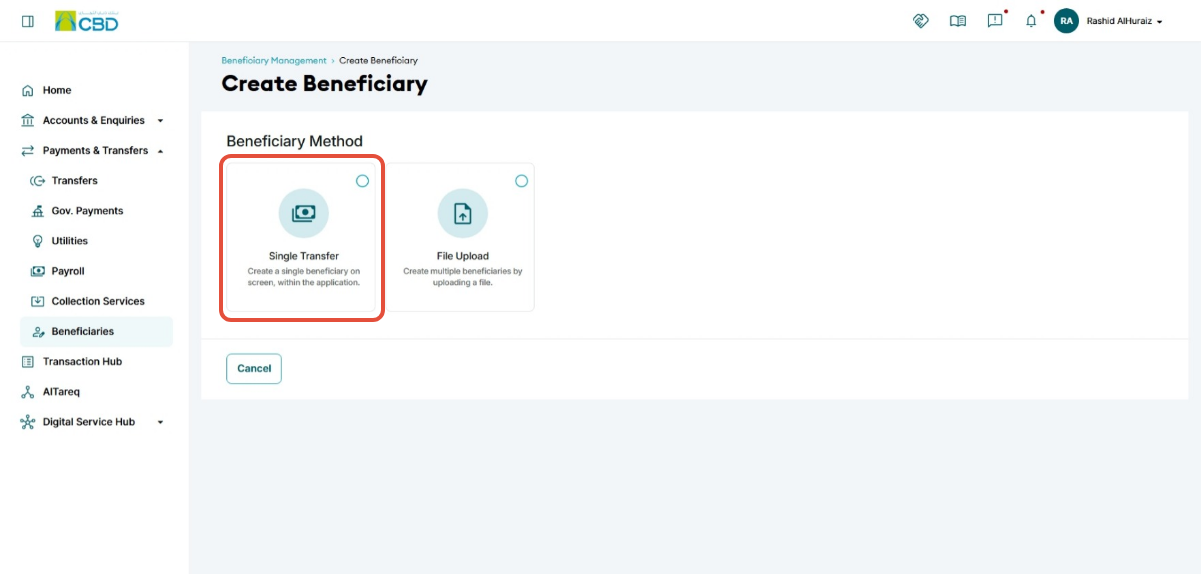
- Select Single Transfer.
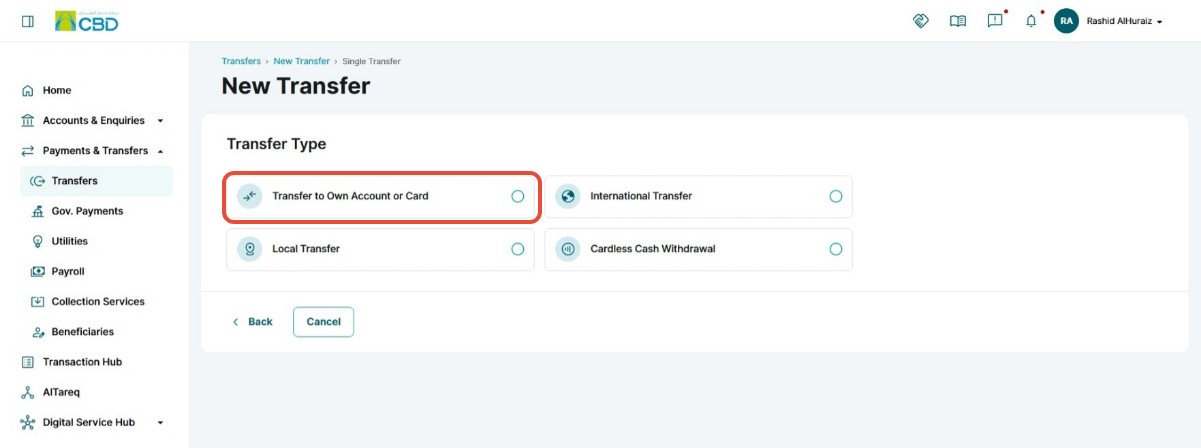
- Choose Transfer to Own Account or Card.
- Click Proceed to continue.
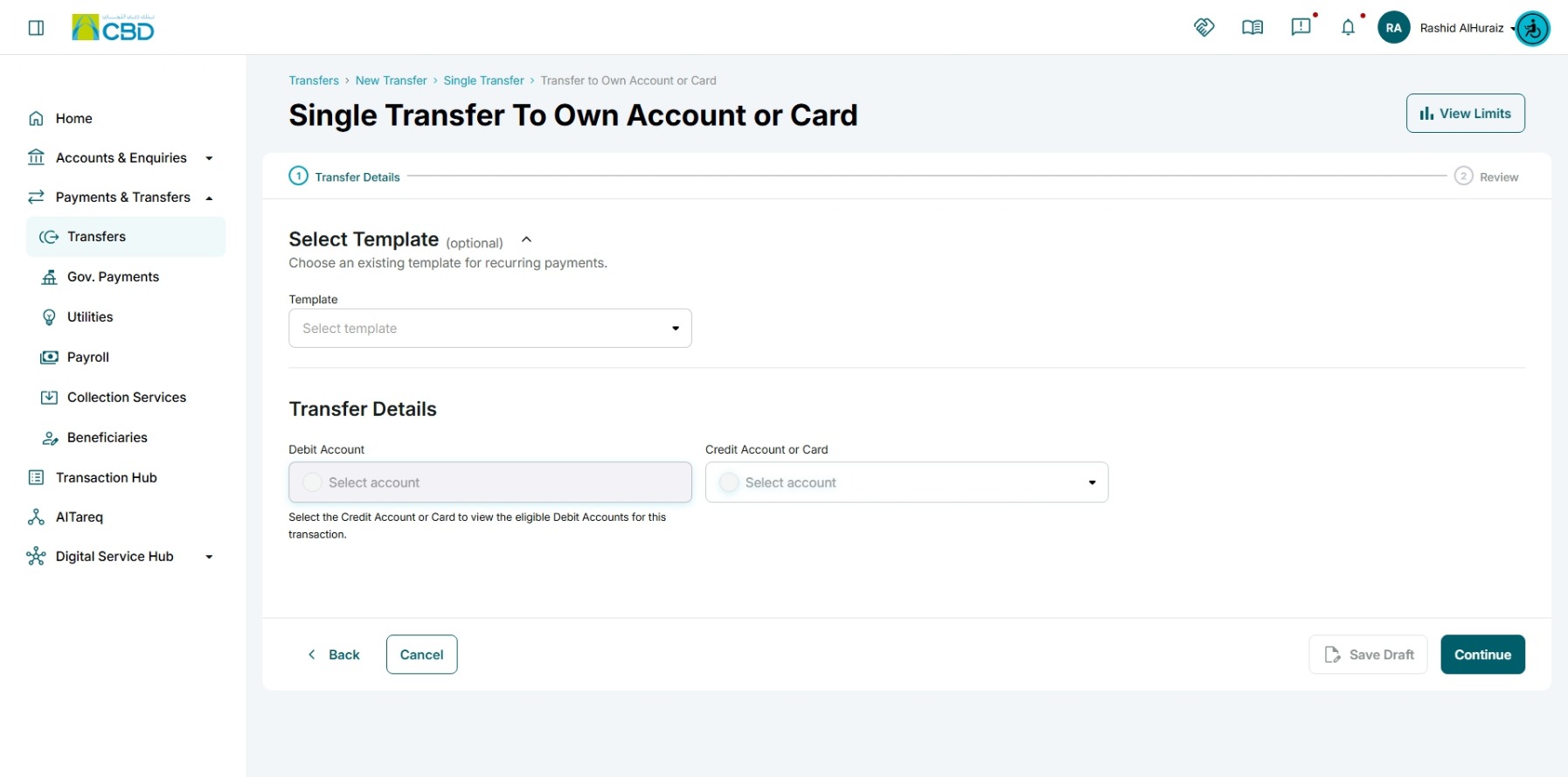
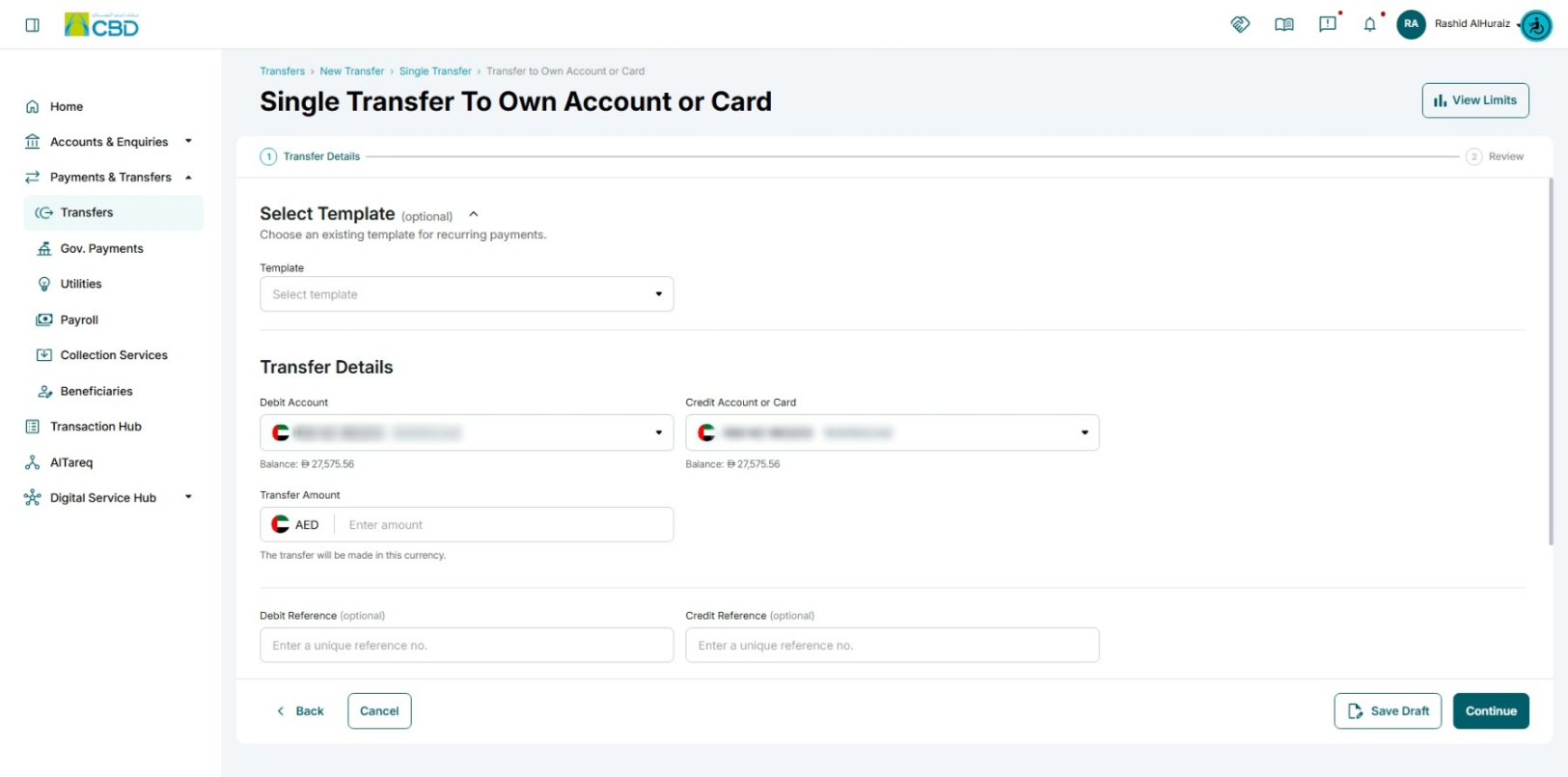
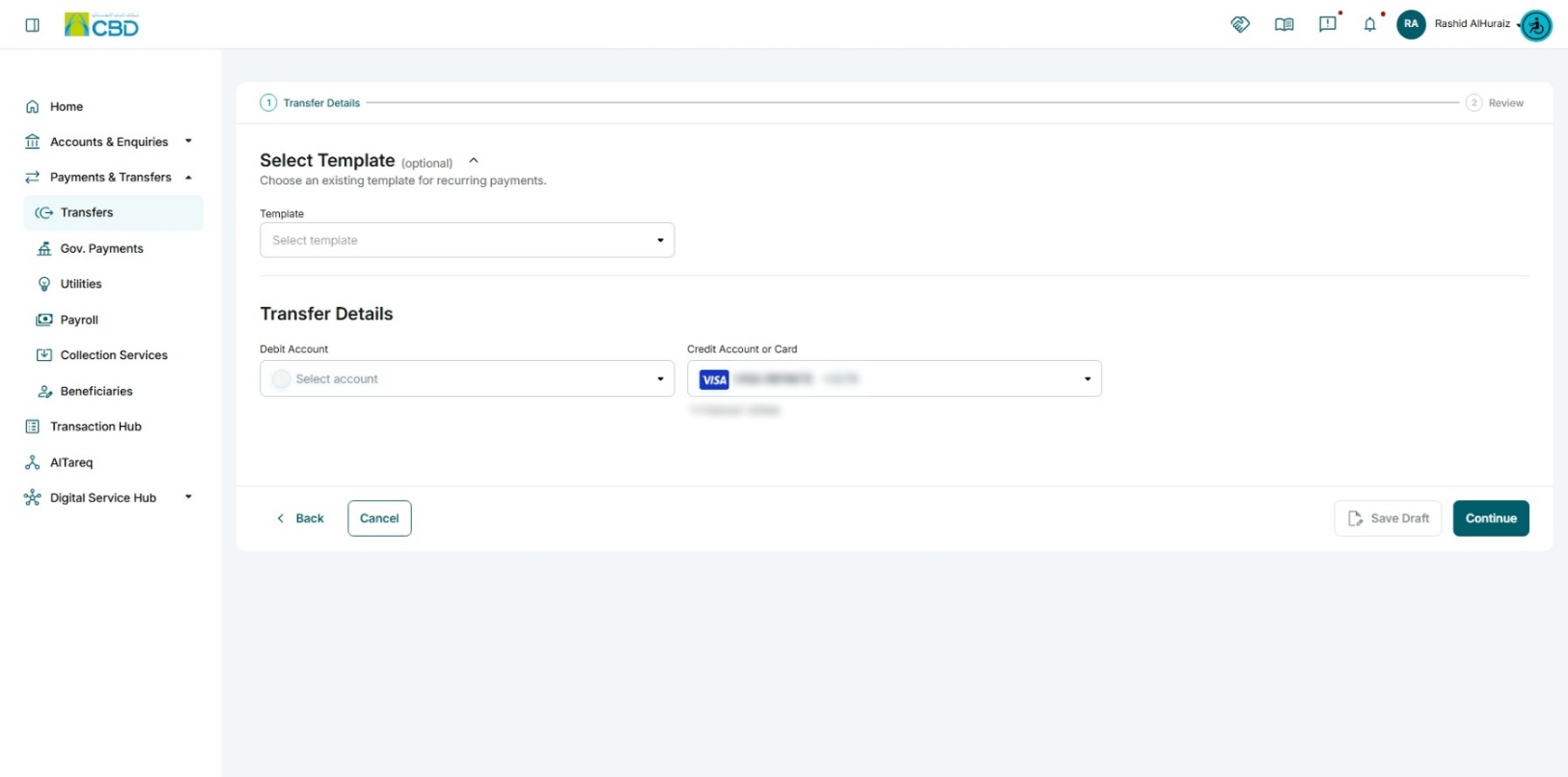
Step 3: Enter Transfer Details: Complete the required transfer information:
- Debit Account: Select the account from which the funds will be deducted.
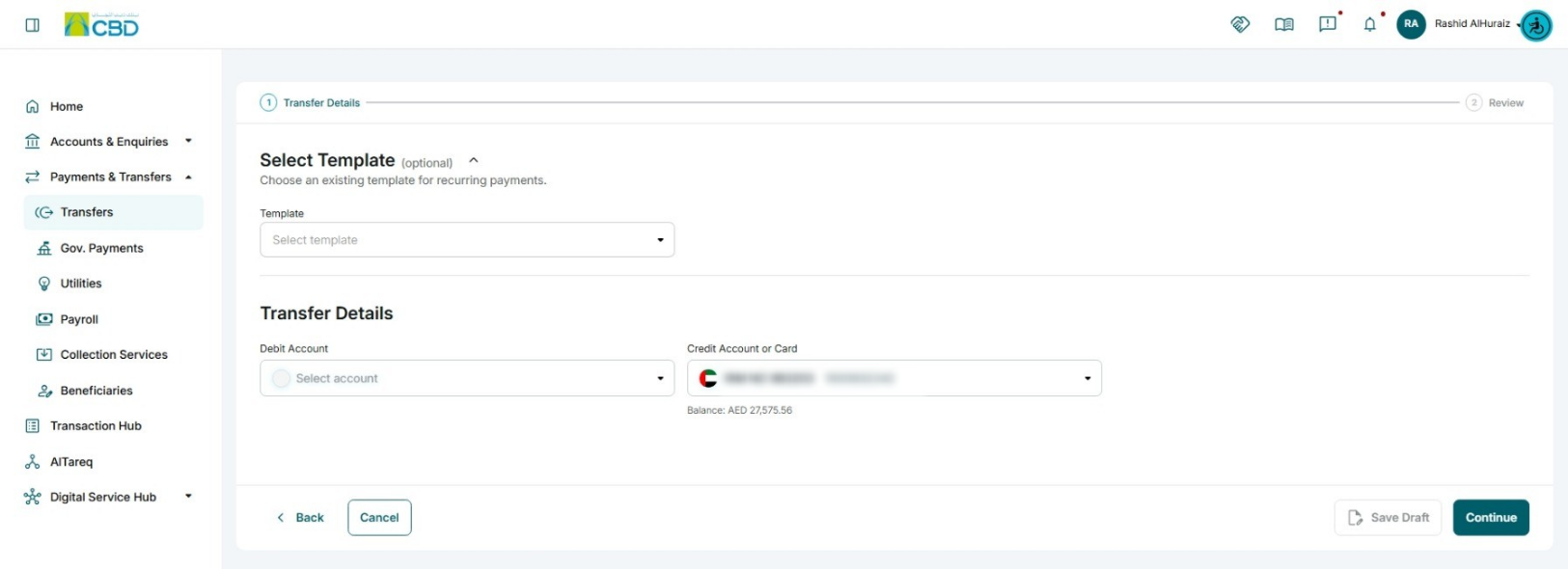
- Credit Account / Card: Select the account or card that will receive the funds.
- Transfer Amount: Enter the amount you wish to transfer.
- Reference (Optional): Enter a reference or description for your records, if required.
- Save Draft: this will save the transfer for later use. Learn More
- Save Template: saving this transfer as a templet this will include the transfer details and beneficiary details. Learn More
- Supporting document (Optional): you will be able to attach up to 5 documents to your transfer request
Credit Reference: Enter a reference that will be associated with the receiving account (available for account-to-account transfers only).
Debit Reference: Enter a reference that will be associated with the debit account (available for account-to-account transfers only).
Important Notes
- You must select the Credit Account / Card first. The system will then verify whether you are eligible to perform the transfer.
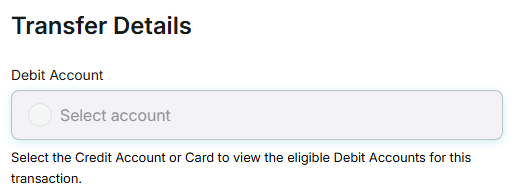
- Once the Credit Account / Card is selected, the available Debit Account(s) will become active and available for selection.
- If the transfer is being made between your own accounts, the Credit Reference and Debit Reference fields will be available.
- If the transfer is being made to a card, the Credit Reference and Debit Reference fields will not be displayed.
After completing all required fields, click Continue to proceed.
Step 4: Review and Submit
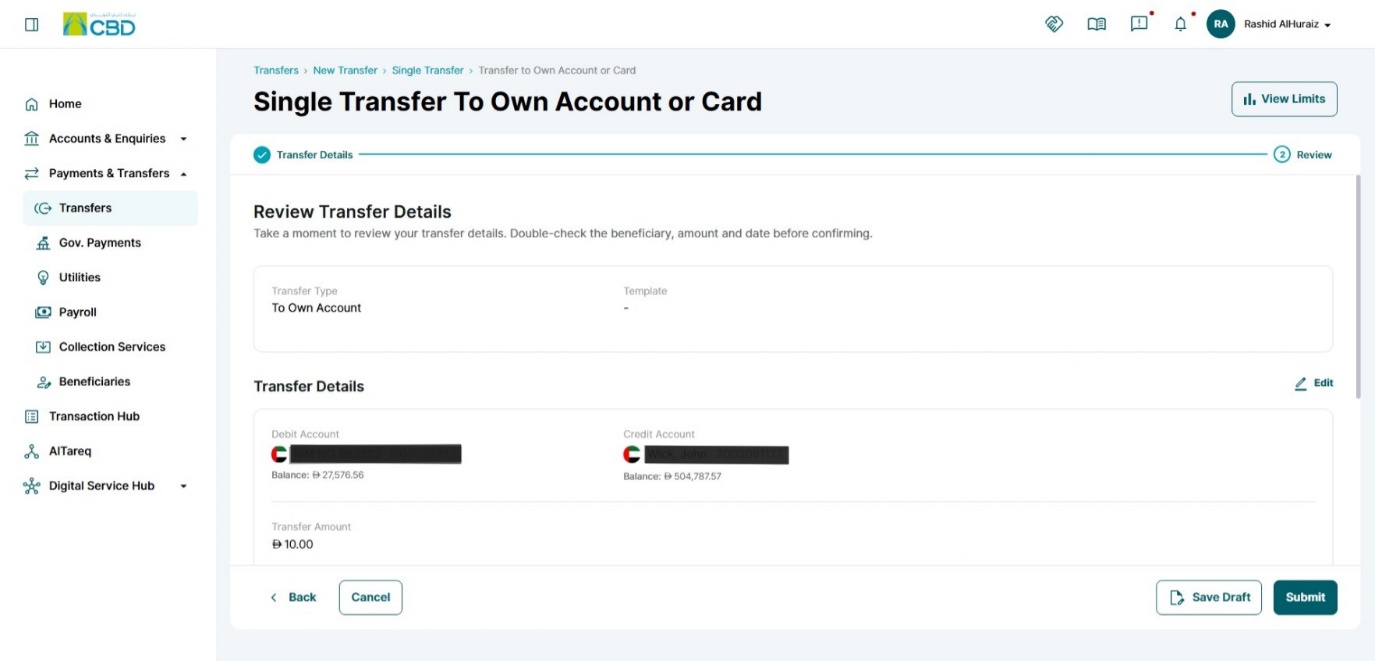
- Review all transfer details carefully.
- Verify:
- Debit account
- Credit account or card
- Transfer amount
- Reference details (if entered)
- Accept the Terms and Conditions.
- Click Submit.
Step 5: Authenticate the Request
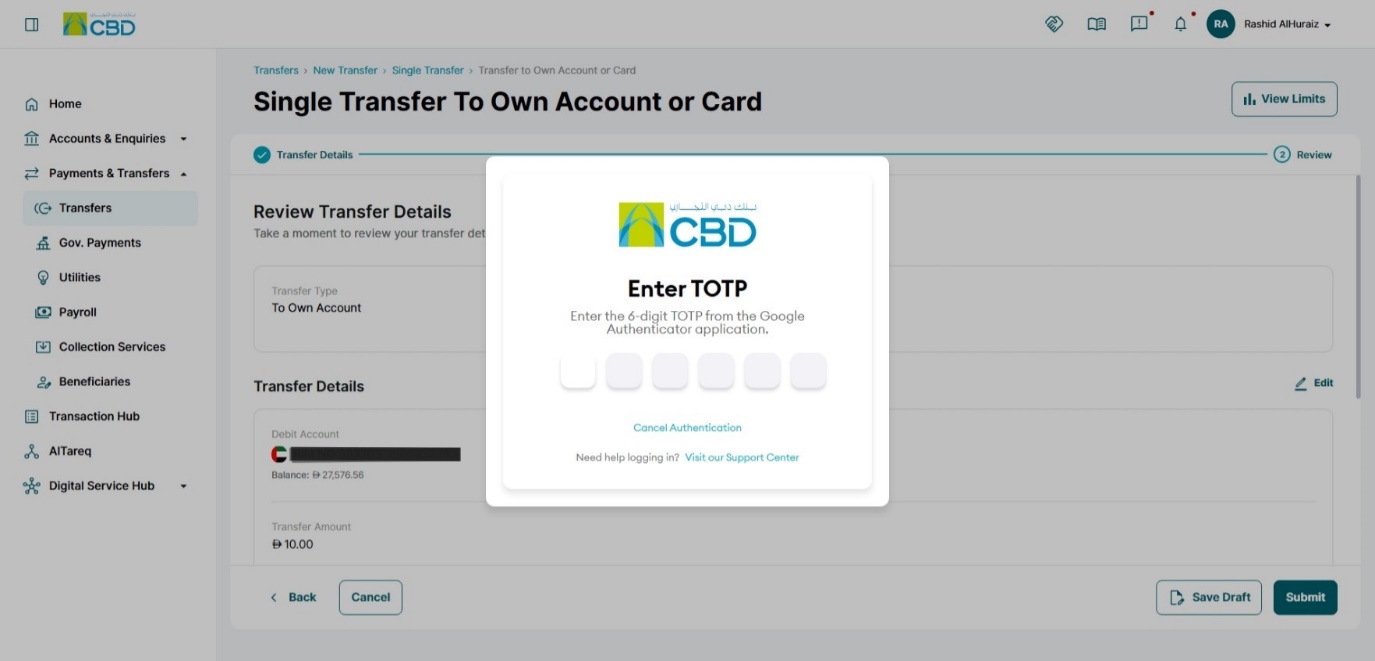
Complete authentication using one of the following methods:
Mobile App Authentication
- Approve the request via the iBusiness mobile app notification
- Use biometric or device verification
Google Authenticator
- Enter the One-Time Password (OTP) generated from the app
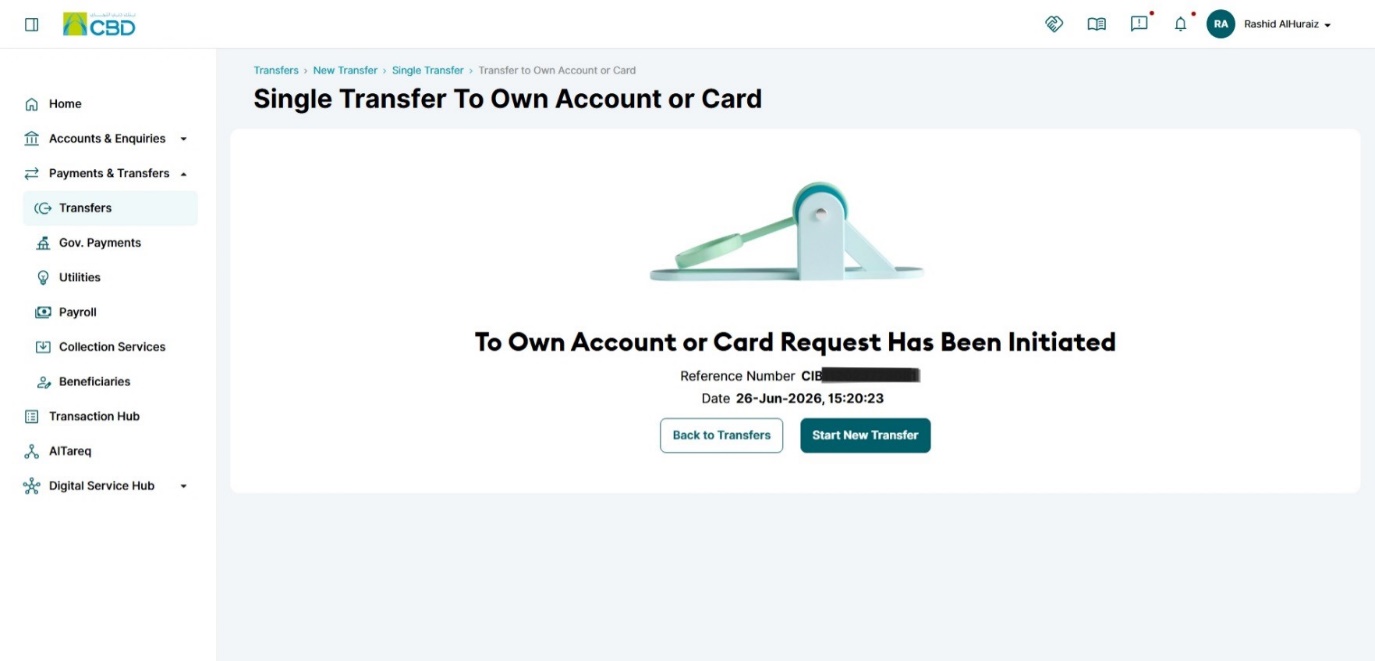
Once authenticated successfully, a confirmation screen with a reference number will be generated.
Step 6: Approval (If Maker–Checker is Enabled)
If a Maker–Checker setup is configured:
- The request is routed to a Checker/Approver.
- The Approver must:
- Log in to iBusiness
- Navigate to Transactions Hub > Pending Your Authorizations
- Locate the transaction under:
- International Transfer
Review the request and select: Approve or Reject