
Step 1: Navigate
- Log in to iBusiness.
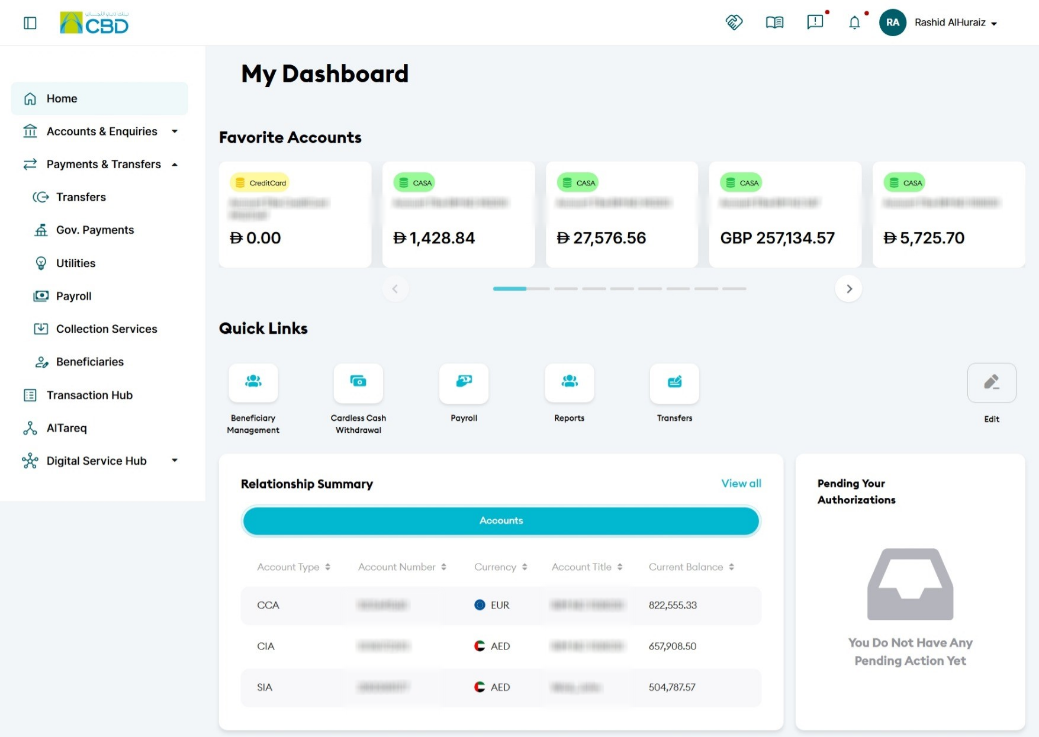
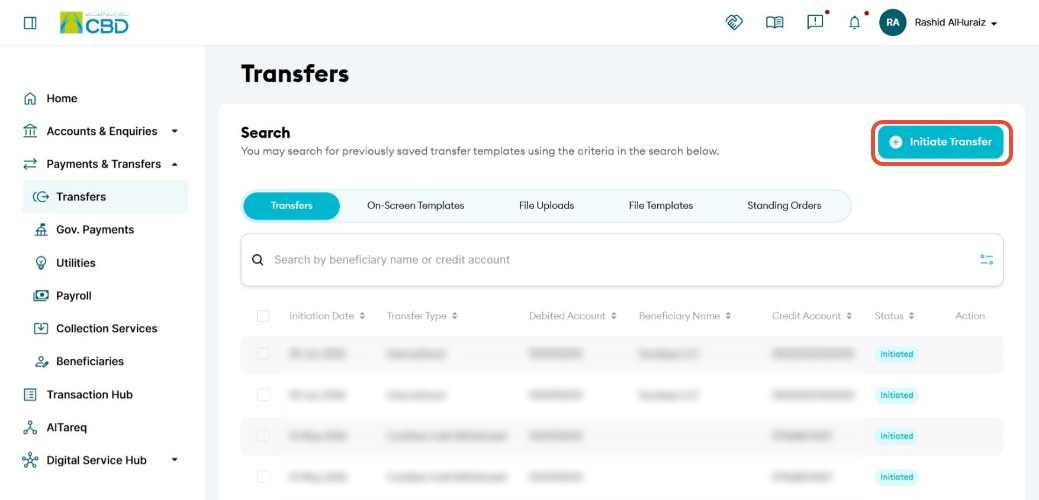
- Navigate to: Payment & Transfers ➜ Transfers ➜ Initiate Transfer
Step 2: Select Transfer Type
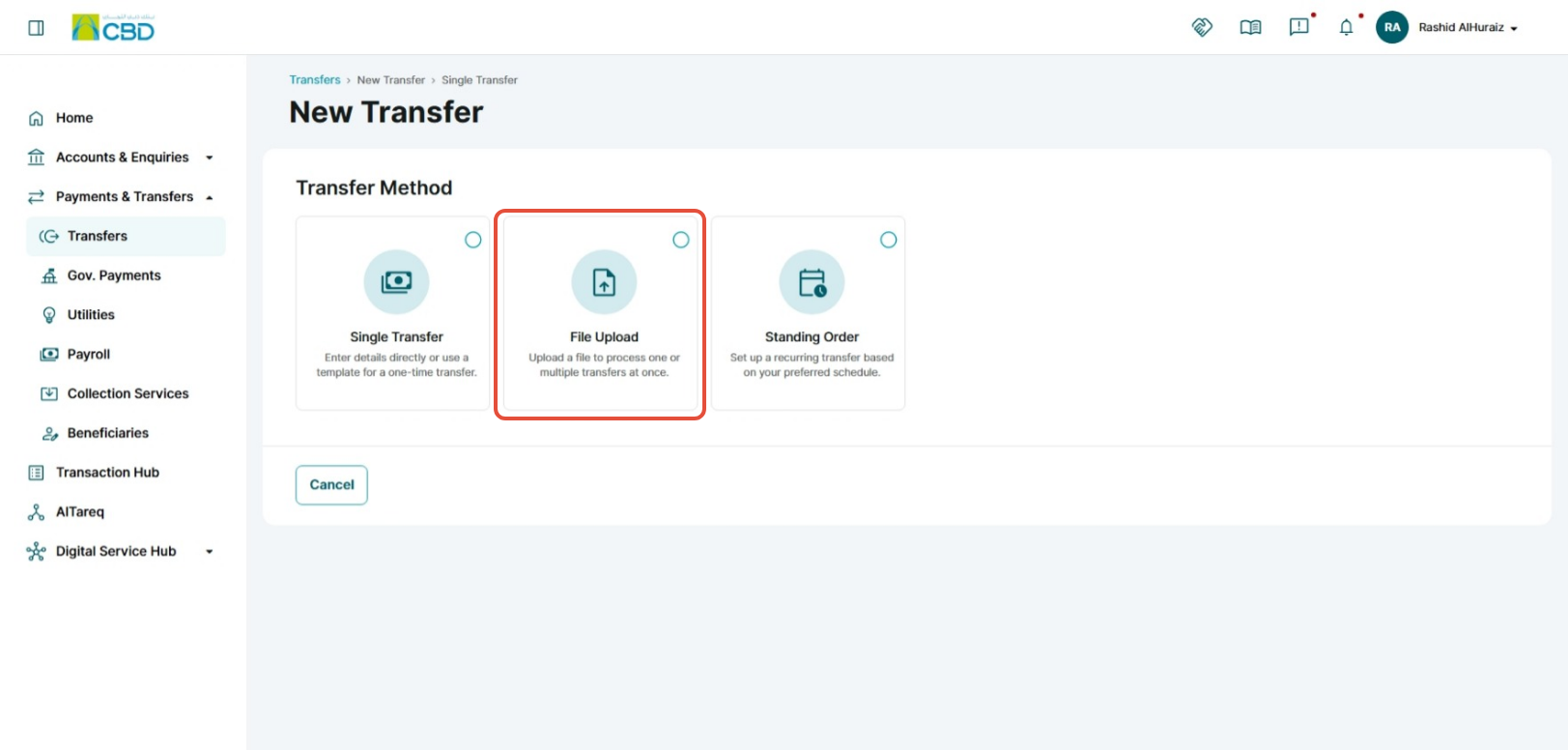
- Select File Uploads ➜ File
- Choose To Other CBD Account as the transfer type.
Step 3: Download and Complete the Template
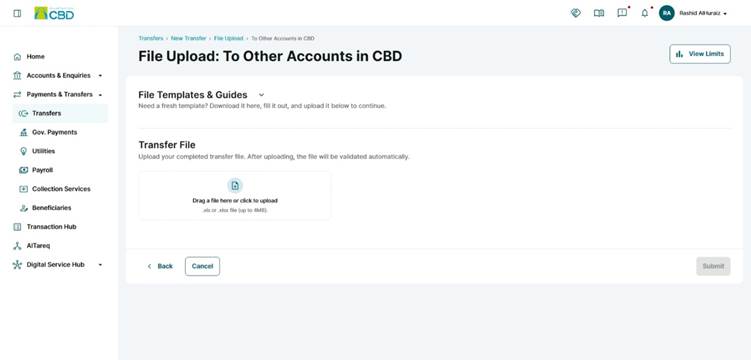
- Download:
- The file template
- The completion guide
- Fill in all required transfer details in the template.
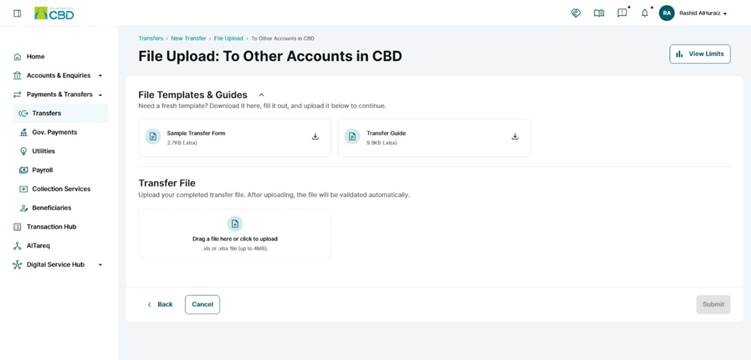
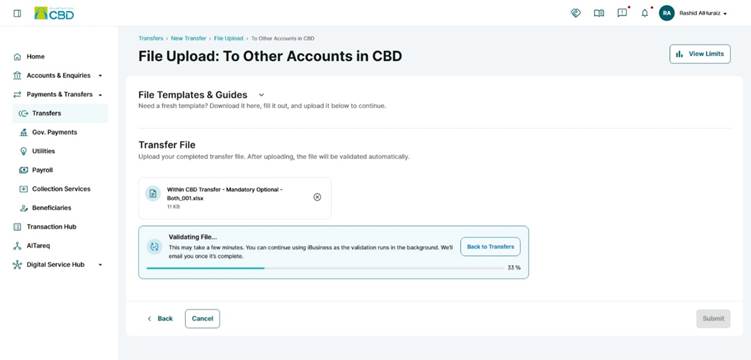
Step 4: Upload and Validate the File
- Upload the completed transfer file.
- The system will validate the uploaded file.
- Validation may take some time depending on file size and number of transactions.
- You will receive an email notification once validation is completed.
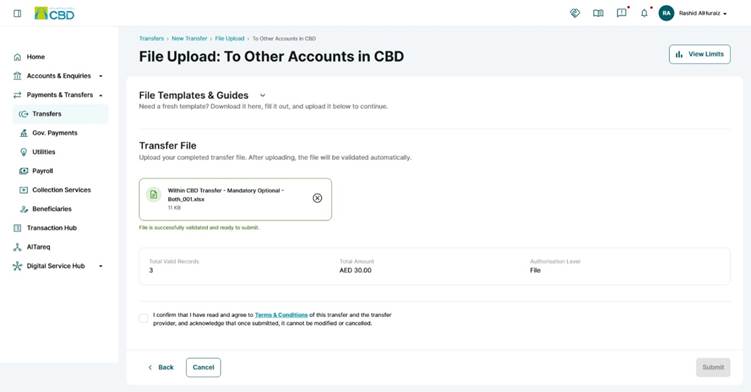
Step 5: Review and Submit
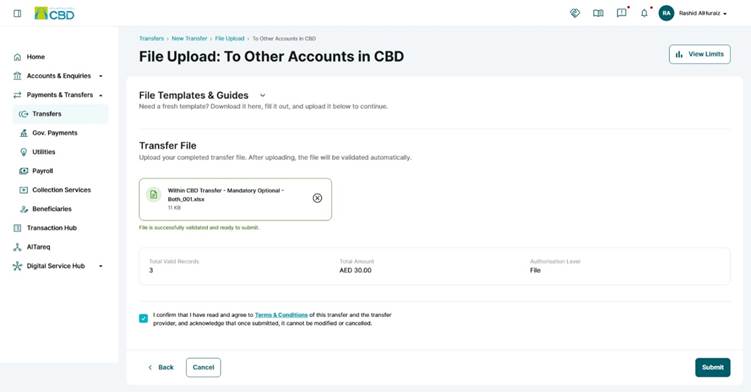
- Review the uploaded transfer details carefully.
- Accept the Terms and Conditions.
- Click Submit to proceed.
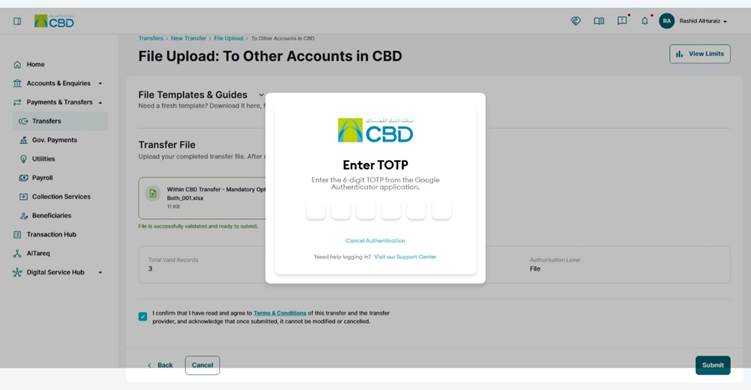
Step 6: Authenticate the Request
Complete authentication using one of the following methods:
Mobile App Authentication
- Approve the request via the iBusiness mobile app notification
- Use biometric or device verification
Google Authenticator
- Enter the One-Time Password (OTP) generated from the app
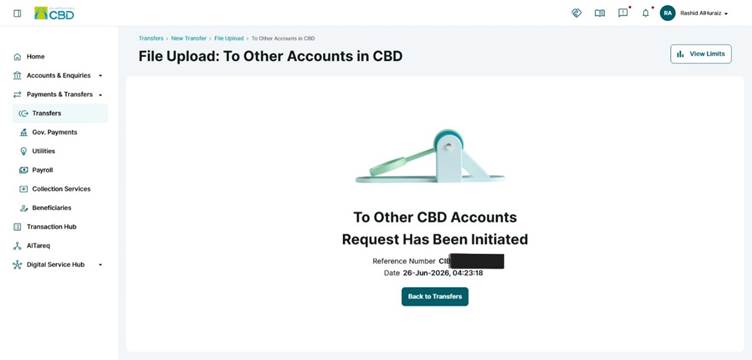
Once authenticated successfully, a confirmation screen with a reference number will be generated.
Step 7: Approval (If Maker–Checker is Enabled)
If a Maker–Checker setup is configured:
- The request is routed to a Checker/Approver.
- The Approver must:
- Log in to iBusiness
- Navigate to Transactions Hub ➜ Pending Your Authorizations
- Review the request and select: Approve or Reject