
Overview
This guide provides step-by-step instructions for uploading and processing a Pension Payment File through iBusiness Online.
This process can be used for pension payments to the relevant pension authorities, including Abu Dhabi Pension Payments.
Step 1: Access Payroll Services
Log in to iBusiness Online.
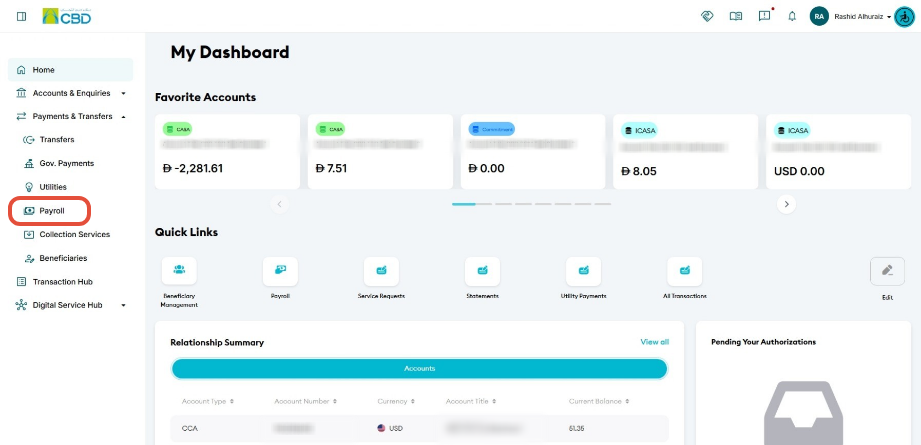
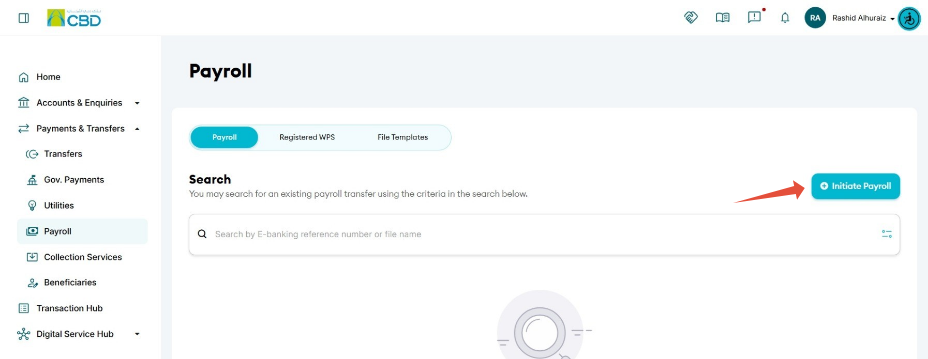
Navigate to: Payments & Transfers ➜ Payroll ➜ Initiate Payroll
Step 2: Select the Payroll Type
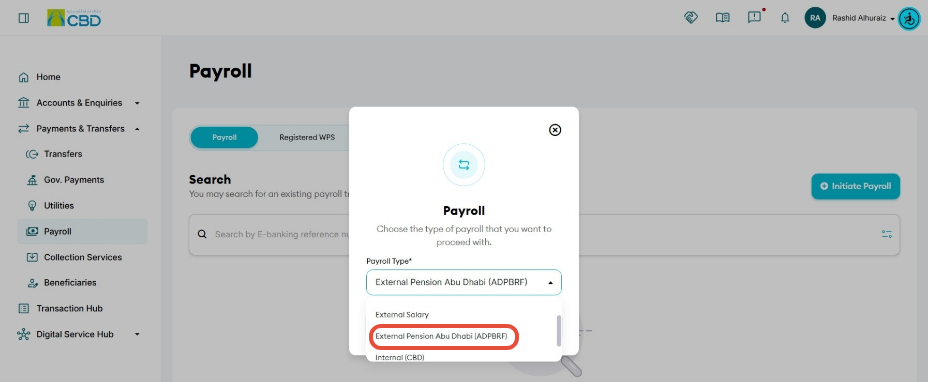
From the Payroll Type drop-down menu, select:
- ADPBRF (Abu Dhabi Pension Payments)
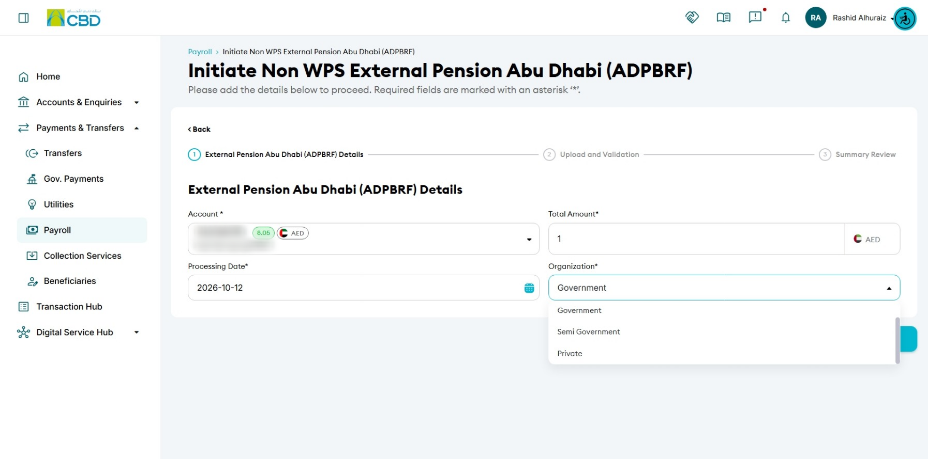
Debit Account Number
Select the account from which the pension payment will be processed.
Total Amount
Enter the total value of all payments included in the uploaded pension file.
Processing Date
- By default, the current date is selected.
- For future-dated payments, select the required processing date from the calendar.
Organization Type
Select the applicable organization type:
- Government
- Semi-Government
- Private
Step 3: Download and Prepare the Pension File
Before uploading the file:
- Click Download Template Sample to download the pension file template.
- Click Download A Specific Guidelines document to download the file completion guide.
- Complete the pension file using the provided template and instructions.
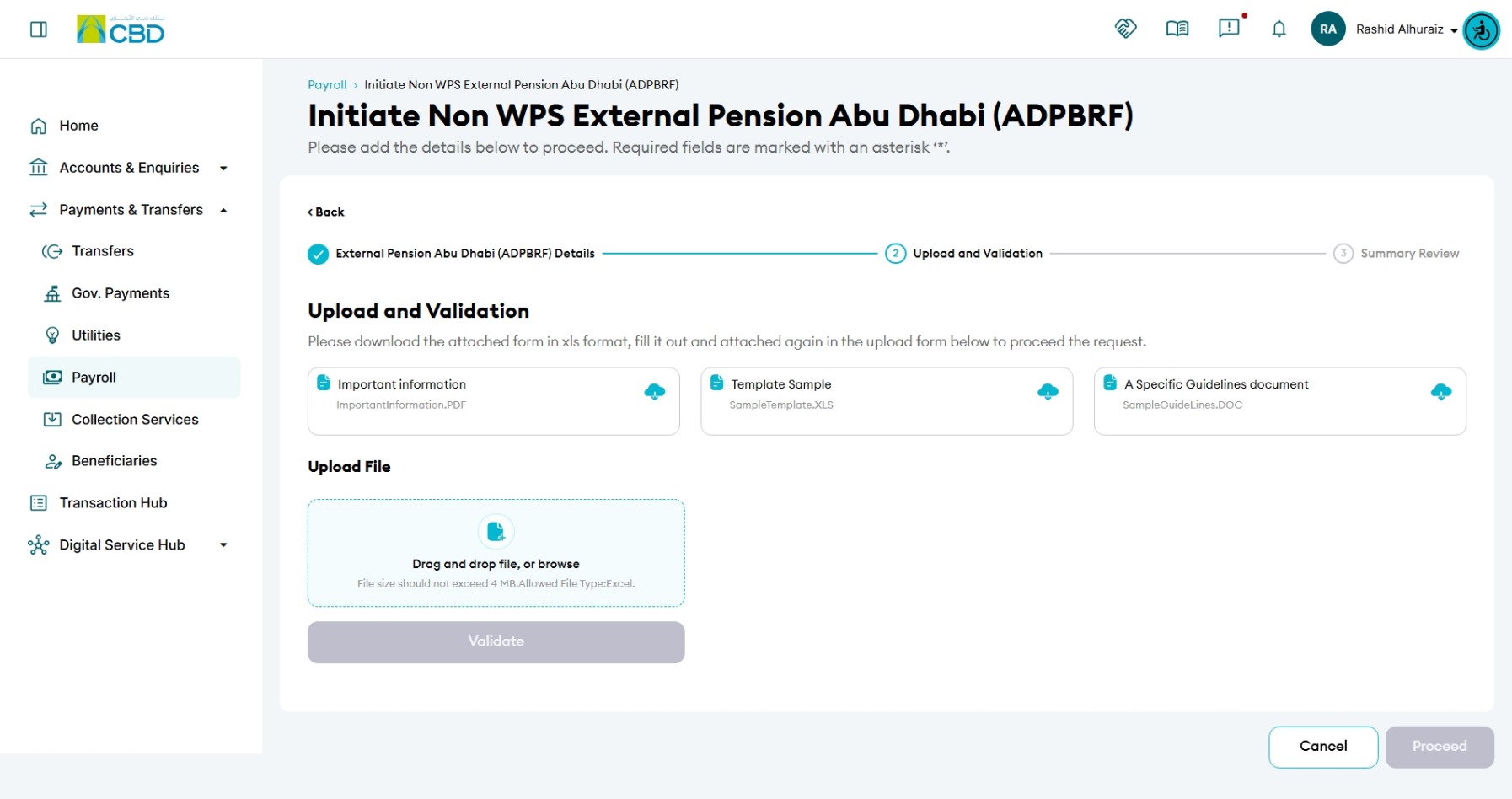
Step 4: Upload the Pension File
Upload the completed pension file.
You can:
- Drag and drop the file into the upload area.
- Click Browse and select the file from your device.
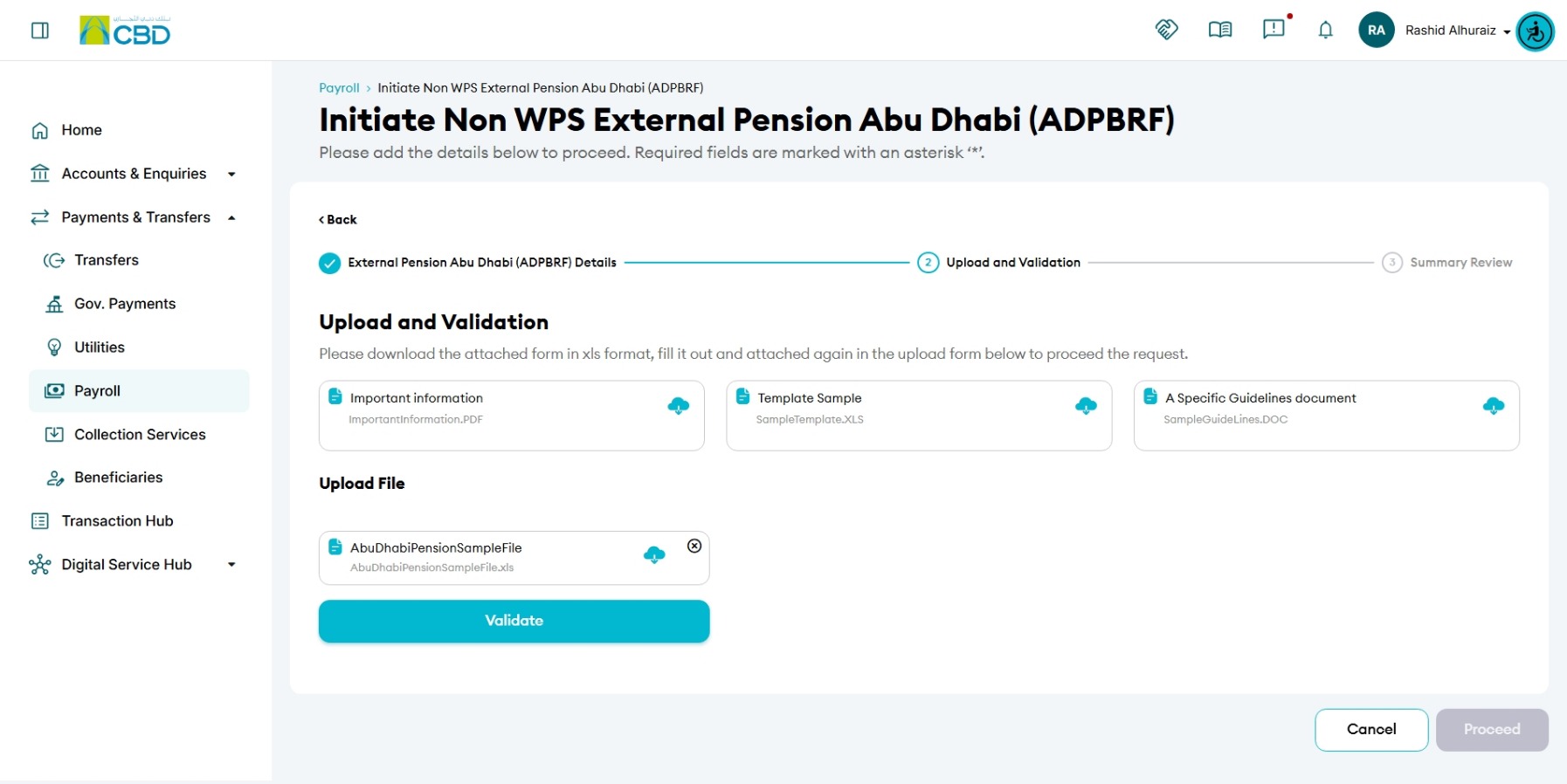
Step 5: Validate the File
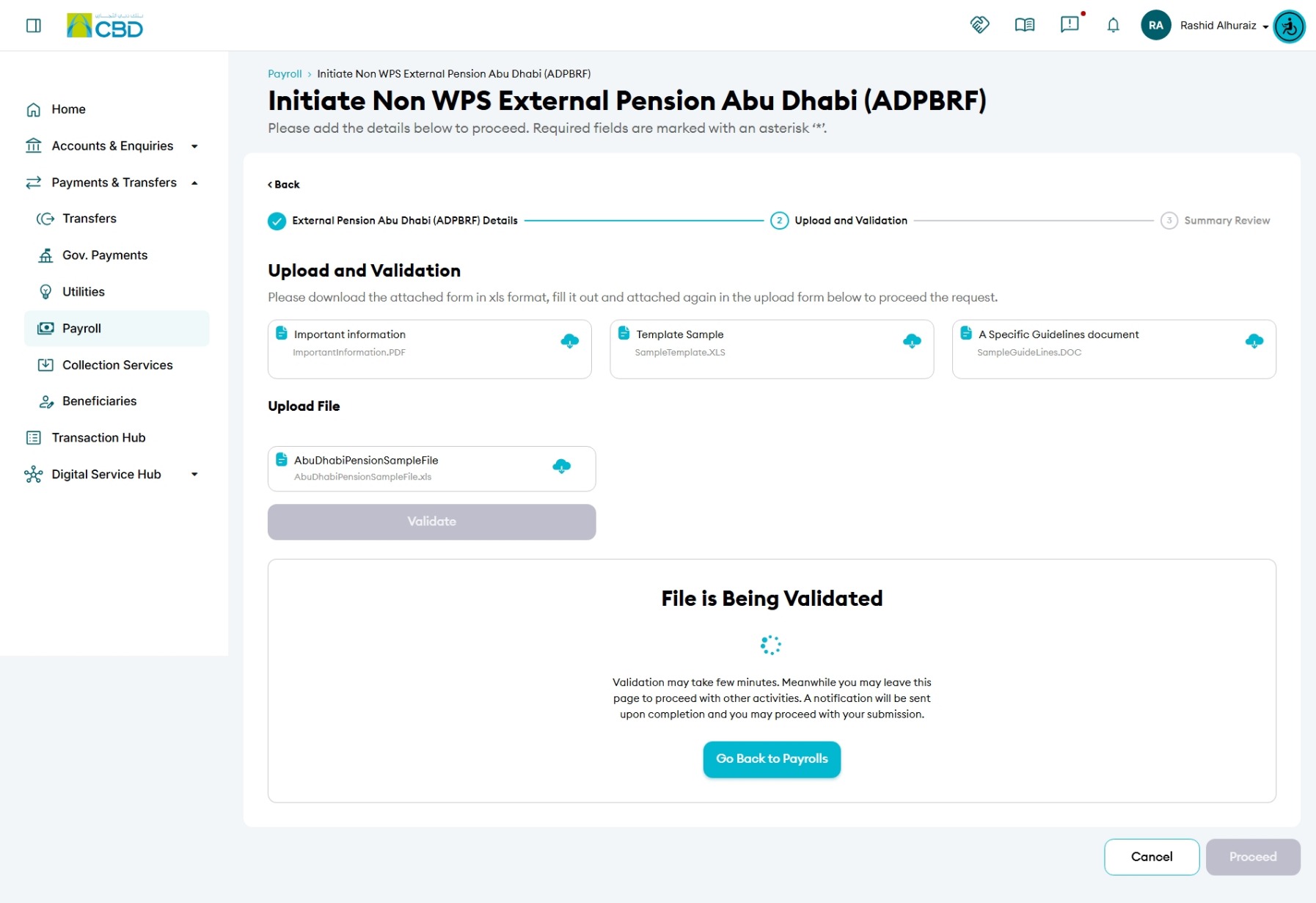
Click Validate File.
The system will verify:
- File format
- File structure
- Mandatory fields
- Pension payment data
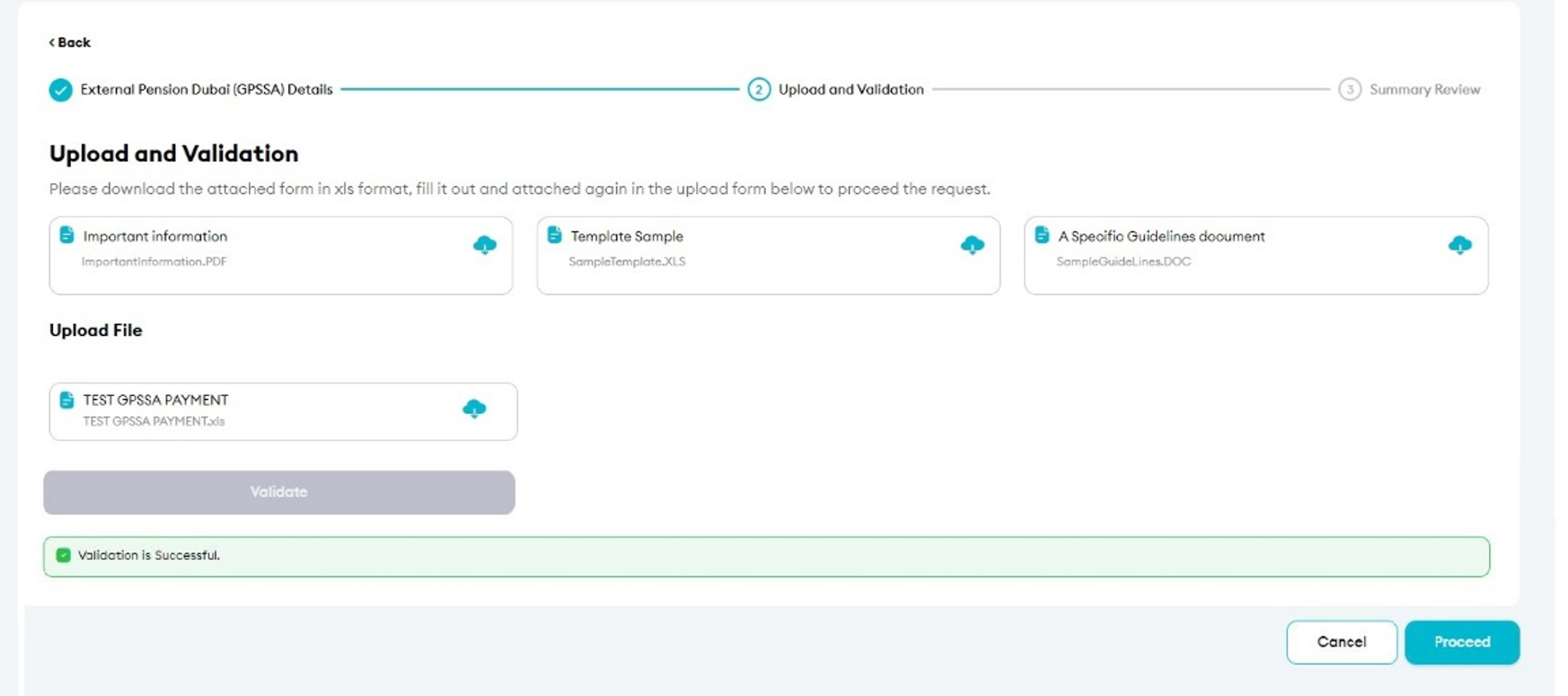
If validation errors are detected:
- Review the error message displayed by the system.
- Update the file as required.
- Re-upload the corrected file.
- Run the validation process again.
Step 6: Accept the Terms and Conditions
Once the file has been validated successfully:
- Review the uploaded file details.
- Accept the Terms and Conditions.
- Click Proceed.
Step 7: Review and Submit
Before submitting the request:
Review:
- Payroll Type
- Debit Account
- Processing Date
- Total Amount
- Uploaded Pension File
Confirm that all information is correct.
Click Submit.
Step 8: Authenticate the Request
Complete authentication using one of the following methods:
iBusiness App Authentication
- A notification will be sent to the registered iBusiness Mobile App.
- Approve the request using biometric or device authentication.
Google Authenticator
- Open the Google Authenticator application.
- Enter the generated One-Time Password (OTP).
Once authentication is successful, the request will be submitted and a reference number will be generated.
Step 9: Approval (If Maker–Checker Is Enabled)
If your organization uses a Maker–Checker approval workflow:
- The request will be routed to the designated Approver.
- The Approver must: Log in to iBusiness Online
- Navigate to: Transaction Hub ➜ Pending Your Authorizations
- Locate the request under: Payroll
- Review the payment details.
- Select: Approve or Reject
Important: Pension Payment Cut-Off Time
The cut-off time for Pension Payments is 3:00 PM. Requests submitted after the cut-off time may be processed on the next applicable business day.