
Overview
This guide provides step-by-step instructions for making an International Transfer using a Treasury Deal Rate through the iBusiness Web Portal.
This option allows you to use a pre-booked Treasury Deal Rate when processing an international payment, helping you settle the transaction at the agreed foreign exchange rate.
Step 1: Navigate to International Transfers
- Log in to iBusiness.
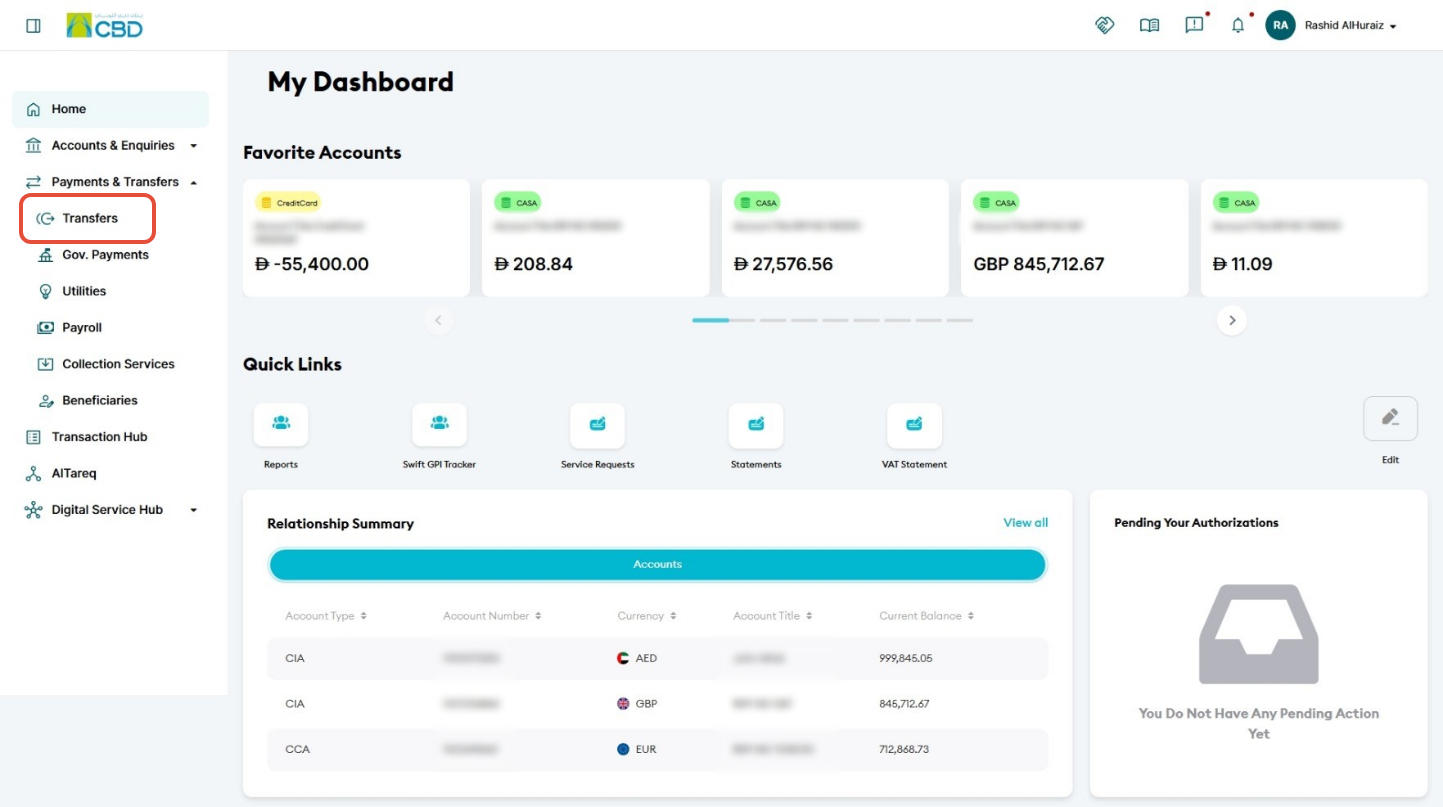
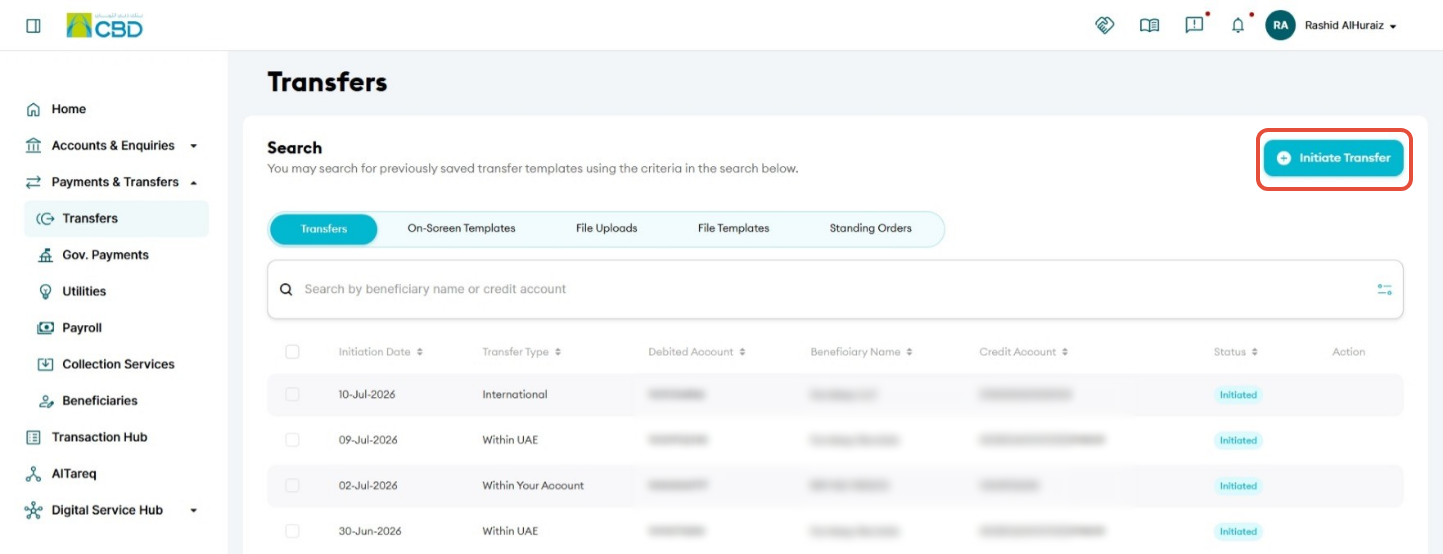
- Navigate to: Navigate to: Payment & Transfers ➜ Transfers ➜ Initiate Transfer
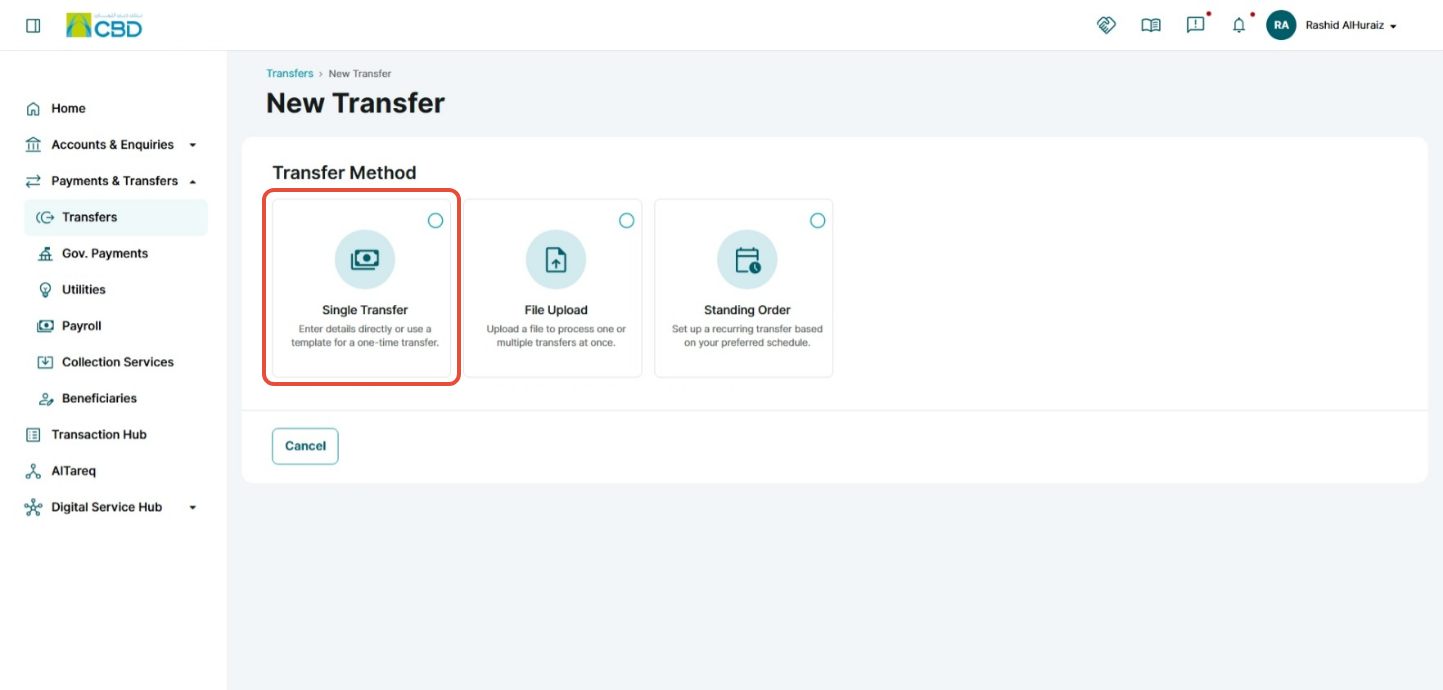
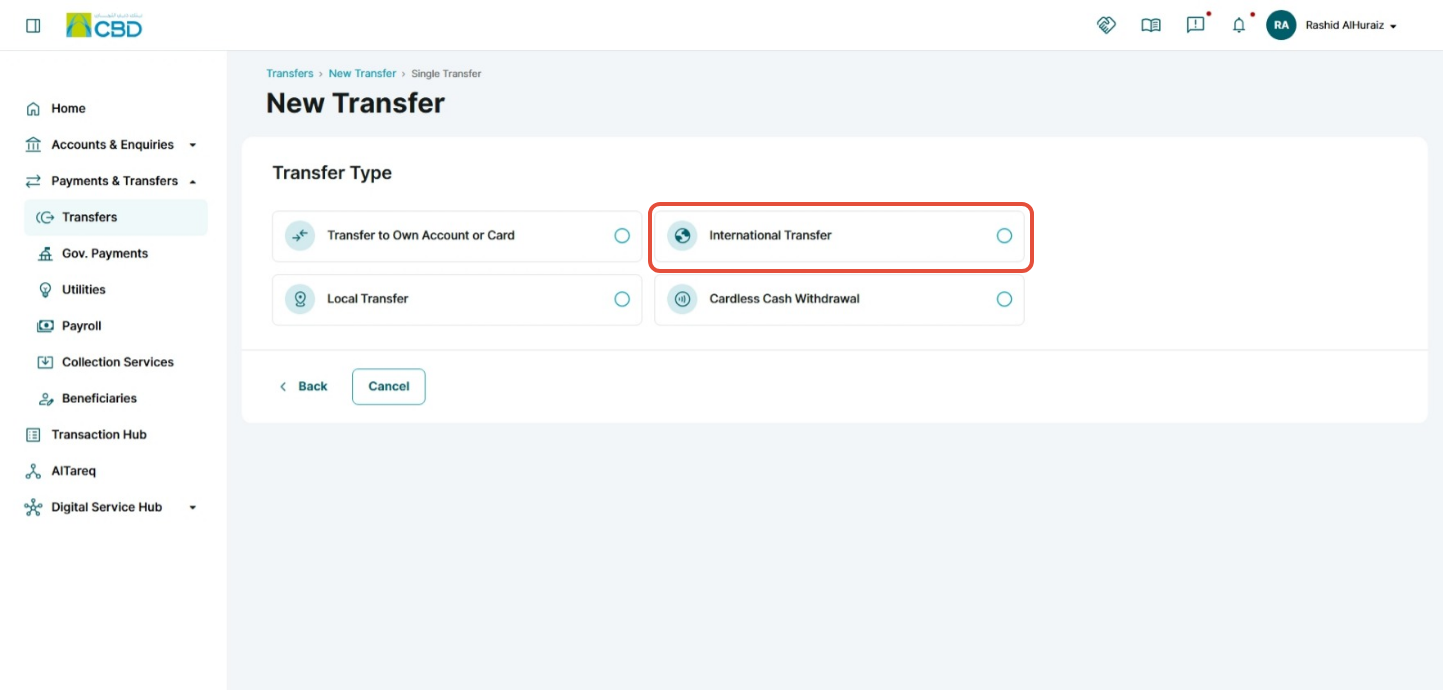
- Select: Single Transfer ➜ International Transfer
Step 2: Select or Add a Beneficiary
Existing Beneficiary
- Click Search Beneficiary.
- Use the search function to locate the required beneficiary.
- Select the beneficiary from the list.
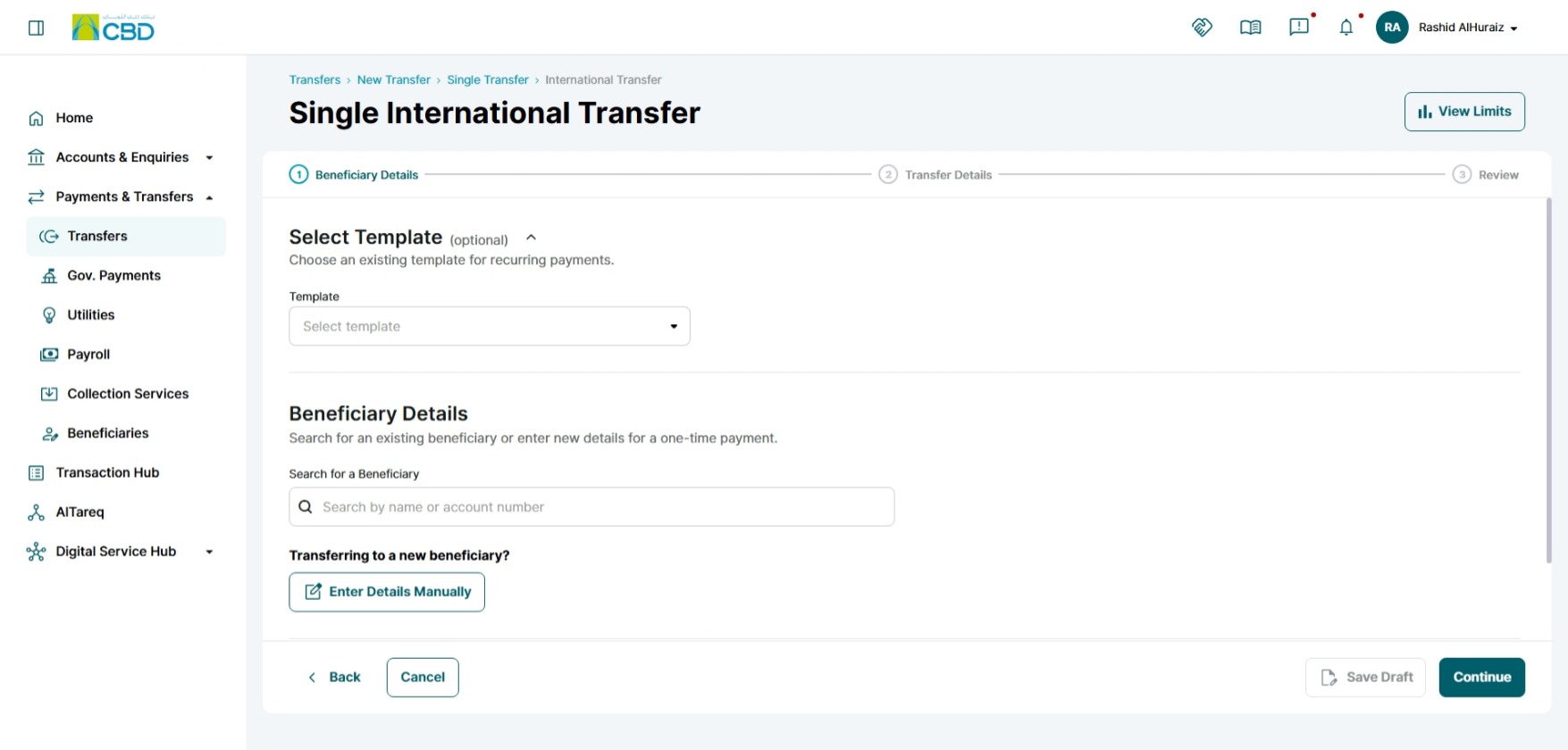
New Beneficiary
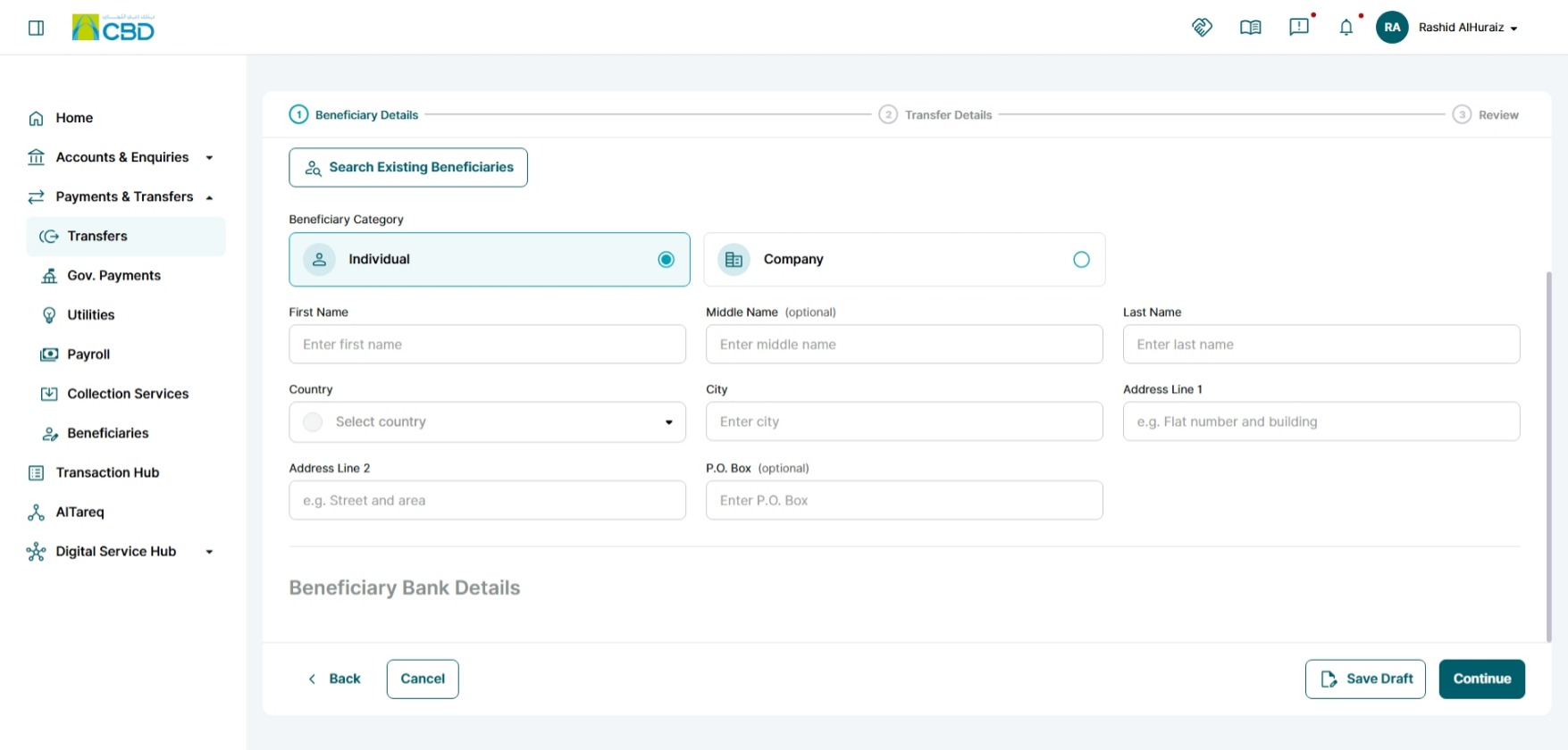
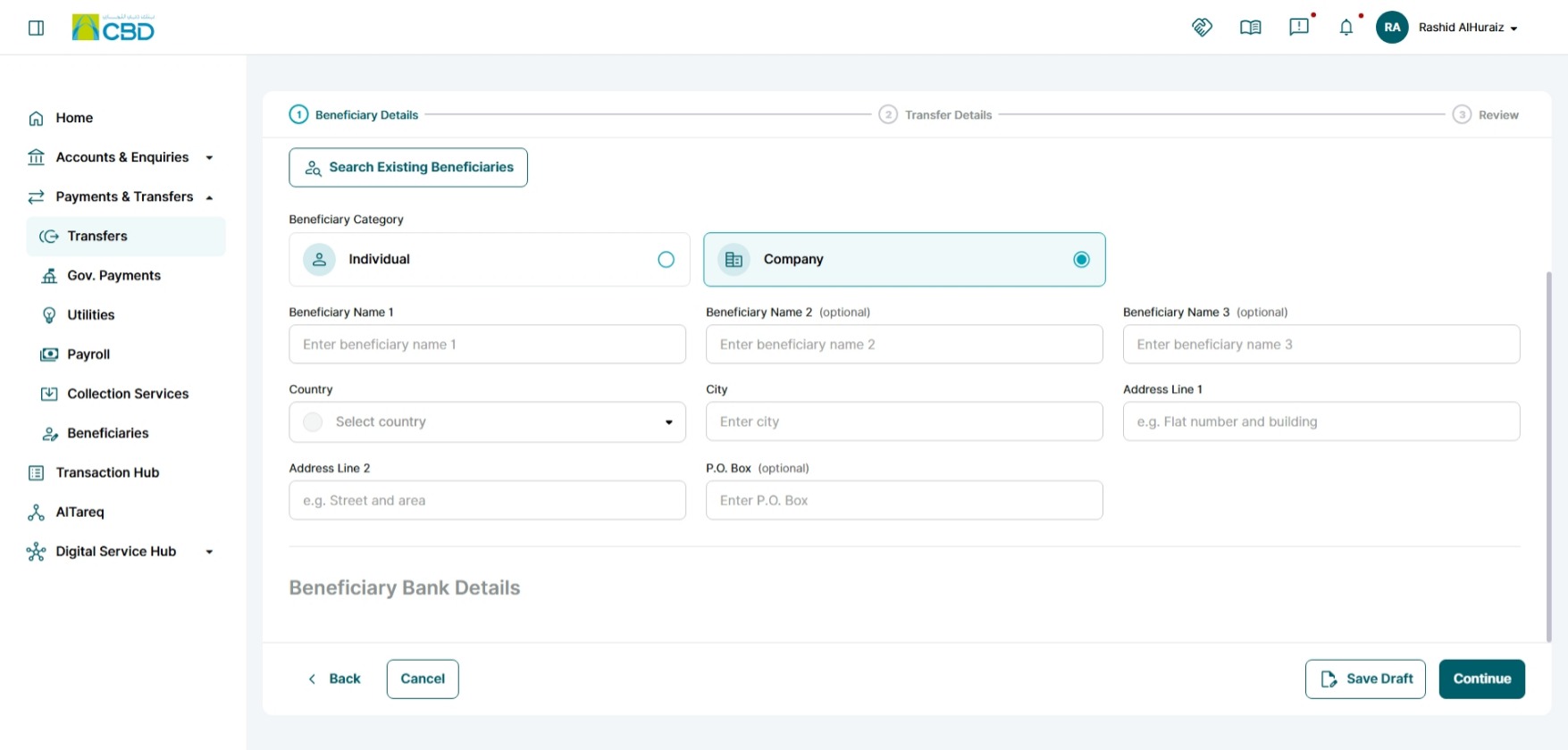
If the beneficiary has not been registered, you can create a new beneficiary during the transfer process.
Individual beneficiary details
Company beneficiary details
Step 3: Enter Transfer Details
Complete all required payment information.
Account Information
- Debit Account – The account from which the funds will be debited.
- Charges Account – The account that will be used to pay any applicable transfer charges.
Transfer Information
- Transfer Amount – The amount to be transferred.
- Currency – The currency in which the payment will be made.
- Customer Reference Number – Internal reference for your records and reconciliation.
- Payment Date – The date on which the transfer will be processed.
- Purpose of Payment – The reason for the transfer, as required for regulatory and compliance purposes.
- Payment Details – Additional payment information or remarks that may be visible to the beneficiary.
Transfer Charges
Select the applicable charging method:
- OUR – Sender pays all charges.
- BEN – Beneficiary pays all charges.
- SHA – Charges are shared between the sender and beneficiary.
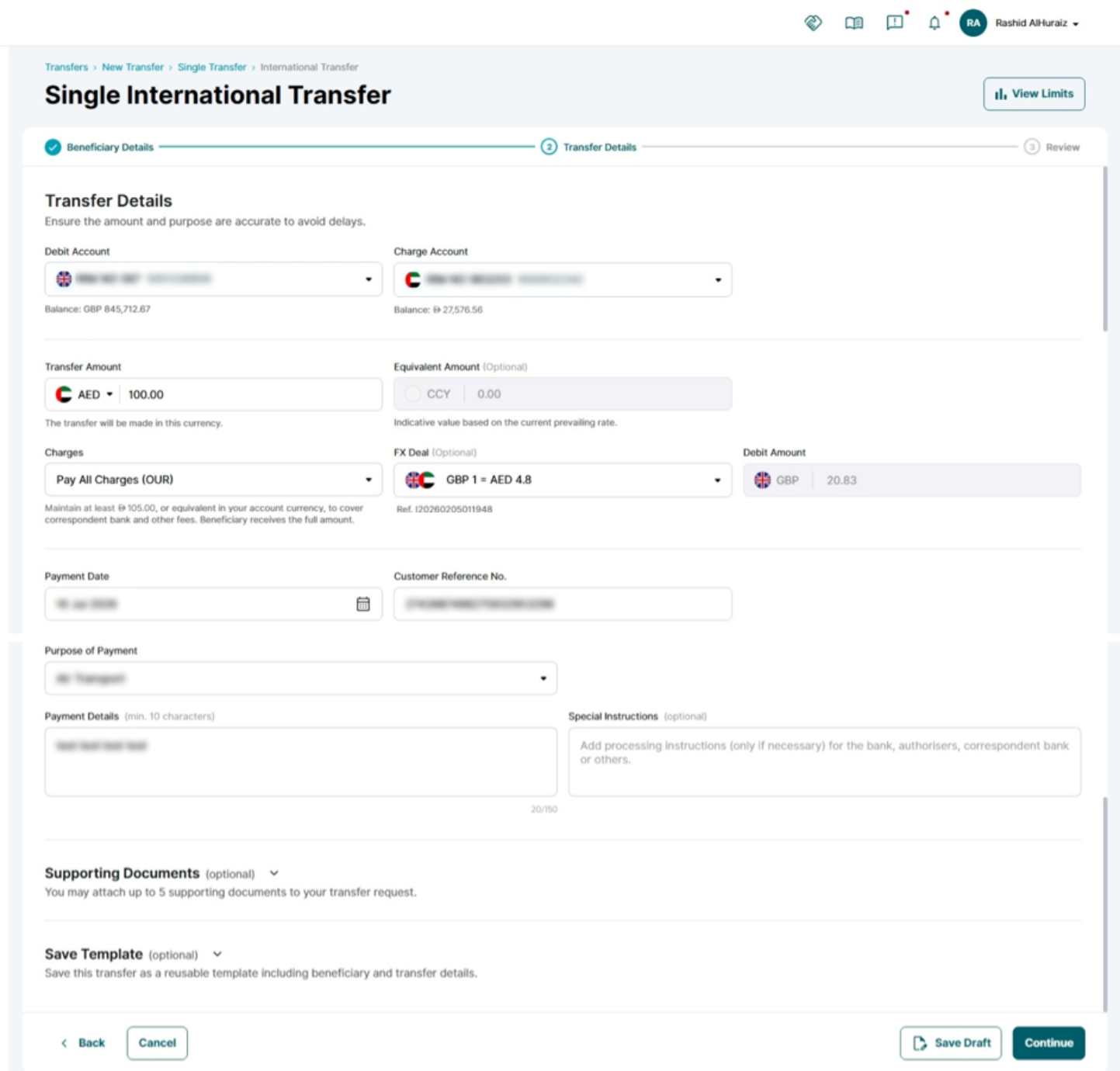
Step 4: Select the Treasury Deal Rate
- Click the Deal No. drop-down list.
- Select the applicable Treasury Deal from the available deals linked to your account.
- Verify that the selected deal matches:
- The transfer currency
- The transfer amount
- The agreed FX deal details
- Once all details have been completed, click Continue.
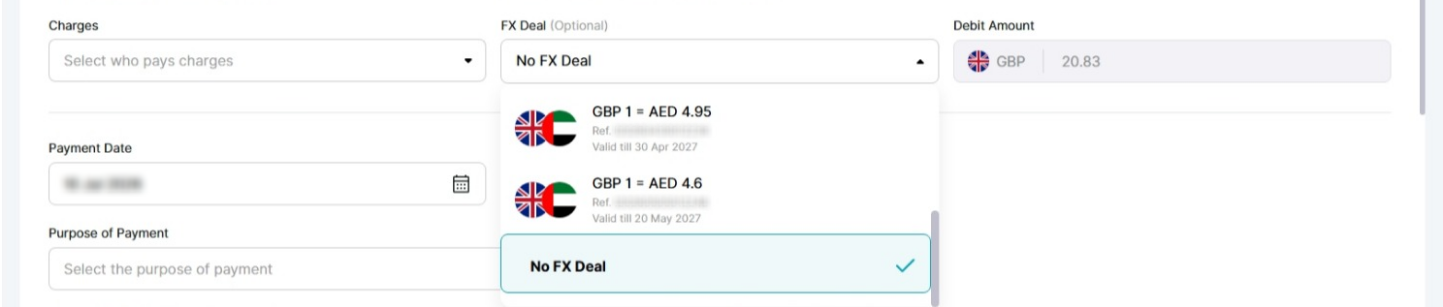
Important: Ensure you select the correct Treasury Deal Number. The deal must be valid and available for the selected currency and transaction amount.
Step 5: Review and Submit
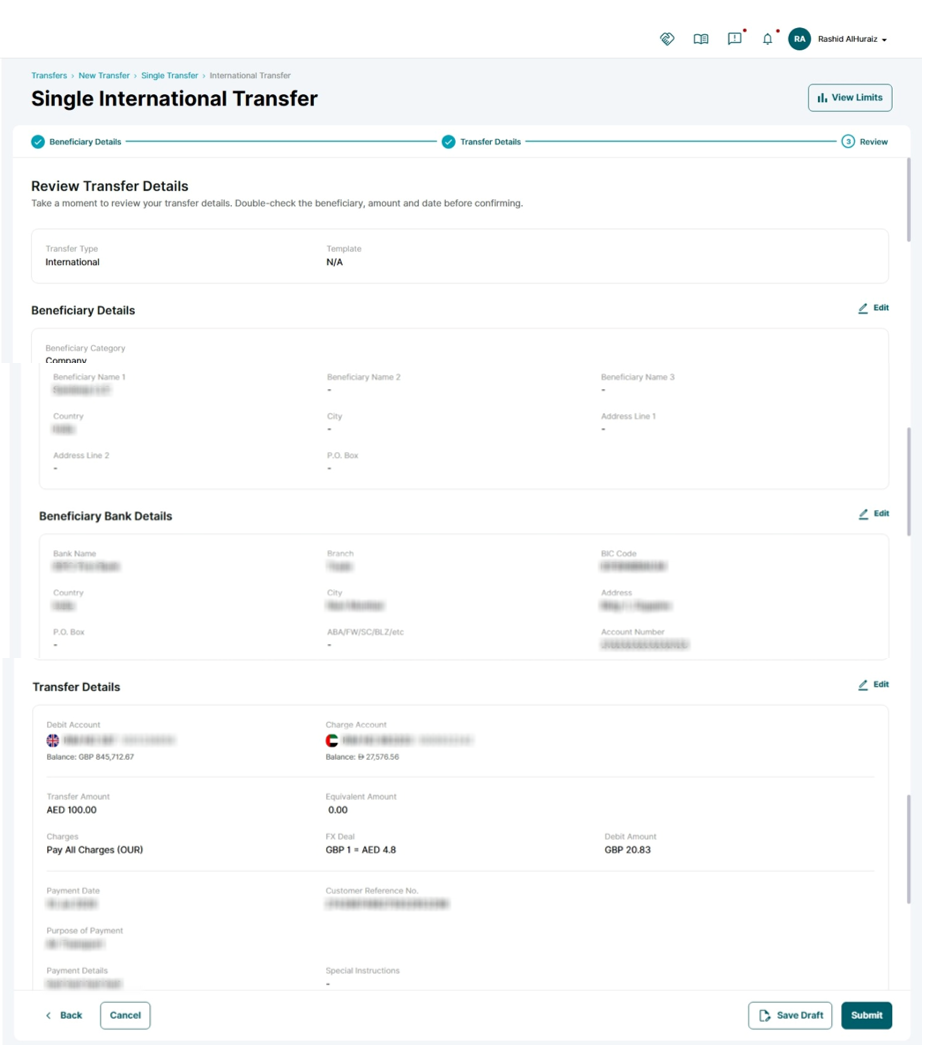
- Review all transfer details carefully, including:
- Beneficiary details
- Beneficiary bank details
- Transfer amount
- Currency
- Treasury Deal Number
- Charges
- Payment purpose and details
- Accept the Terms and Conditions.
- Click Submit.
Note: The cut-off time for International Payments
To view the cut-off times, click on the link below to see the complete table of cut-off times. Transfers received after cut-off times will be processed on the next business day.
Note: The cut-off time for International Payments
Currency | Cut-off Time | Value Date |
Australian Dollar (AUD) | 16:30 | T+1 |
Bahraini Dinar (BHD) | 12:00 | Same day |
Canadian Dollar (CAD) | 16:00 | Same day |
Swiss Franc (CHF) | 16:00 | Same day |
Chinese Yuan (CNH) | 16:30 | T+1 |
Danish Krone (DKK) | 16:00 | Same day |
Euro (EUR) | 16:00 | Same day |
Pound Sterling (GBP) | 16:00 | Same day |
Hong Kong Dollar (HKD) | 16:30 | T+1 |
Indian Rupee (INR) | 12:00 | Same day |
Jordanian Dinar (JOD) | 12:00 | Same day |
Japanese Yen (JPY) | 16:30 | T+1 |
Kuwaiti Dinar (KWD) | 12:00 | Same day |
Sri Lankan Rupee (LKR) | 12:00 | Same day |
Moroccan Dirham (MAD) | 16:30 | T+1 |
Norwegian Krone (NOK) | 16:00 | Same day |
New Zealand Dollar (NZD) | 12:00 | Same day |
Omani Rial (OMR) | 12:00 | Same day |
Pakistani Rupee (PKR) | 12:00 | Same day |
Qatari Riyal (QAR) | 12:00 | Same day |
Saudi Arabian Riyal (SAR) | 12:00 | Same day |
Swedish Krona (SEK) | 16:00 | Same day |
Singapore Dollar (SGD) | 16:30 | T+1 |
Thai Baht (THB) | 16:30 | T+1 |
Turkish Lira (TRY) | 16:00 | Same day |
United States Dollar (USD) | 16:00 | Same day |
South African Rand (ZAR) | 16:00 | Same day |
Step 6: Authenticate the Request
Complete authentication using one of the following methods:
iBusiness App Authentication
- A notification will be sent to the registered iBusiness Mobile App.
- Review the transaction details.
- Approve the request using biometric or device authentication.
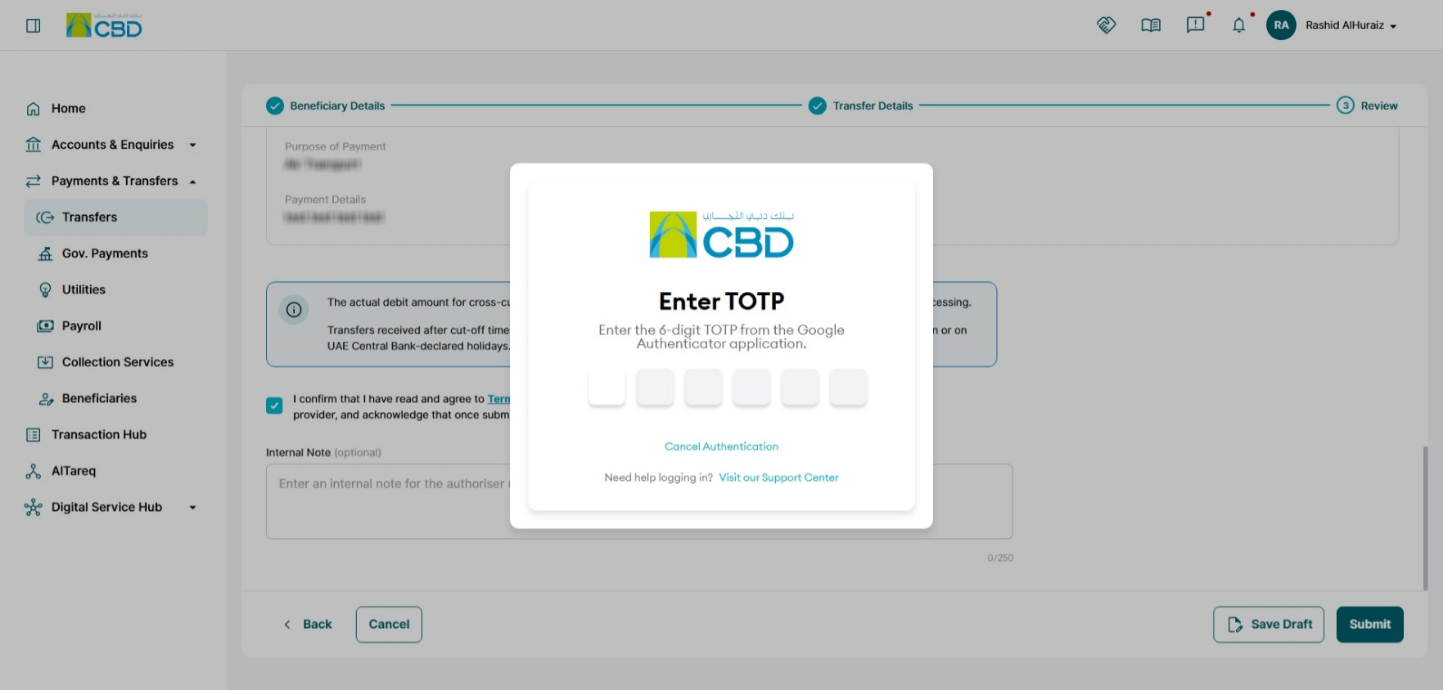
Google Authenticator
- Open the Google Authenticator application.
- Enter the generated One-Time Password (OTP).
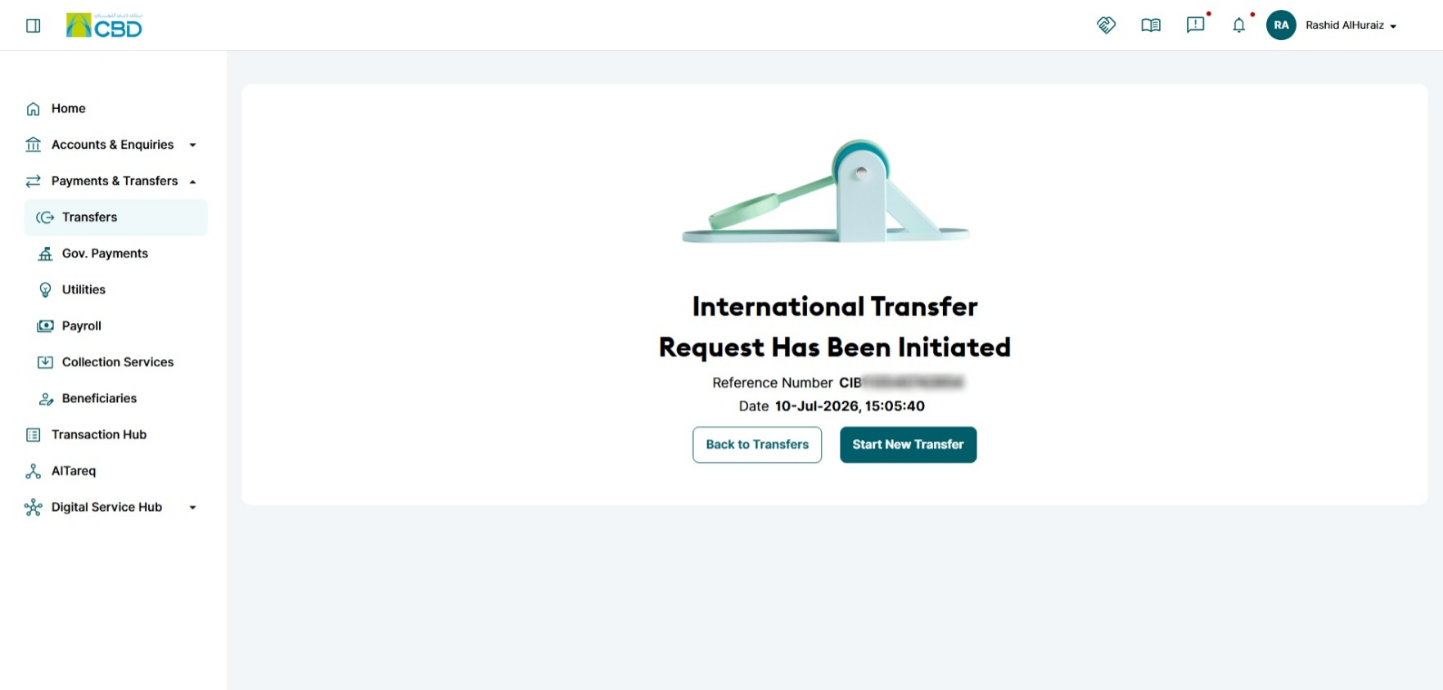
Once authentication is successful, the transaction will be submitted for processing.
Step 7: Approval (If Maker–Checker is Enabled)
If a Maker–Checker setup is configured:
- The request is routed to a Checker/Approver.
- The Approver must:
- Log in to iBusiness
- Navigate to Transactions Hub ➜ Pending Your Authorizations
- Locate the transaction under: International Transfer
- Review the request and select: Approve or Reject
Support Notes / Best Practices
- Ensure the selected Treasury Deal Number matches the transfer currency and payment requirements.
- Verify all beneficiary information, including the account number, IBAN, and SWIFT/BIC code.
- Confirm sufficient funds are available in the selected debit account.
- Review applicable cut-off times when sending urgent international payments.
- Retain the generated reference number for future tracking, reconciliation, and support enquiries.
- Ensure all required approvals are completed before the payment cut-off time to avoid processing delays.