
Overview
This guide provides step-by-step instructions for initiating a Single International Transfer through the iBusiness Web Portal.
Use this transfer type for:
- Cross-border payments
- International beneficiary payments
- Foreign currency transfers
Step 1: Navigate to International Transfers
- Log in to iBusiness.
- Navigate to: Payment & Transfers ➜ Transfers➜ Initiate Transfer
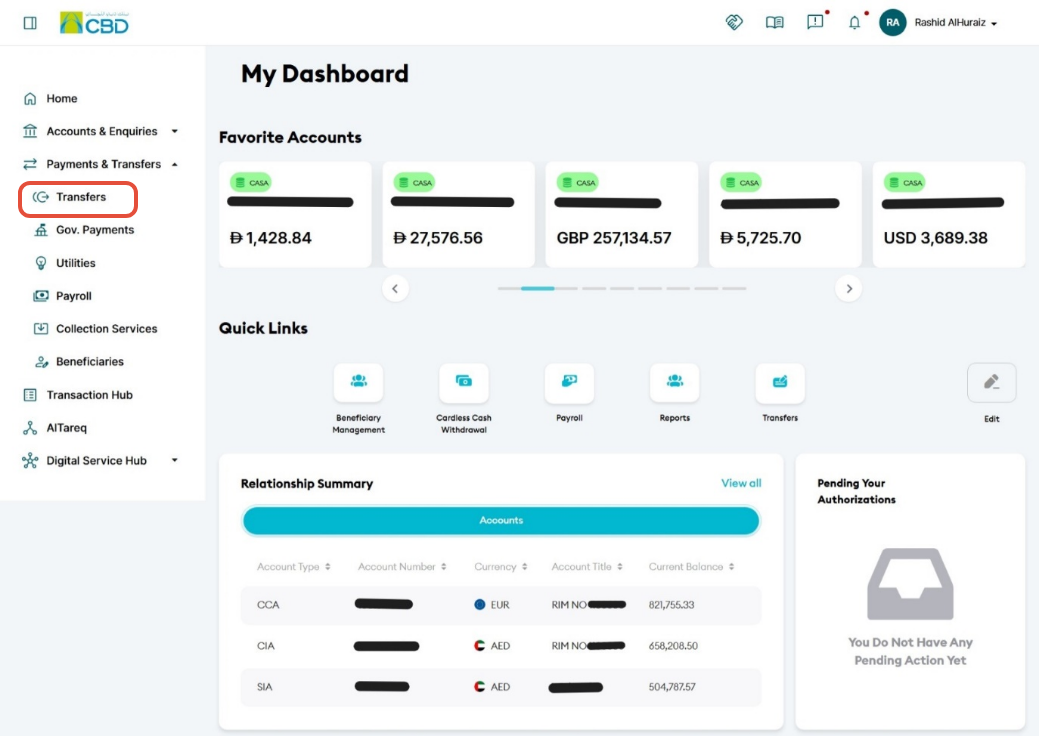
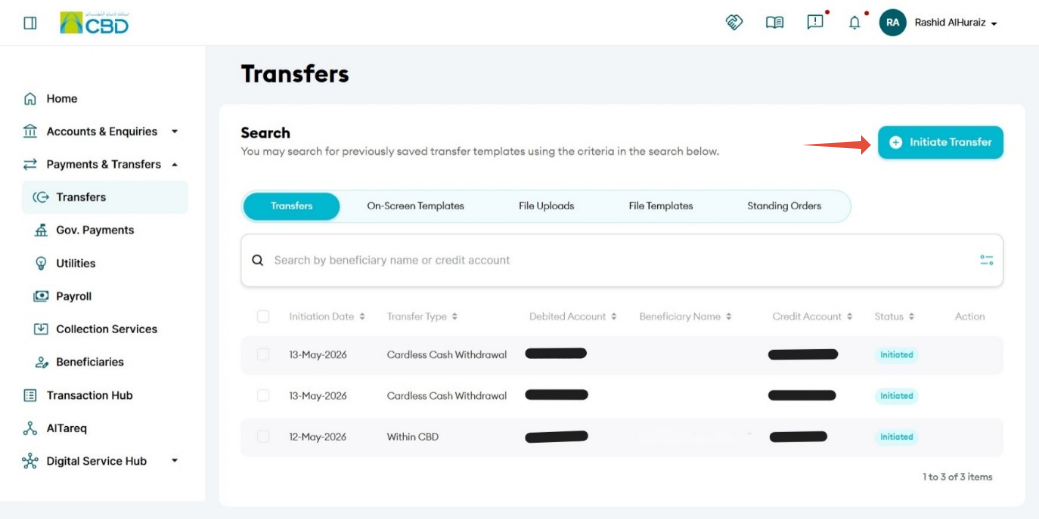
Step 2: Select Transfer Type
- Select Single Transfer.
- Choose International Transfer as the transfer type.
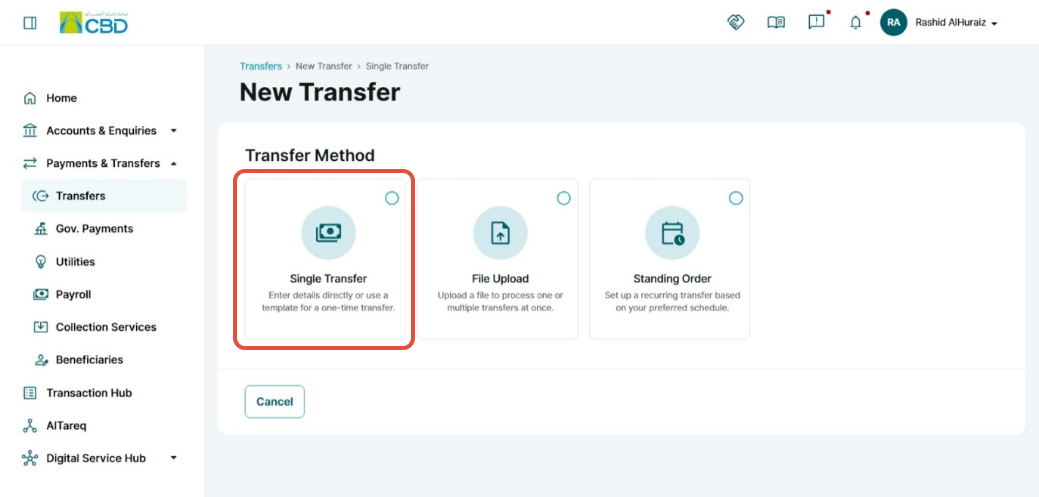
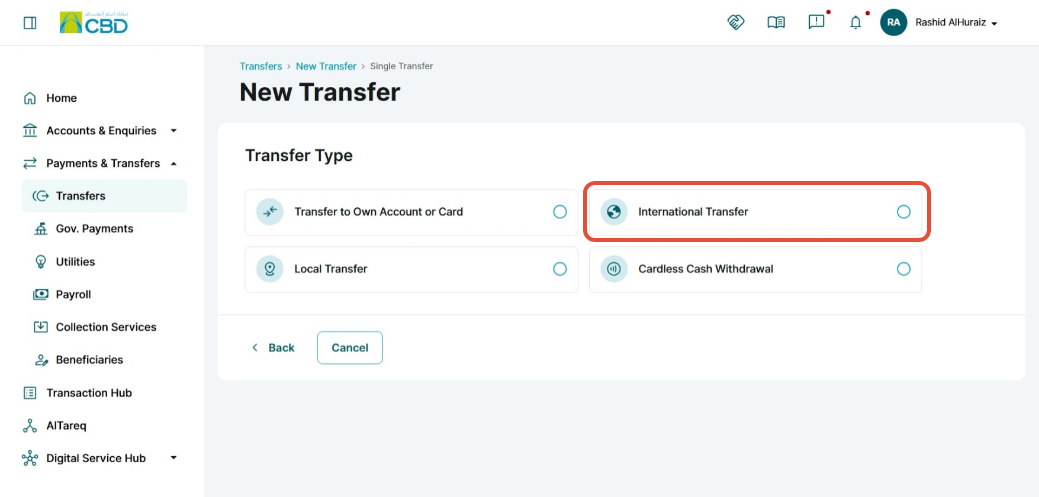
Step 3: Select or Add Beneficiary
Existing Beneficiary
- Use the search bar to locate an existing beneficiary.
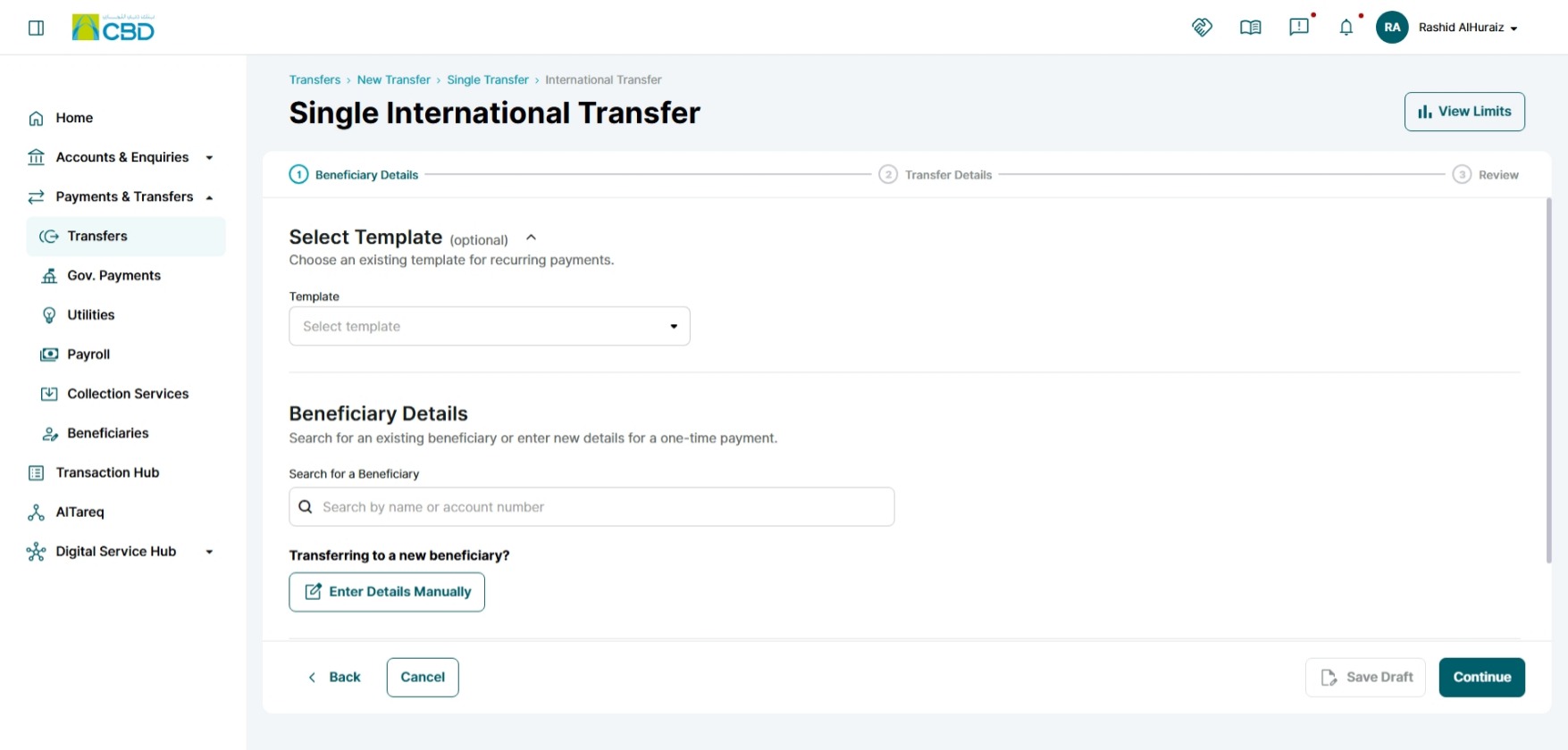
New Beneficiary
- You can manually add a new beneficiary by entering
Individual beneficiary details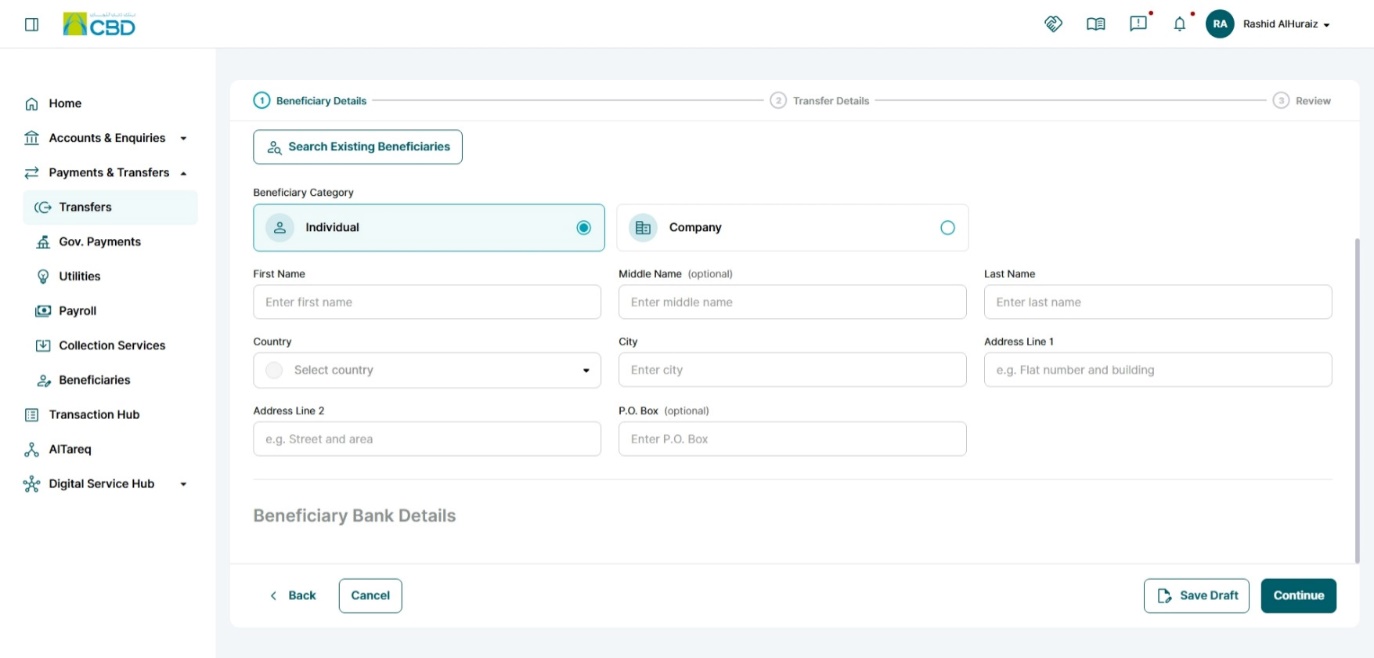
Company beneficiary details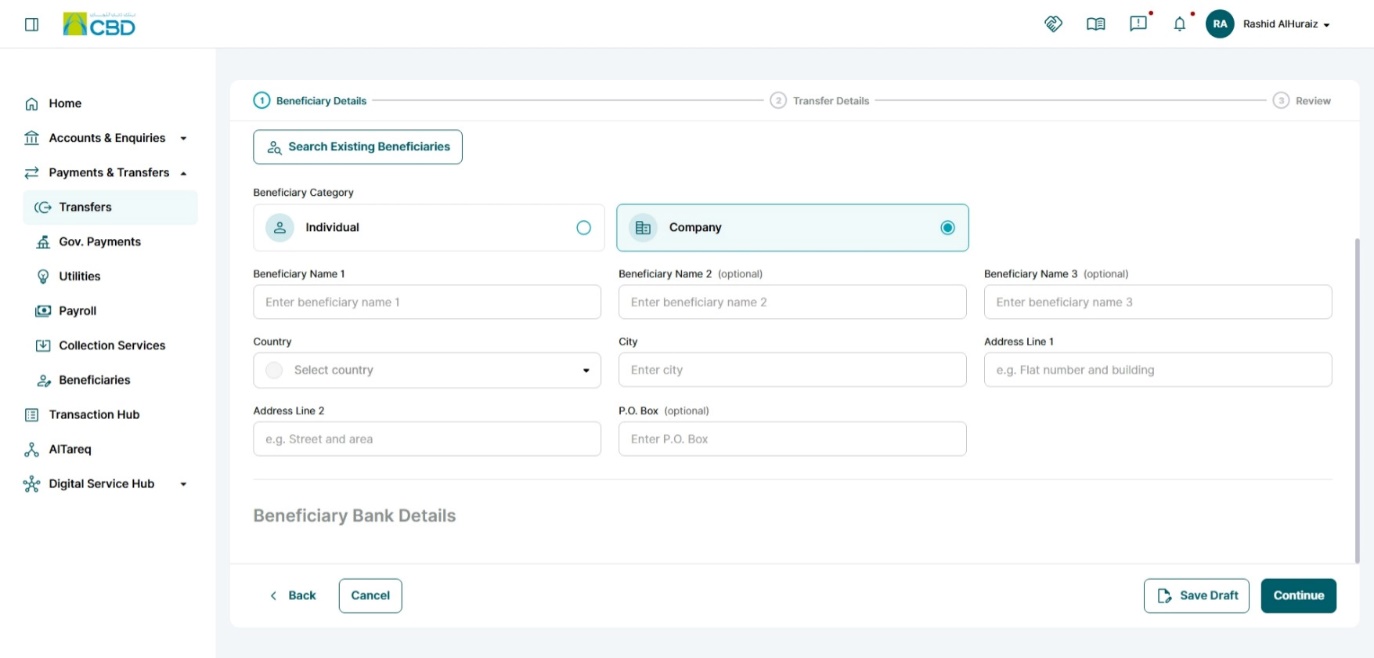
Validate the Bank Details
If you are creating a new beneficiary, the beneficiary's banking details must be validated before you can proceed with the transfer.
- Enter the beneficiary's IBAN number
- Click Validate.
- The system will retrieve and display the beneficiary bank details.
- Review and confirm the following information:
- Bank Name
- SWIFT/BIC Code
- Branch Information
- Country
- Beneficiary Account Details
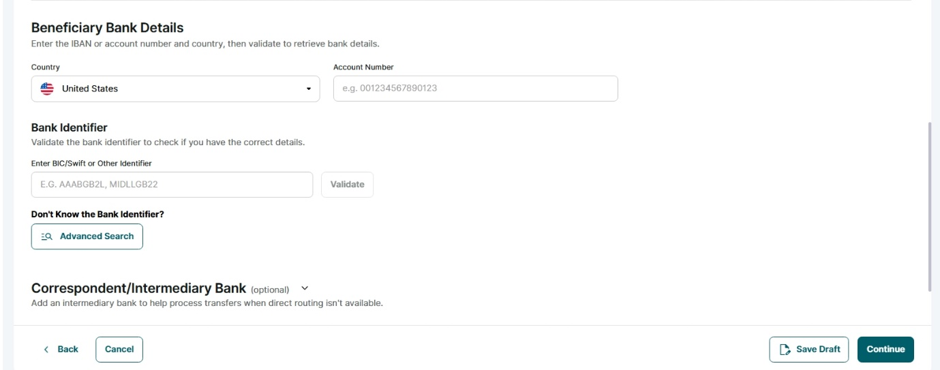
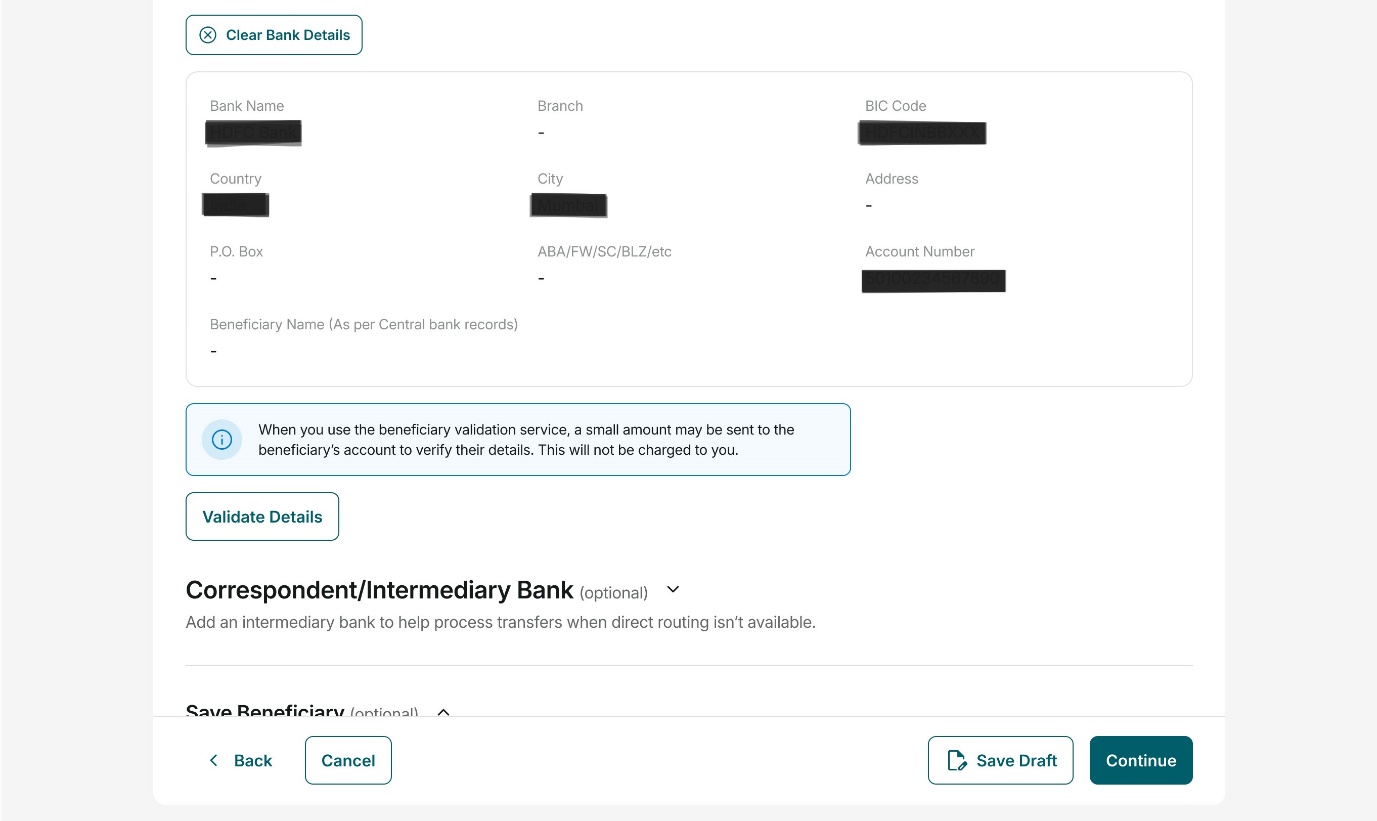
- You will need to click Validate Details to match them with what you’ve write in the beneficiary details.
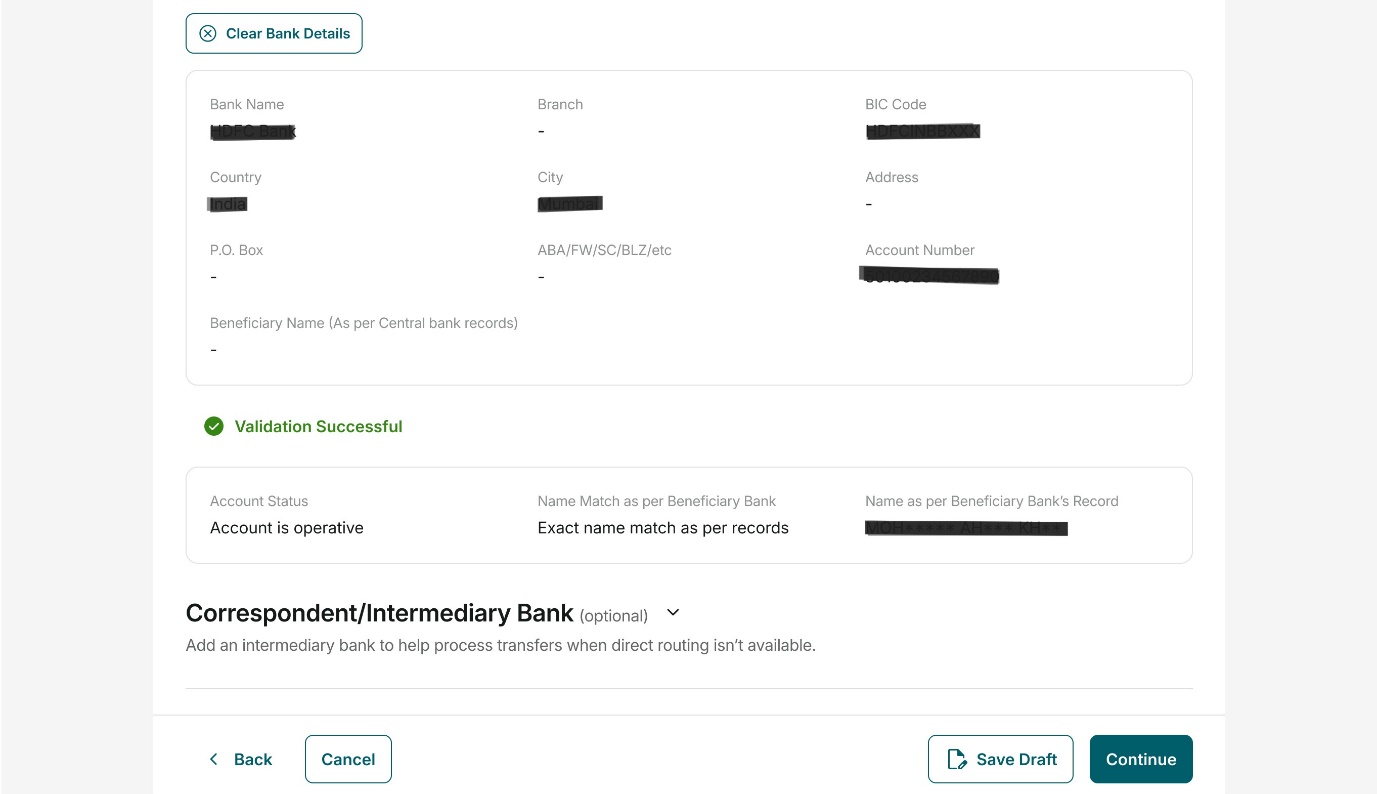
- When validation is successful, a confirmation message will be displayed indicating that the bank identifier has been validated.
- If the displayed information is correct and the validation is successful, click Continue.
Transfer Details
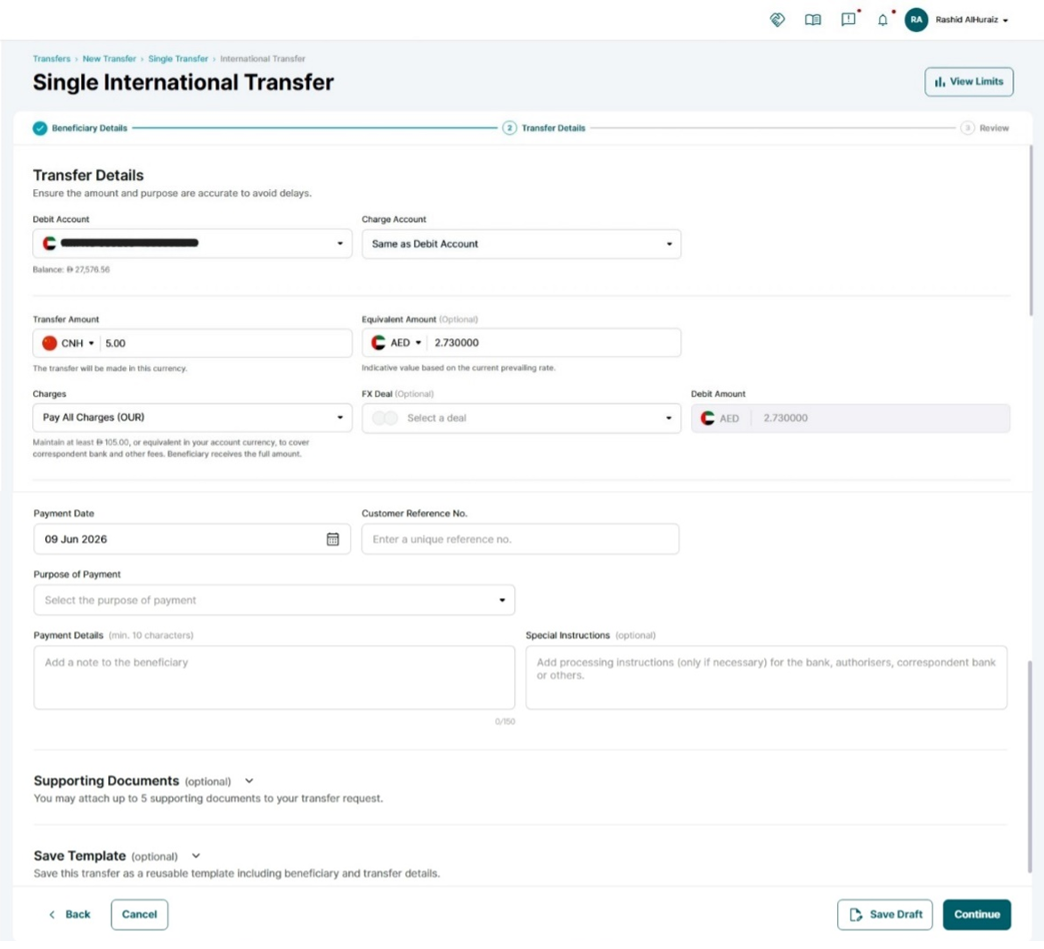
Complete the required transfer information:
- Debit Account: The bank account from which the money will be deducted for the transfer.
- Charges Account: The account that will be used to pay the transfer fees or bank charges. This can be the same as the debit account or a different account.
- Transfer Amount: The amount of money you want to send to the beneficiary. (Example: AED 5,000.00)
- Currency: The currency in which the transfer will be made. (Example: AED, USD, EUR, GBP).
- Transfer Charges:Indicates who will bear the transfer fees.
- OUR: Sender pays all charges
- BEN: Beneficiary pays all charges
- SHA: Charges are shared between sender and beneficiary
- Customer Reference Number: a unique number assigned to the customer
- Payment Date: The date on which the transfer will be processed or sent.
- Purpose of Payment: The reason for sending the money, often required for compliance and regulatory purposes.
(Example: Computer Services, Rent Payments, Air Transport, Supplier Payment, etc...) - Payment Details: Additional information or remarks related to the payment that may be visible to the beneficiary.
- Save Draft: this will save the transfer for later use. Learn More
- Save Template: saving this transfer as a templet this will include the transfer details and beneficiary details. Learn More
- Supporting document: you will be able to attach up to 5 documents to your transfer request
- Equivalent Amount (Optional): Displays the estimated value of the transfer amount in your account currency based on the current exchange rate. This helps you understand the approximate amount that will be debited from your account or compare the transfer value in your preferred currency.
Once completed, click Continue.
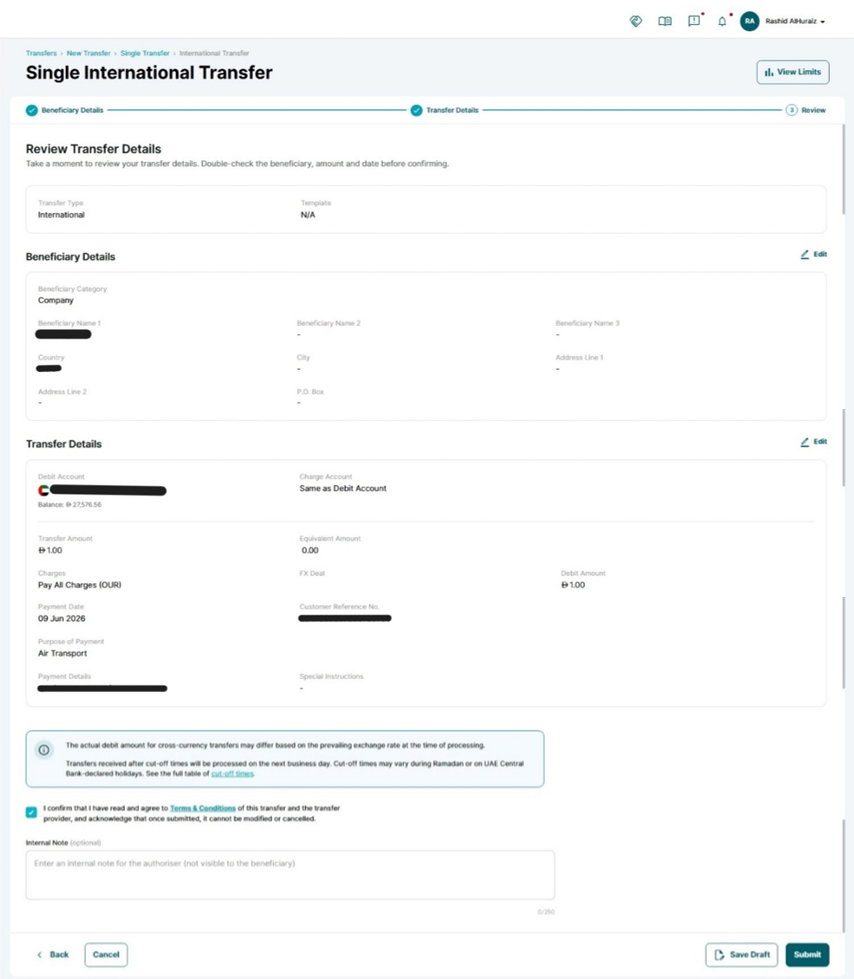
Step 5: Review and Submit
- Review all transfer details carefully.
- Accept the Terms and Conditions.
- Click Submit.
Note: The cut-off time for International Payments
To view the cut-off times, click on the link below to see the complete table of cut-off times. Transfers received after cut-off times will be processed on the next business day.
Currency | Cut-off Time | Value Date |
Australian Dollar (AUD) | 16:30 | T+1 |
Bahraini Dinar (BHD) | 12:00 | Same day |
Canadian Dollar (CAD) | 16:00 | Same day |
Swiss Franc (CHF) | 16:00 | Same day |
Chinese Yuan (CNH) | 16:30 | T+1 |
Danish Krone (DKK) | 16:00 | Same day |
Euro (EUR) | 16:00 | Same day |
Pound Sterling (GBP) | 16:00 | Same day |
Hong Kong Dollar (HKD) | 16:30 | T+1 |
Indian Rupee (INR) | 12:00 | Same day |
Jordanian Dinar (JOD) | 12:00 | Same day |
Japanese Yen (JPY) | 16:30 | T+1 |
Kuwaiti Dinar (KWD) | 12:00 | Same day |
Sri Lankan Rupee (LKR) | 12:00 | Same day |
Moroccan Dirham (MAD) | 16:30 | T+1 |
Norwegian Krone (NOK) | 16:00 | Same day |
New Zealand Dollar (NZD) | 12:00 | Same day |
Omani Rial (OMR) | 12:00 | Same day |
Pakistani Rupee (PKR) | 12:00 | Same day |
Qatari Riyal (QAR) | 12:00 | Same day |
Saudi Arabian Riyal (SAR) | 12:00 | Same day |
Swedish Krona (SEK) | 16:00 | Same day |
Singapore Dollar (SGD) | 16:30 | T+1 |
Thai Baht (THB) | 16:30 | T+1 |
Turkish Lira (TRY) | 16:00 | Same day |
United States Dollar (USD) | 16:00 | Same day |
South African Rand (ZAR) | 16:00 | Same day |
Future-Dated Transfers
When you schedule a payment for a future date, the system will display a message based on the available balance in the selected debit account.
Insufficient Funds
If there are currently insufficient funds in the account, the following warning will be displayed:

Key Points
- The payment can still be submitted.
- Ensure sufficient funds are available before the payment date.
- If funds are not available on the payment date, the payment may not be processed.
Future-Dated Payment Scheduled
If the payment is scheduled successfully, the system will display a confirmation message:

Key Points
- The payment has been scheduled successfully.
- Funds are not reserved when the payment is created.
- Ensure sufficient funds are available on the payment date.
Best Practice: Keep enough funds in the debit account before the scheduled payment date to avoid
Step 6: Authenticate the Request
Complete authentication using one of the following methods:
Mobile App Authentication
- Approve the request via the iBusiness mobile app notification
- Use biometric or device verification
Google Authenticator
- Enter the One-Time Password (OTP) generated from the app
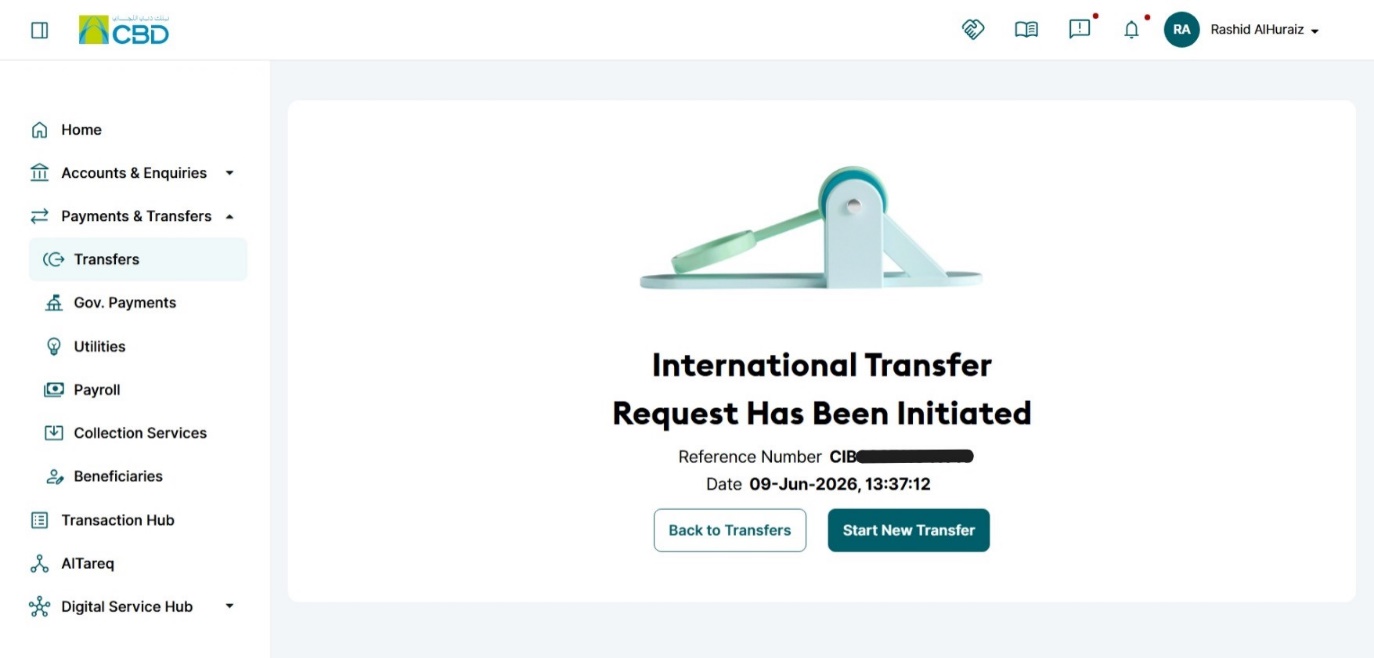
Once authenticated successfully, a confirmation screen with a reference number will be generated.
Step 7: Approval (If Maker–Checker is Enabled)
If a Maker–Checker setup is configured:
- The request is routed to a Checker/Approver.
- The Approver must:
- Log in to iBusiness
- Navigate to Transactions Hub > Pending Your Authorizations
- Locate the transaction under:
- International Transfer
- Review the request and select:
- Approve
- Reject
Support Notes / Best Practices
- Verify beneficiary details before submission
- Ensure the correct transfer currency is selected
- Confirm sufficient available balance before initiating the transfer
- Validate SWIFT/BIC and account information carefully
Track the generated reference number for support and audit purposes