
Overview
This guide provides step-by-step instructions for creating and managing Authorization Rules in the iBusiness Online. Authorization Rules allow Corporate Administrators to define how transactions are approved, including assigning multiple Approvers and, where required, a Releaser, who checks the availability of funds in the debit account before the transaction is processed..
Step 1: Access Authorization Rules
- Log in to iBusiness using your Corporate Admin credentials.
- Navigate to: User Management ➜ Authorization Rules
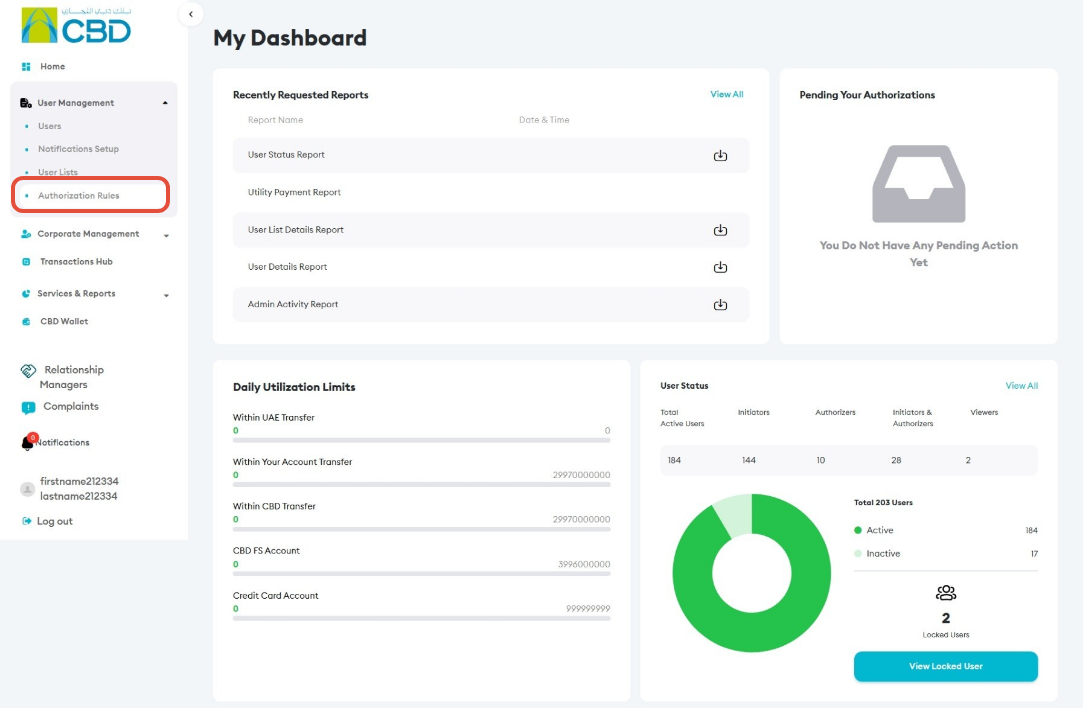
Step 2: Create or Manage an Authorization Rule
From the Authorization Rules screen, you can:
- Create a new Authorization Rule.
- View and modify an existing Authorization Rule.
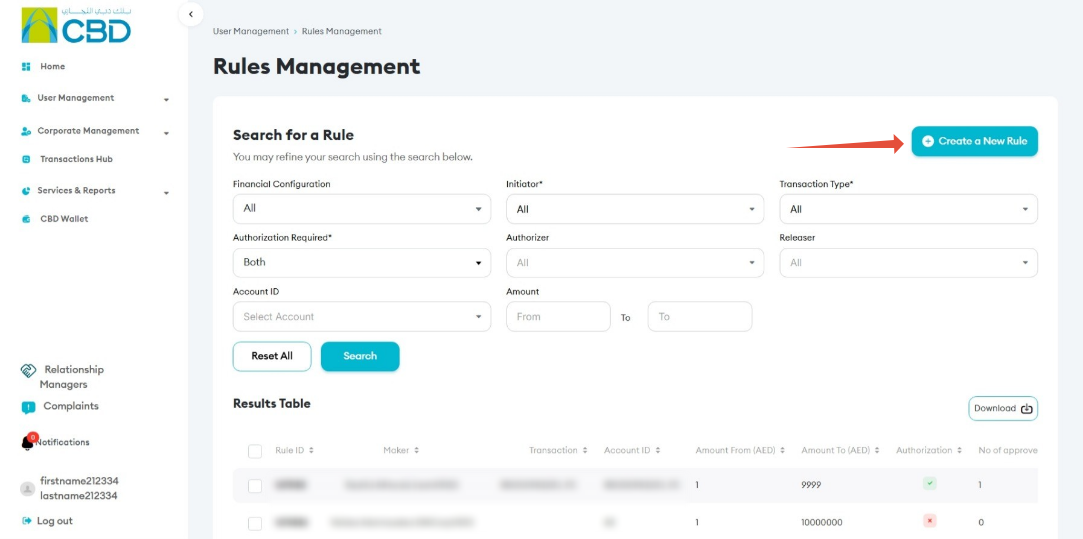
Support Tip: Review existing rules before creating a new one to ensure the required authorization setup does not already exist.
Step 3: Create a New Authorization Rule
1. Select the Financial Configuration
Select the Financial Configuration that should apply to the rule.
Important: The required Financial Configuration must already be created before you can use it in an Authorization Rule.
Related Guide: Create a Financial Configuration – Next Gen CIB (iBusiness Online)
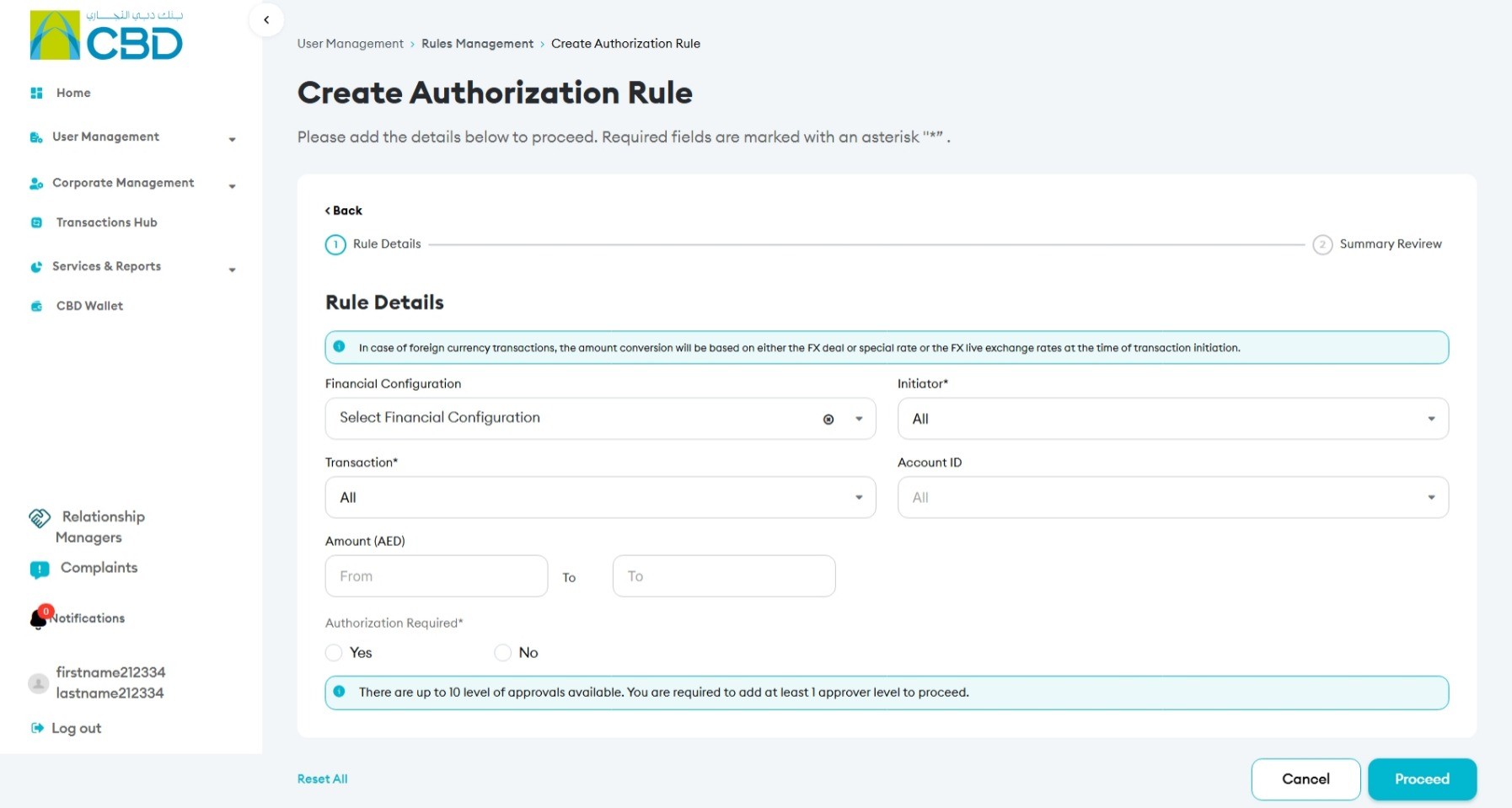
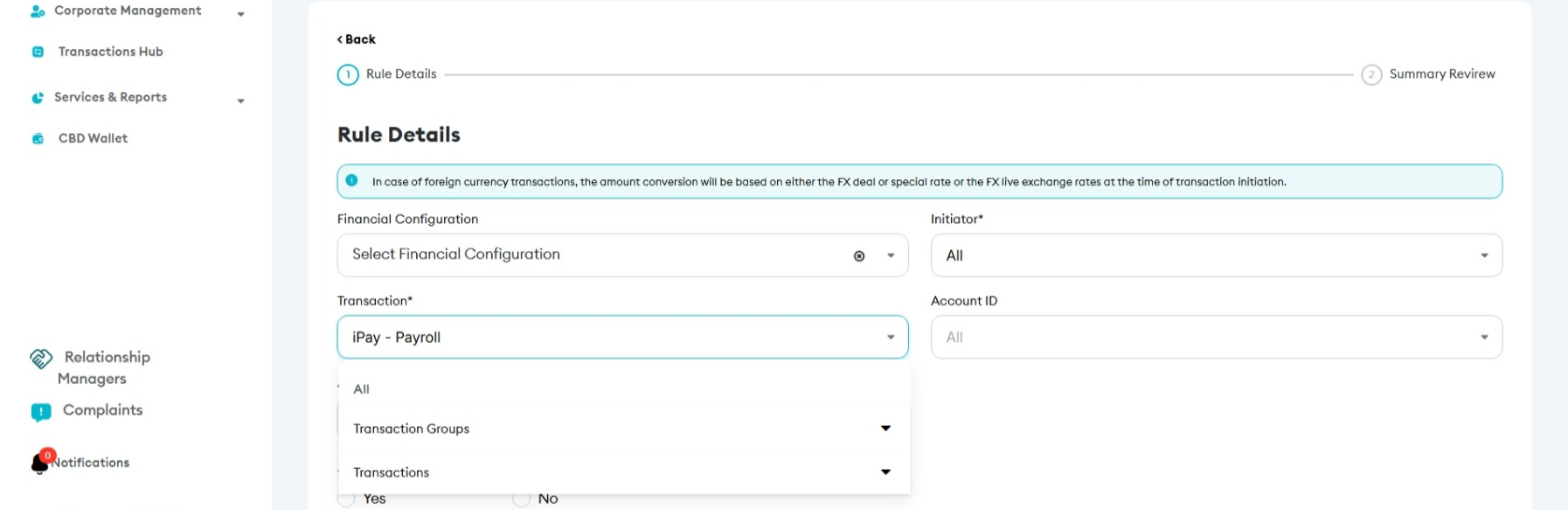
2. Select the Transaction Type
Choose which transactions the rule will apply to. You can:
- Select a Transaction Group
- Select a specific Transaction Type
- Select All to apply the rule to all available transaction types
| Transaction Group | Number of Services | Purpose / Scope |
|---|---|---|
| iPay - Transfers & Remittances (On-screen & File Upload) | 22 | Transfers, payments, standing orders, bulk transactions and remittance maintenance. |
| iPay - Payroll | 14 | Payroll processing, WPS activities and payroll channels. |
| iPay - Collection Services | 7 | Direct debit and post-dated cheque collection services. |
| Service Requests - General | 15 | General account, documentation, registration, letter and maintenance requests. |
| Trade | 13 | Letters of credit, guarantees, collections, financing and other trade services. |
| Other Products | 2 | Specialized digital and transaction products not covered by the other groups. |
| iPay - Beneficiary Management | 15 | Creation, amendment, deletion and bulk management of payment beneficiaries. |
| Open Finance | 8 | Consent, authentication, data sharing and Open Finance payment services. |
3. Set the Amount Range
Define the transaction amount range that the rule will apply to:
- Amount From (AED): Enter the minimum transaction amount.
- Amount To (AED): Enter the maximum transaction amount.

4. Select the Initiator
Choose who can initiate transactions under the rule.
You can select the Initiator by:
- Username: Select from the available users within the company.
- User List: Select from the available User Lists.
If the list is long, use Ctrl + F to quickly search for a username or User List.
Related Guide: Create and Manage User Lists – Next Gen CIB (iBusiness Online)
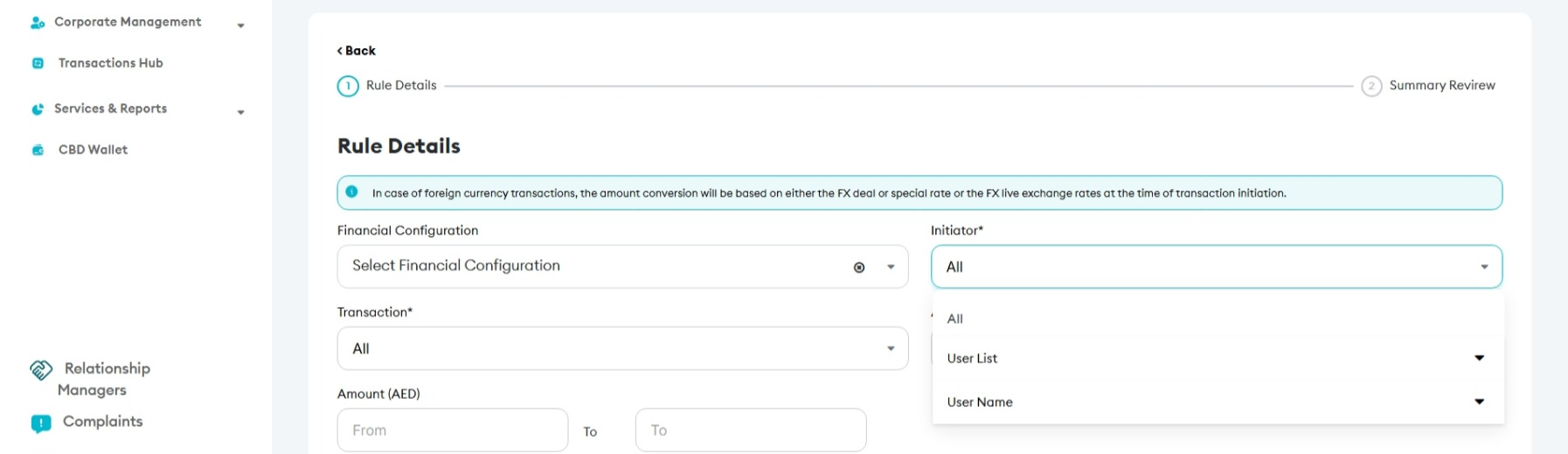
5. Select the Account
Select the account(s) that the Authorization Rule will apply to:
- Select a specific account from the available list, or
- Select All to apply the rule to all available accounts.
6. Select Whether Authorization Is Required
Under Authorization Required, specify whether transactions that match the rule require approval.

Step 4: Assign Approvers
If authorization is required, assign the users who will approve transactions covered by the rule.
- You can configure multiple Approvers.
- Up to 10 Approvers can be assigned to an Authorization Rule.
- Configure the Approvers according to your organization required approval structure.
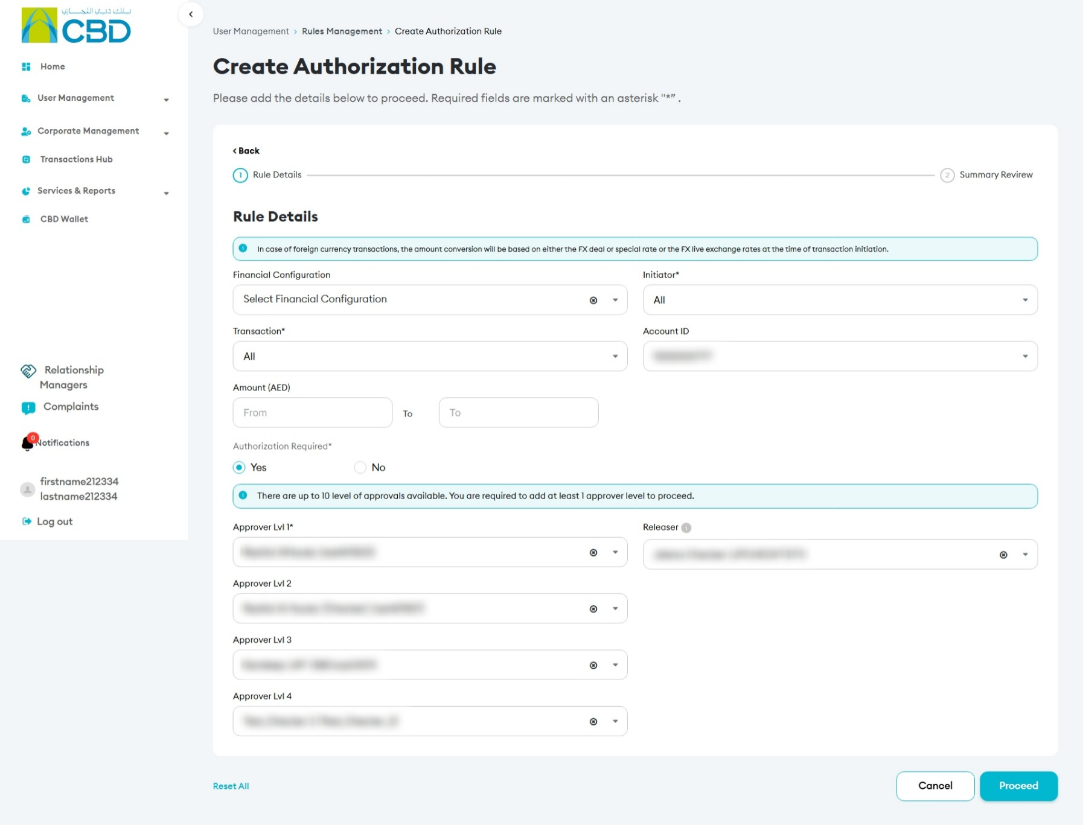
Step 5: Assign a Releaser (If Required)
A Releaser can be configured as the final stage in the authorization process.
The Releaser is responsible for reviewing the transaction before it is released for processing and confirming that sufficient funds are available in the account.
Once the required approvals have been completed, the Releaser can:
- Confirm that sufficient funds are available.
- Release the transaction for processing.
Step 6: Summary Review
Review the Authorization Rule before submitting the request.
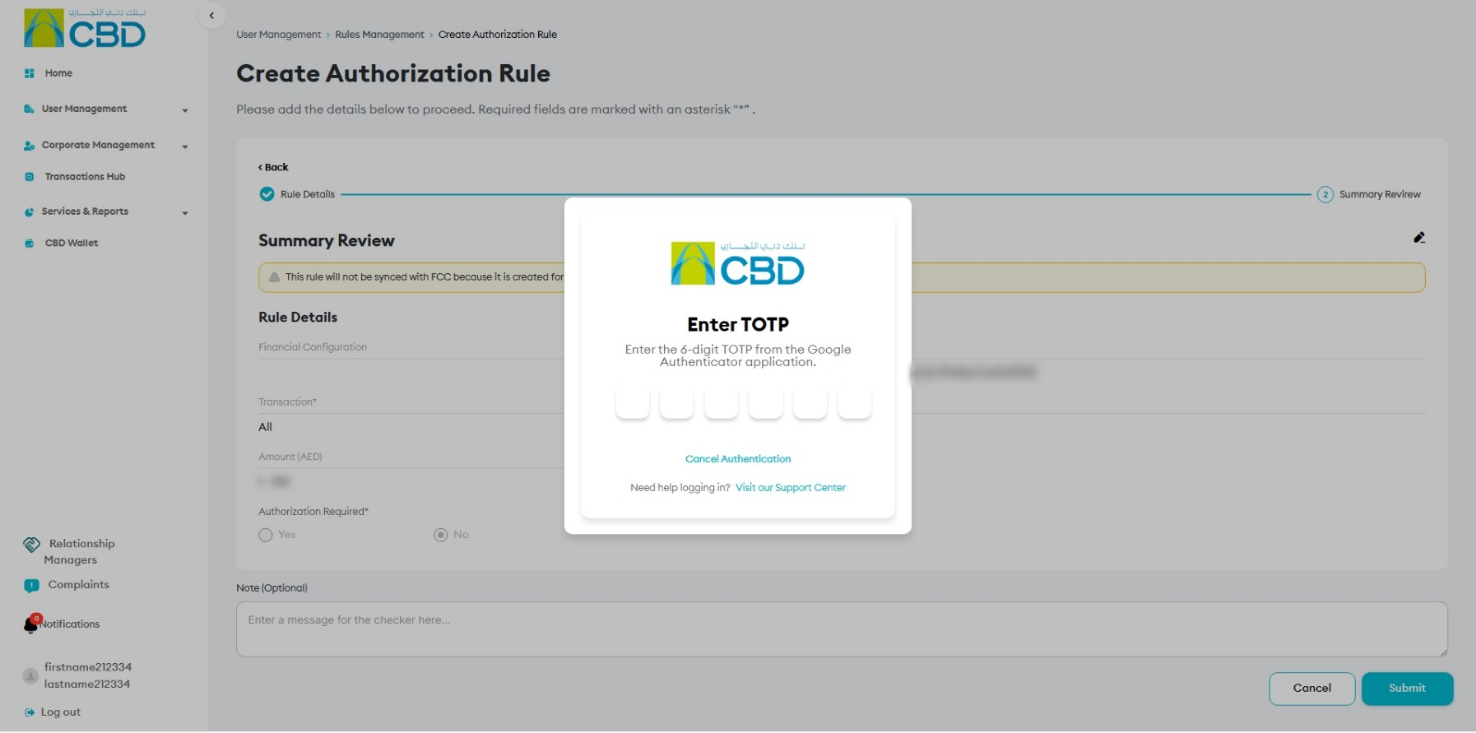
Step 7: Authenticate the Request
Complete authentication using one of the following methods:
iBusiness App Authentication
- Approve the request through the registered iBusiness Mobile App.
- Complete biometric or device authentication.
Google Authenticator
- Enter the One-Time Password (OTP) generated by Google Authenticator.
Once authentication is successful, the Authorization Rule request will be submitted, and a reference number will be generated.
Step 8: Approval (If Maker–Checker Is Enabled)
If a Maker–Checker setup is configured:
- The request is routed to a Checker/Approver.
- The Approver reviews the Authorization Rule and its approval structure.
- The Approver can Approve or Reject the request.
- The Authorization Rule becomes active once all required approvals have been completed.
Related Guide:
Create and Manage User Lists – Next Gen CIB (iBusiness Online)
Create a Financial Configuration – Next Gen CIB (iBusiness Online)