
View or Modify an Existing Authorization Workflow – Next Gen CIB (iBusiness Web)
Note: This functionality is applicable to Transaction Packages only.
Overview
This guide provides step-by-step instructions for viewing and modifying an existing Authorization Workflow (Authorization Rule) in the iBusiness Web Portal.
Authorization Rules determine how transactions are routed for approval and define the required authorization hierarchy for transaction processing.
Step 1: Access Authorization Rules
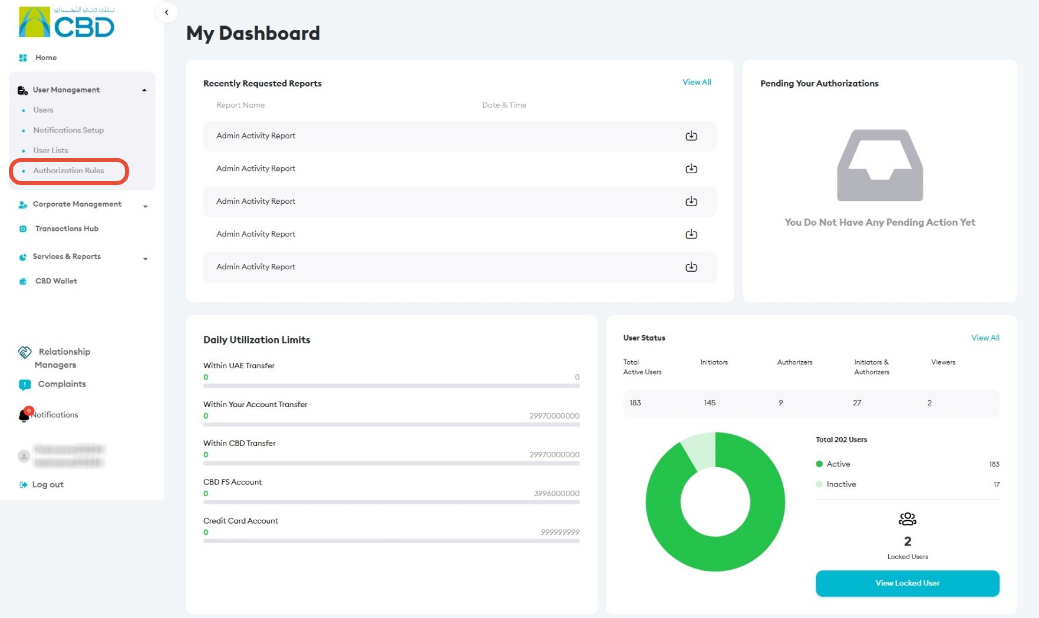
- Log in to iBusiness.
- Navigate to: User Management ➜ Authorization Rules
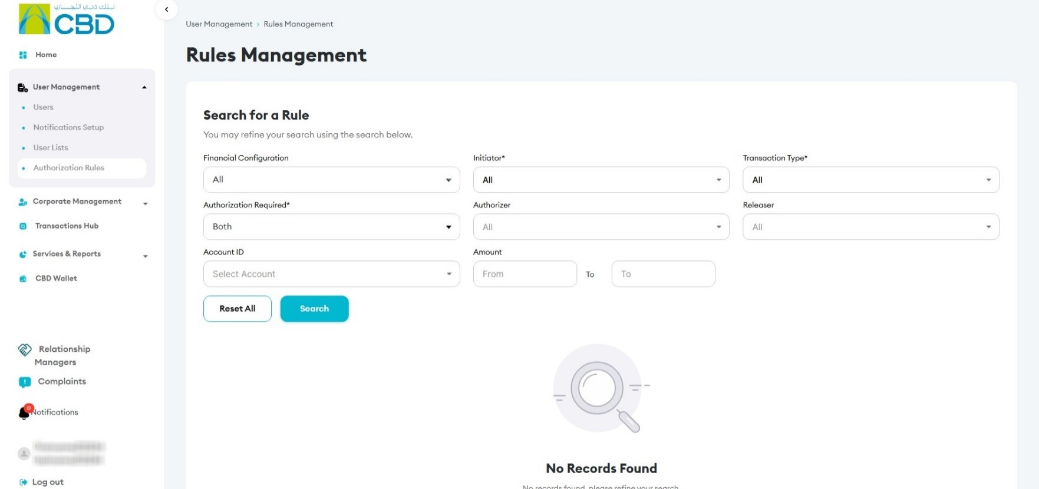
- Select the required Transaction Type.
- Click Search.
Step 2: View Authorization Rule Details
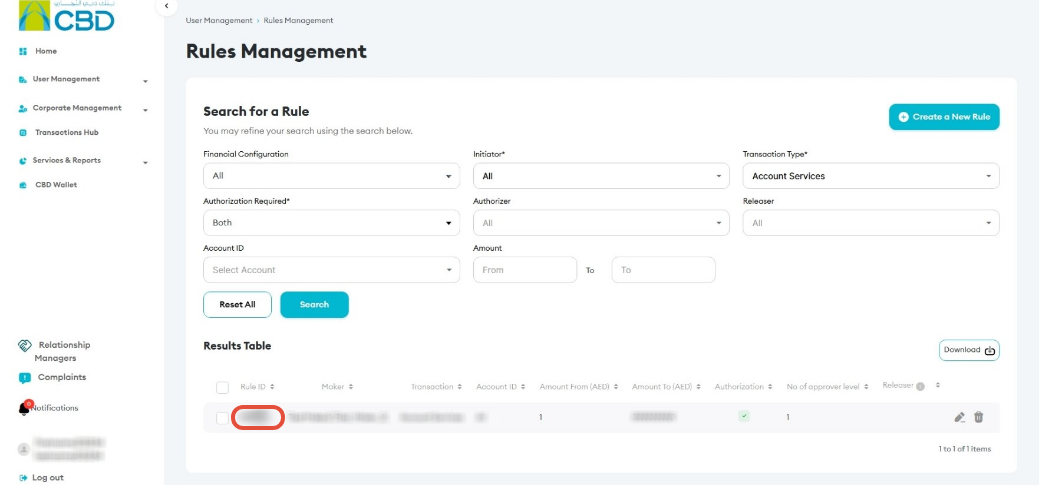
- Locate the required authorization rule.
- Click the Rule ID to open the rule details.
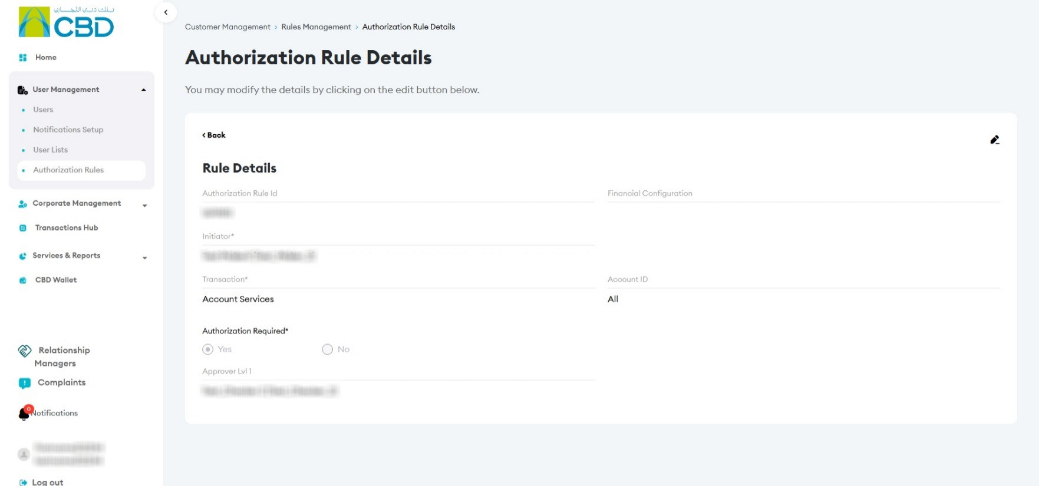
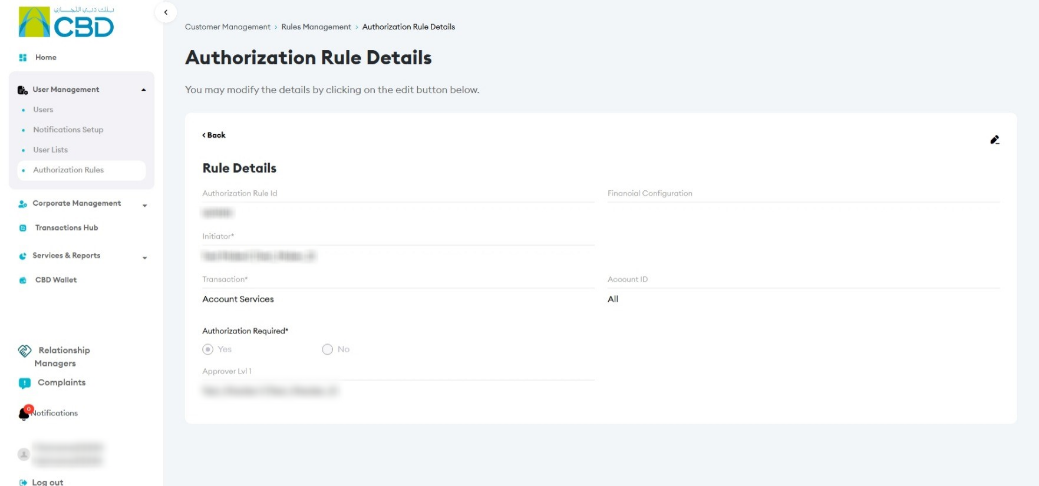
The system will display the existing authorization workflow configuration
Step 3: Edit the Authorization Rule
- From the Authorization Rule Details screen, click the Edit (pencil) icon
 to modify authorization rules .
 - Update the required rule settings as needed.
Step 4: Modify Rule Details
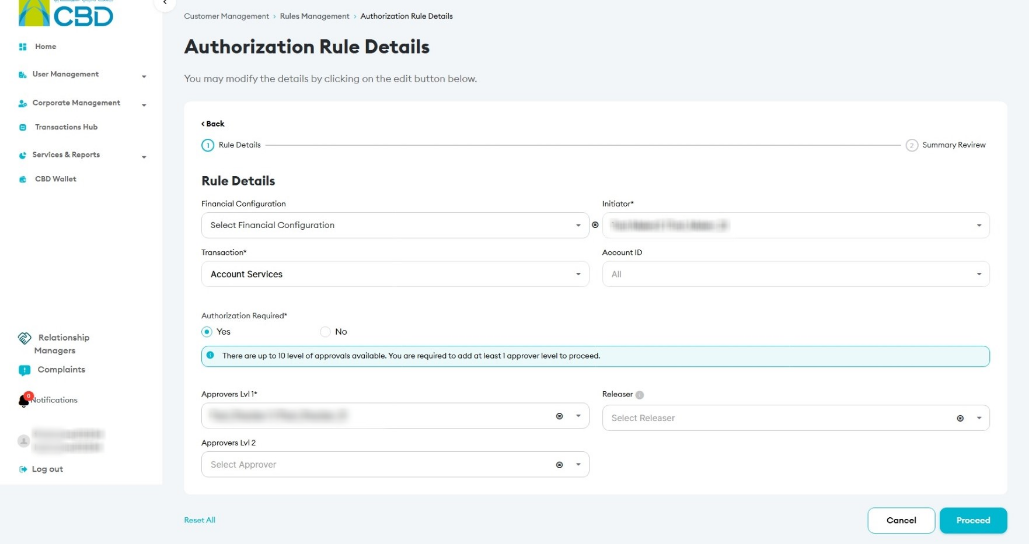
- Review the existing workflow configuration.
- Update the required authorization rule details.
- Ensure the authorization hierarchy and approval requirements are configured correctly.
After making the required changes, continue to the next step.
Step 5: Review Changes
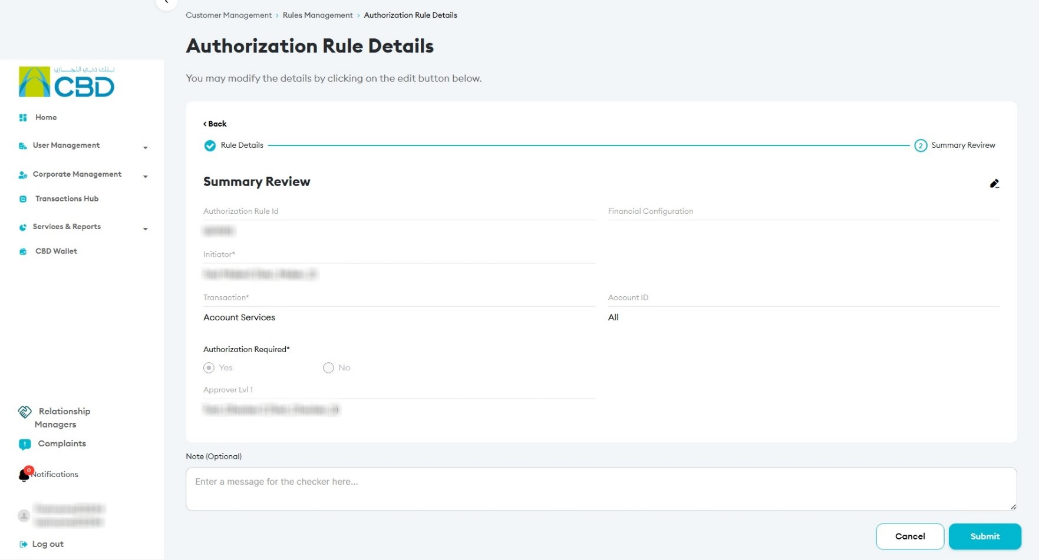
- Review all modified authorization rule details carefully.
- Verify that the configured approval workflow meets your business requirements.
- Confirm the changes before submission.
The Summary Review screen allows you to validate all changes before proceeding
Step 6: Authenticate the Request
Complete authentication using one of the following methods:
iBusiness App Authentication
- Approve the request through the iBusiness Mobile App.
- Complete biometric or device verification.
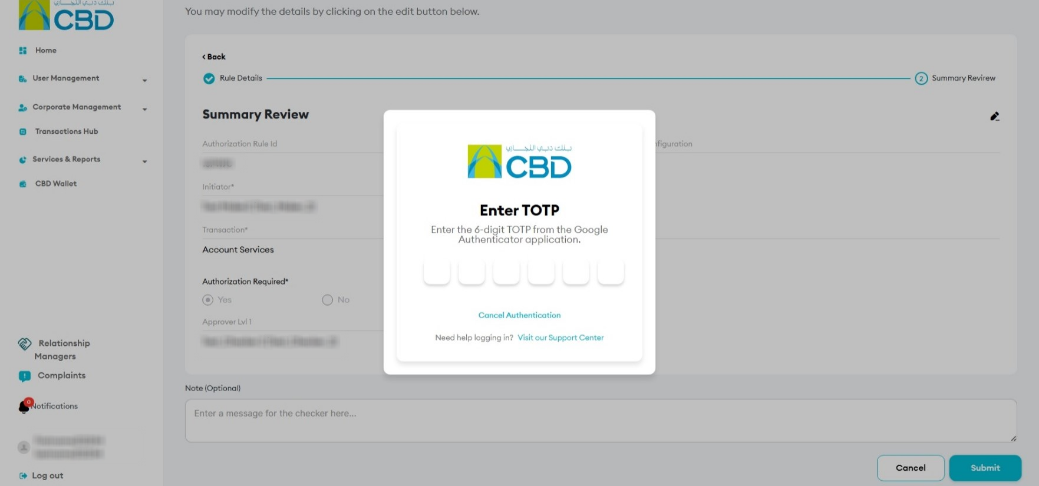
Google Authenticator
- Open the Google Authenticator application.
- Enter the generated One-Time Password (OTP).
Once authentication is successful, the modification request will be submitted for approval.
If Maker–Checker controls are enabled, the request must be approved before the changes take effect.
Step 7: Review and Approve the Request
- Log in to iBusiness.
- Navigate to: Transactions ➜ Pending Your Authorizations
- Locate the request under: Modify Authorization Rules
- Review the submitted changes.
- Select: Approve or Reject
The request will only be completed once the designated approver has taken action
Support Notes / Best Practices
- Verify the correct Transaction Type is selected before searching for authorization rules.
- Review authorization levels carefully before submitting any modifications.
- Ensure approval workflows comply with your organization's internal authorization policy.
- Validate all changes on the Summary Review screen before authentication.
- Keep a record of the request reference number for audit and support purposes.