
Overview
This guide provides step-by-step instructions for creating a Financial Configuration in the iBusiness Online. Financial Configurations allow Corporate Administrators to define which financial products and transaction types are available and specify which accounts can be used for those services.
Step 1: Access Financial Configuration
- Log in to iBusiness using your Corporate Admin credentials.
- Navigate to Corporate Management ➜ Financial Configuration.
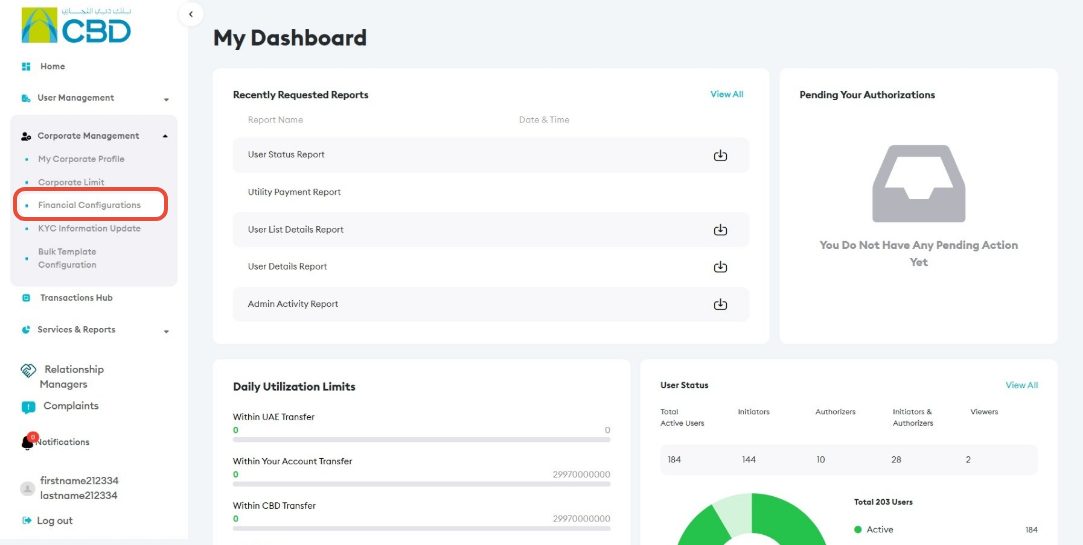
Create or Edit a Financial Configuration
From the Financial Configuration screen, you can:
- Create a new Financial Configuration.
- Edit an existing Financial Configuration.
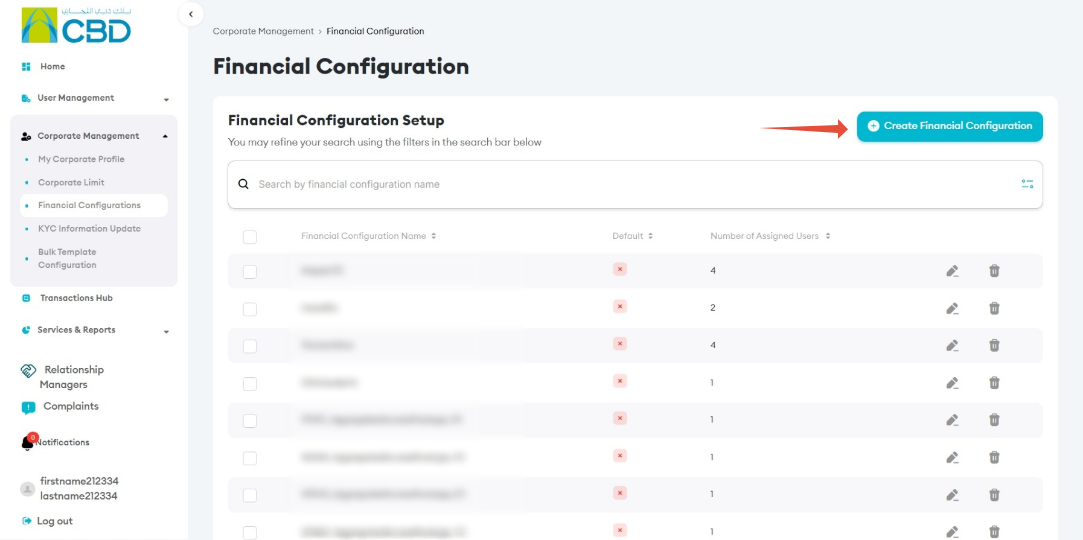
Step 2: Create a Financial Configuration
From the Financial Configuration screen:
- Click Create Financial Configuration.
- Enter a clear and meaningful name for the Financial Configuration.
- Continue to configure the required access.
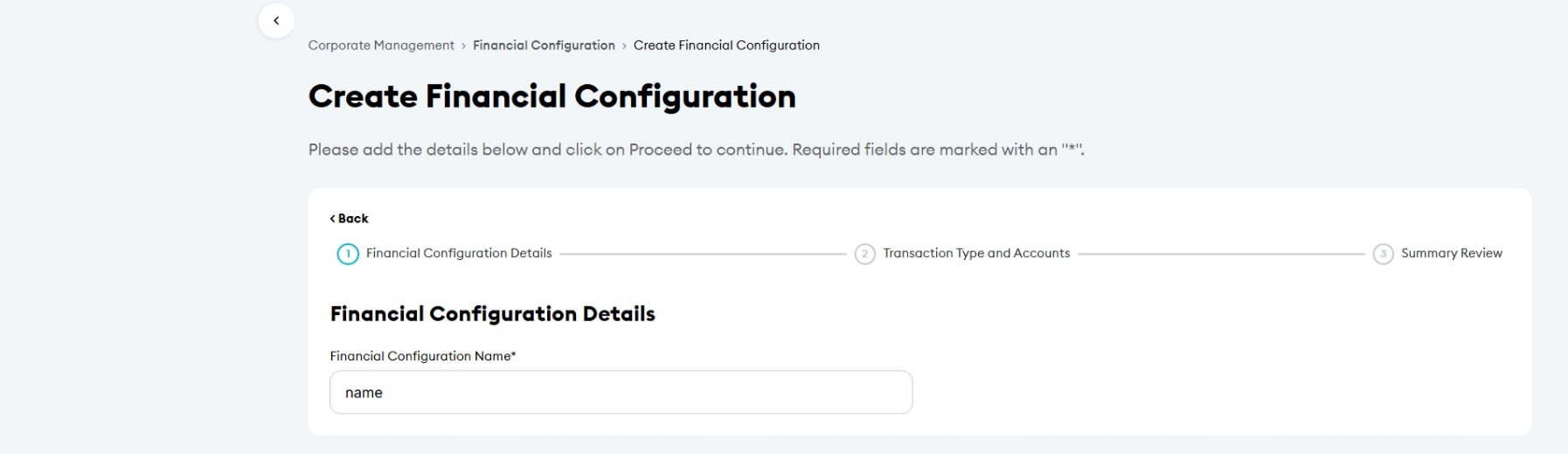
Step 3: Select the Required Transaction Types
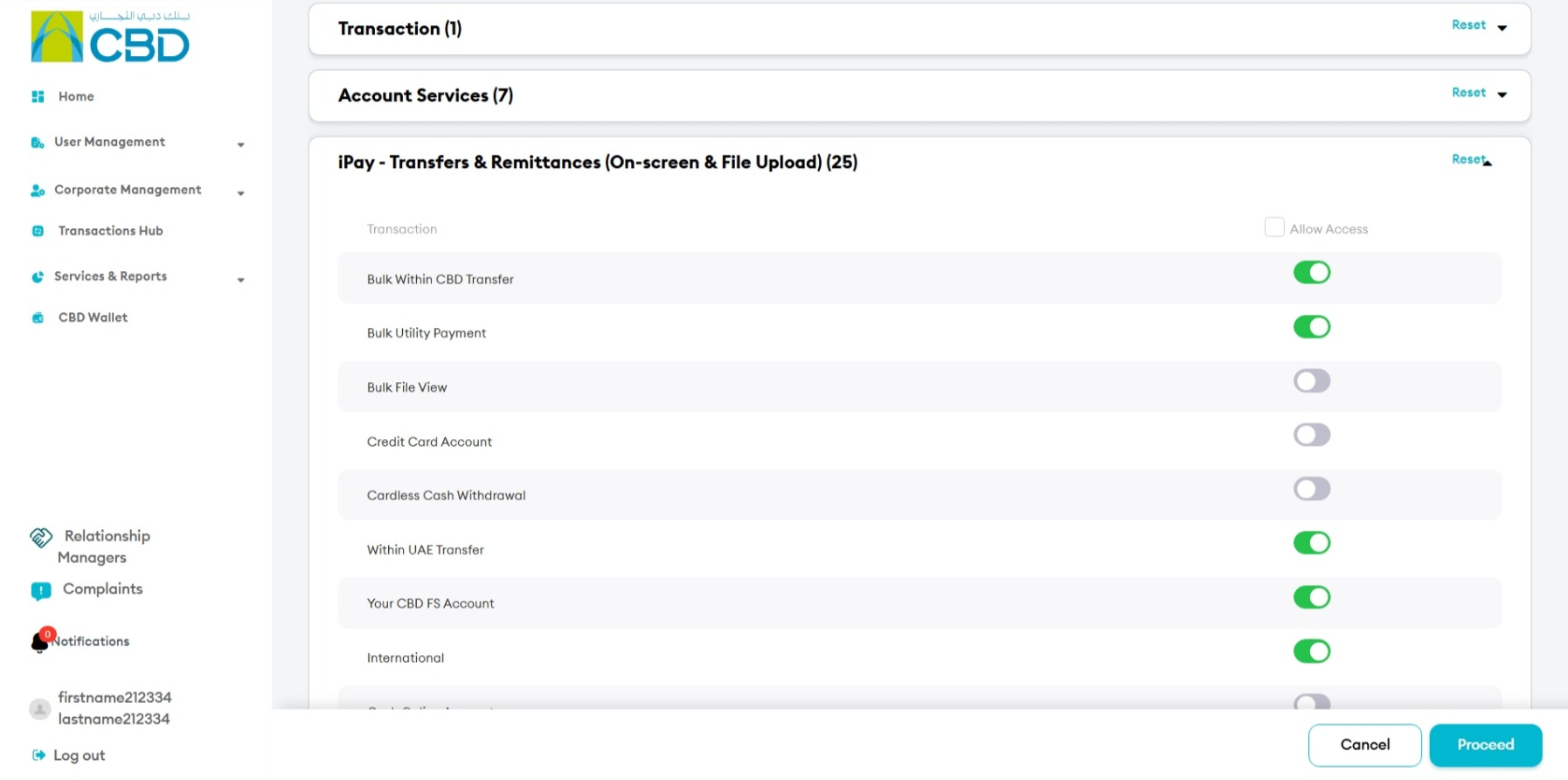
From the Transaction Type tab:
- Review the available products and services.
- Enable the transaction types required for the Financial Configuration.
- Only select the services that users need access to.
- Tick the box Allow Access to enable all products and services.
- Proceed to the Transaction Type and Account tab.
Step 4: Assign Transaction Types to Accounts
From the Transaction Type and Account tab:
- Select the required Transaction Type.
- Select the account(s) that should have access to that transaction type.
| Account Type | Explanation |
|---|---|
| CASA | Current Account / Savings Account. Used for day-to-day balances and transactions, with funds generally available when needed rather than being locked for a fixed term. |
| Islamic CASA | The Islamic banking equivalent of CASA, used for day-to-day current/savings account activities while being structured according to Islamic banking principles. |
Term Deposit | Money placed with the bank for an agreed period, generally with an agreed return or interest arrangement. Unlike CASA, the funds are placed for a defined term. |
| Islamic Term Deposit | The Islamic banking equivalent of a term deposit, where funds are placed for an agreed period under a Sharia-compliant structure. |
| Loan | Represents a conventional lending facility where the customer has borrowed funds from the bank and has an outstanding amount to repay. |
| Islamic Finance | Represents financing provided through an Islamic, Sharia-compliant financing structure rather than a conventional interest-bearing loan. |
| Commitment | Represents an agreed credit commitment or facility that the bank has made available to the customer, subject to the facility's conditions. The CBUAE defines a commitment as a contractual arrangement accepted by the client to extend credit, purchase assets, or issue credit substitutes. |
| DSRA | Debt Service Reserve Account. A dedicated reserve maintained to help cover scheduled loan principal and interest if available cash flow is insufficient. It is commonly associated with project or structured finance. |
| Card Accounts | Accounts associated with the customer's card facilities, such as balances or obligations linked to a card product. |
| External | An account held outside the bank or an externally maintained account that is represented or referenced within the banking platform. The exact meaning will depend on how your system uses the External account type. |
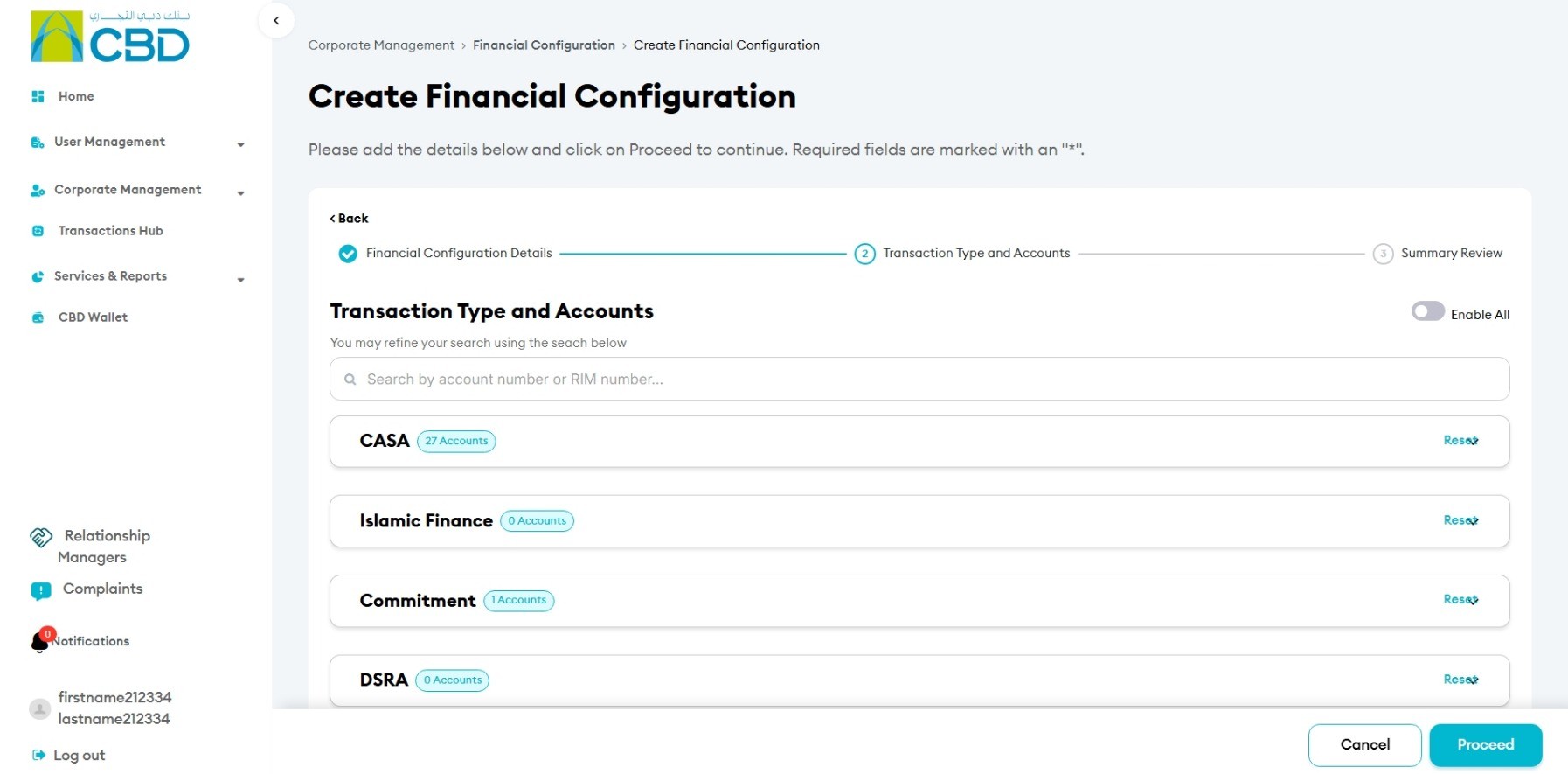
- Click on Enable All to select all account and transaction types.
- by ticking the box on the top you will select the column.
- by ticking the box on the left you will select the row.
- Click Proceed once the setup is complete.
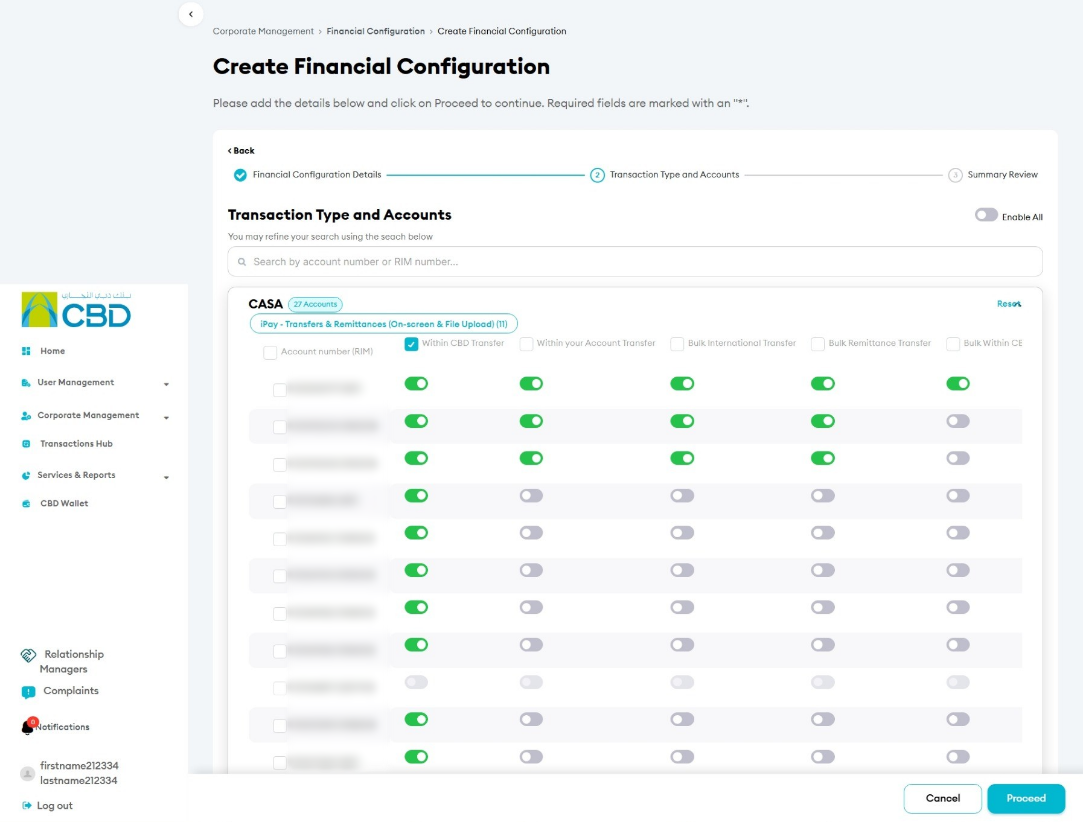
Important: Ensure the correct accounts are assigned to each transaction type. Account access determines which accounts can be used for the selected service.
Step 5: Summary Review
Review the Financial Configuration before submitting it.
Check both sections:
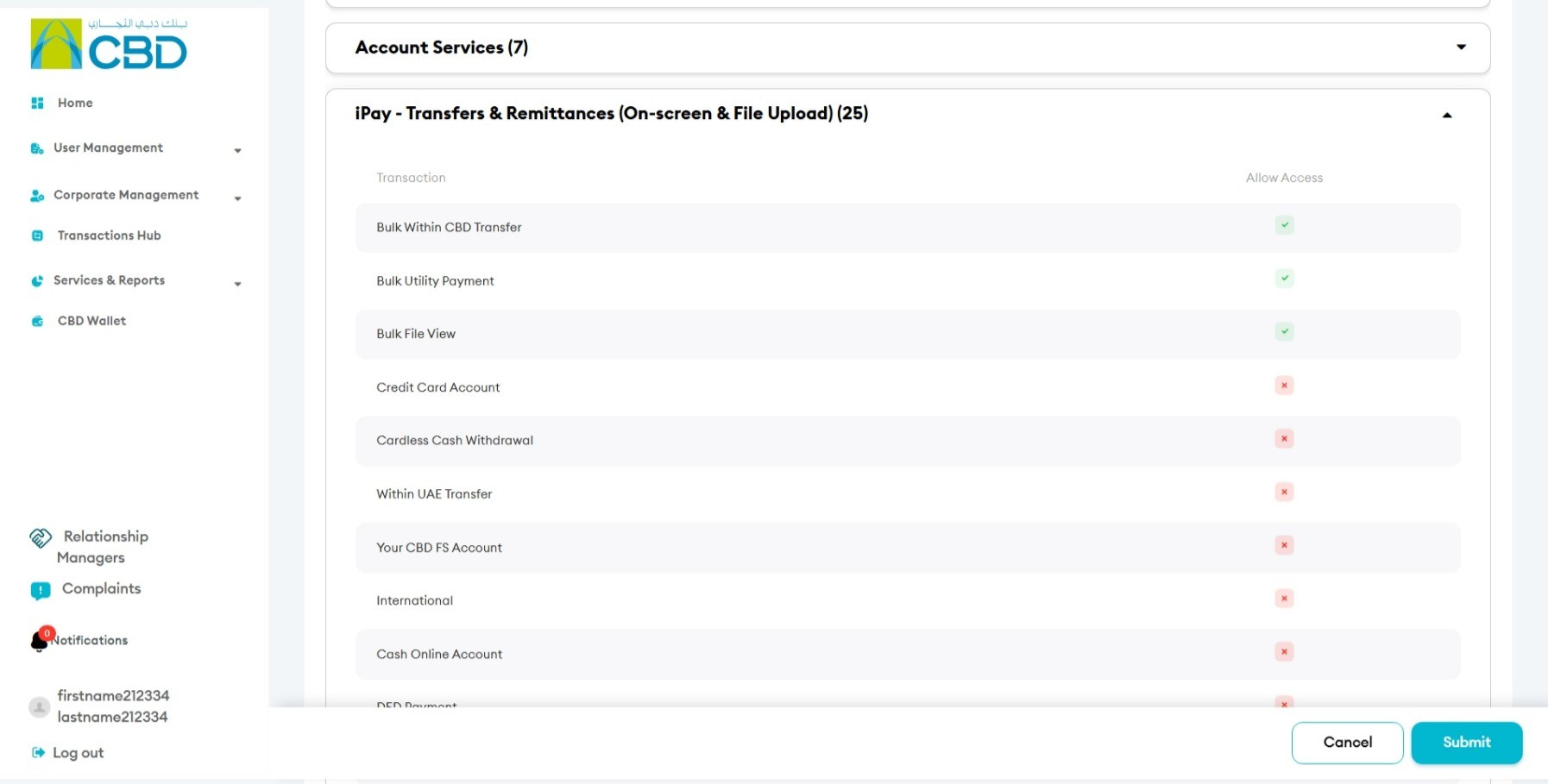
Transaction Type
Confirm that the required products and services have been enabled.
Transaction Type and Account
Confirm that the correct accounts are assigned to each transaction type.
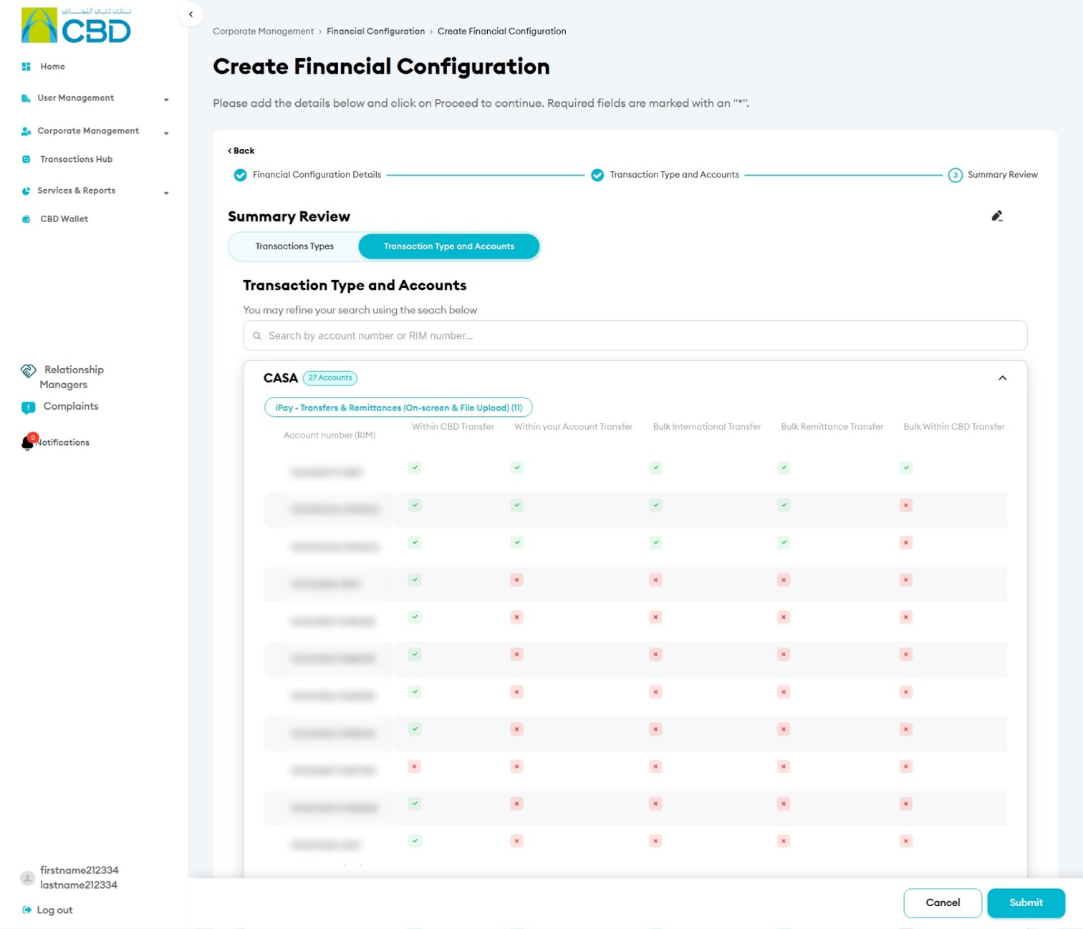
Once all details have been verified, click Submit.
Step 6: Authenticate the Request
Complete authentication using one of the available methods:
iBusiness App Authentication
- Approve the request through the registered iBusiness Mobile App.
- Complete biometric or device authentication.
Google Authenticator
- Enter the One-Time Password (OTP) generated by Google Authenticator.
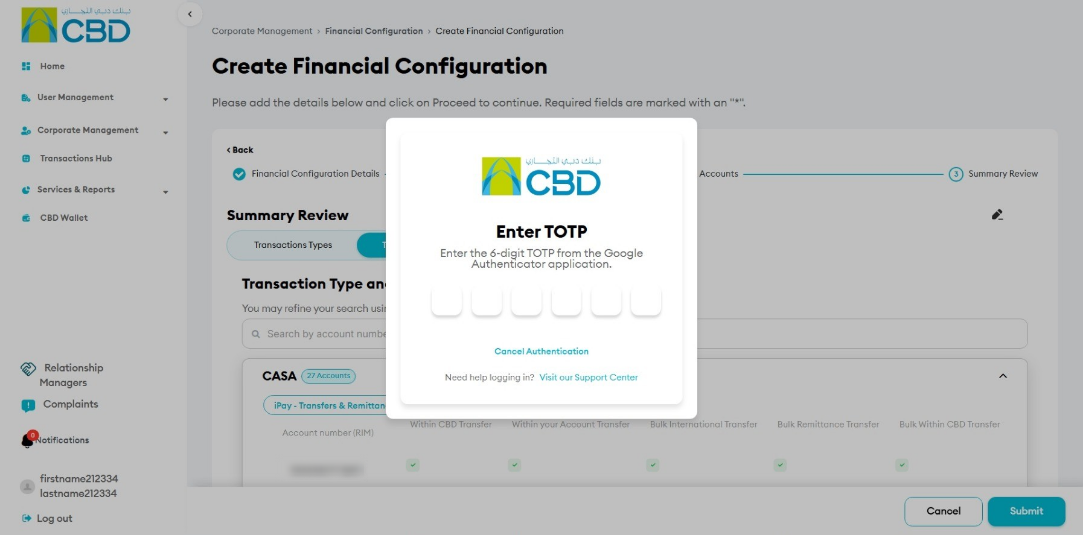
After successful authentication, the request will be submitted.
Step 7: Approval (If Maker–Checker Is Enabled)
If a Maker–Checker setup is configured:
- The request is routed to a Checker/Approver.
- The Approver reviews the Financial Configuration request.
- The Approver can Approve or Reject the request.
- The new or updated Financial Configuration takes effect after the required approval is completed.