
This guide provides step-by-step instructions on how to navigate and view user details within the User Management menu in Next Gen iBusiness.
1. Access User Management
- Log in to iBusiness using your Admin credentials.
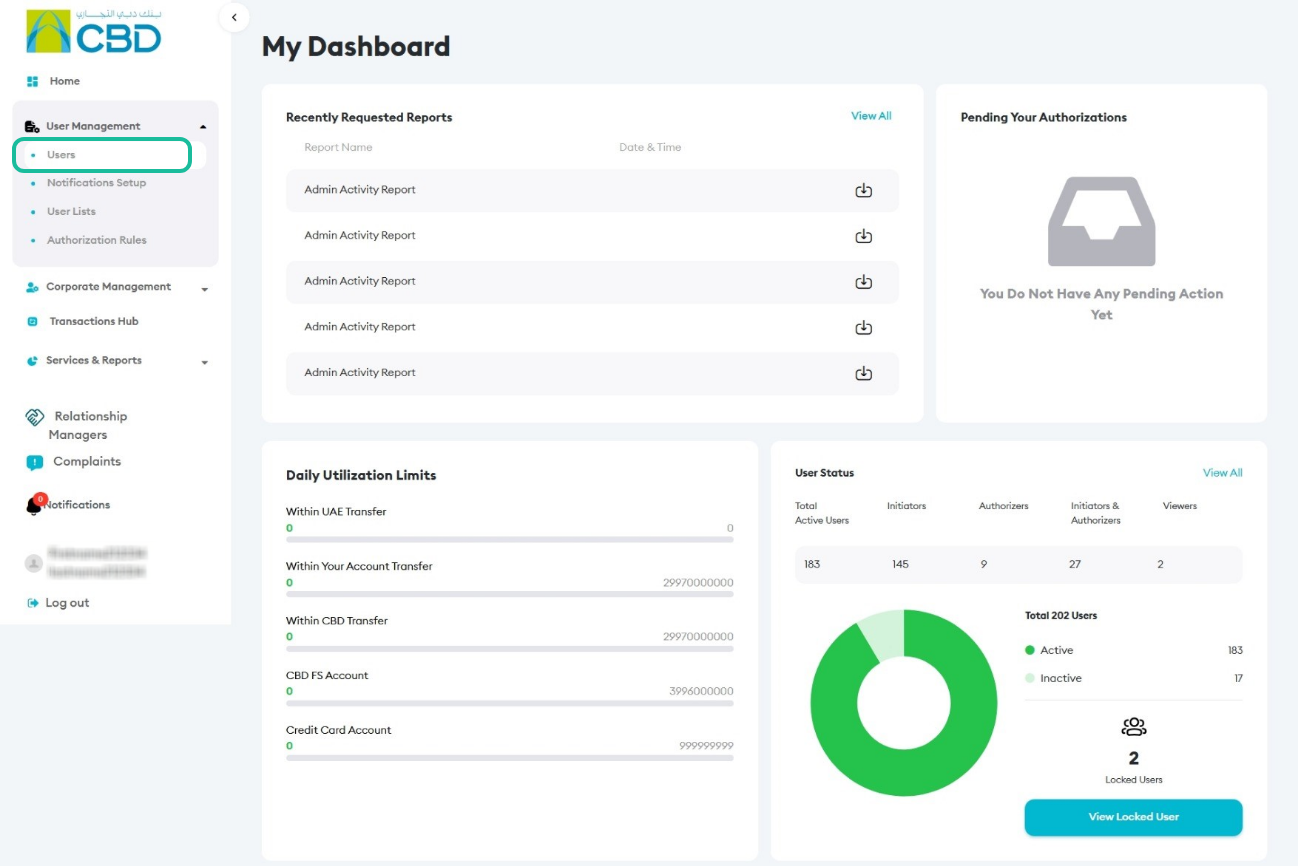
- Navigate to User Management > Users.
2. Search for a User
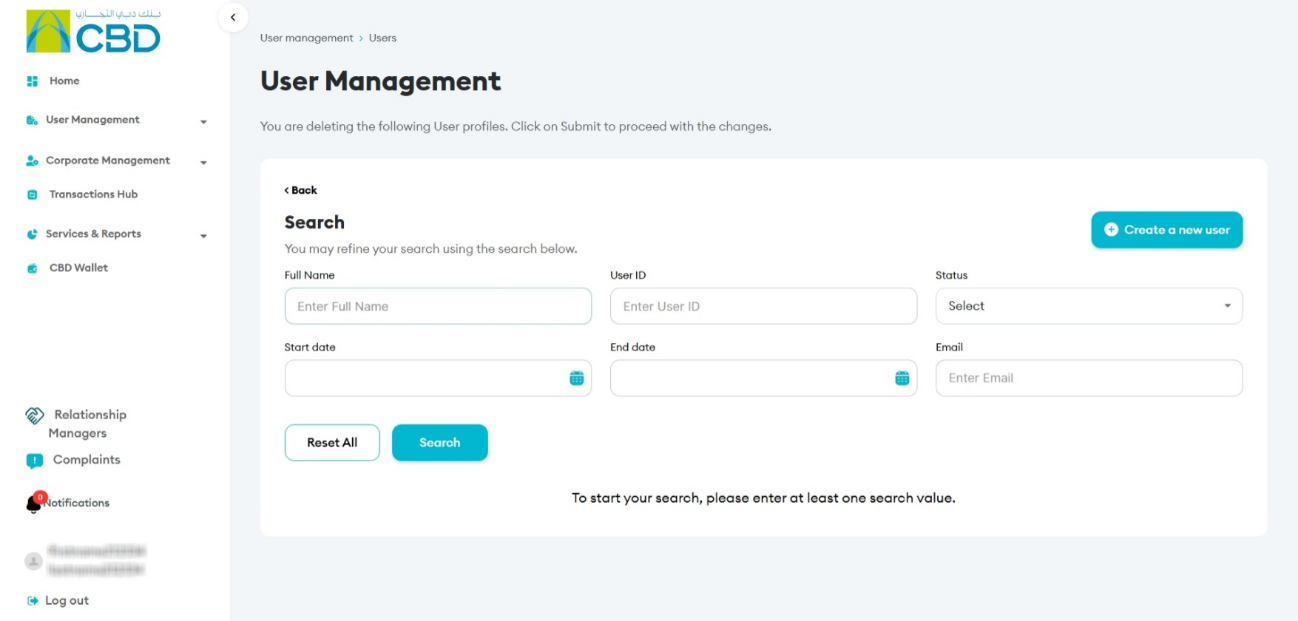
Use the search functionality to locate a specific user. You can search using the following criteria:
- Full Name
- User ID
- Email Address
- Status (Active, Inactive, Draft, Locked)
- Start Date
- End Date
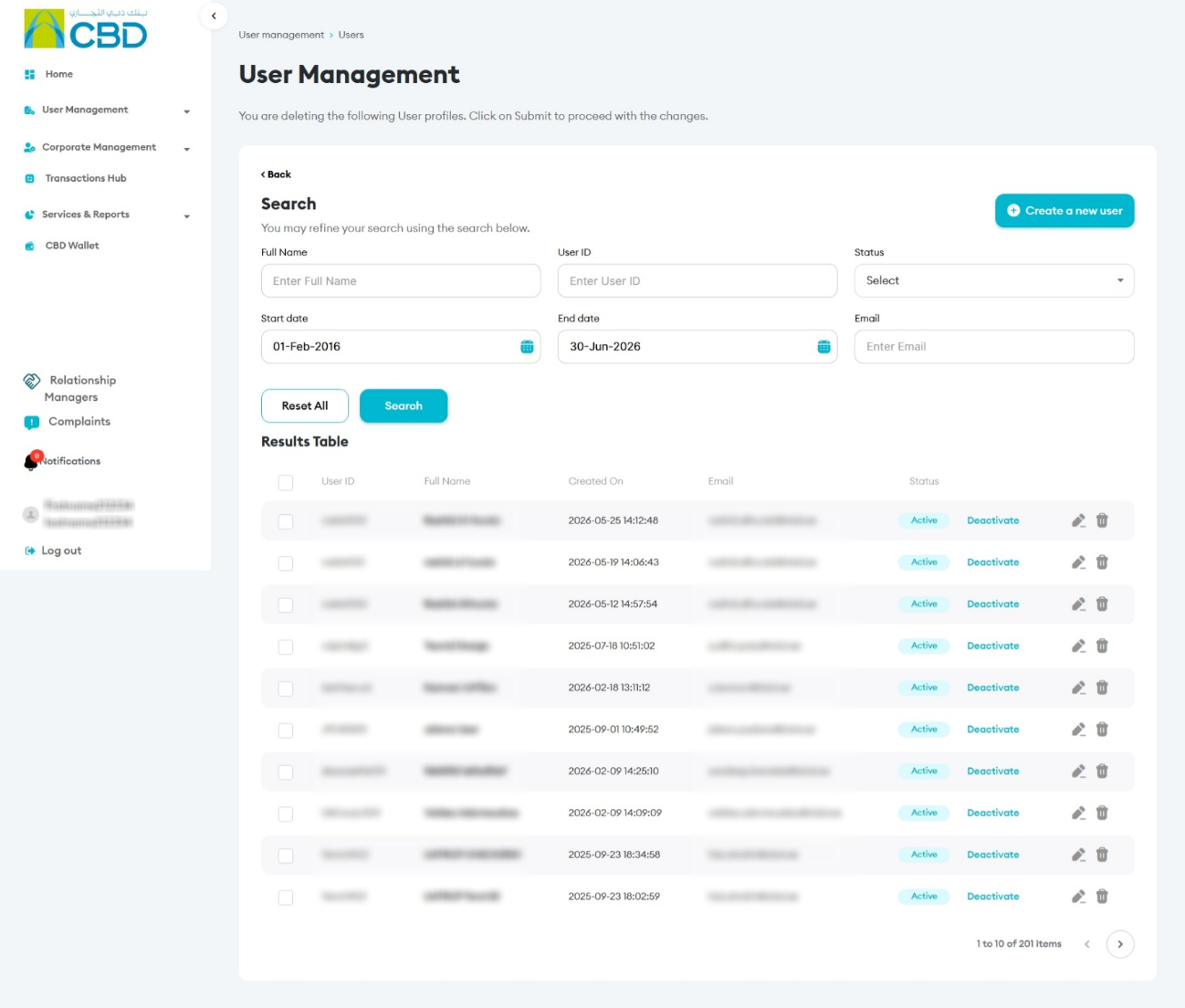
3. View User Details
- From the user list, click on the user’s Full Name.
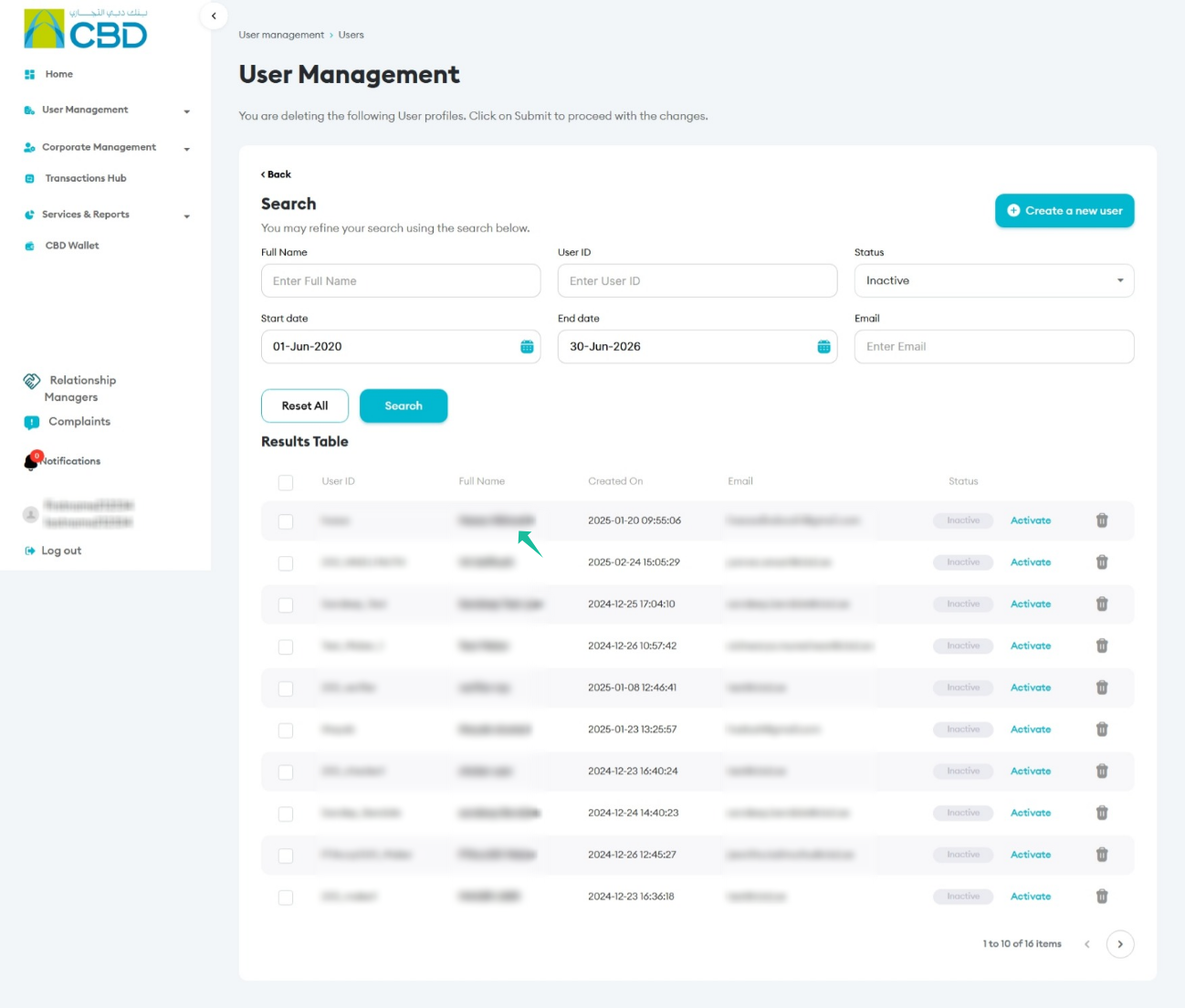
- The User Profile page will open, displaying detailed information.
- Click the pencil icon
 to edit and update user information.
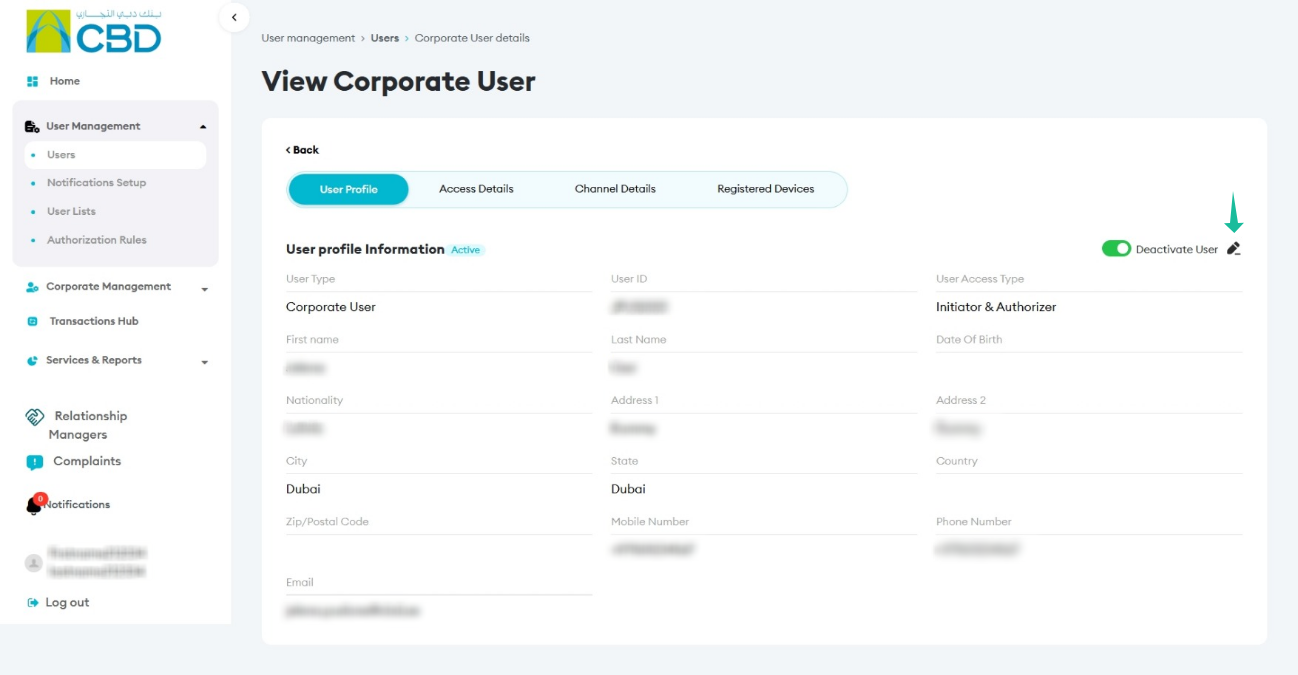
See detailed instructions in ‘How to Modify User Details Next Gen CIB’.
4. Review User Information
User Profile
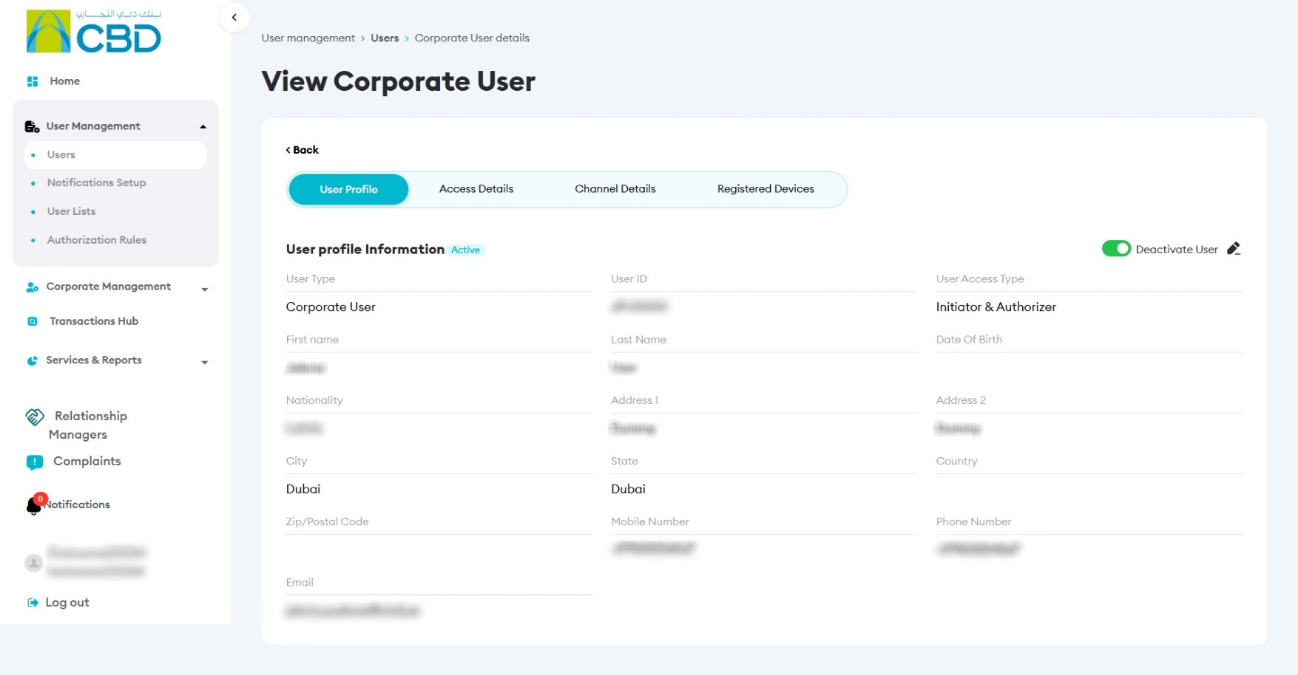
Access Details
- Displays the user’s assigned roles, permissions, and entitlements.
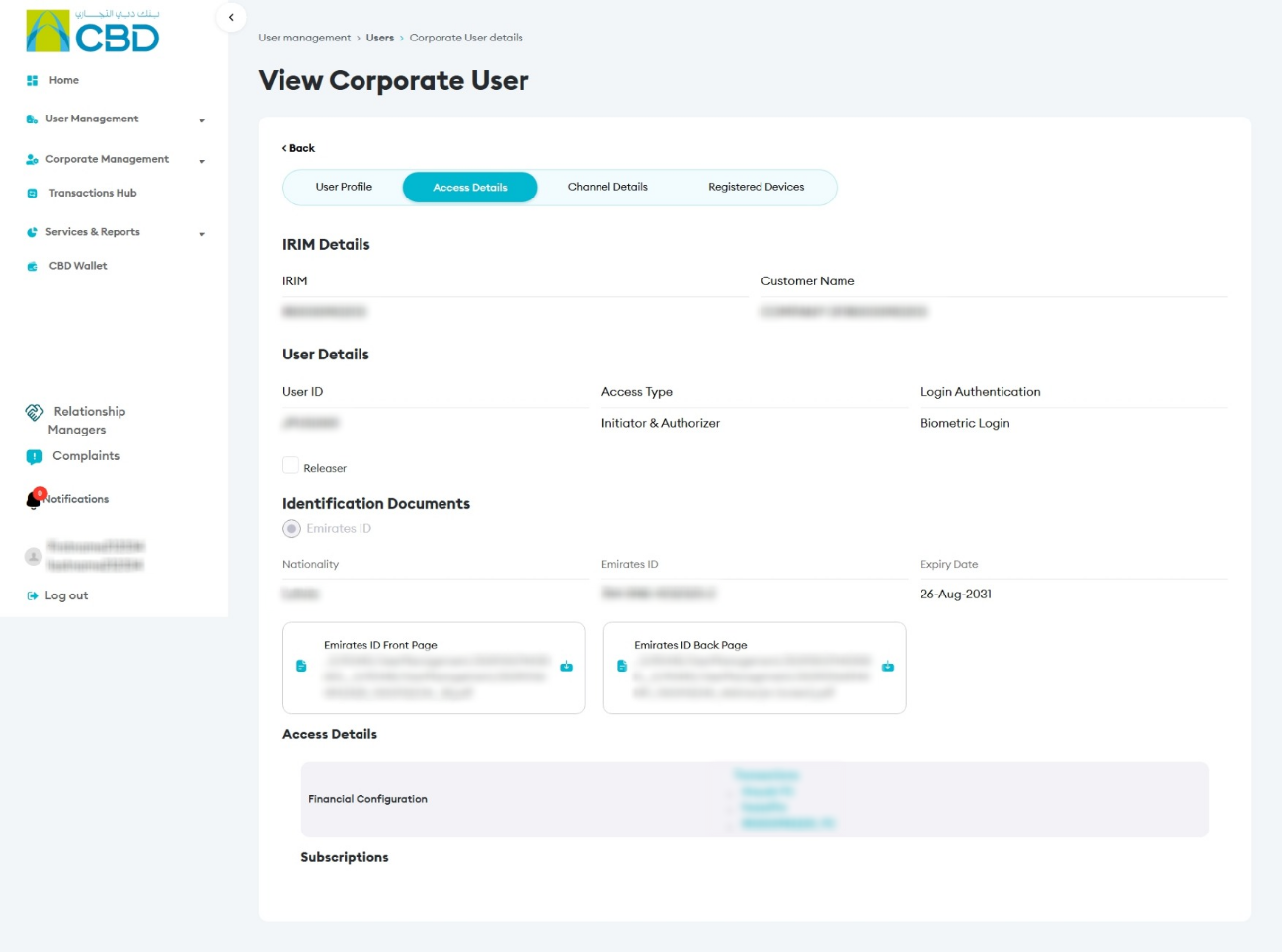
Channel Details
- Shows the channels available to the user (e.g., mobile, web).
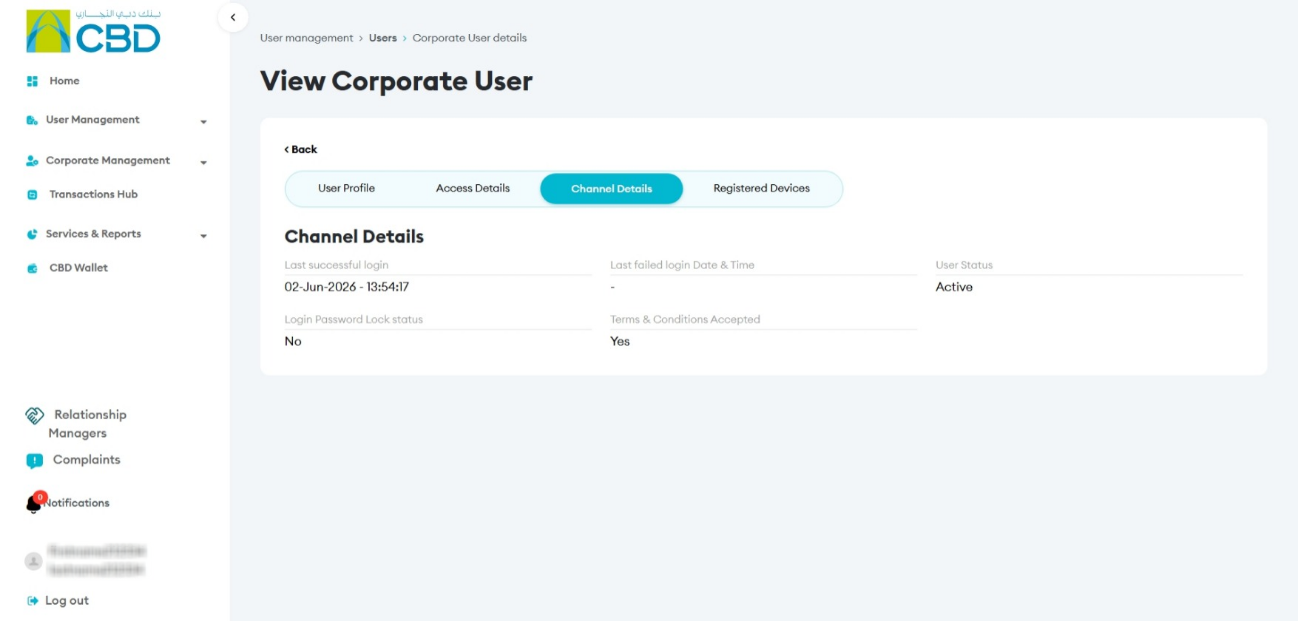
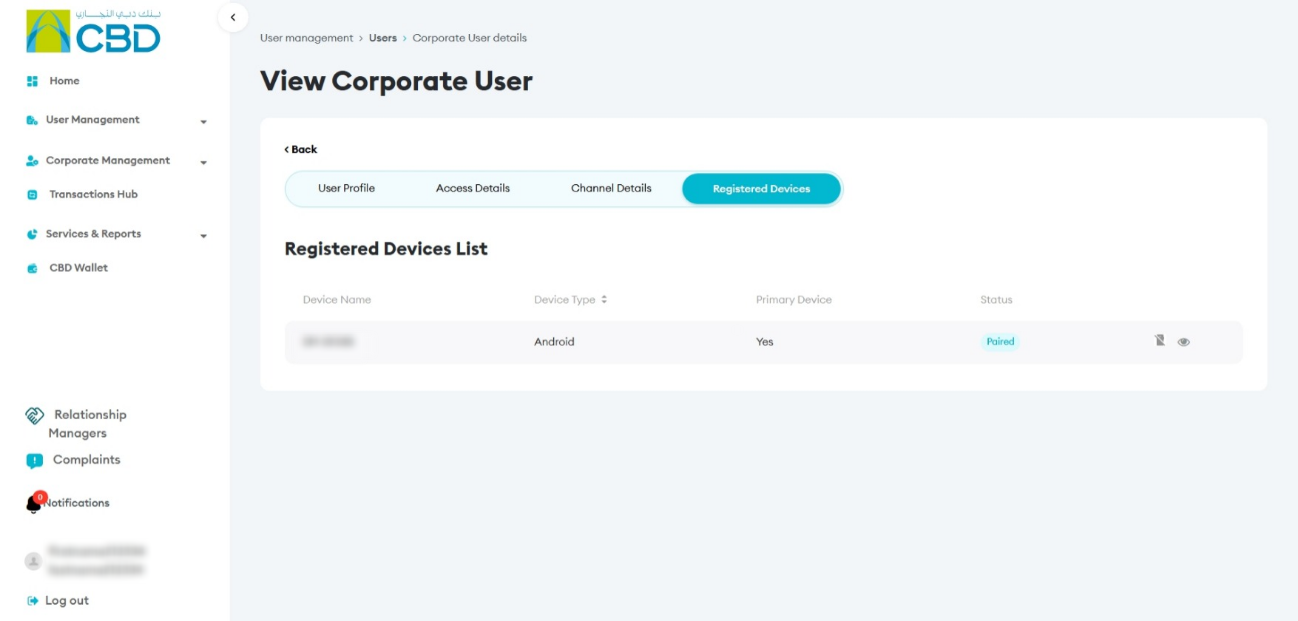
Manage Paired Devices
- Navigate to the Paired Device section within the user profile.
- Click the eye icon
 to see device details.
 - To remove a device, click on the Unpair Device icon
 and confirm the action.
See detailed instructions in 'Managing Paired Devices for Corporate Users (Admin)'.