
This guide provides step-by-step instructions to check, unpair, and manage registered devices for corporate users in Next Gen iBusiness using the iBusiness mobile application.
Devices may need to be unpaired in the following scenarios:
- Lost or stolen device (to prevent unauthorised access)
- User upgrades to a new mobile device
- Employee exit or role change
- Inactive user accounts
- Technical issues (e.g. app or biometric failure)
- Removal of unused or multiple registered devices
Check if a Corporate User Has a Registered Device
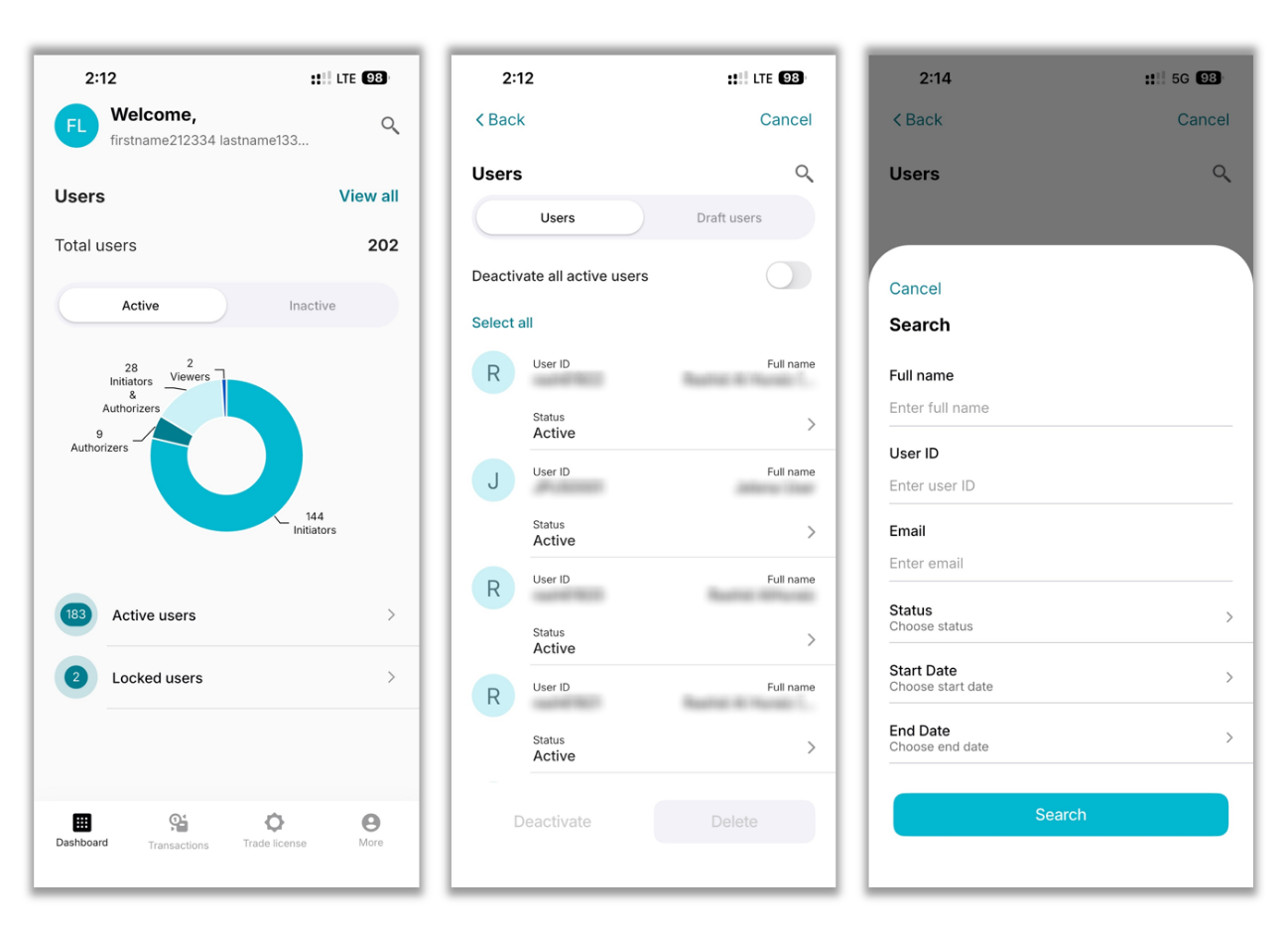
- Log in to the iBusiness mobile app as Admin.
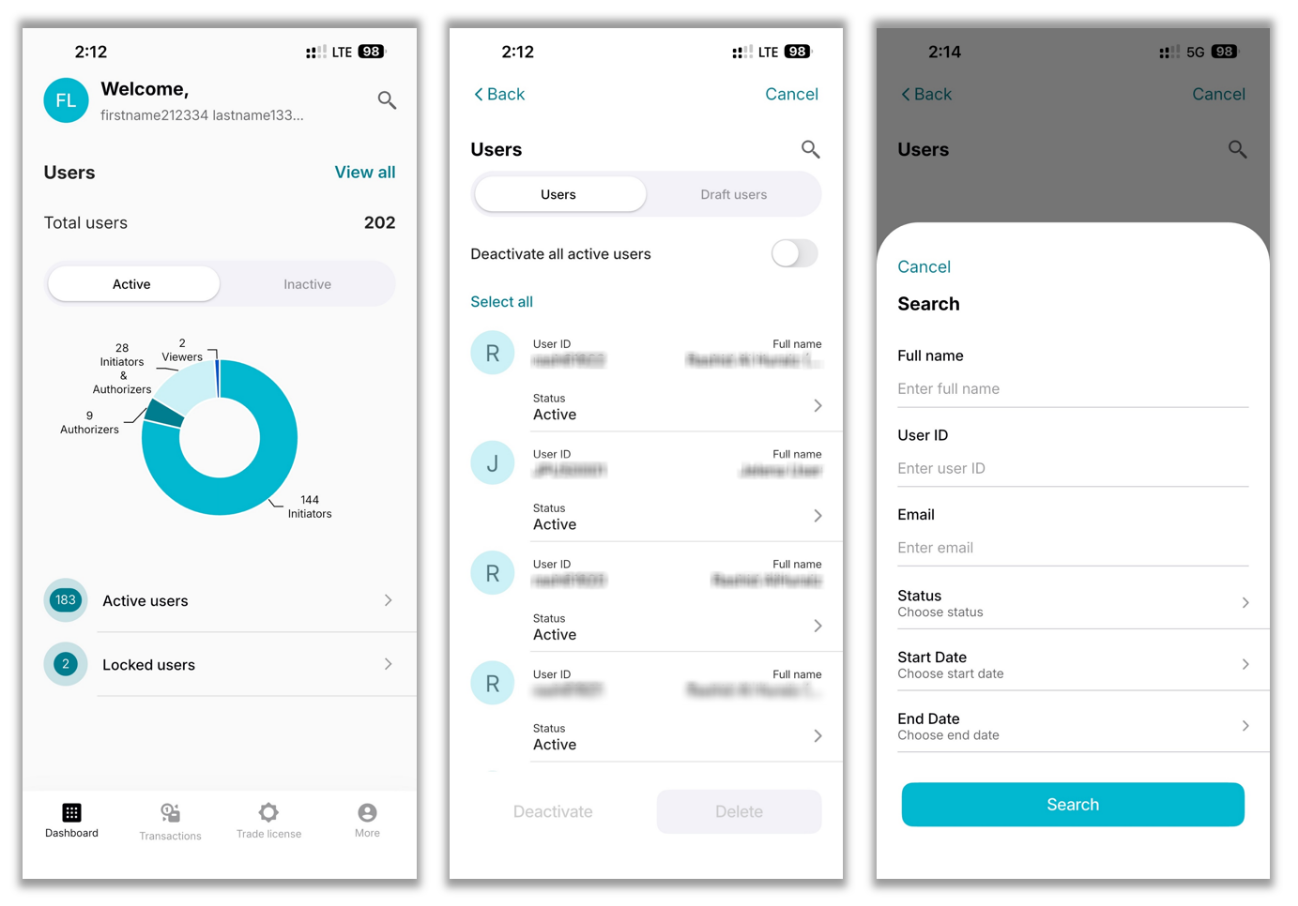
- Navigate to Users and tap View All.
- Search for the user using the list or the search function.
- Select the user to open their profile.
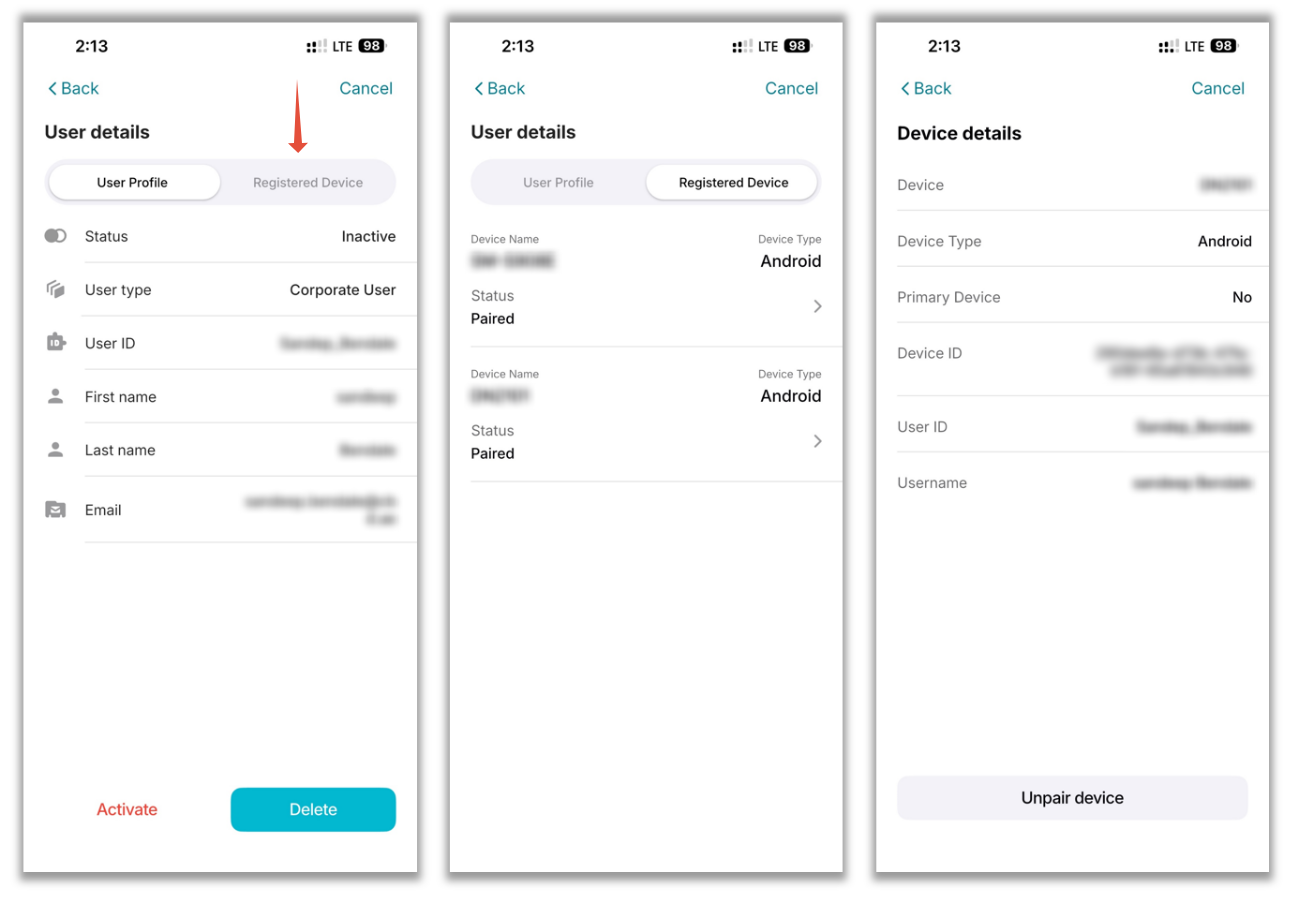
- Tap Registered Device.
If a device is registered, the device details will be displayed.
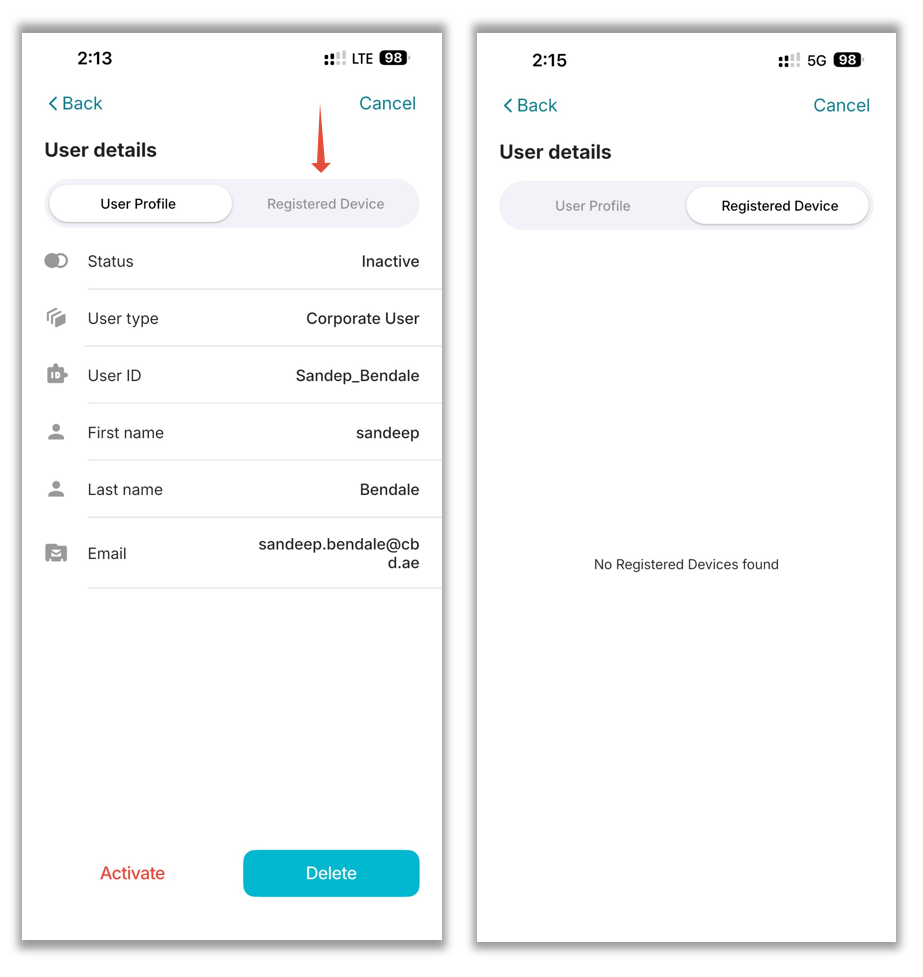
If no device is registered, the system will indicate that no device is linked to the user.
Unpair a Device for a Corporate User
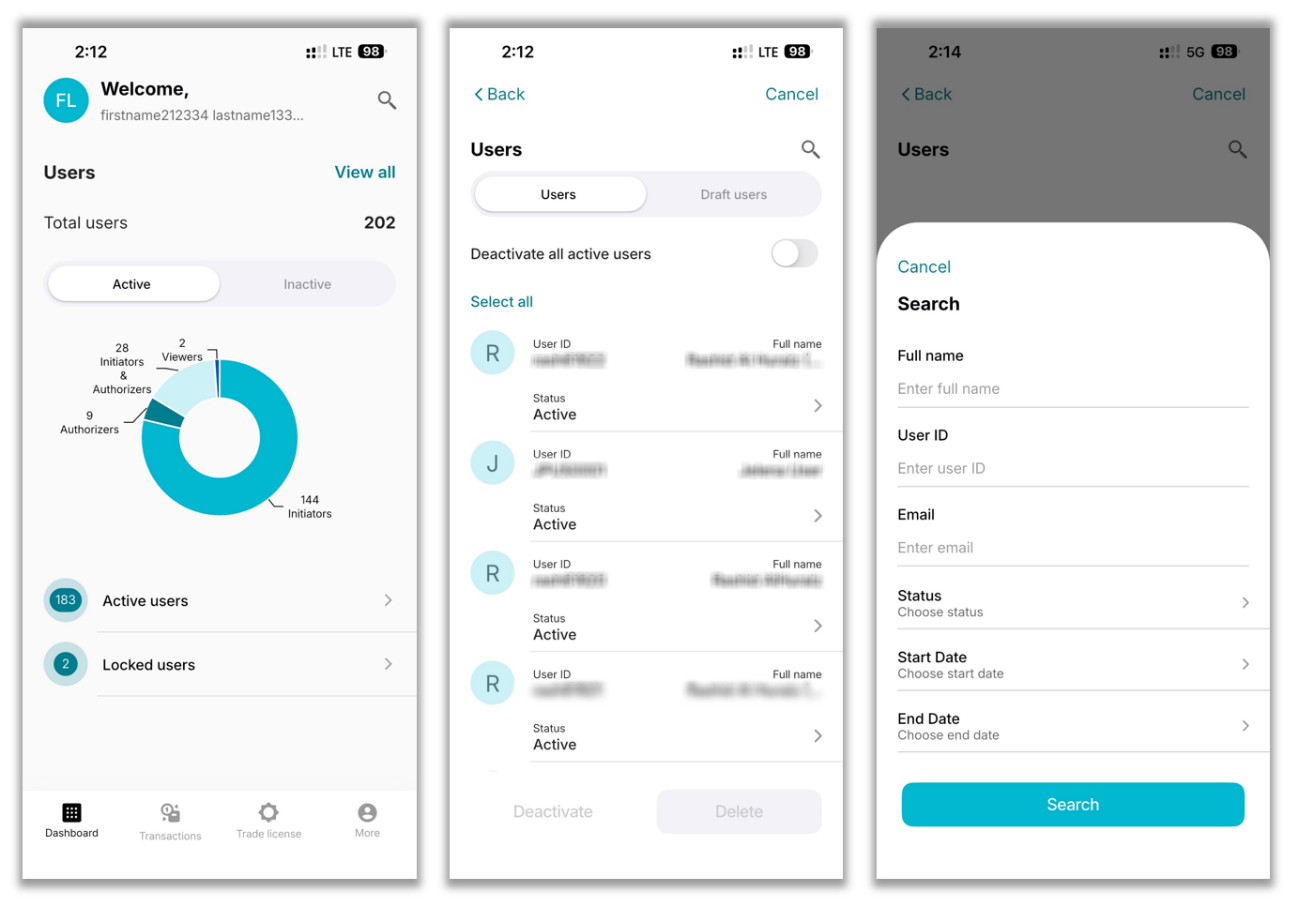
- Log in to the iBusiness mobile app as an Admin Maker (Initiator).
- Go to Users and tap View All.
- Search for and select the required user.
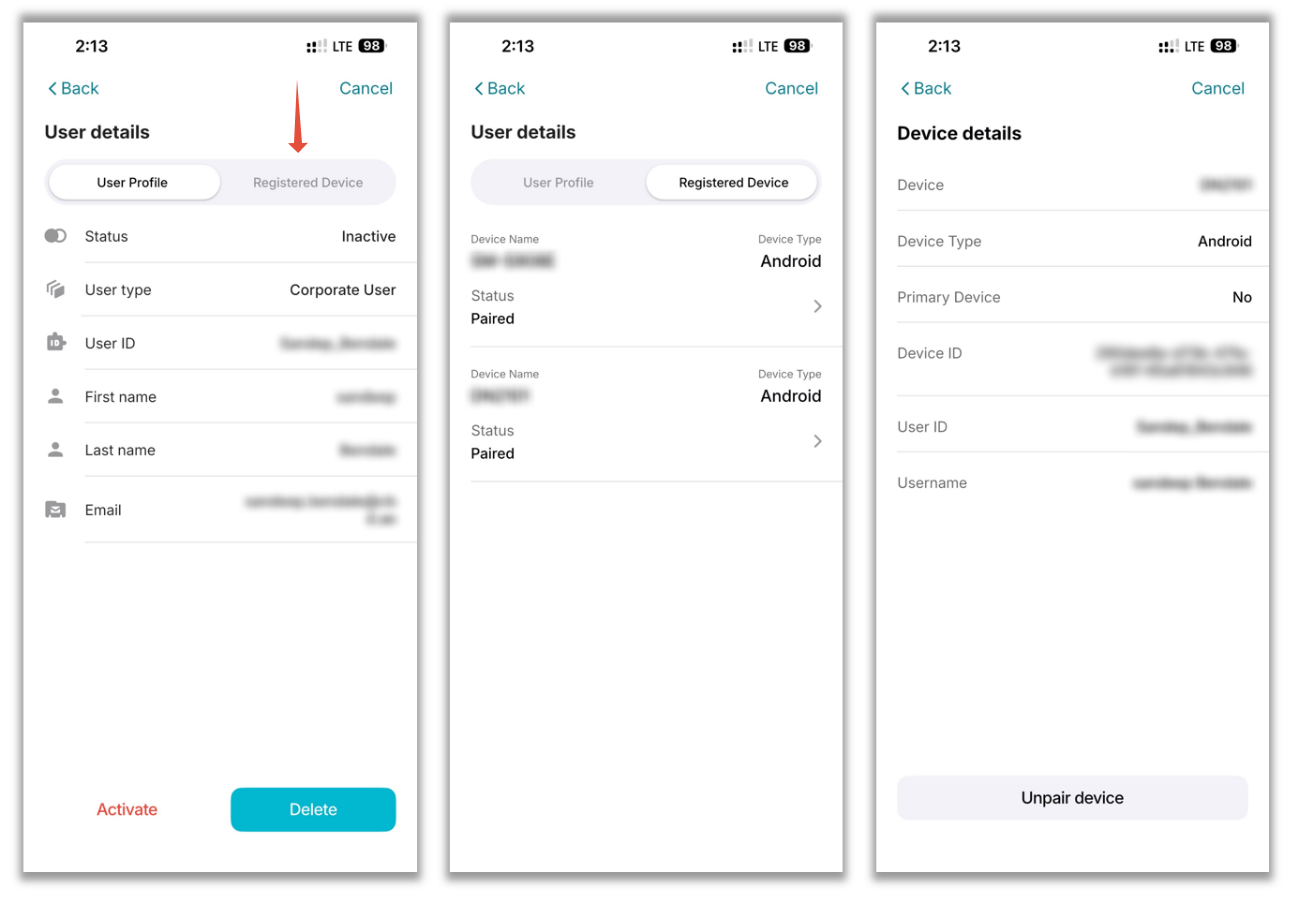
- Tap Registered Device.
- Tap Status to view device details.
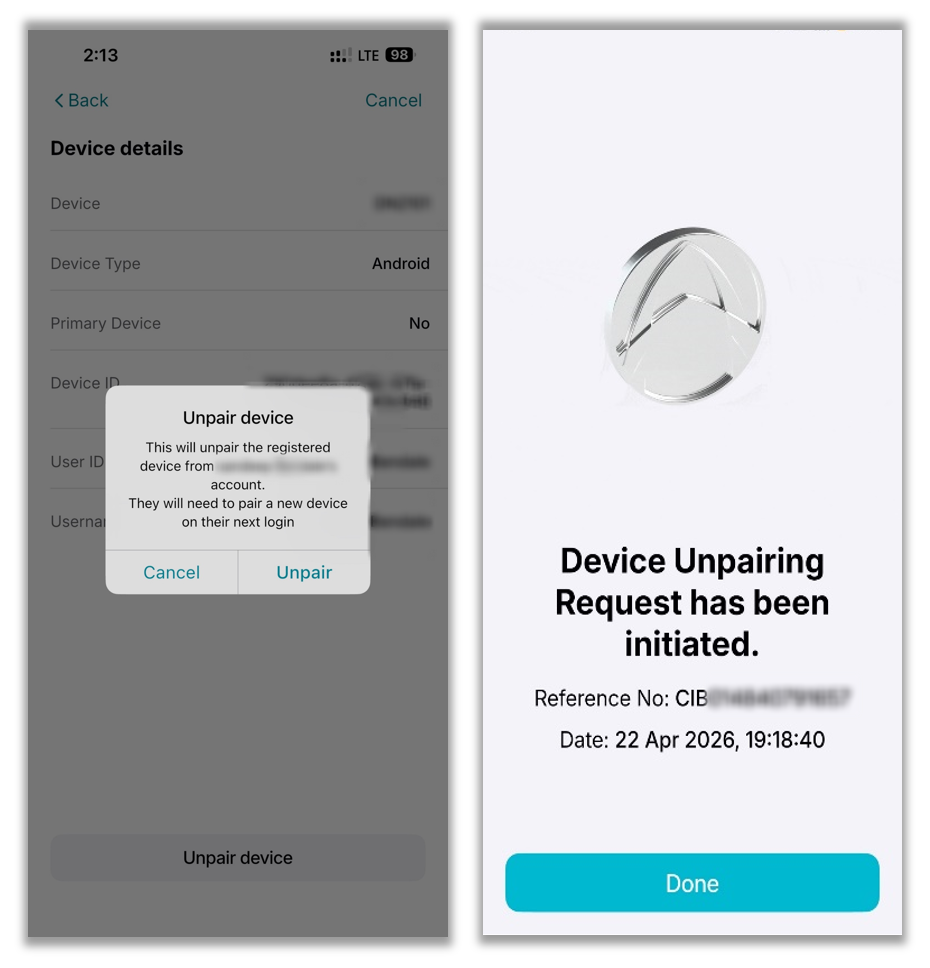
- Tap Unpair Device.
- Confirm the action.
- A confirmation screen will appear, displaying a reference number for the unpairing request.
Related Guide: Device Registration
If the device has not been registered, follow the Device Registration Guide before proceeding.
Approval (If Maker–Checker is Enabled)
If a Maker–Checker setup is configured:
- The request is routed to a Checker/Approver
- The Approver must review the request in Transactions Hub
- The request must be Approved before deactivation is completed