
Overview
This guide provides step-by-step instructions for viewing and managing Corporate Limits in the iBusiness Web Portal.
Corporate Limits define the transaction thresholds that can be initiated and authorized for different transaction types within the organization. Administrators can review existing limits and submit requests to update them when required.
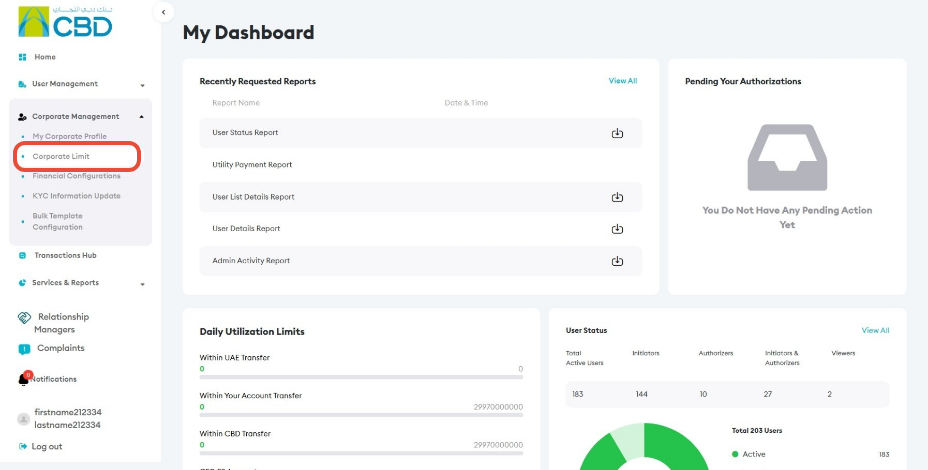
Step 1: Access Corporate Limits
- Log in to iBusiness.
- Navigate to the Corporate Limits section.
Step 2: View Available Transaction Types
The Corporate Limits screen displays all supported transaction types and their corresponding limits.
List of Transactions:
|
|
|
|
|
|
|
|
|
|
|
|
|
|
|
|
|
|
|
|
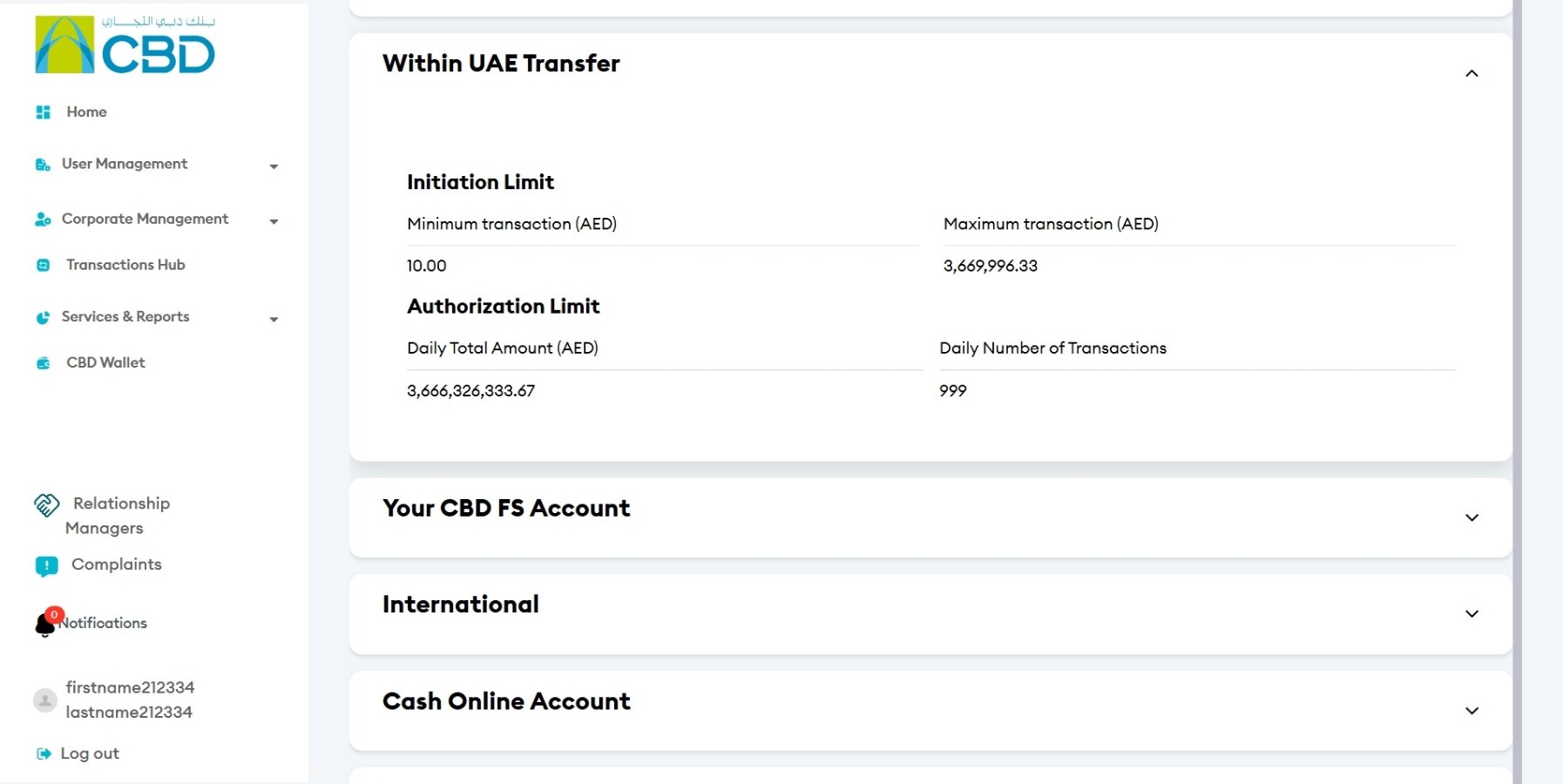
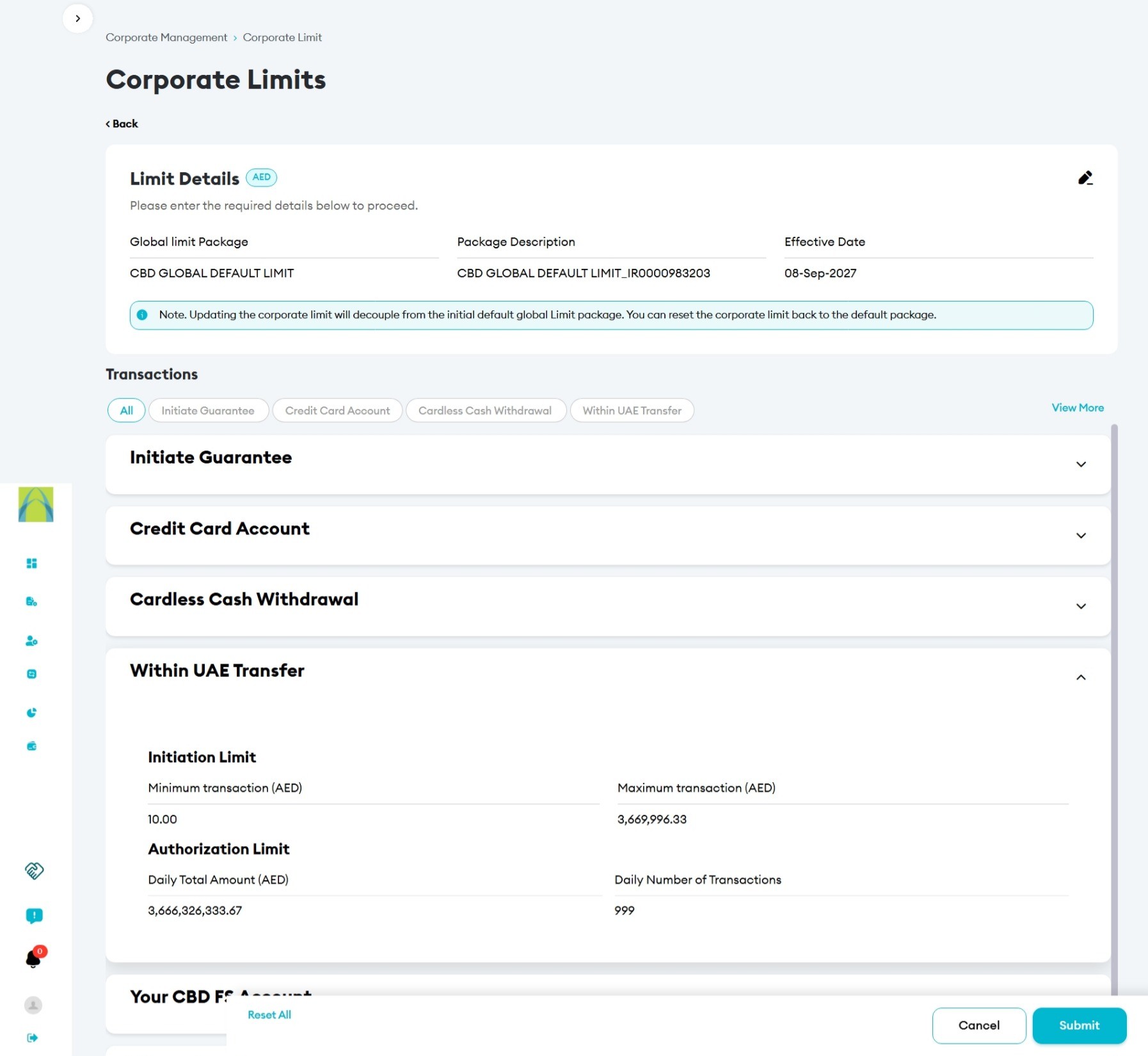
Step 3: View Corporate Limit Details
Select a transaction type to view its configured limits.
The following information is available:
Initiation Limits
Initiation Limits control the value of transactions that can be created by users.
The following information is displayed:
- Minimum Transaction Amount (AED): The smallest transaction value that can be initiated.
- Maximum Transaction Amount (AED): The largest transaction value that can be initiated.
Example: If the minimum amount is AED 1 and the maximum amount is AED 100,000, users can only initiate transactions within that range.
Authorization Limits
Authorization Limits control how much can be approved by users for the selected transaction type.
The following information is displayed:
- Daily Total Amount (AED): The maximum total value of transactions that can be authorized in a single day.
- Daily Number of Transactions: The maximum number of transactions that can be authorized in a single day.
Example: If the daily transaction limit is AED 500,000 and the daily count limit is 20 transactions, users can approve transactions up to those thresholds in one business day.
Step 4: Edit Corporate Limits
To update an existing corporate limit:
- Click the Edit (Pen) icon next to the required transaction type.
- Update the required fields, including:
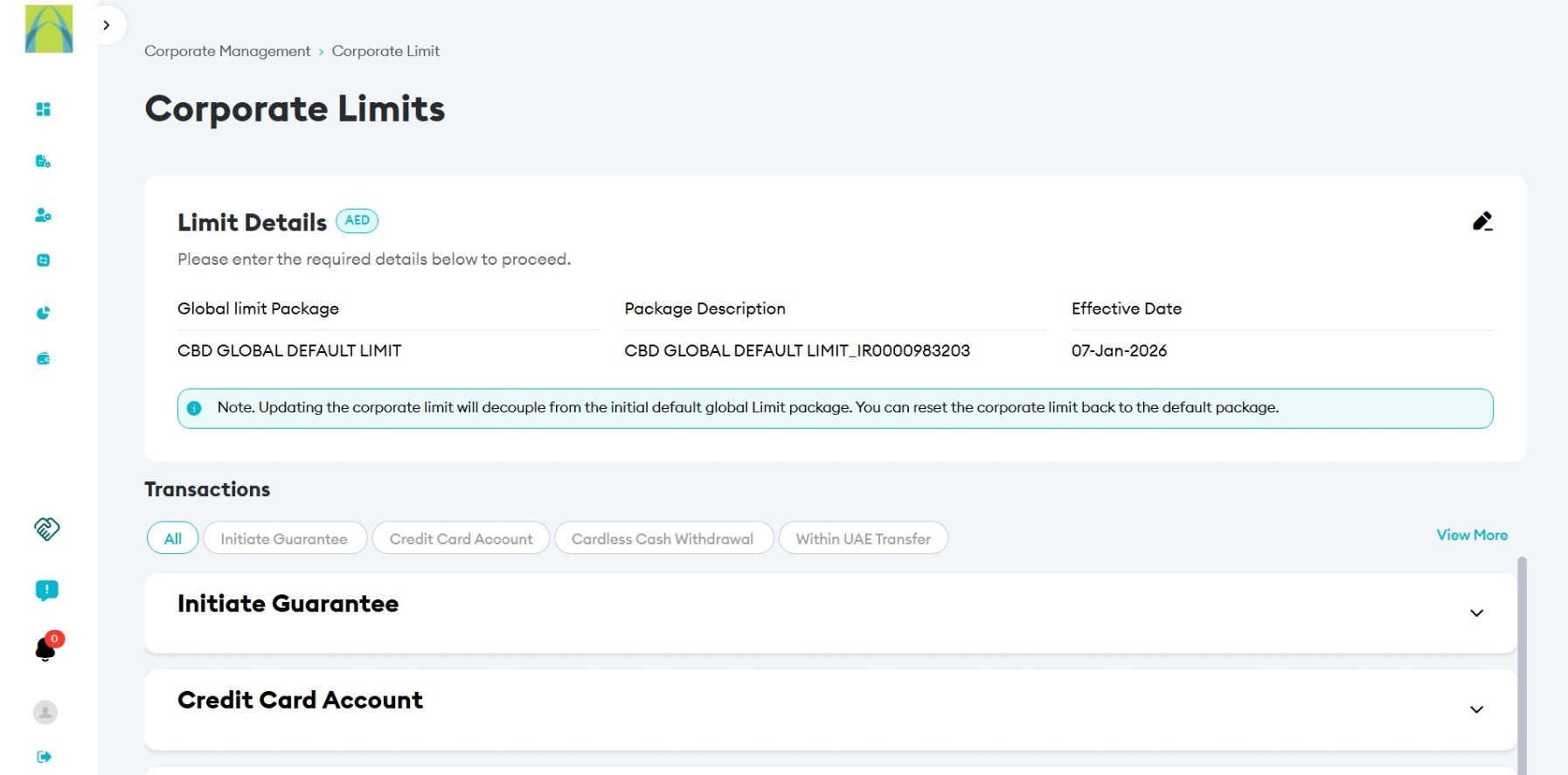
Effective Date
Select the date from which the new limits should apply.
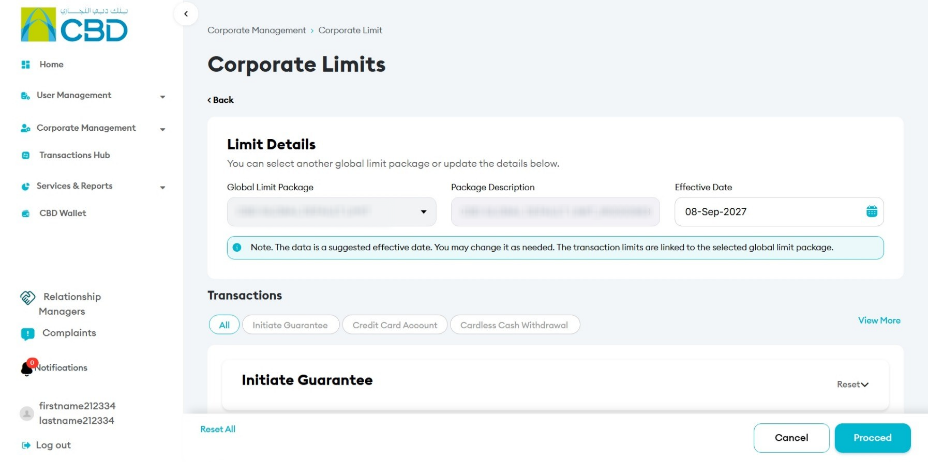
Choose the Transactions Type
Choose the transaction type and open the menu by clicking on the upside-down arrow  .
.
Initiation Limits
- Minimum Transaction Amount (AED)
- Maximum Transaction Amount (AED)
Authorization Limits
- Daily Total Amount (AED)
- Daily Number of Transactions
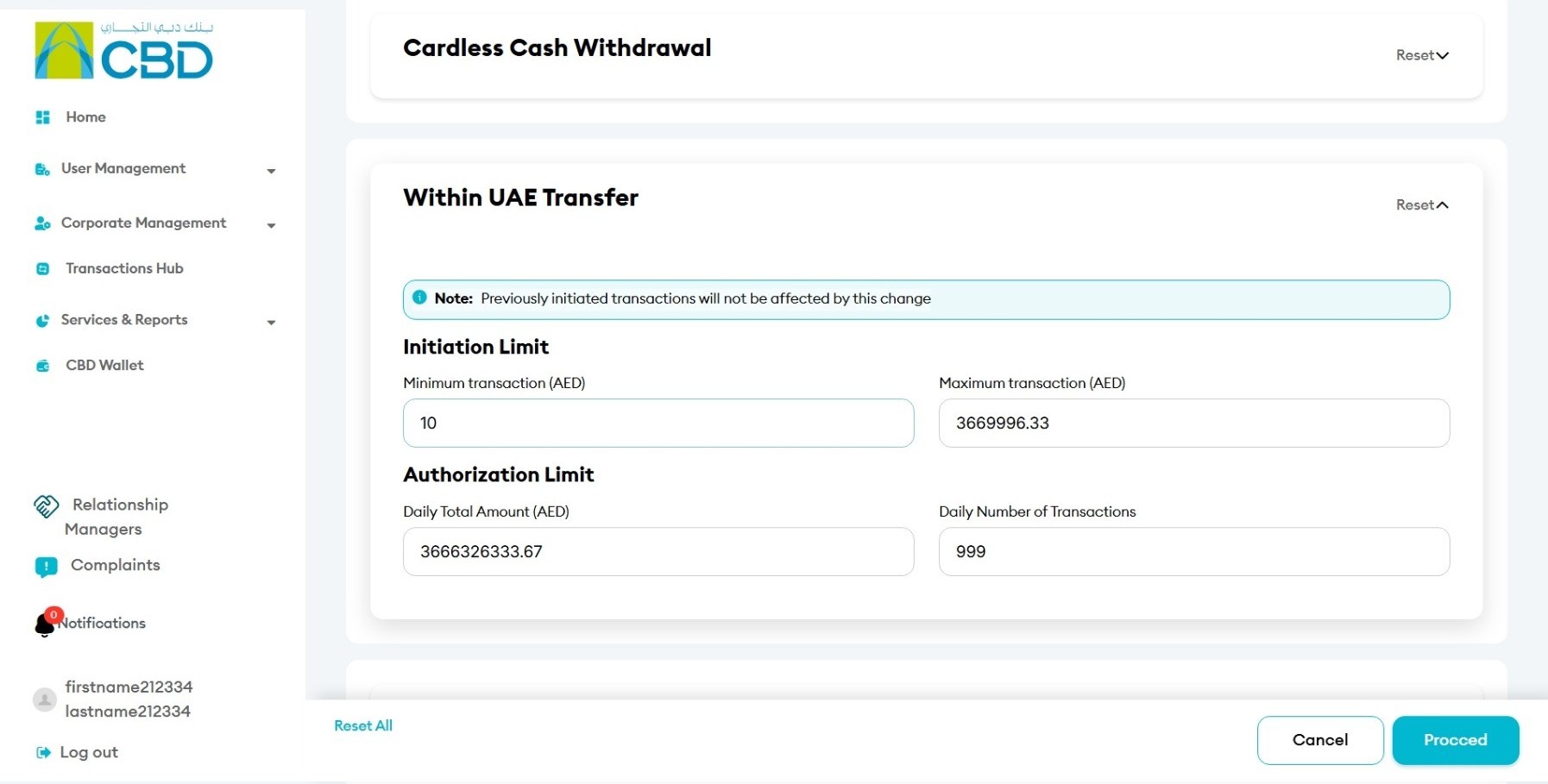
Important: Ensure the new limits align with your organization's approval policies and transaction requirements.
Step 5: Summary Review
Review all changes before submitting the request.
Verify:
- Transaction Type
- Effective Date
- Initiation Limits
- Authorization Limits
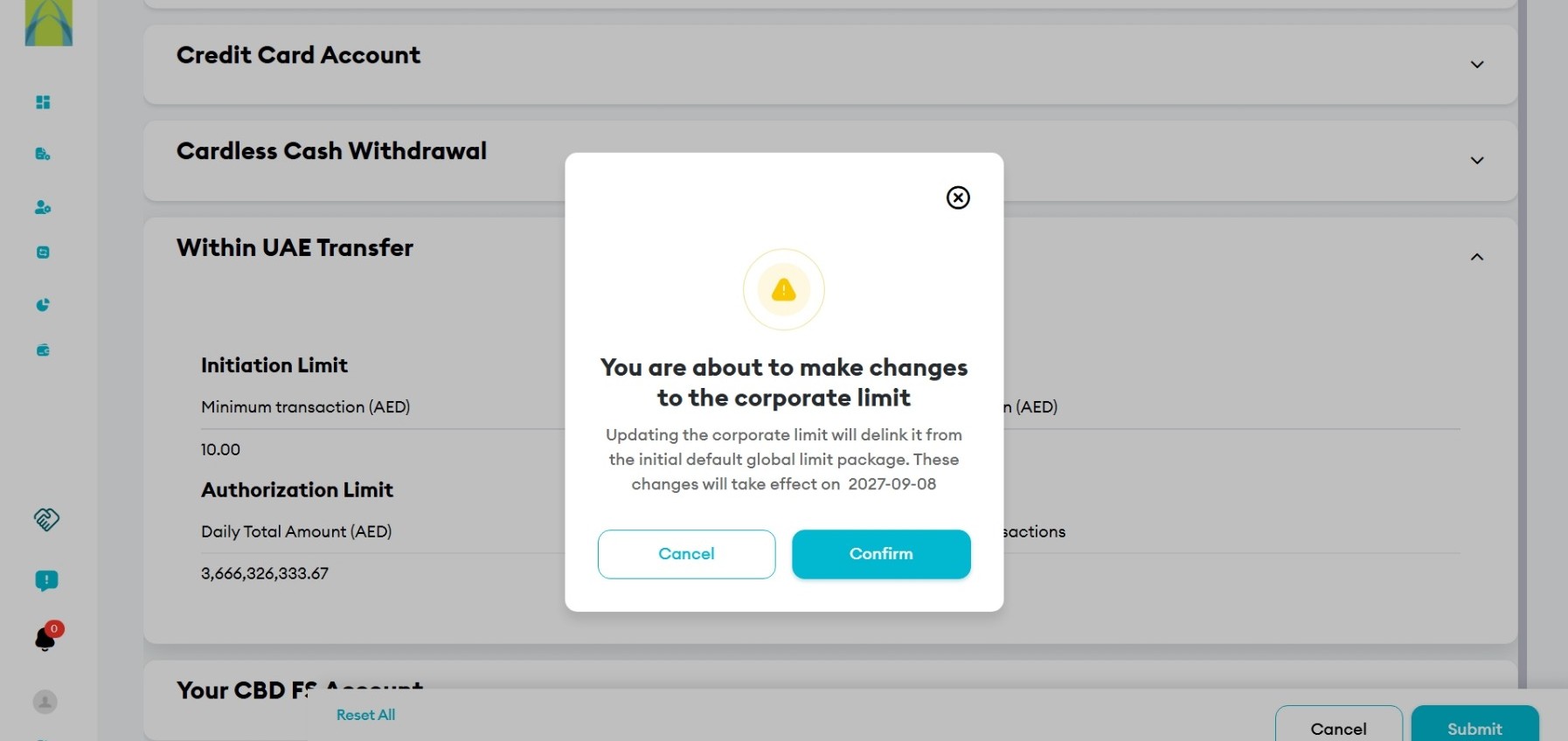
If all information is correct, click Submit.
Confirm on changes
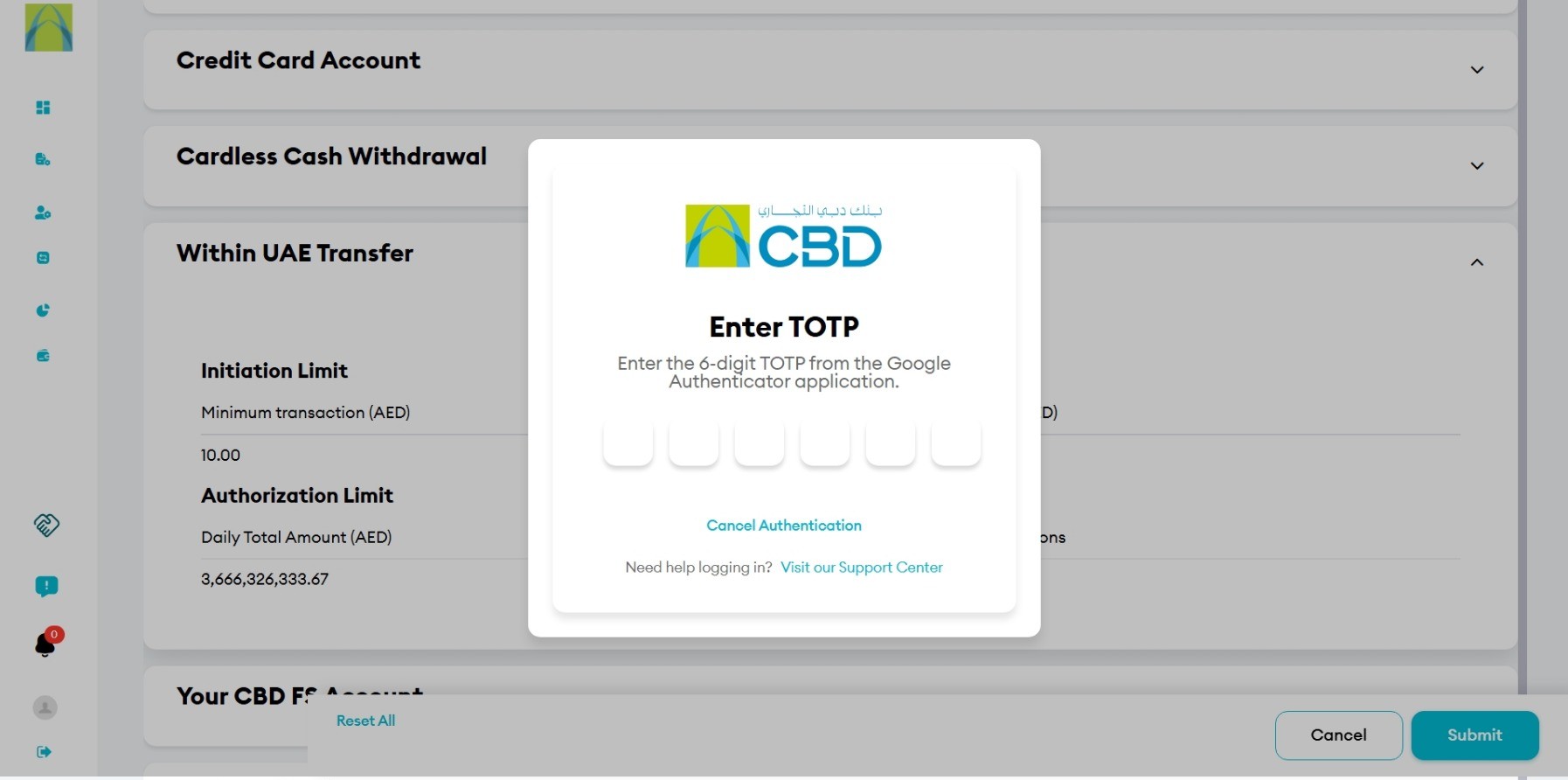
Step 6: Authenticate the Request
Complete authentication using one of the following methods:
iBusiness App Authentication
- Approve the request through the registered iBusiness Mobile App.
- Complete biometric or device authentication.
Google Authenticator
- Enter the One-Time Password (OTP) generated by Google Authenticator.
Step 7: Approval (If Maker–Checker Is Enabled)
If a Maker–Checker setup is configured:
- The request is routed to a Checker/Approver.
- The Approver reviews the corporate limit changes.
- The Approver can:
- Approve
- Reject
- The new limits become active after the required approval is completed.