
Overview
The Save Template feature allows users to save a transaction as a reusable template for future use. Both the beneficiary details and transaction details are retained, making it quicker and easier to initiate recurring payments without re-entering the same information each time.
Supported Transaction Types
The Save Template feature is available for the following transaction types:
Single Transfers
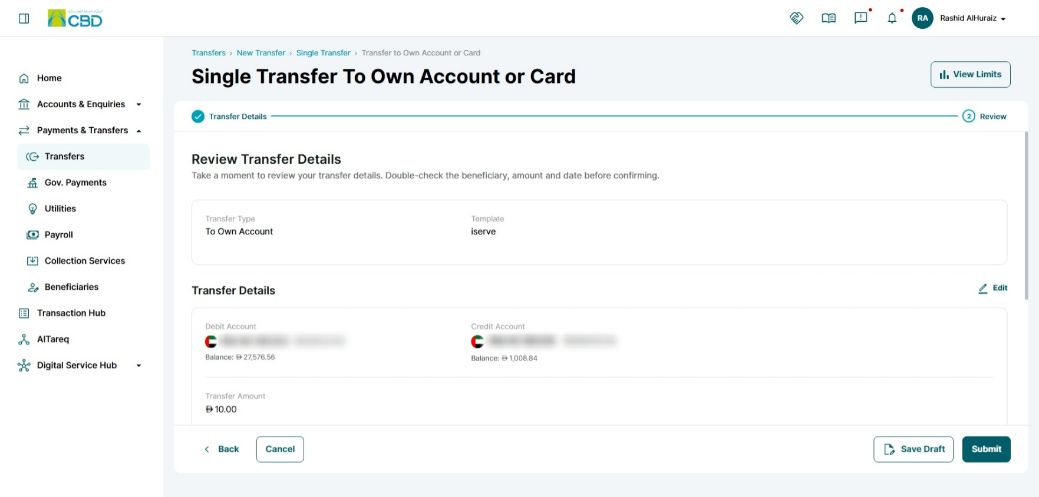
- Transfer to Own Account or Card
- International Transfer
- Local Transfer
- Cardless Cash Withdrawal
Step 1: Create a Transaction
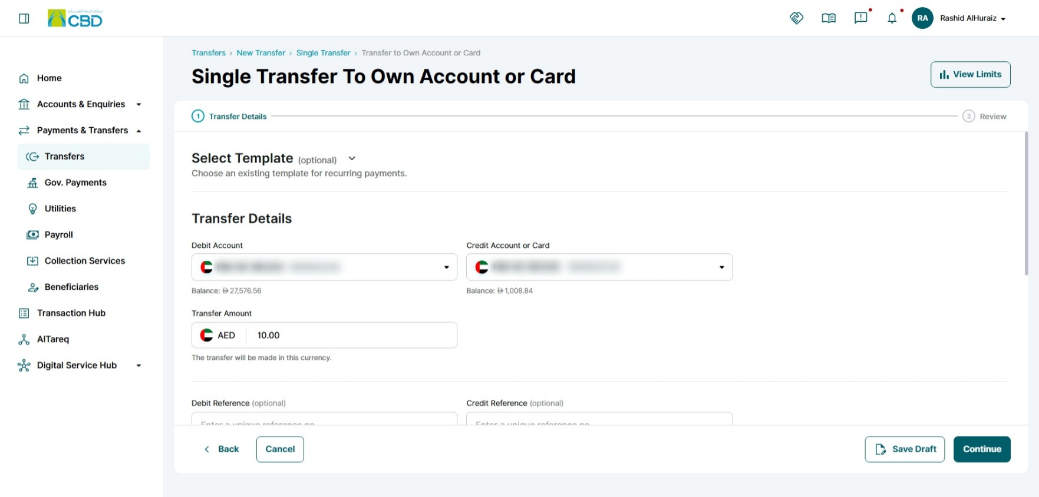
- Log in to iBusiness.
- Navigate to: Payment & Transfers ➜ Transfers ➜ Initiate Transfer
- Select a supported transaction type.
- Enter the transaction and beneficiary details.
Step 2: Save the Transaction as a Template
At the transfer Details stage during the transaction creation process:
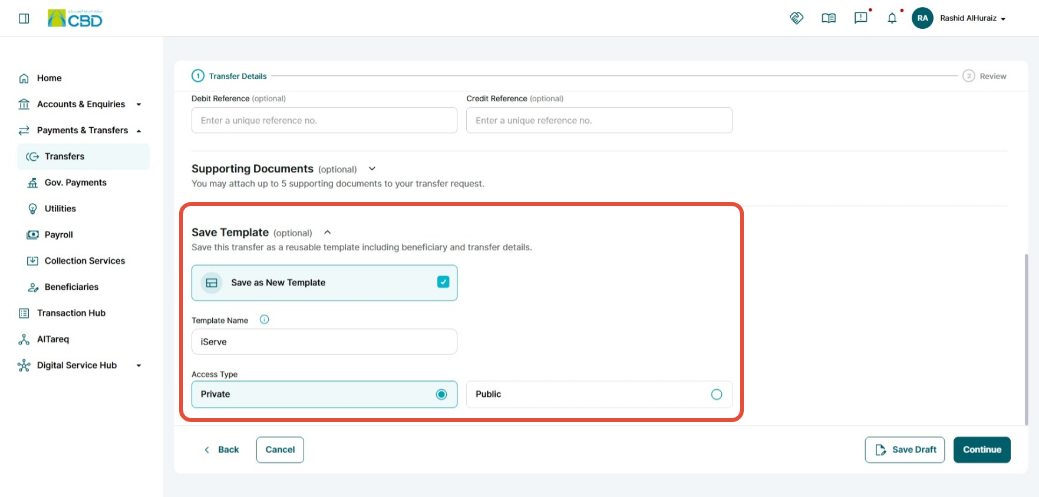
- Click Save as New Template.
- Enter a Template Name.
- Select the template visibility:
- Private Template: Only the user who created the template can view and use it.
- Public Template: The template is available to other authorized corporate users within the organization.
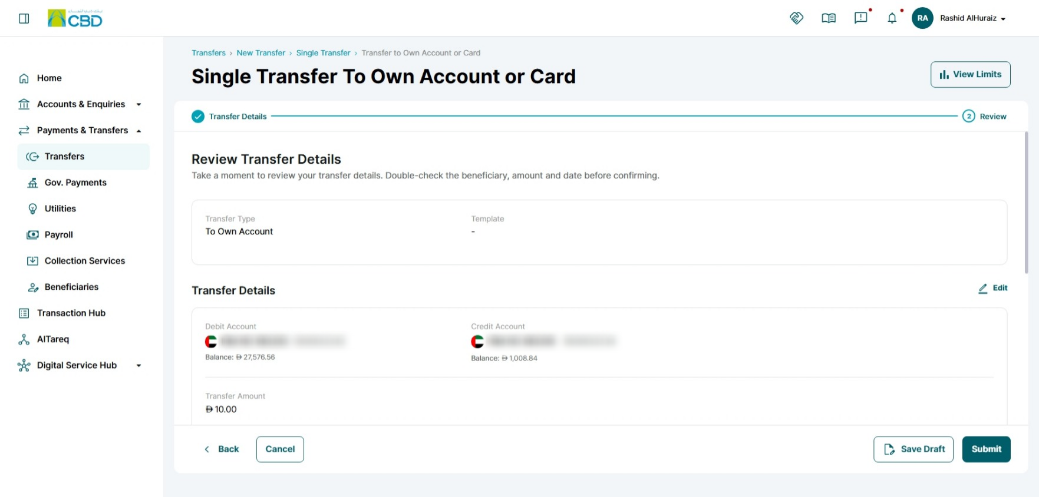
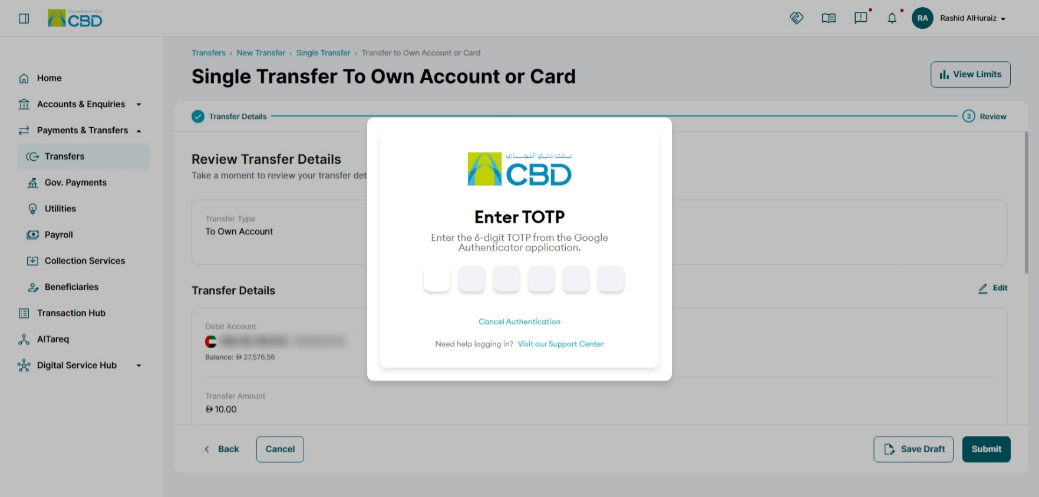
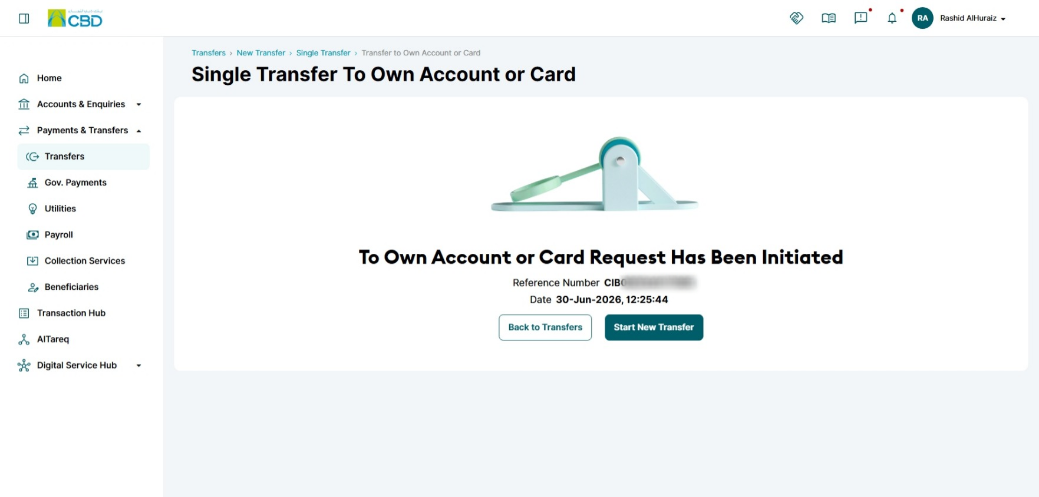
- Continue and complete the transaction submission process.
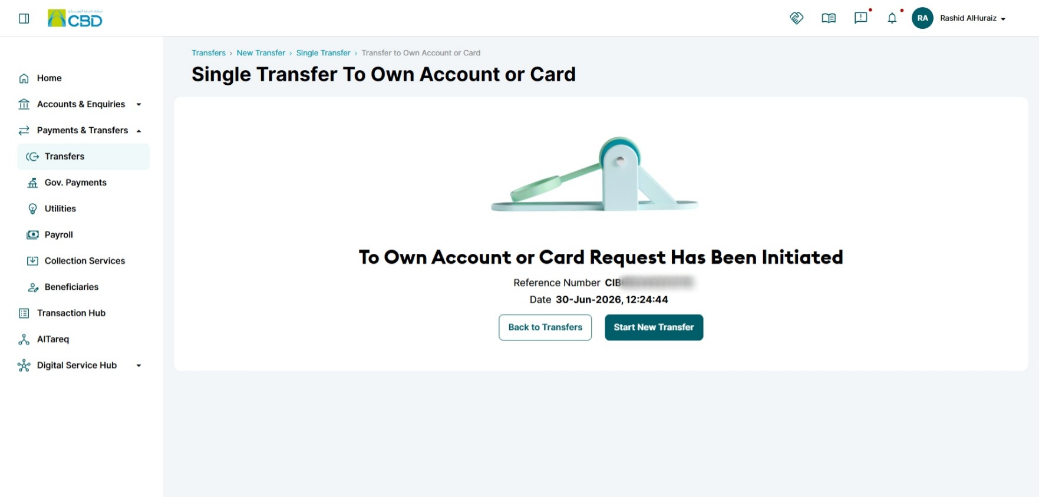
Important: The transaction must be successfully submitted in order for the template to be saved and available for future use.
Step 3: Use a Saved Template
When creating a new transaction:
- Start a new transfer using a supported transaction type.
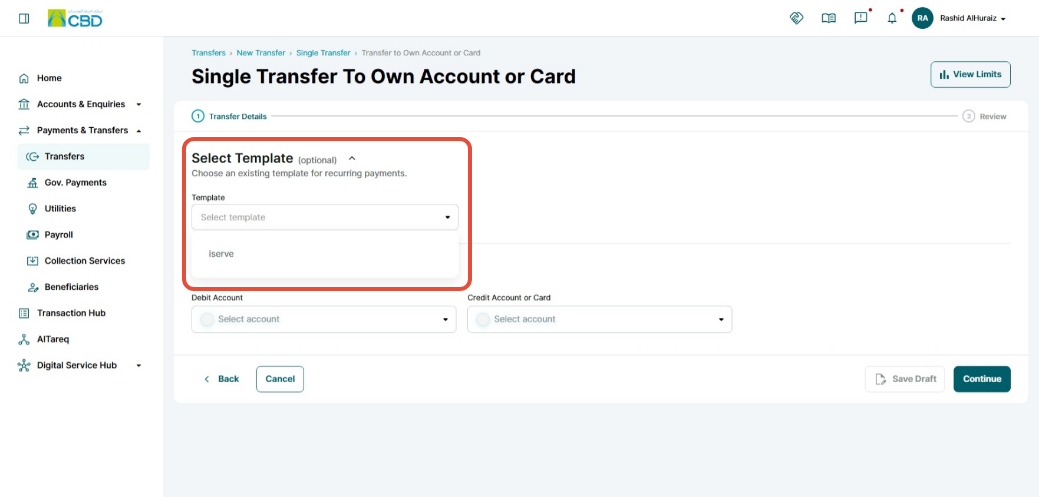
- Select Template from the available options.
- Choose the required template from the list.
Step 4: Review the Pre-Populated Details
Once the template is selected:
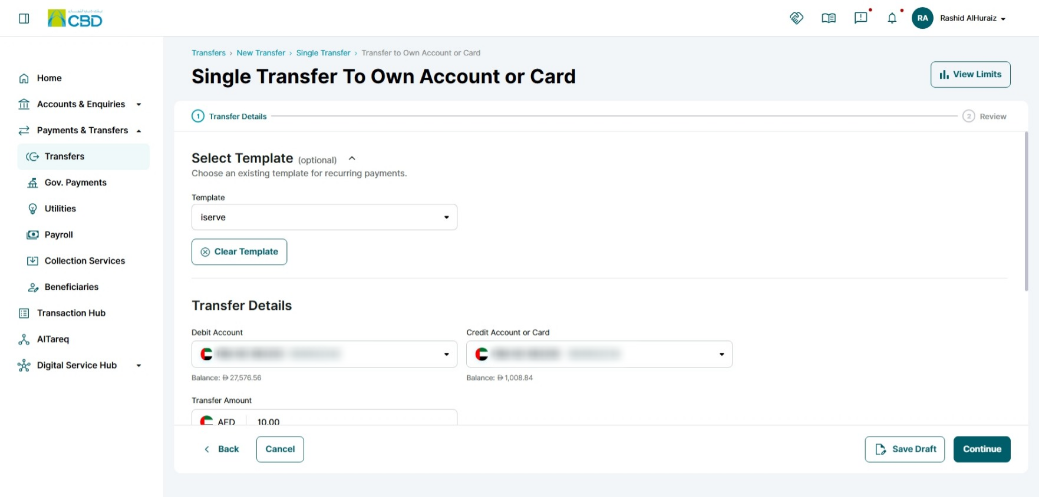
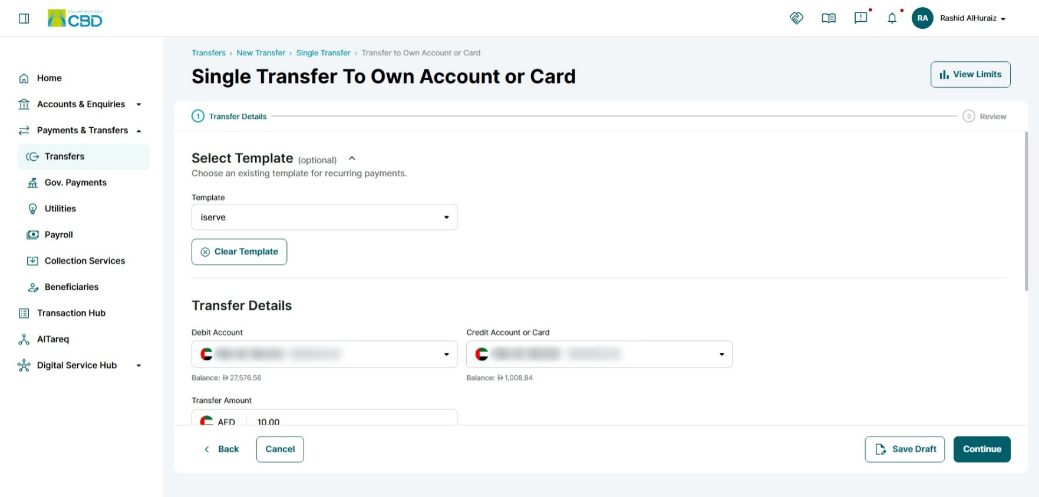
- Beneficiary details will be populated automatically.
- Transaction details saved within the template will be populated automatically.
- Review all information carefully before submitting the transaction.
Support Notes / Best Practices
- Use templates for frequently repeated transactions to reduce manual data entry.
- Always review the transaction details before submission, even when using a saved template.
- Use Private Templates for personal transaction preferences.
- Use Public Templates only when the template should be available to other authorized corporate users.
- Update or recreate templates when beneficiary or payment details change.