
Overview
The Save Draft feature allows users to save a transaction request before it is submitted. This is useful when all transaction details are not yet available or when the transaction needs to be completed later.
A saved draft can be reopened, edited, and submitted whenever required.
Supported Transaction Types
The Save Draft feature is available for the following transaction types:
Single Transfers
- Transfer to Own Account or Card
- International Transfer
- Local Transfer
- Cardless Cash Withdrawal
Standing Orders
- Standing Order to Own Account
- Standing Order – International Transfer
- Local Standing Order
Step 1: Create a Transaction
- Log in to iBusiness.
- Navigate to: Payment & Transfers ➜ Transfers ➜ Initiate Transfer
- Select any supported transaction type.
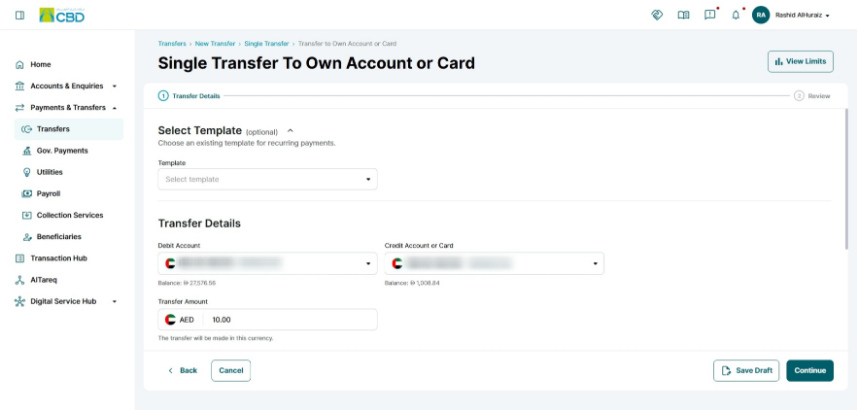
- Enter the available transaction details.
Step 2: Save the Transaction as a Draft
At any stage during the transaction creation process:
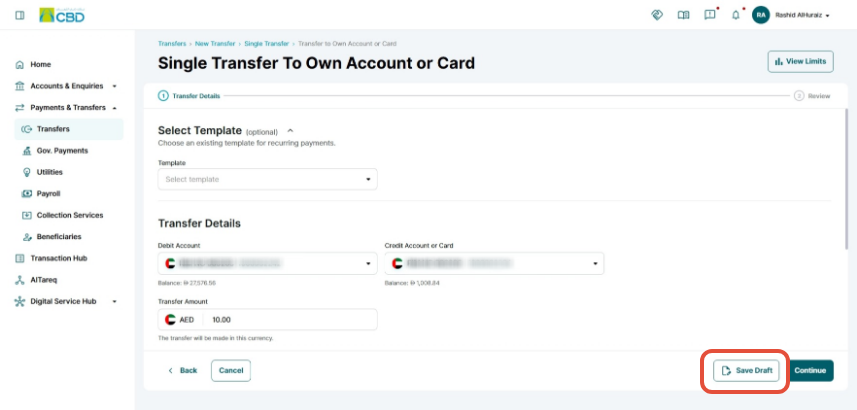
- Click Save Draft.
- The transaction will be saved with a Draft status.
- You can exit the transaction and return to it later.
Step 3: Locate Saved Drafts
To view your saved drafts:
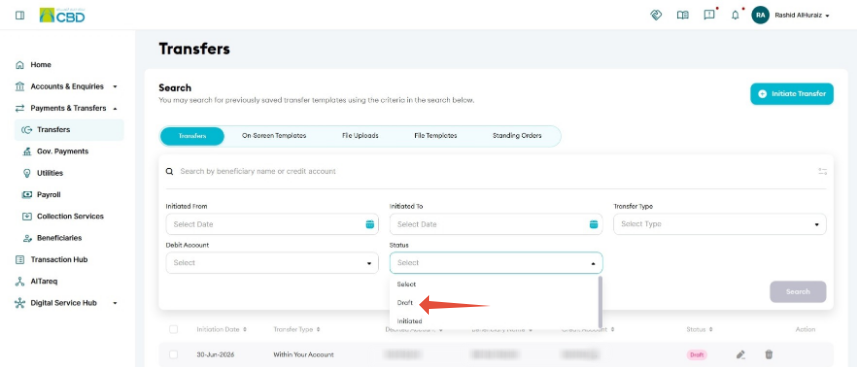
- Navigate to: Payment & Transfers ➜ Transfers
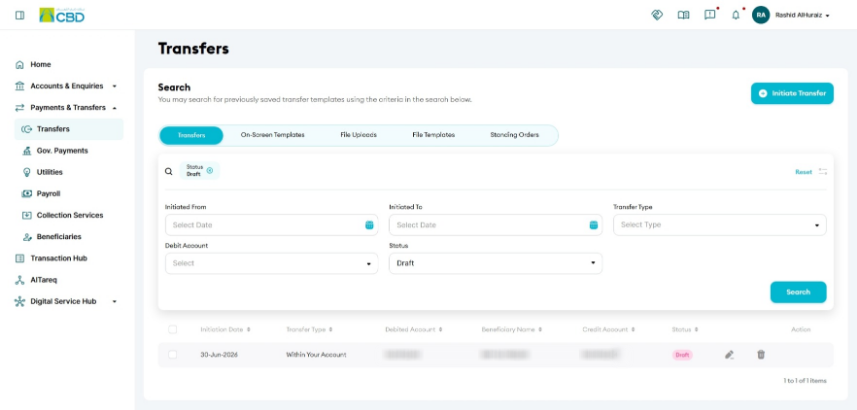
- Use the search filters to locate saved transactions.
- Select Draft as the transaction status.
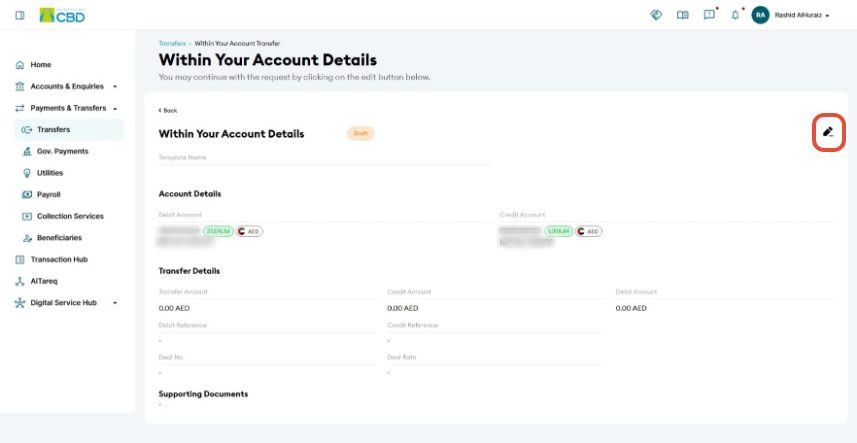
Step 4: View Draft Details
- Locate the required draft transaction.
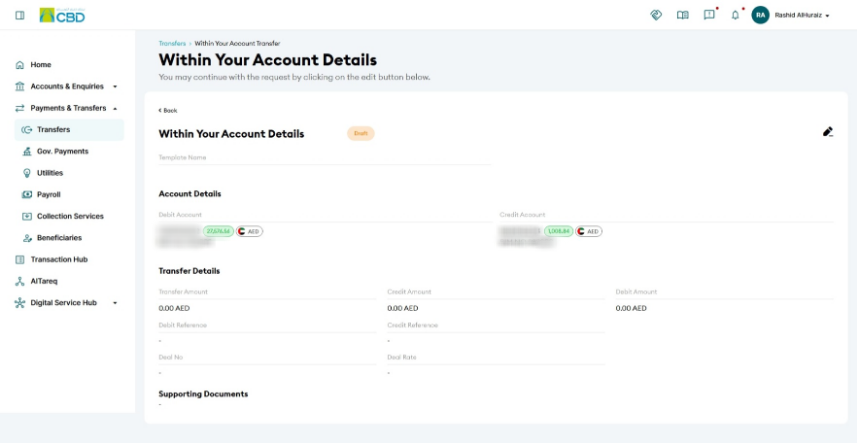
- Click on the transaction to view its details.
The system will display all information entered when the draft was originally saved.
Step 5: Continue and Submit the Draft
- Open the saved draft.
- Click the Edit (pencil) icon
 .
. - Complete any remaining transaction details.
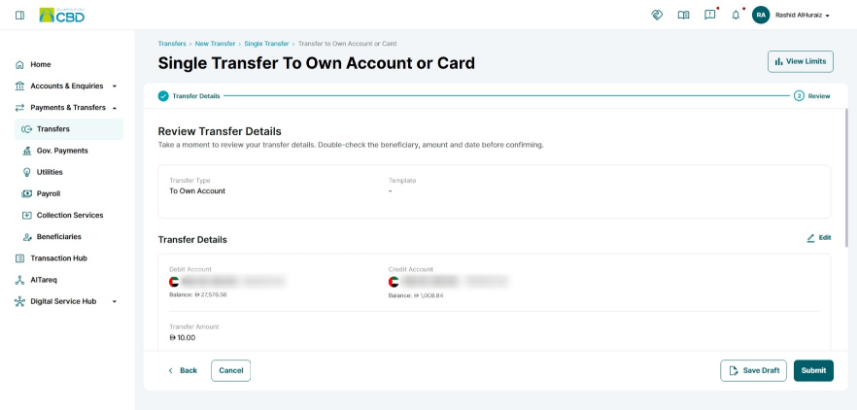
- Review the transaction.
- Submit the request following the standard authentication process.
Support Notes / Best Practices
- Use Save Draft when transaction details are not yet finalized.
- Review all saved information before submitting the transaction.
- Regularly monitor draft transactions to ensure they are completed or removed if no longer required.
- Saving a draft does not submit the transaction to the bank for processing. The transaction will only be processed after it has been completed, authenticated, and submitted.