Overview
This guide explains how to submit a Mortgage Placement and Drawdown Request through CBD iBusiness.
Step 1: Access the Service Request
- Log in to iBusiness.
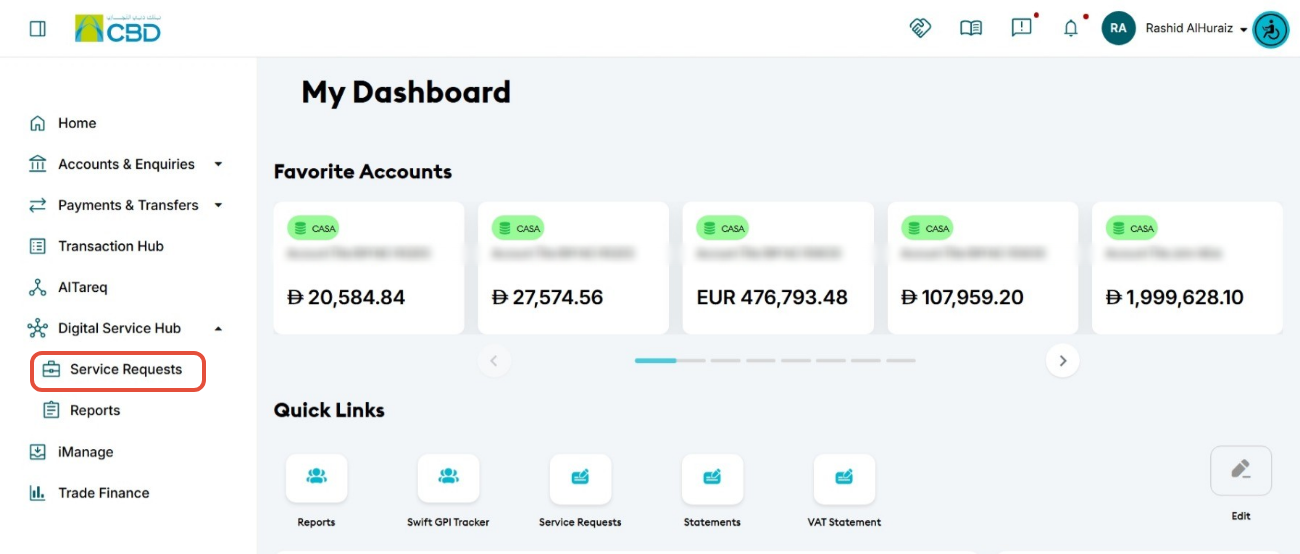
- Navigate to Digital Service Hub > Service Requests.
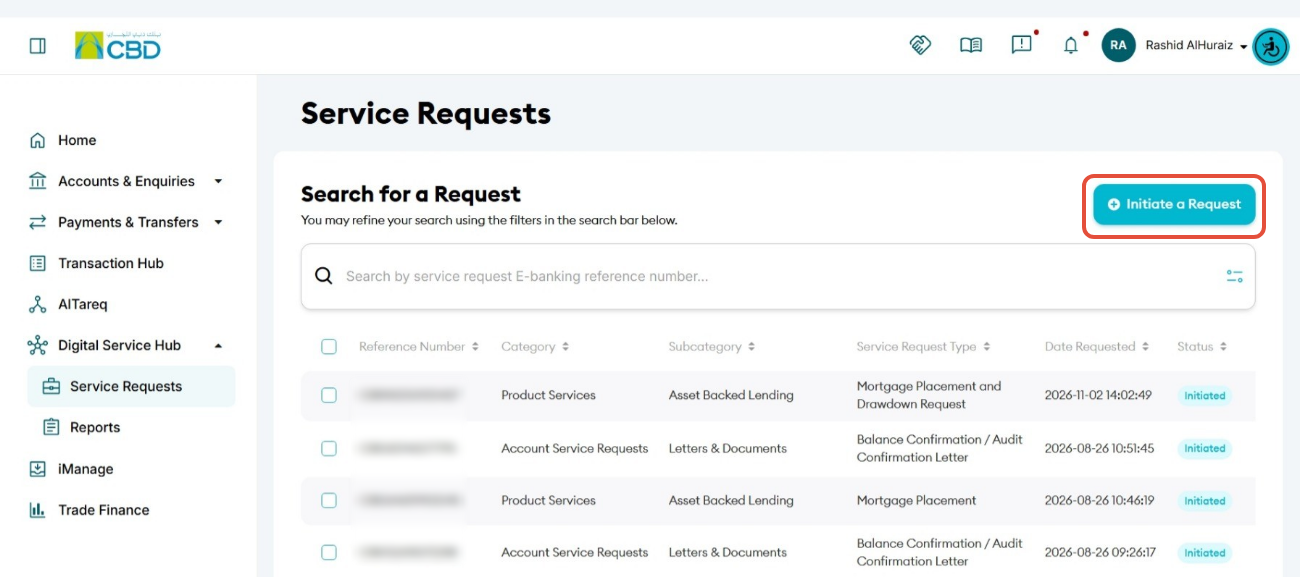
- Click Initiate Request.
Step 2: Select the Service
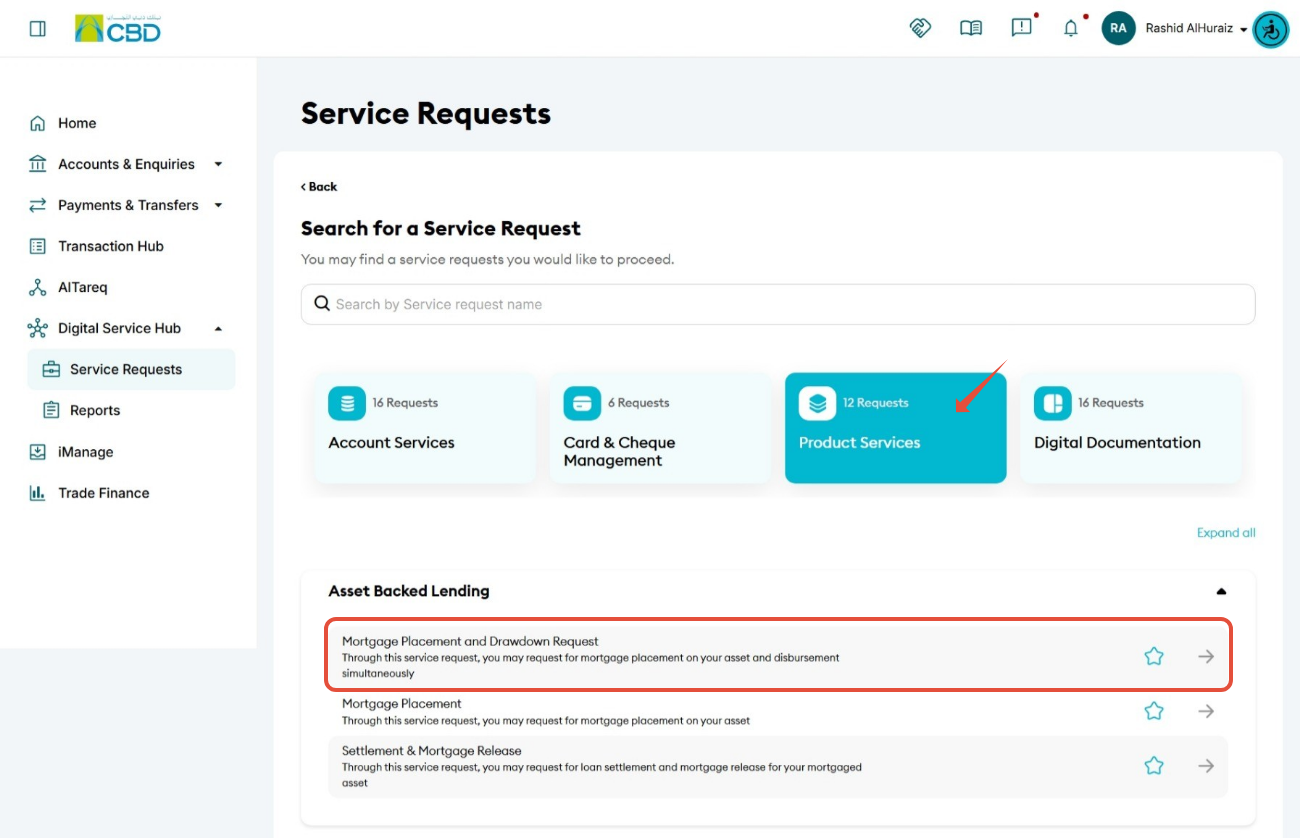
- Navigate to: Product Services > Mortgage Placement and Drawdown Request.
- Select the service to proceed.
Step 3: Complete Request Details
General Information
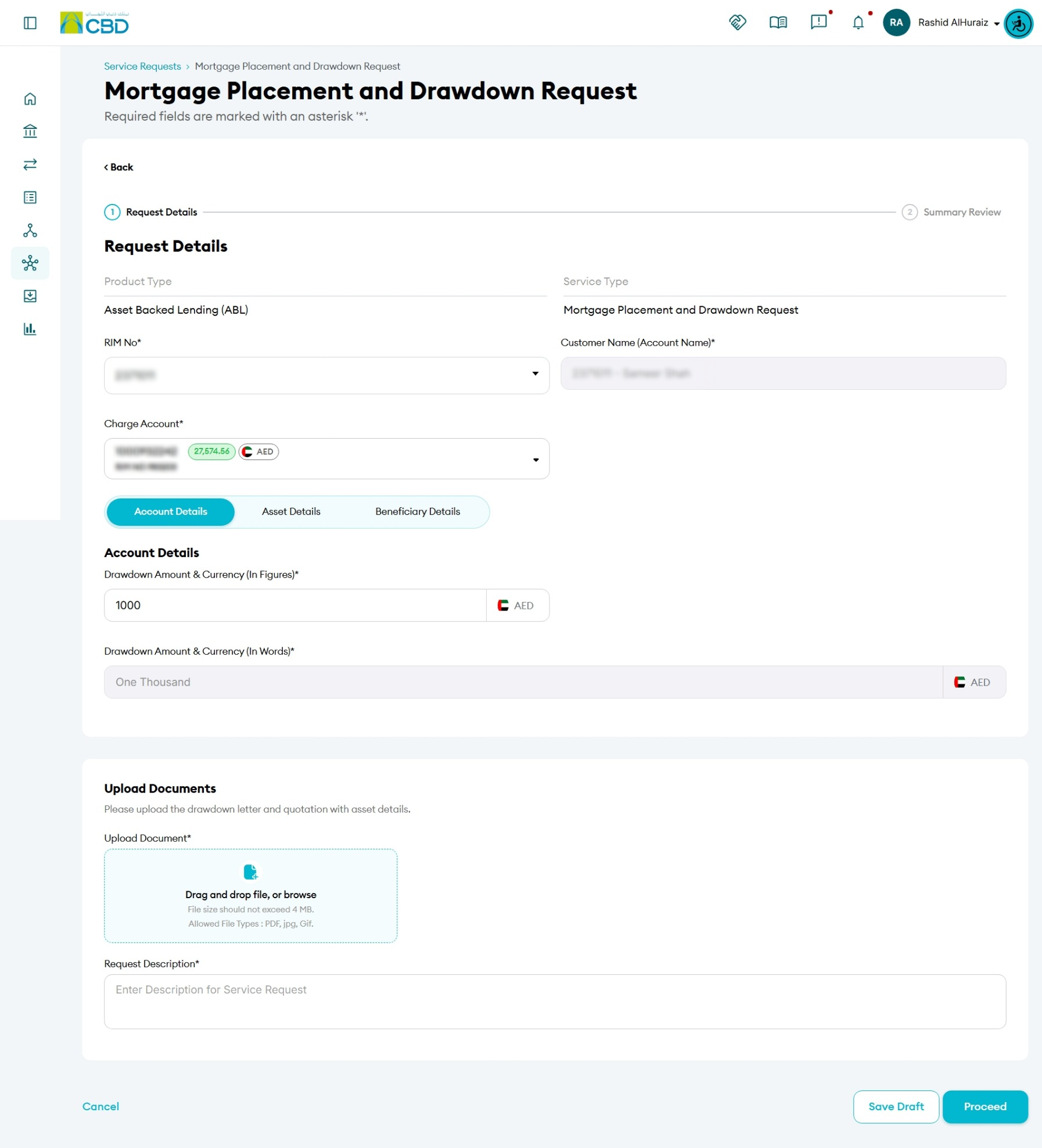
- Select the RIM Number.
- Select the Charge Account.
Account Details
- Enter the Drawdown Amount.
- Select the required Currency.
- Enter the amount in numeric format only.
Examples:
- 1,000
- 10,000
- 15,000
Step 4: Upload Asset Details
Download Required Files
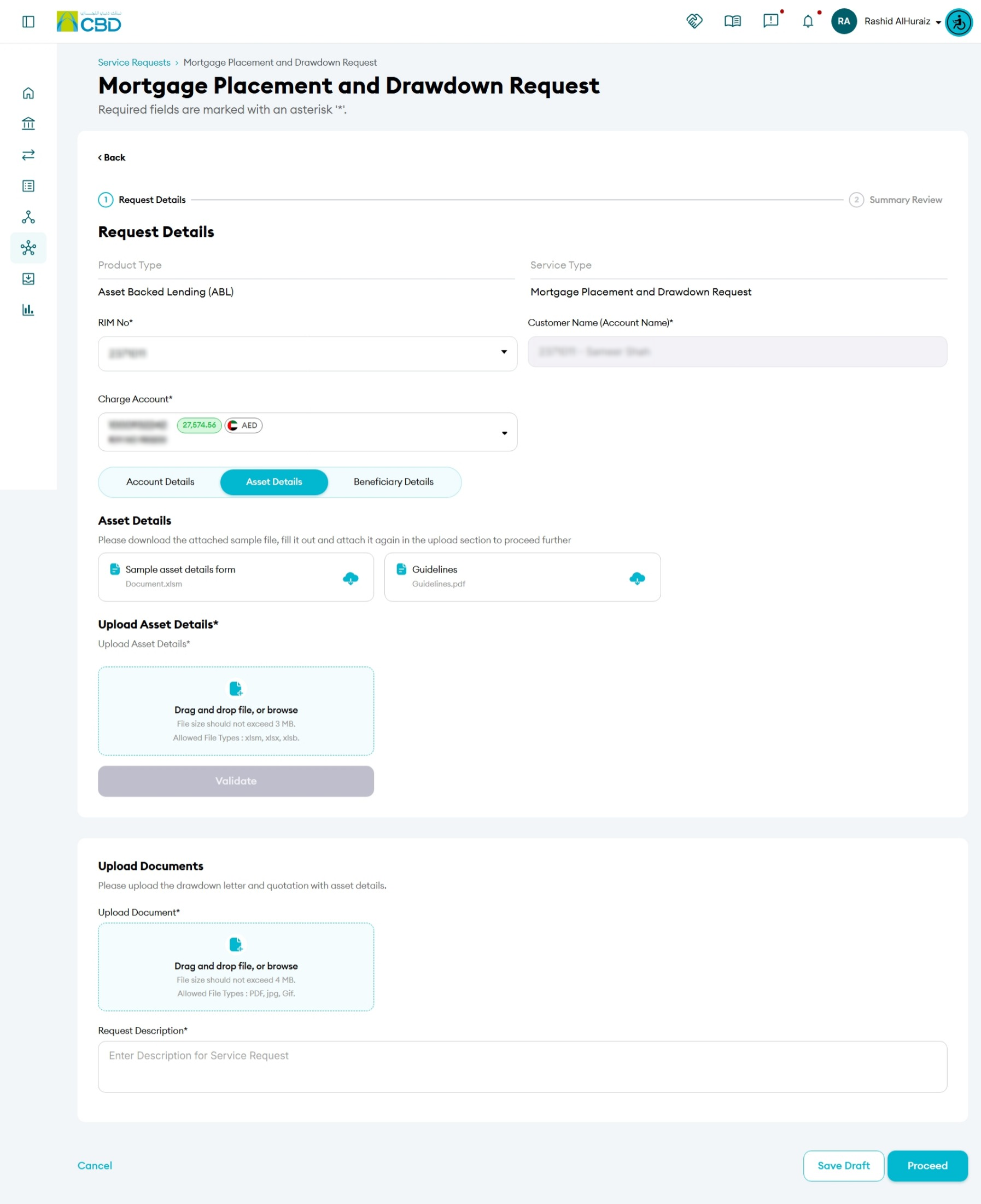
- Download the Sample Asset Details Template.
- Download the Guidelines document.
Complete and Upload the Template
- Populate the Asset Details Template with the required information.
- Upload the completed file in the Upload Asset Detailssection by:
- Dragging and dropping the file into the upload area, or
- Clicking the upload area and selecting the file from your device.
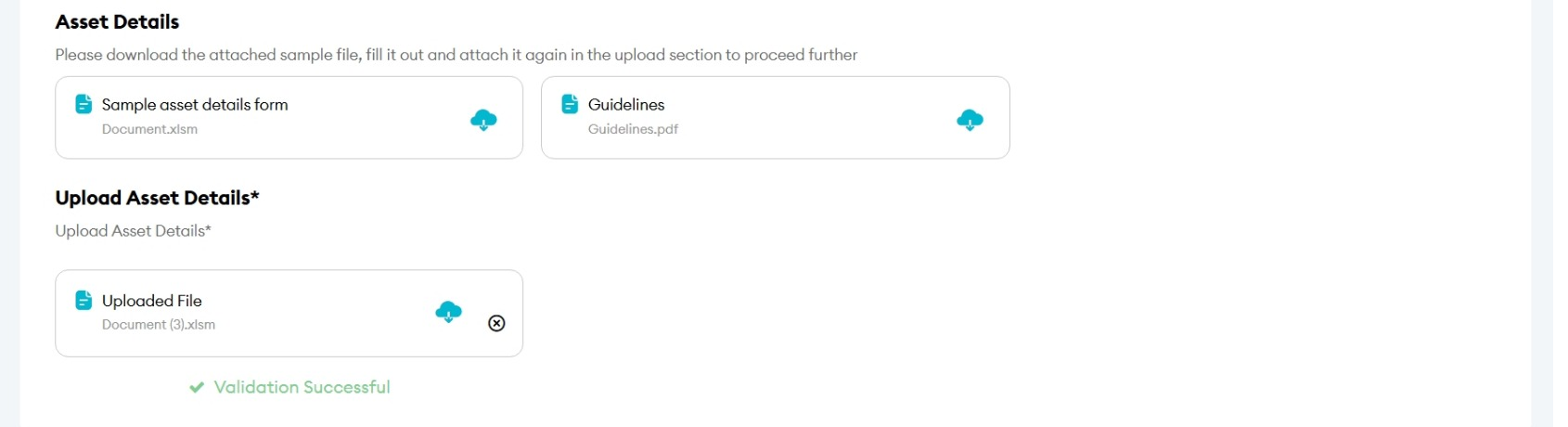
- The system will automatically validate the uploaded Excel file.
Validation Requirements
- Ensure all mandatory fields are completed.
- Verify that the uploaded file follows the provided template format.
- Correct any validation errors before proceeding.
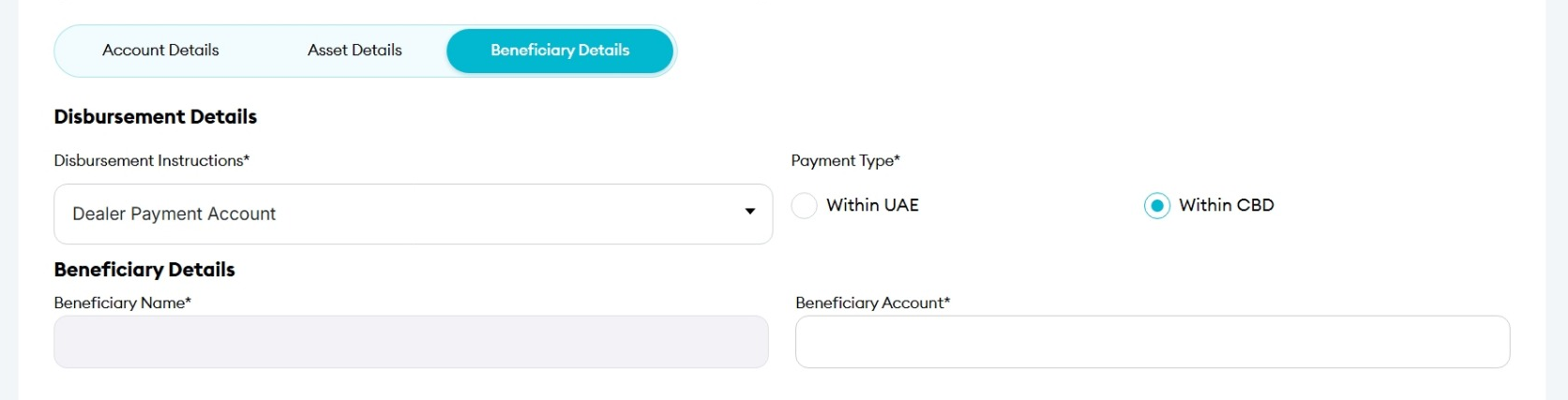
Step 5: Enter Beneficiary and Disbursement Details
Disbursement Details
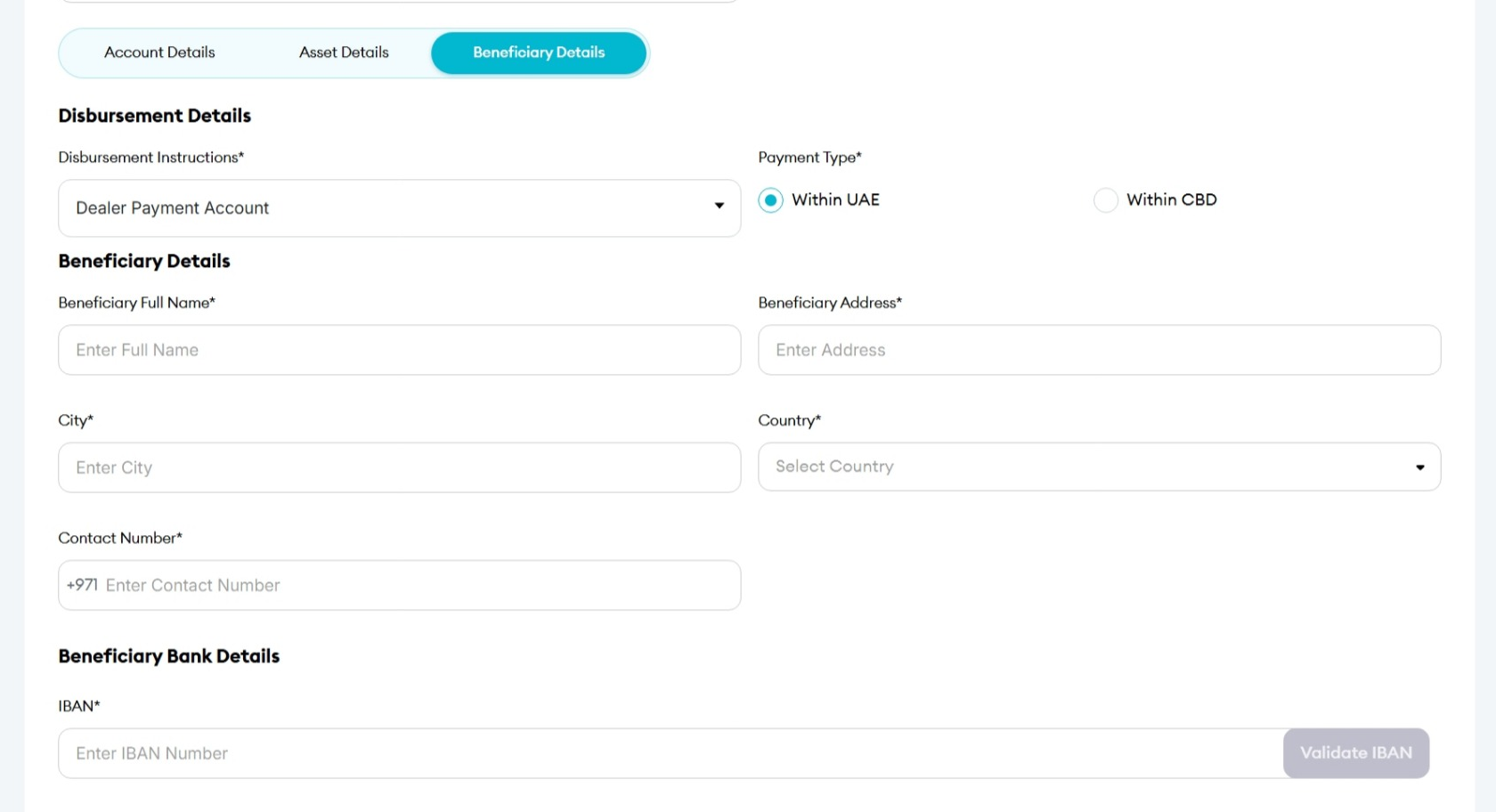
- Select the required Disbursement Instruction.
- Select the Payment Type:
- Within UAE
- Within CBD
If "Within UAE" is Selected
Provide the following beneficiary details:
- Beneficiary Full Name
- Beneficiary Address
- City
- Country
- Contact Number
- IBAN
If "Within CBD" is Selected
Provide:
- Beneficiary Account Number
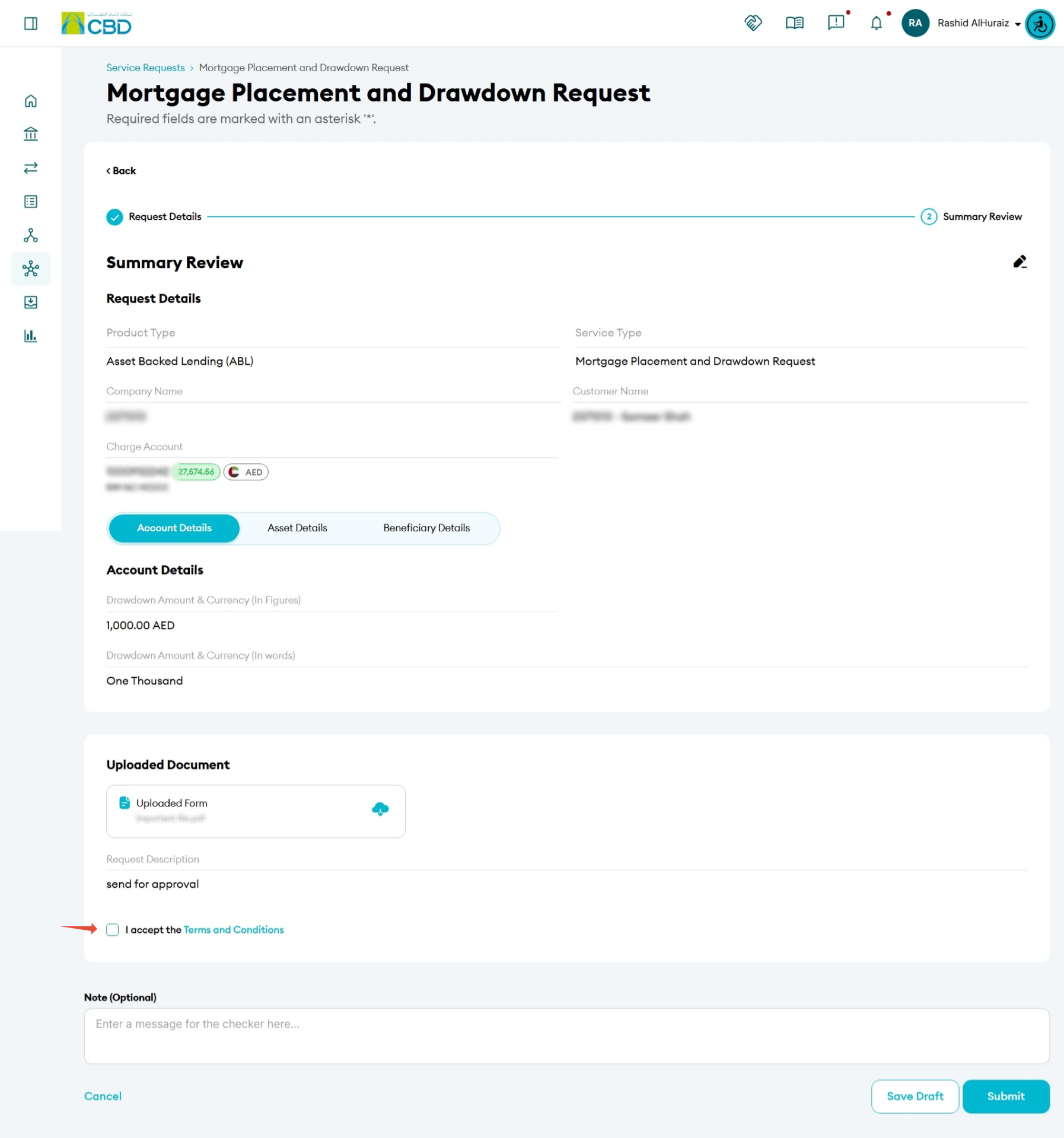
Step 6: Review and Submit
- Review all entered information carefully.
- Upload any supporting documents, if required.
- Accept the Terms and Conditions.
- Click Proceed.
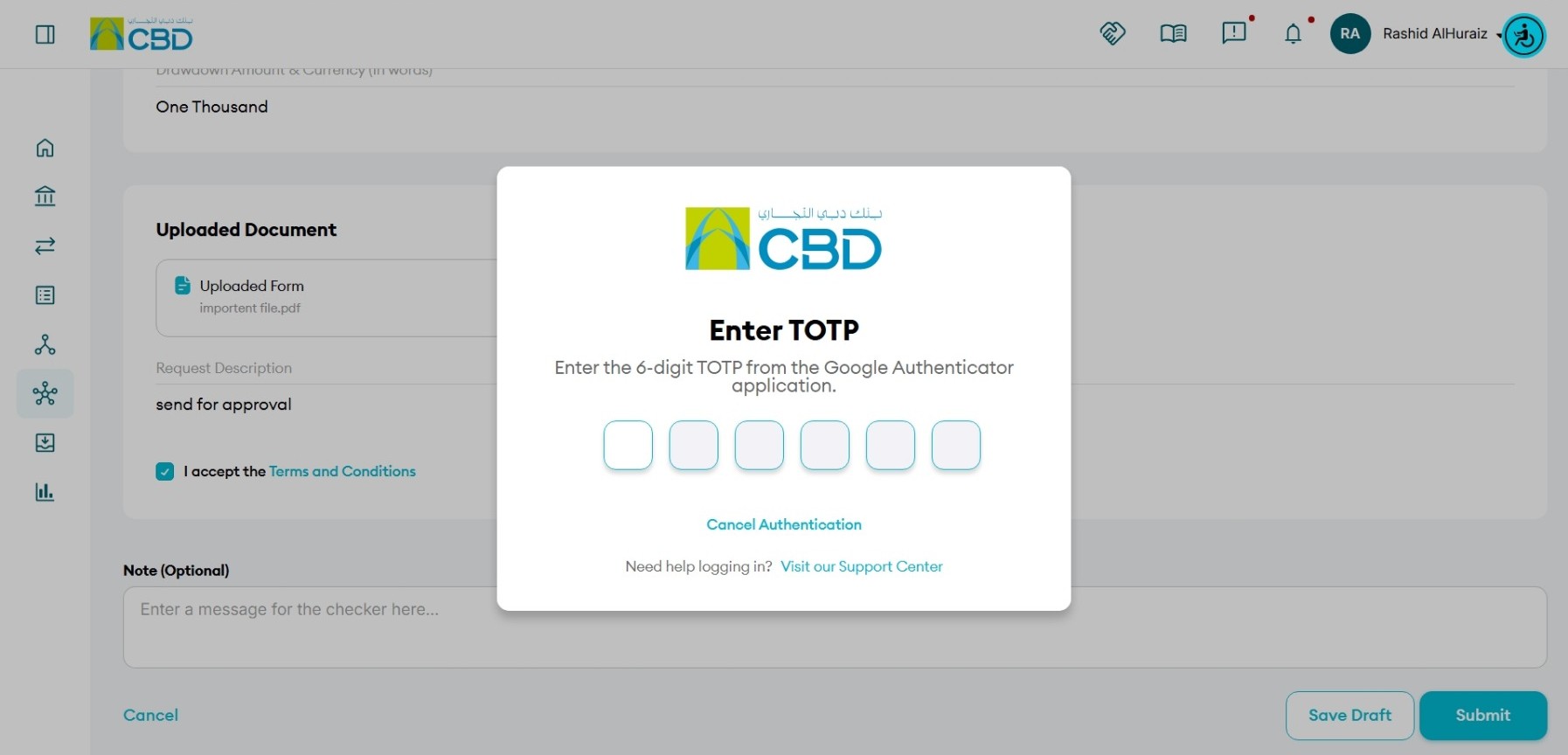
Step 7: Authenticate the Request
Complete authentication using one of the following methods:
iBusiness App Authentication
- A notification will be sent to the registered iBusiness Mobile App.
- Review the request details.
- Approve the request using biometric authentication or device verification.
Google Authenticator
- Open the Google Authenticator application.
- Enter the generated One-Time Password (OTP).
Once authentication is completed successfully, the request will be submitted for processing.
Step 8: Request Confirmation
After successful authentication and submission:
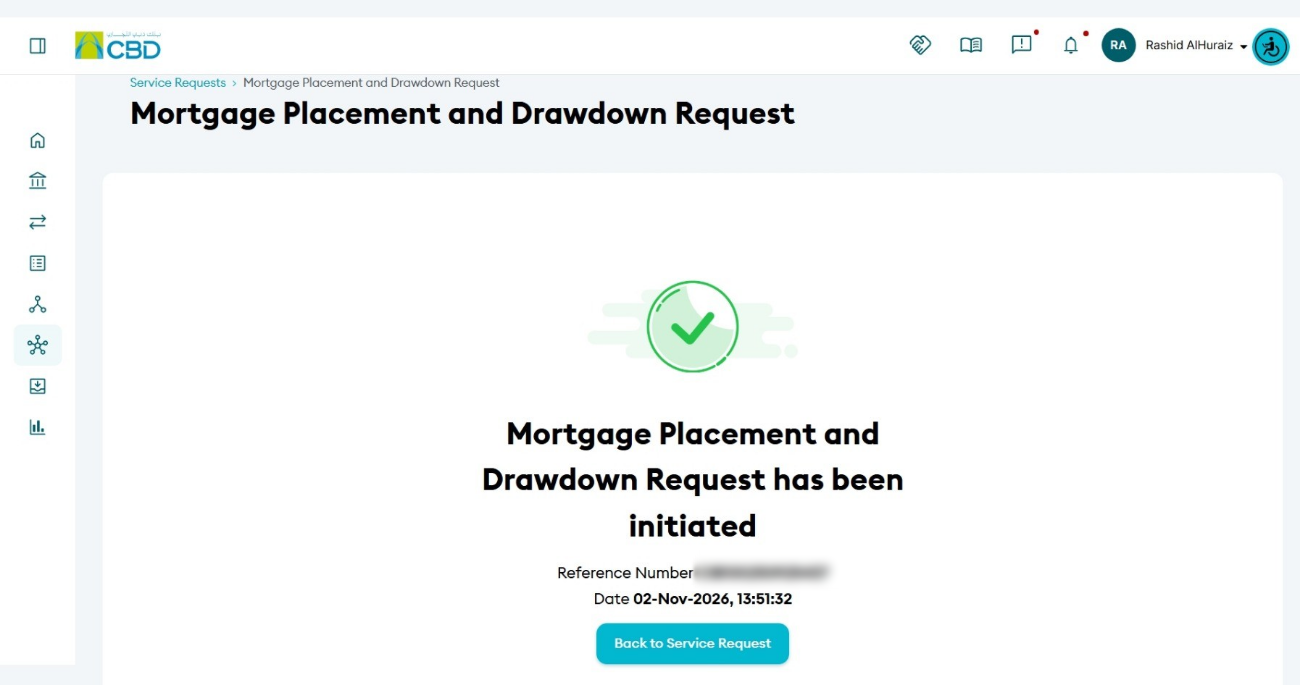
- A confirmation message will be displayed.
- A Request Reference Number will be generated.
- Record the reference number for future tracking and support enquiries.