
Overview
This guide provides step-by-step instructions for requesting an Audit Confirmation Letter or Balance Confirmation Letter through the iBusiness Web Portal.
This service allows customers to request an official confirmation letter that can be shared with auditors or used for financial verification purposes.
Step 1: Balance Confirmation / Audit Confirmation Letter Request Service
- Log in to iBusiness.
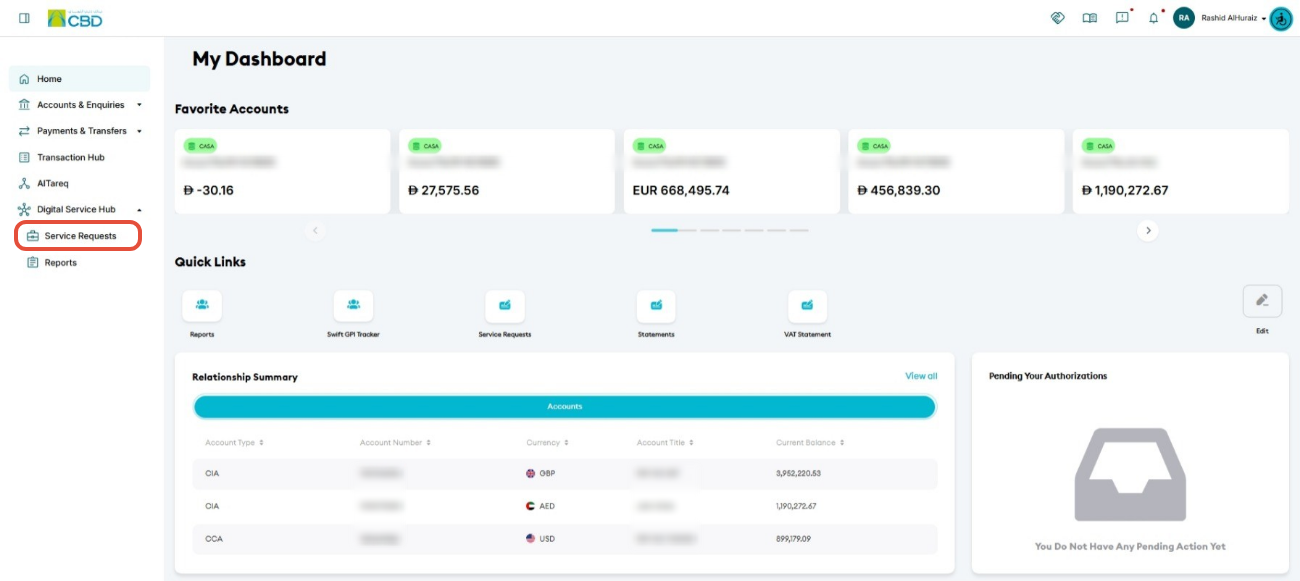
- Navigate to: Digital Service Hub ➜ Service Requests
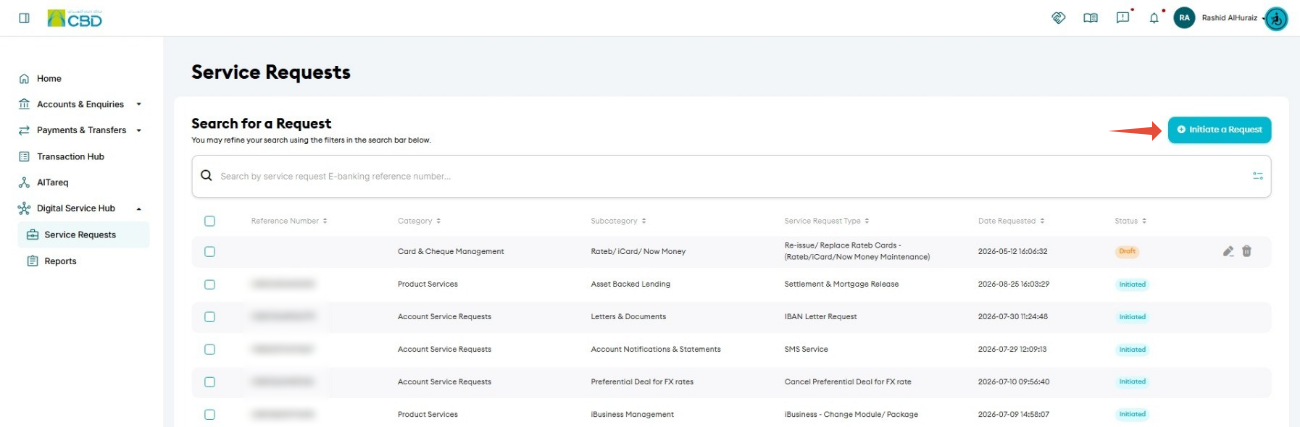
click Initiate a request
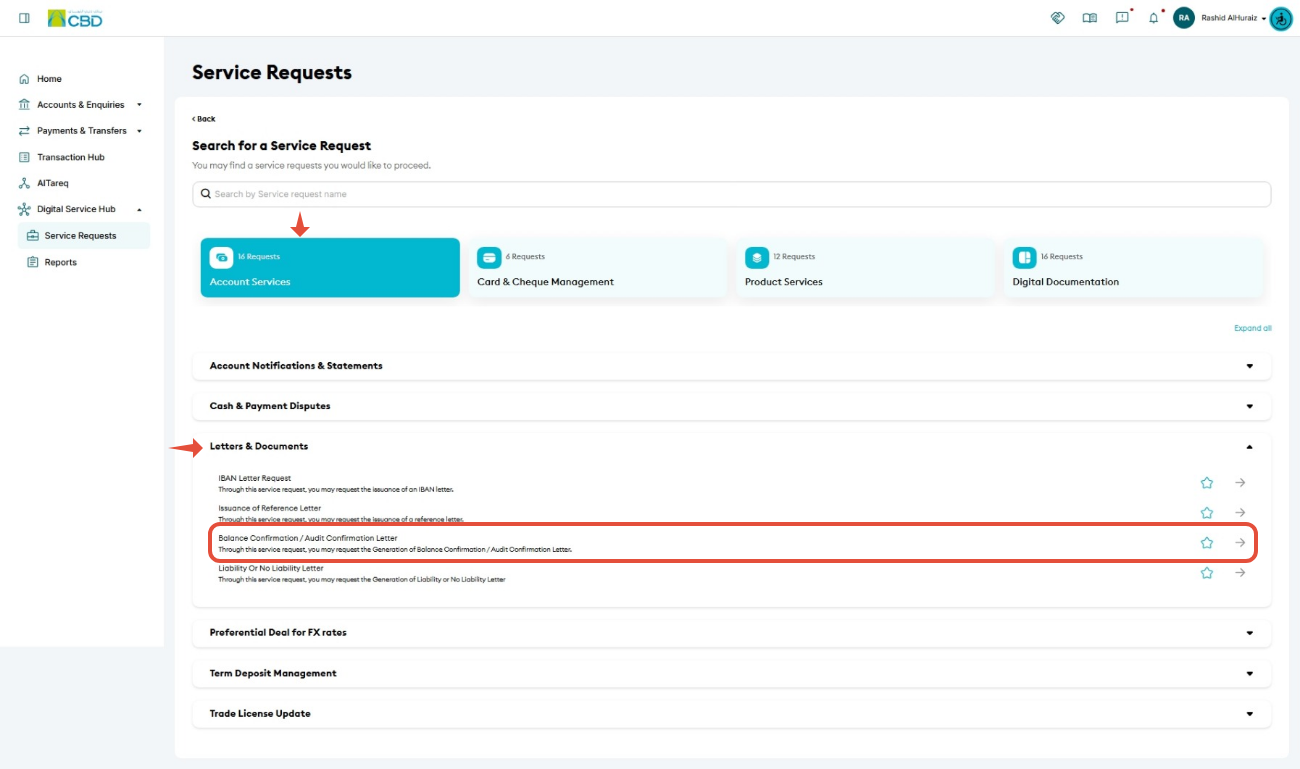
Select:
Account Services > Letters & Documents ➜ Select Balance Confirmation / Audit Confirmation Letter Request
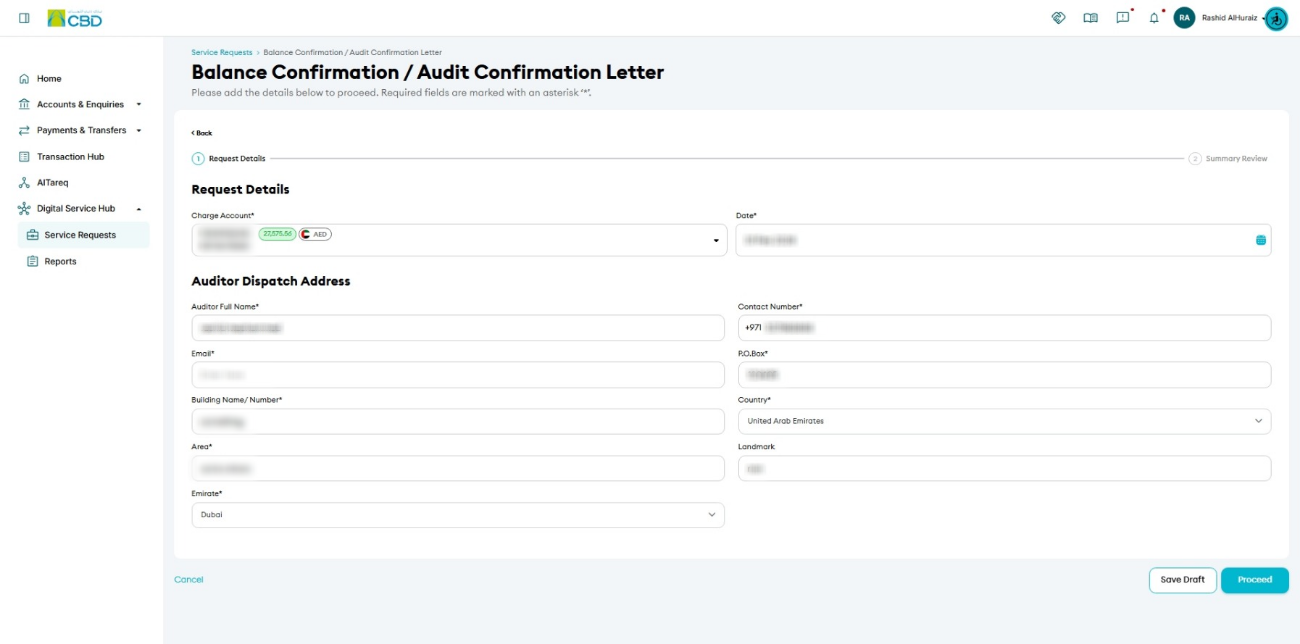
Step 2: Enter request details
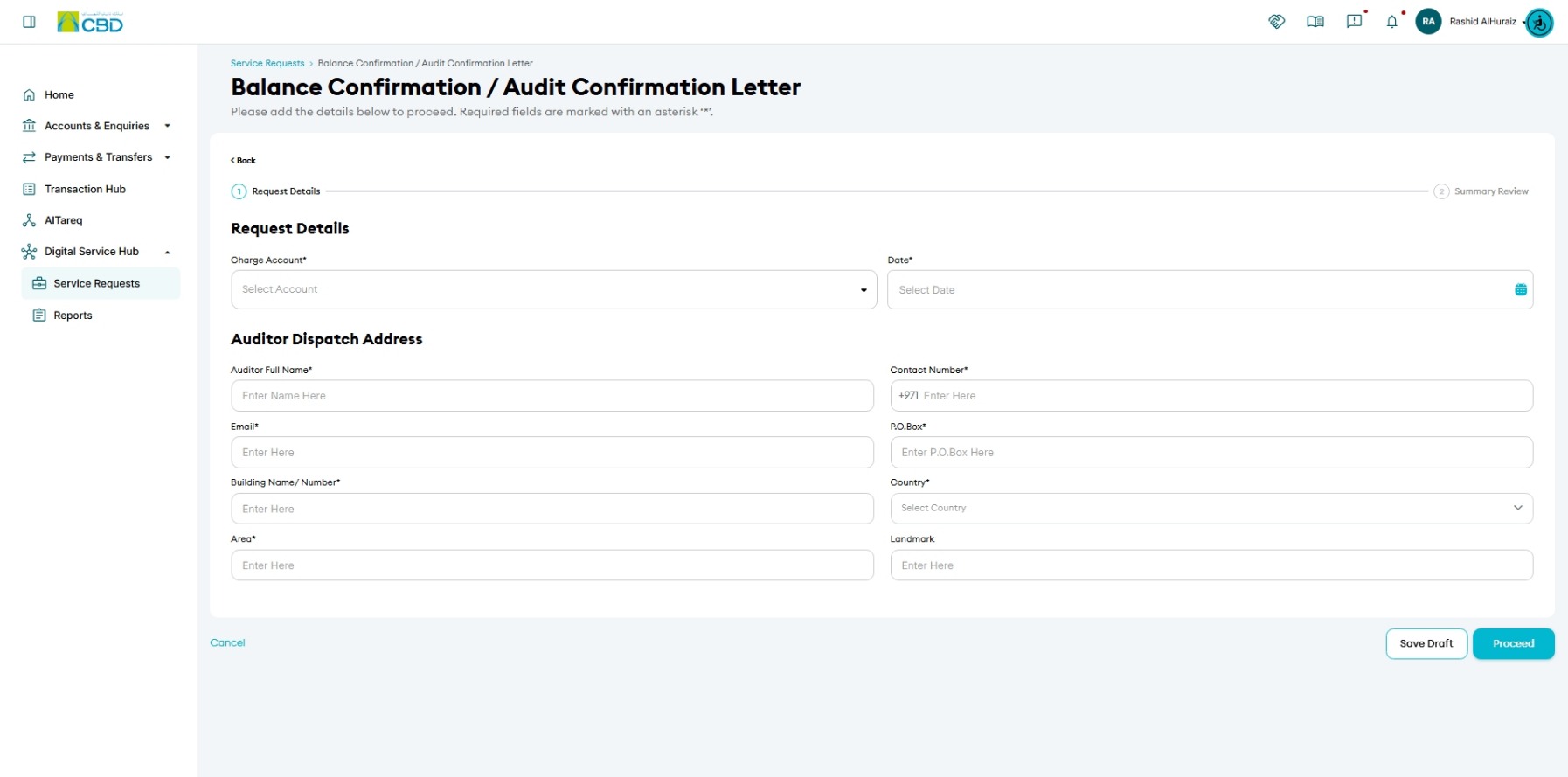
- Select the Charge Account
- Select the required Date
- Under Auditor Dispatch Address, enter:
- Auditor’s Full Name
- P.O. Box
- Contact Number
- Country
- Click Proceed
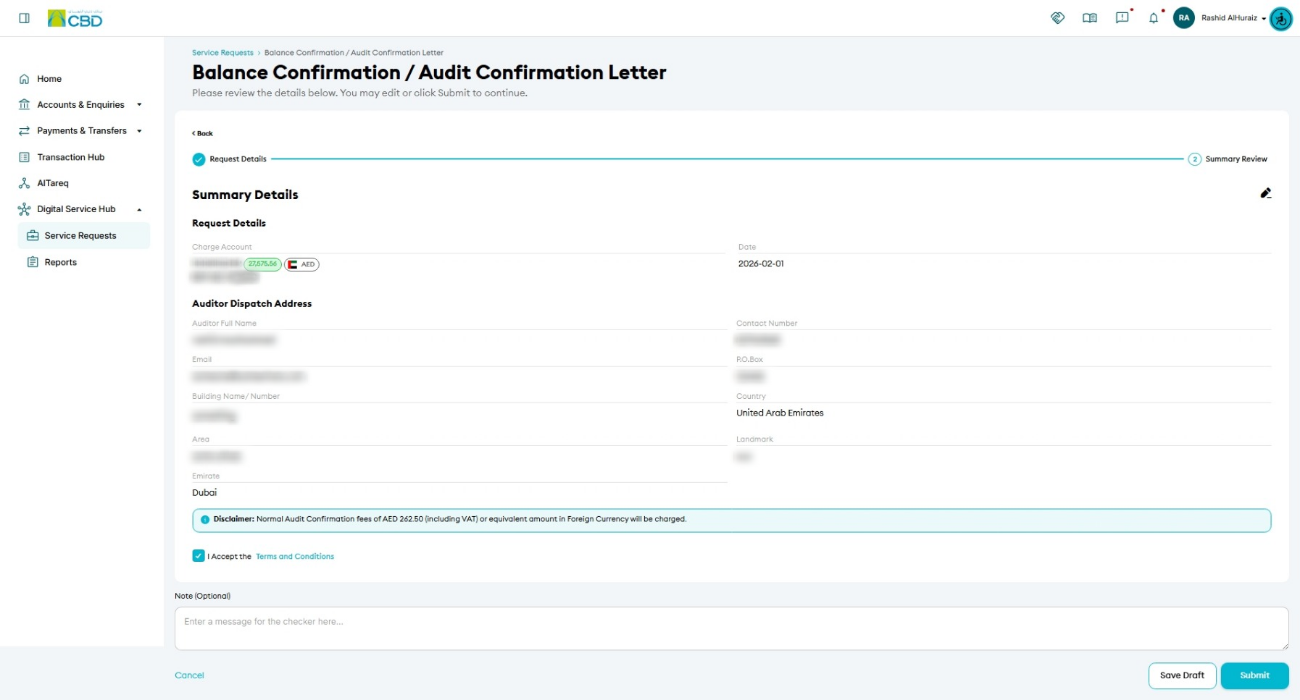
Step 3: Submit the request
- Review all entered details
- Accept the Terms & Conditions
- Click Submit
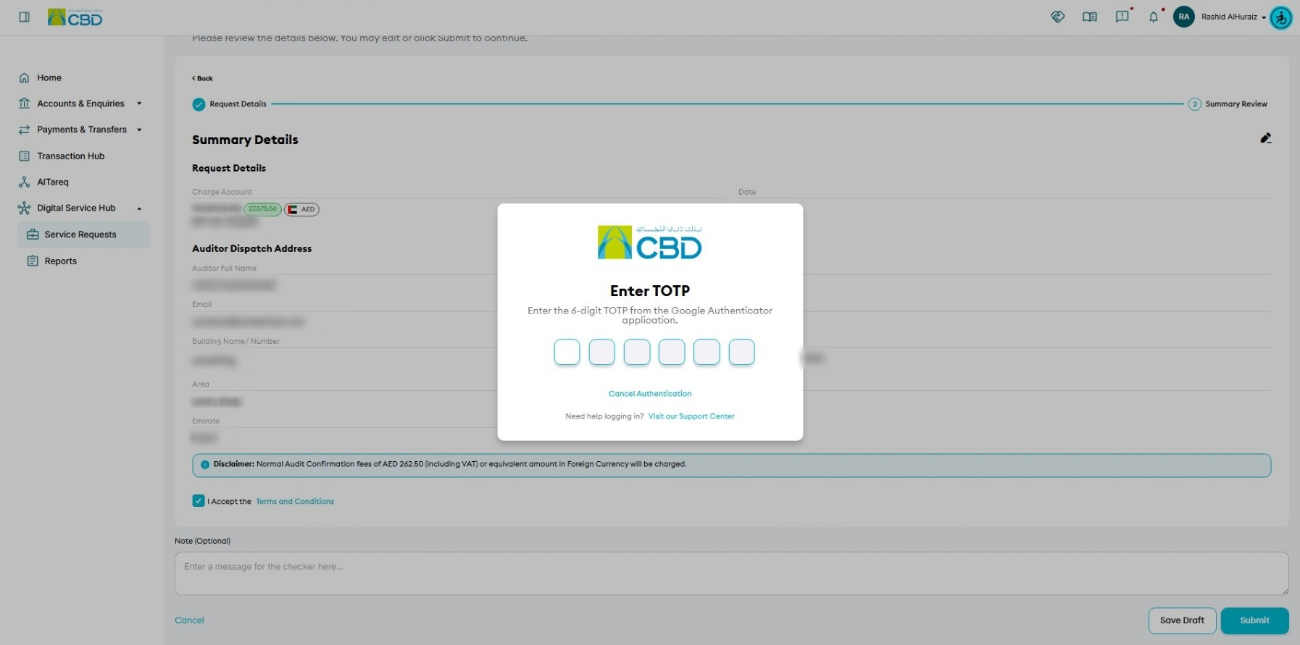
Step 4: Authenticate the Request
Complete authentication using one of the following methods:
CBD iBusiness Mobile App
- A notification will be sent to your paired mobile device.
- Review the request details.
- Approve the request using biometric authentication.
Google Authenticator
- Open the Google Authenticator application.
- Enter the generated One-Time Password (OTP).
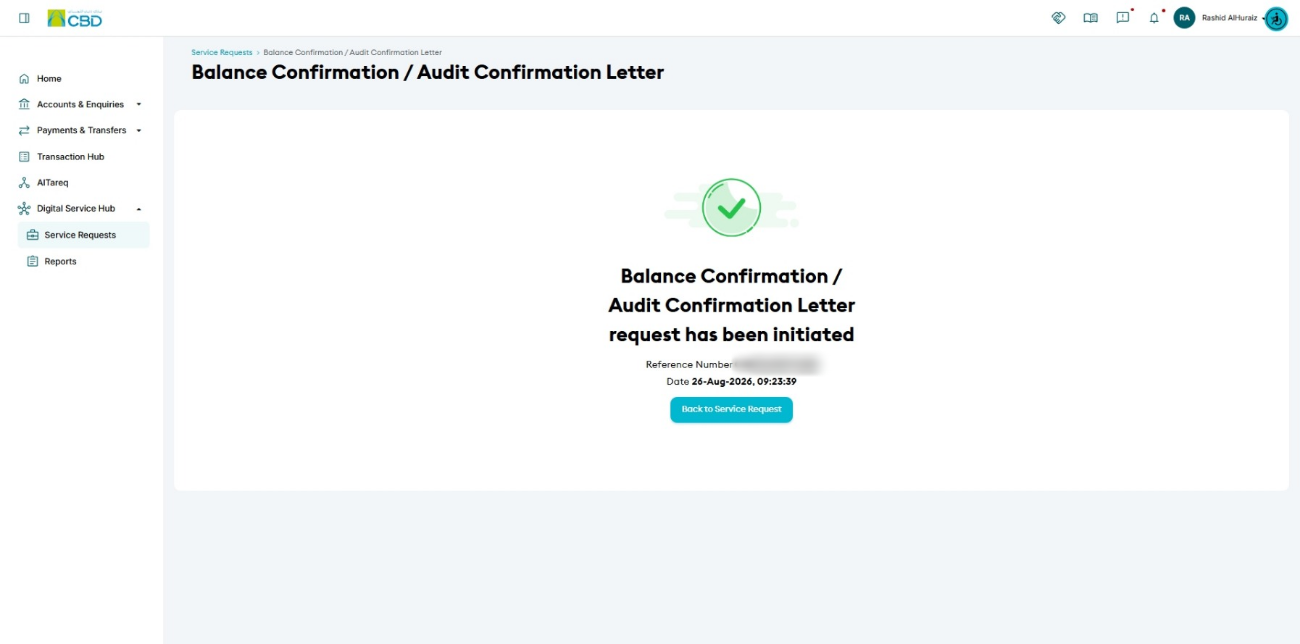
Step 5: Confirmation
After successful authentication:
- The request will be submitted for processing.
- A confirmation screen will be displayed.
- A unique reference number will be generated.
Use the reference number to track the status of the request if required.
Step 5: Approval (if applicable)
- If your organization follows a maker/checker process, the request must be approved
- The approver should:
- Log in to iBusiness
- Go to Transactions ➜ Pending Your Authorizations
- Locate the request under Service Request
- Review and Approve or Reject the request
Helpful Tips
- Ensure all auditor details are accurate to avoid delays in delivery
- Double-check the selected date and account before submission
- Keep the reference number to track your request status
- Confirm document requirements with your auditor in advance