
Overview
This guide provides step-by-step instructions for submitting a Fixed Deposit Placement Request through the iBusiness Web Portal.
A Fixed Deposit Placement Request allows customers to place funds into a term deposit account for a specified tenure and interest rate.
Step 1: Access the Fixed Deposit Placement Request
- Log in to iBusiness.
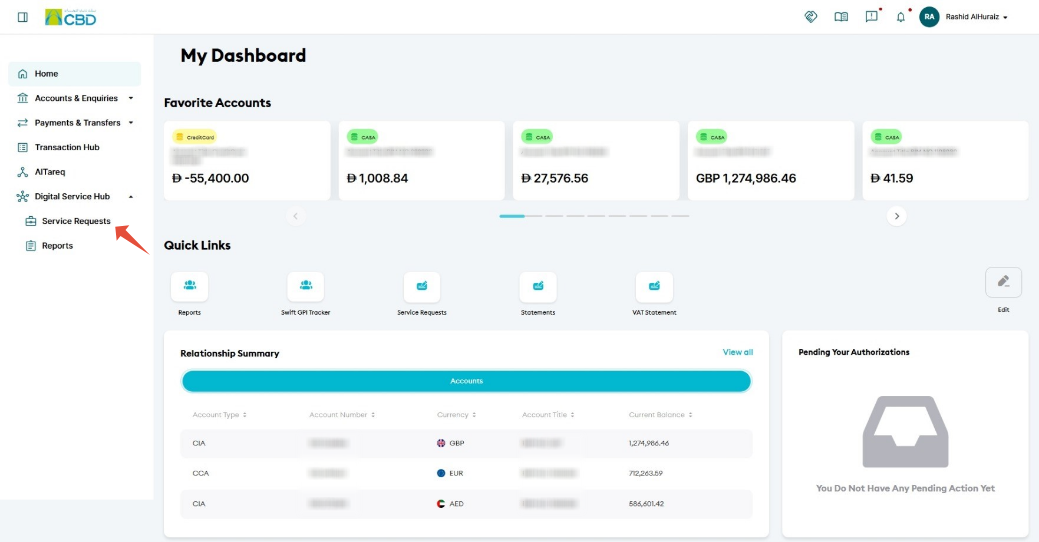
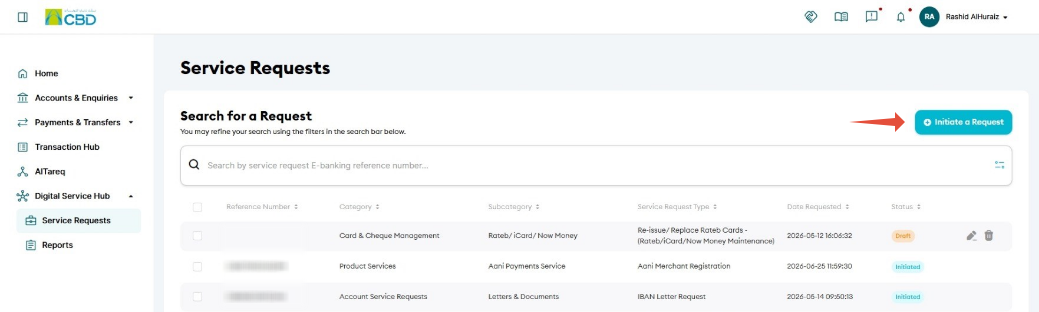
- Navigate to: Digital Service Hub ➜ Service Requests ➜ Initiate a Request
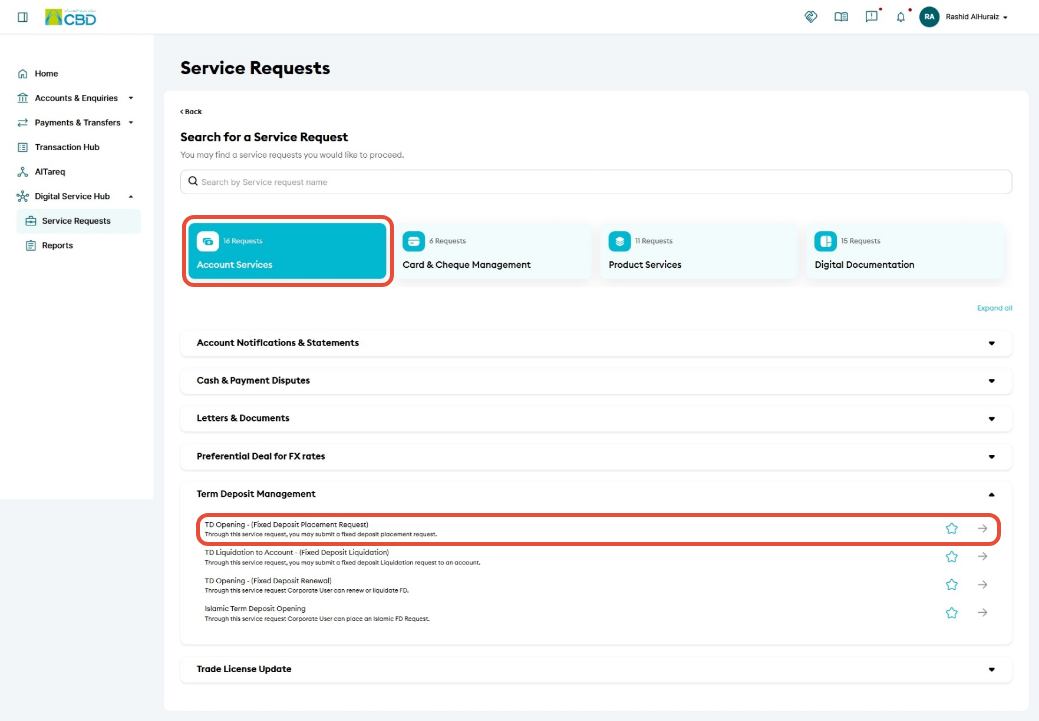
Select: Account Services ➜ Term Deposit Management ➜ TD Opening (Fixed Deposit Placement Request)
Step 2: Complete the Request Details
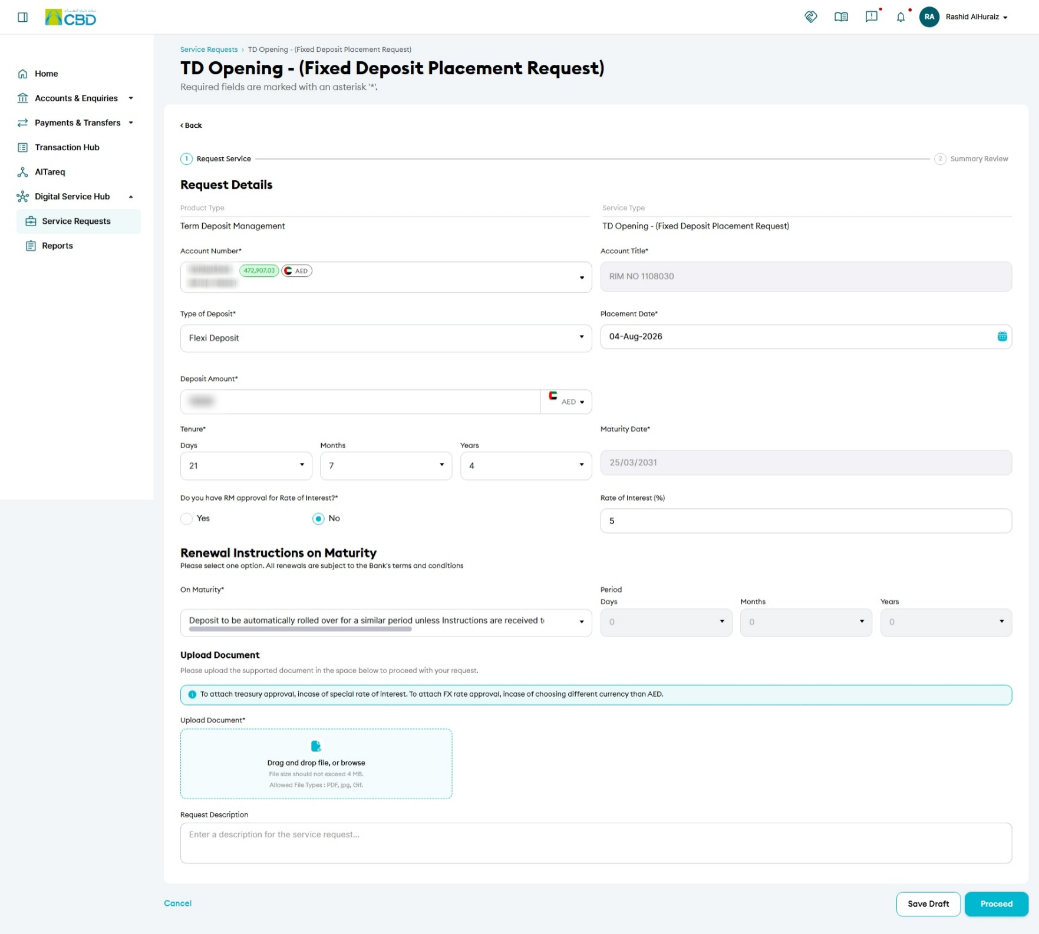
Enter all mandatory fields required for the fixed deposit placement request.
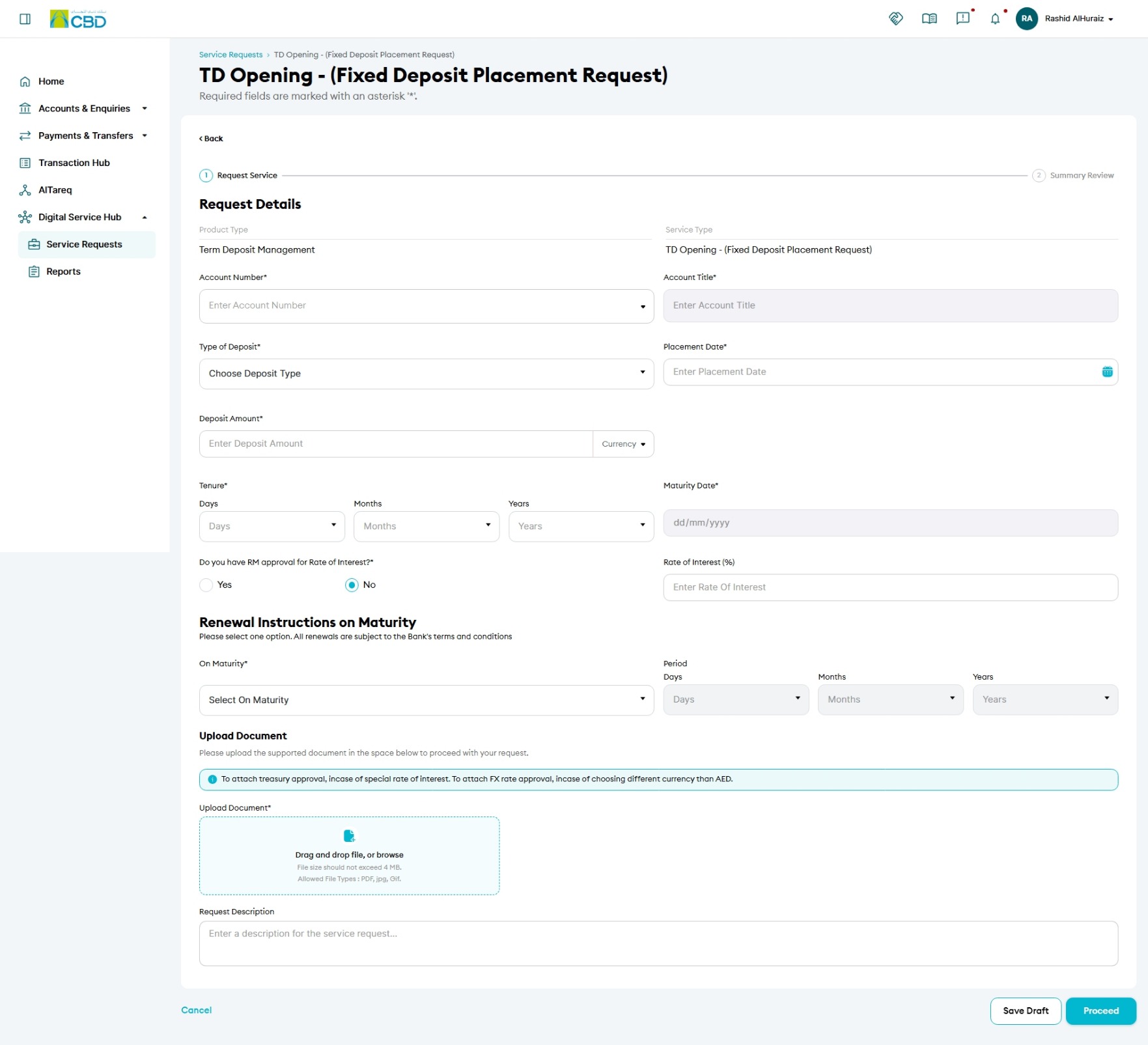
The following information must be completed:
Account Number: Select the account from which the deposit amount will be funded.
Type of Deposit: Select the type of fixed deposit you want to create.
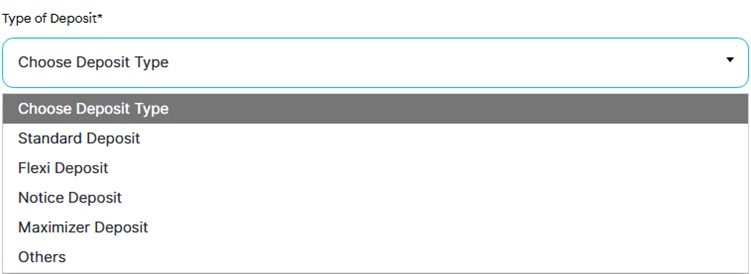
Available options include:
- Standard Deposit: A traditional fixed deposit with a fixed tenure and interest rate.
- Flexi Deposit: Provides additional flexibility based on the deposit terms and conditions.
- Notice Deposit: Requires advance notice before funds can be withdrawn.
- Maximizer Deposit: Designed to maximize returns based on the selected deposit structure.
- Others: Additional deposit products that may be available based on customer eligibility.
Deposit Amount: Enter the amount to be placed in the fixed deposit.
Placement Date: Select the date on which the deposit should be created.
Tenure: Select the deposit period.
Maturity Date: Displays the date the fixed deposit will mature.
Rate of Interest: Displays the applicable interest rate.
Renewal Instructions on Maturity
Select how the fixed deposit should be managed when it reaches its maturity date. 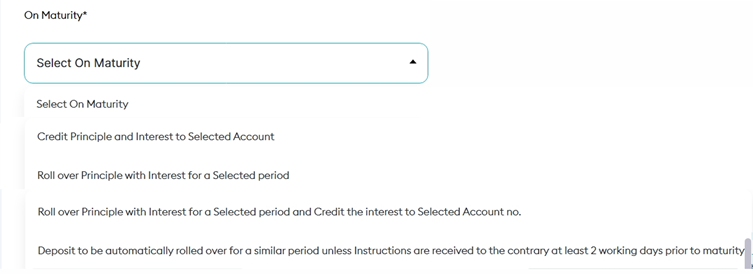
The following options are available:
- Credit Principal and Interest to Selected Account: The fixed deposit will be closed on the maturity date, and both the principal amount and accrued interest will be credited to the selected account.
- Roll Over Principal with Interest for a Selected Period: The principal amount and accrued interest will be reinvested into a new fixed deposit for the selected tenure.
- Roll Over Principal with Interest for a Selected Period and Credit the Interest to the Selected Account: The principal amount will be renewed as a new fixed deposit, while the accrued interest will be credited to the selected account.
- Automatic Roll Over for a Similar Period: The fixed deposit will automatically renew for the same tenure and under the prevailing terms and conditions unless alternative instructions are provided at least two working days before the maturity date.
Important: All renewal instructions are subject to the Bank's terms and conditions in effect at the time of renewal.
Note: Customers with a pre-approved Relationship Manager (RM) rate do not need to enter an interest rate. The approved rate will be applied during processing.
After completing all mandatory fields, click Proceed.
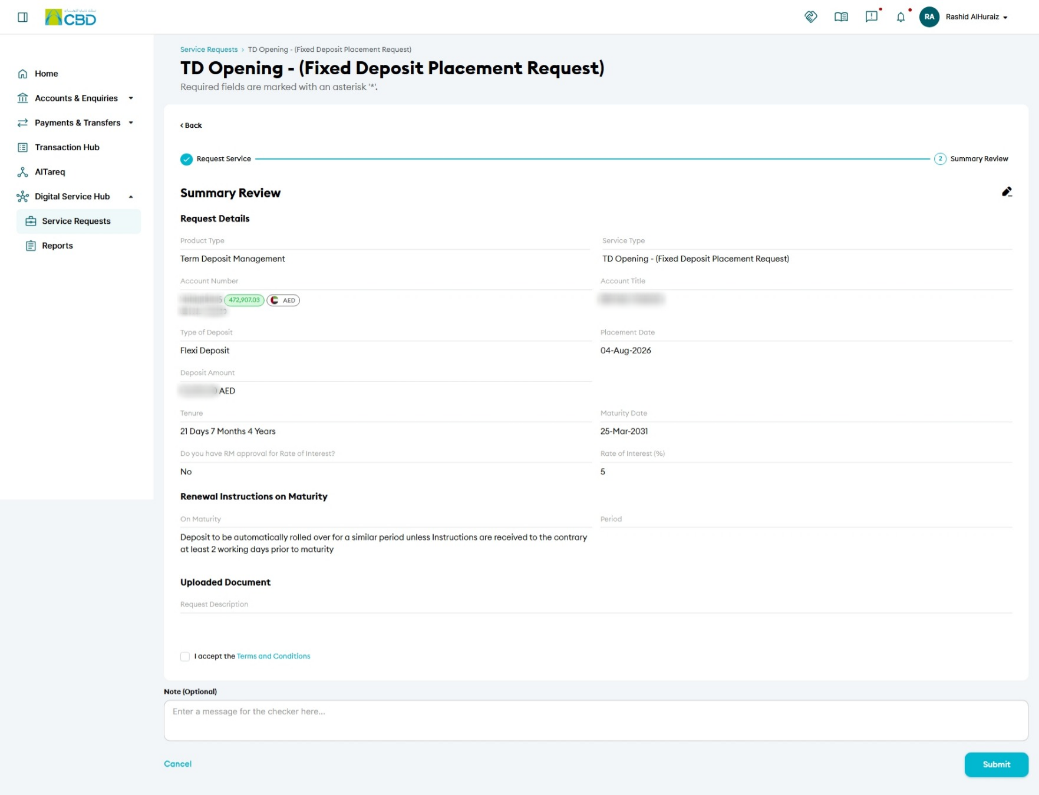
Step 3: Review and Submit
- Review all request details carefully.
- Verify the deposit amount, tenure, maturity date, and renewal instructions.
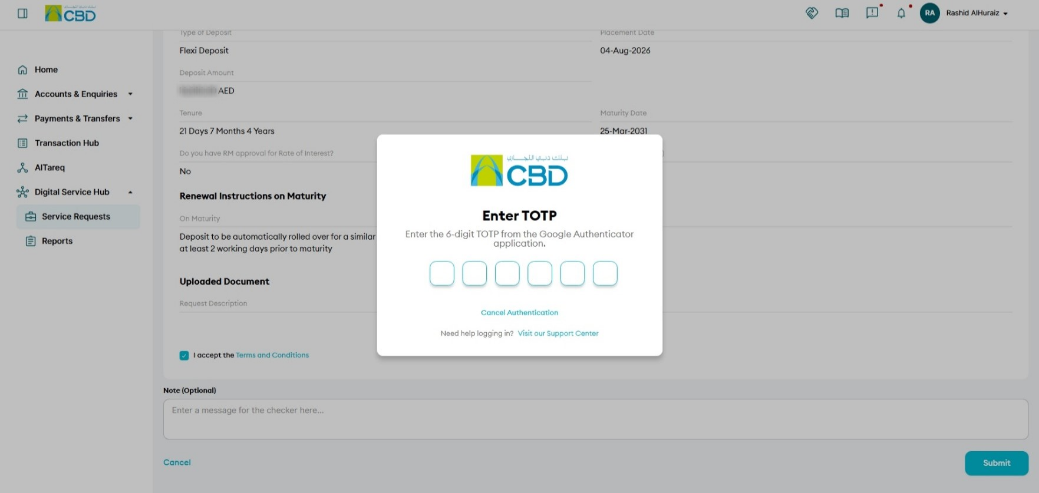
- Accept the Terms and Conditions.
- Click Submit to continue.
Step 4: Authenticate the Request
Complete authentication using one of the following methods:
iBusiness App Authentication
- Approve the request through the iBusiness Mobile App.
- Complete biometric or device verification.
Google Authenticator
- Open the Google Authenticator application.
- Enter the generated One-Time Password (OTP).
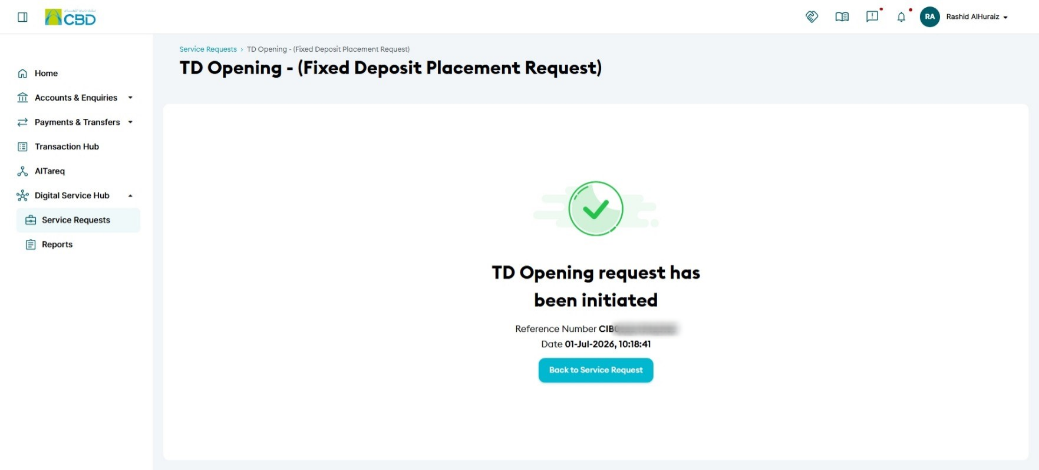
Upon successful authentication, the request will be submitted for processing and a reference number will be generated .
Support Notes / Best Practices
- Verify the funding account before submitting the request.
- Review the deposit amount, tenure, and maturity instructions carefully.
- Ensure sufficient funds are available in the selected account to fund the fixed deposit.
- Keep a record of the generated reference number for tracking and support purposes.
- Review the renewal instructions to ensure the deposit is handled correctly upon maturity.