
Overview
This guide provides step-by-step instructions for submitting a Mortgage Placement Request through the iBusiness Web Portal.
The Mortgage Placement service allows customers to request financing against an asset by submitting the required mortgage details and supporting documents for processing.
Step 1: Access the Mortgage Placement Service
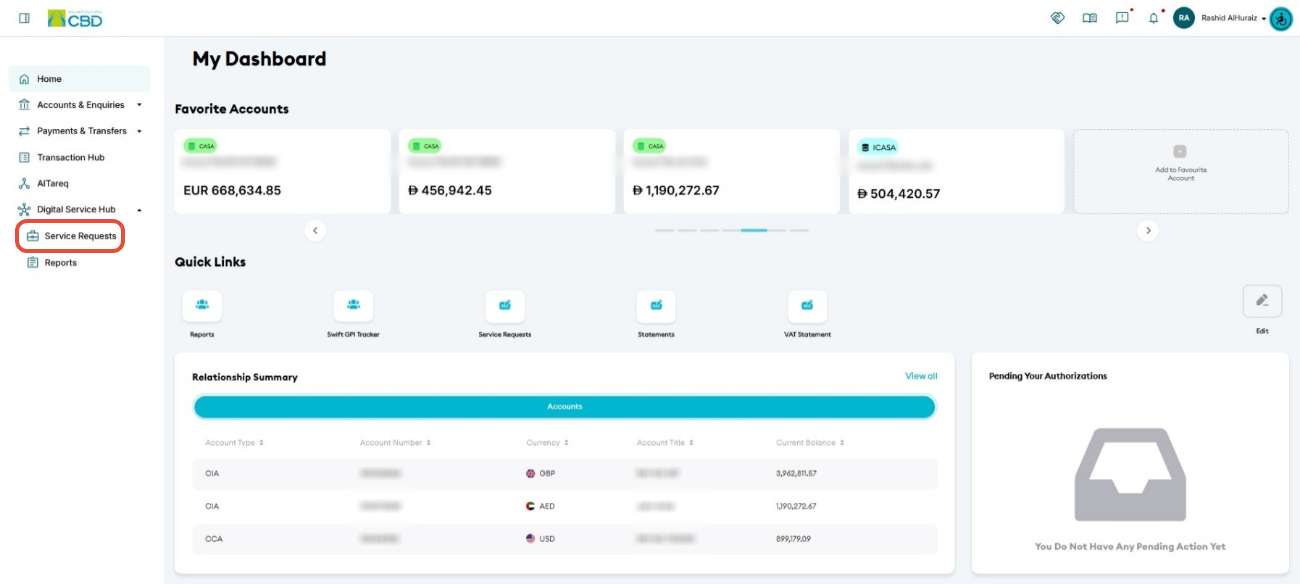
- Log in to iBusiness.
- Navigate to:
- Digital Service Hub
- Service Requests
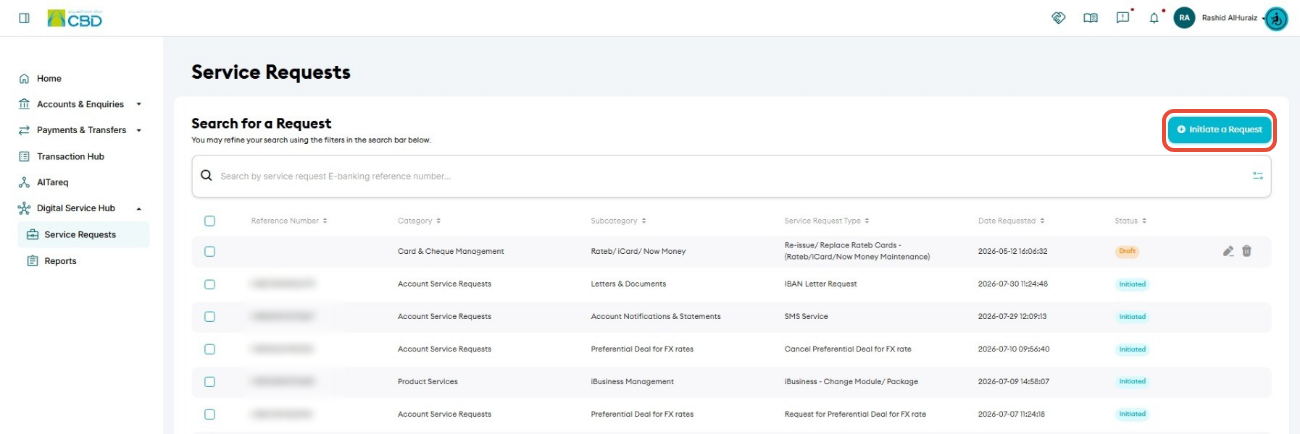
Click Initiate a Request.
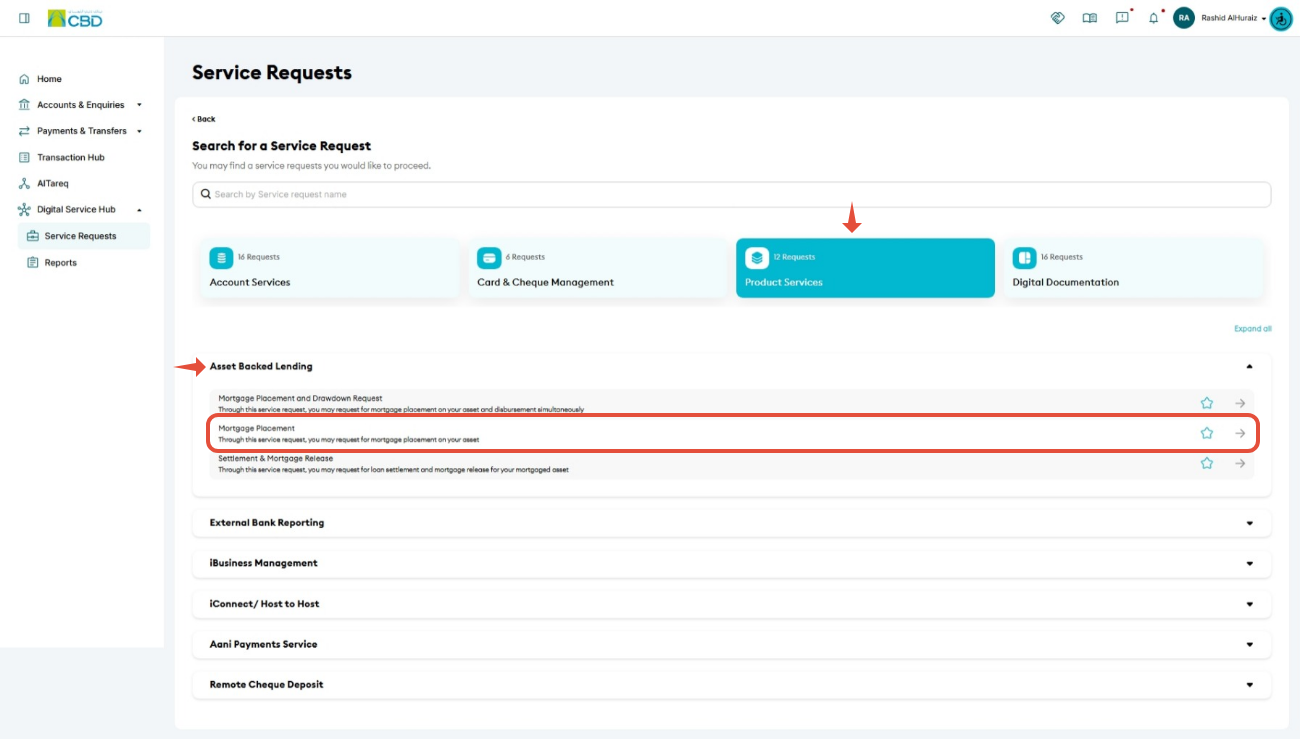
Select:
- Product Services
- Asset Backed Lending
- Mortgage Placement
Step 2: Complete the Request Details
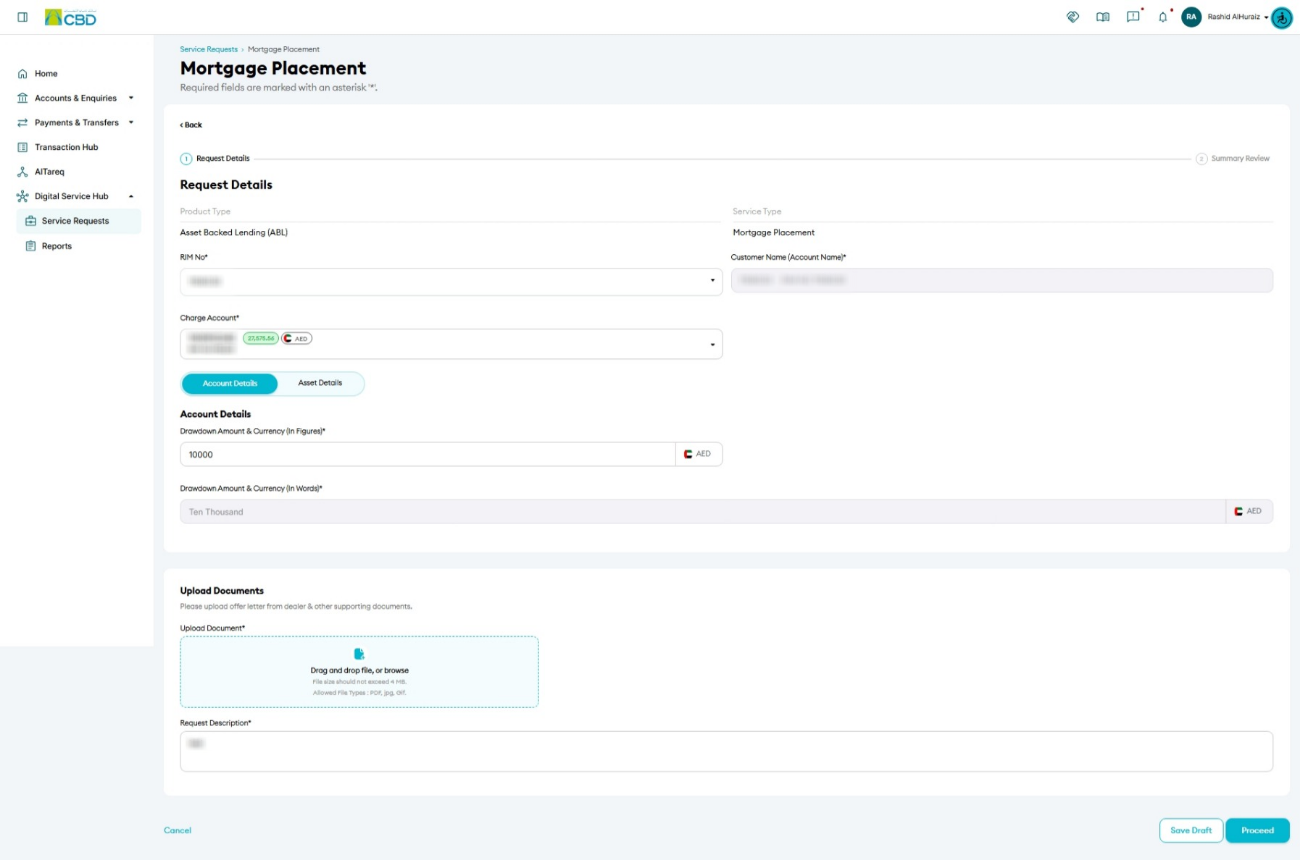
Enter the required mortgage placement information.
Customer Information
- RIM Number – Enter the RIM number associated with the mortgage placement request.
- Charge Account – Select the account from which any applicable fees or charges will be deducted.
Mortgage Details
- Drawdown Amount and Currency (Figures) – Enter the requested drawdown amount in numbers.
- Drawdown Amount and Currency (Words) – The system will automatically convert the entered amount into words.
Supporting Documents
Upload any documents required to support the request, such as:
- Dealer Offer Letter
- Quotation
- Asset-related supporting documents
- Any additional documents requested by the Bank
Request Description
Enter any additional information or comments relevant to the mortgage placement request.
Step 3: Complete the Asset Details
Asset information must be provided before the request can be submitted.
- Download the Sample Form.
- Download the Guideline Document.
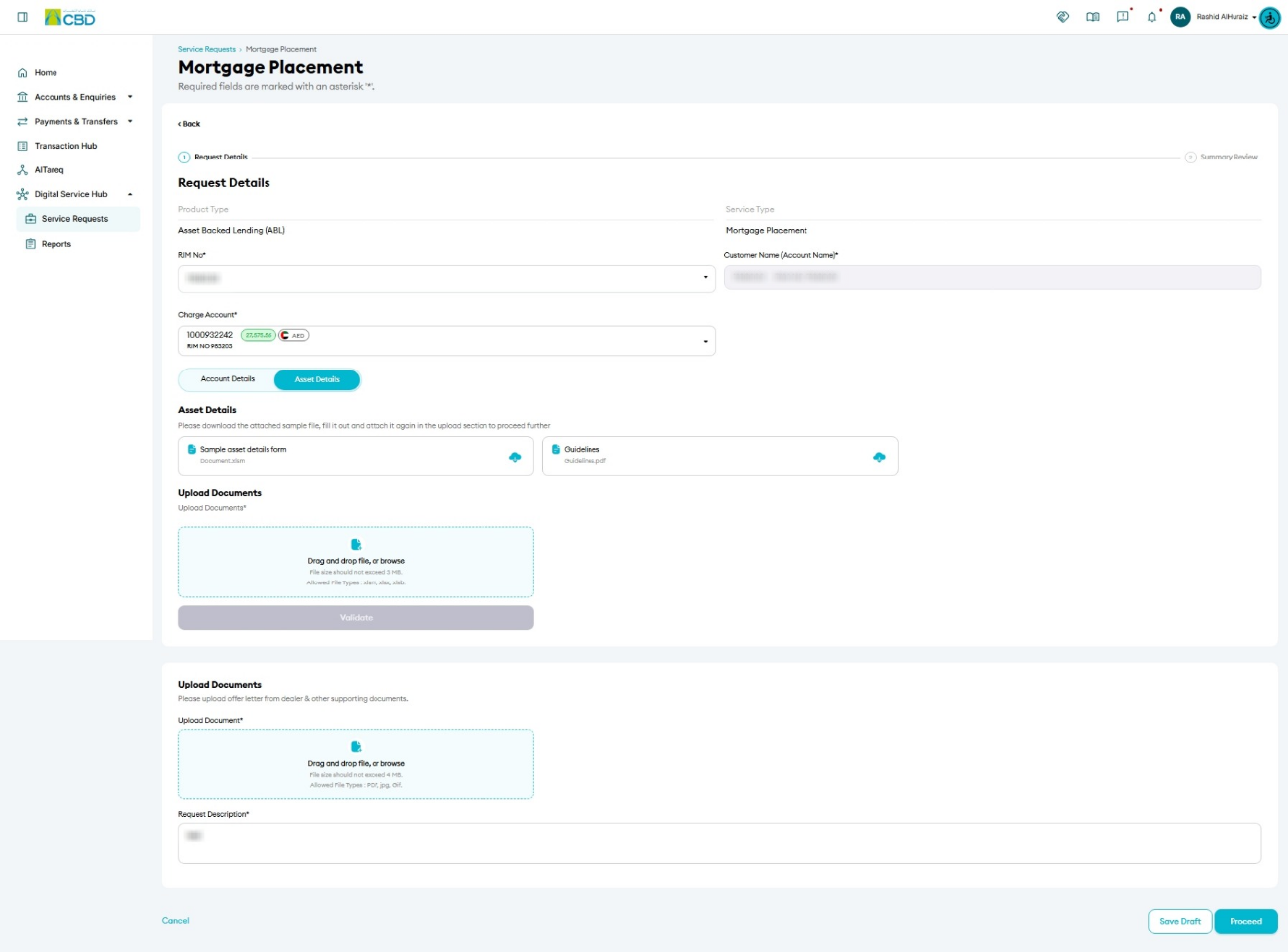
- Complete the asset information form using the required asset details.
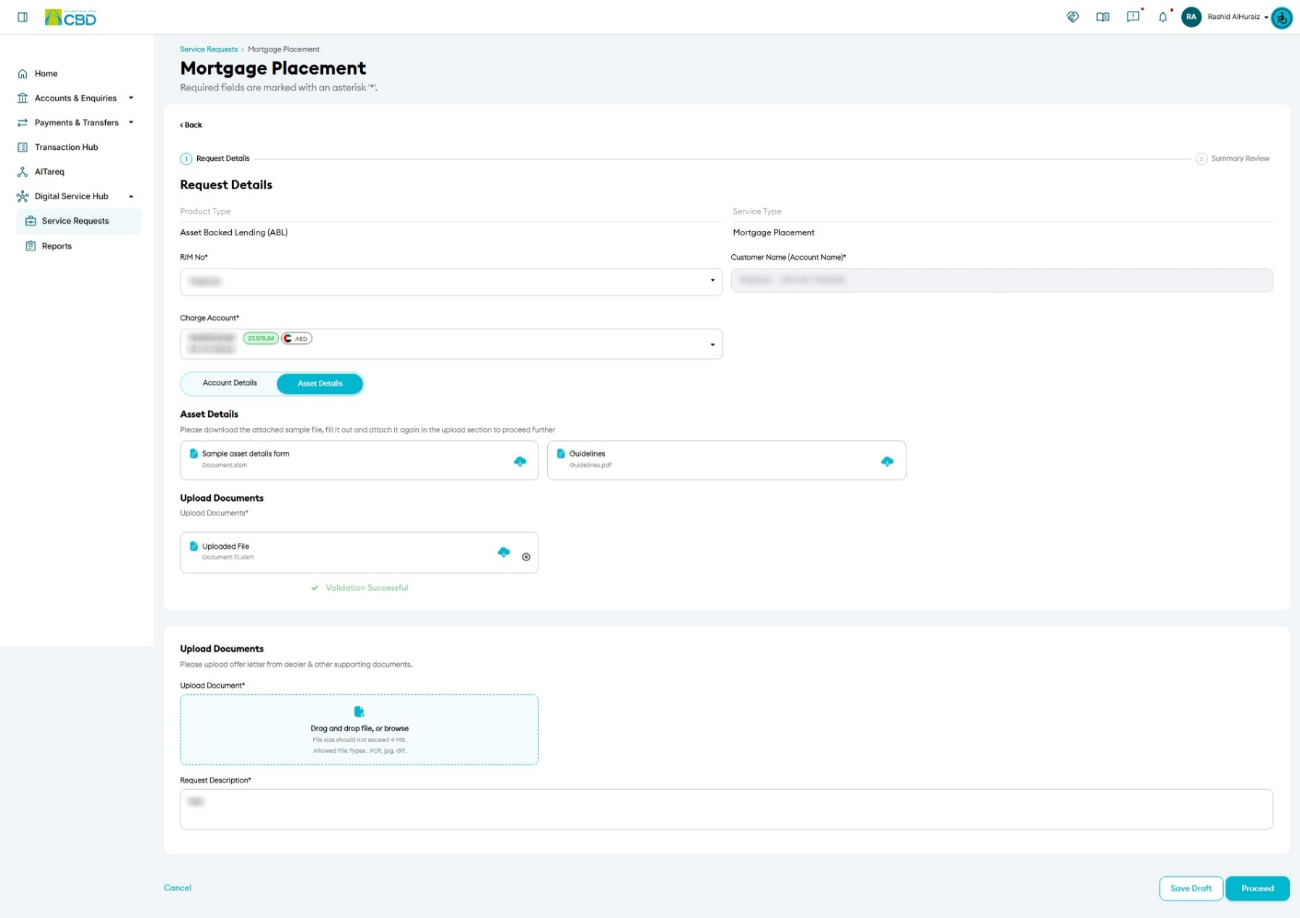
- Upload the completed form.
- Click Validate to verify the uploaded information.
- Once validation is successful, click Proceed.
Important: Ensure all asset details are completed accurately before validating the form. Incomplete or incorrect information may delay processing.
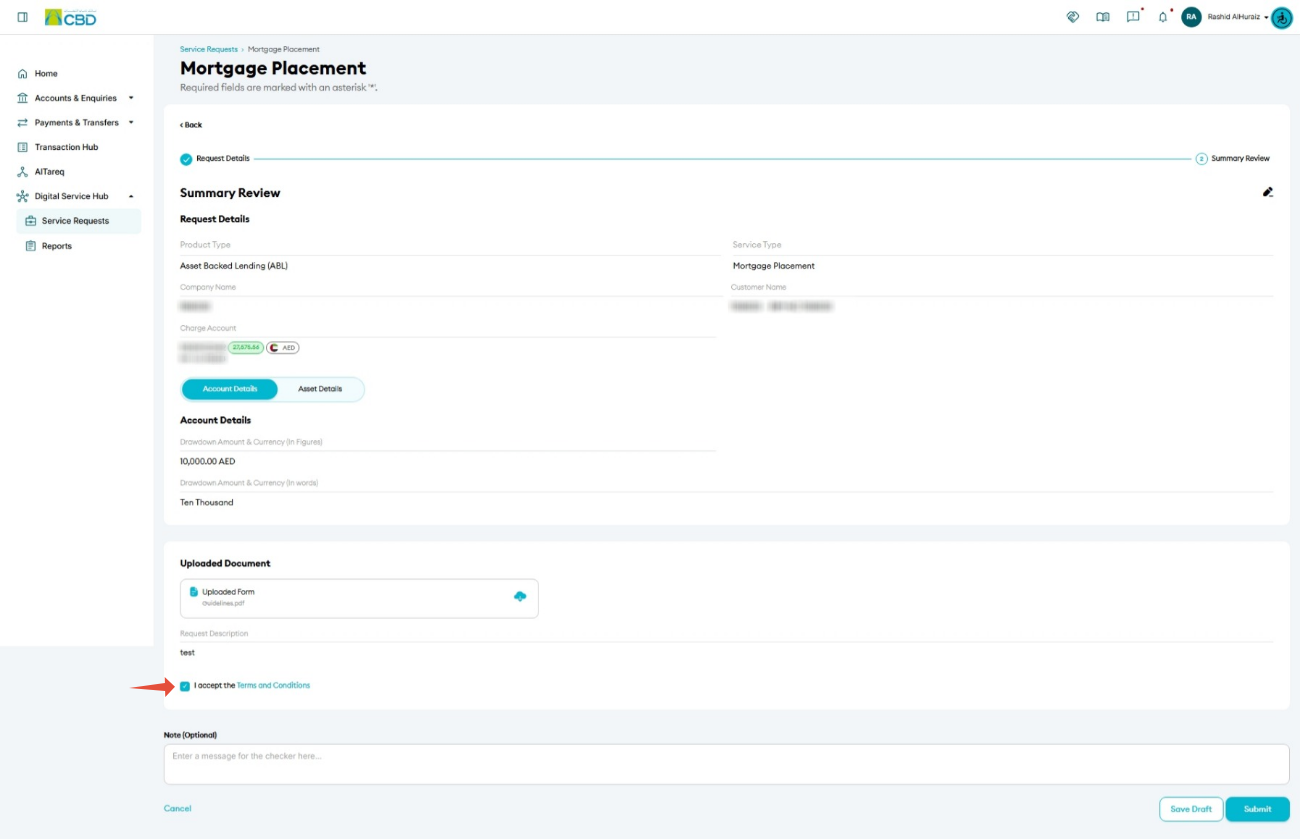
Step 4: Summary Review
Review the request details before submission.
Verify:
- Request details
- Account information
- Asset details
- Uploaded documents
If required, click Terms and Conditions to review the service terms.
- Accept the Terms and Conditions.
- Add an Internal Note (optional).
- Click Submit.
Important: Ensure all information and uploaded documents are correct before submitting the request.
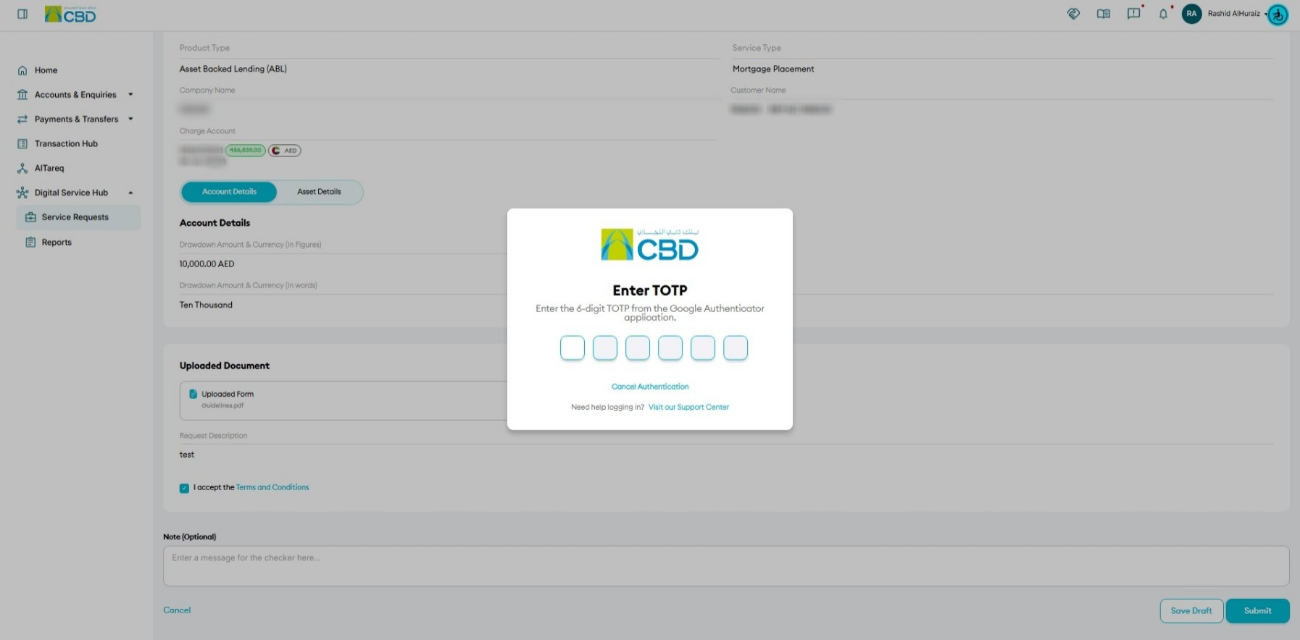
Step 5: Authenticate the Request
Complete authentication using one of the following methods:
Option 1: iBusiness Mobile App
- Approve the request using the iBusiness Mobile App.
- Complete biometric authentication.
Option 2: Google Authenticator
- Open the Google Authenticator application.
- Enter the generated One-Time Password (OTP).
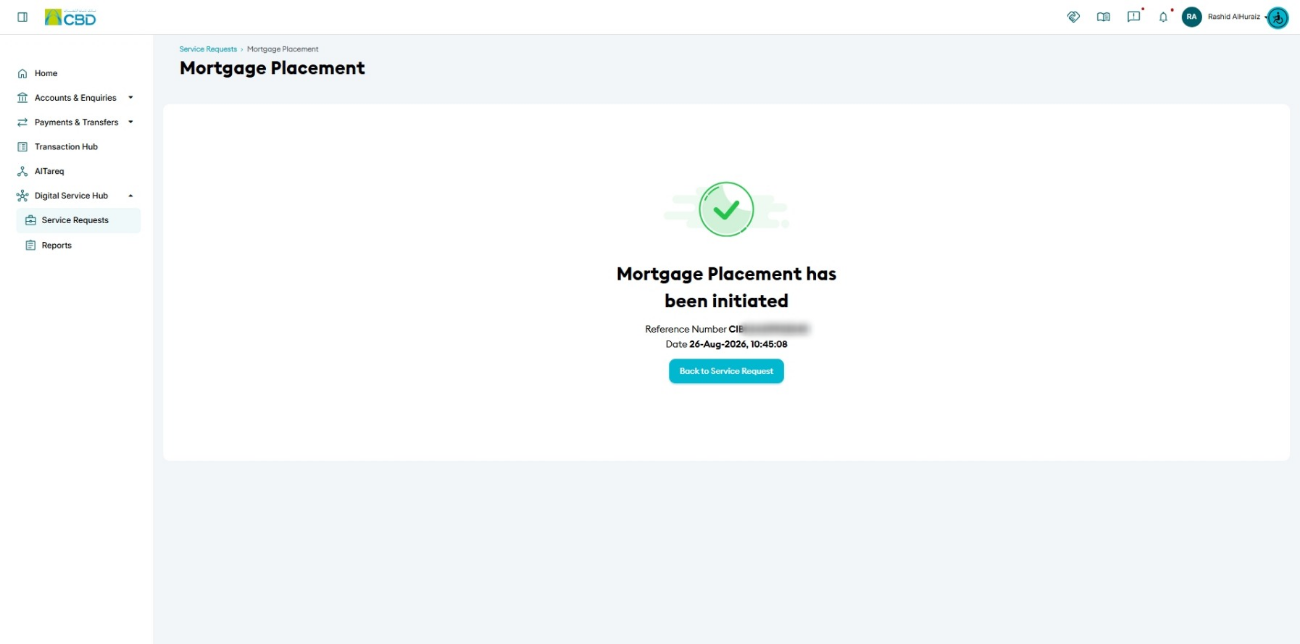
Step 6: Confirmation
Once the request has been submitted successfully:
- A confirmation screen will be displayed.
- A unique reference number will be generated.
- The reference number can be used to track the status of the request.
Support Notes / Best Practices
- Ensure the correct RIM Number and Charge Account are selected.
- Verify the drawdown amount before proceeding with the request.
- Upload all required supporting documents to avoid processing delays.
- Use the latest sample form when completing asset information.
- Validate the uploaded asset form before clicking Proceed.
- Retain the generated reference number for future tracking and support enquiries.