
Overview
This guide provides step-by-step instructions for submitting an iConnect Amendment request through iBusiness Online.
The iConnect Amendment service allows customers to modify existing iConnect (Host-to-Host) service configurations, including linked accounts, subscription settings, file processing options, contact information, and processing preferences.
Prerequisite: Ensure you have the required permissions to access the Digital Service Hub and initiate service requests.
Step 1: Access the Digital Service Hub
- Log in to iBusiness Online.
- Navigate to: Digital Service Hub ➜ Service Request
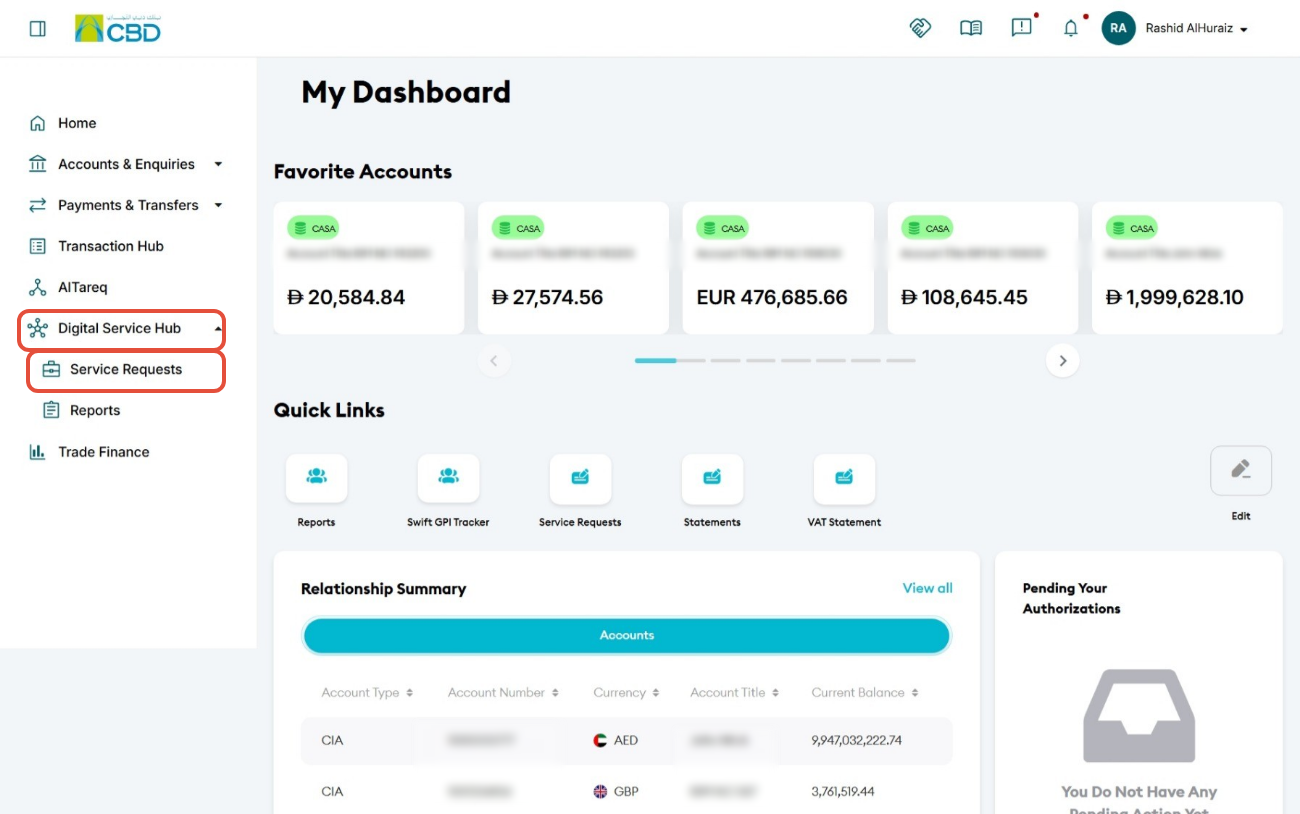
This will open the Service Request dashboard.
Step 2: Initiate a New Request
- Click Initiate a Request.
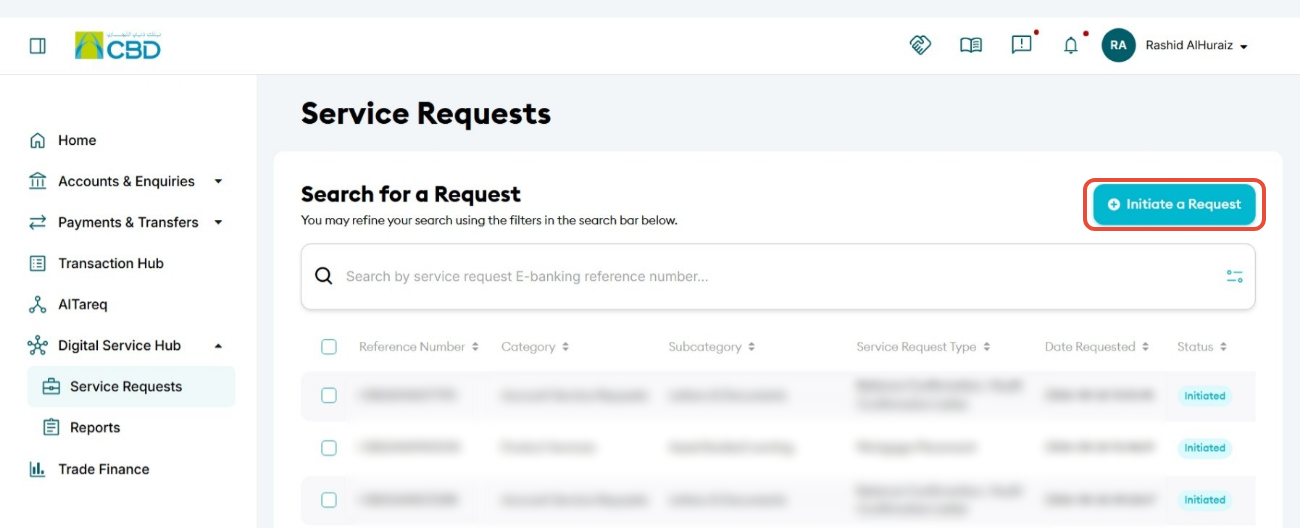
This will display the available service request categories.
Step 3: Select iConnect Amendment
Navigate to: Products & Services ➜ iConnect / Host-to-Host ➜ iConnect Amendment
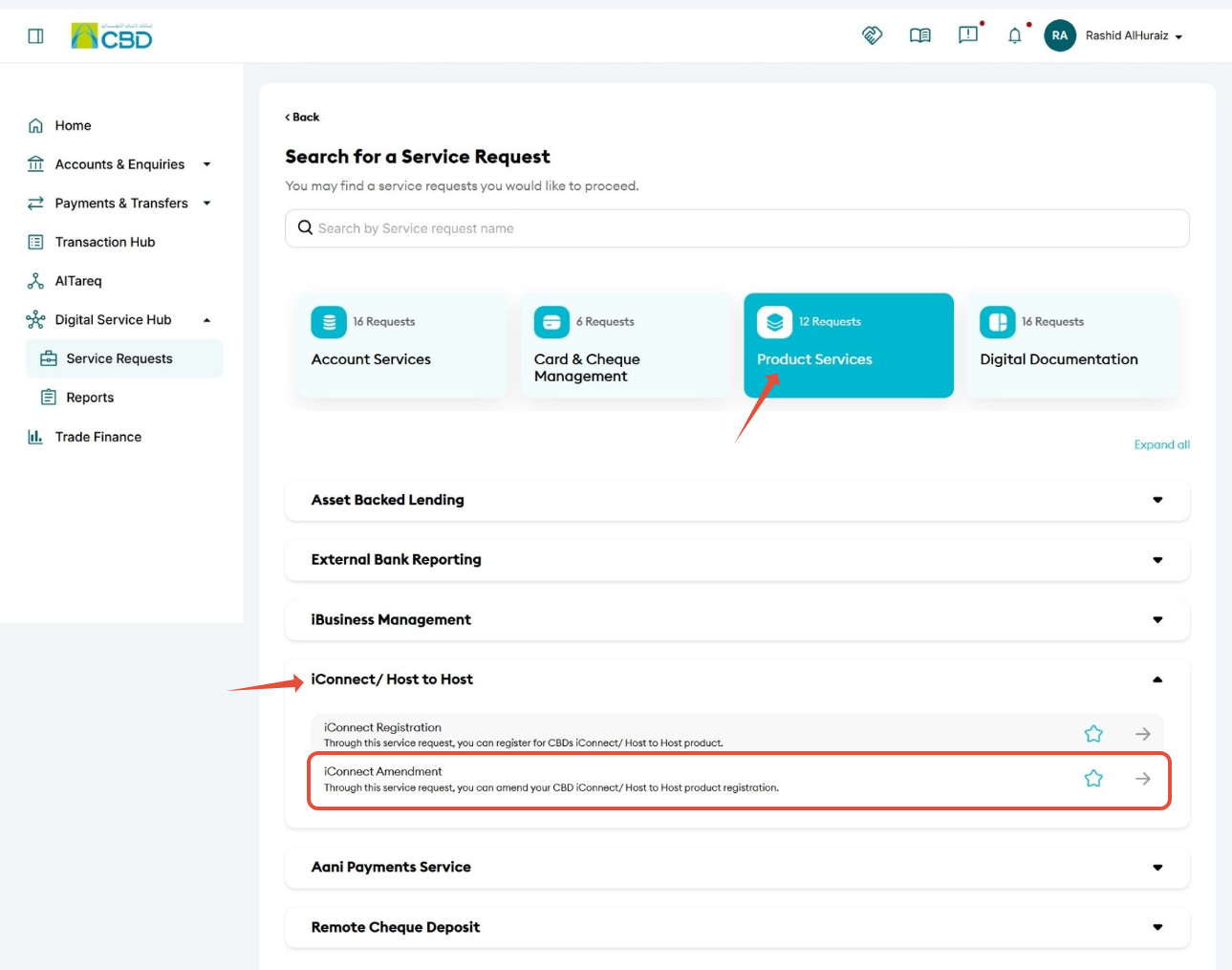
This will open the iConnect Amendment request form.
Step 4: Complete the Account Details
Under the Account Details section:
- Select the Charged Account.
- Select the Linked Account(s) that will be associated with the iConnect service.
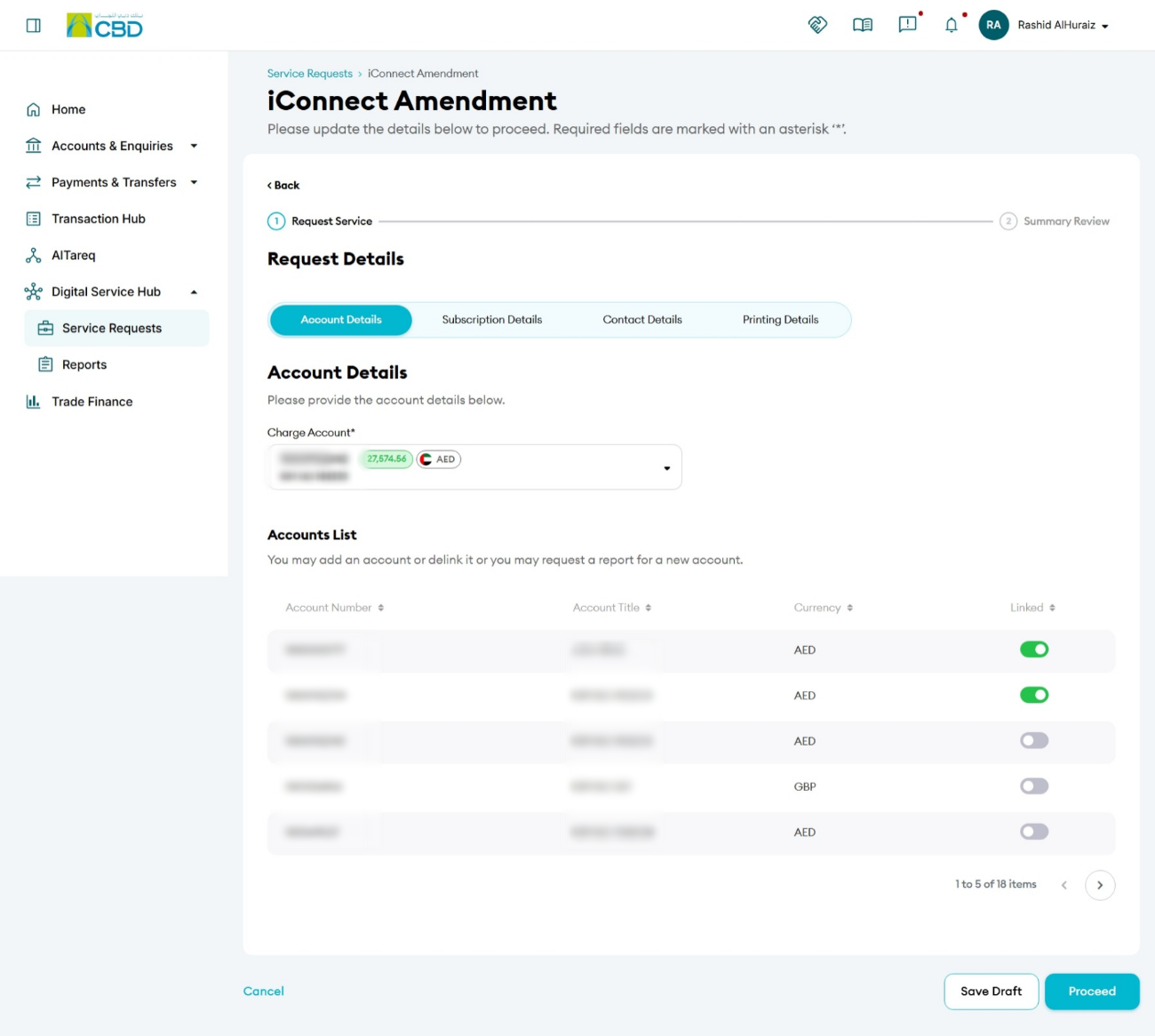
Important: Ensure the correct charged account and linked accounts are selected before proceeding.
Step 5: Configure the Service Details
Complete the required iConnect service settings:
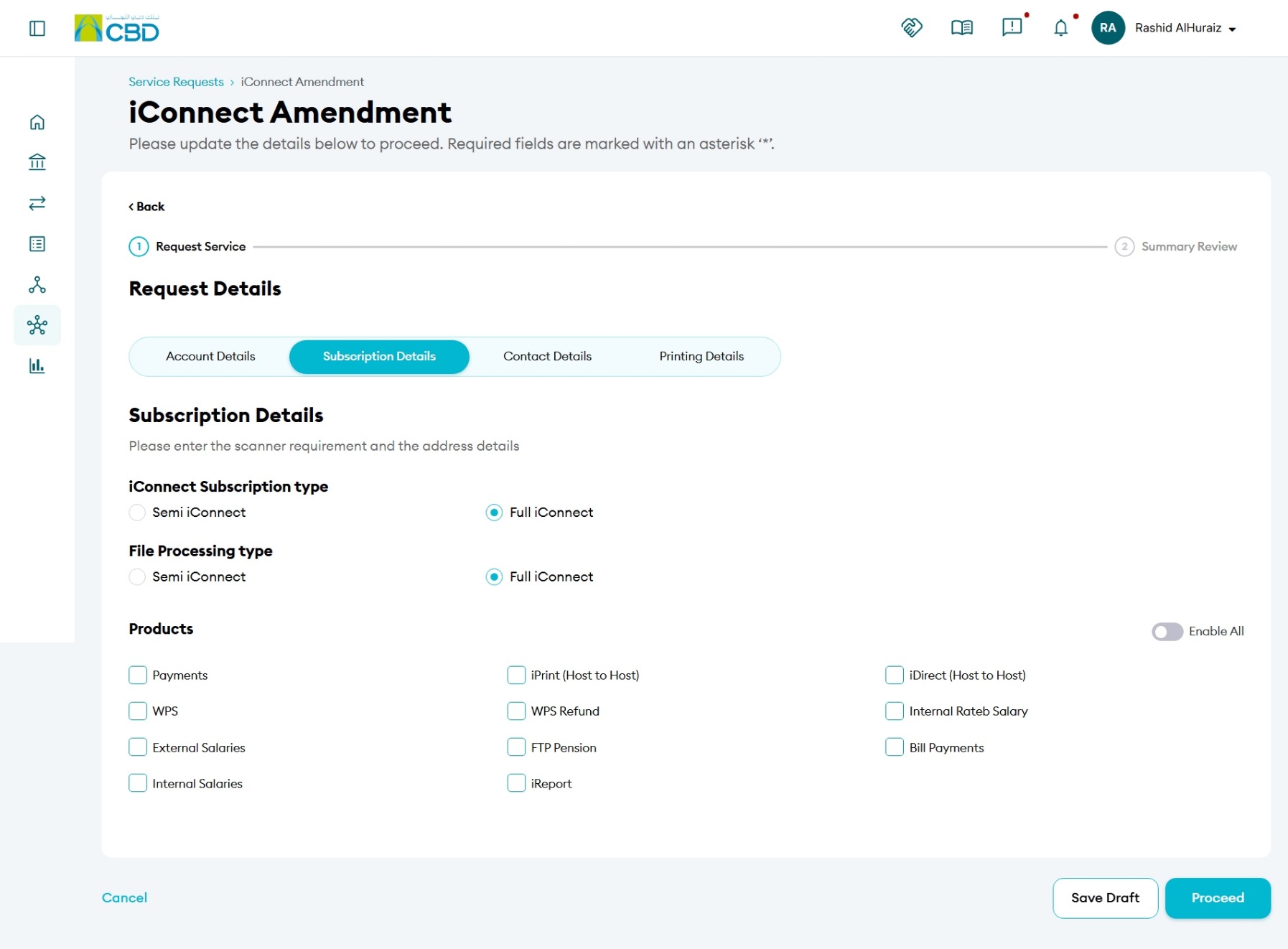
Subscription Type
Select the subscription type applicable to the amendment request.
File Processing Type
Select the required file processing method.
Product
Select the product associated with the iConnect service.
Note: Available options may vary depending on your organization's iConnect configuration and subscribed services.
Step 6: Complete the Contact Details
Provide the contact information for the individual responsible for the iConnect service.
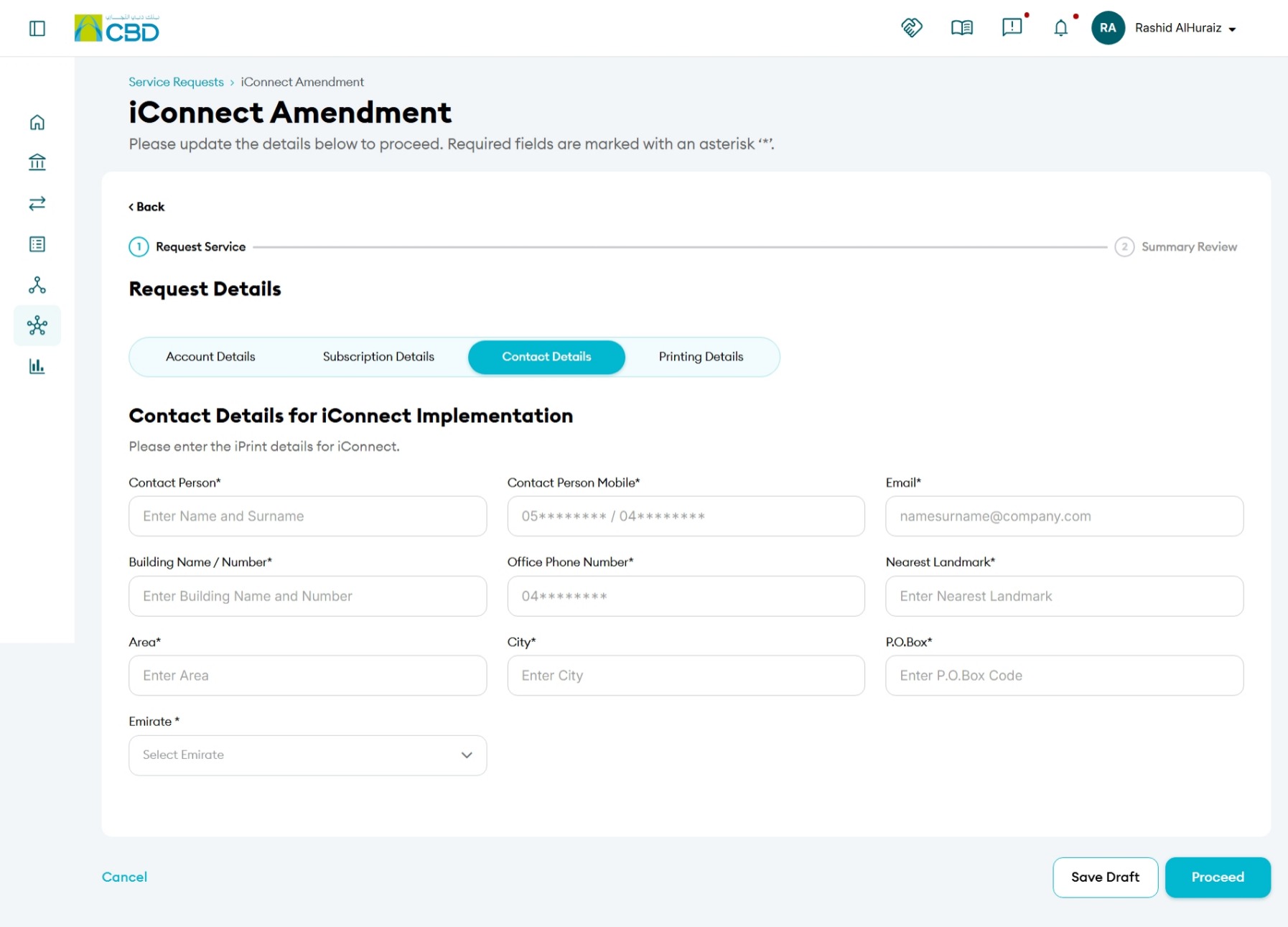
Enter the following details:
- Contact Person Name
- Mobile Number
- Email Address
- Building Name / Number
- Office Phone Number
- Nearest Landmark
- Area
- City
- P.O. Box
- Emirate
Support Tip: Ensure the contact details are accurate, as the bank may use this information for service-related communication and follow-up.
Step 7: Configure Printing and Processing Preferences
Under Printing Details:
- Select the required processing option: Partial Processing or Full File Processing
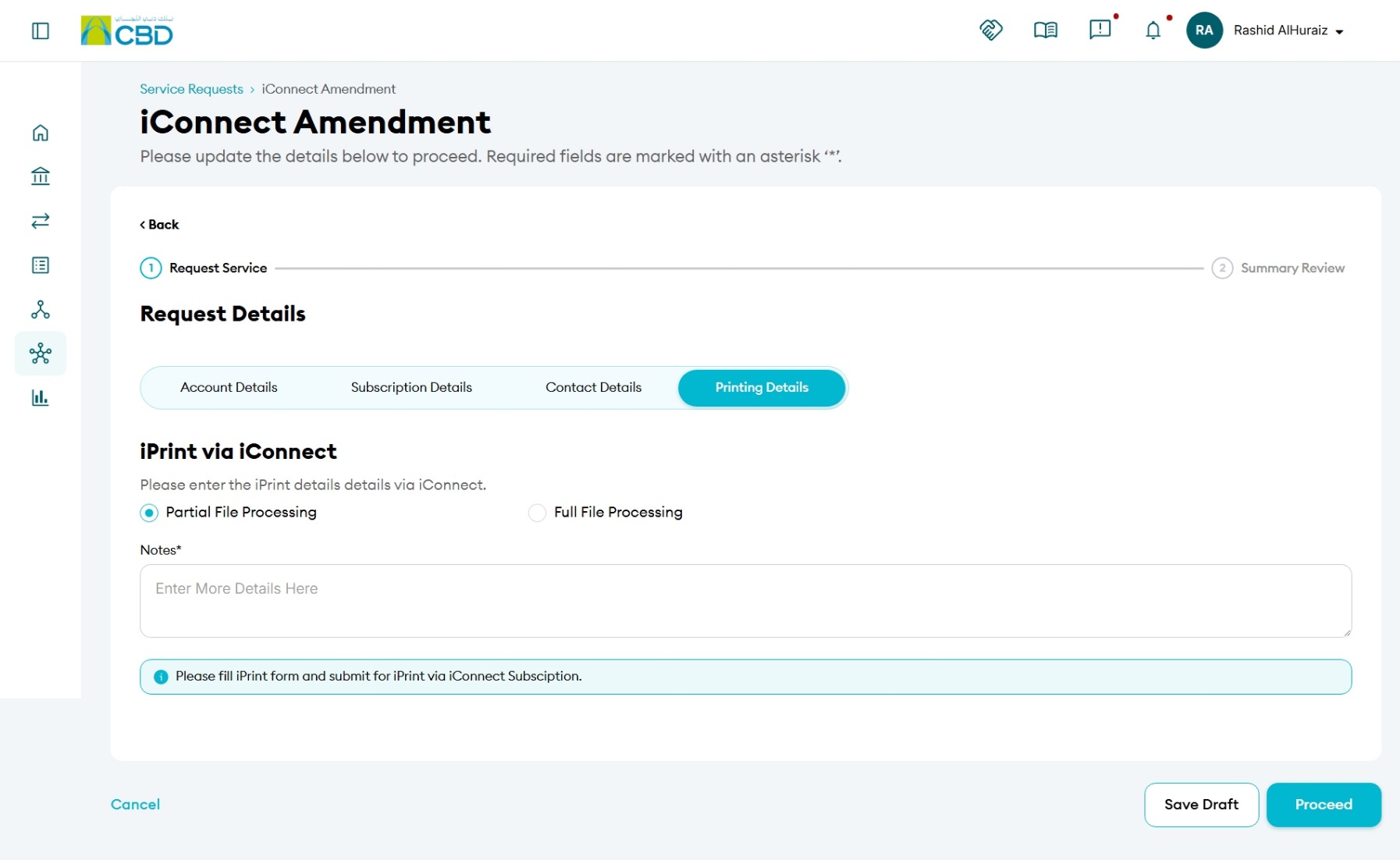
Note: Select the processing method that aligns with your organization's file processing requirements.
Step 8: Review and Submit the Request
Review all information entered before submission.
Verify the Following:
- Account Details
- Linked Accounts
- Subscription Type
- File Processing Type
- Product Selection
- Contact Information
- Processing Preferences
You can:
- Select a section to review or amend.
- Accept the Terms and Conditions.
- Add a Note if required (optional).
- Click Submit.
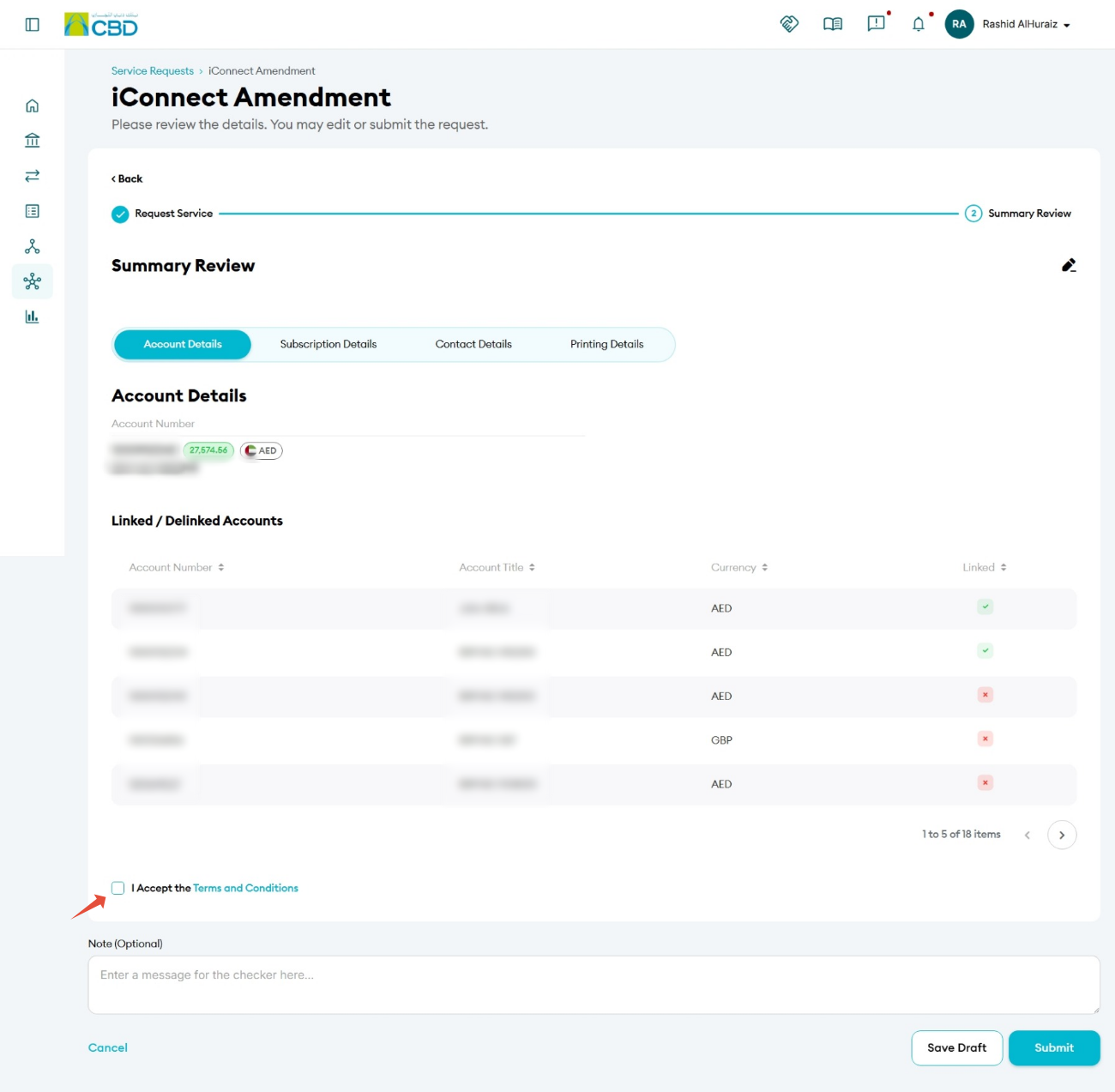
Important: Review all details carefully before submitting the amendment request to avoid delays in processing.
Step 9: Authenticate the Request
Complete authentication using one of the available authentication methods:
iBusiness App Authentication
- Approve the request through the registered iBusiness Mobile App.
- Complete biometric or device authentication.
Google Authenticator
- Enter the One-Time Password (OTP) generated by Google Authenticator.
After successful authentication, the request will be submitted and a reference number will be generated.
Step 10: Approval (If Maker–Checker Is Enabled)
If your organization uses a Maker–Checker approval workflow:
- The request will be routed to the designated Approver.
- The Approver must review the amendment request.
- The Approver can: Approve or Reject the request.
- The amendment will only be processed after all required approvals have been completed.
Support Notes / Best Practices
- Verify that the correct charged account and linked accounts are selected.
- Ensure all contact information is current and accurate.
- Confirm the selected subscription type and file processing type before submission.
- Review all information on the Summary Review screen before accepting the Terms and Conditions.
- Retain the generated reference number for tracking and support enquiries.
- If Maker–Checker is enabled, the request will not be processed until the required approval has been completed.