
Overview
This guide provides step-by-step instructions for a Corporate Admin to subscribe a new or existing user to Remote Cheque Printing (RCD) and complete the required setup in iManage.
Important: Before starting, ensure that browser pop-ups are enabled, as iBusiness will redirect you to iManage to complete the setup
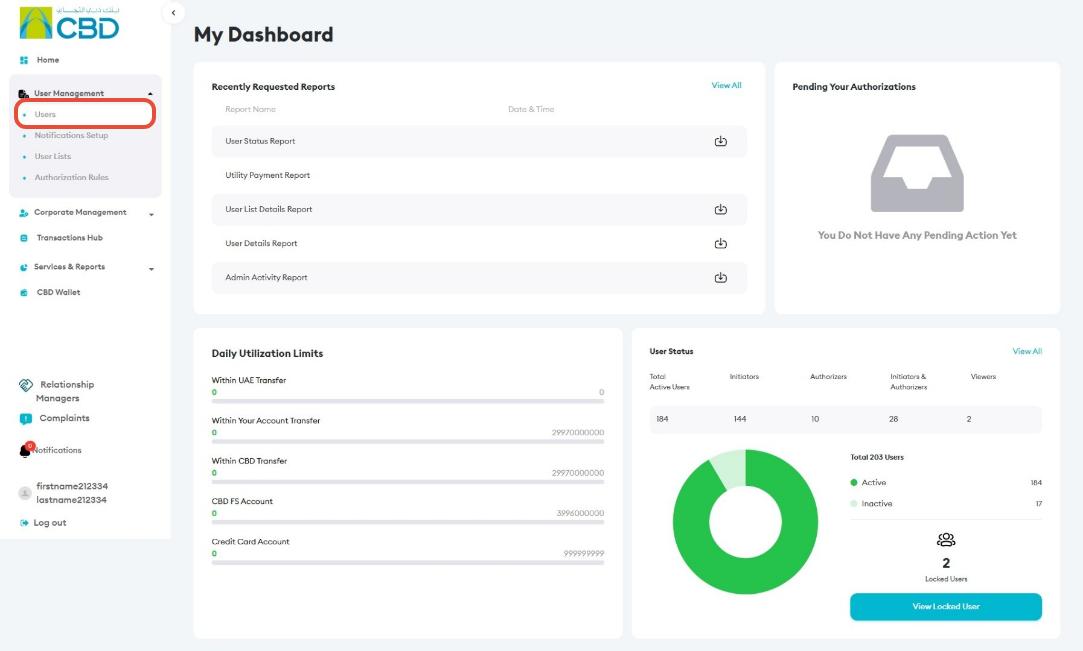
Step 1: Access User Management
- Log in to iBusiness using your Corporate Admin credentials.
- Navigate to:
- User Management
- Users
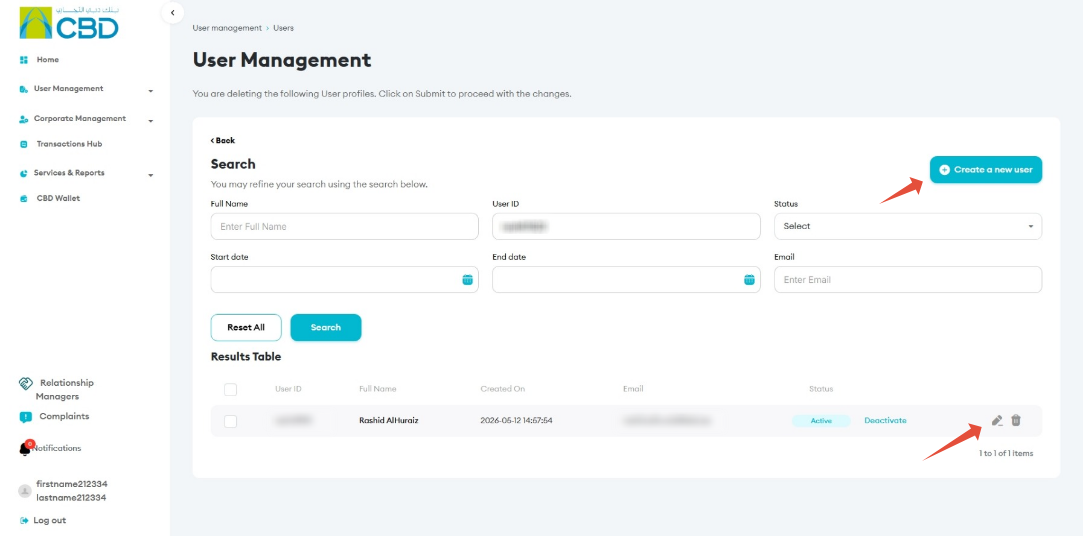
Step 2: Select or Create a User
You can add the subscription for either:
- A new user during the user creation process.
- An existing user by opening and editing the user's profile.
Step 3: Add the Required Subscription
- Navigate to the Access Details tab.
- Locate the available subscriptions.
- Select Remote Cheque Printing.
- Complete any other required user access details and proceed.
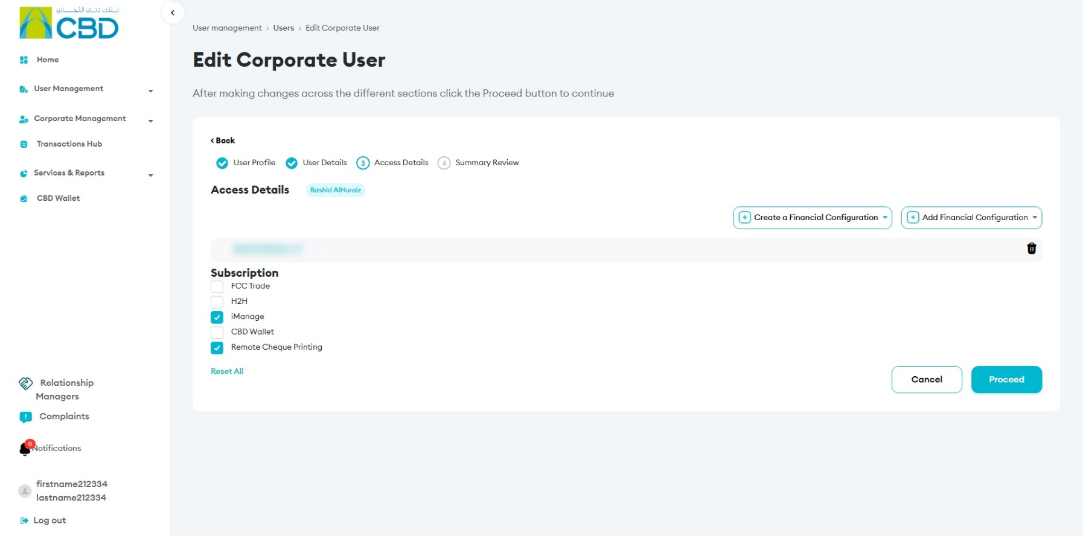
Note: When you subscribe the user to Remote Cheque Printing, the user will automatically be subscribed to iManage.
Step 4: Continue to iManage
After the subscription request is submitted:
- A confirmation message will be displayed with a reference number.
- You will be redirected to iManage to complete the remaining setup.
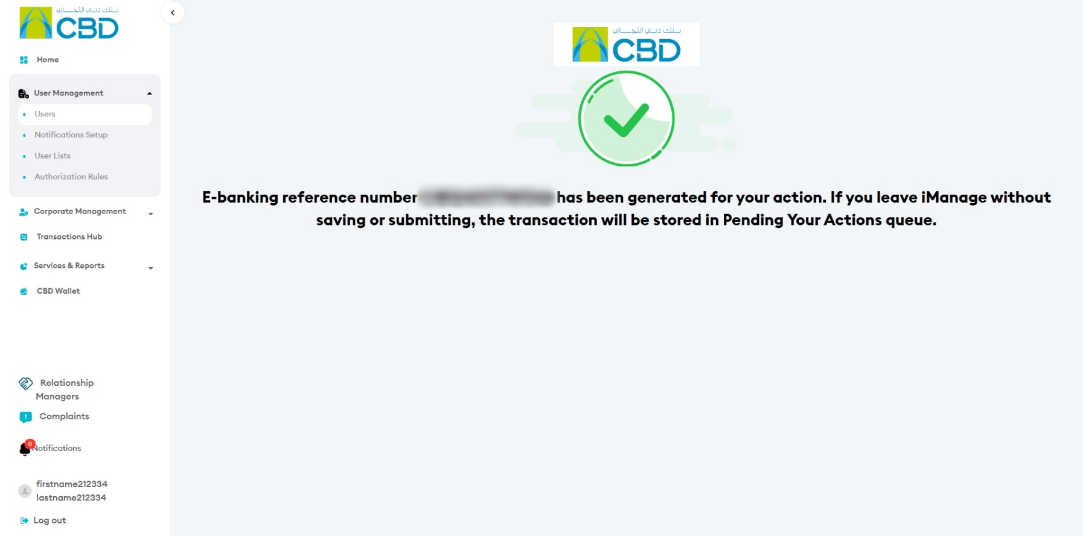
Important: Browser pop-ups must be enabled for the iManage page to open correctly.
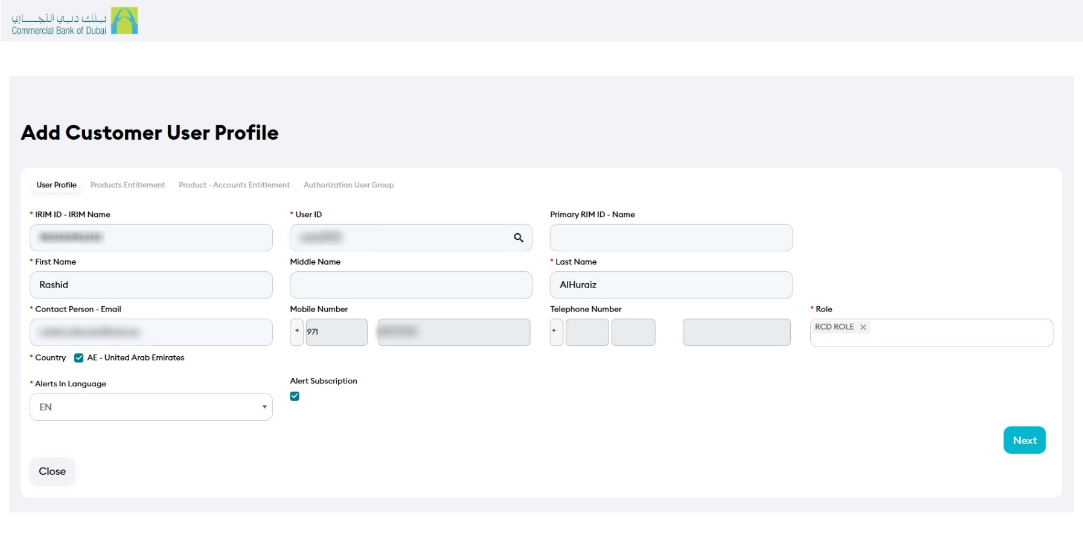
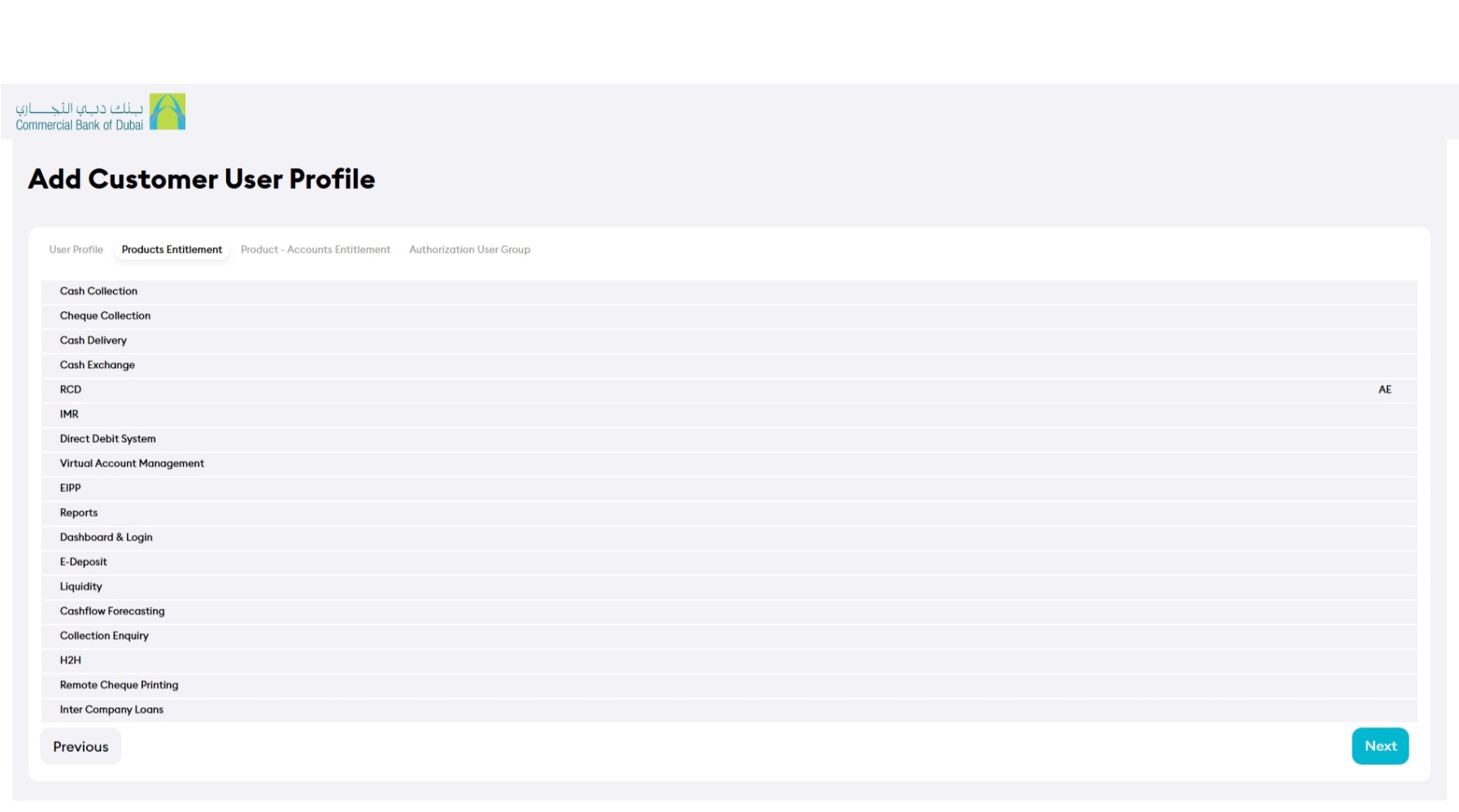
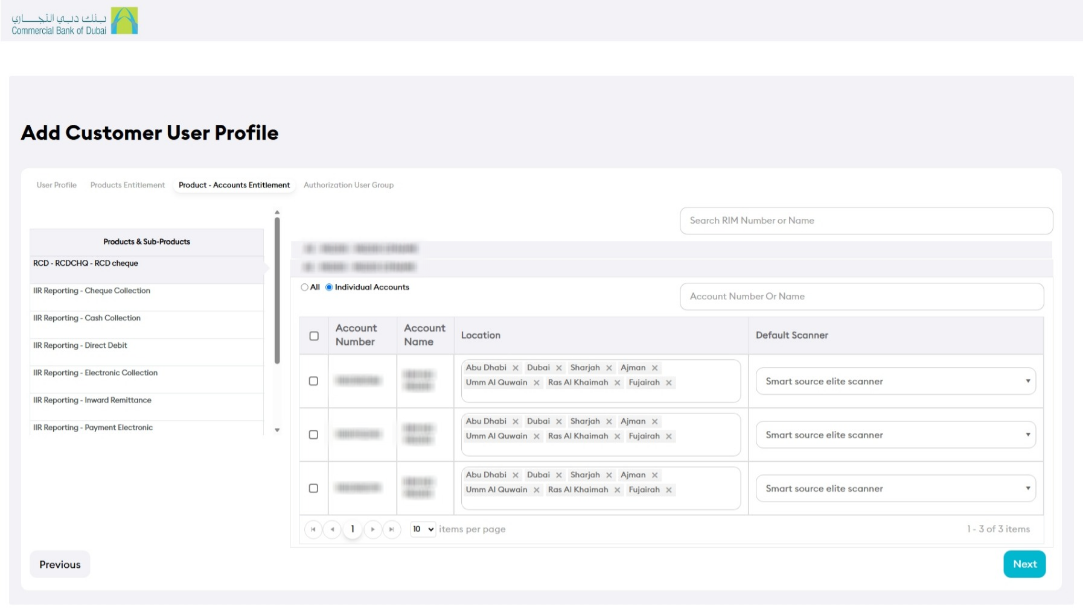
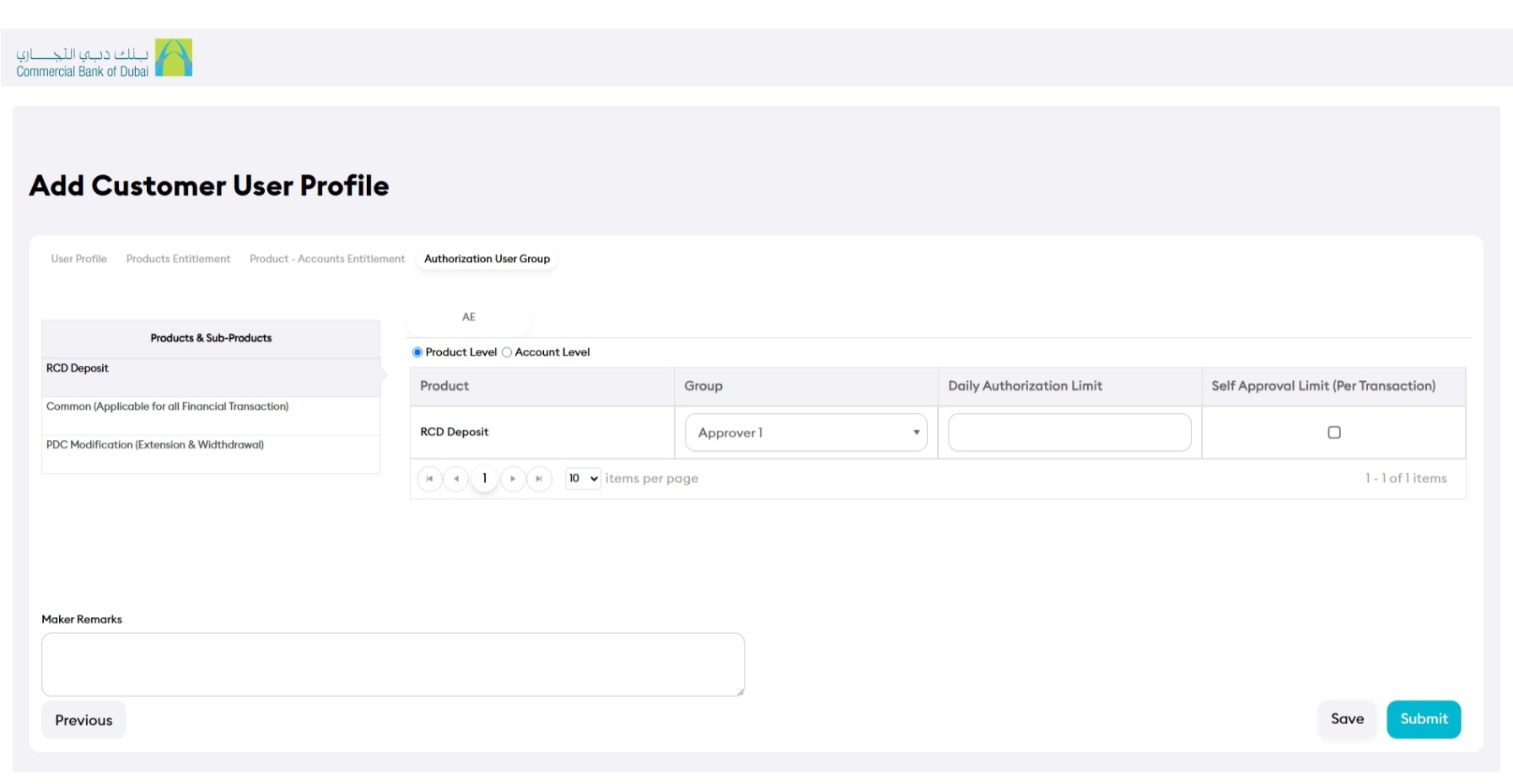
Step 5: Complete the User Setup in iManage
In iManage:
- Review the user's details.
- Confirm that the displayed information is correct.
- Complete any missing mandatory information.
- Review the remaining setup sections shown on the screen.
- Complete and submit the setup as required.
If the iManage Setup Is Not Completed
If you exit iManage before completing the setup, you do not need to start the process again.
- Return to iBusiness.
- Navigate to Transaction Hub.
- Open Pending Your Action.
- Locate the incomplete request.
- Open the request and continue the iManage setup.