
Overview
This guide provides step-by-step instructions for enabling iPrint (Remote Cheque Printing) for an account through Financial Configuration in iBusiness.
Step 1: Access Financial Configuration
- Log in to iBusiness using your Corporate Admin credentials.
- Navigate to: Corporate Management ➜ Financial Configuration
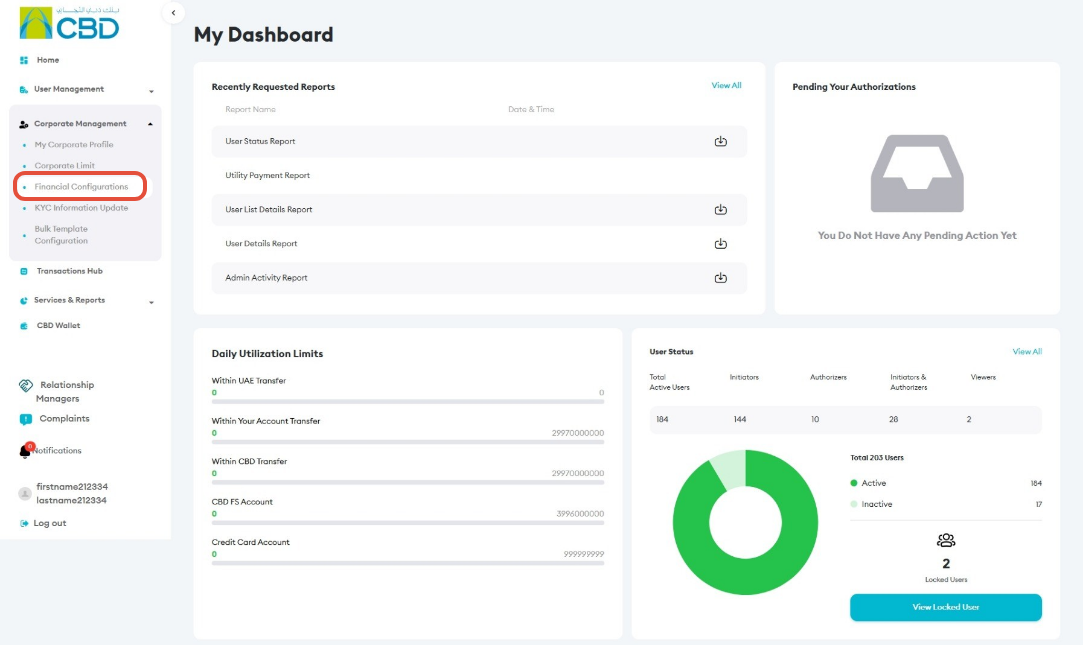
Step 2: Create or Edit a Financial Configuration
You can enable Remote Cheque Printing using either of the following options:
- Create a new Financial Configuration.
- Edit an existing Financial Configuration.
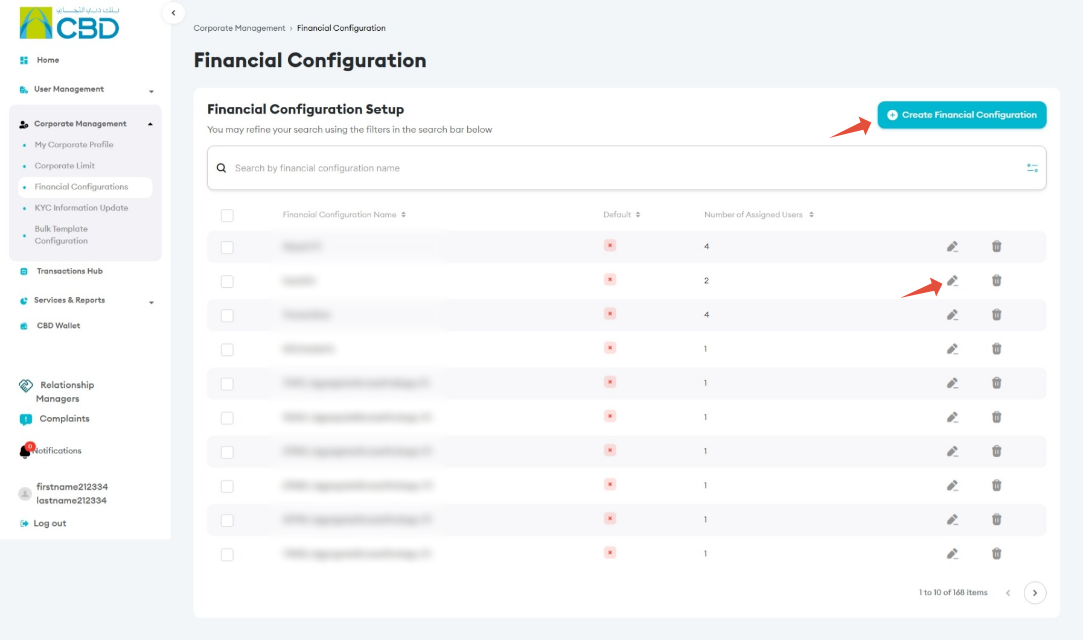
Step 3: Enable Remote Cheque Printing
- Scroll down to the Other Products section.
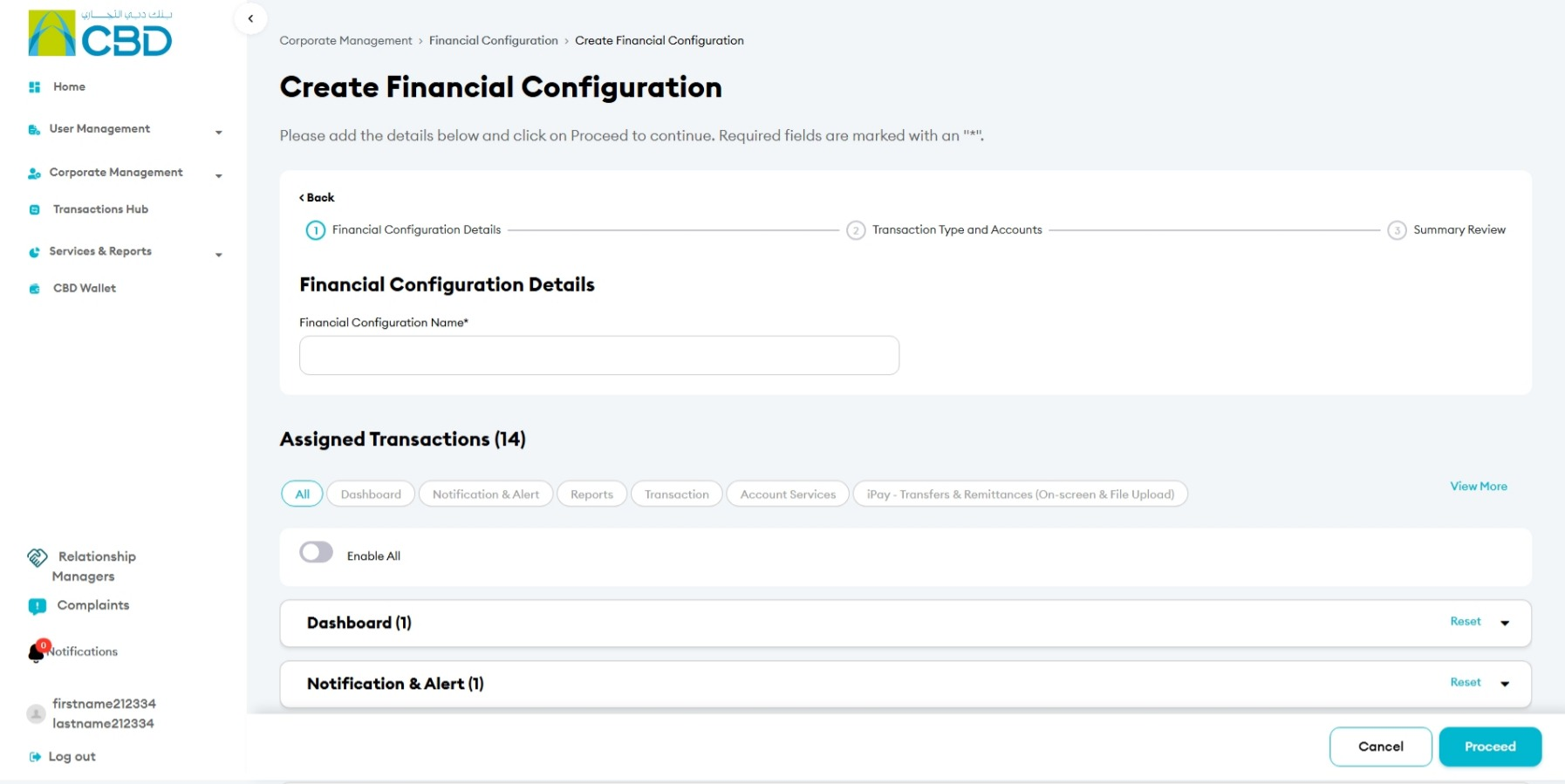
- Locate Remote Cheque Printing.
- Enable the service.
- Click Proceed.
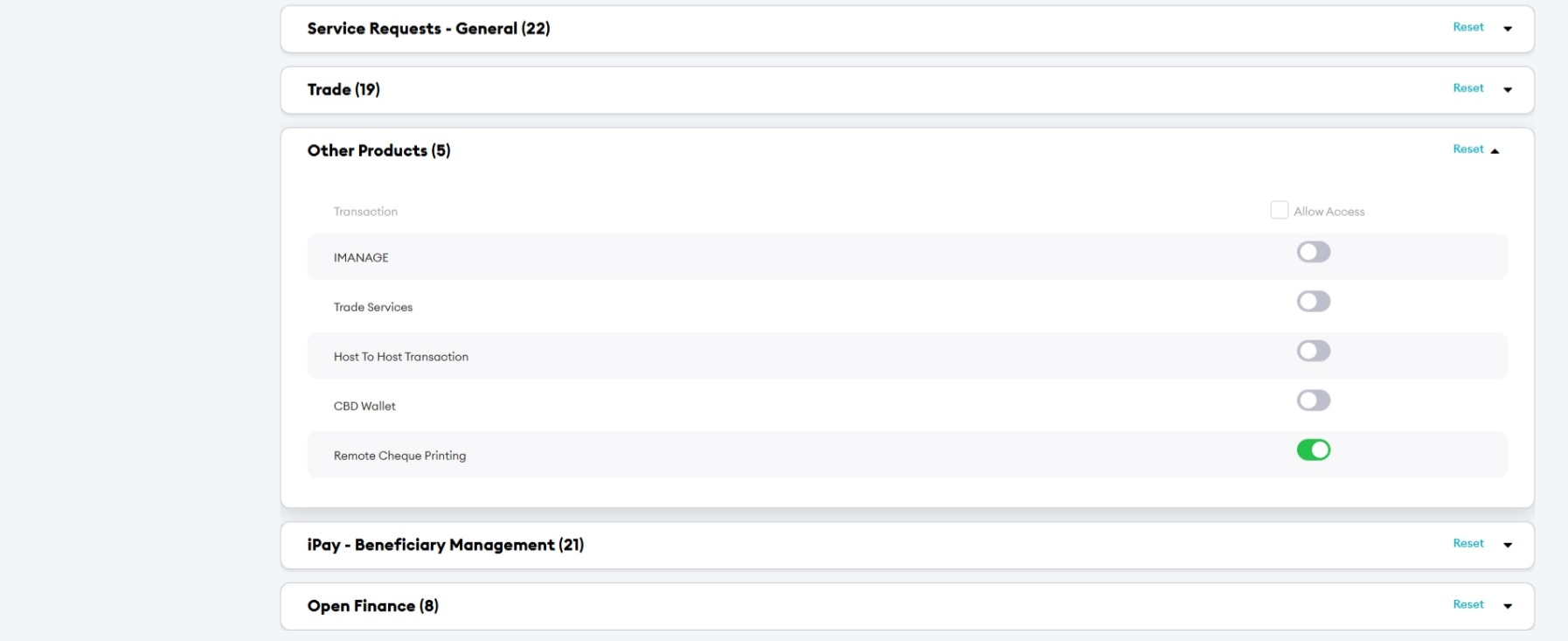
Step 4: Select the Account
- Select the account that requires access to Remote Cheque Printing.
- If multiple accounts are displayed, use the Search bar to quickly locate the required account.
- Select the required account and proceed.
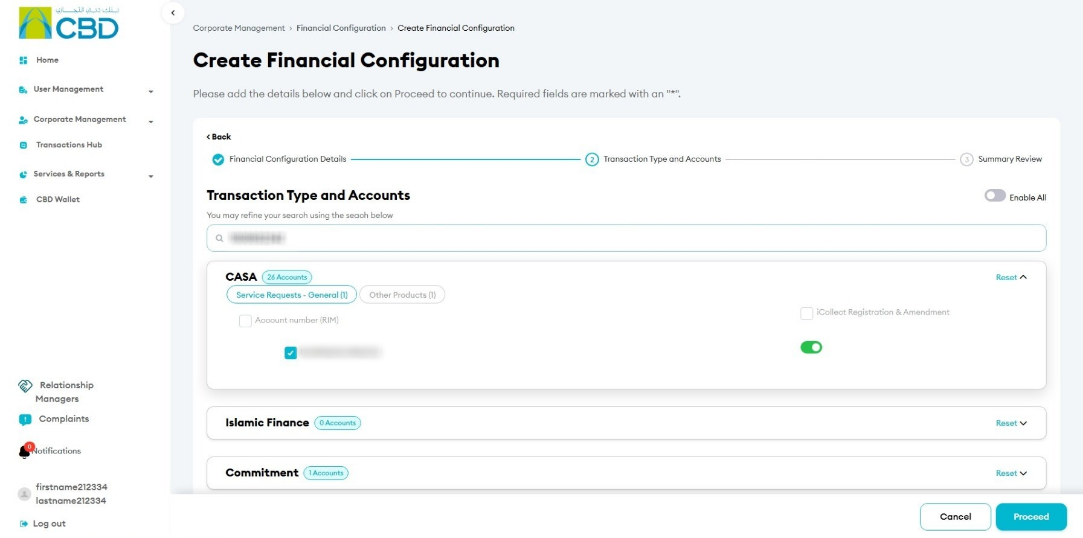
Step 5: Summary Review
Review the configuration changes before submitting the request.
- Confirm that Remote Cheque Printing is enabled.
- Verify that the correct account has been selected.
- Add a Note if required. This is optional.
- Click Submit.
Step 6: Authenticate the Request
Complete authentication using one of the following methods:
iBusiness App Authentication
- Approve the request through the registered iBusiness Mobile App.
- Complete biometric or device authentication.
Google Authenticator
- Enter the One-Time Password (OTP) generated by Google Authenticator.
After successful authentication, a confirmation message will be displayed with a reference number.
Step 7: Approval (If Maker–Checker Is Enabled)
If a Maker–Checker setup is configured:
- The request will be routed to a Checker/Approver.
- The Approver must review the Financial Configuration change in Transactions.
- The Approver can Approve or Reject the request.
- The Remote Cheque Printing configuration change will take effect after the required approval is completed.