Overview
This guide provides step-by-step instructions for managing Bulk Template Configurations in the iBusiness Web Portal.
Bulk Template Configuration allows administrators to customize the Reference Fields used within bulk upload templates. Any updates made to a template will be reflected when corporate users download the corresponding template file.
Step 1: Access Bulk Template Configuration
- Log in to iBusiness using an Administrator account.
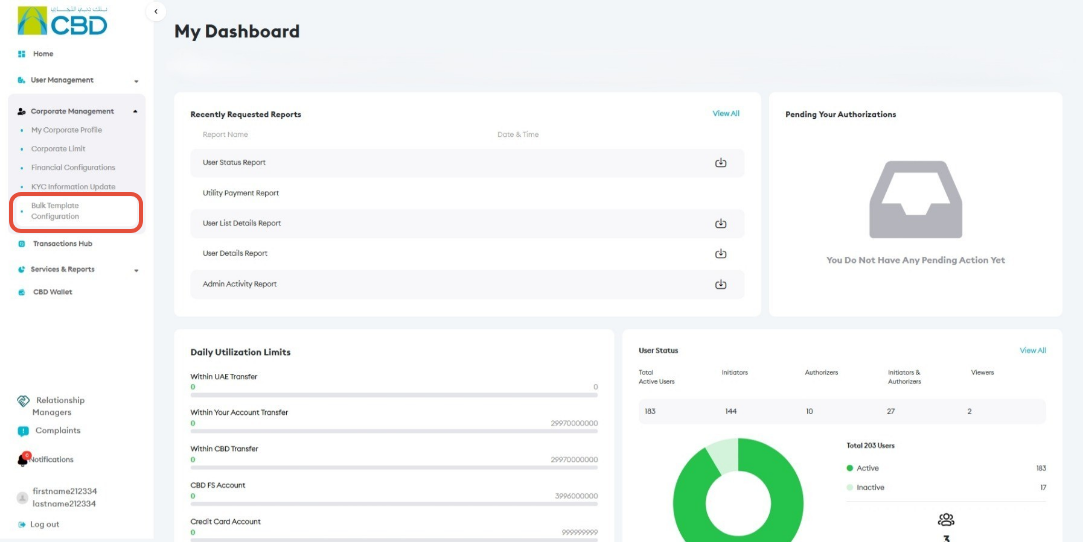
- Navigate to Corporate Management ➜ Bulk Template Configuration.
Step 2: View Available Bulk Templates
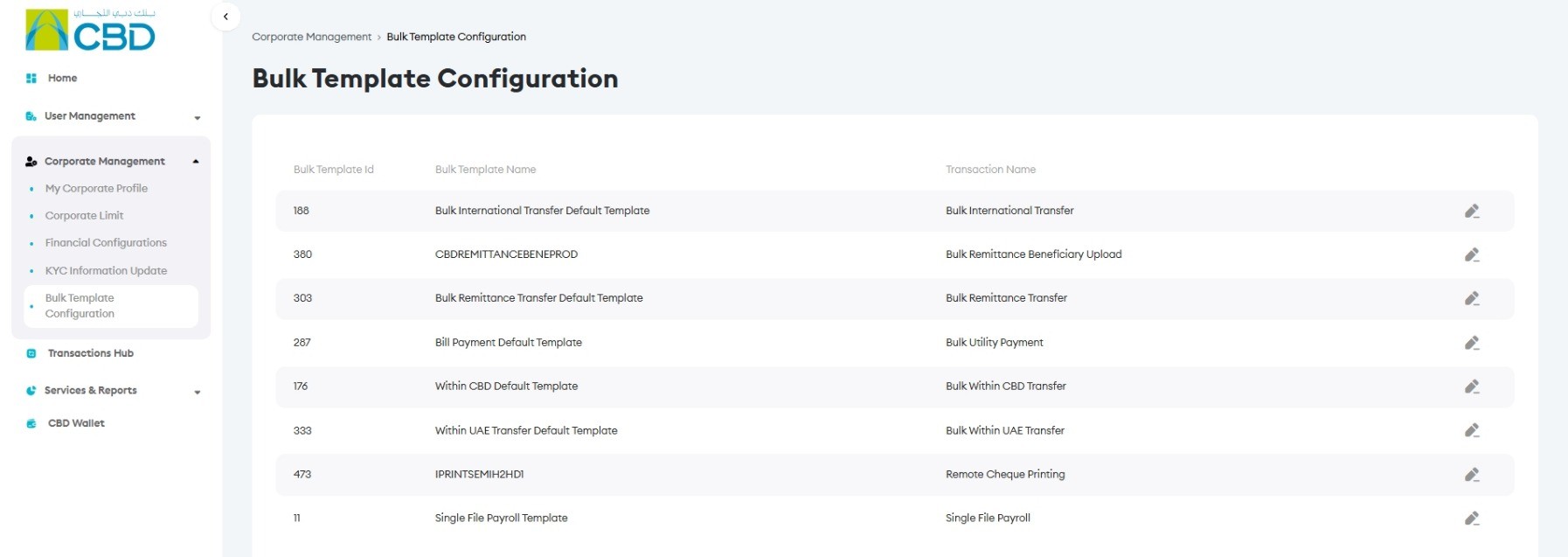
The system will display a list of available bulk templates.
The list includes:
- Bulk Template ID
- Bulk Template Name
- Associated Transaction Type
Review the available templates and identify the template you want to update.
To modify an existing template:
- Locate the required template in the list.
- Click the Edit (Pen) icon next to the template.
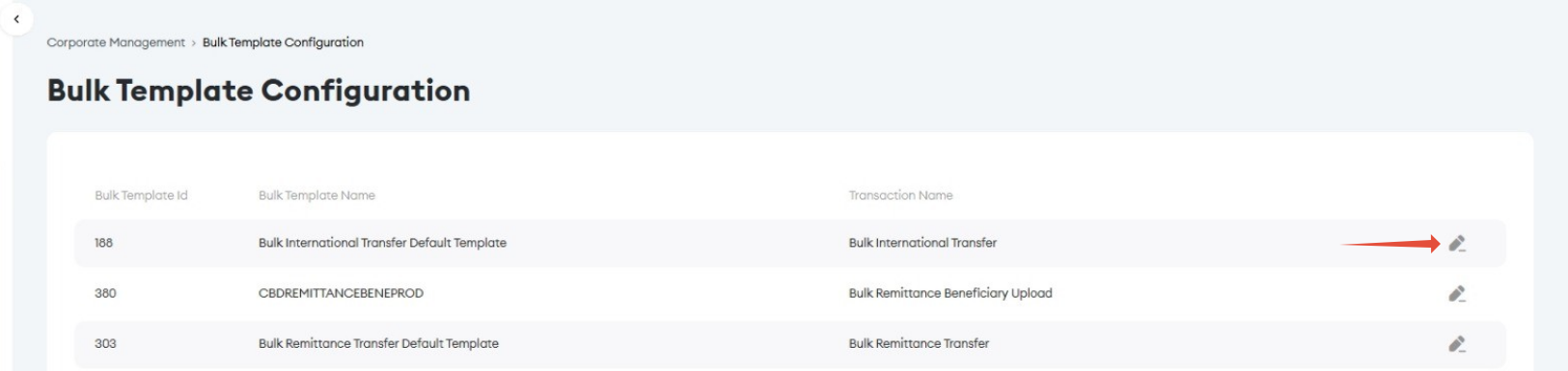
- This will open the selected Bulk Template Configuration and allow you to update its Reference Fields and settings.
Step 3: Update Reference Fields
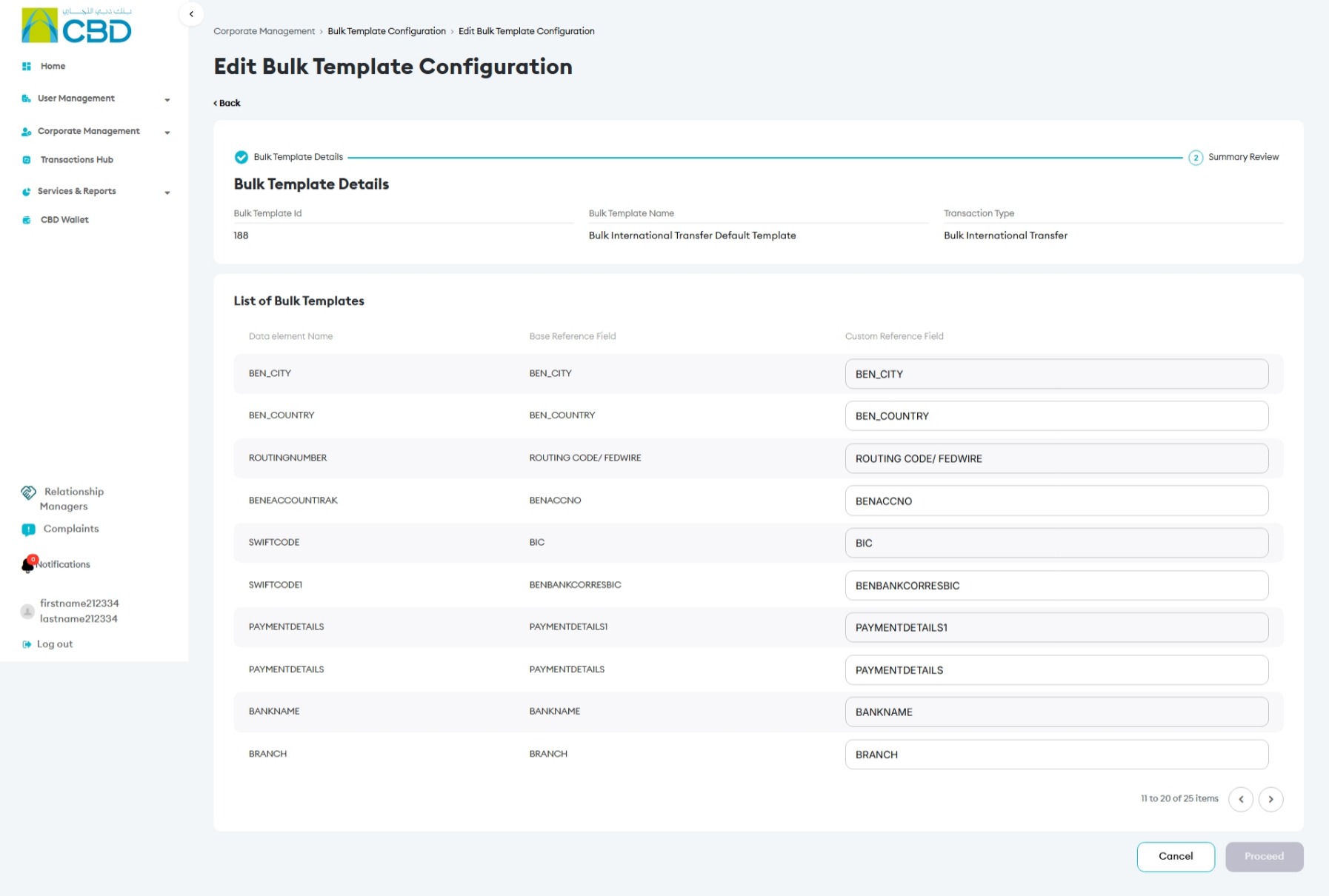
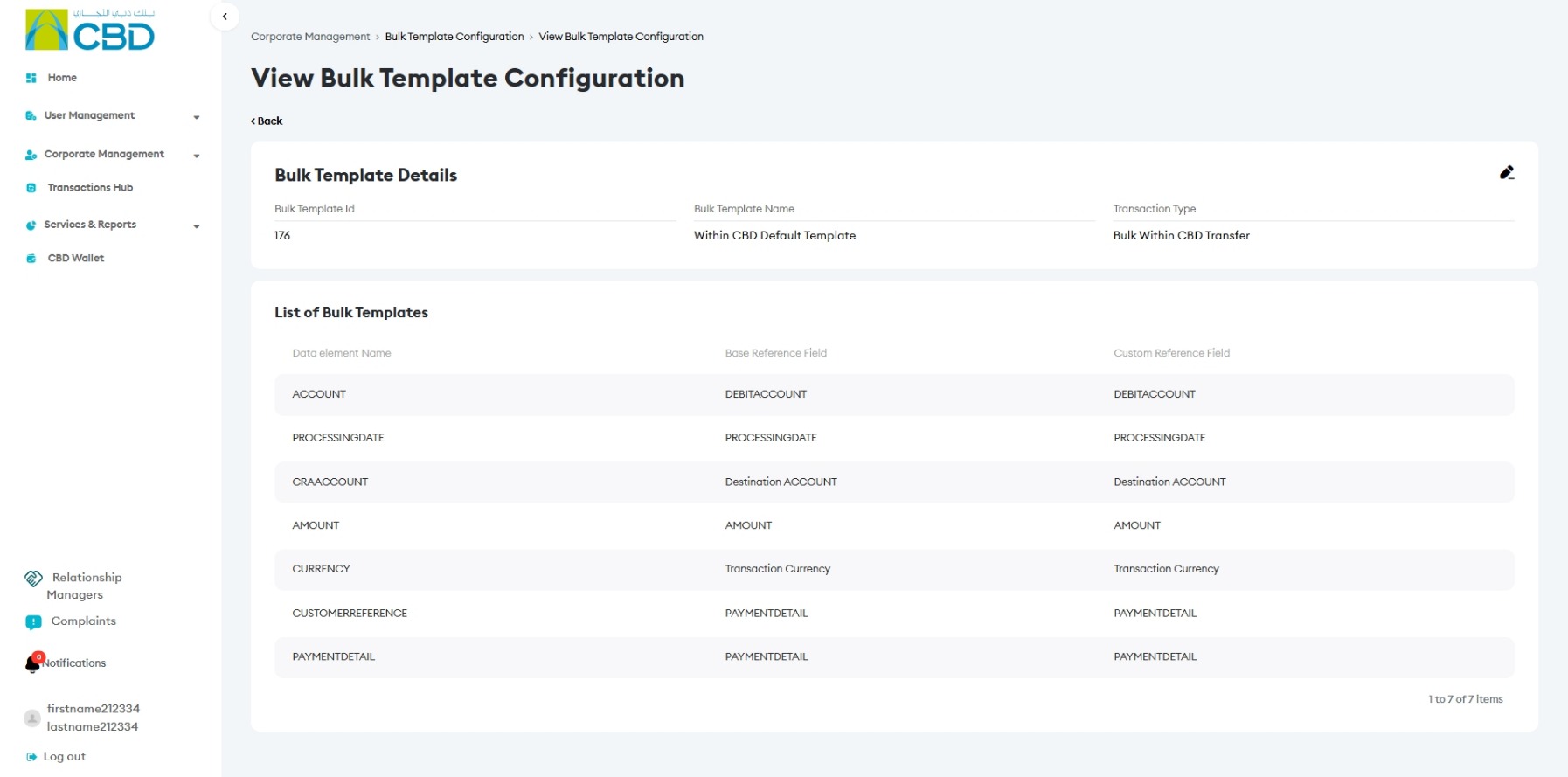
The system will display the available Data Elements and their corresponding Reference Fields.
- Review the available Data Elements.
- Select the Data Element you want to update.
- Modify the required Reference Field values.
Note: The available Data Elements and Reference Fields may vary depending on the selected transaction type. Some transaction types may contain additional fields, while others may have fewer configurable fields.
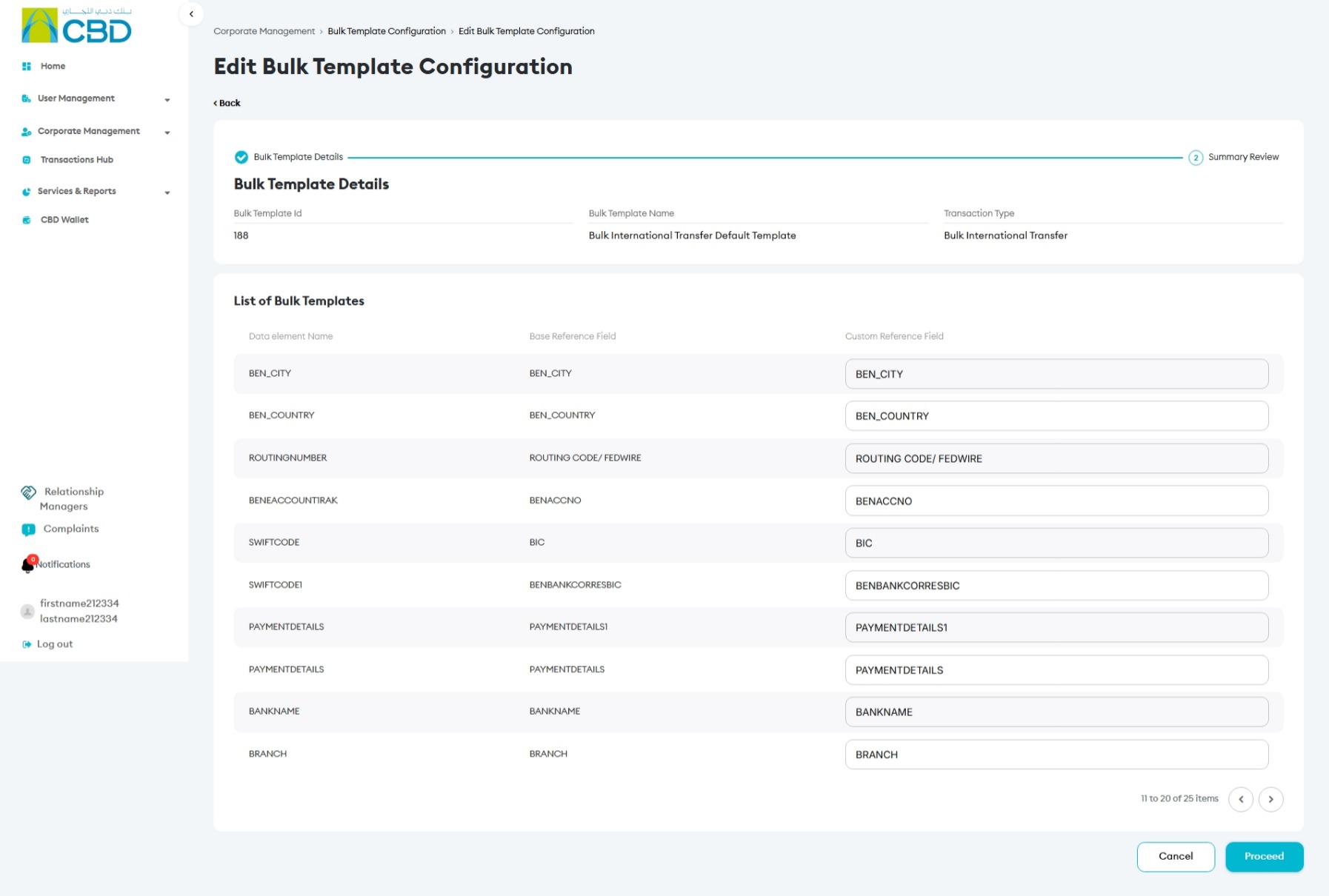
Important: Any changes made to the template configuration will be reflected when users download the corresponding bulk upload template in the future.
Step 4: Summary Review
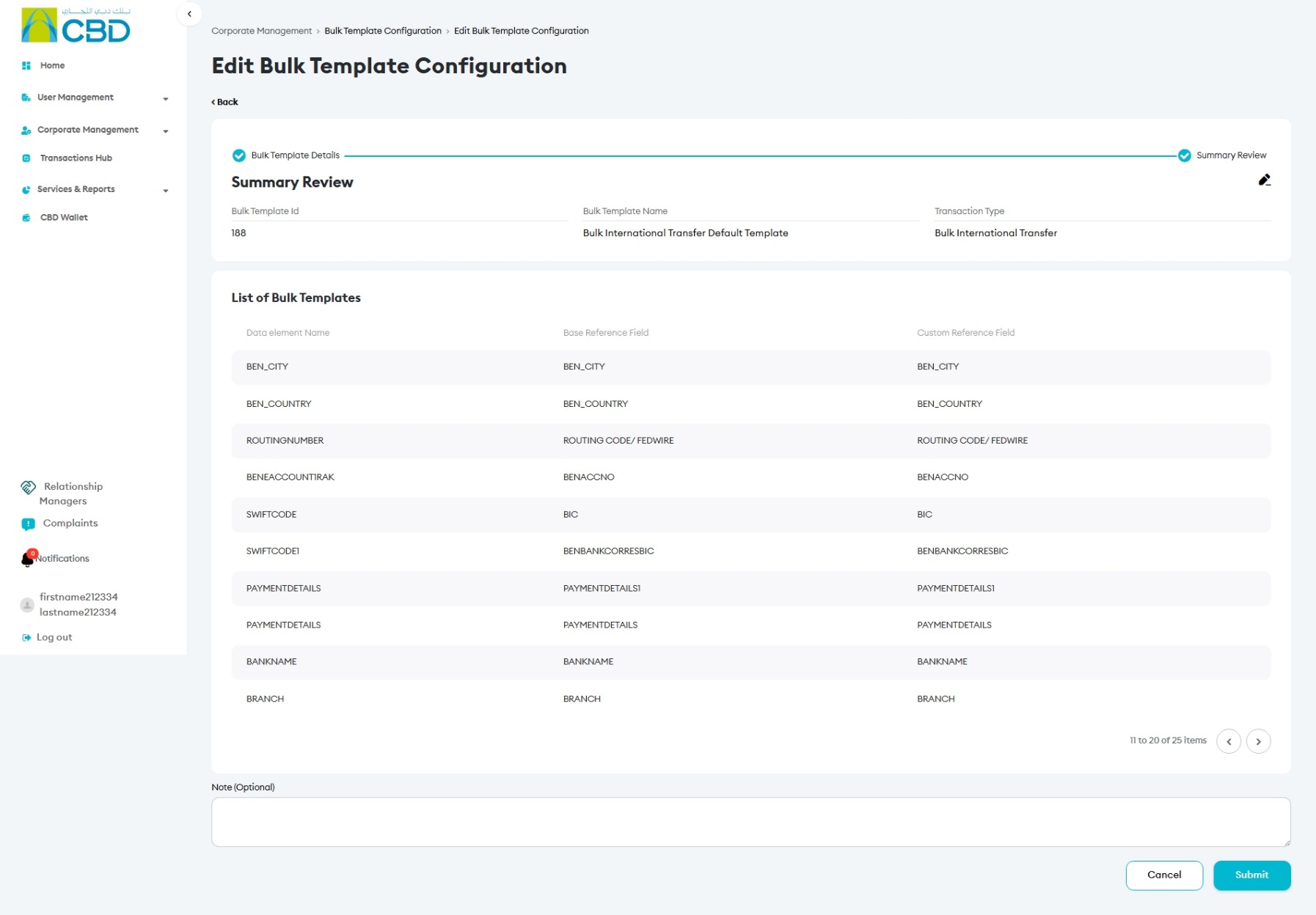
Before submitting the changes:
- Review all modified Reference Fields.
- Verify that the updated values are correct.
- Add a Note if required (optional).
- Click Submit.
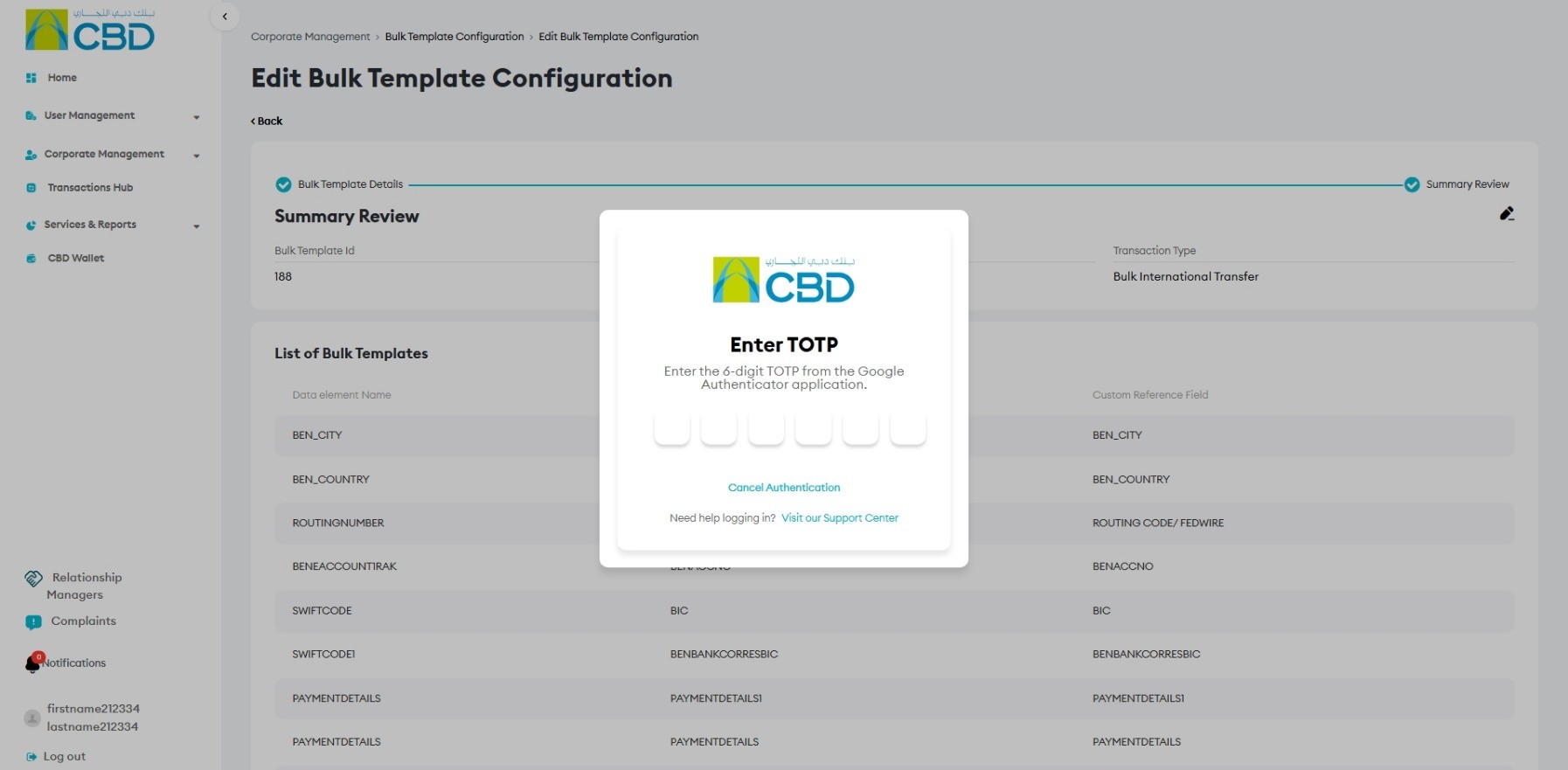
Step 5: Authenticate the Request
Complete authentication using one of the following methods:
iBusiness App Authentication
- Approve the request through the registered iBusiness Mobile App.
- Complete biometric or device authentication.
Google Authenticator
- Enter the One-Time Password (OTP) generated by Google Authenticator.
After successful authentication, the configuration changes will be submitted.
Verify the Changes
To verify that the changes have been applied:
Log in using a Corporate User account.
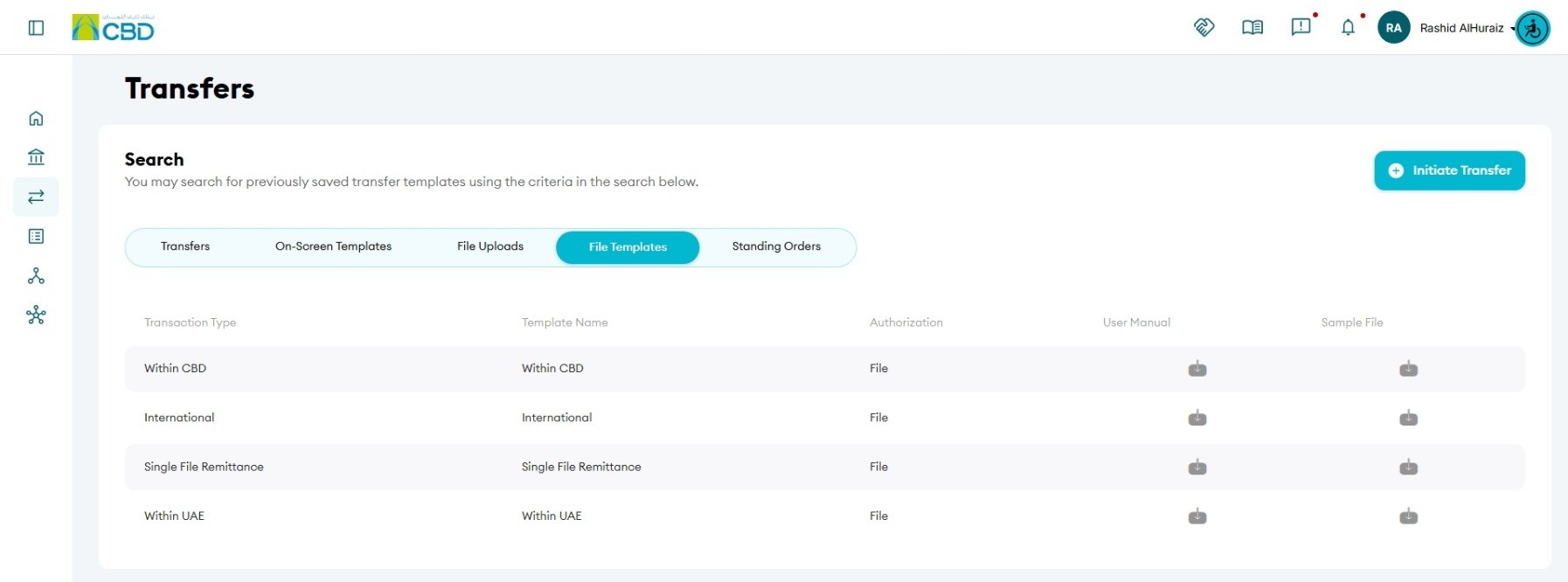
- Navigate to: Dashboard ➜ Payments & Transfers ➜ Transfers ➜ File Templates (Tab)
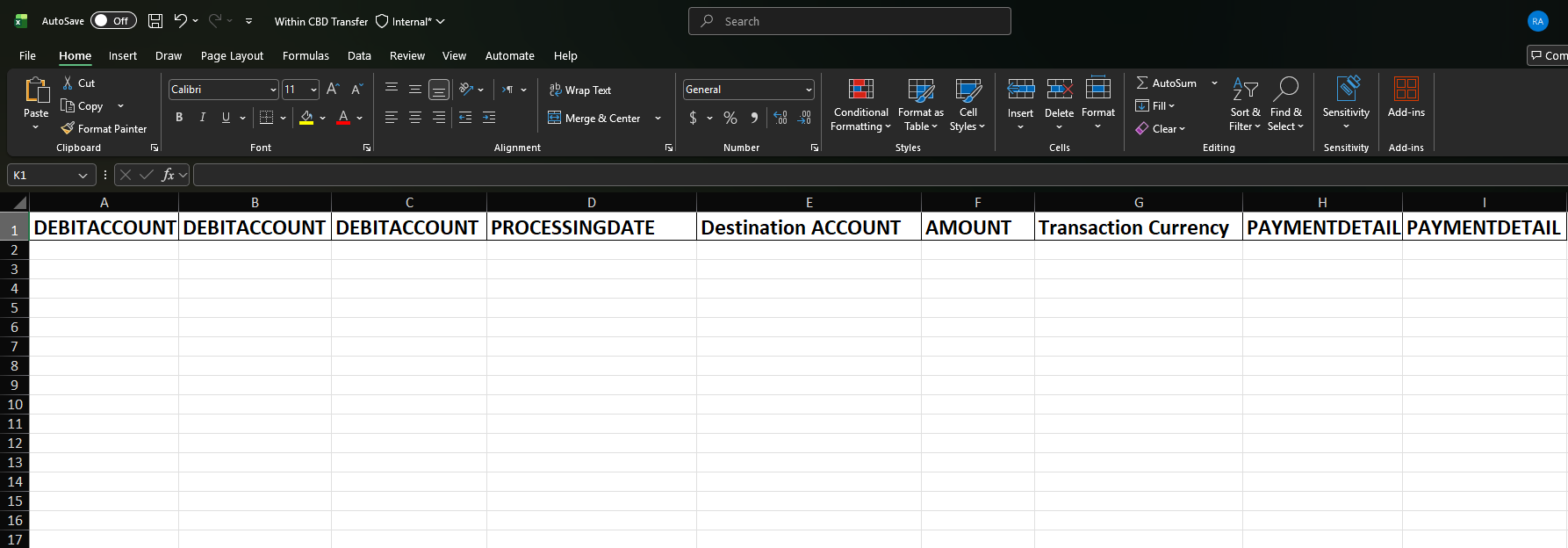
- Download the relevant template file.
- Review the updated Reference Fields within the downloaded template.