
Overview:
This guide provides step-by-step instructions for cancelling a previously booked treasury deal through the iBusiness Web Portal.
The Deal Booking Maintenance service allows users to search for existing deals and submit a cancellation request for deals that are currently in Booked status.
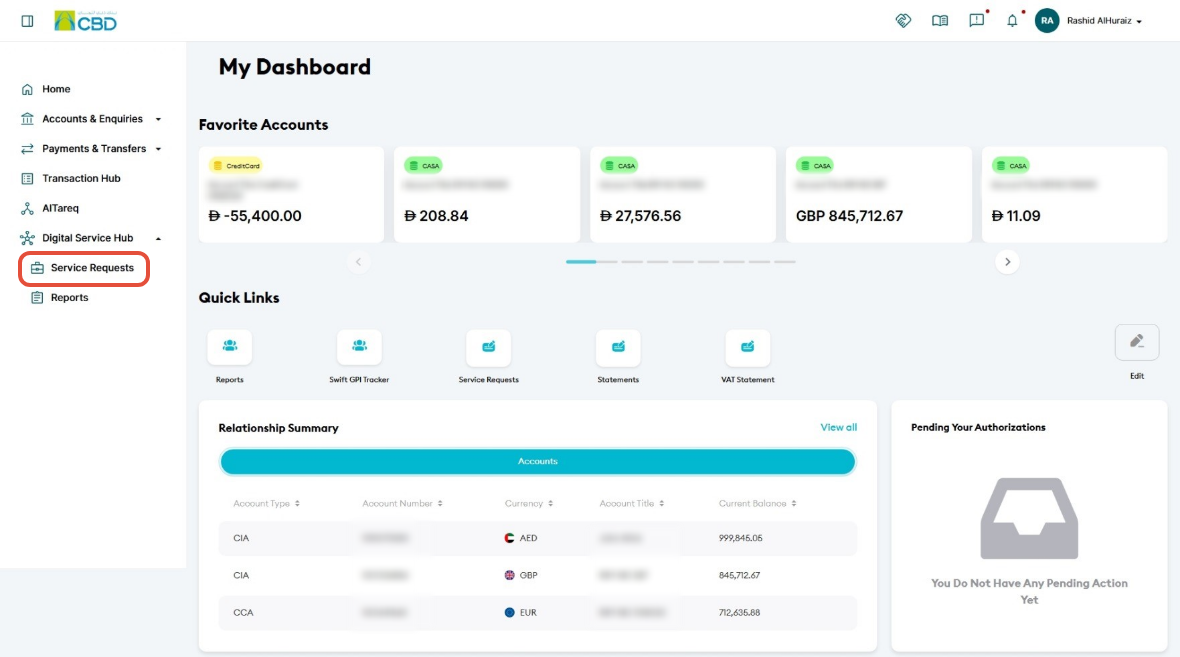
Step 1: Access Service Requests
- Log in to iBusiness.
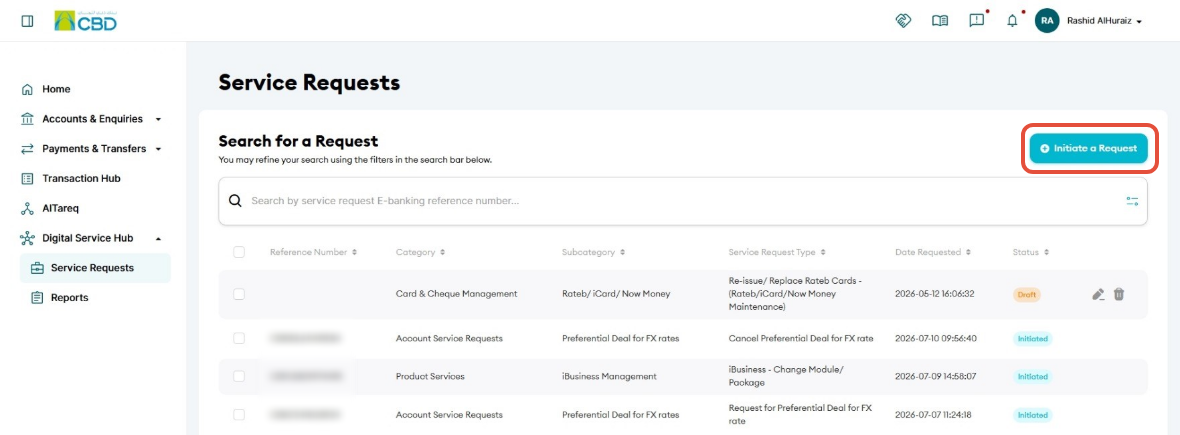
- Navigate to: Digital Service Hub ➜ Service Requests
- Click Initiate a Request.
Step 2: Select Deal Booking Maintenance
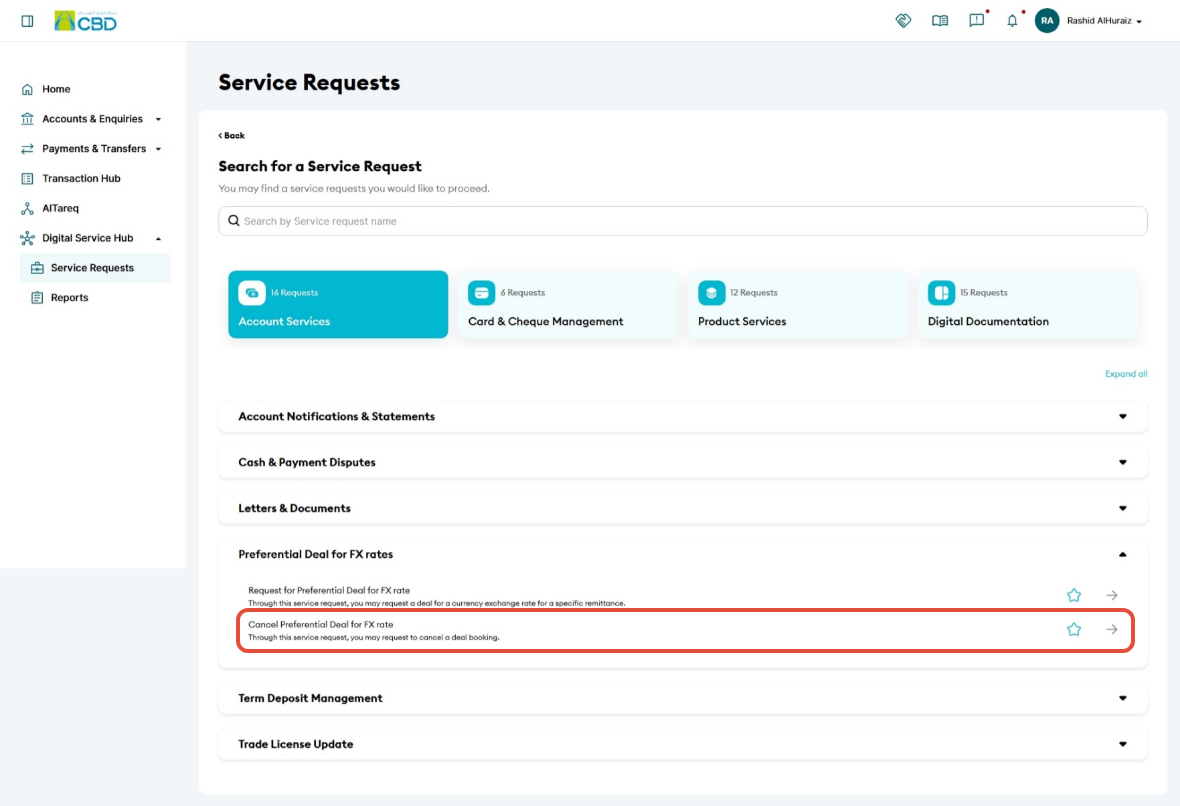
- Select Account Services.
- Open the Preferential Deal for FX rates drop-down menu.
- Select Cancel Preferential Deal for FX rate
Step 3: Select the Account
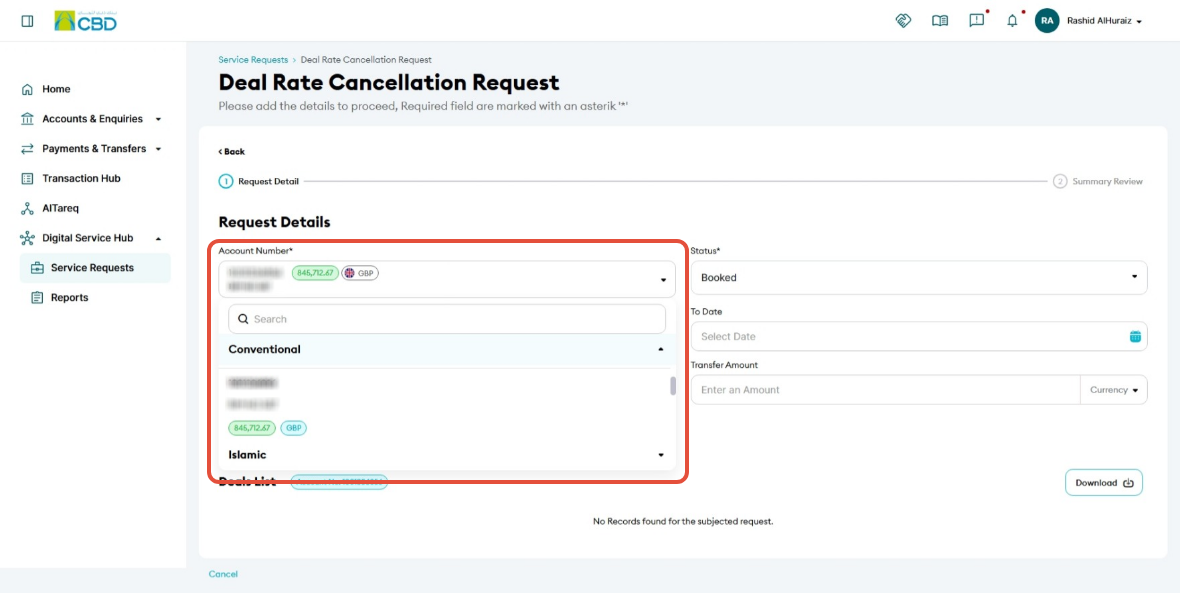
- Select the account associated with the deal by:
- Choosing it from the Account drop-down list
- Entering the account number manually
- Using the search option to locate the account.
Step 4: Search for the Booked Deal
- Open the Status drop-down menu.
- Select Booked.
- Click Search.
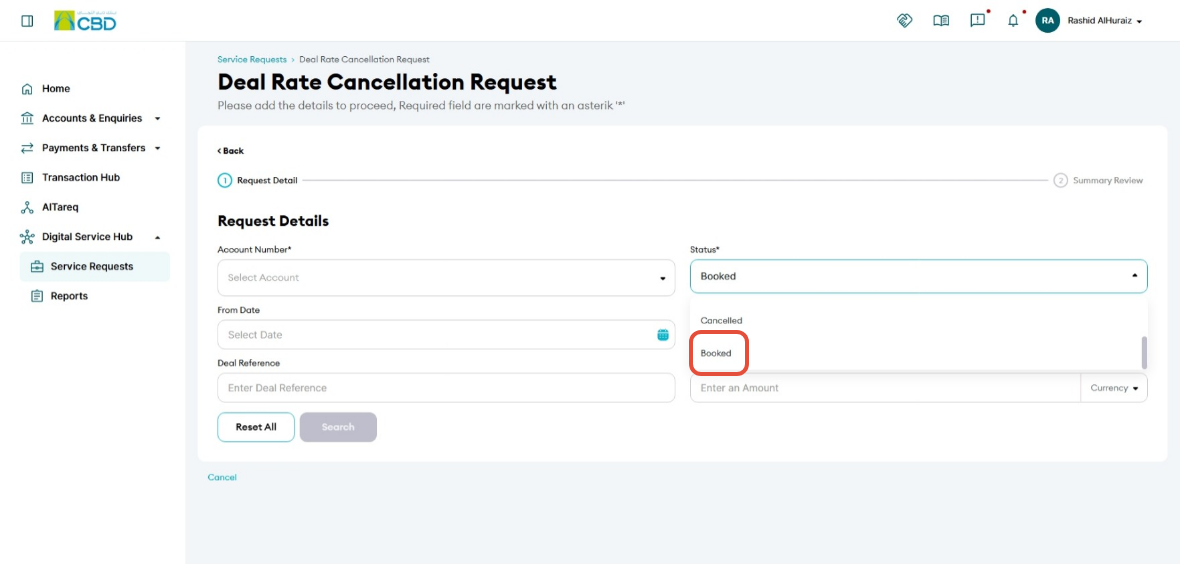
Step 5: Select the Deal to Cancel
- The system will display all deals currently in Booked status.
- Review the list of available deals.
- Locate the deal you wish to cancel.
- Click Cancel against the selected deal.
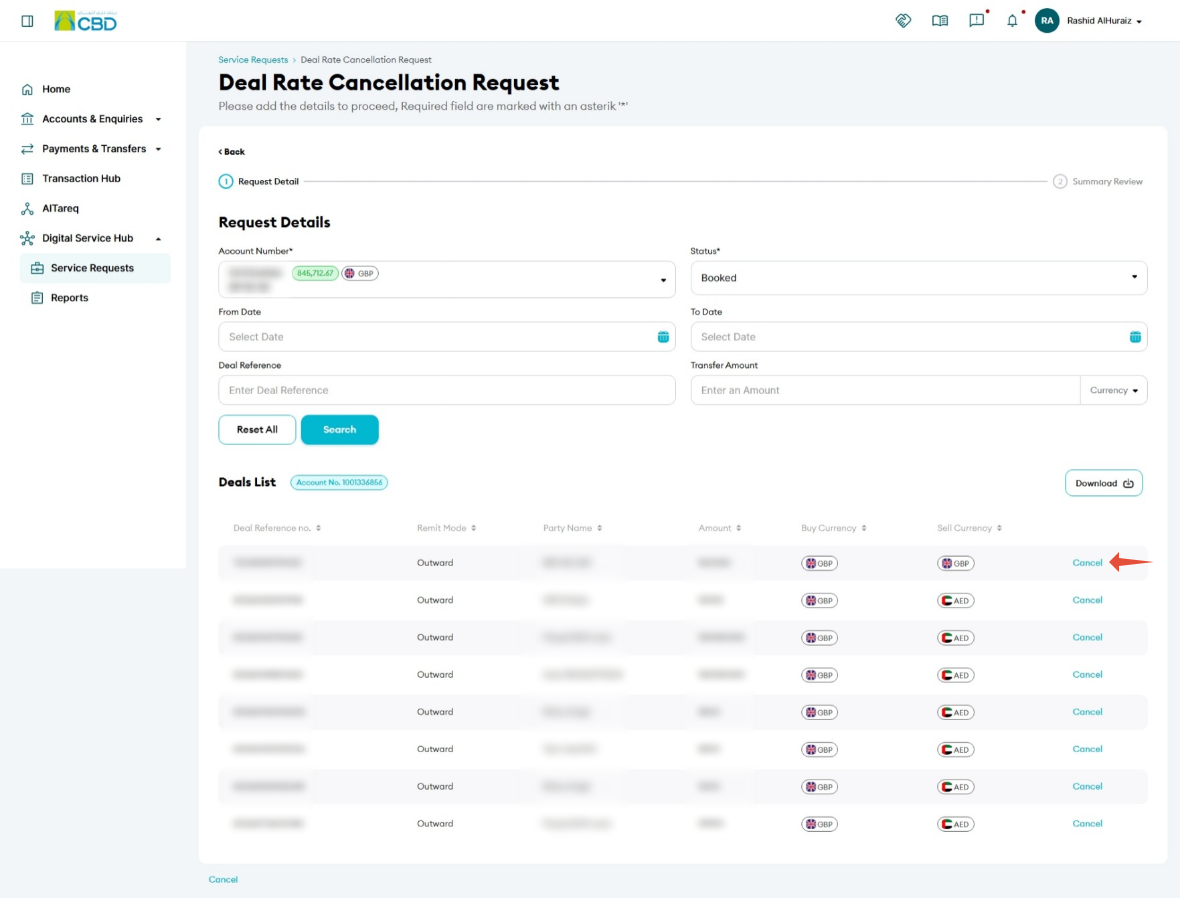
Step 6: Review and Submit
- Review the deal details carefully on the Summary Review screen.
- Confirm that the correct deal has been selected for cancellation.
- Accept terms and conditions
- Click Submit to proceed.
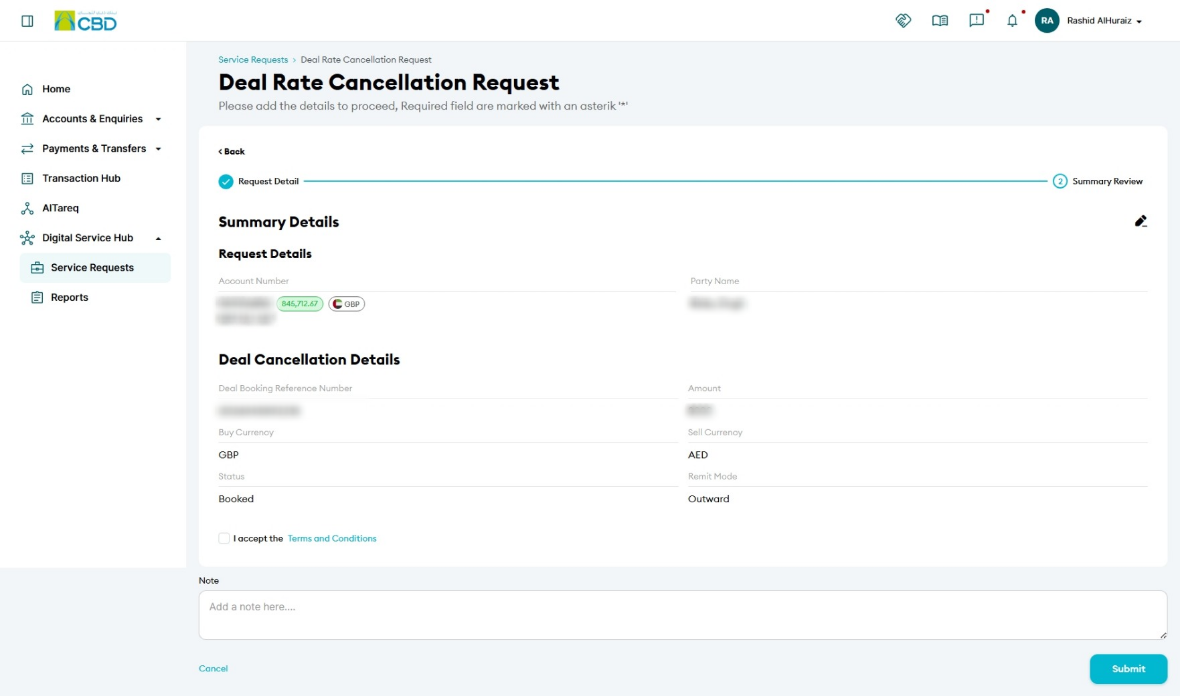
Step 7: Authenticate the Request
Complete authentication using one of the following methods:
iBusiness App Authentication
- A notification will be sent to the registered iBusiness Mobile App.
- Review the request details.
- Approve the request using biometric or device authentication.
Google Authenticator
- Open the Google Authenticator application.
- Enter the generated One-Time Password (OTP).
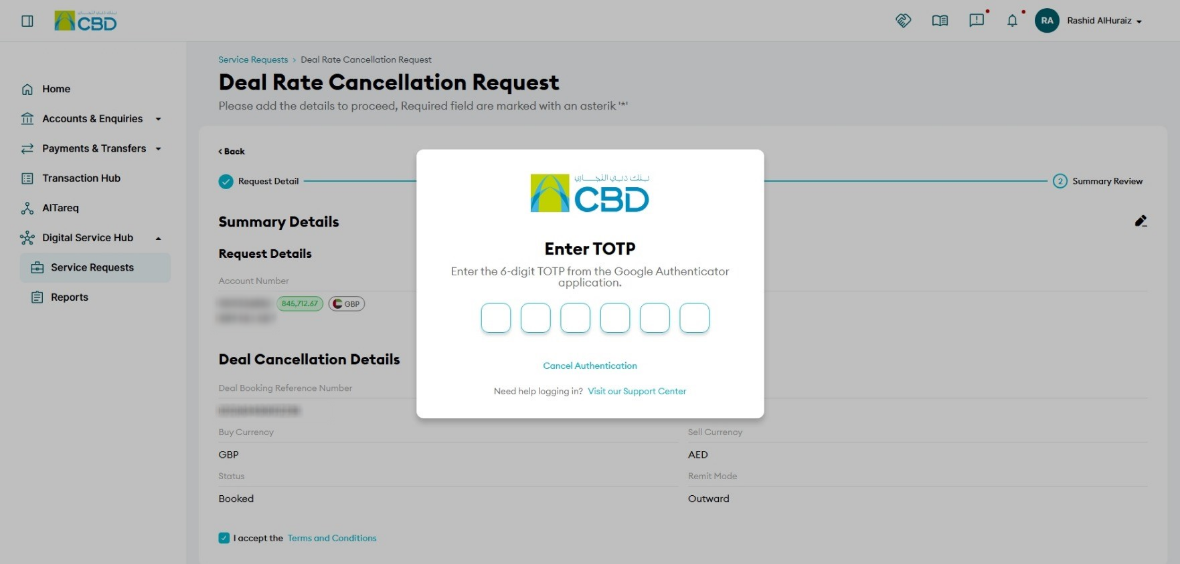
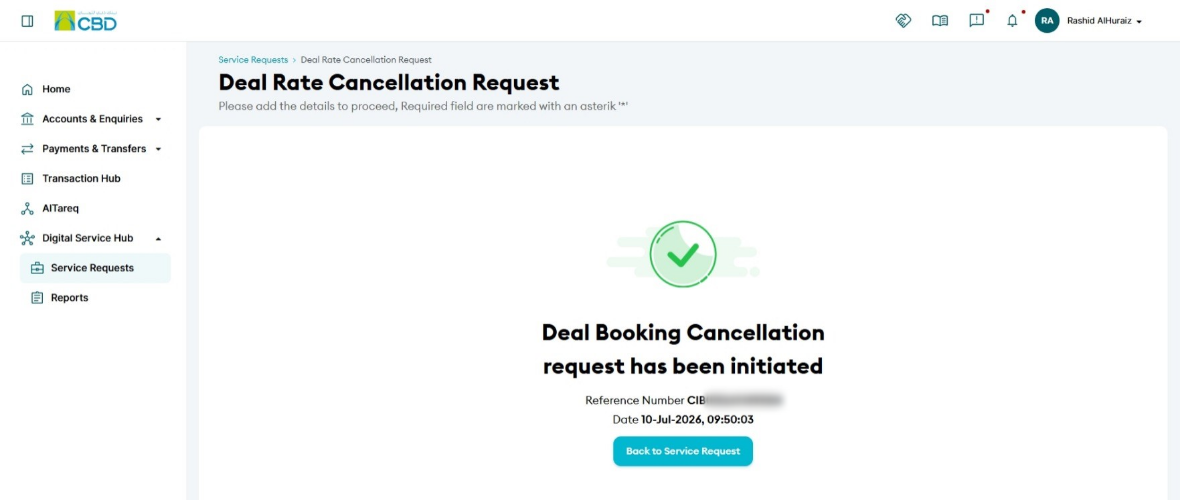
Step 8: Confirmation
Once the request has been submitted successfully:
- A confirmation screen will be displayed.
- A unique reference number will be generated.
- The confirmation will include the date and time of submission.
Step 9: Approval (If Maker–Checker Is Enabled)
If your organization uses a Maker–Checker approval workflow:
- The cancellation request will be routed to the designated Approver.
- The Approver must:
- Log in to iBusiness
- Navigate to Transactions Hub ➜ Pending Your Authorizations
- Locate the request under: Service Requests
- Review the request details.
- Select: Approve or Reject
The deal cancellation request will only be processed after all required approvals have been completed
Support Notes / Best Practices
- Ensure the correct account is selected before searching for deals.
- Only deals with a Booked status can be selected for cancellation.
- Carefully verify the deal details before submitting the cancellation request.
- Retain the generated reference number for future tracking and support enquiries.
- If Maker–Checker controls are enabled, the deal will remain active until the request has been approved.