
Overview
This guide provides step-by-step instructions for downloading an Audit / Balance Confirmation Letter through the iBusiness Web Portal.
Step 1: Access Transaction History
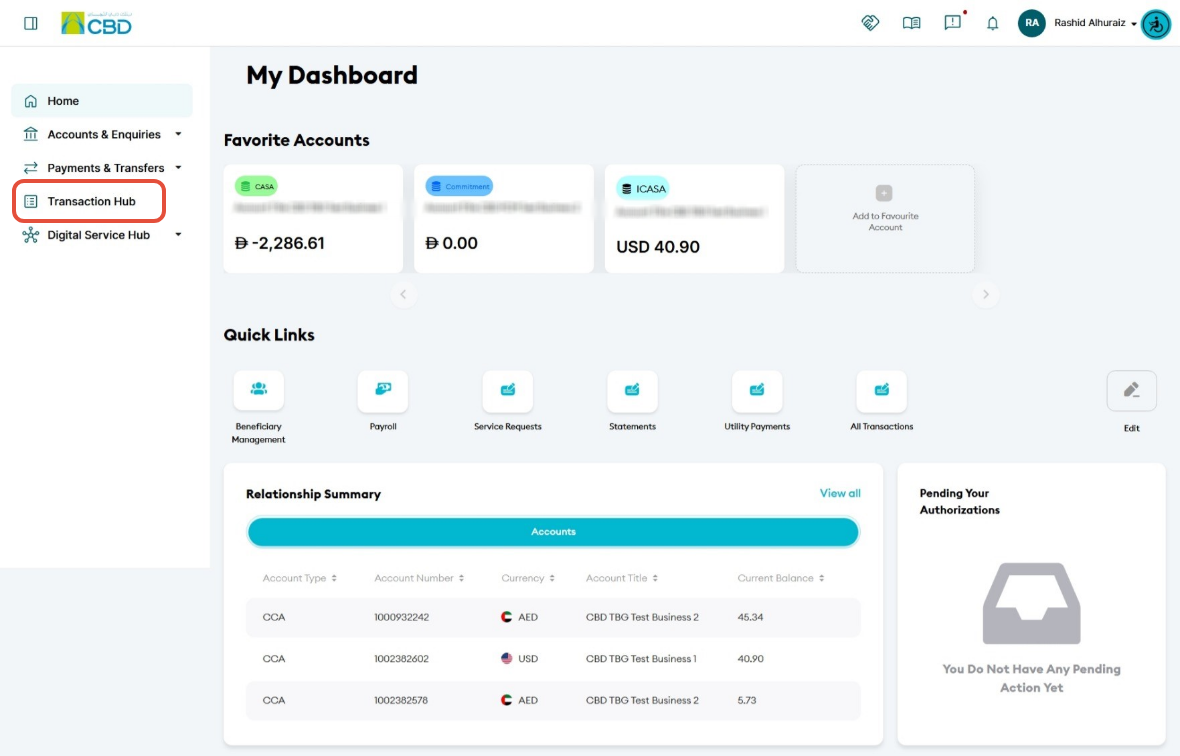
- Log in to iBusiness using your Corporate User credentials.
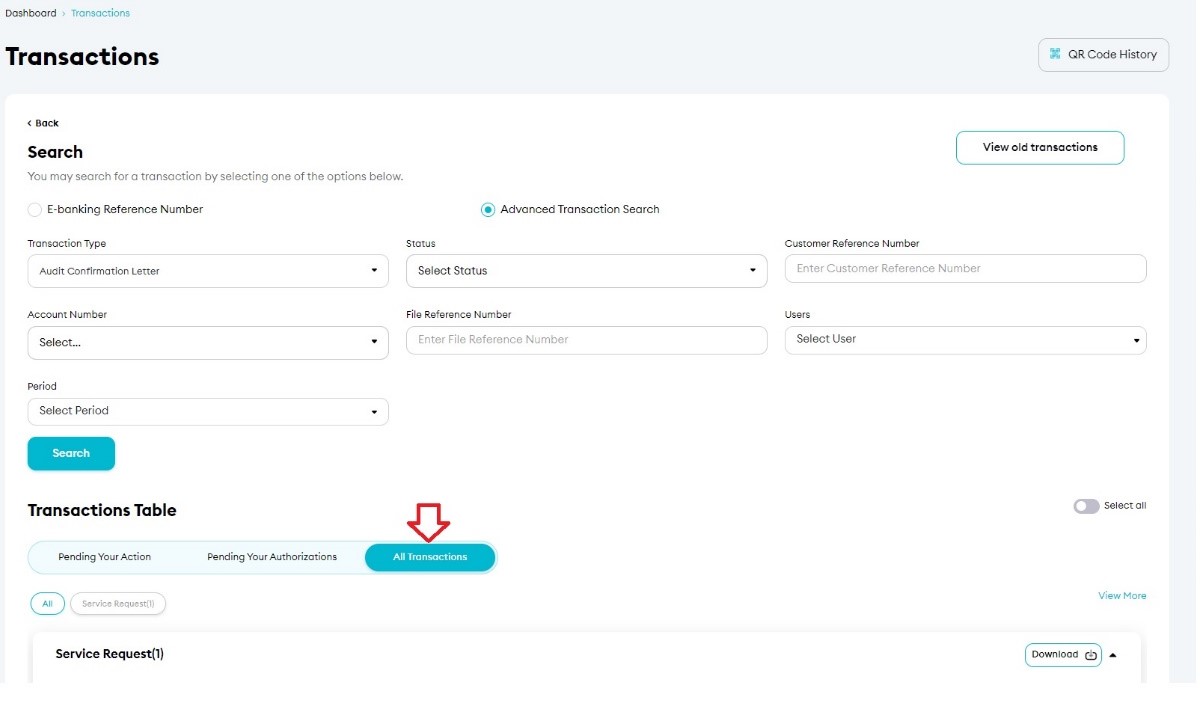
- Navigate to: Transaction Hub ➜ All Transactions
Step 2: Locate the Request
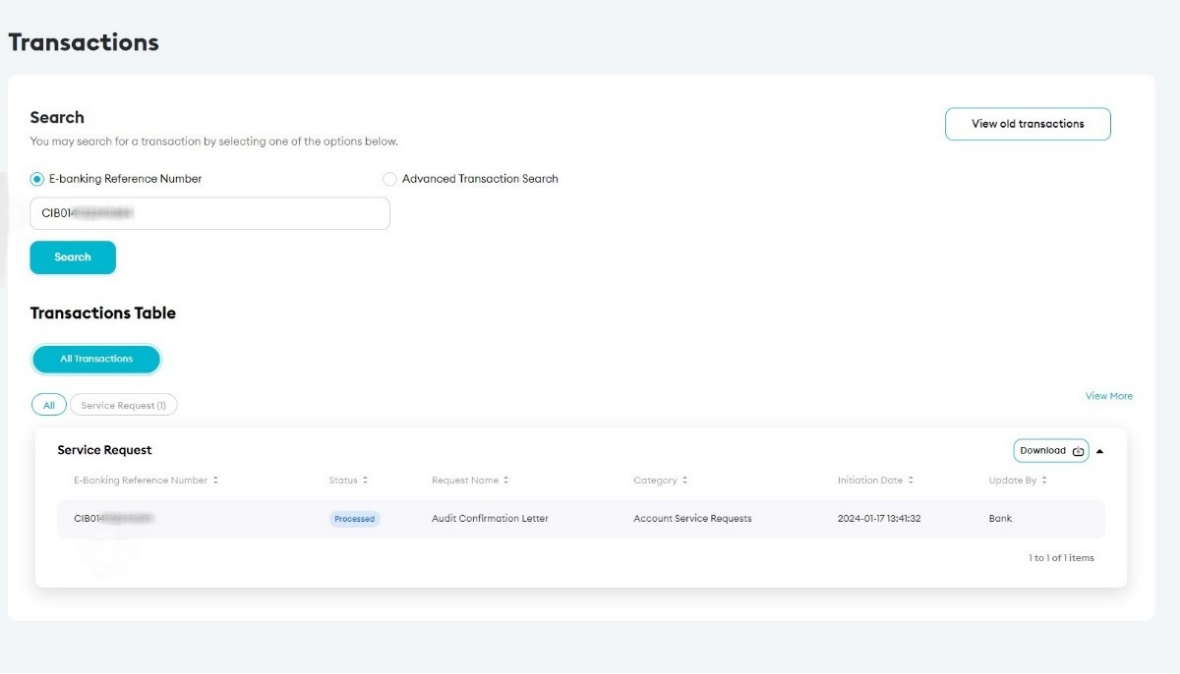
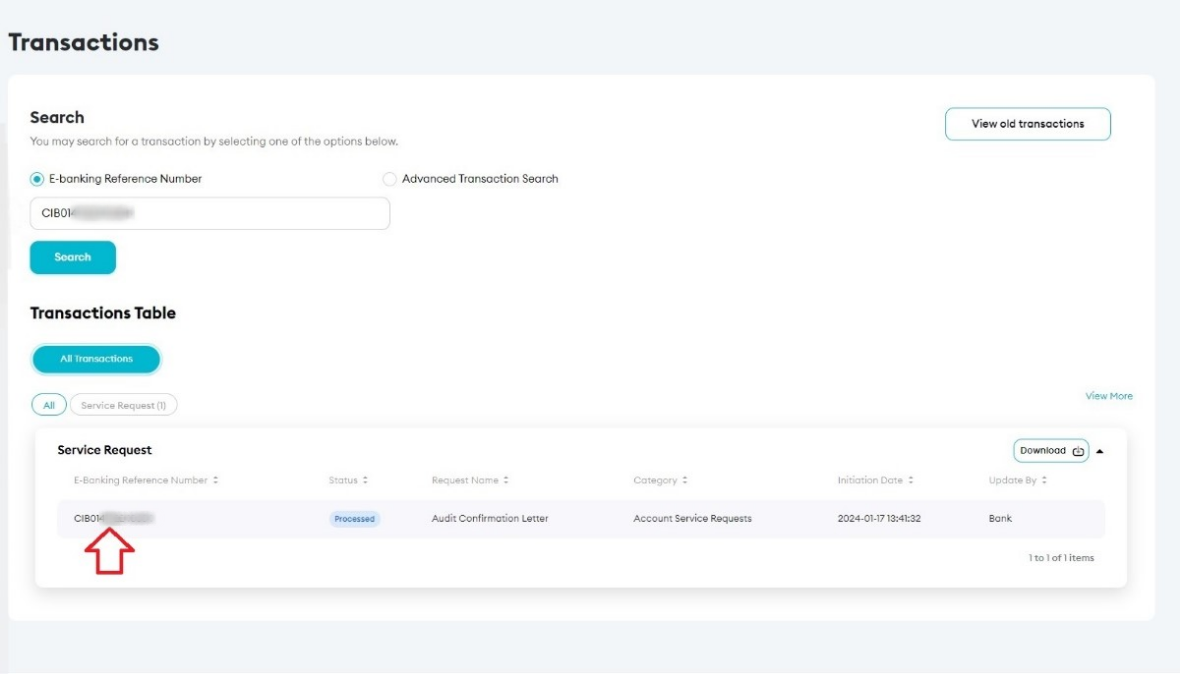
Using the E-Banking Reference Number
- Enter the E-Banking Reference Number in the search field.
- Click Search.
Using Advanced Search
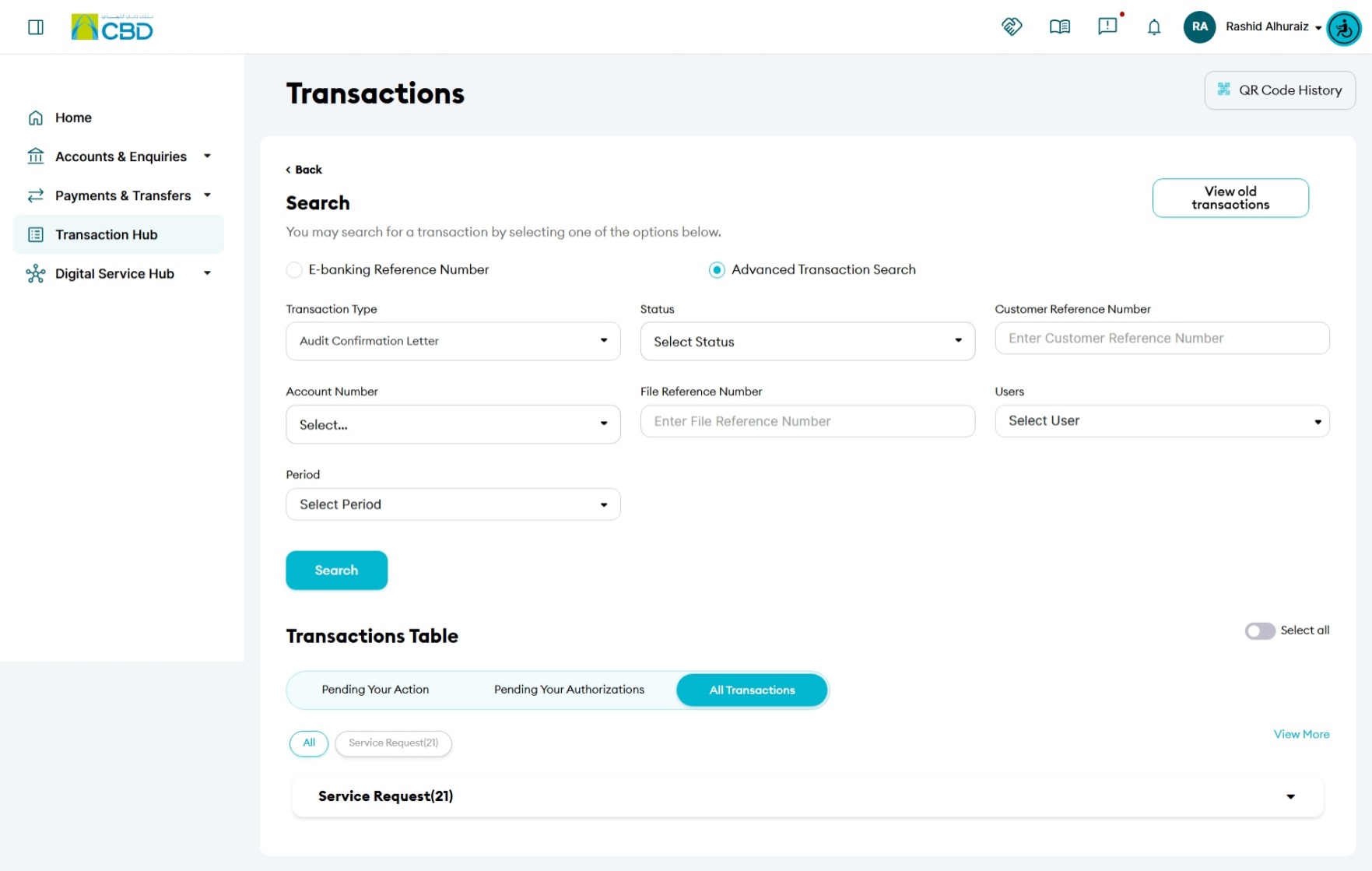
If you do not have the E-Banking Reference Number:
- Click Advanced Transaction Search.
- Search using the available transaction details and filters.
- Locate the required Audit / Balance Confirmation request.
Step 3: Open the Request Details
- Locate the required transaction.
- Click the E-Banking Reference Number.
The system will display the full request details.
Step 4: Download the Audit / Balance Confirmation Letter
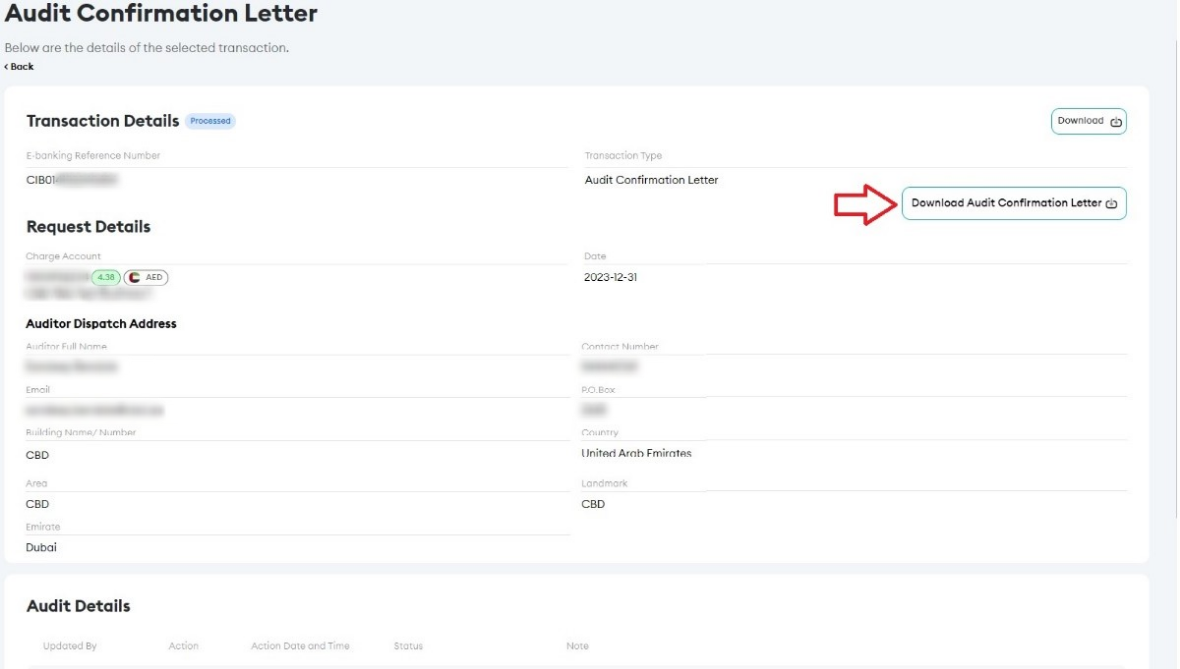
- From the transaction details screen, click Download Audit Confirmation Letter.
- The confirmation letter will be downloaded in PDF format.
Additional Information
- A PDF copy of the Audit / Balance Confirmation Letter will be downloaded to your device.
- A copy of the confirmation letter will also be sent to the auditor's email address provided during the original request submission.
- Confirm document requirements with your auditor in advance
Support Notes / Best Practices
- Ensure you are searching for the correct request using the E-Banking Reference Number whenever possible.
- Use Advanced Transaction Search if the reference number is unavailable.
- Verify that pop-up blockers or browser download restrictions are not preventing the PDF from downloading.
- Retain a copy of the downloaded letter and reference number for audit and record-keeping purposes