
Overview
This guide provides step-by-step instructions for initiating a Remote Cheque Deposit (RCD) through the iBusiness Mobile App.
The Remote Cheque Deposit service allows users to submit cheque deposits directly through the mobile application by capturing images of the cheque and submitting them electronically for processing.
Step 1: Access Remote Cheque Deposit
- Log in to the iBusiness Mobile App.
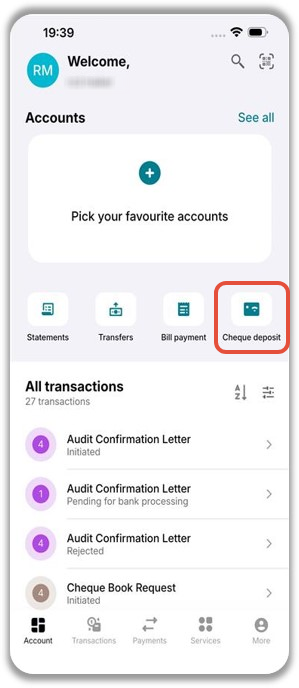
- From the home screen, tap Cheque Deposit
 .
.
This will open the Remote Cheque Deposit screen.
Step 2: Enter Deposit Details
Enter the required cheque information:
- Deposit Account: Select the account where the cheque amount will be credited.
- Location: Select the cheque deposit location, if required.
Ensure all details are entered correctly before proceeding.
Step 3: Scan the Cheque
Under the Cheque Scan section:
- Scan the front side of the cheque.
- Scan the back side of the cheque.
The system will automatically read the cheque information from the captured images and populate the available fields.
Step 4: Review and Update Cheque Details
Review all cheque information captured from the scan.
Verify the following details:
- Cheque Number
- Deposit Account
- Cheque Amount
- Deposit Information
If required, update or correct any information before submitting the request.
Once all details have been verified, tap Proceed.
Important: Ensure that the cheque images are clear and legible. Blurred, cropped, or unclear images may cause processing delays or rejection of the deposit request.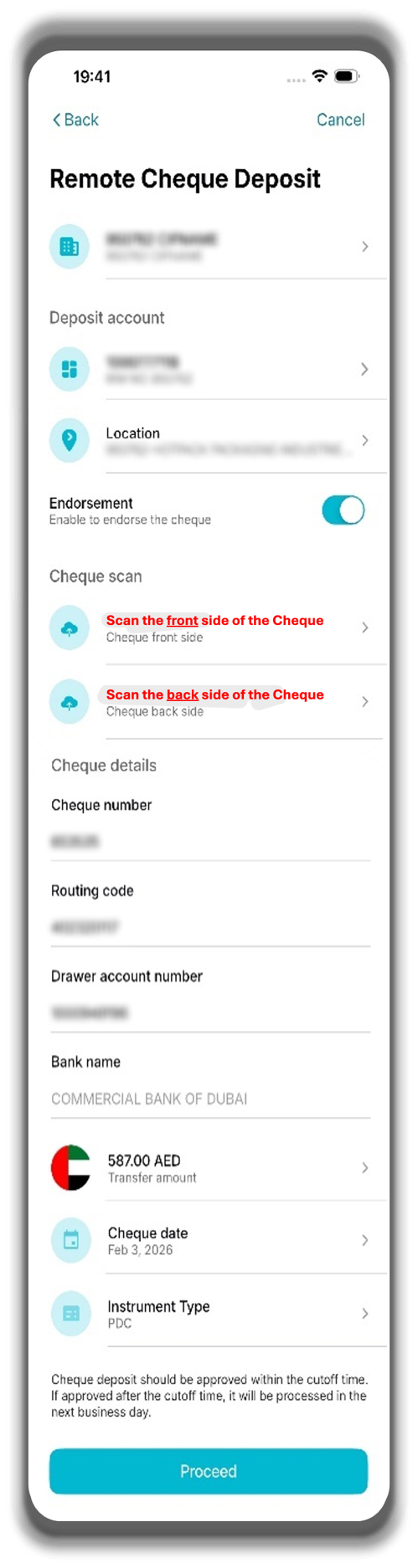
Step 5: Confirmation
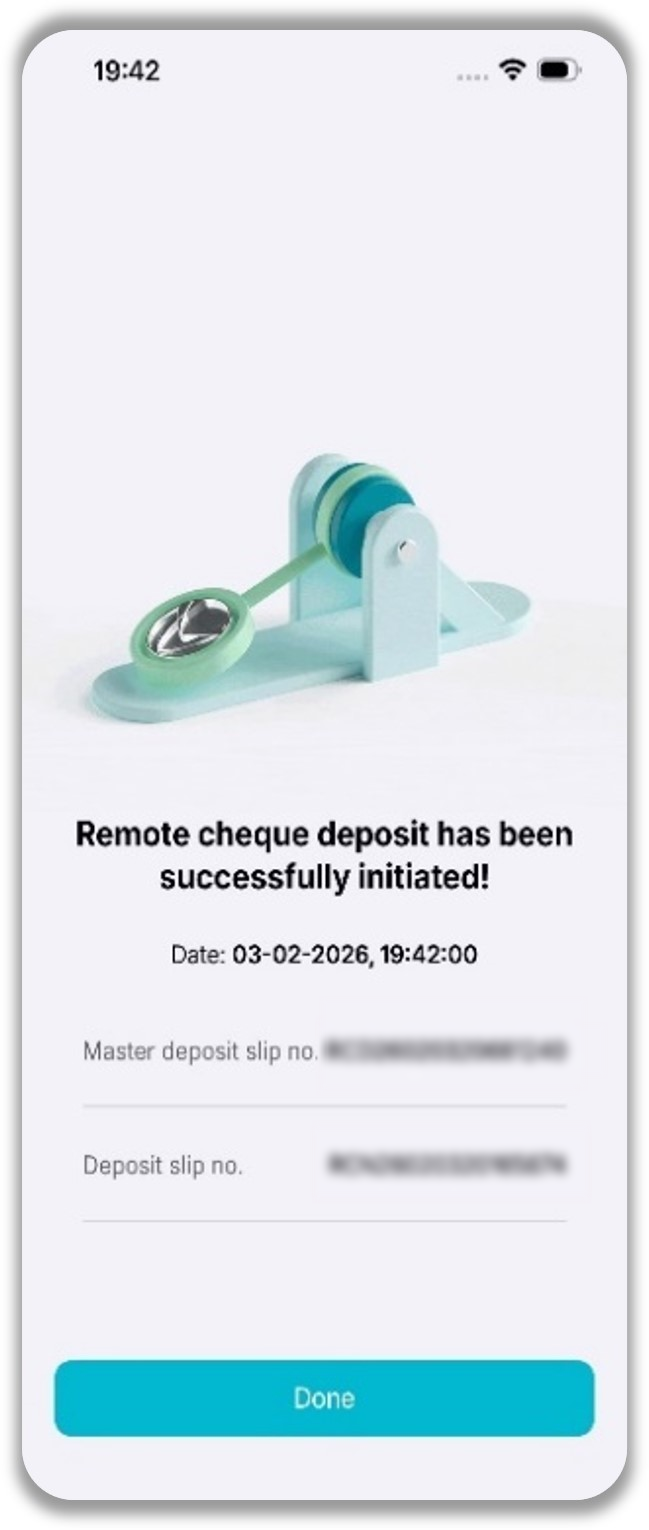
After the request has been submitted successfully, a confirmation screen will be displayed.
A unique Reference Number will be generated for tracking purposes.
Use this reference number when following up on the status of the cheque deposit.
Support Notes / Best Practices
- Ensure the cheque number matches the physical cheque before submission.
- Select the correct deposit account to avoid processing delays.
- Capture clear images of both sides of the cheque in a well-lit environment.
- Verify all cheque details before tapping Proceed.
- Retain the generated reference number for future tracking and support enquiries.
- Keep the original cheque until the deposit has been processed successfully and confirmed by the bank.