
Overview
This guide provides step-by-step instructions for managing beneficiaries in the iBusiness Mobile App, including:
• Adding a transfer beneficiary
• Adding a bill payment beneficiary
• Searching for beneficiaries
• Editing beneficiary details
• Marking beneficiaries as favourites
Access Beneficiary Services
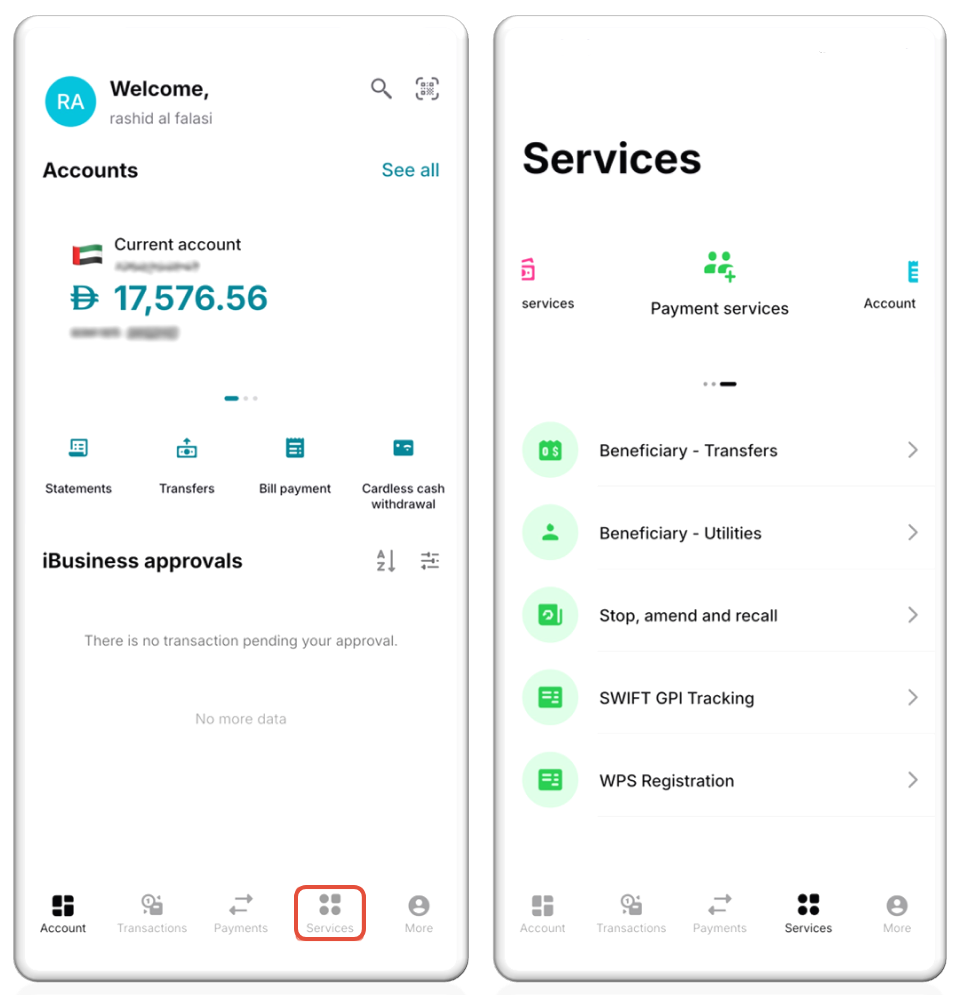
1. Log in to the iBusiness Mobile App.
2. Tap Services from the bottom navigation menu.
Create a Transfer Beneficiary
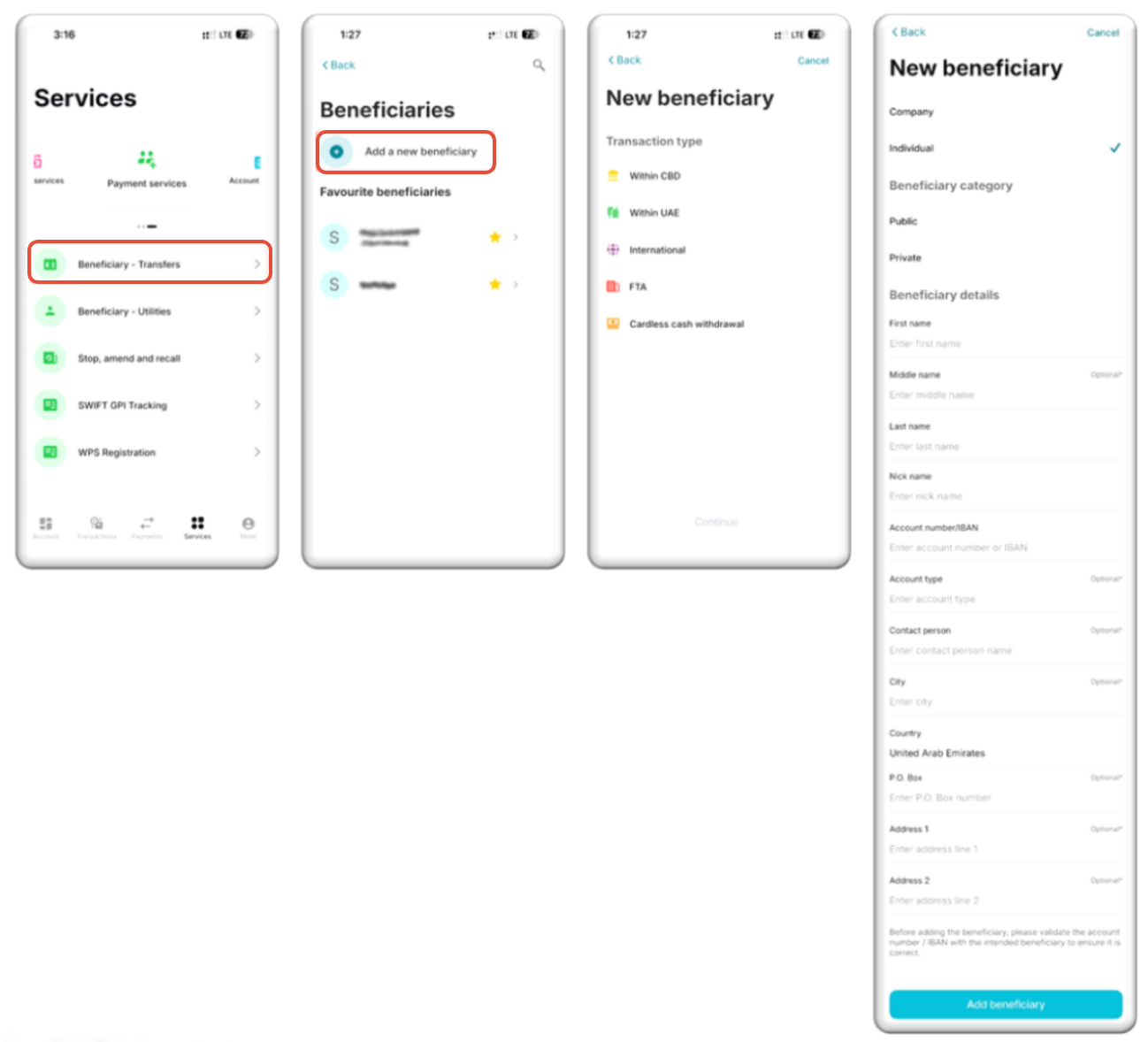
1. From Services, select Transfer Beneficiaries.
2. Tap Add Beneficiary.
3. Select the beneficiary type.
4. Enter the required beneficiary information.
5. Follow the on-screen instructions to complete the setup.
Review and Submit
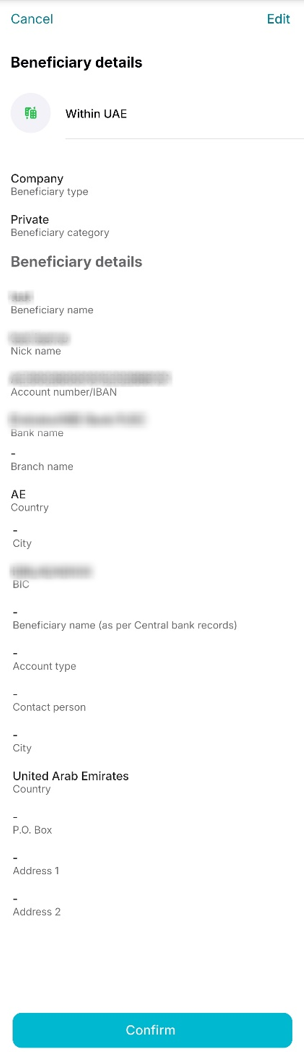
1. Review all beneficiary details carefully.
2. Verify that the account information is correct.
3. Tap Confirm to continue.
Authenticate and Confirm
1. Complete biometric authentication using facial recognition or device authentication.
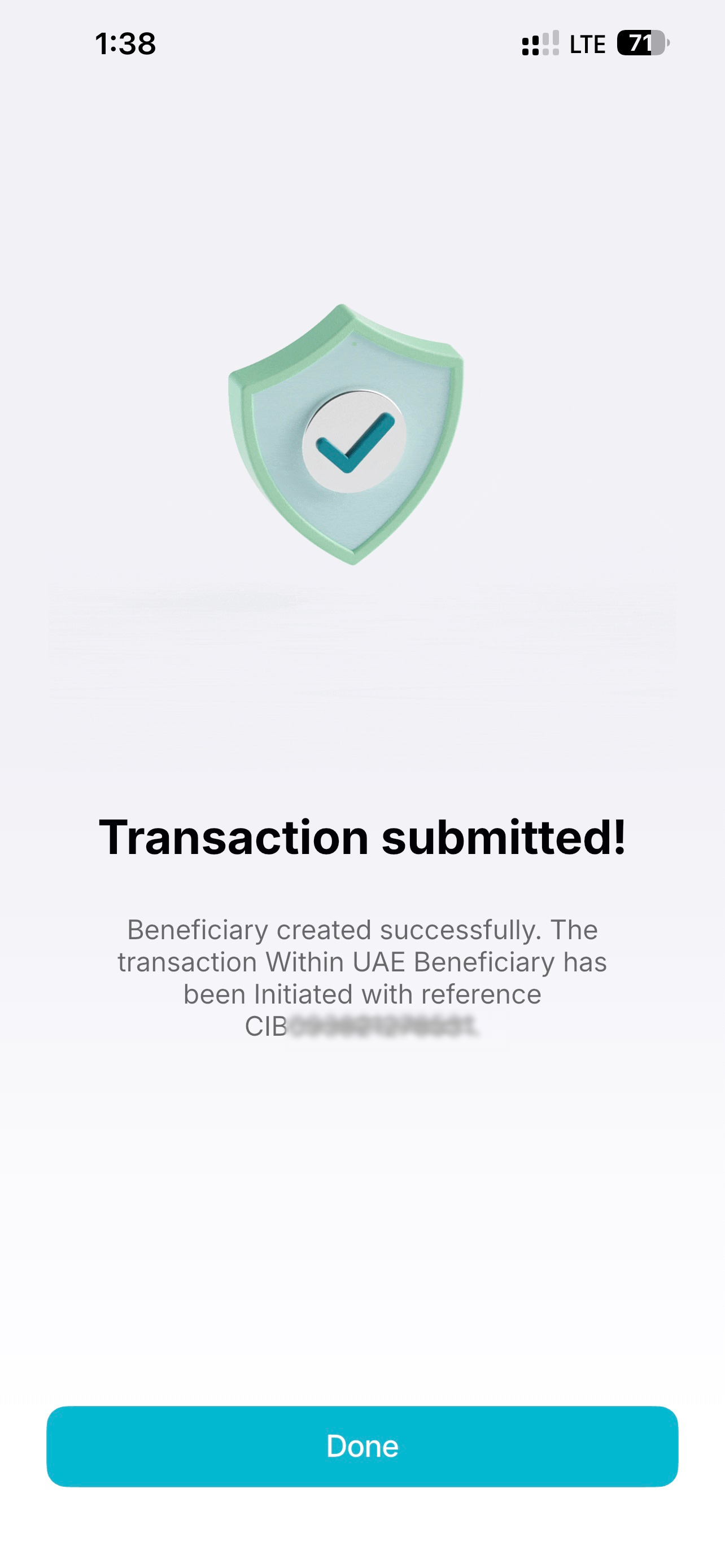
2. Upon successful authentication, a confirmation screen displaying a reference number will be generated.
Add a bill payment beneficiary
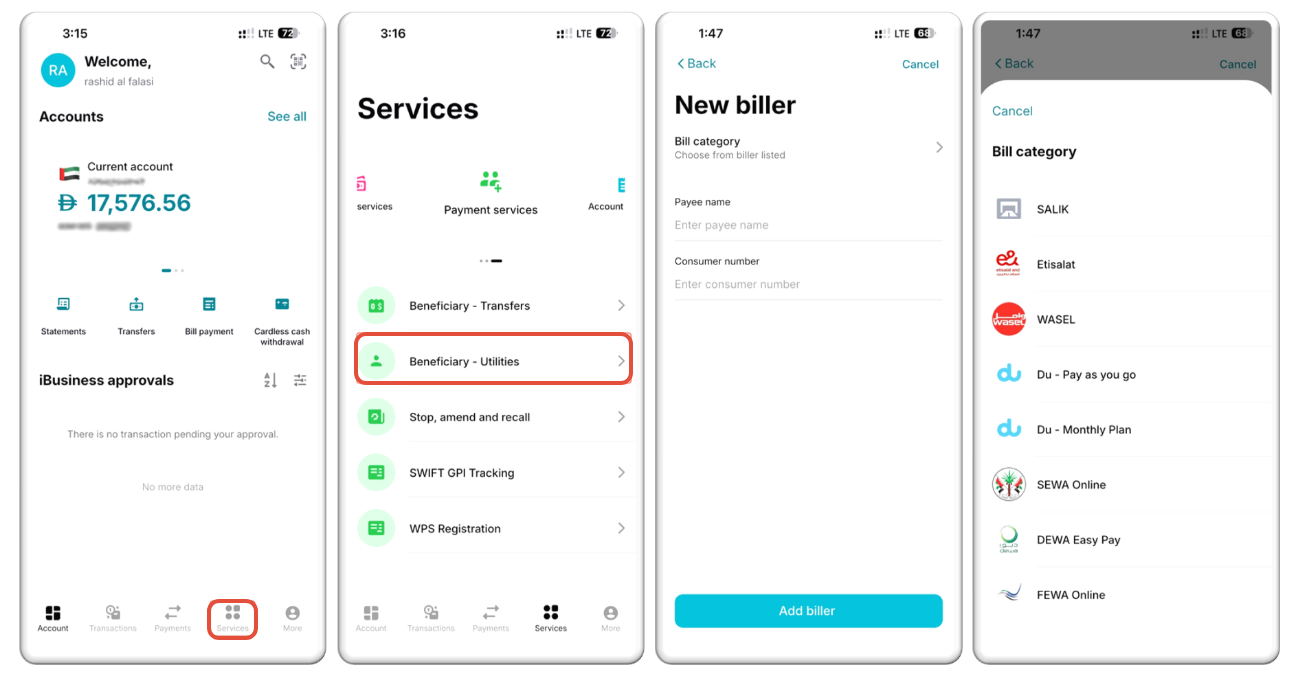
1. Navigate to: Services ➜ Beneficiaries – Utilities
2. Select the appropriate bill category.
3. Enter the required biller details.
4. Tap Add Biller.
Search for an Existing Beneficiary
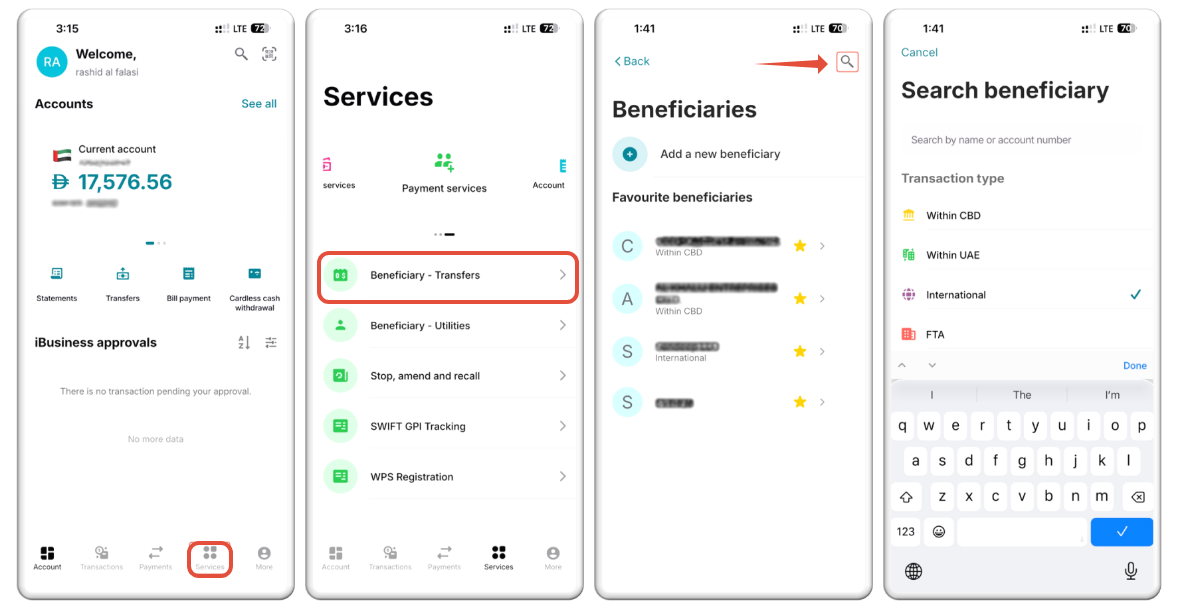
1. Navigate to: Services Payment ➜ Services ➜ Transfer ➜ Beneficiaries
2. Tap on the magnifying glass 
4. Select the beneficiary type.
4. Search using:
- Beneficiary Name
- Account Number
Mark a Beneficiary as a Favorite
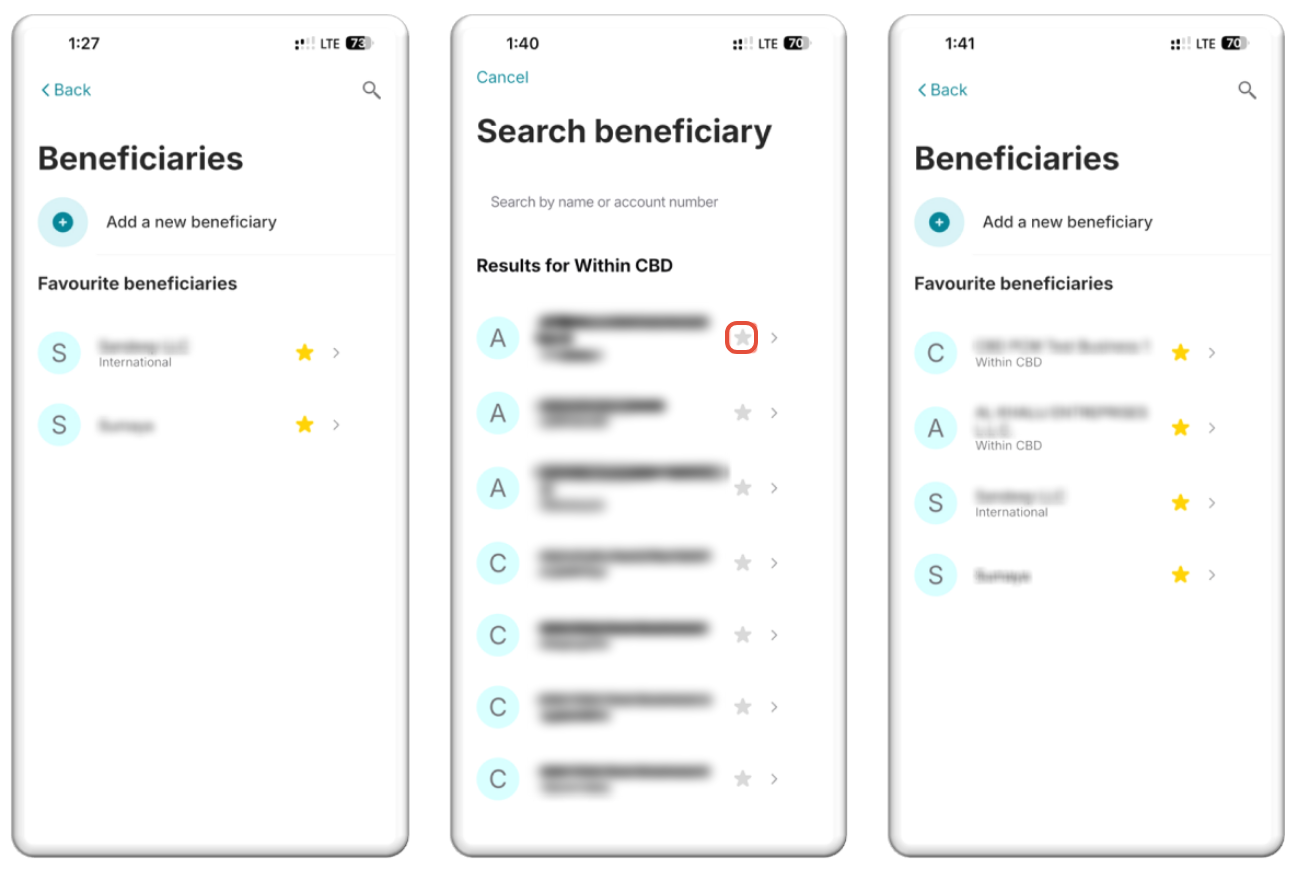
1. Locate the beneficiary you want to add to favorites.
2. Tap the Star icon  next to the beneficiary’s name.
3. The beneficiary will be added to your favorites list for quicker access.
Edit Beneficiary Details
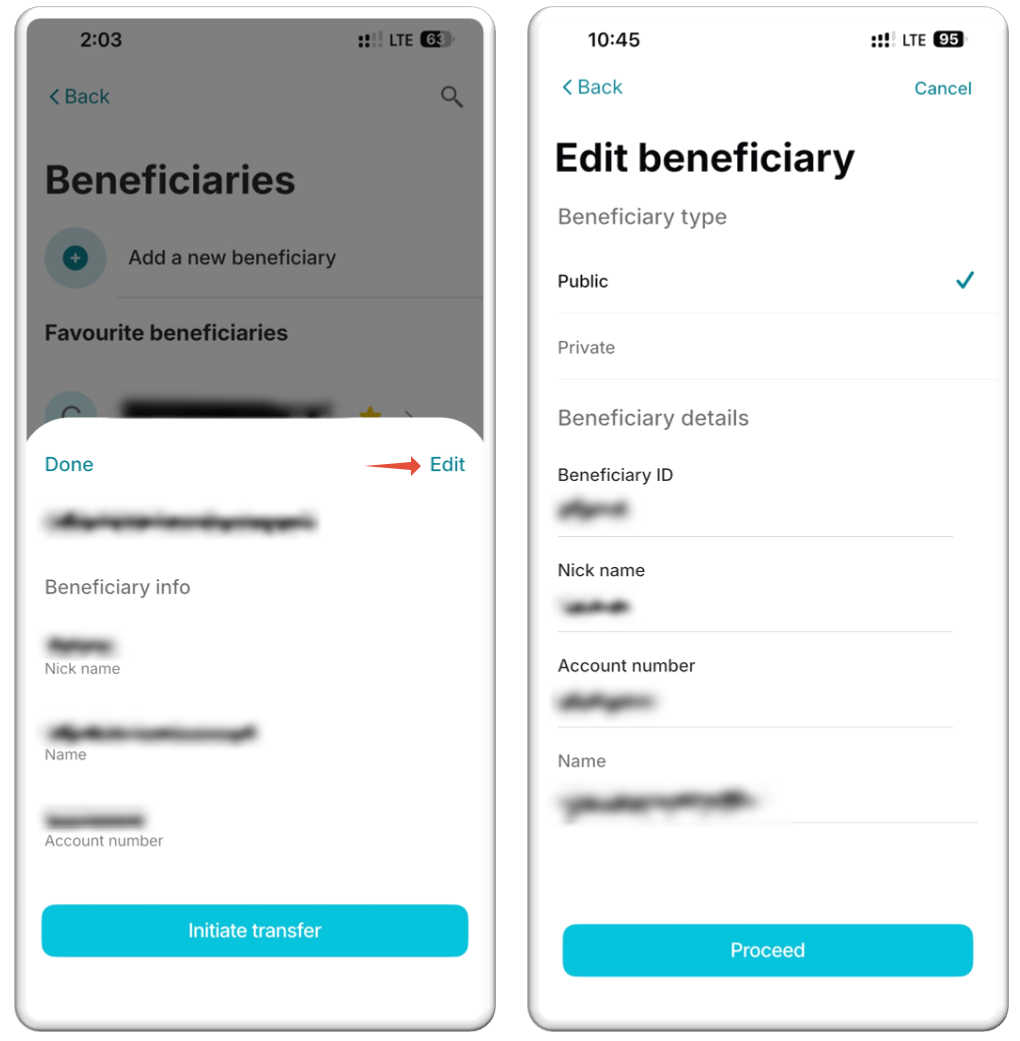
1. Search for and select the beneficiary.
2. Open the beneficiary details screen.
3. Tap the Edit icon in the top-right corner.
4. Update the required information.
5. Review the changes and save them.
Support Notes / Best Practices
• Verify beneficiary details before saving or submitting changes.
• Use Favorites to quickly access frequently used beneficiaries.
• Use the search function to locate beneficiaries efficiently instead of scrolling through long lists.
• Ensure account numbers and beneficiary details are accurate to prevent payment delays or transfer failures.
• Keep a record of generated reference numbers for tracking and audit purposes.