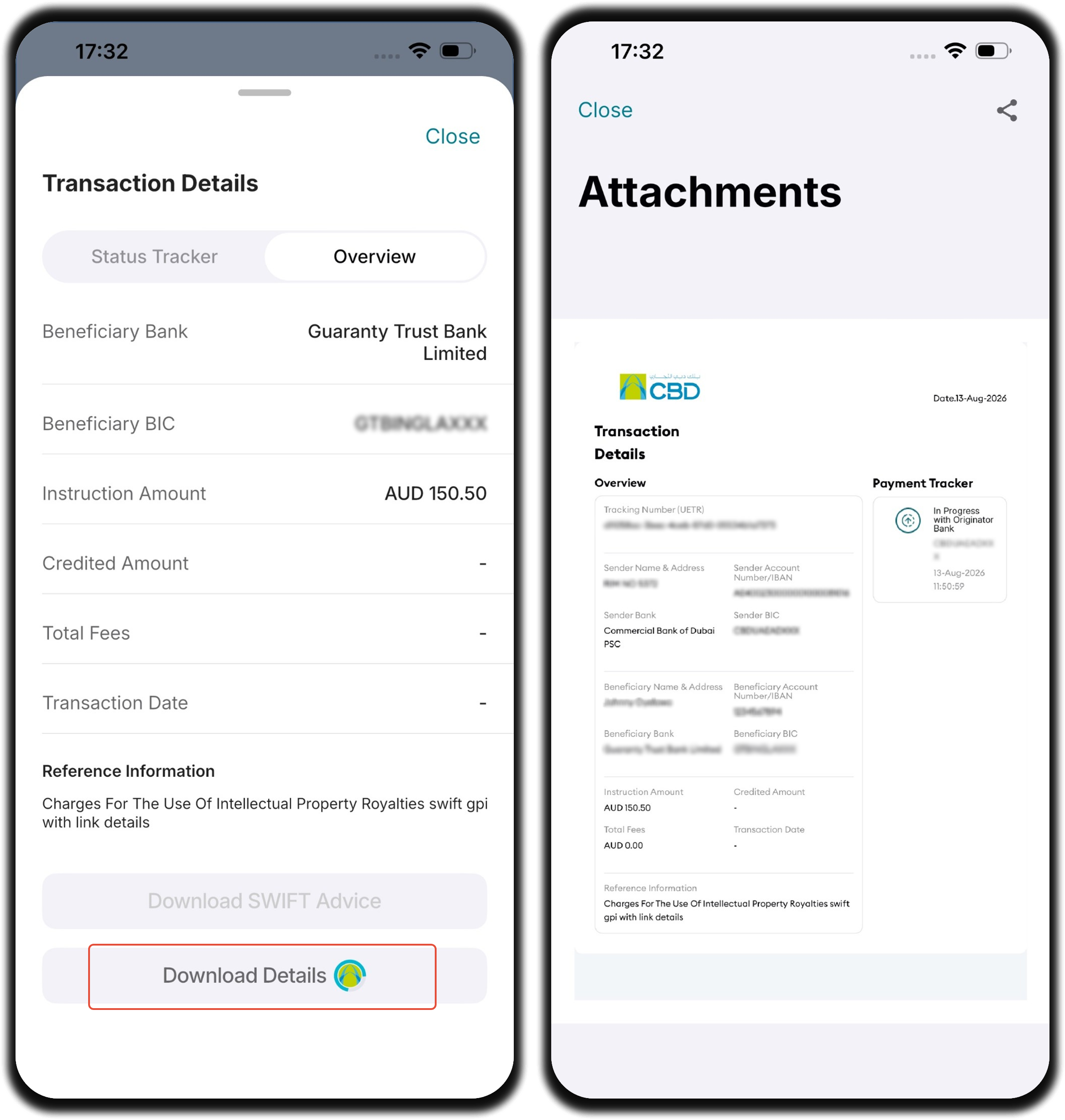
Overview
This guide provides step-by-step instructions for tracking SWIFT GPI transactions through the iBusiness Mobile App.
The SWIFT GPI Tracking service allows users to:
- Track payment status in near real time.
- View transaction details and payment history.
- Obtain the UETR (Unique End-to-End Transaction Reference).
- Download SWIFT Advice documents.
- Download detailed payment tracking reports.
- Share SWIFT Advice and transaction reports directly from the mobile app.
Method 1: Access SWIFT GPI Tracking from Services
Step 1: Open SWIFT GPI Tracking
- Log in to the iBusiness Mobile App.
- Navigate to: Services ➜ Payment Services ➜ SWIFT GPI Tracking
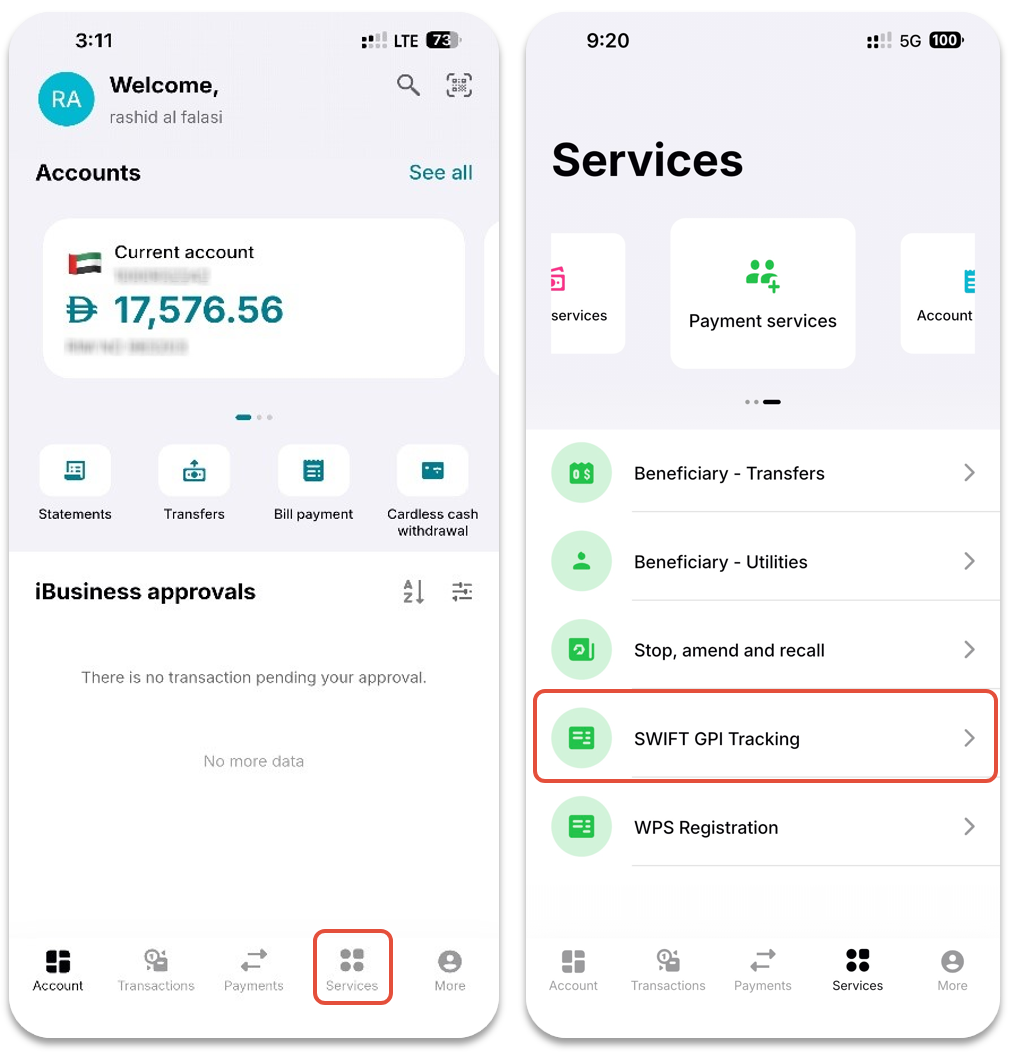
Step 2: Search for a Transaction
You can search using one or more of the following criteria:
Basic Search
- Transaction Type
- Inward
- Outward
- UETR (Unique End-to-End Transaction Reference)
Note: The UETR can be obtained from the transaction details within the mobile app or iBusiness online (web) in Transaction Hub.
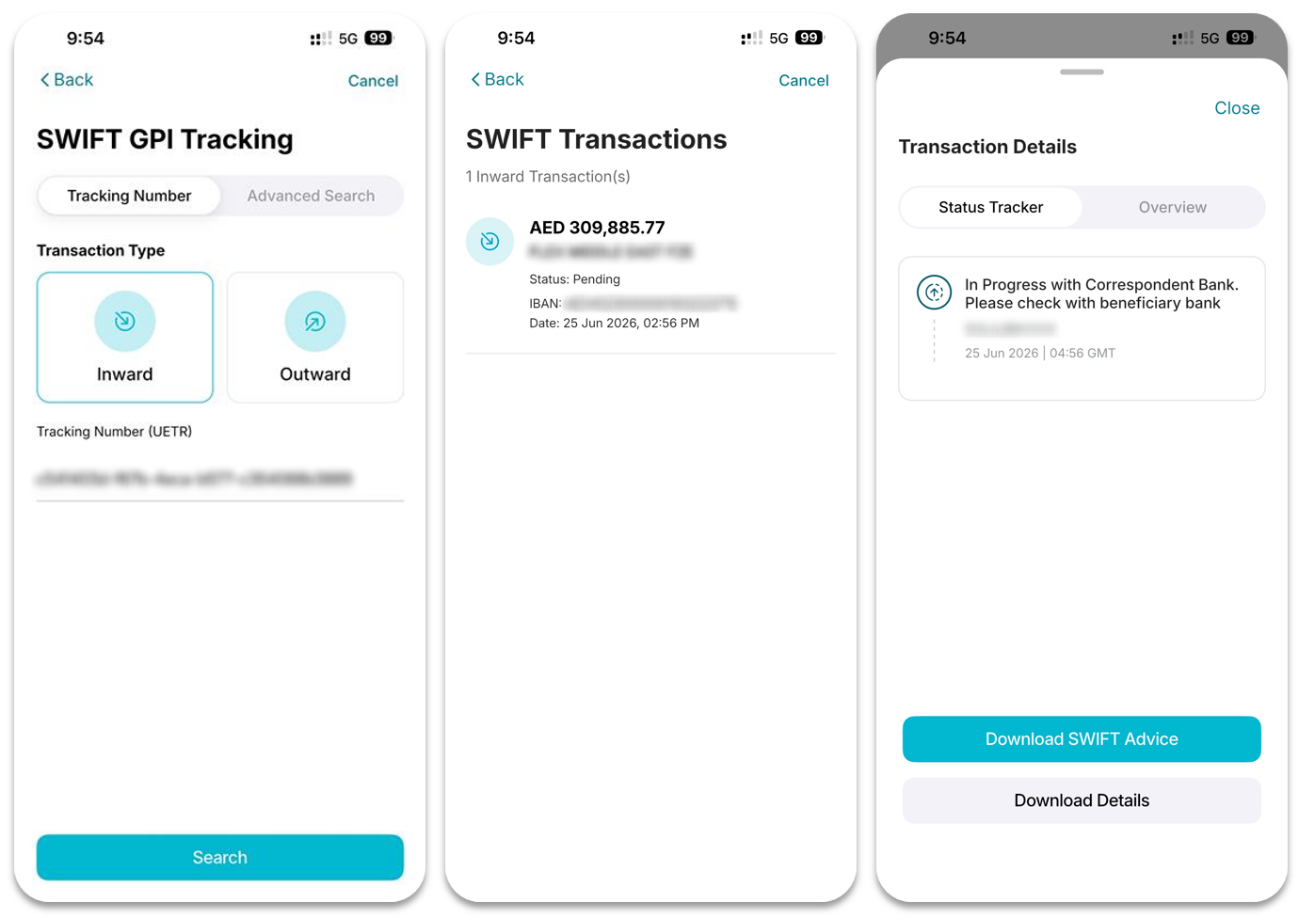
Advanced Search
You can refine your search using:
• Account Number
• Sender's Bank Reference Number
• Sender's Name
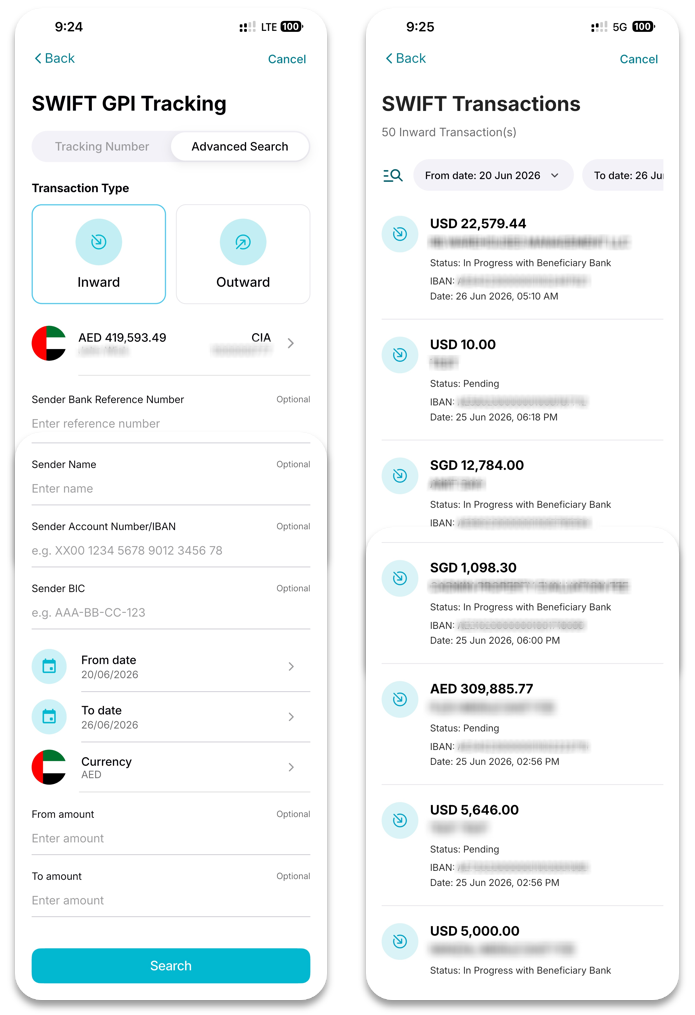
Step 3: View Tracking Details
- Select the required transaction from the search results.
- Tap the transaction to view the payment details and tracking information.
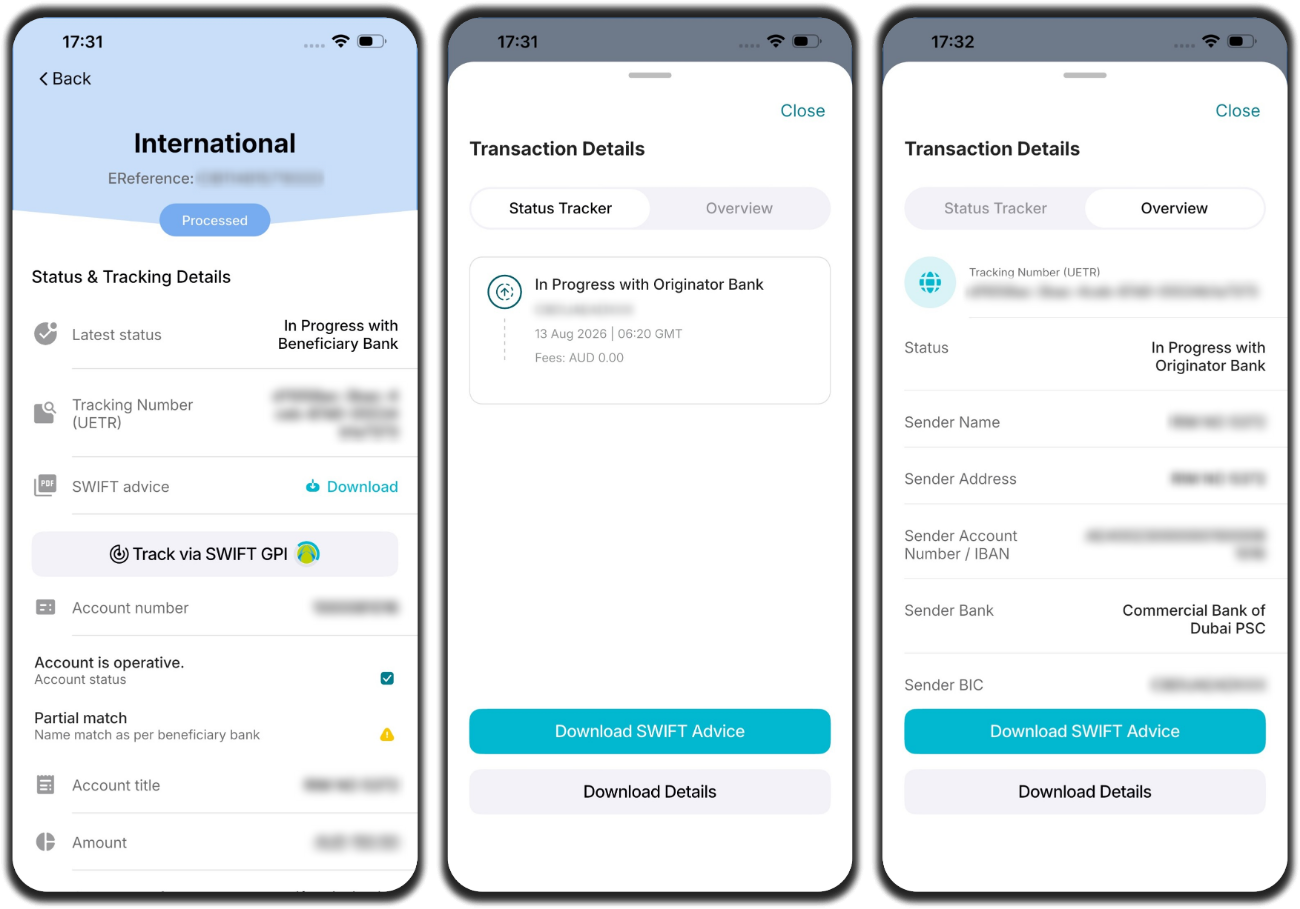
Available options include:
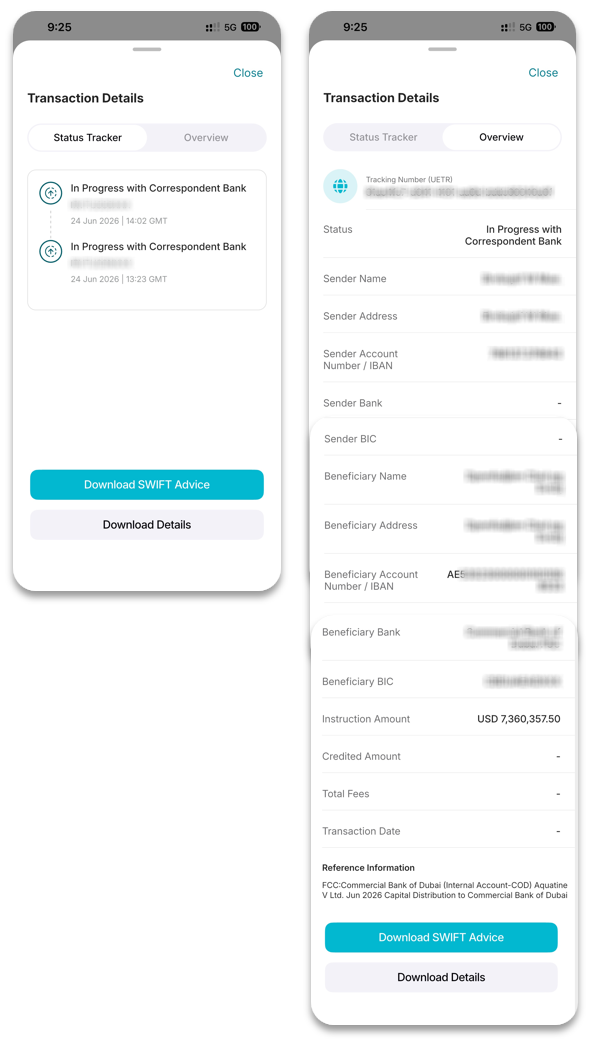
- Overview: View payment and transaction information.
- Status Tracker: View the payment journey and latest status updates.
- Download SWIFT Advice: Download the SWIFT Advice document.
- Download Transaction Details: Download detailed payment tracking information.
Method 2: Access SWIFT GPI Tracking from Transactions
You can also access SWIFT GPI Tracking directly from the transaction details screen.
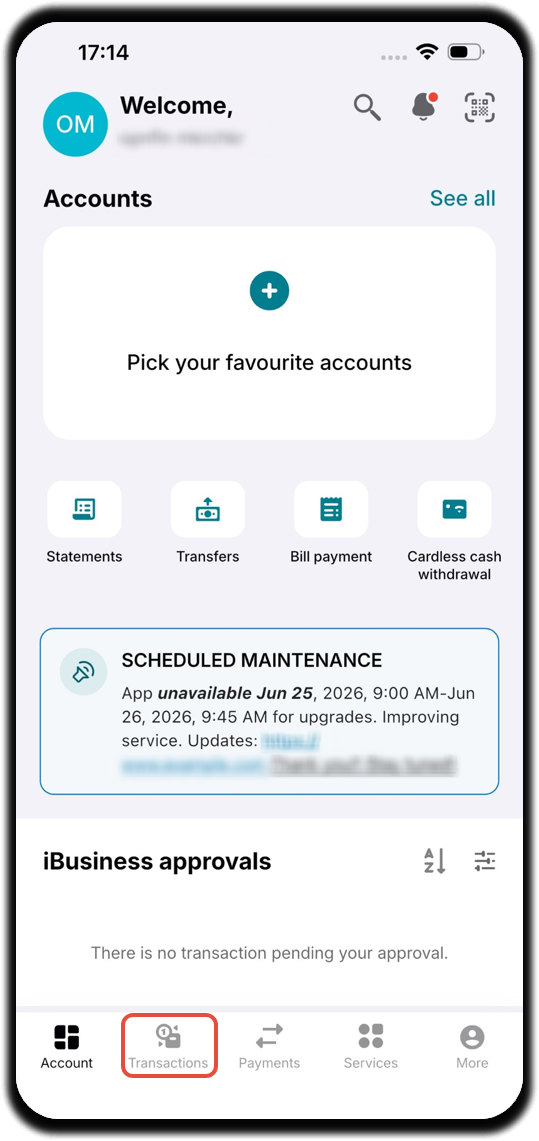
Step 1: Locate the Transaction
- Navigate to Transactions.
- Use the Filter option to locate the required transaction.
Step 2: Open Transaction Details
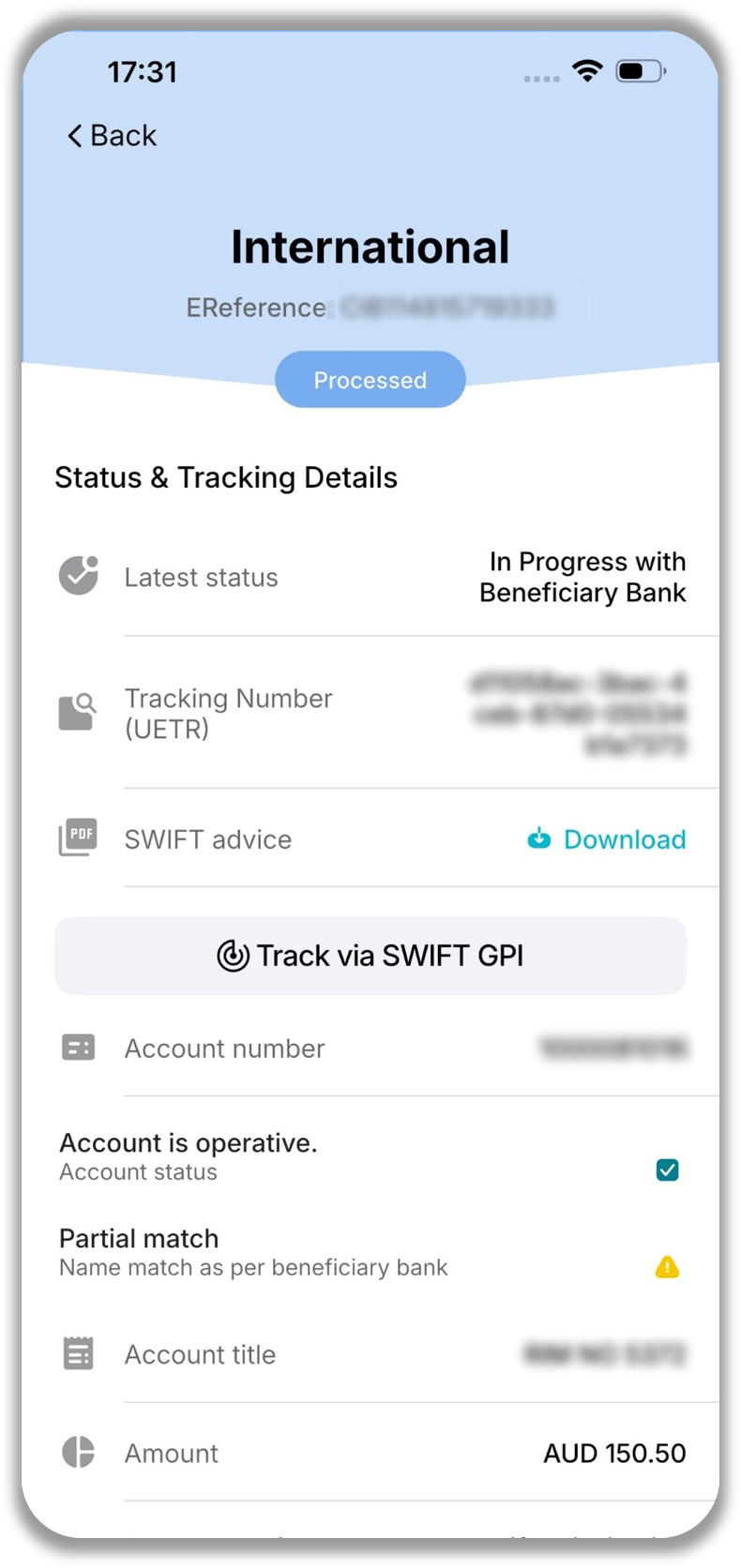
Select the required transaction.
From the transaction details screen, you can:
- View the UETR Number.
- Download the SWIFT Advice.
- Track the payment using Track via SWIFT GPI.
Download SWIFT Advice
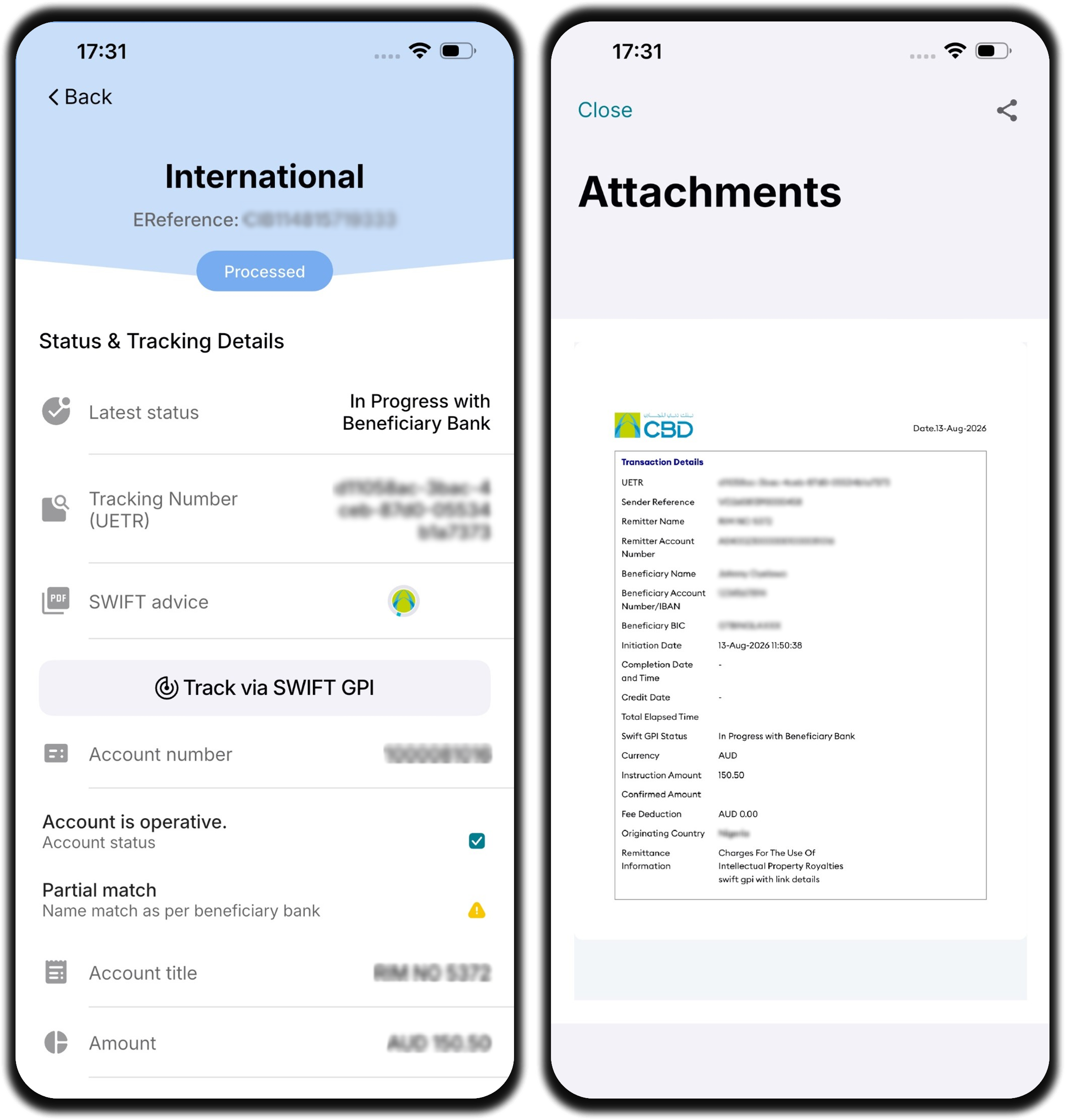
To download the SWIFT Advice:
- Tap Download SWIFT Advice.
- The SWIFT Advice document will be generated.
- To share the document, tap the Share icon
 .
.
Track the Payment via SWIFT GPI
To view the payment journey:
- Tap Track via SWIFT GPI.
- Review the payment status and tracking updates.
The tracker provides visibility into the payment journey and processing status.
Download Transaction Details
You can download a detailed report containing:
- Payment Information
- Transaction Details
- SWIFT GPI Tracking Information
- Status Updates
- Timestamp History
- Tap Download Transaction Details.
- To share the report, tap the Share icon
 .
.