
Overview
This guide explains how to view renewal information for Term Deposits in the iBusiness Web Portal.
For renewed term deposits, the system displays key information such as the deposit start date, maturity date, available balance, and renewal details. You can also view when the term deposit was last renewed.
Step 1: Access Your Accounts
- Log in to iBusiness.
- Navigate to: Accounts & Enquiries ➜ Relationship
The Relationship screen displays all accounts associated with your profile, including active term deposits.
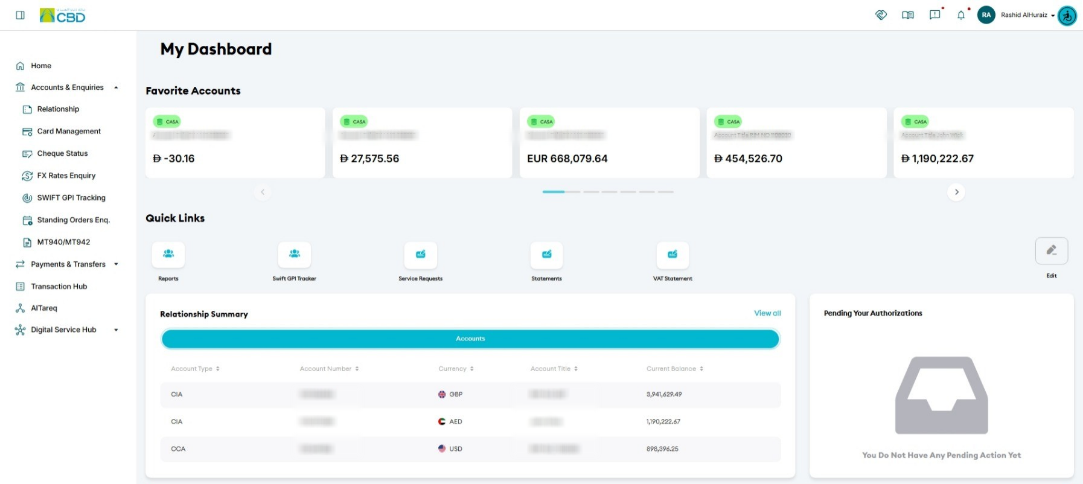
Step 2: Locate the Term Deposit
- Scroll to the Term Deposits section.
- Select the required term deposit account.
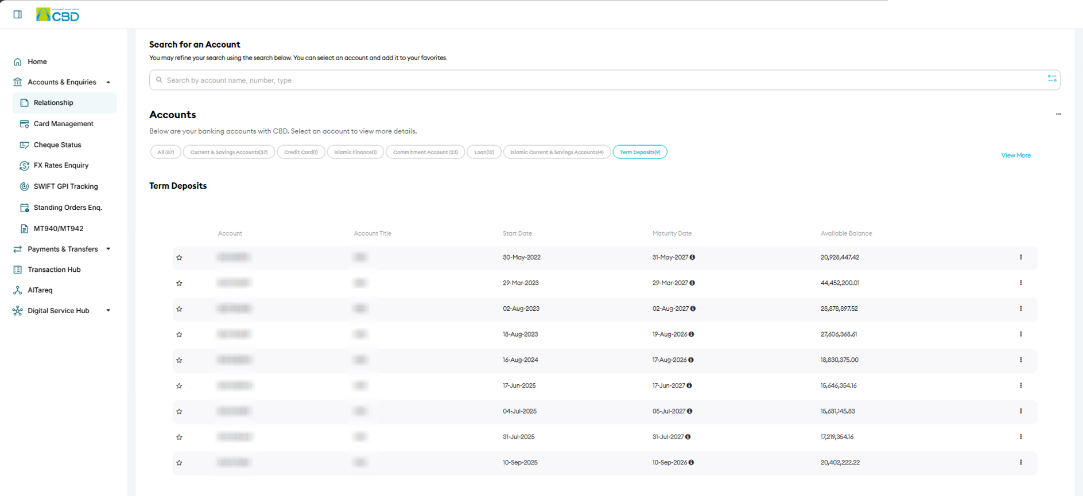
The term deposit summary displays information such as:
- Start Date
- Maturity Date
- Available Balance
This information helps you quickly review the status of the term deposit and its current maturity date.
Step 3: View Renewal Information
- Open the Account Details for the selected term deposit.
The system displays renewal information in one of the following locations:
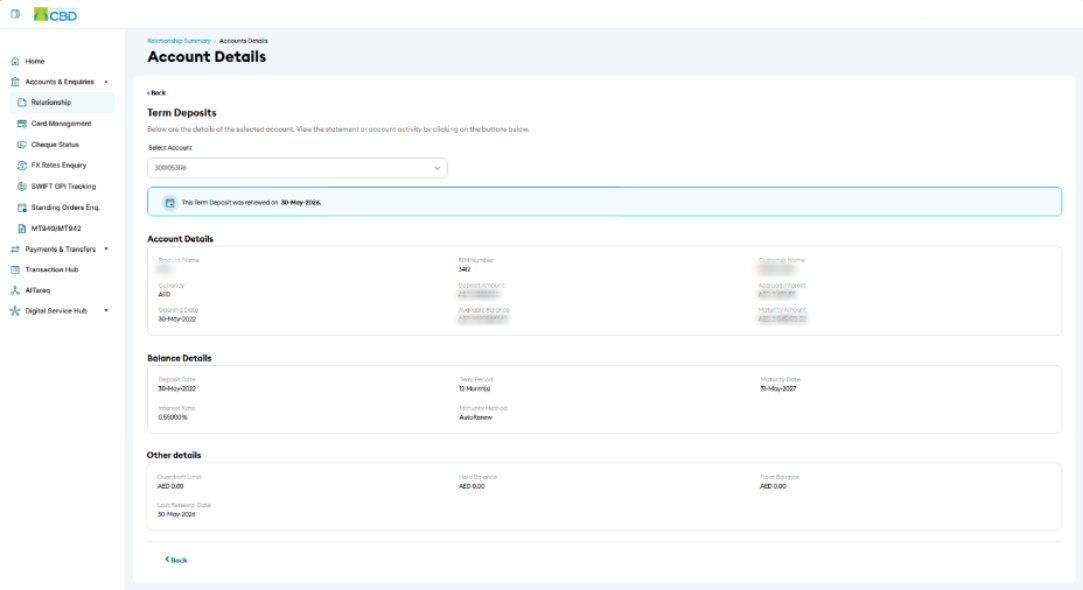
Renewal Information Banner
A banner may appear at the top of the account details screen displaying the renewal information for the term deposit.

Other Details Section
You can also scroll down to the Other Details section to view additional renewal information.
The renewal details show when the term deposit was renewed and provide additional information about the renewal cycle.