
guide provides step-by-step instructions for searching and downloading a SWIFT Advice document through the iBusiness Web Portal.
The SWIFT Advice service allows users to search for inward and outward remittance transactions and download the associated SWIFT Advice for reference, reconciliation, and payment tracking purposes.
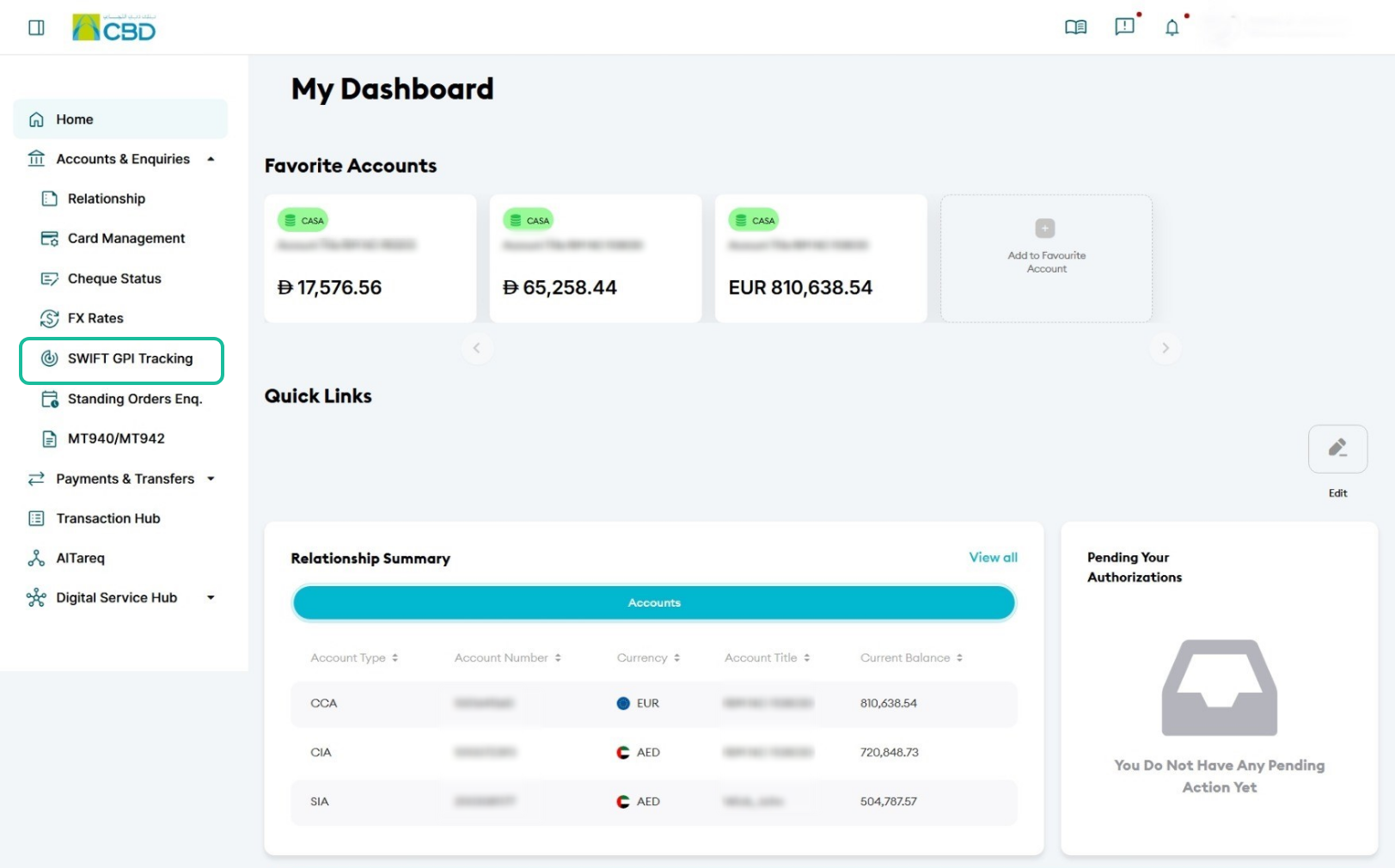
Step 1: Access SWIFT advice
- Log in to iBusiness
- Navigate to:Accounts & Enquiries ➜ SWIFT Advice and GPI Tracking
This page allows you to search for SWIFT transactions and download the corresponding SWIFT Advice.
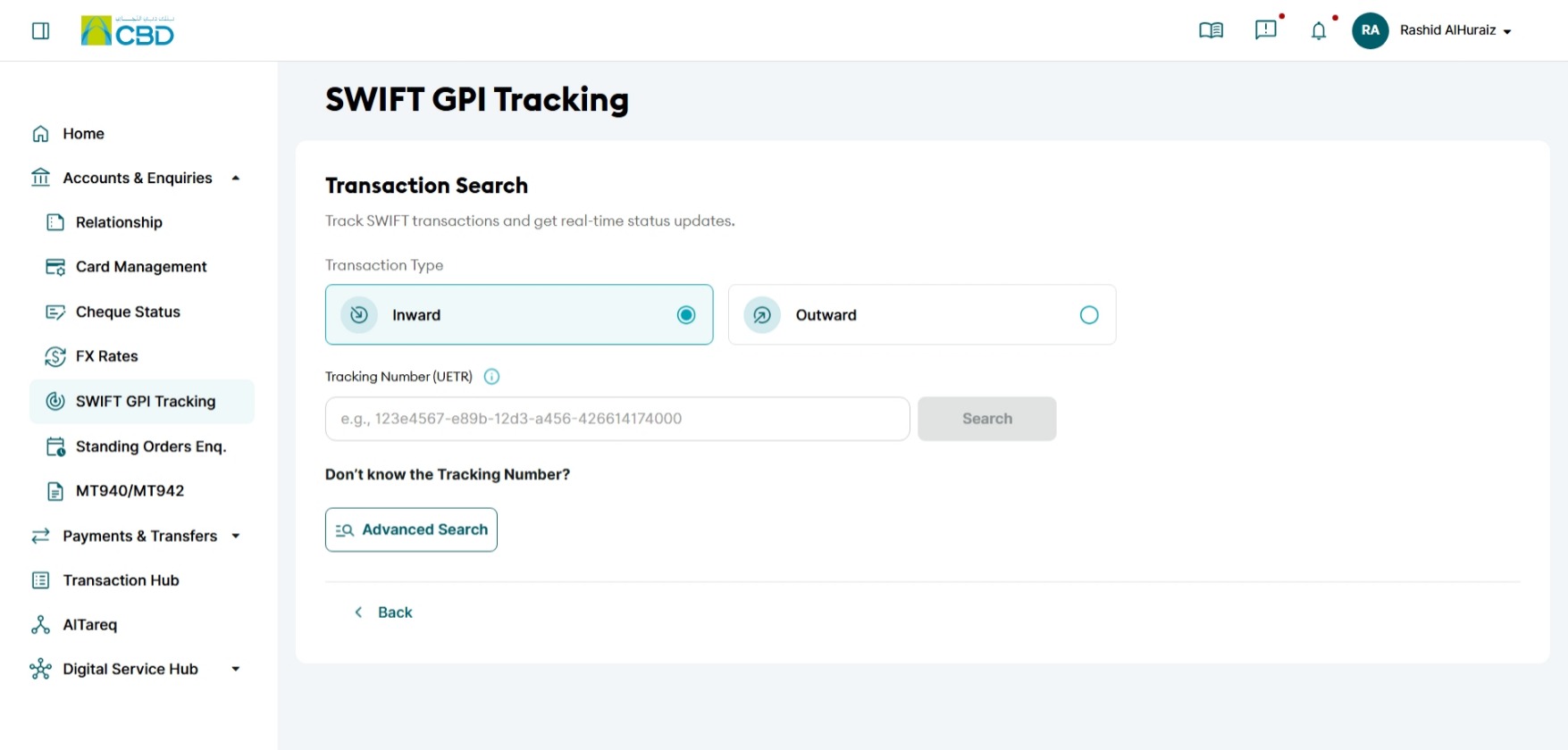
Step 2: Search for SWIFT transactions
You can search for transactions using one or more of the following criteria:
- Remittance Type
- Transaction Type (Inward or Outward)
- Unique End-to-End Transaction Reference (UETR)
After entering the required search criteria, click Search to display the matching transactions.
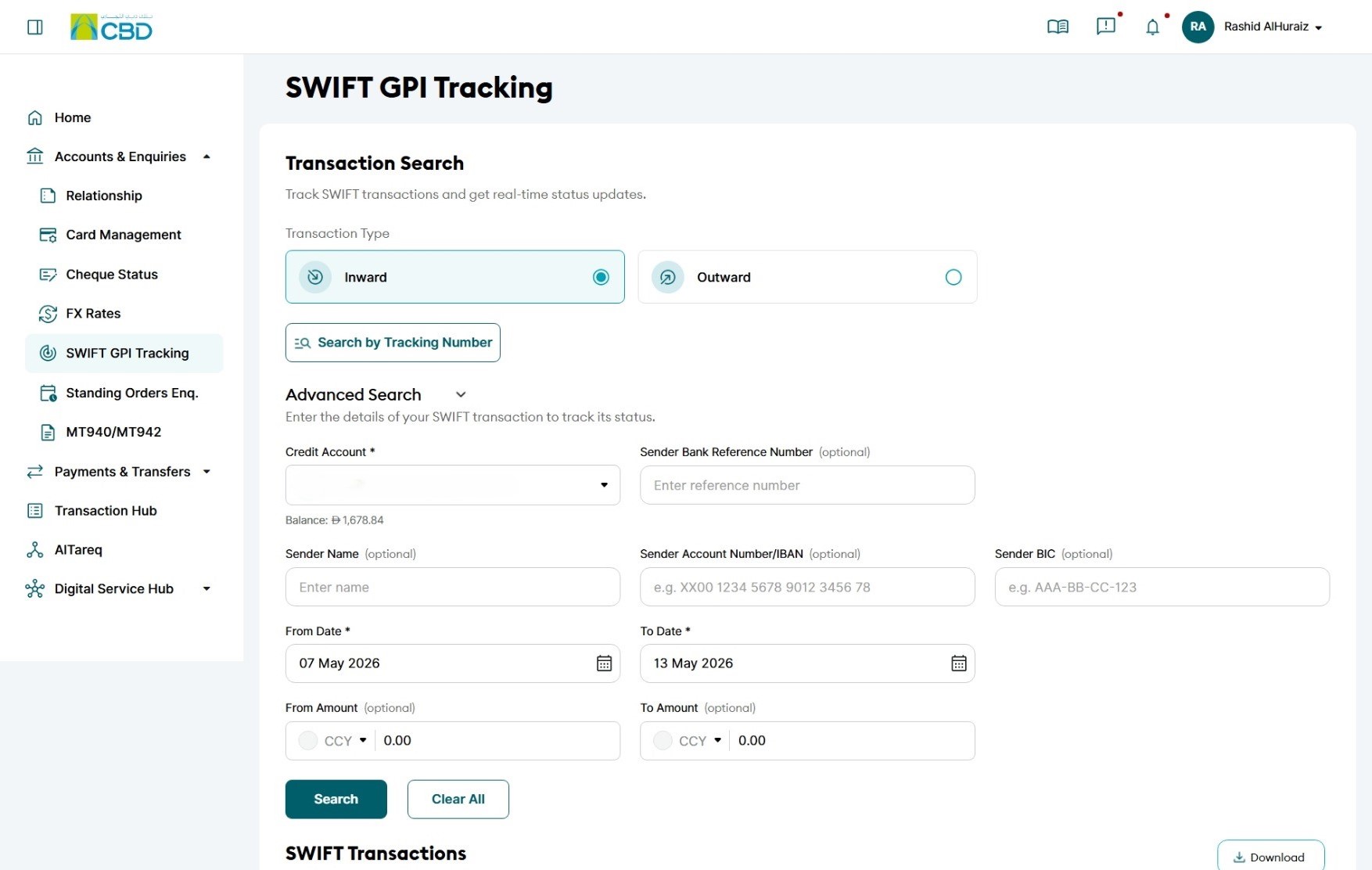
Advanced Search
For more targeted results, use the Advanced Search option to apply additional filters and search criteria.
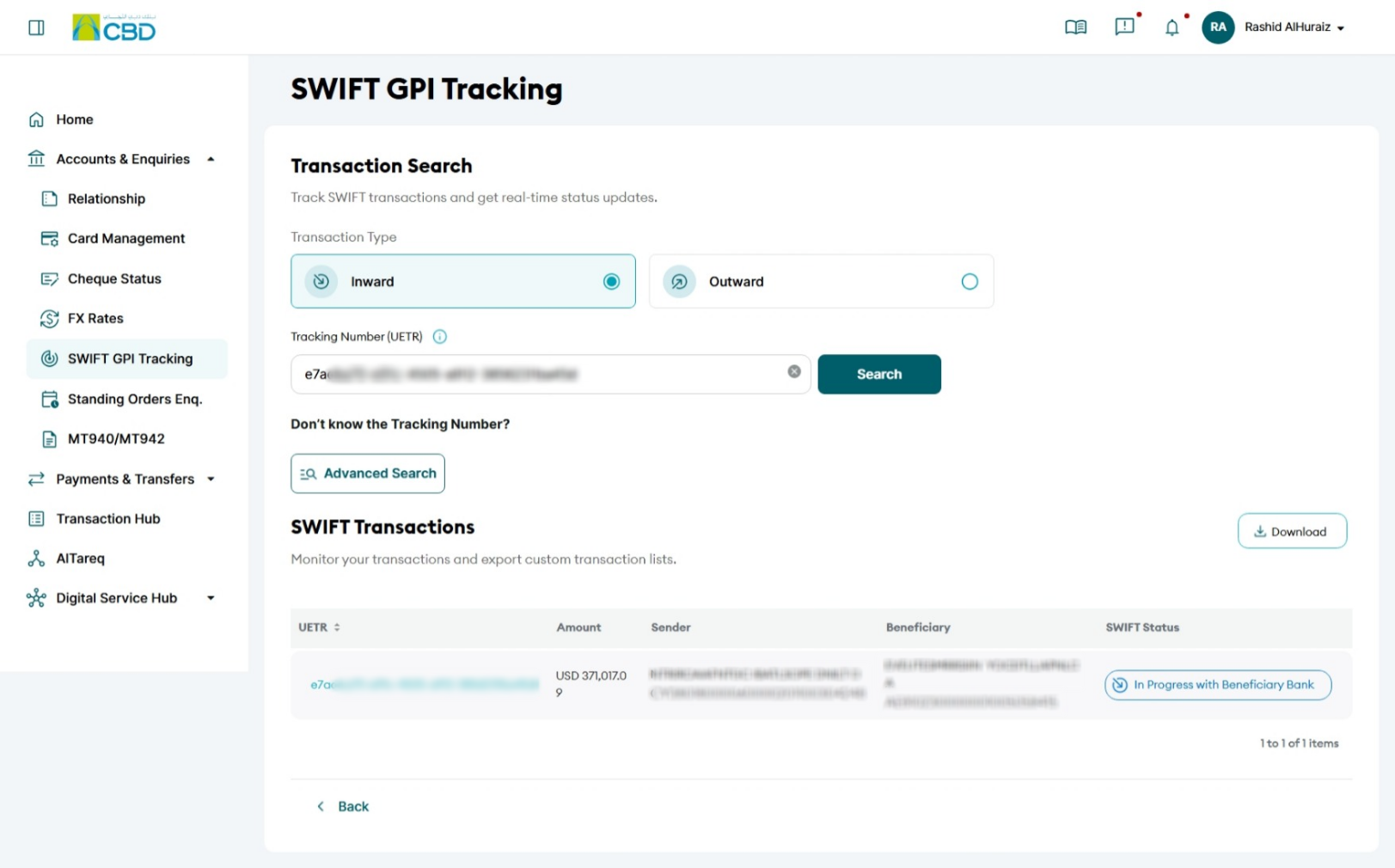
Step 3: View Transaction Details
- Review the list of matching transactions.
- Locate the required transaction.
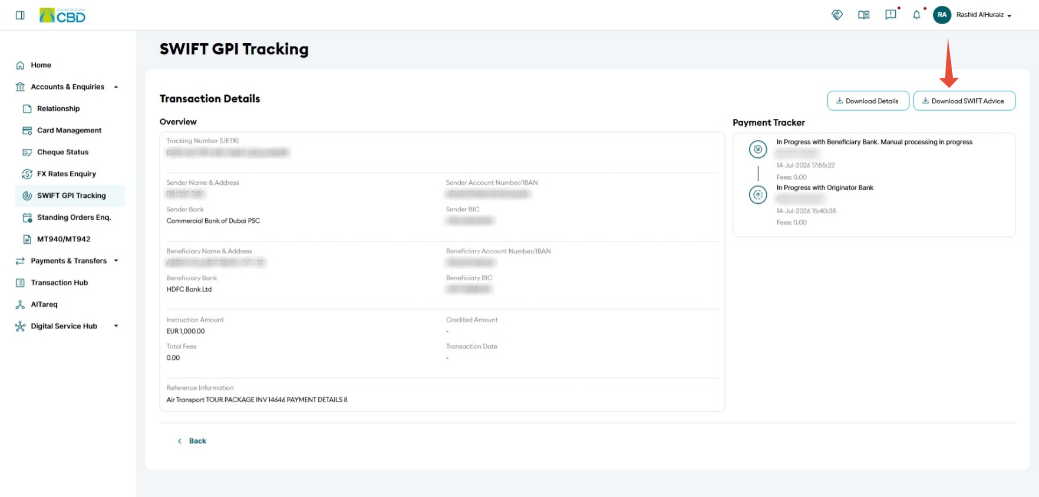
- Click the UETR Number to open the transaction details.
This will display detailed information about the selected SWIFT transaction.
Step 4: Download the SWIFT Advice
- From the transaction details screen, click Download SWIFT Advice.
- The SWIFT Advice document will be downloaded to your device.
Support Notes / Best Practices
- Use the UETR Number whenever available, as it provides the most accurate and efficient search results.
- Apply transaction filters such as Inward or Outward to narrow down search results.
- Review the transaction details carefully before downloading the SWIFT Advice.
- Ensure your browser allows file downloads and pop-ups if the document does not download automatically.
- Retain a copy of the SWIFT Advice for reconciliation, audit, and payment tracking purposes.