
Overview
This guide explains how to delete an active or scheduled MT940 Report in the iBusiness Web Portal.
Use this process when you no longer require a scheduled MT940 report and want to stop future report generation and delivery.
Step 1: Access MT940 / MT942 Services
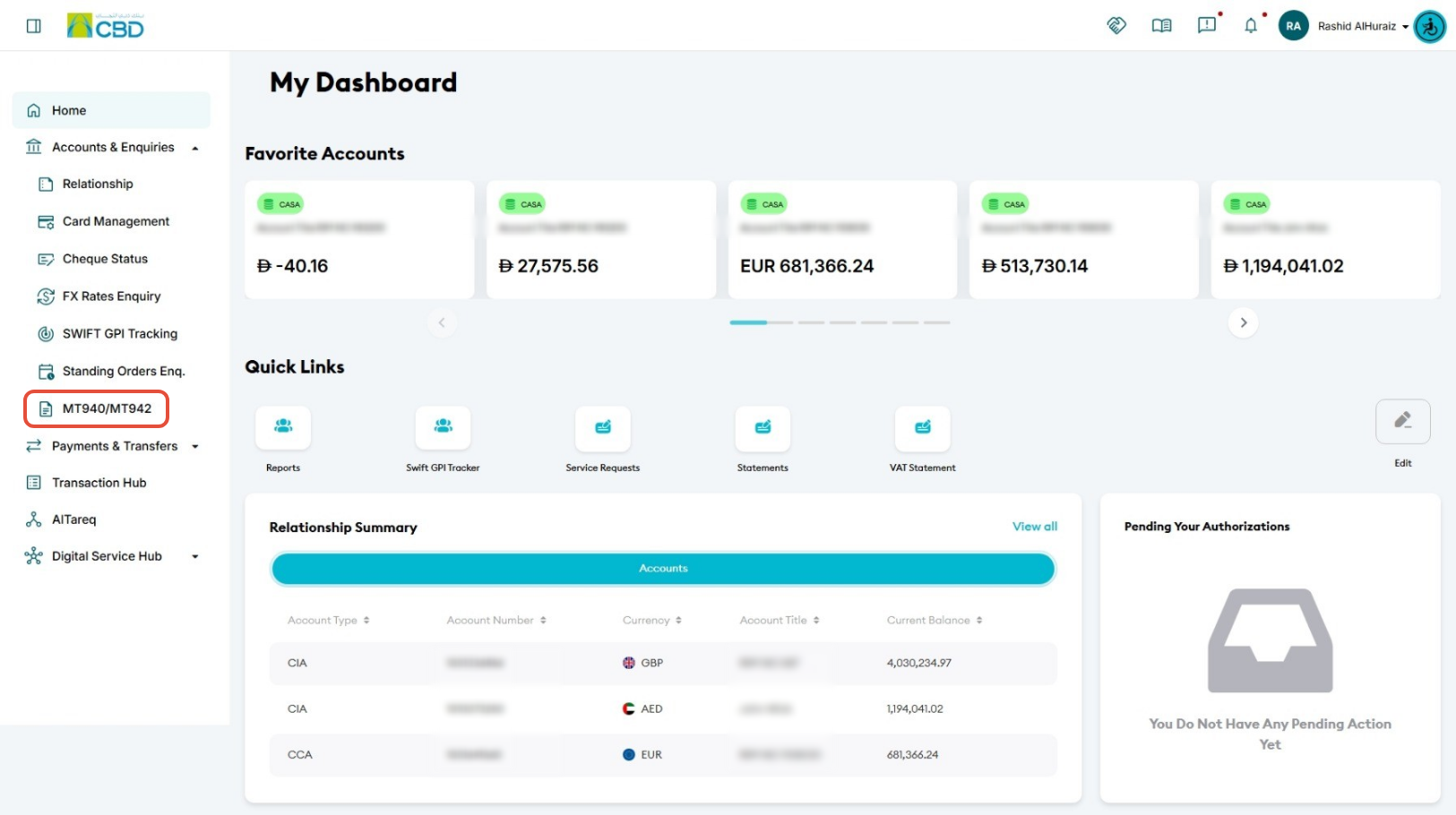
- Log in to iBusiness.
- Navigate to:
- Accounts & Enquiries
- MT940 / MT942
The MT940/MT942 landing page will display the available report options and previously configured reports.
Step 2: View Active MT940 Reports
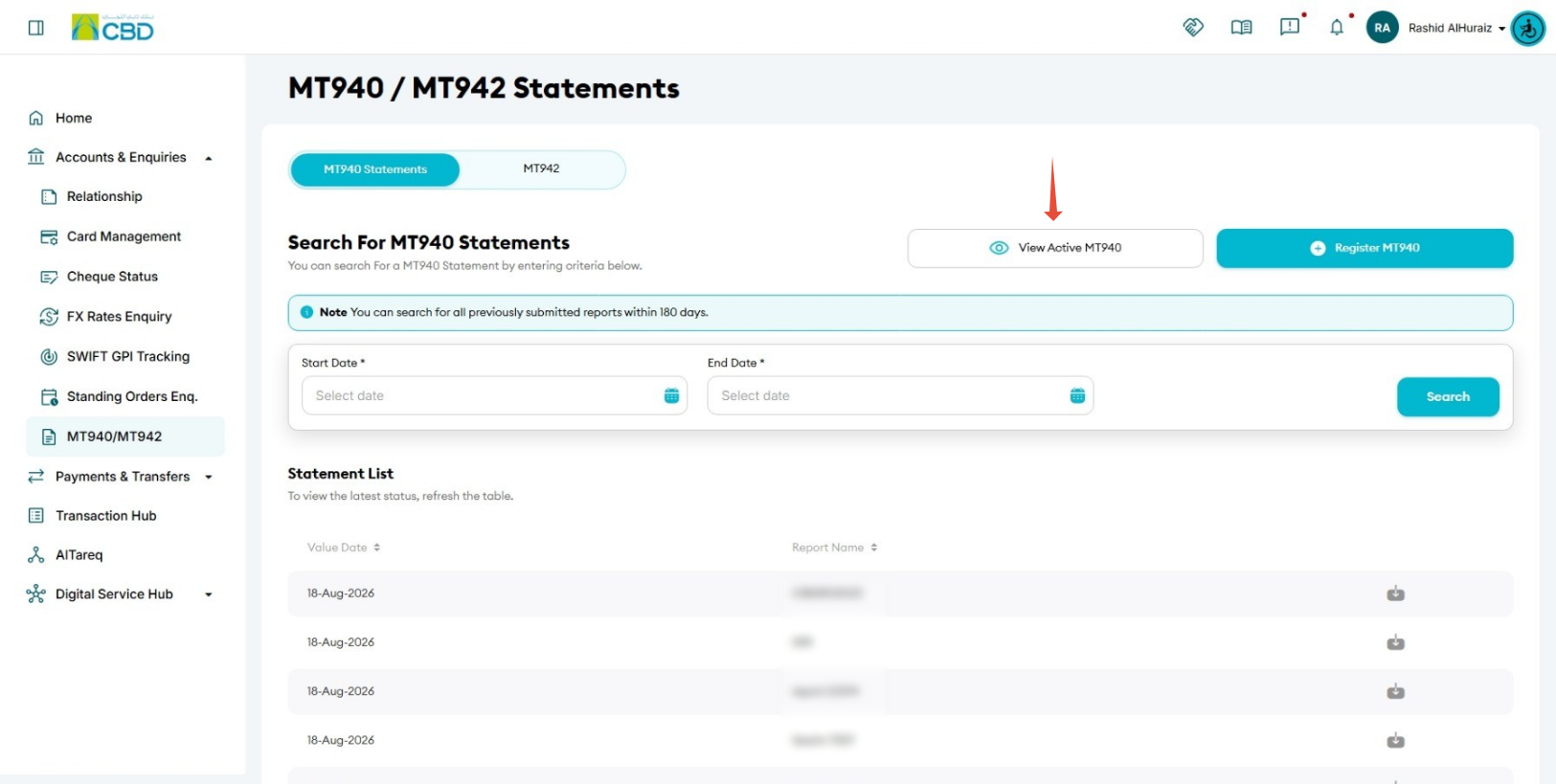
- Click View Active MT940.
The system will display all active and scheduled MT940 report configurations associated with your profile.
Step 3: Delete the Scheduled MT940 Report
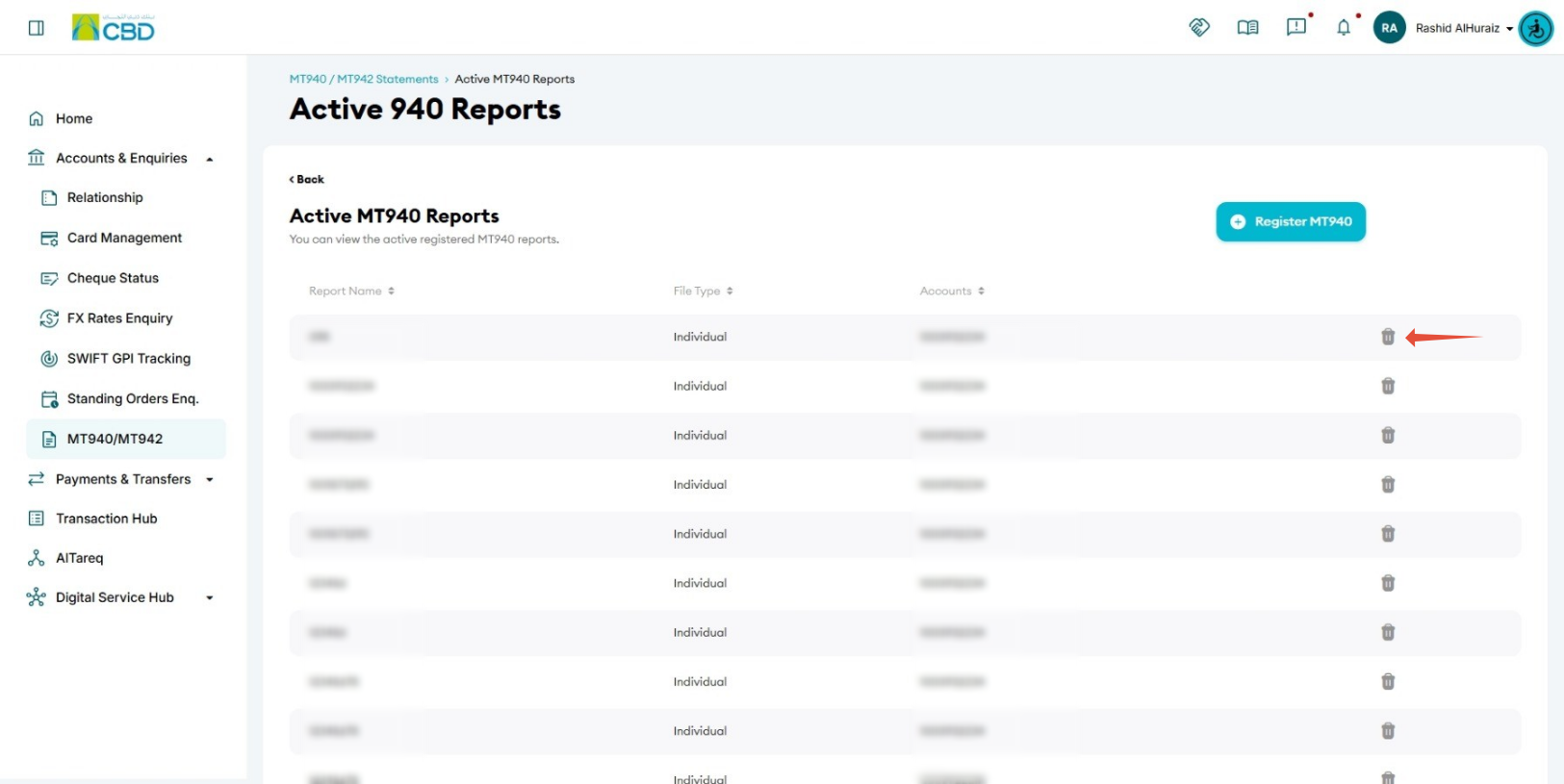
- Locate the MT940 report you want to remove.
- Click the Delete
 icon next to the selected report.
 - The system will display the selected MT940 report details.
Step 4: Confirm Deletion
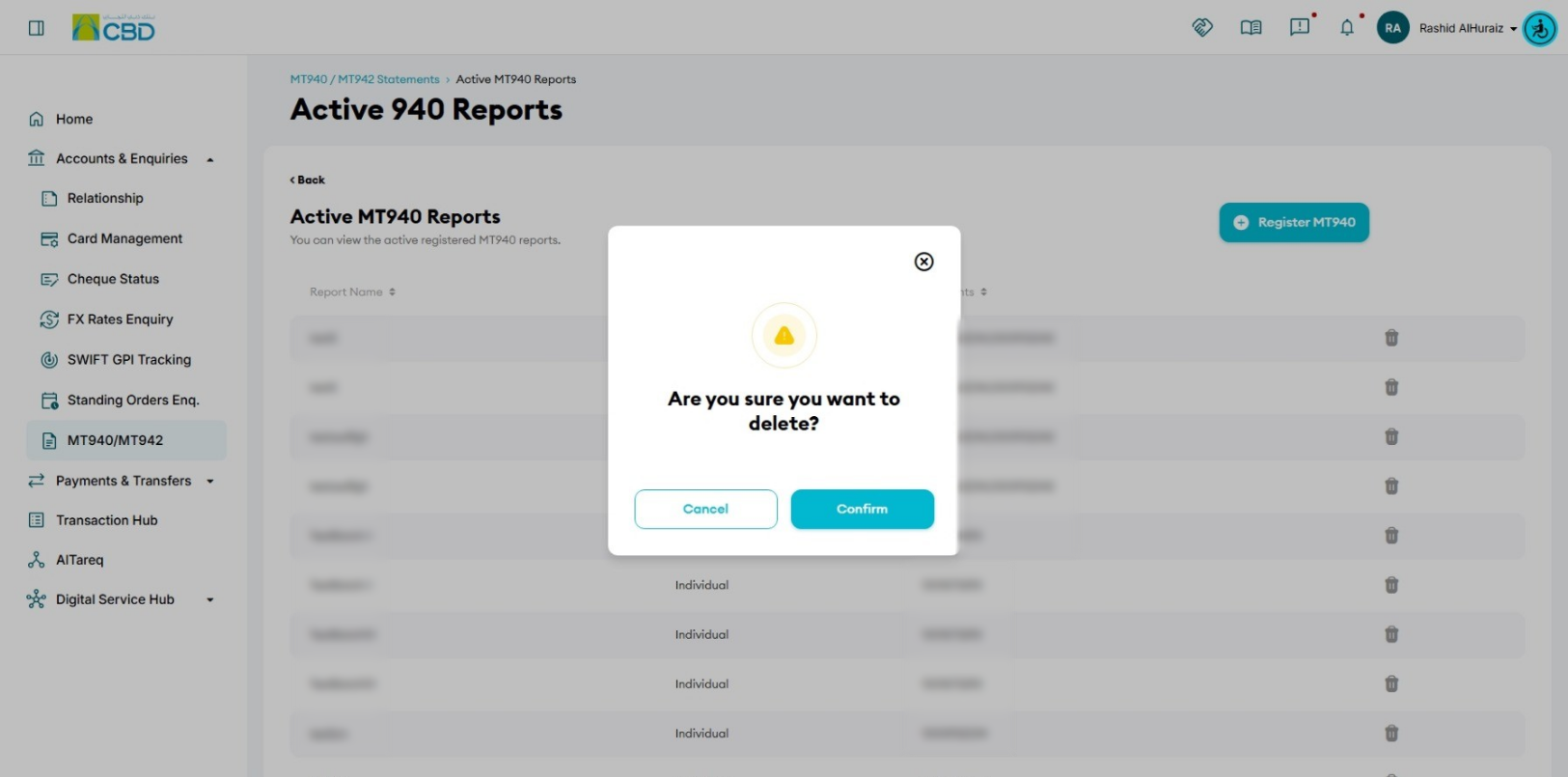
- Review the report details carefully.
- Confirm that you have selected the correct MT940 report.
- Click Confirm to complete the deletion process.
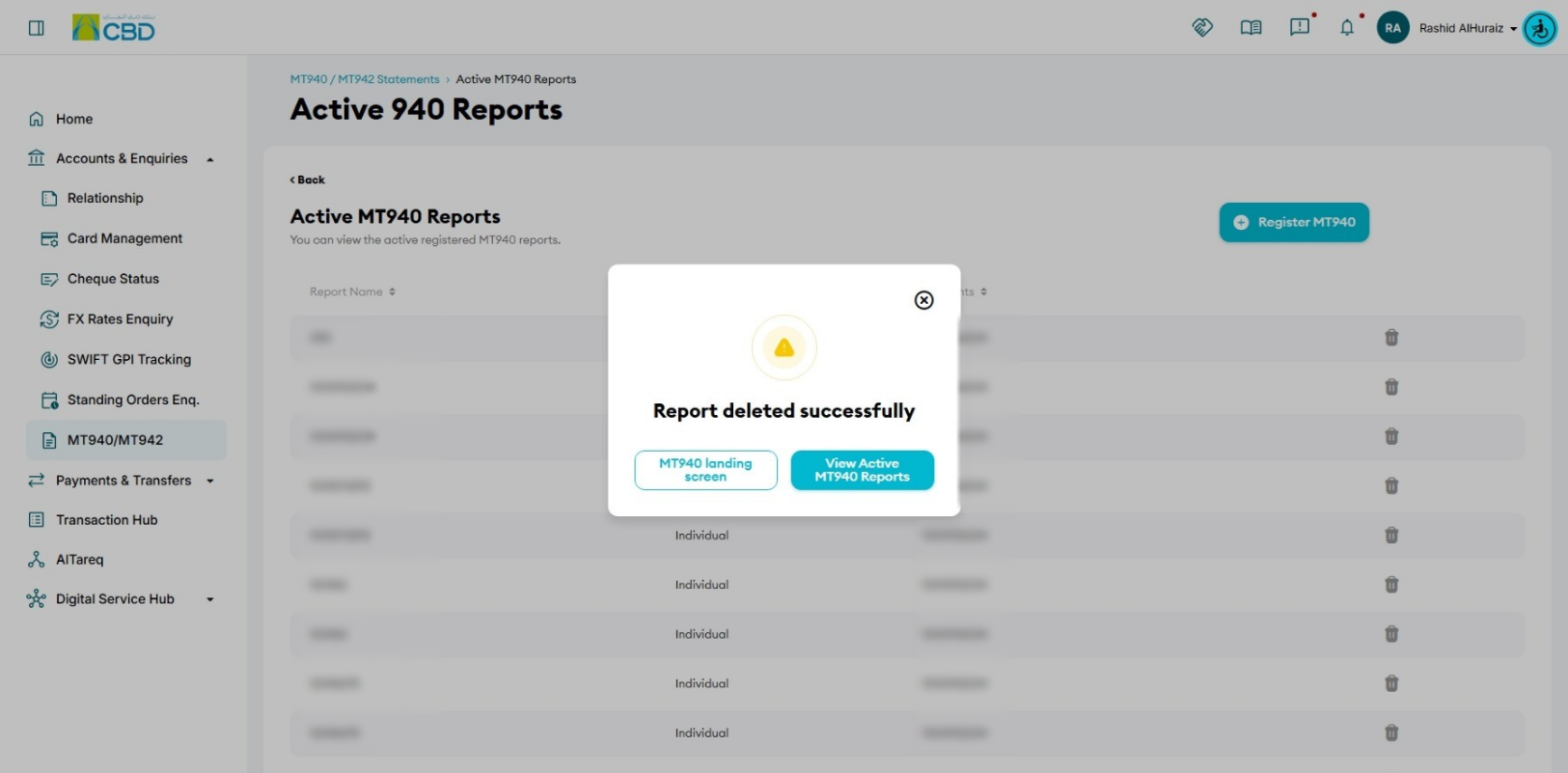
Once confirmed, the scheduled MT940 report will be removed, and future report generation will stop.
Navigation Options
After deleting the report, you can:
Return to the MT940 / MT942 Landing Page
Navigate back to the MT940 / MT942 screen to access other report services.
View Active MT940 Reports
Remain on the Active MT940 Reports page to review any remaining active report schedules.
Support Notes / Best Practices
- Verify the report details before deleting an active MT940 schedule.
- Deleting a scheduled MT940 report will stop future report generation and delivery.
- Review active MT940 reports regularly to ensure only required schedules remain active.
- If multiple MT940 reports are configured, ensure the correct report is selected before confirming deletion.