
Overview
This guide provides step-by-step instructions for tracking SWIFT GPI transactions through the iBusiness Web Portal.
The SWIFT GPI Tracking service allows users to:
- Track payment status in near real time.
- View detailed transaction information.
- Monitor the payment journey from sender to beneficiary.
- Download SWIFT Advice documents.
- Download transaction details for audit and reference purposes.
Step 1: Access SWIFT GPI Tracking
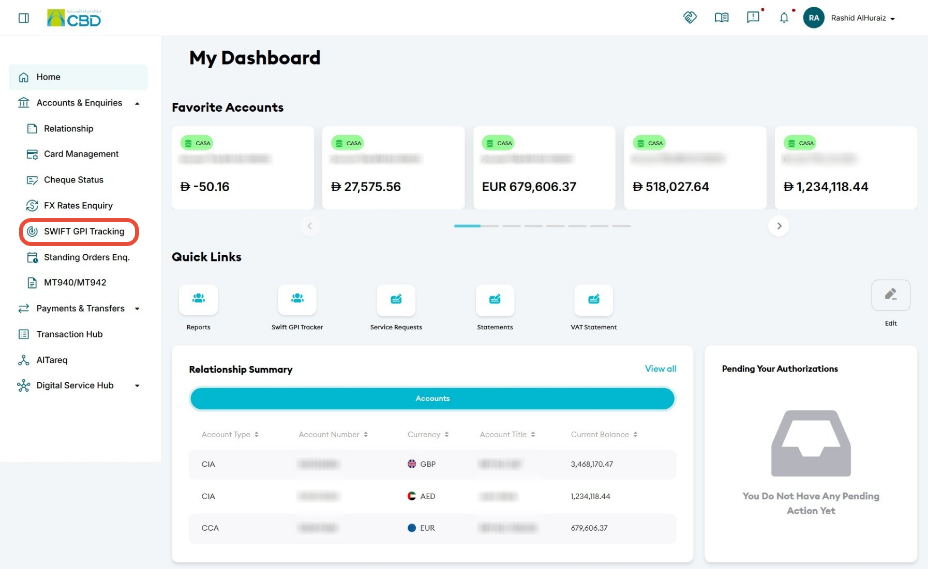
- Log in to iBusiness.
- Navigate to: Accounts & Enquiries ➜ SWIFT GPI Tracking
This screen allows you to search for and track SWIFT transactions.
Step 2: Search for a SWIFT Transaction
You can search for SWIFT transactions using either Basic Search or Advanced Search.
Basic Search
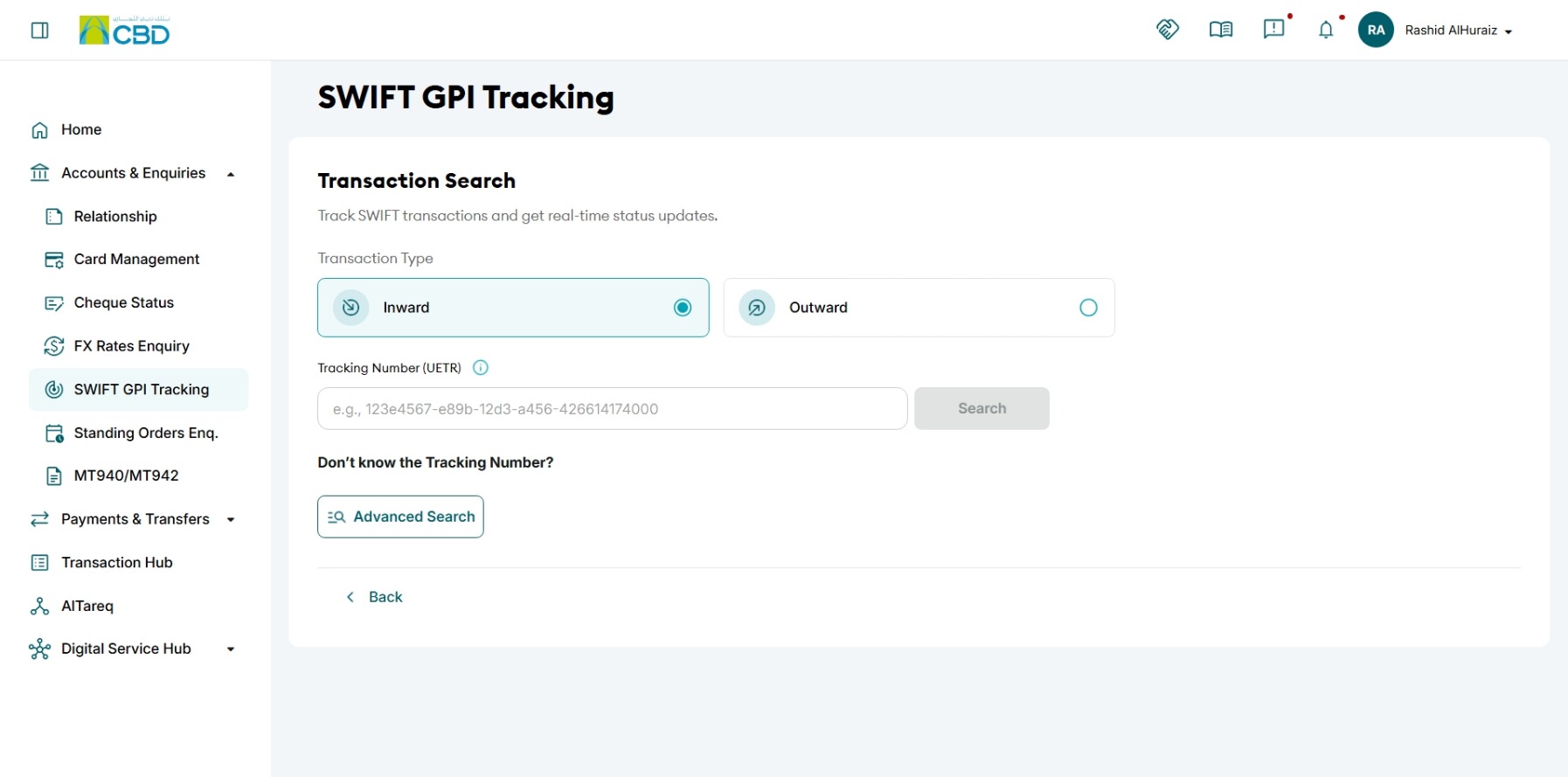
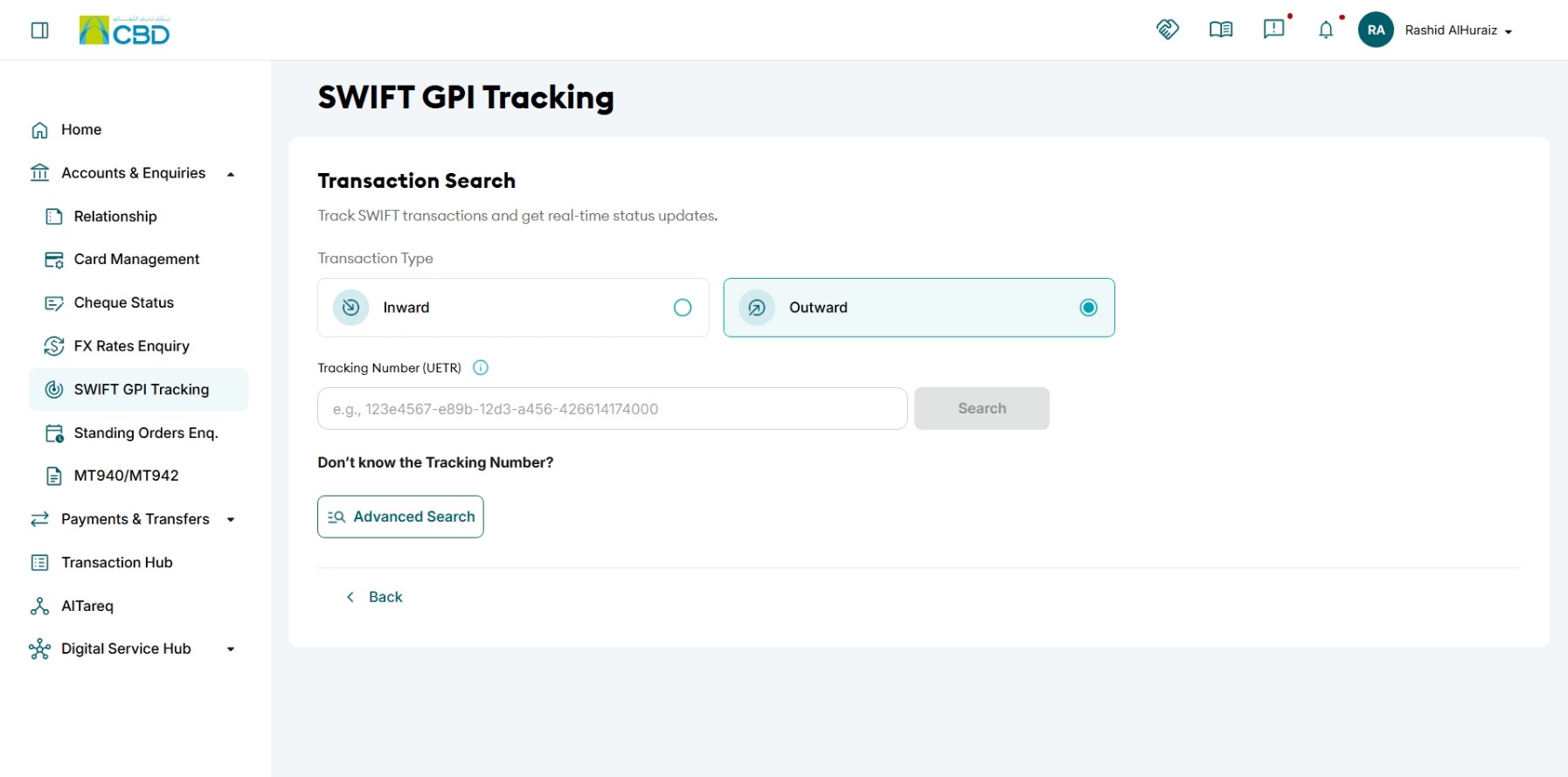
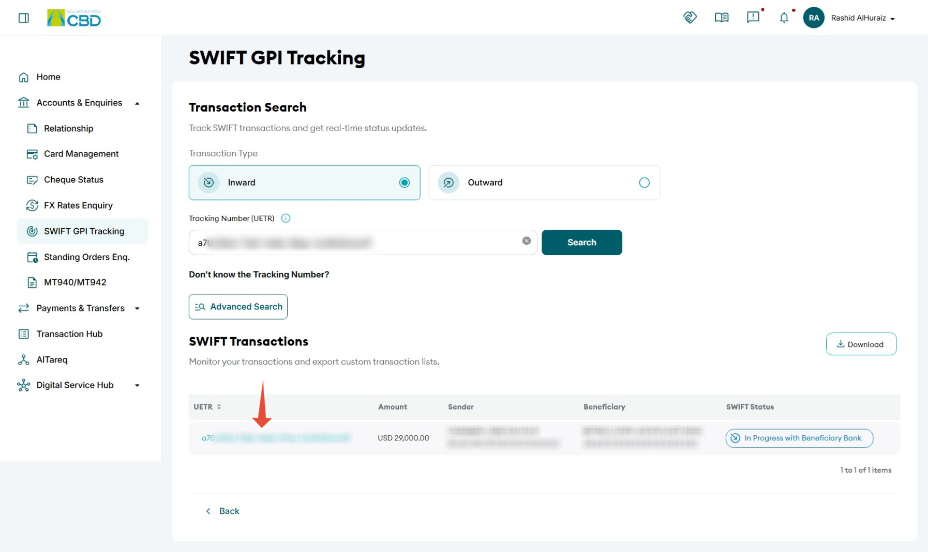
Search using one or more of the following criteria:
- Transaction Type
- Inward
- Outward
- Unique End-to-End Transaction Reference (UETR)
Finding the UETR Number
The UETR (Unique End-to-End Transaction Reference) can be obtained from the transaction details within Transaction Hub.
Search Results
After entering the required search criteria, click Search. Matching SWIFT transactions will be displayed.
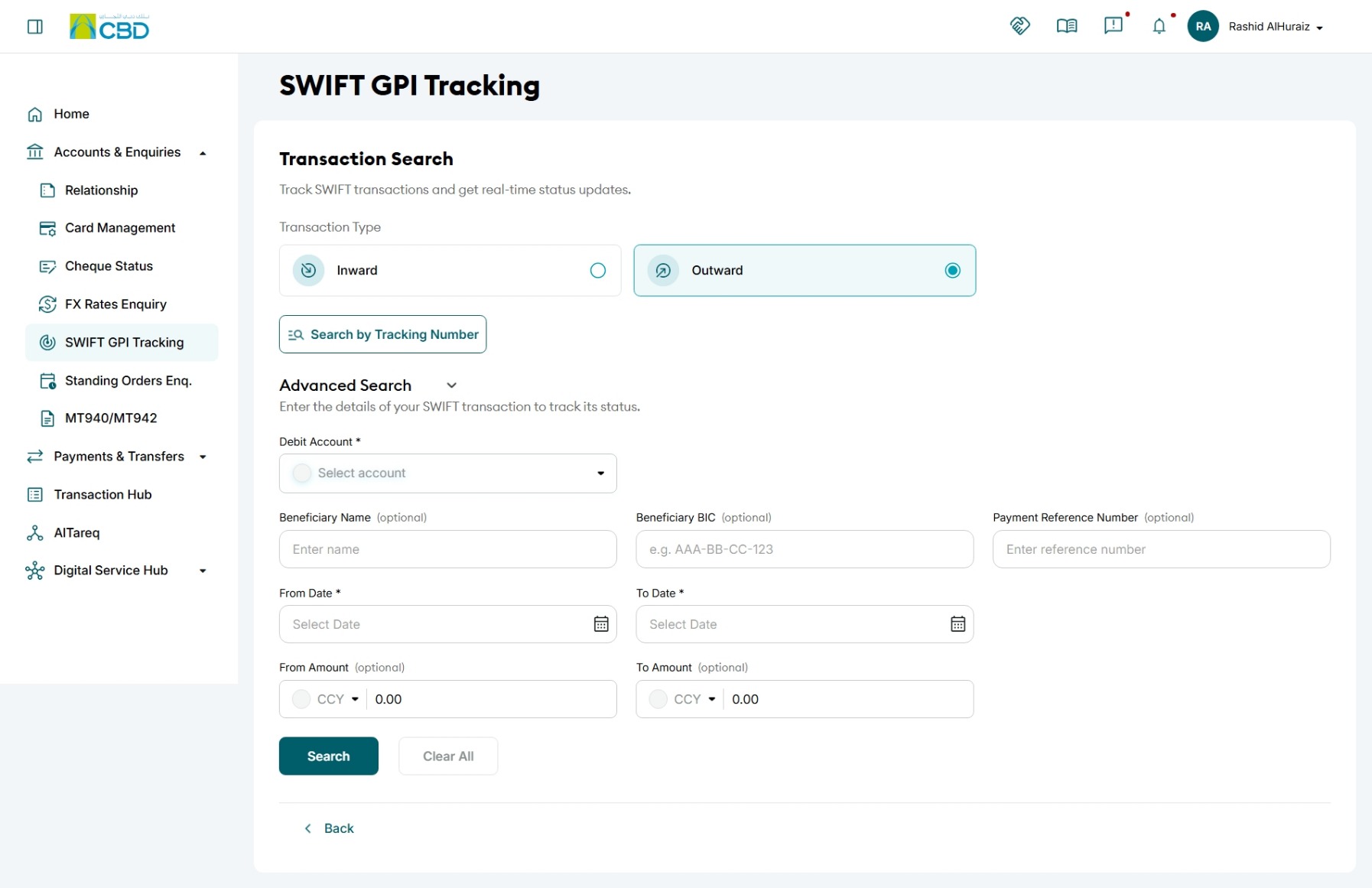
Advanced Search
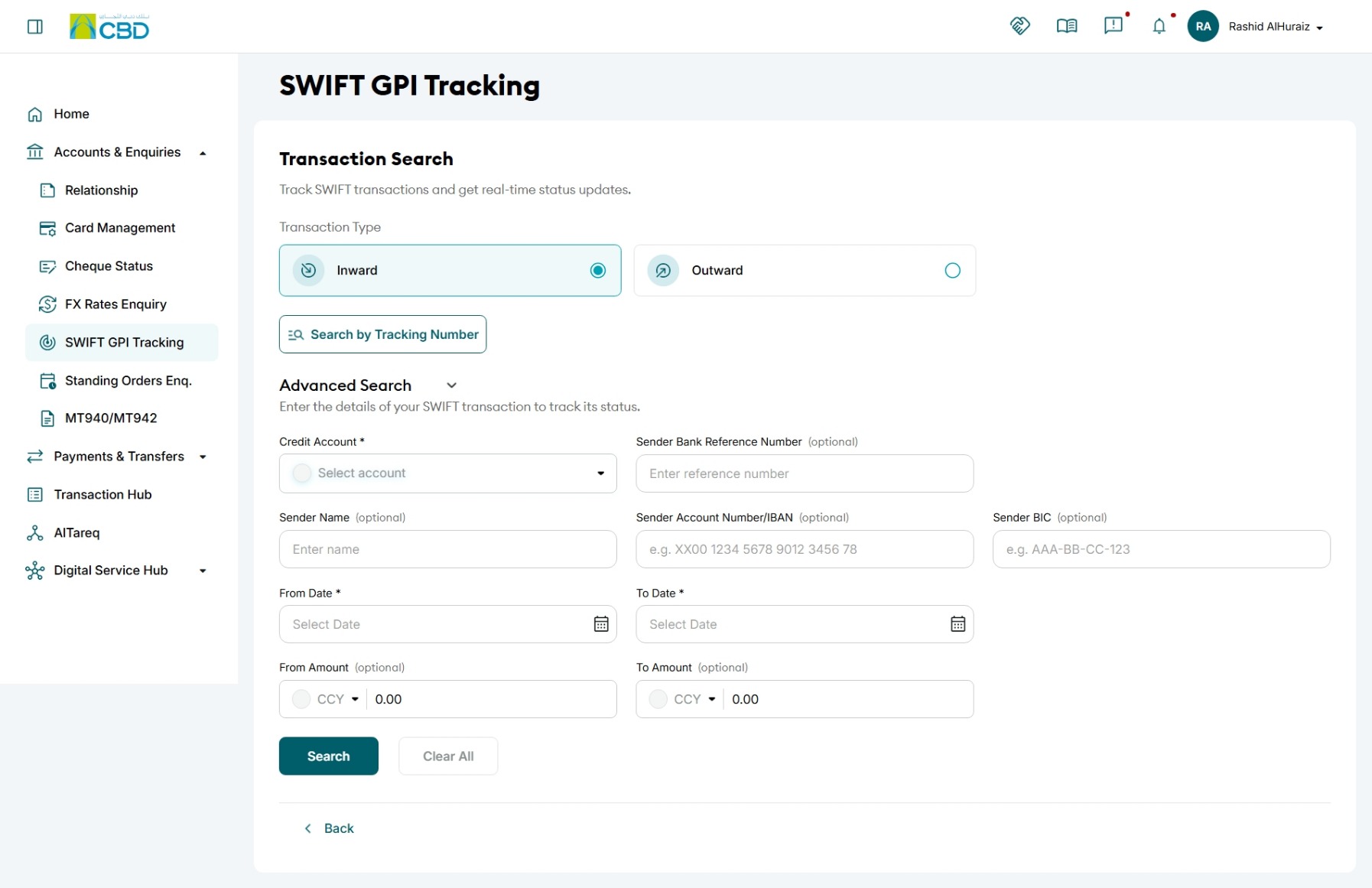
If additional filtering is required, select Advanced Search.
The following search options are available:
- Account Number
- Sender's Bank Reference Number
- Sender's Name
Advanced Search helps narrow results when multiple transactions exist.
Step 3: View Transaction Details
- Locate the required transaction from the search results.
- Click the transaction to open the detailed tracking view.
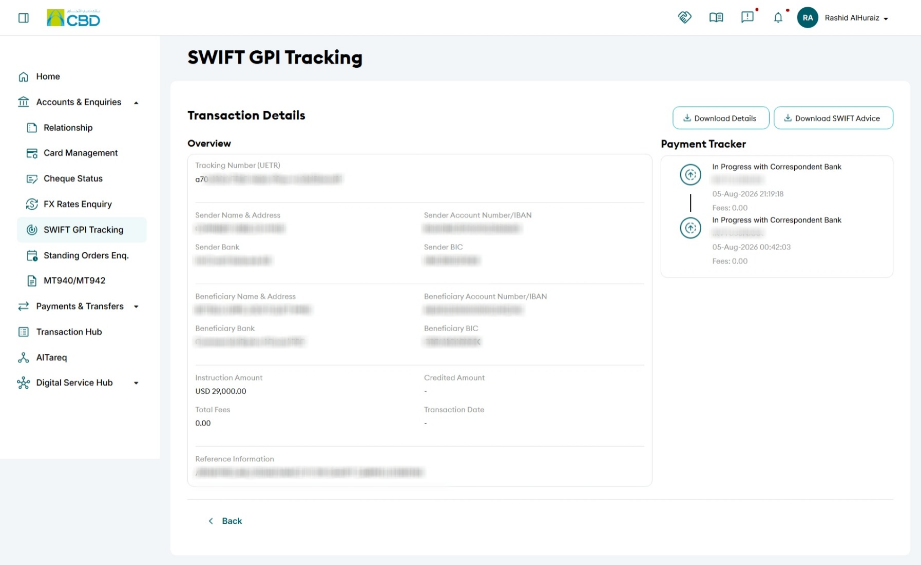
The transaction details page provides a complete view of the payment and its current status.
Step 4: Track the Payment Status
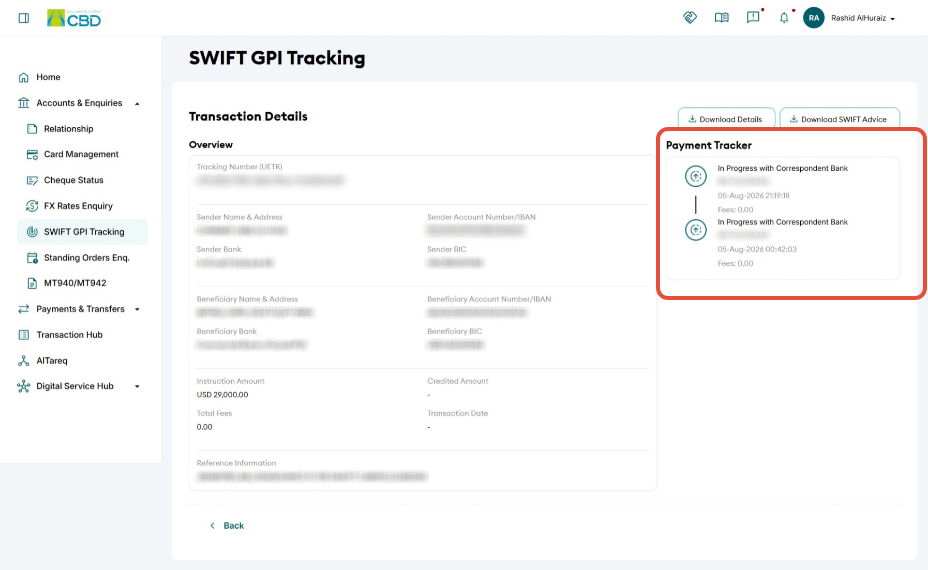
From the transaction details screen, Payment Tracker will map out the payment journey.
The Payment Tracker allows you to:
- View the current payment status.
- Monitor the progress of the transfer.
- Check intermediate processing stages.
- Confirm whether the payment has been completed.
This provides greater visibility into the movement of the payment between the sending and receiving banks.
Step 5: Download Supporting Documents
The following download options are available:
Download SWIFT Advice
Use this option to download the official SWIFT Advice document related to the selected transaction.
Download Transaction Details
Use this option to download a copy of the transaction information for:
- Record keeping
- Reconciliation
- Internal audit purposes
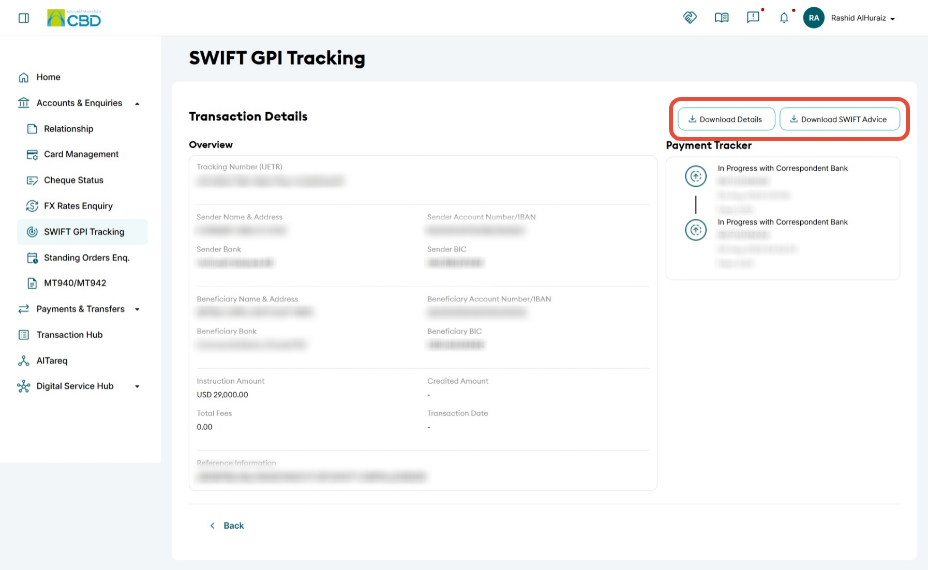
Additional Information Available
The Overview section displays detailed transaction information, including:
- Transaction Type
- Payment Status
- UETR Reference
- Sender Information
- Beneficiary Information
- Payment Amount
- Currency
- Transaction References
Support Notes / Best Practices
- Use the UETR whenever possible, as it provides the fastest and most accurate search results.
- Use Advanced Search when the UETR is unavailable.
- Verify the transaction type (Inward or Outward) before searching.
- Review the Payment Tracker for the latest status updates before raising a payment enquiry.
- Download and retain SWIFT Advice documents for reconciliation and audit purposes.