
Viewing Relationship Manager Details – iBusiness Web
Step 1: Navigate to Relationship Managers
1. Log in to the iBusiness.
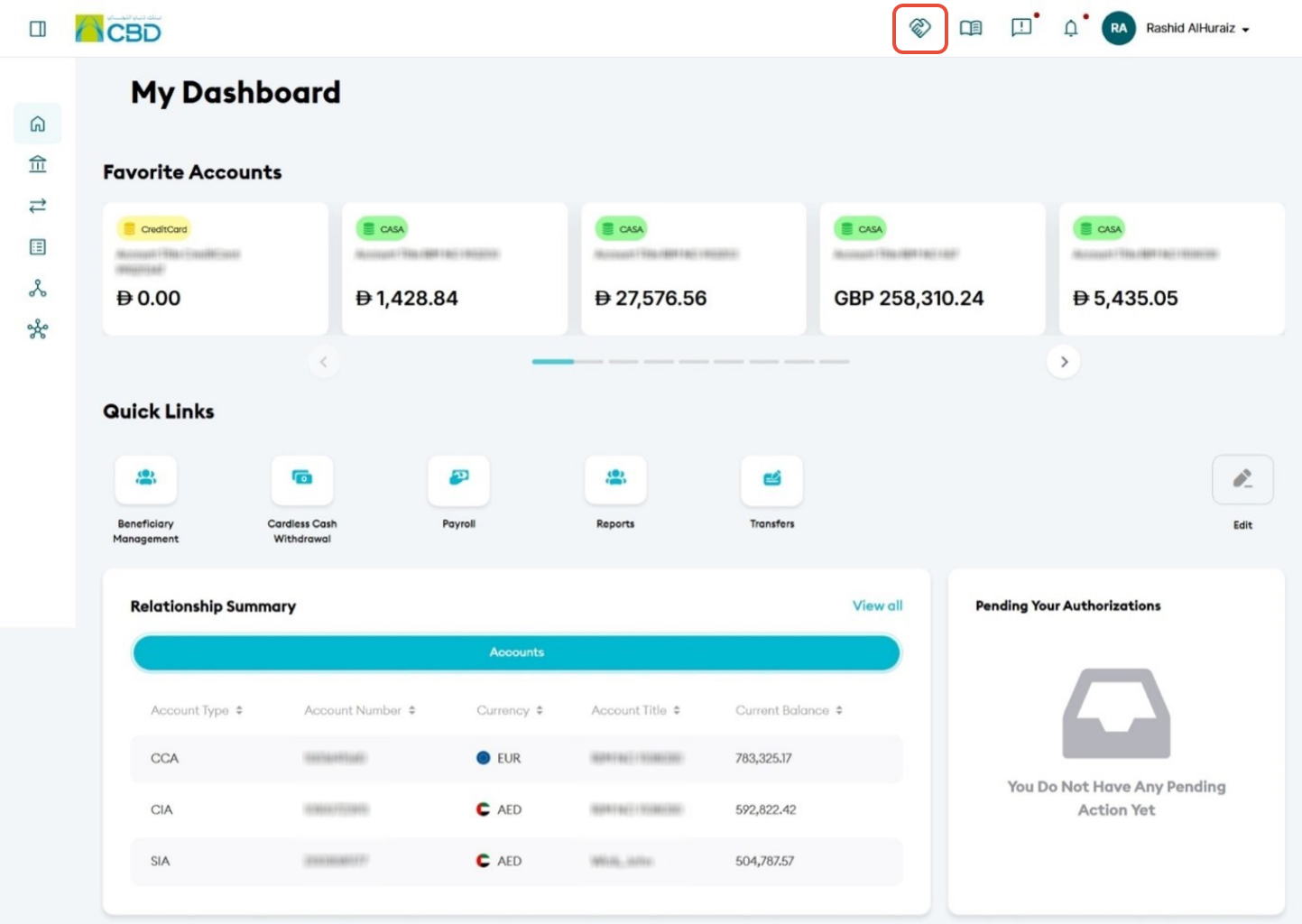
2. Click the Handshake icon  from the top navigation menu.
Step 2: Select a Company
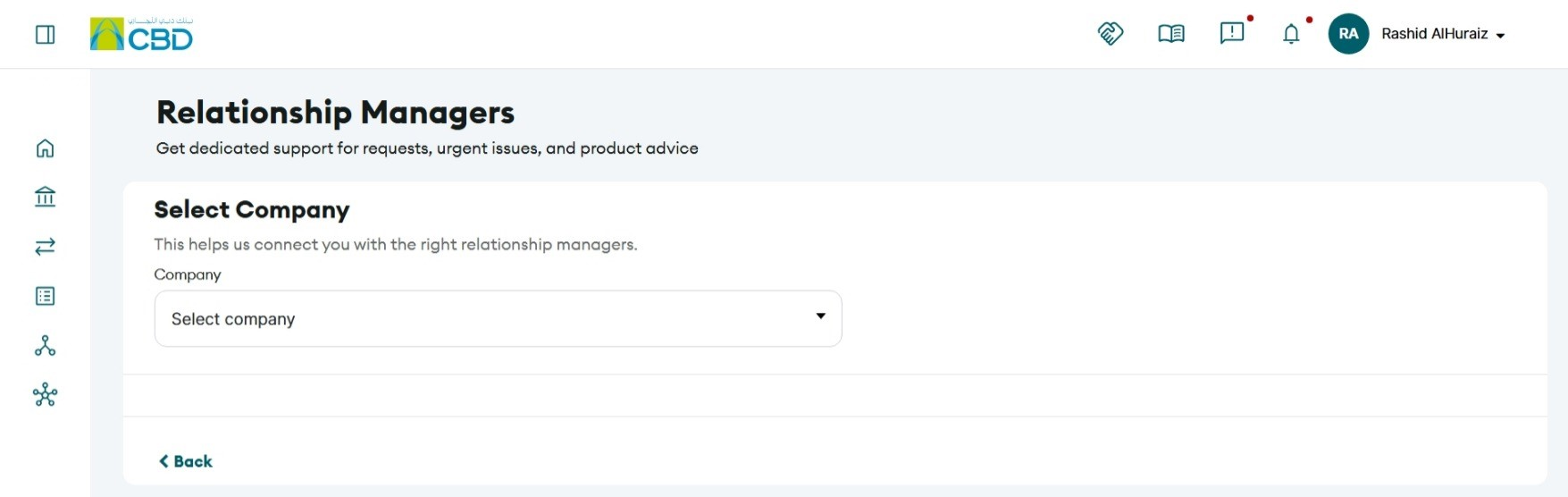
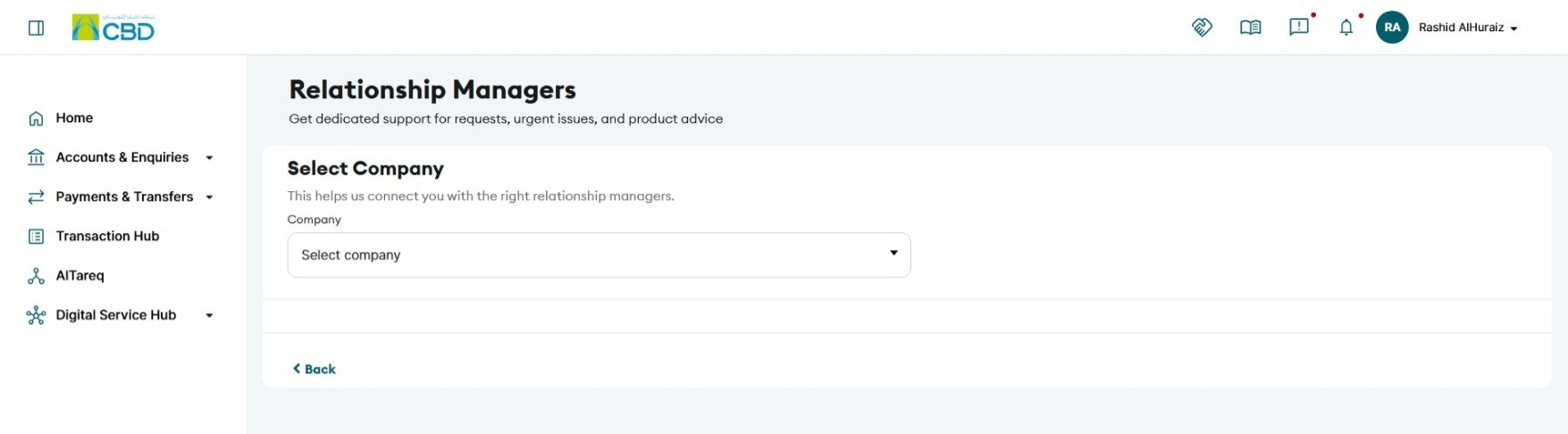
1. Select the required company from the available list.
2. The system will display the Relationship Managers assigned to that company.
Step 3: View Relationship Manager Information
The system displays details for both:
• Primary Relationship Manager
• Secondary Relationship Manager (if assigned)
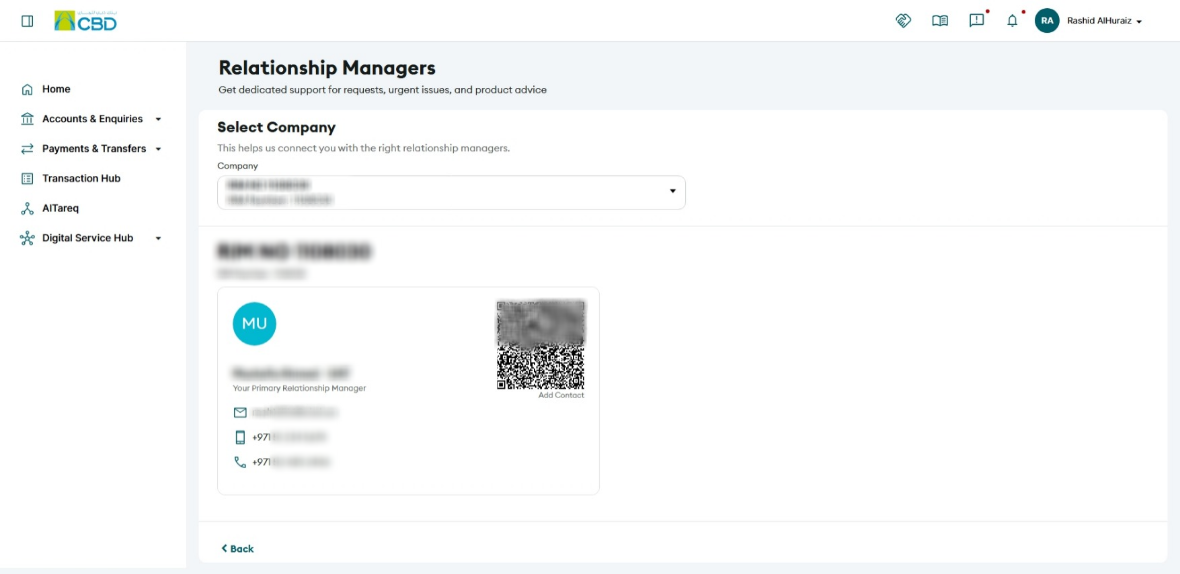
Available information includes:
• Name
• Time Zone
• Email Address
• Mobile Number
• Phone Number
Step 4: Add Relationship Manager to Contacts
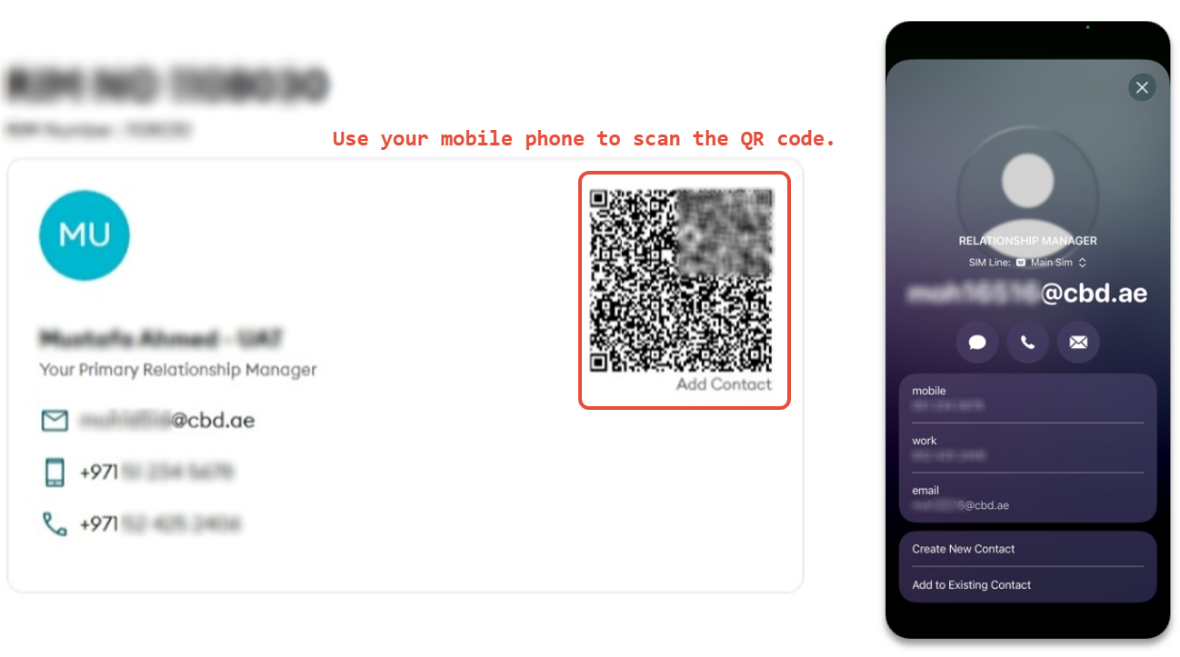
A QR code is displayed next to the Relationship Manager's details.
1. Scan the QR code using your mobile device.
2. The Relationship Manager's contact details can be saved directly to your
 If No Relationship Manager Is Assigned
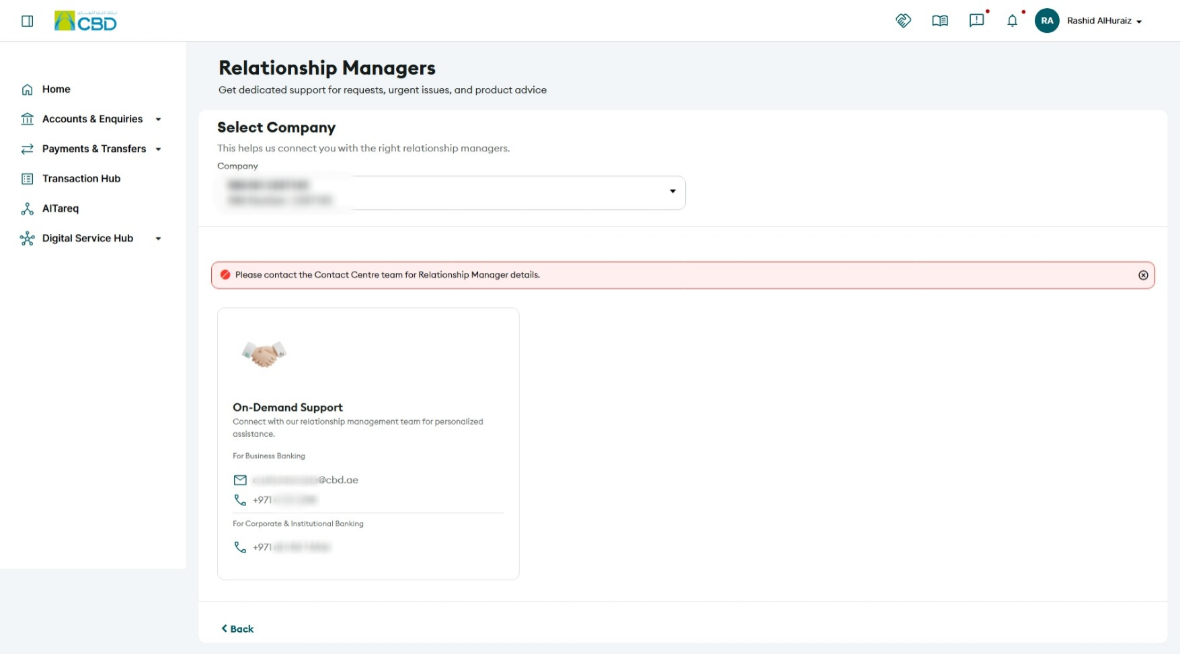
If a Relationship Manager has not been assigned to your company, the application will display Relationship Support details instead.
The following information will be available:
- Relationship Support Email Address
- Relationship Support Phone Number
- Add to Contacts option
Support Notes / Best Practices
• Ensure the correct company is selected when viewing Relationship Manager details.
• If multiple companies are linked to your profile, Relationship Manager assignments may vary by company.
• Use the Add to Contacts feature to save Relationship Manager details for quick access.
• If no Relationship Manager is assigned, use the available Relationship Support contact information for assistance.
• Verify contact details periodically to ensure you have the latest information.