
Overview
This guide provides step-by-step instructions for reviewing and approving an Import Letter of Credit Draft in iTrade.
Users with the appropriate permissions can review pending Letter of Credit requests, respond to consent requests, and submit the approval to the bank for processing.
Step 1: Access Import Letter of Credit Services
- From the iTrade Dashboard, select Trade Services from the main navigation menu.
- Click Import Letter of Credit.
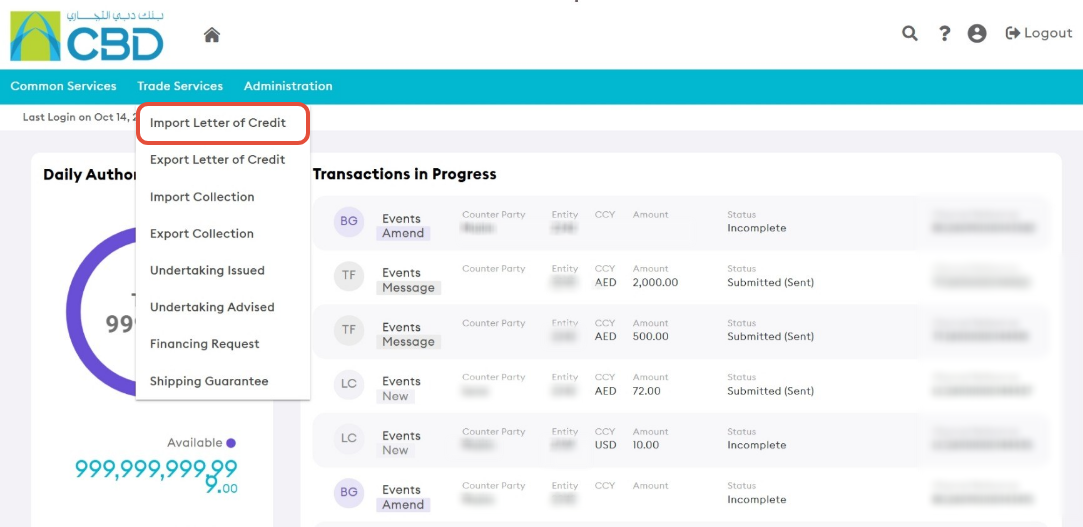
This will open the Import Letter of Credit Dashboard and display all available Import Letter of Credit transactions.
Step 2: Open the Actions Tab
- Select the Actions tab.

The Actions tab displays Import Letter of Credit transactions that require action from the user, including requests awaiting review, approval, or a consent response.
Step 3: Review the Letter of Credit Draft
- Locate the Import Letter of Credit draft that requires approval.
- Review the transaction details carefully.
- Click Consent Response for the Import Letter of Credit you want to review.
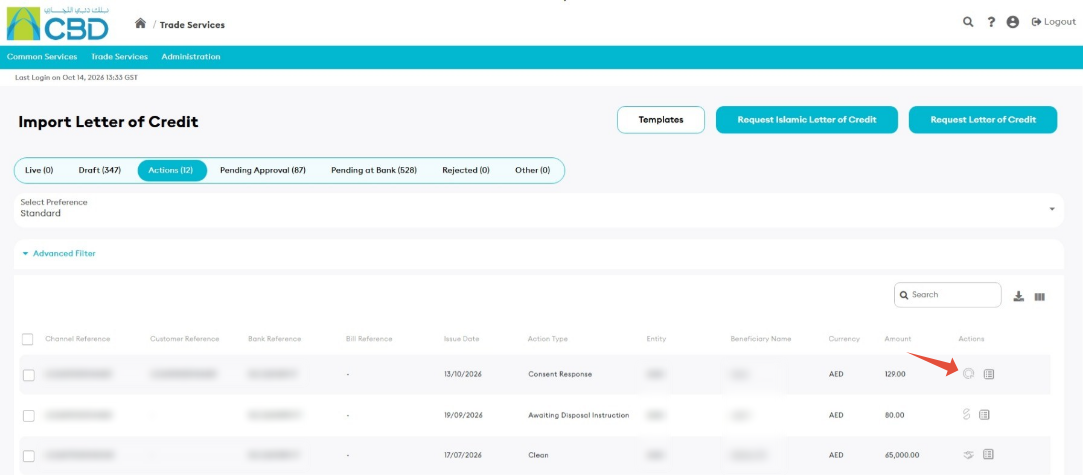
Important: Before proceeding, verify that the Letter of Credit details are accurate and comply with your organization's requirements and approval procedures.
Step 4: Submit the Consent Response
- Review the draft and provide the required consent response.
- Click Submit to continue.
- The system will process the response and forward the request for the next stage of processing.
Step 5: Confirmation
After the consent response has been submitted successfully:
- An acknowledgment message will be displayed.
- The transaction status will be updated accordingly.
- If the request has been processed successfully, the confirmation will indicate that the response has been received by the bank.