Overview
This guide explains the different sections and transaction statuses available in the Import Letter of Credit Dashboard in iTrade.
Access the Import Letter of Credit Dashboard
- Open Trade Services from the main navigation menu.
- Select Import Letter of Credit from the drop-down menu.
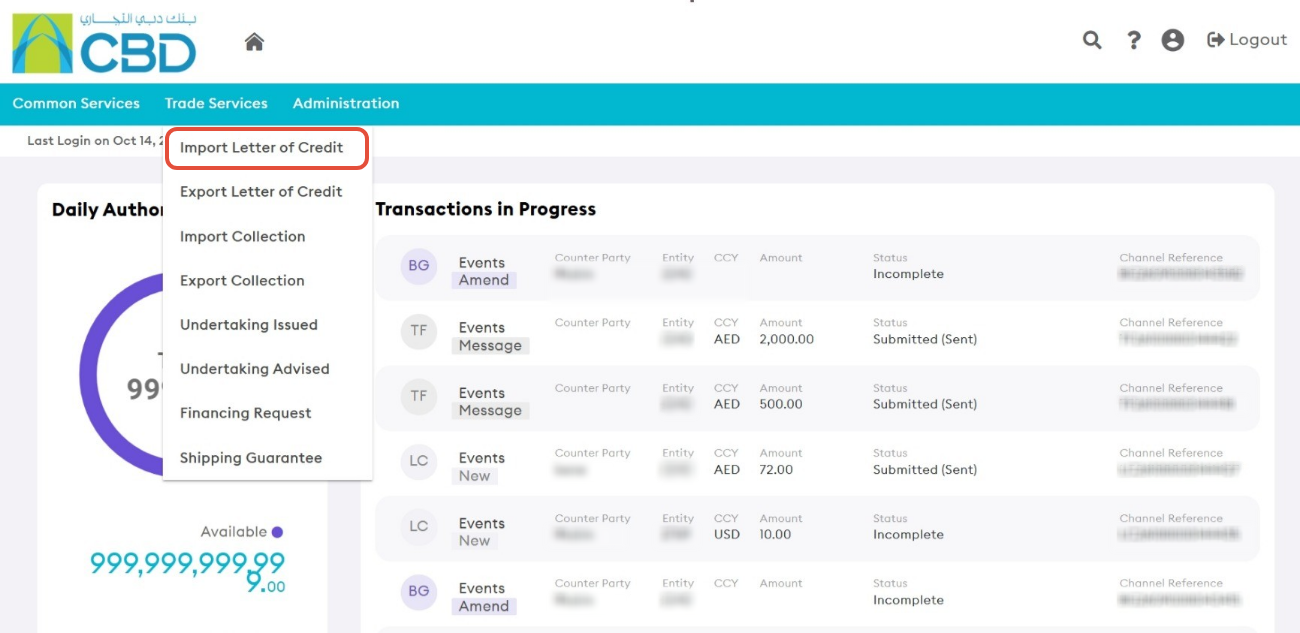
Note: User permissions should be in place to work with Import Letters of Credit. If not, contact your Corporate Administrator.
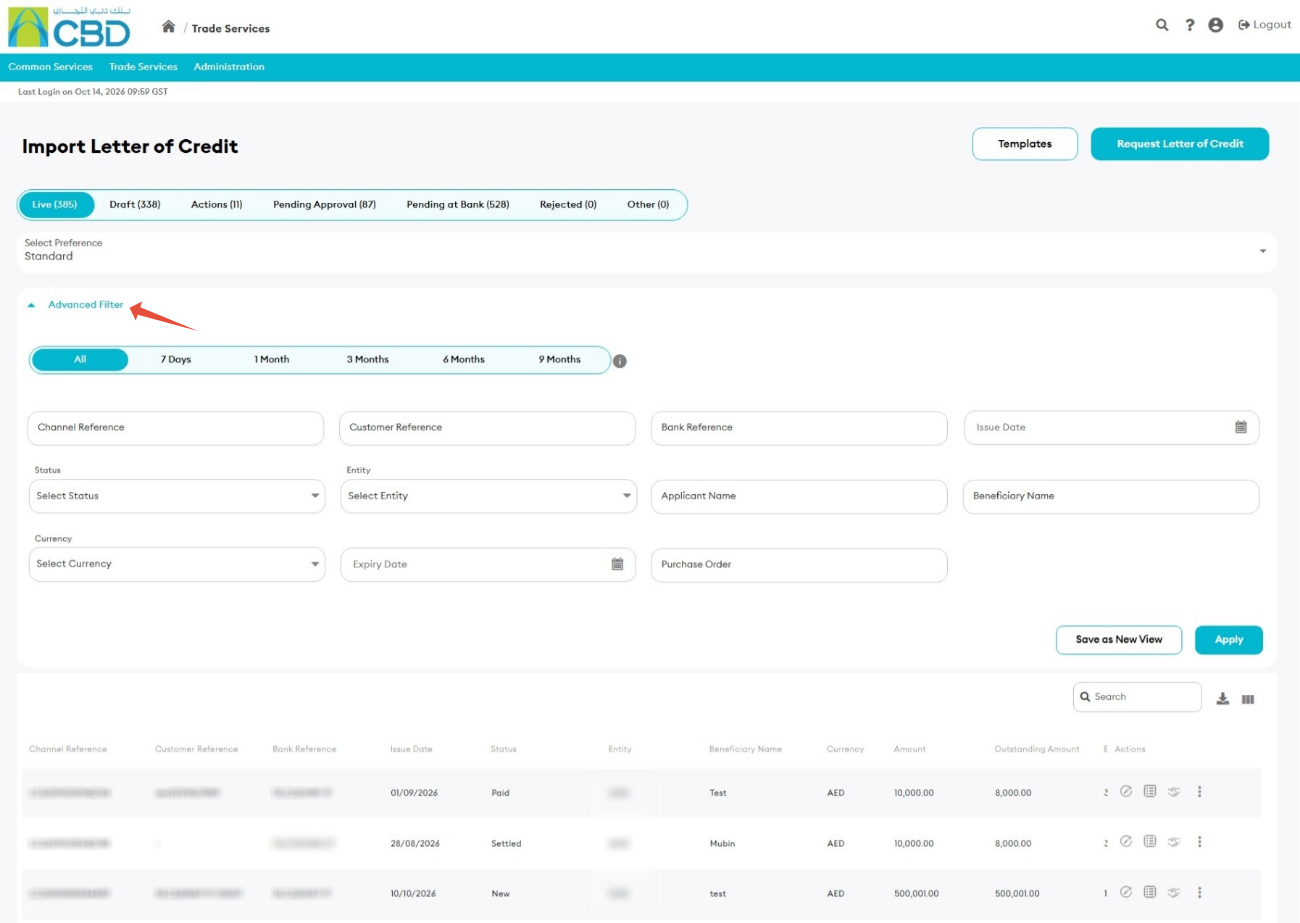
Advanced Filters
Click Advanced Filter to access additional search options.
Customize Table Columns
The Import Letter of Credit Dashboard allows you to customize the columns displayed in the transaction list. This helps you focus on the information most relevant to your role and workflow.
Open Column Settings
From the transaction grid, click the Column Settings icon.
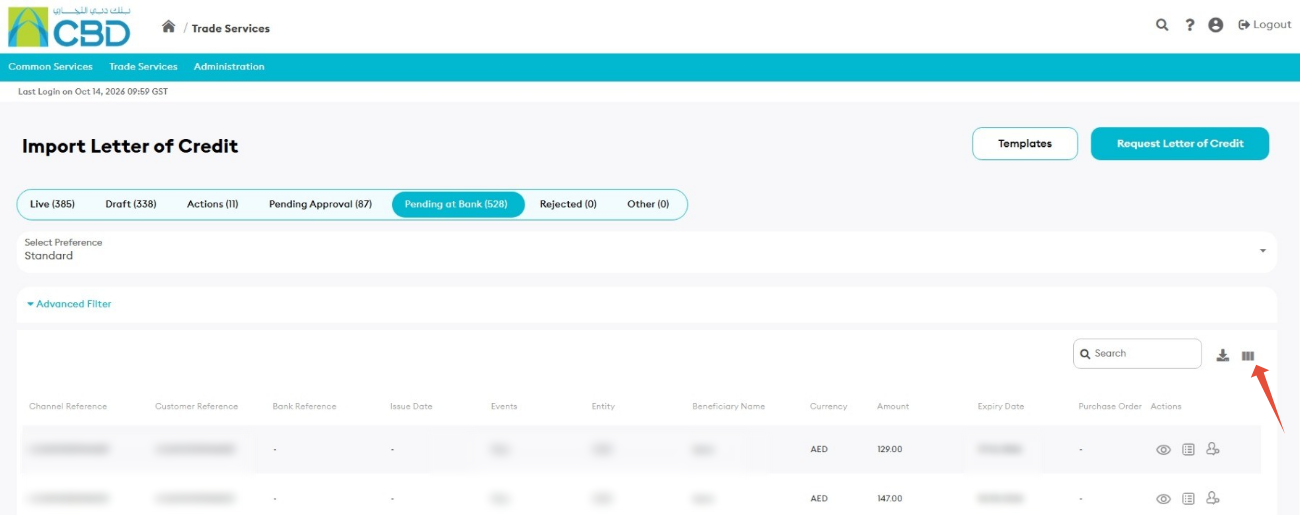
- The Customize Columns window will open.
- Show or Hide Columns
- Select or clear the checkbox next to a column name to control whether it is displayed in the transaction grid.
- Selected columns will appear in the dashboard.
- Deselected columns will be hidden.
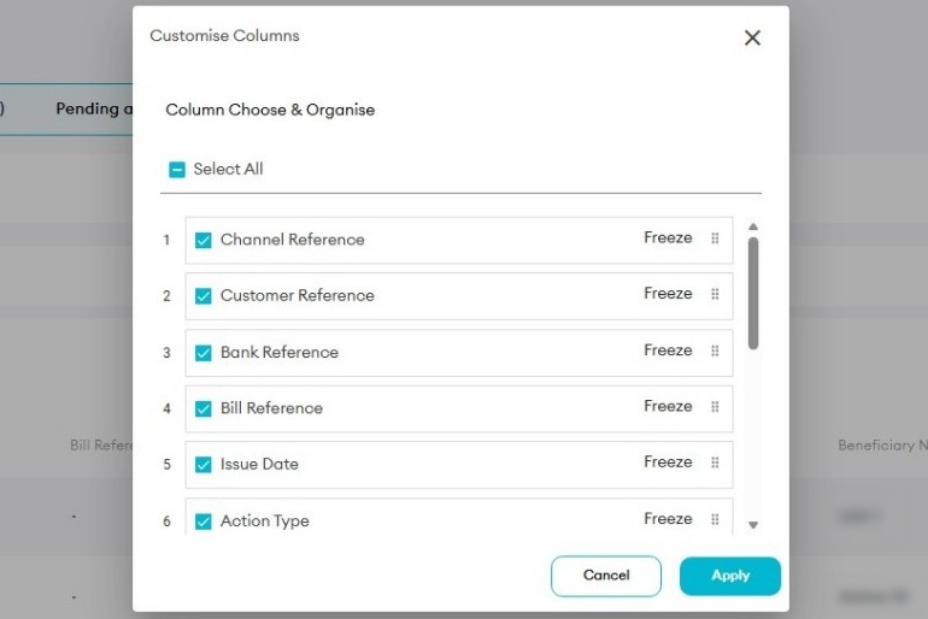
Examples of available columns include:
- Channel Reference
- Customer Reference
- Bank Reference
- Bill Reference
- Issue Date
- Action Type
- Status
- Entity
- Beneficiary Name
- Currency
- Amount
Note: Available columns may vary depending on the transaction type and dashboard view.
Reorder Columns
Use the drag-and-drop handle next to each column.
Move the column up or down to change its position in the transaction grid.
This allows users to prioritize the information they view most frequently.
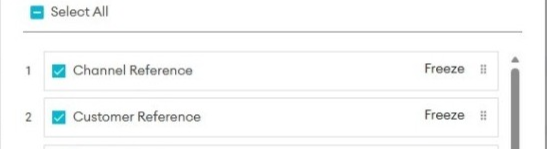
Freeze Columns
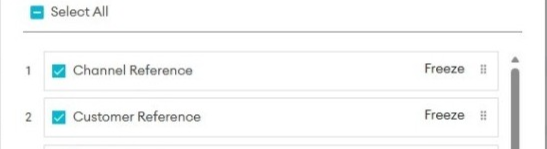
The Freeze option can be used to keep important columns visible while scrolling horizontally across the transaction list.
This is useful when working with large numbers of transactions or wide data sets.
Apply Changes
After making the required changes:
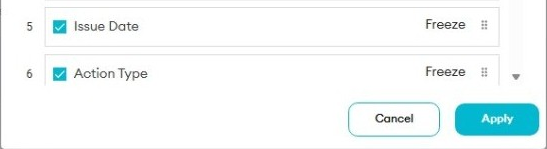
- Click Apply to save the column configuration.
- The dashboard will refresh and display the selected layout.
To discard the changes, click Cancel.
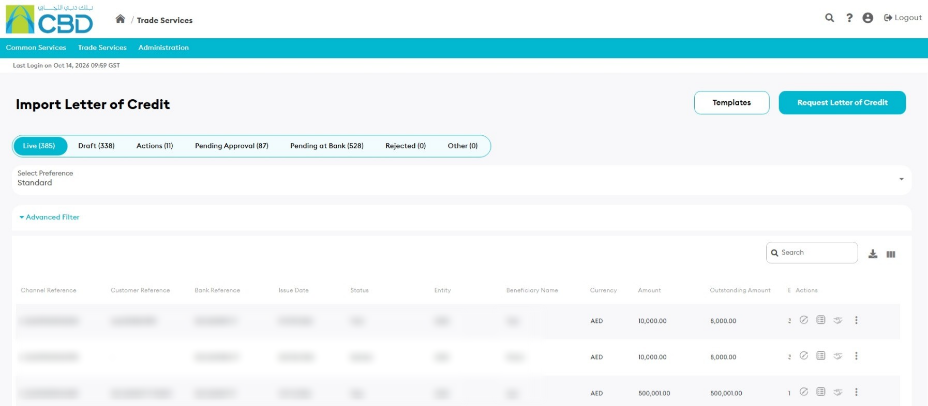
Live
The Live tab displays all active Import Letter of Credit transactions, including transactions that have been successfully processed and transactions that have expired after processing by the bank.
Available for: Maker users.
Draft
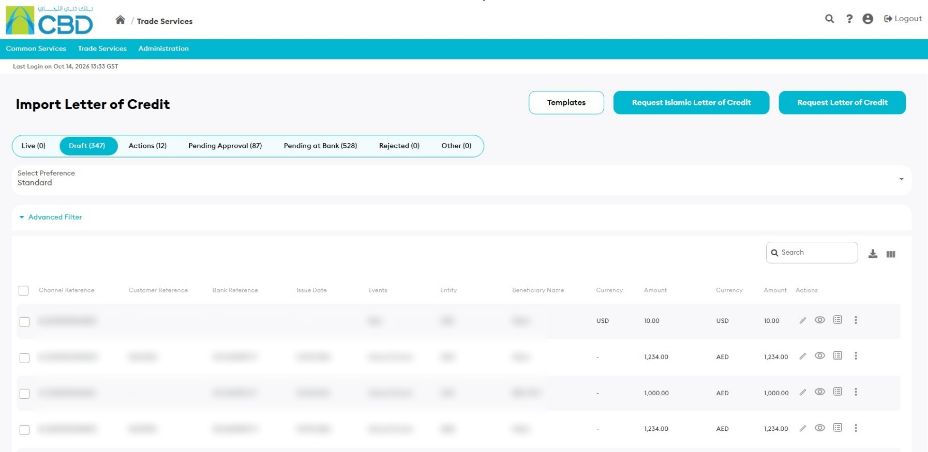
The Draft tab contains:
- Transactions saved as drafts
- Transactions returned by a Checker for correction or amendment
Use this tab to continue working on incomplete requests.
Available for: Maker users.
Actions
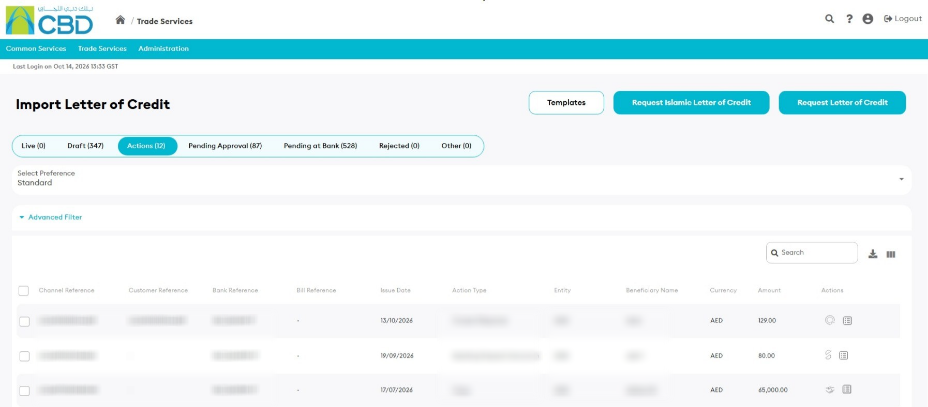
The Actions tab displays transactions that require additional action from the customer.
Typical examples include:
- Additional information requested by the bank
- Requests that require customer response
- Outstanding actions before processing can continue
Available for: Maker users.
Pending Approval
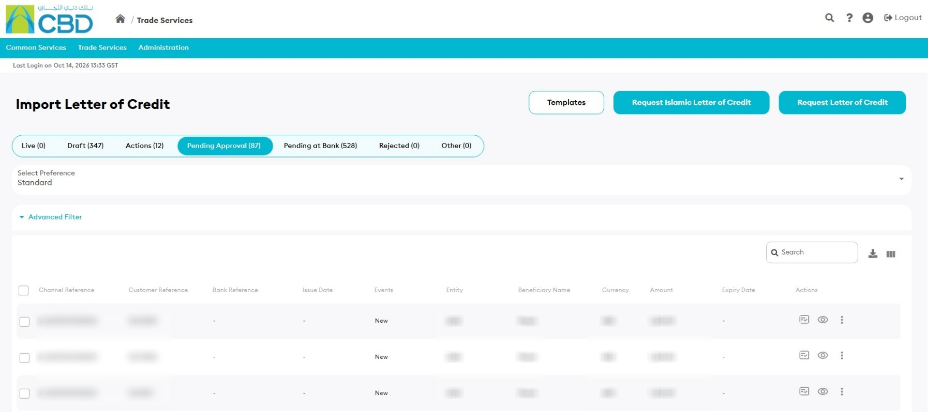
The Pending Approval tab displays transactions that have been submitted and are awaiting approval from another user within the organization.
Available for: Checker users.
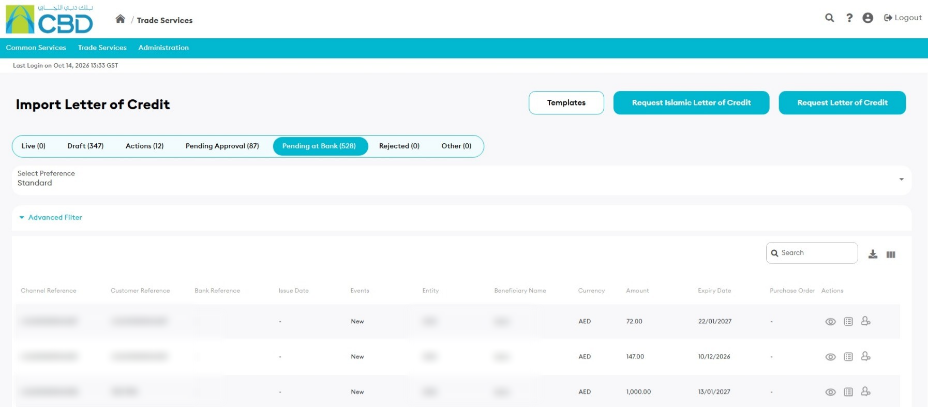
Pending at Bank
The Pending at Bank tab displays transactions that have been submitted successfully and are currently being reviewed or processed by the bank.
Available for: Maker users.
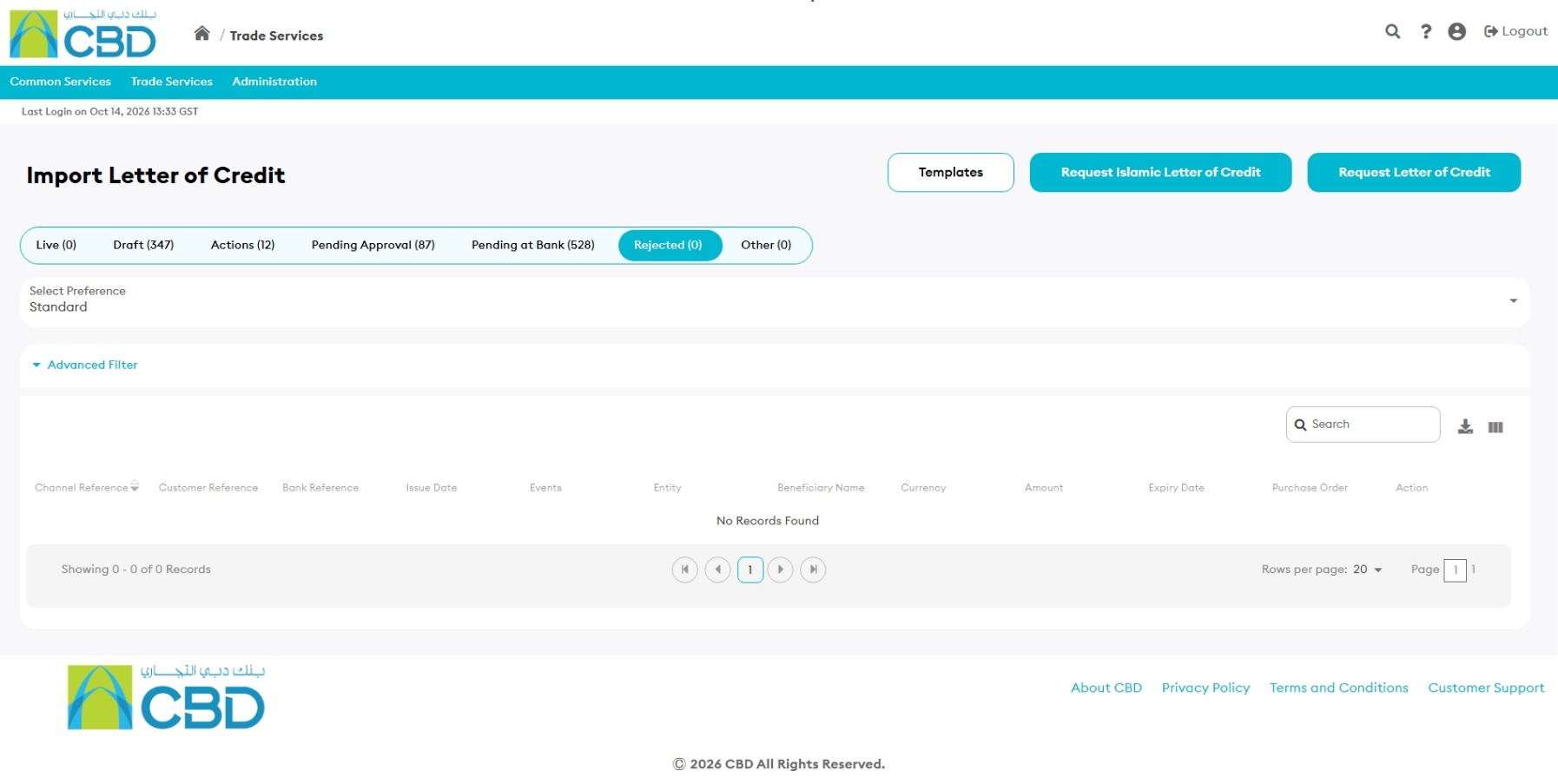
Rejected
The Rejected tab displays transactions that were rejected by the bank.
Rejected transactions are typically assigned the status: Not Processed
Review the rejection comments before resubmitting or creating a new request.
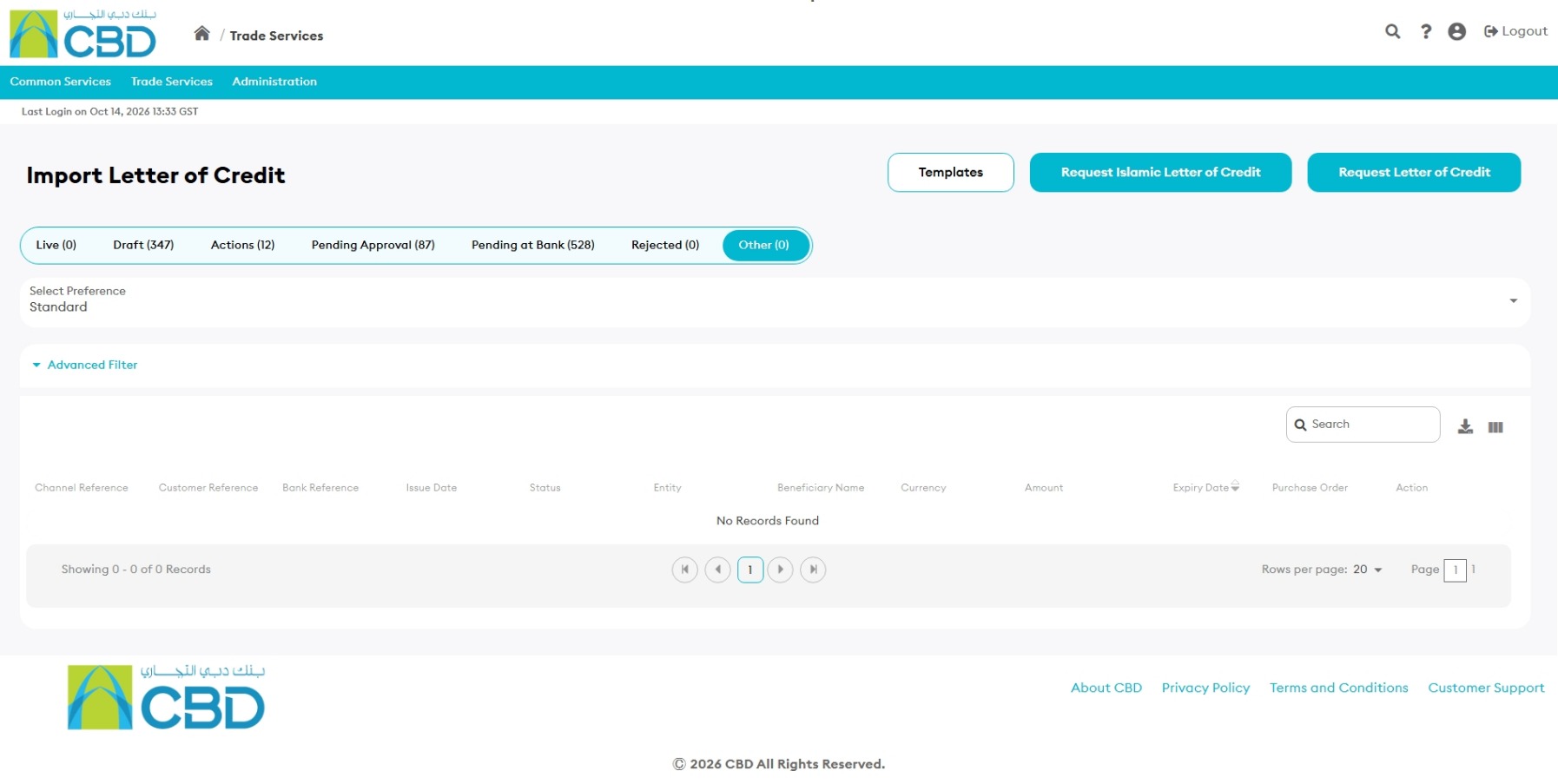
Other
The Other tab displays transactions that are:
- Expired
- Archived
- Purged by the bank
These transactions are available for inquiry purposes only.
No amendments, actions, or messages can be submitted against transactions in this section.
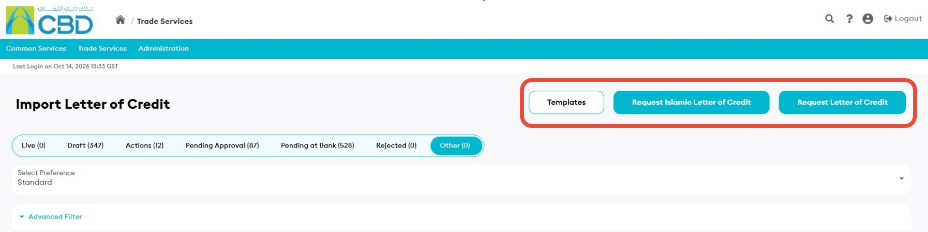
The dashboard provides quick access to the following functions:
Templates: Create, edit, and manage Import Letter of Credit templates.
Request Islamic Letter of Credit: Create a new Islamic Import Letter of Credit request.
Request Letter of Credit: Create a new standard Import Letter of Credit request.