
Overview
This guide provides step-by-step instructions for creating, managing, previewing, and scheduling reports in iTrade.
The Report Designer allows administrators and authorized users to create custom reports, define report parameters, select products and entities, choose report columns, and schedule report generation. Reports can be downloaded in multiple formats for operational and management reporting purposes.
Prerequisite: Users must have the appropriate permissions to create and manage reports. If access is unavailable, contact your Bank Administrator.
Step 1: Access Report Designer
- Navigate to: Administration ➜ Report Designer ➜ Create
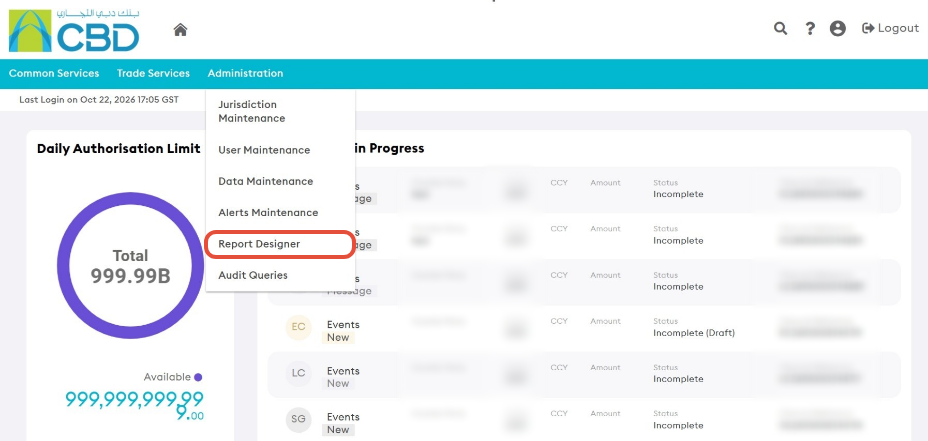
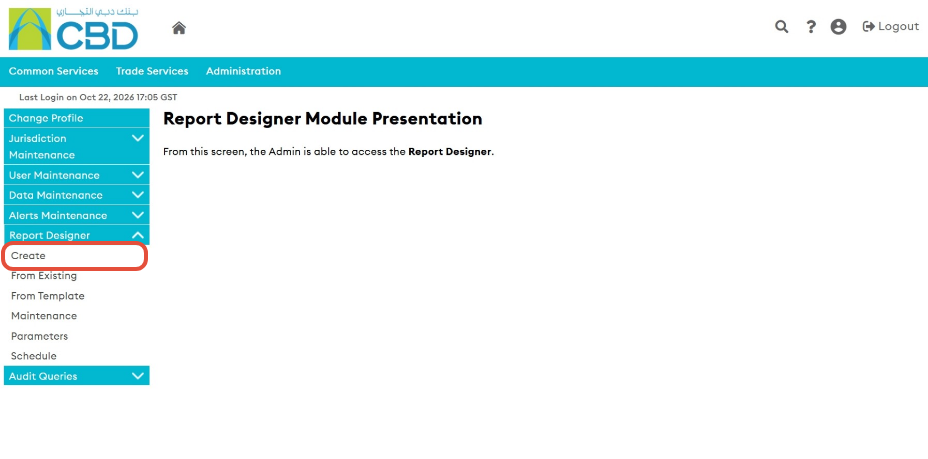
The Report Designer screen will open, allowing you to configure a new report.
Step 2: Complete the General Details
Enter the required report information.
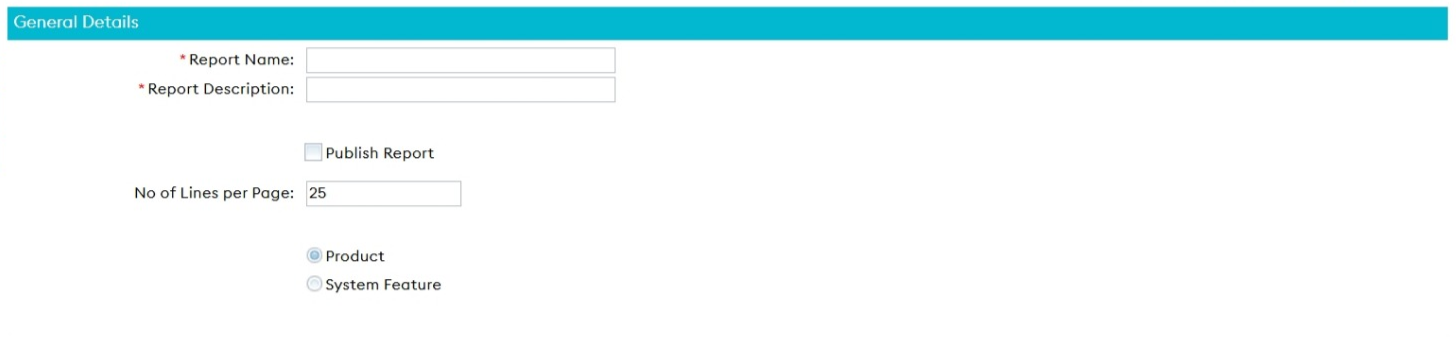
Report Name
Enter a unique name for the report.
Report Description
Enter a description to help users understand the purpose of the report.
Publish Report
Enable Publish Report if the report should be available to other authorized users.
Lines per Page
Specify the number of rows to be displayed on each page of the report.
Support Tip: Use meaningful report names and descriptions to make reports easier to identify and manage.
Step 3: Select the Product
Choose the Trade Finance product(s) to be included in the report.
The report can be configured for:
- A single product
- Multiple products
depending on the reporting requirement.

Examples may include:
- Import Letter of Credit
- Export Letter of Credit
- Import Collection
- Export Collection
- Shipping Guarantee
- Financing Request
- Undertaking Advised
Step 4: Configure Report Columns and Parameters
Add the required columns and define the report criteria.
Configure any additional filters, sorting options, and report parameters required for the report.
Support Tip: Include only the columns required for the report to improve readability and performance.
Step 5: Save and Maintain the Report
Once the report configuration is complete:
- Save the report.
- Navigate to: Report Designer ➜ Maintenance
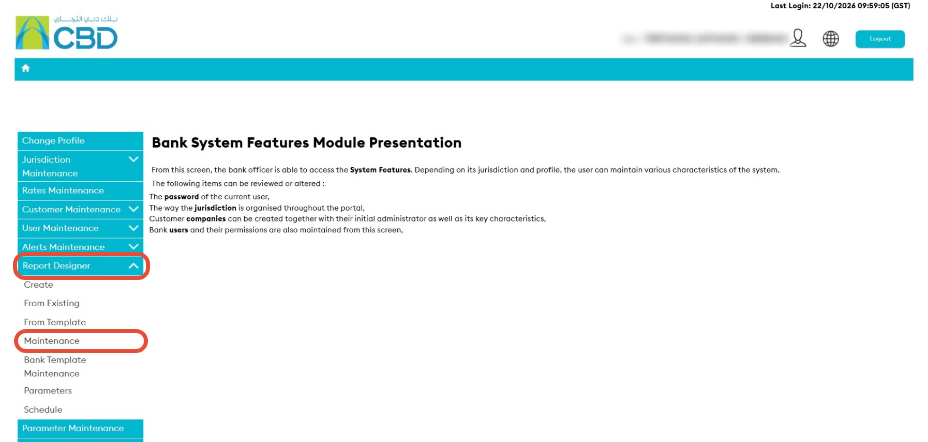
The Maintenance screen allows you to manage existing reports.
Step 6: Preview the Report
- Locate the report in the Maintenance screen.
- Click the Preview button.
The system will generate a preview based on the configured parameters.
Support Tip: Always preview the report before sharing or scheduling it to ensure the correct data is being returned.
Step 7: Download the Report
Generated reports can be downloaded in the following formats:
- CSV
- Spreadsheet
Select the required format and download the report for further analysis or distribution.
Step 8: Schedule a Report
To automate report generation:
- Navigate to: Report Designer ➜ Schedule
- Configure the schedule parameters.
- Define the report frequency and timing.
- Save the schedule.
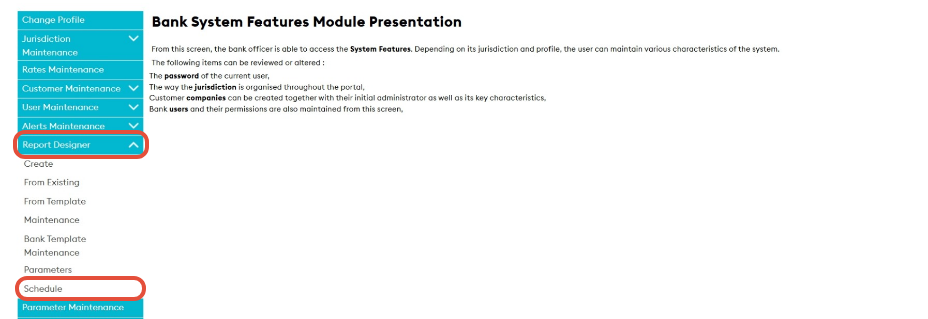
Scheduled reports will be generated automatically according to the configured schedule.