
Overview
This guide provides step-by-step instructions for creating and configuring an Authorization Matrix in iTrade.
An Authorization Matrix defines how transactions are verified, approved, and submitted within your organization. It allows administrators to configure approval levels, assign authorization requirements, and establish transaction approval workflows.
Prerequisite: Users must have the appropriate permissions to create and manage Authorization Matrices. If access is unavailable, contact your Bank Administrator.
Step 1: Access Authorization Maintenance
- Navigate to: System Features ➜ Jurisdiction Maintenance ➜ Authorization
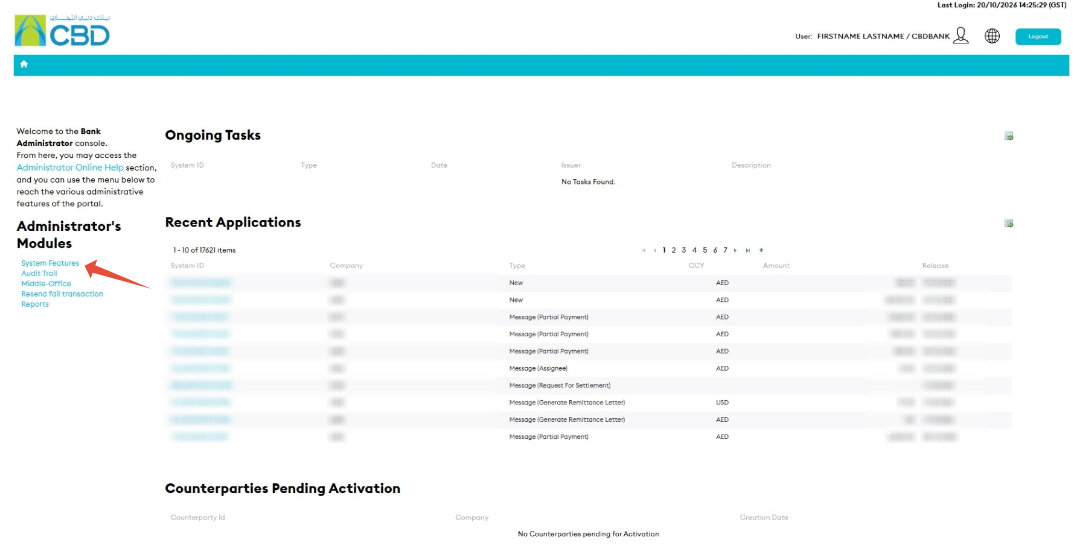
The Authorization screen displays any existing Authorization Matrix configurations available to your organization.
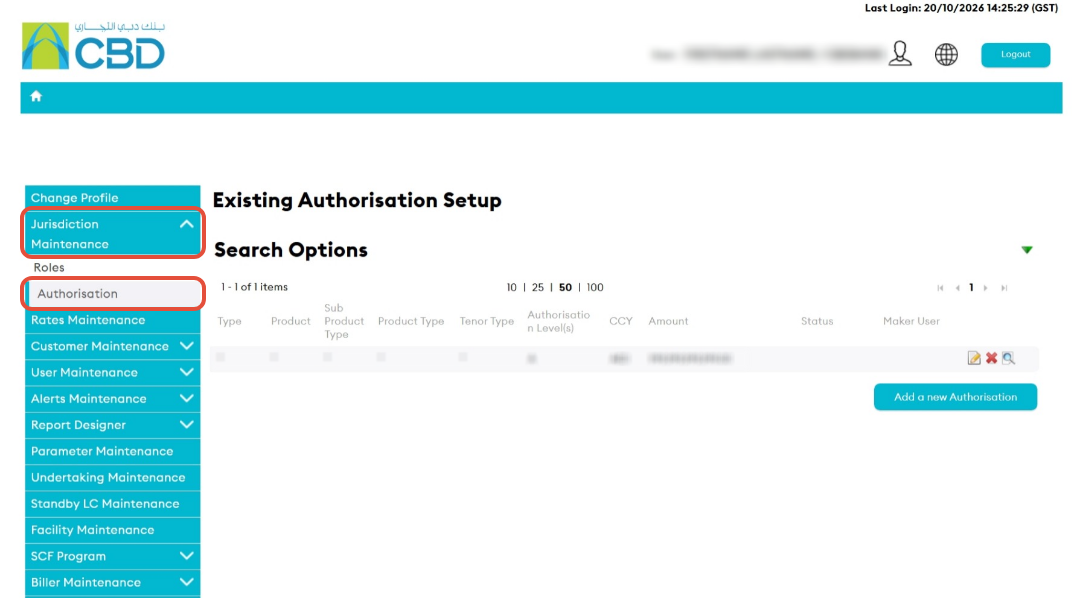
Support Tip: Review existing authorization setups before creating a new one to avoid duplicate or conflicting authorization rules.
Step 2: Create a New Authorization Matrix
- Click Add a New Authorization Rule.
This will open the Authorization Matrix configuration screen
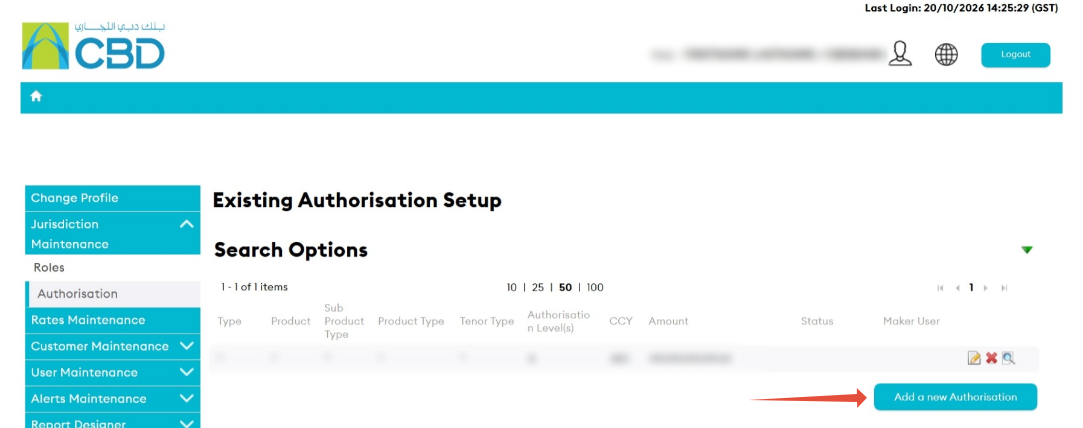
This will open the Authorization Matrix configuration screen
Step 3: Complete the Authorization Details
Enter the required Authorization Matrix information.
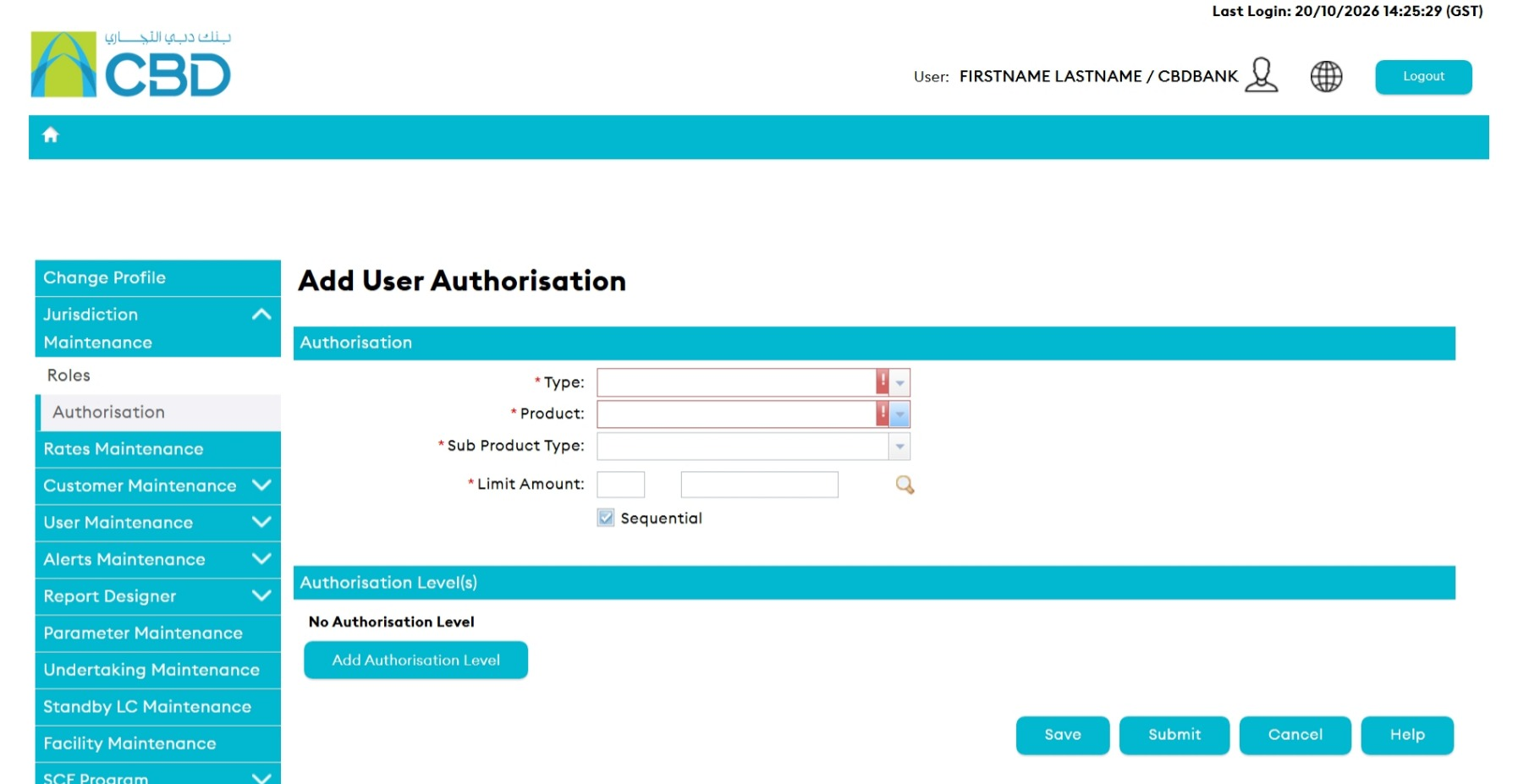
Configure all mandatory fields according to your organization's approval requirements.
Step 4: Configure Authorization Options
After completing the Authorization details, select the applicable workflow options.
- Verify: Enable Verify if transactions require verification before submission. This option introduces a verifier stage before the transaction enters the approval workflow.
- Send: Enable Send if an additional sender is required after the authorization process has been completed. This option adds a sender stage after approval.
- Sequential: Enable Sequential if approvals must occur in a specific order.
When enabled:
- Approvers must act in sequence.
- The next approver cannot act until the previous approval has been completed.
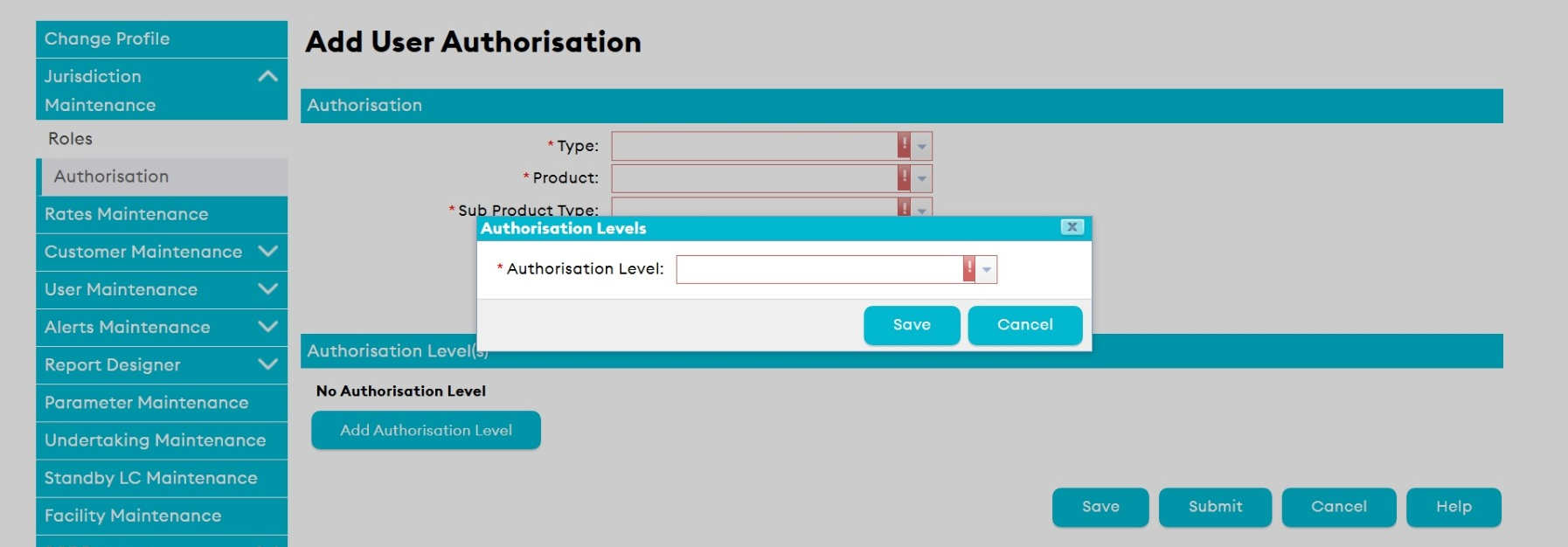
Step 5: Add Authorization Level(s)

For example:
- Level 1 Approver
- Level 2 Approver
- Level 3 Approver
You can add as many authorization levels as required by your organization's approval structure.
If your organization requires three approval levels for a Letter of Credit transaction, create three separate authorization levels and assign the appropriate users to each level.
Step 6: Submit the Authorization Matrix
Once the configuration has been completed:
- Review all authorization settings.
- Verify the approval levels and workflow options.
- Click Submit.
The Authorization Matrix will be submitted for approval.