
Overview
This guide provides step-by-step instructions for assigning roles, permissions, authorization levels, and entity access to a user in iTrade.
Role assignment is typically performed after a user has been created and the user creation request has been approved. Once configured and approved, the user will be able to access the functions and services assigned to their role.
Prerequisite: You must have the required permissions to manage users and assign roles. If access is unavailable, contact your Bank Administrator.
Step 1: Access User Profiles
- In iTrade, navigate to: Administration ➜ User Maintenance ➜ Profiles
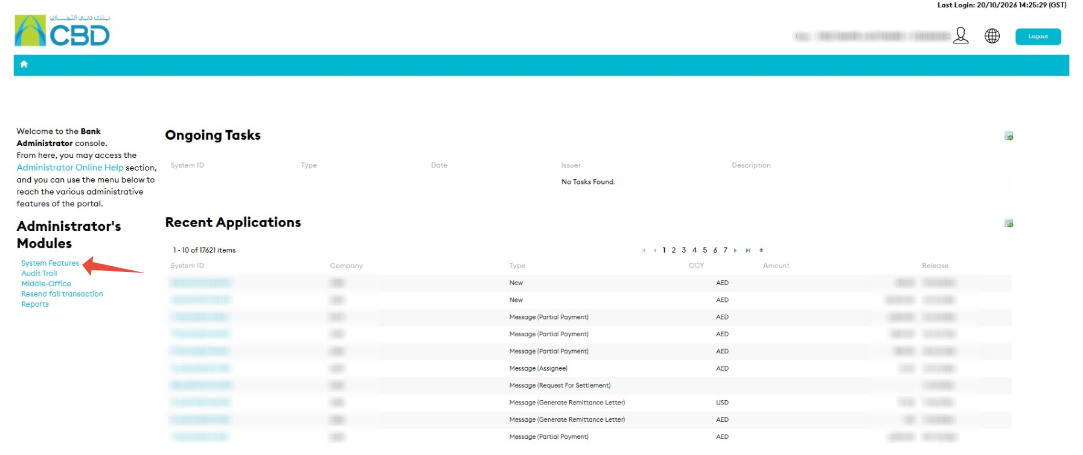
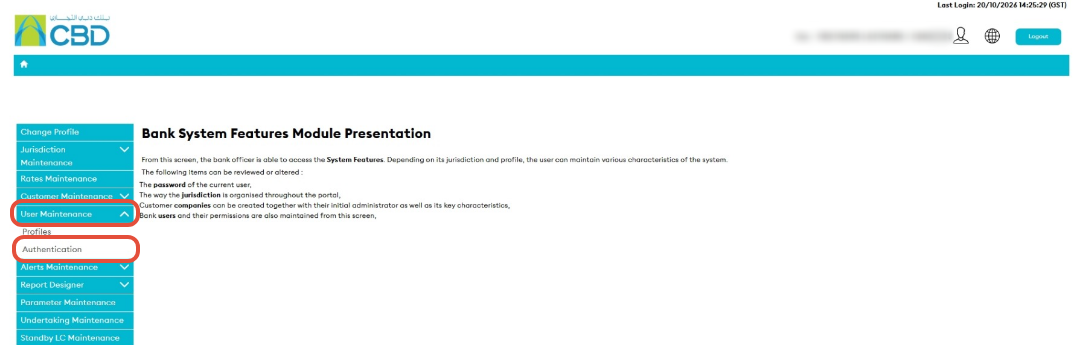
The Profiles screen displays all users available within the organization.
Step 2: Select the User
- Locate the user in the user list.
- Click Edit next to the required user profile.
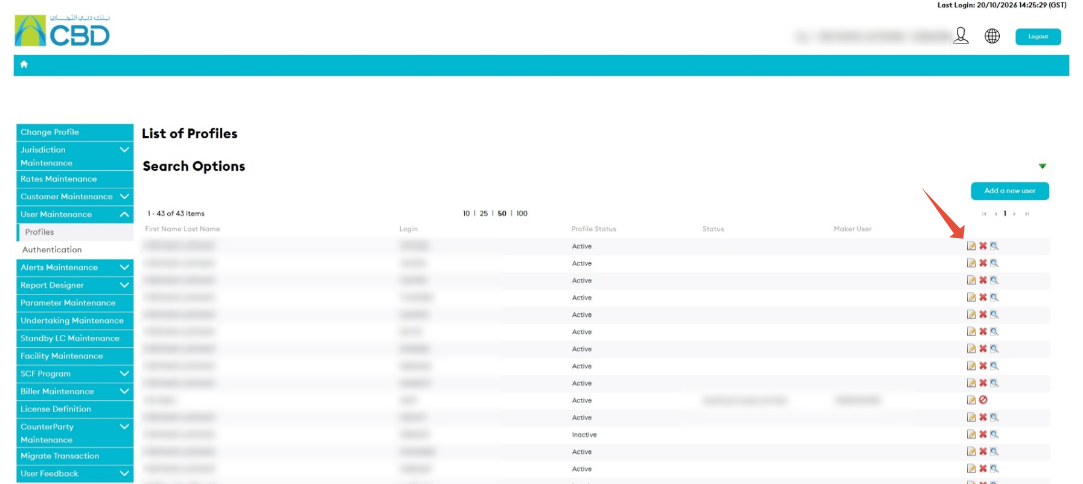
This will open the user's profile and access configuration screen.
Step 3: Configure Authorization Level and Limits
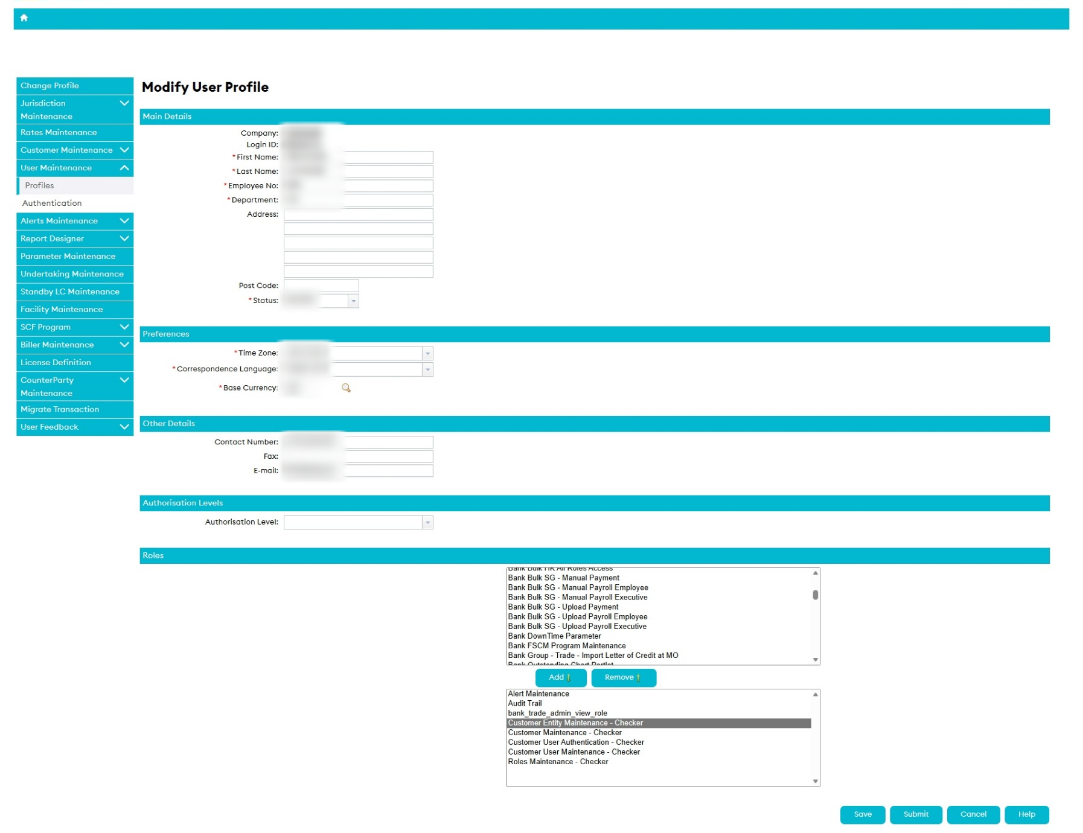
Assign the appropriate authorization level and transaction limits for the selected user.
Authorization levels determine the user's approval authority and transaction approval capabilities within iTrade.

Step 4: Assign User Roles
Assign the appropriate roles to the user.
- Select the required role from the available list.
- Click Add to assign the role.
- Repeat the process for any additional roles required.
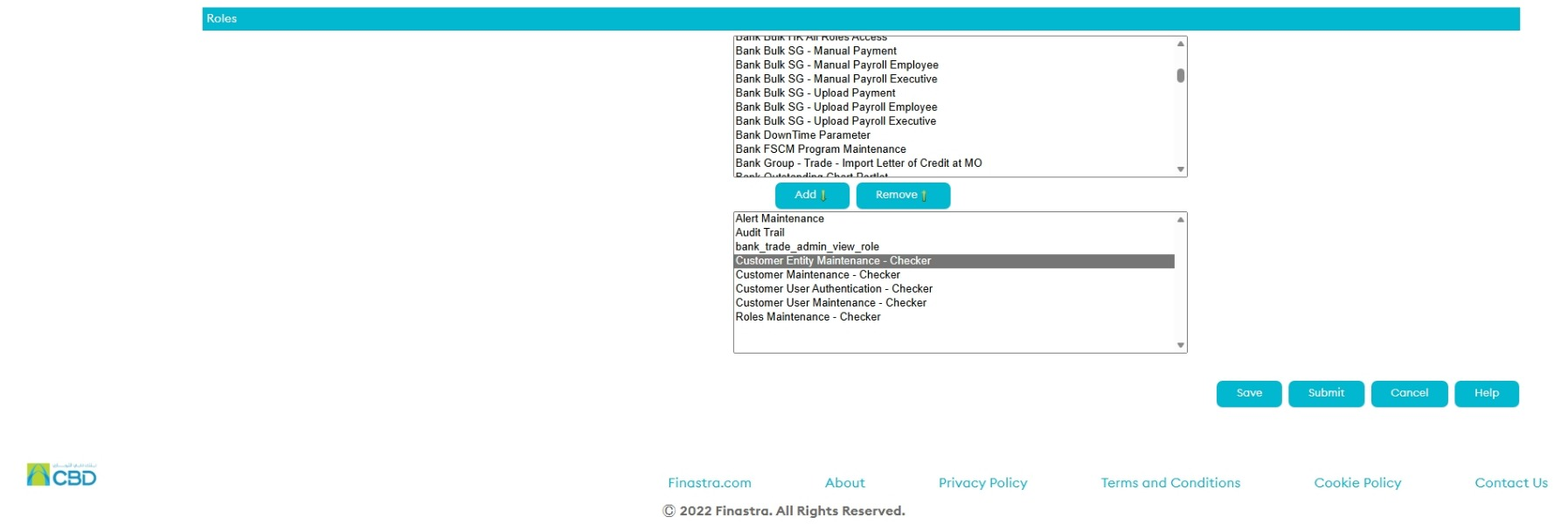
Examples
- A Maker user should be assigned the appropriate Maker roles.
- A Checker user should be assigned the appropriate Checker roles.
- Users can be assigned multiple roles where business requirements permit.
Support Tip: Assign only the roles required for the user's job responsibilities to maintain appropriate access controls.
Step 5: Assign Entity Access (If Applicable)
If your organization contains multiple entities:
- Assign the user to the appropriate entity.
- Assign the required entity-specific roles.
- Verify that the entity access aligns with the user's responsibilities.
Step 6: Submit for Approval
Once all roles, permissions, authorization levels, and entity assignments have been configured:
- Review the user's access settings.
- Submit the request.
The request will be routed to the Corporate Administrator Checker for approval.