
Overview
This guide explains how to review and approve transactions from the Pending Transactions menu in iTrade.
The Pending Transactions screen provides a centralized location where authorized users can view, search for, review, and approve transactions that are awaiting authorization.
Prerequisite: The user must have the appropriate approval permissions to access and authorize pending transactions.
Step 1: Access Pending Transactions
- From the iTrade Dashboard, navigate to: Common Services ➜ Pending Transactions
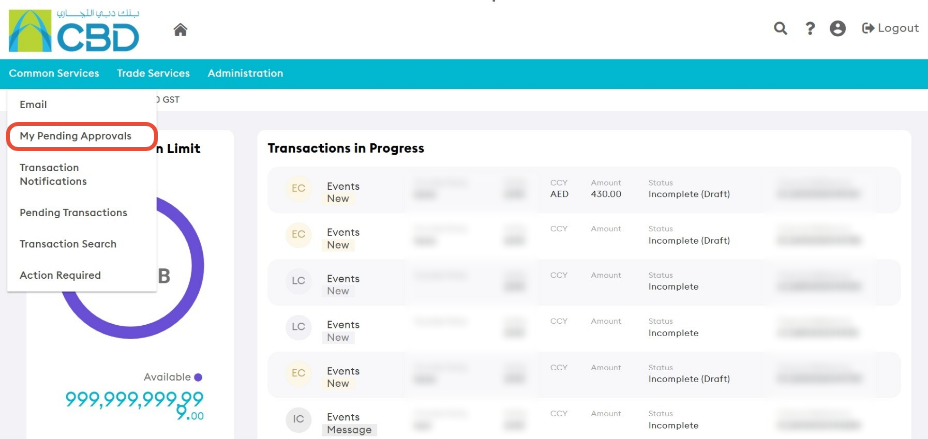
This will open the Pending Transactions screen and display all transactions awaiting approval.
Step 2: Review Pending Transactions
The Pending Transactions screen displays all transactions currently awaiting authorization.
These transactions may include requests submitted through various Trade Finance services and administrative functions.
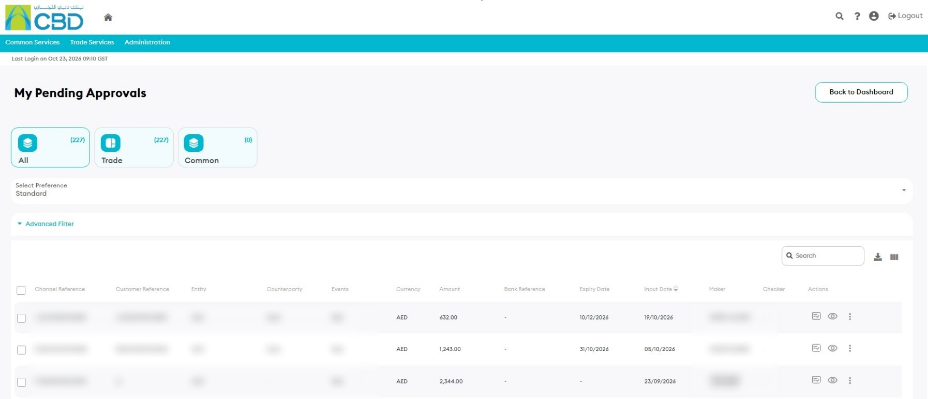
Review the transaction list to identify the item that requires approval.
Step 3: Search for a Specific Transaction
If you need to locate a particular transaction:
- Use the Advanced Search option.
- Enter the relevant search criteria.
- Apply the search filters to narrow the results.
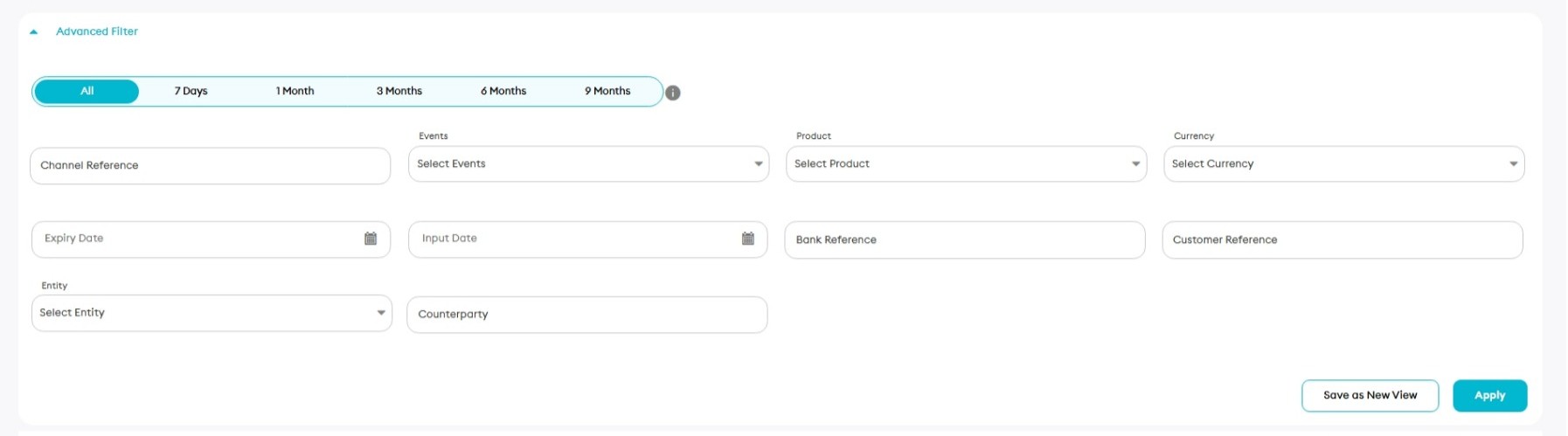
Support Tip: Use Advanced Search when working with a large number of pending transactions or when searching for a specific reference number, transaction type, or customer request.
Step 4: Open the Transaction for Review
- Locate the transaction you want to approve.
- Click the Approve icon next to the transaction


The transaction details screen will open, allowing you to review the request before submitting your approval decision.
Step 5: Review the Transaction Details
Before approving the transaction:
- Verify all transaction information.
- Review any supporting details and references.
- Confirm that the transaction complies with your organization's approval requirements.
- Ensure the transaction is ready for final authorization.
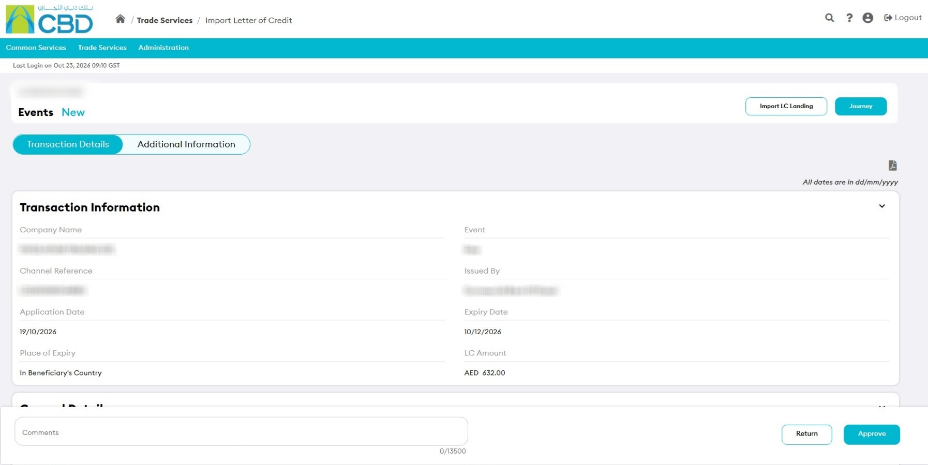
Important: Always review the transaction details carefully before approving the request. Once approved, the transaction may proceed to the next stage of processing.
Step 6: Submit the Approval
- After reviewing the transaction, select Approve.
- Submit the authorization request.
Once submitted successfully:
- The transaction status will be updated.
- The request will proceed to the next stage of the workflow.
- A confirmation message may be displayed depending on the transaction type.