
Overview
This guide provides step-by-step instructions for reviewing and approving a Trade Finance transaction in iTrade.
The approval process is used by authorized approvers to review submitted transactions and either approve them for further processing or return them for amendment.
Step 1: Access the Trade Finance Product
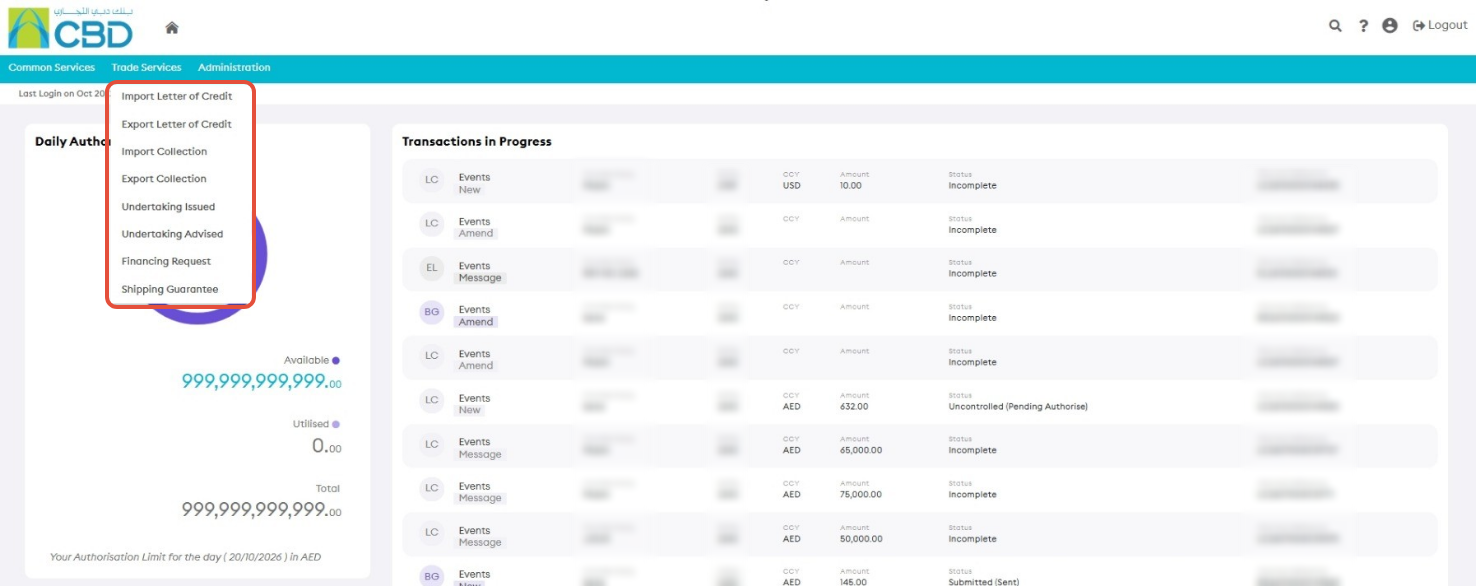
- From the iTrade Dashboard, select Trade Services.
- Choose the required Trade Finance product from the drop-down menu.
Examples may include:
- Import Letter of Credit
- Export Letter of Credit
- Bank Guarantee
- Documentary Collection
This will open the dashboard for the selected product.
Step 2: Open the Pending Approval Tab
- Select the Pending Approval tab.
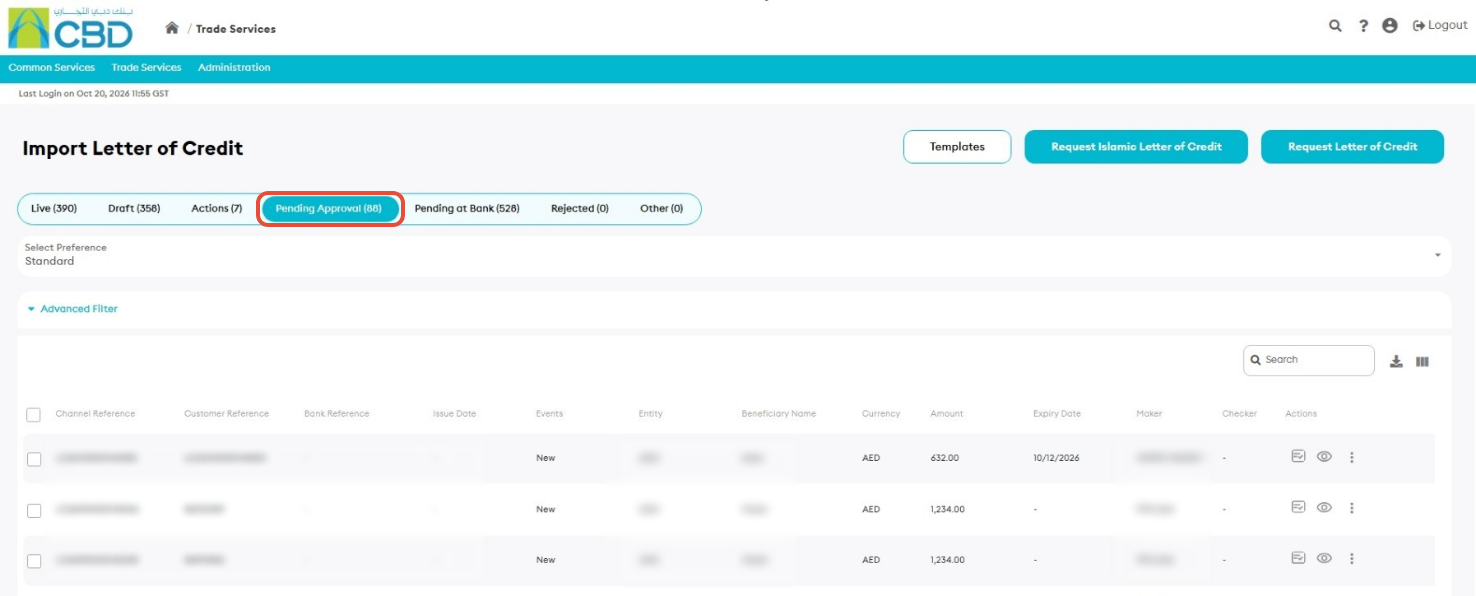
The Pending Approval tab displays all transactions awaiting approval within your organization.
Step 3: Open the Transaction for Review
- Locate the transaction that requires approval.
- Click Authorize for the relevant transaction


The transaction details will be displayed for review.
Step 4: Review the Transaction
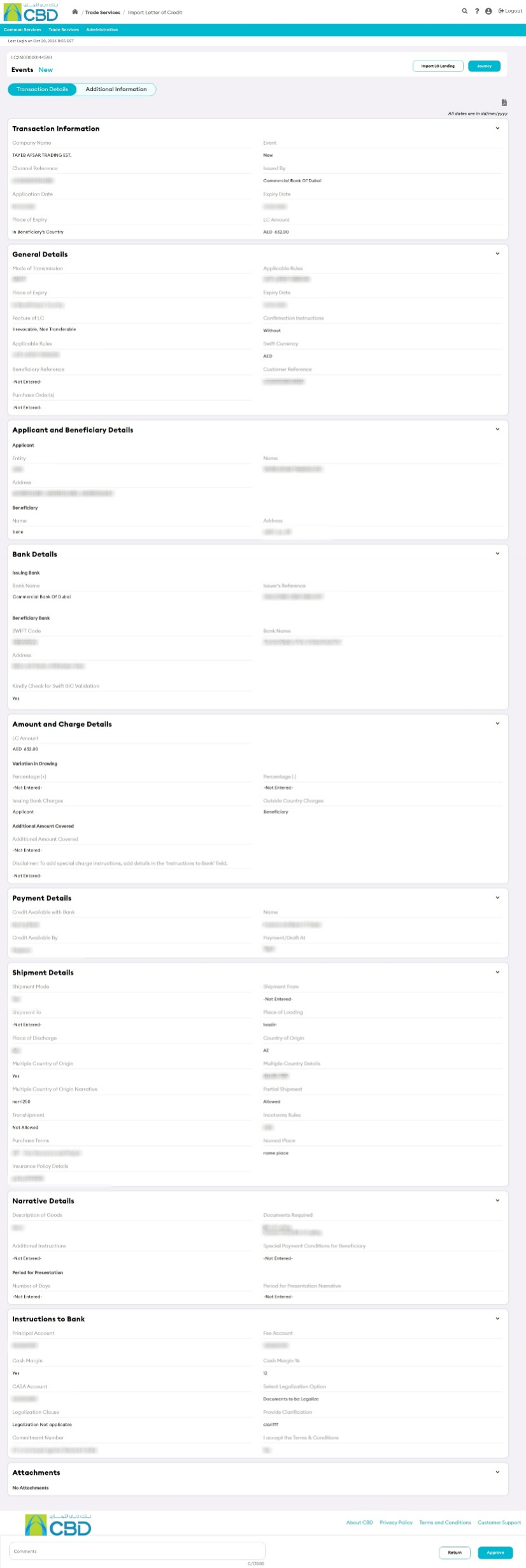
Review the transaction details carefully.
- Verify all transaction information.
- Review any supporting information provided.
- Enter comments in the Comments field if required.
Step 5: Approve or Return the Transaction
After reviewing the transaction:
- Click Approve to authorize the transaction and continue processing.
- Click Return to send the transaction back for correction or additional information.

Step 6: Submit the Decision
- Review your selected action.
- Click Submit.
If the submission is successful:
- An acknowledgment message will be displayed.
- The transaction status will be updated accordingly.
- The workflow will continue based on the selected action.