
Overview
This guide provides step-by-step instructions for sending a Correspondence Message to the bank through iTrade.
The Correspondence feature allows users to communicate directly with the bank regarding a specific Trade Finance transaction. Messages submitted through this function are linked to the selected transaction, allowing the bank to review and respond within the context of the request.
Prerequisite: Users must have the appropriate permissions to access and submit correspondence requests. If access is unavailable, contact your Corporate Administrator.
Step 1: Access the Required Trade Finance Product
- From the iTrade Dashboard, select Trade Services.
- Select the relevant Trade Finance product from the menu.
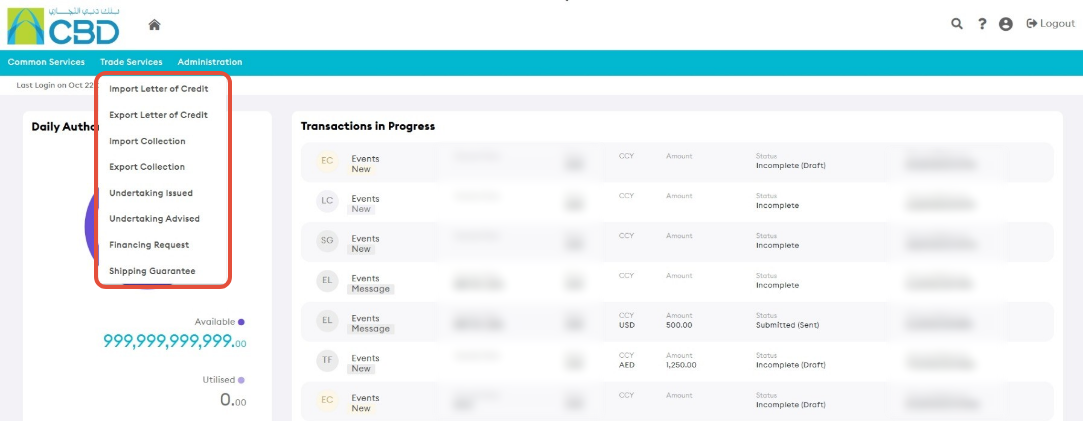
Examples may include:
- Import Letter of Credit
- Export Letter of Credit
- Import Collection
- Export Collection
- Shipping Guarantee
- Financing Request
- Undertaking Advised
This will open the dashboard for the selected product.
Step 2: Open the Live Tab
- Select the Live tab.
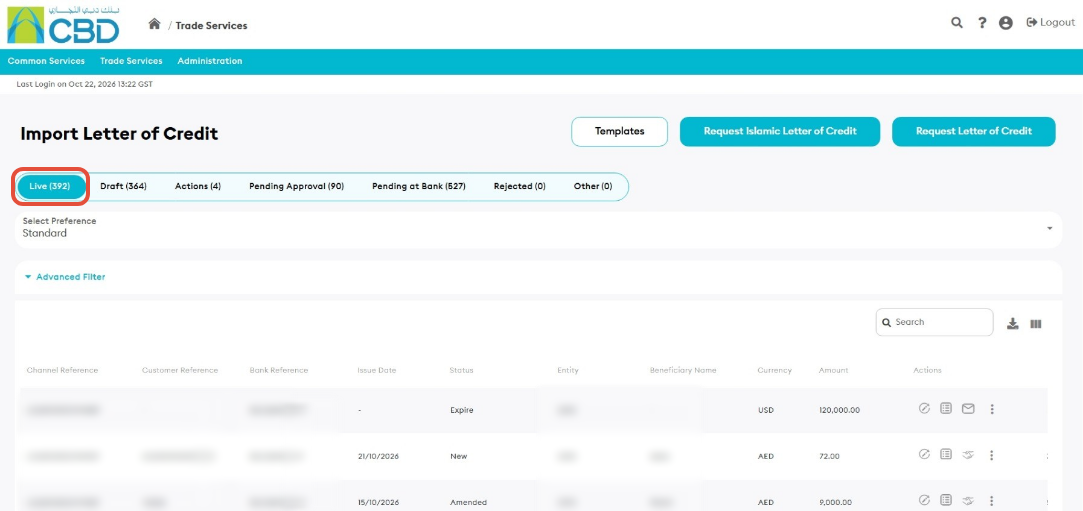
The Live tab displays active transactions available for enquiry and correspondence.
Step 3: Open the Correspondence Screen
- Locate the transaction for which you want to send a message.
- Click Correspondence icon

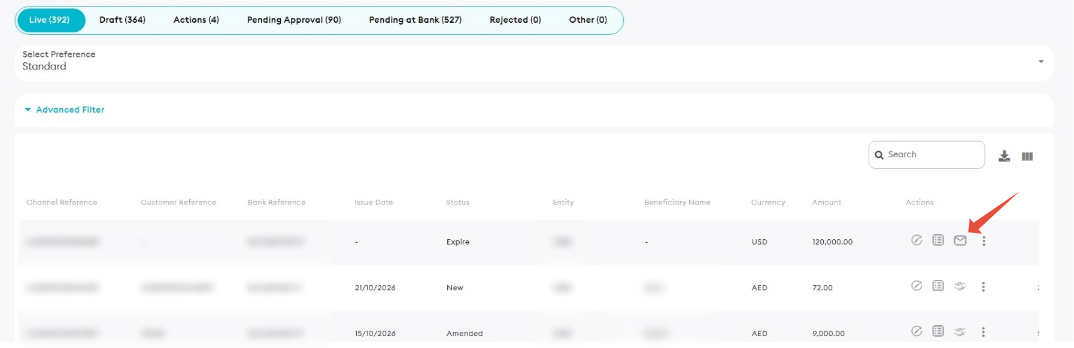
The Correspondence screen will open for the selected transaction.
Important: Ensure you have selected the correct transaction before sending correspondence, as the message will be linked to that specific Trade Finance transaction.
Step 4: Enter Your Message
- In the Customer Instructions field, enter the message or enquiry you want to send to the bank.
- Review the message for accuracy and completeness.
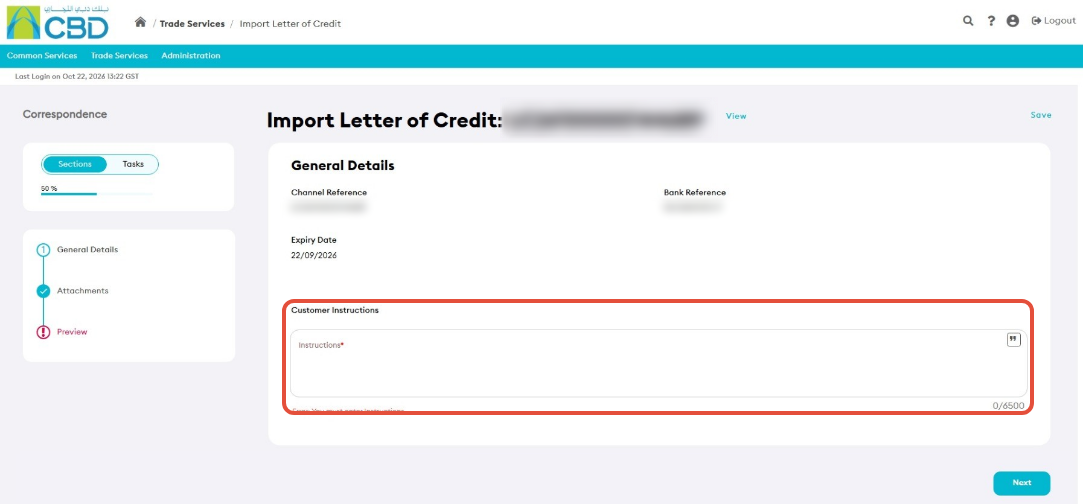
Examples of correspondence may include:
- Requests for transaction updates
- Clarification requests
- Supporting information related to a transaction
- Follow-up enquiries
- Operational instructions related to the selected transaction
Support Tip: Provide clear and detailed information to help the bank understand and respond to your request efficiently.
Step 5: Review the Correspondence
- Click Next.
- Review the message details in the Preview section.
- Verify that the information entered is accurate and complete.
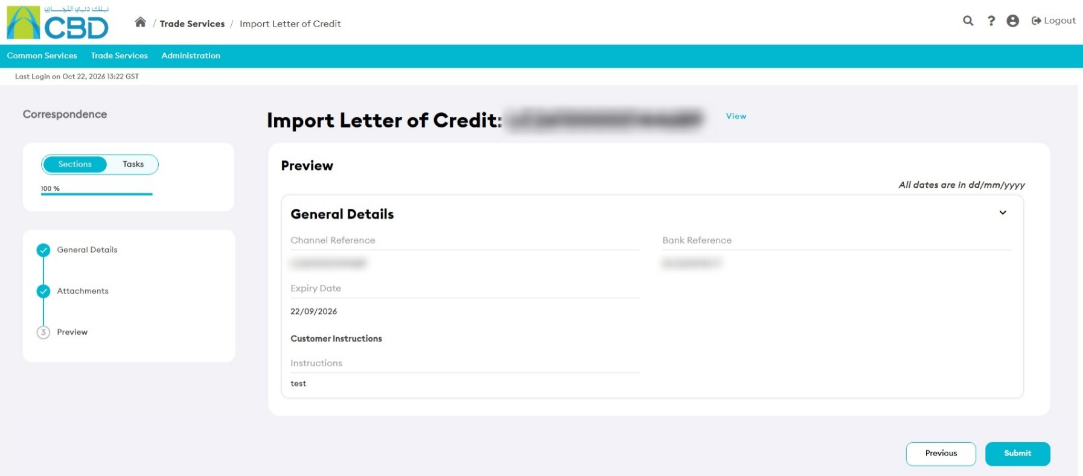
If changes are required, return to the previous screen and update the message before submission.
Step 6: Submit the Correspondence
- Review all details carefully.
- Click Submit.
Once submitted successfully:
- An acknowledgment message will be displayed.
- The correspondence will be sent to the bank.
- The communication will be linked to the selected transaction.