
Overview
This guide explains how to view the details of a Trade Finance transaction in iTrade.
The transaction details screen provides comprehensive information about a selected transaction, including its status, application details, parties involved, and other transaction-related information.
Step 1: Access the Required Trade Finance Product
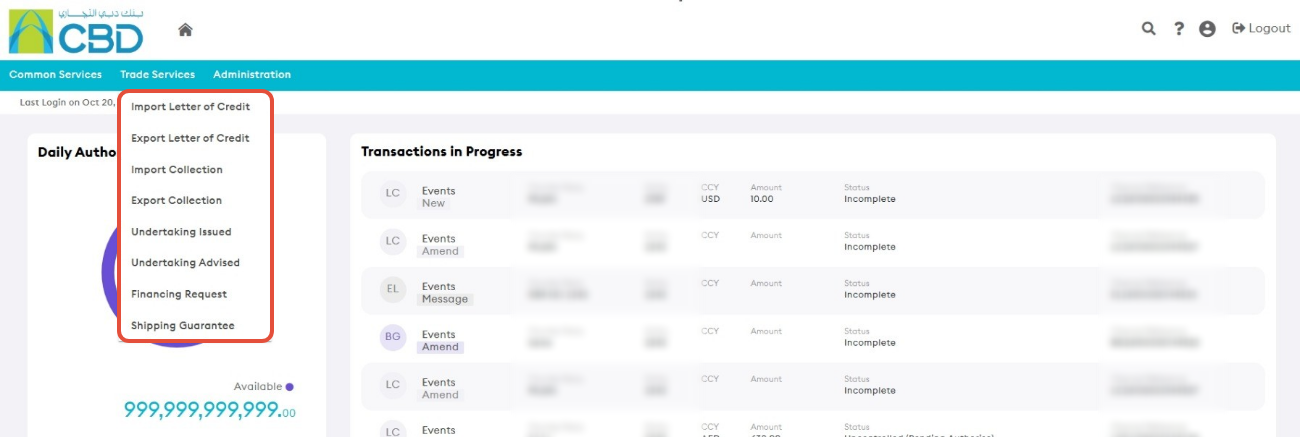
- From the iTrade Dashboard, select Trade Services.
- Choose the required Trade Finance product from the drop-down menu.
Step 2: Open the Transaction Details
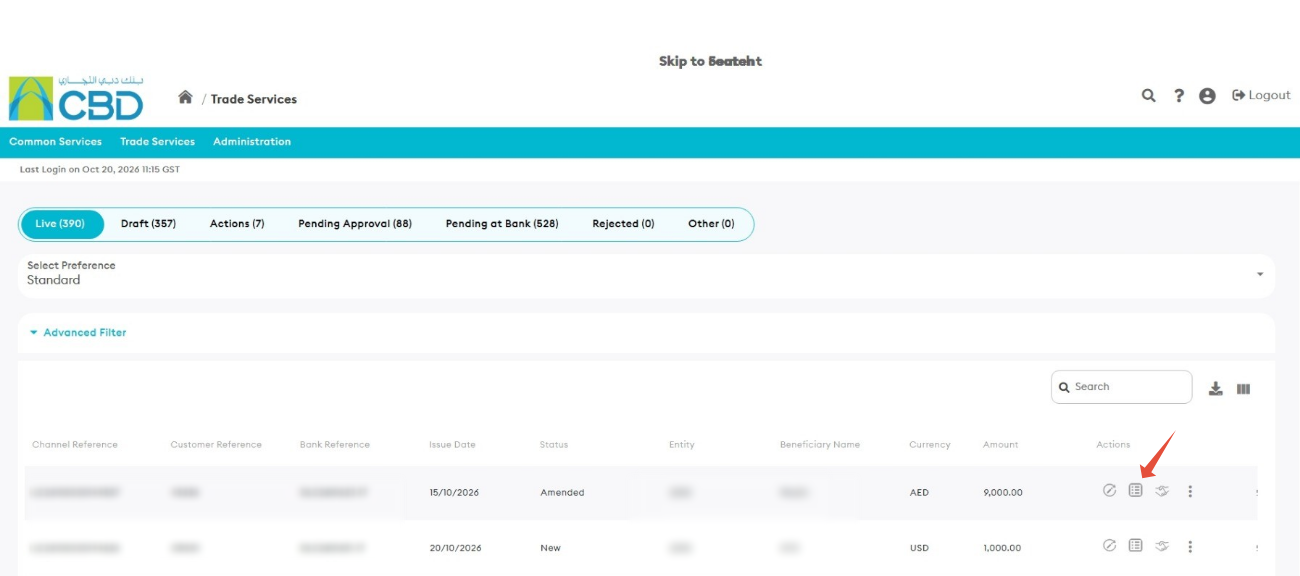
- Locate the transaction you want to review.
- From the list of available transactions, click the Details button for the required transaction.

Step 3: Review the Transaction Details
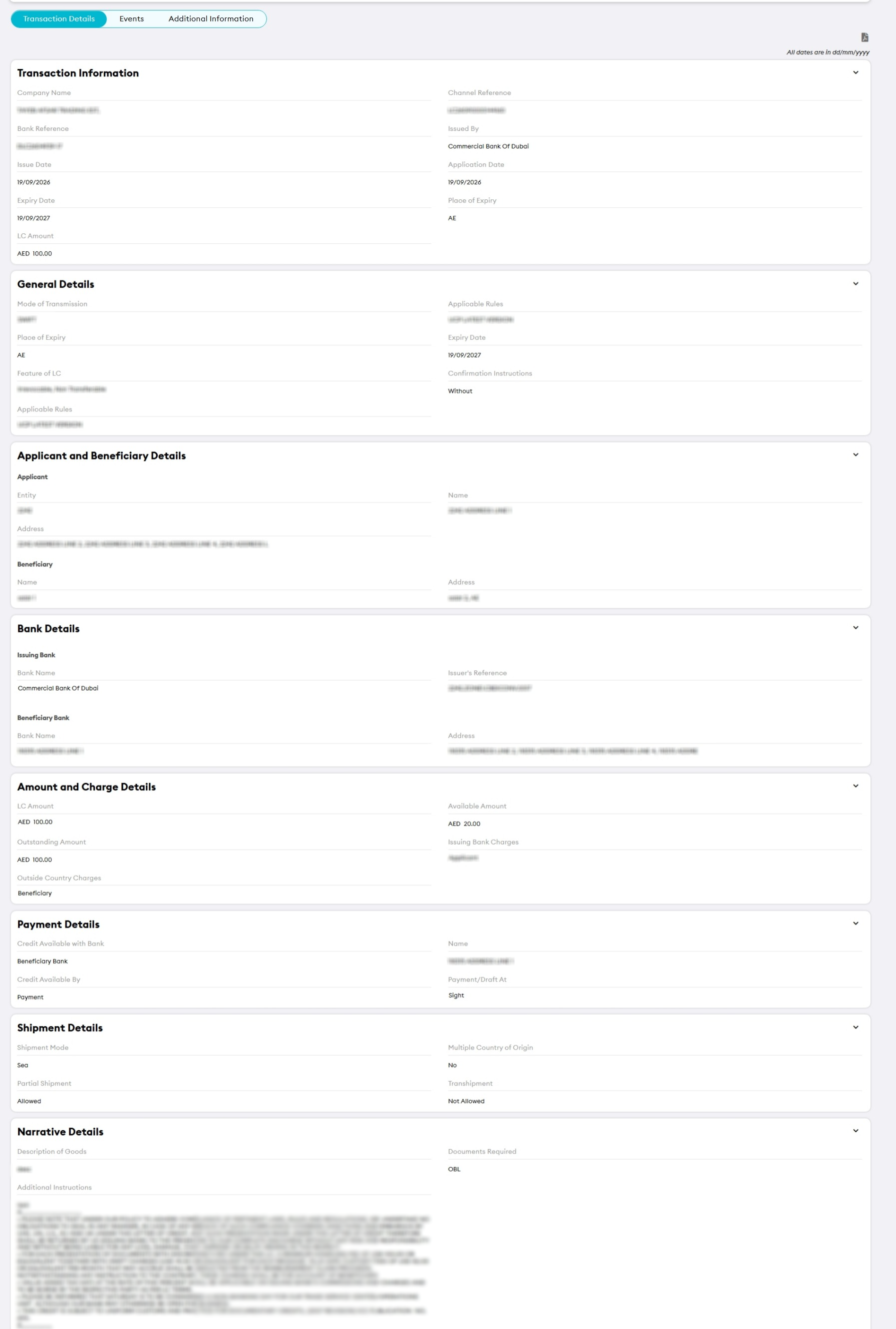
The Transaction Details screen provides a complete view of the selected transaction.
Depending on the product and transaction type, you may be able to view:
|
|
|
Transaction Details
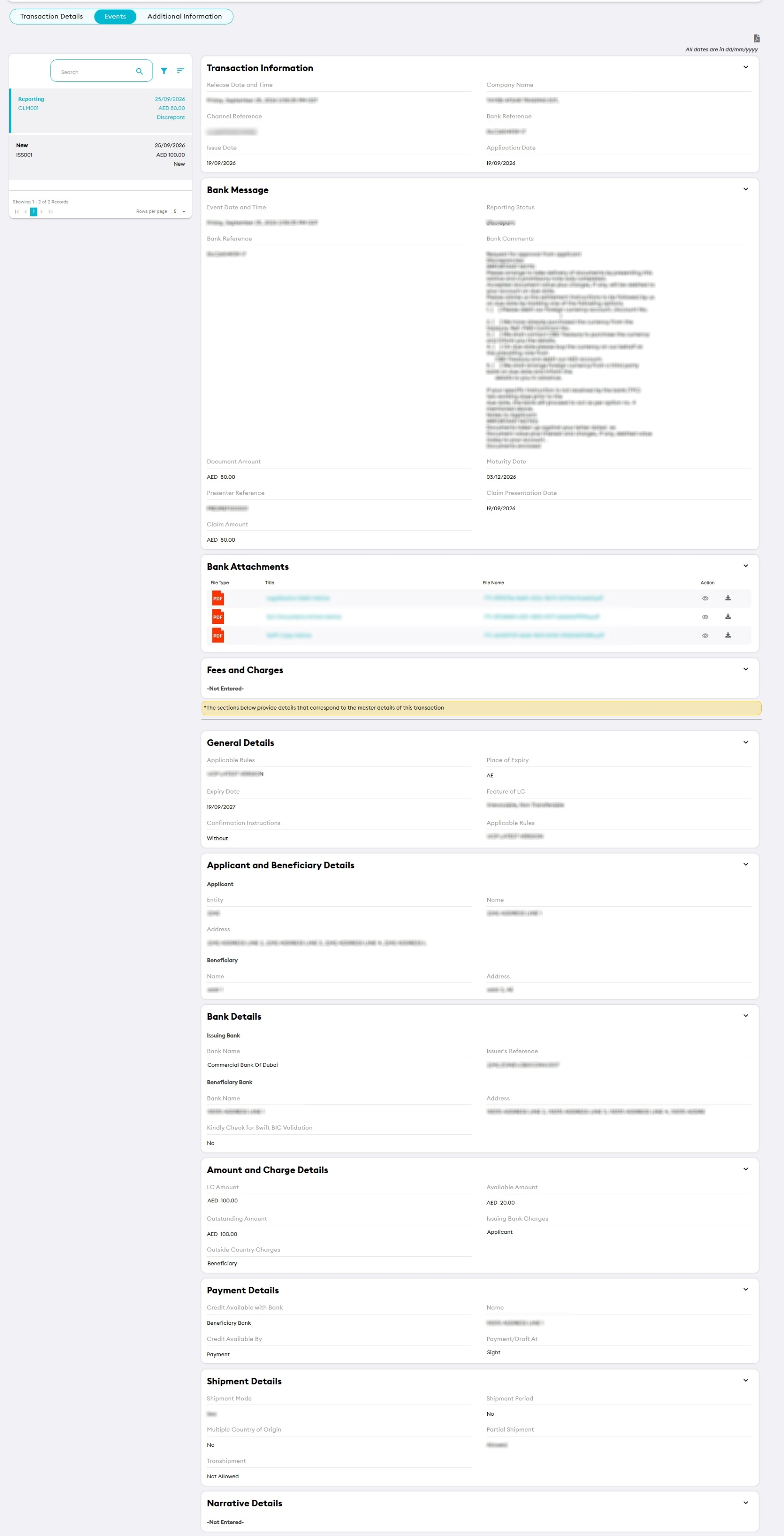
Events
Additional Instructions
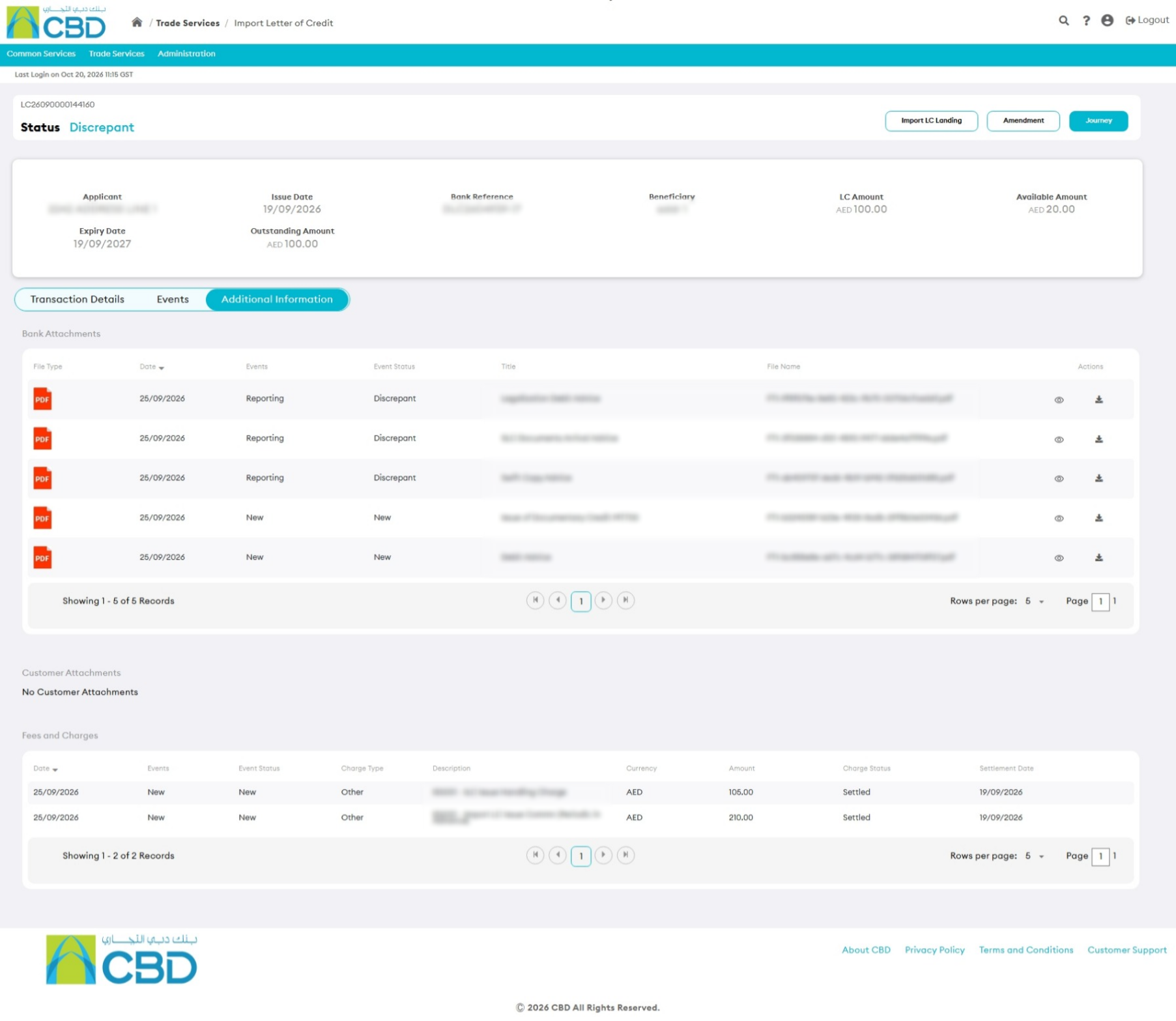
The information displayed may vary depending on the selected Trade Finance product and the transaction's status.