
Overview
This guide explains how to view transaction details and access bank-provided attachments for an Undertaking Issued transaction in iTrade.
Users can review detailed information for an Undertaking transaction, including transaction status, undertaking details, and any documents made available by the bank.
Prerequisite: Users must have the appropriate permissions to access and manage Undertaking Issued transactions. If access is unavailable, contact your Corporate Administrator.
Step 1: Access Undertaking Issued Services
- From the iTrade Dashboard, select Trade Services.
- Click Undertaking Issued.
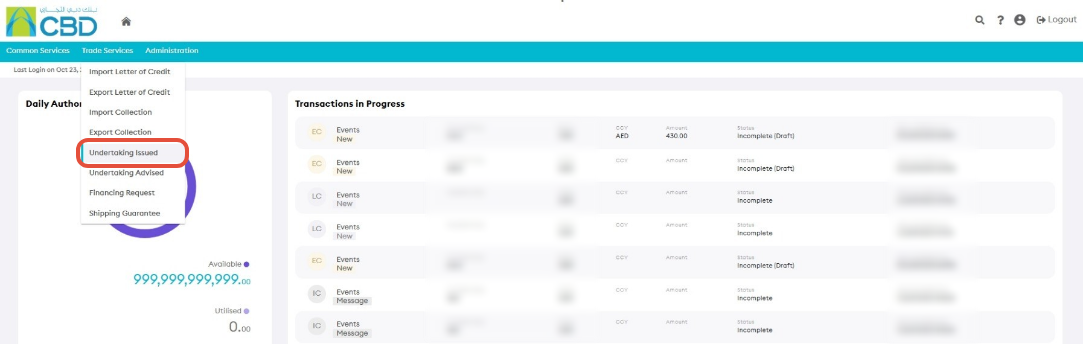
This will open the Undertaking Issued Dashboard.
Step 2: Open the Live Tab
- Select the Live tab.
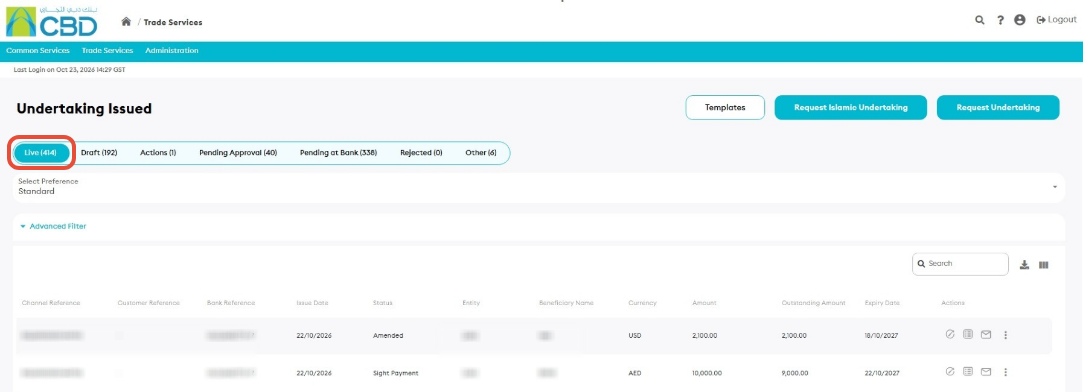
The Live tab displays all active and approved Undertaking transactions available for enquiry and review.
Step 3: Open the Transaction Details
- Locate the Undertaking transaction you want to review.
- Click the Details button for the selected transaction

The Transaction Details screen will open, displaying information related to the selected Undertaking.
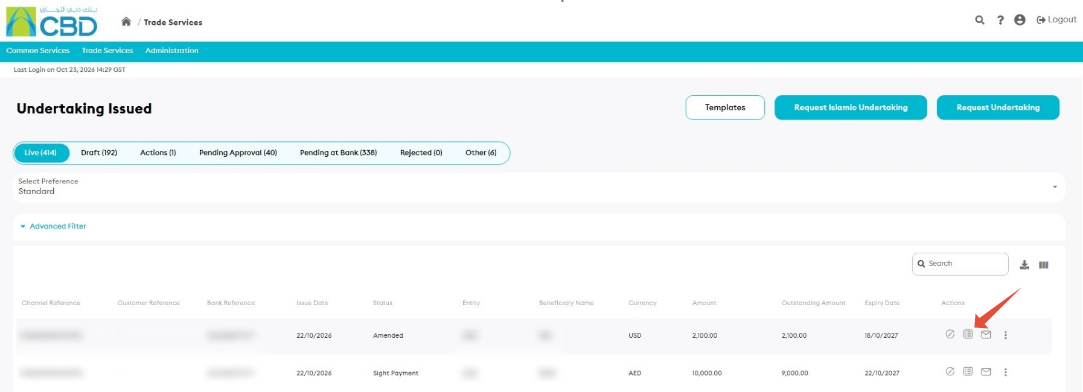
Support Tip: Verify that you have selected the correct transaction before reviewing or downloading documents.
Step 4: Open the Additional Information Tab
- Within the Transaction Details screen, select the Additional Information tab.
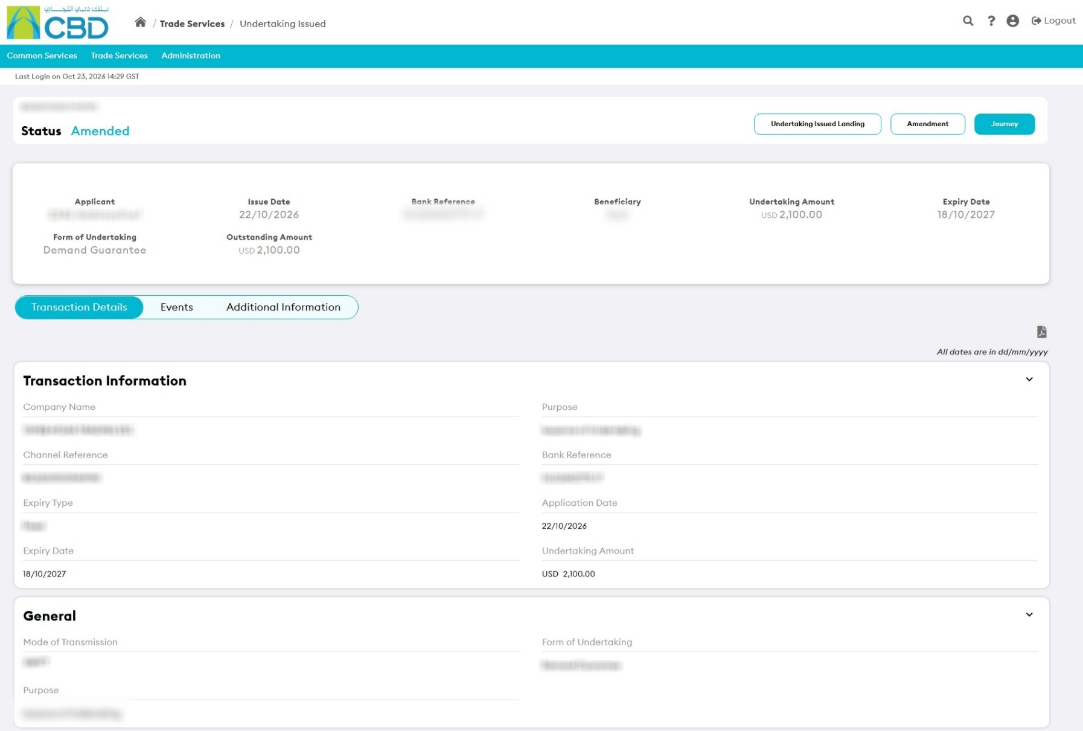
This section contains supplementary information and documents associated with the transaction.
Step 5: View and Download Bank Attachments
- Navigate to the Bank Attachments section.
- Review the list of available documents.
- Click the required attachment to:
- View the document
- Download the document to your device
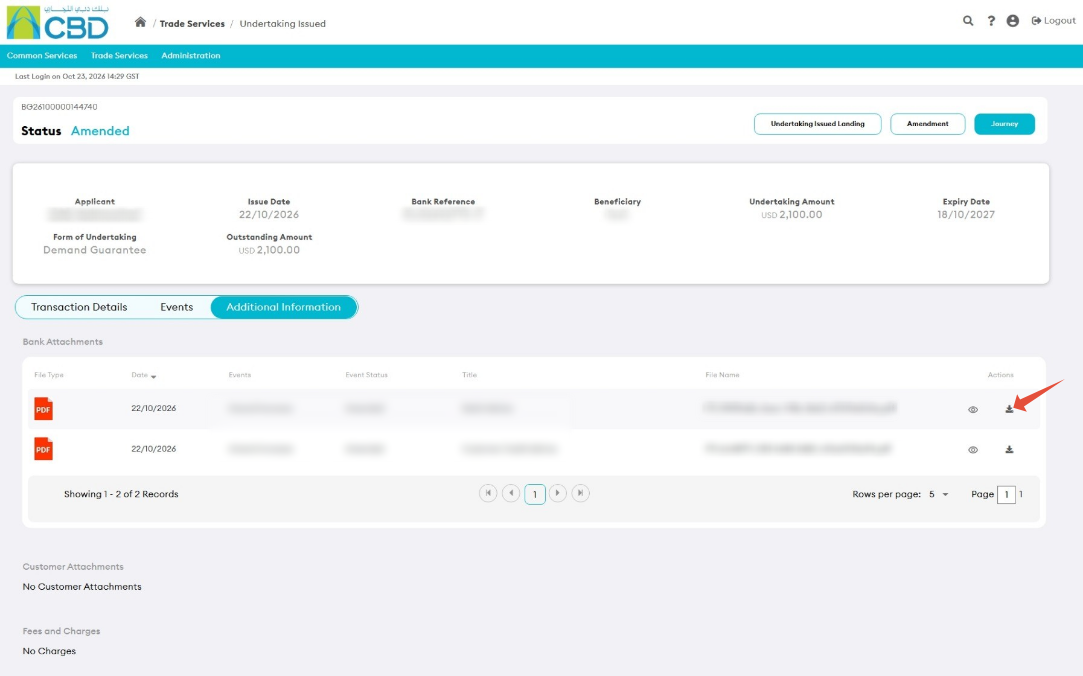
Bank-provided documents associated with the Undertaking transaction will be available within this section.
Important: Only attachments made available by the bank will be displayed in this section.