
Overview
This guide provides step-by-step instructions for creating and submitting an Islamic Undertaking through iTrade.
An Islamic Undertaking can be issued as either a:
- Demand Guarantee
- Standby Letter of Credit (SBLC)
The application allows users to define undertaking details, beneficiary information, issuing bank instructions, charges, and supporting documentation before submission to the bank.
Prerequisite: Users must have the appropriate permissions to initiate an Islamic Undertaking. If access is unavailable, contact your Corporate Administrator.
Step 1: Access Undertaking Issued Services
- From the iTrade Dashboard, select Trade Services.
- Click Undertaking Issued.
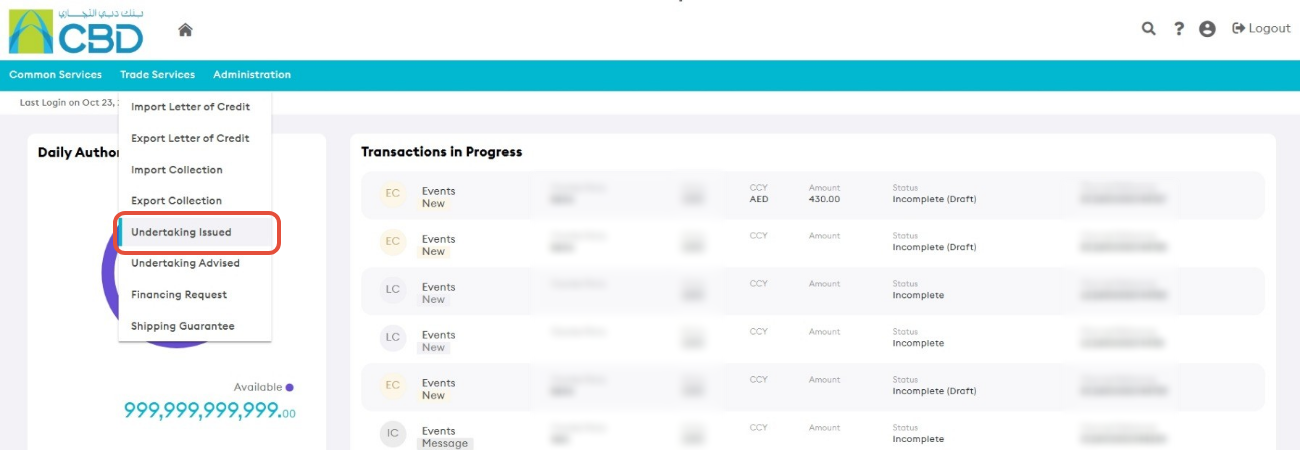
This will open the Undertaking Issued Dashboard.
Step 2: Create a New Islamic Undertaking
- Click Request Islamic Undertaking.
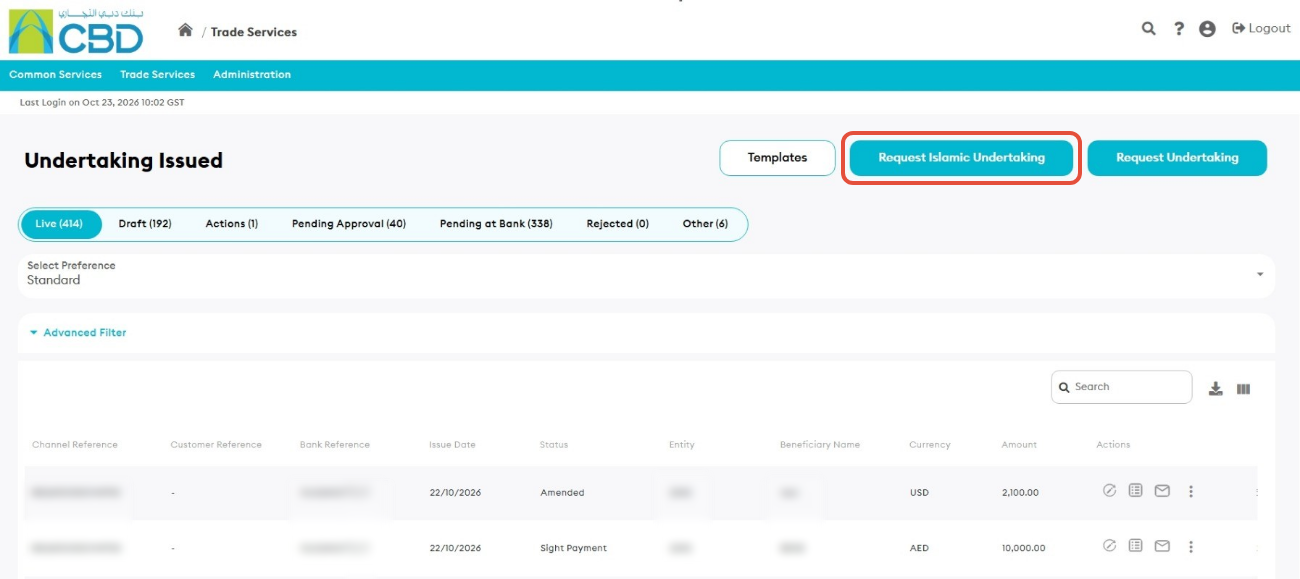
The Islamic Undertaking application form will open.
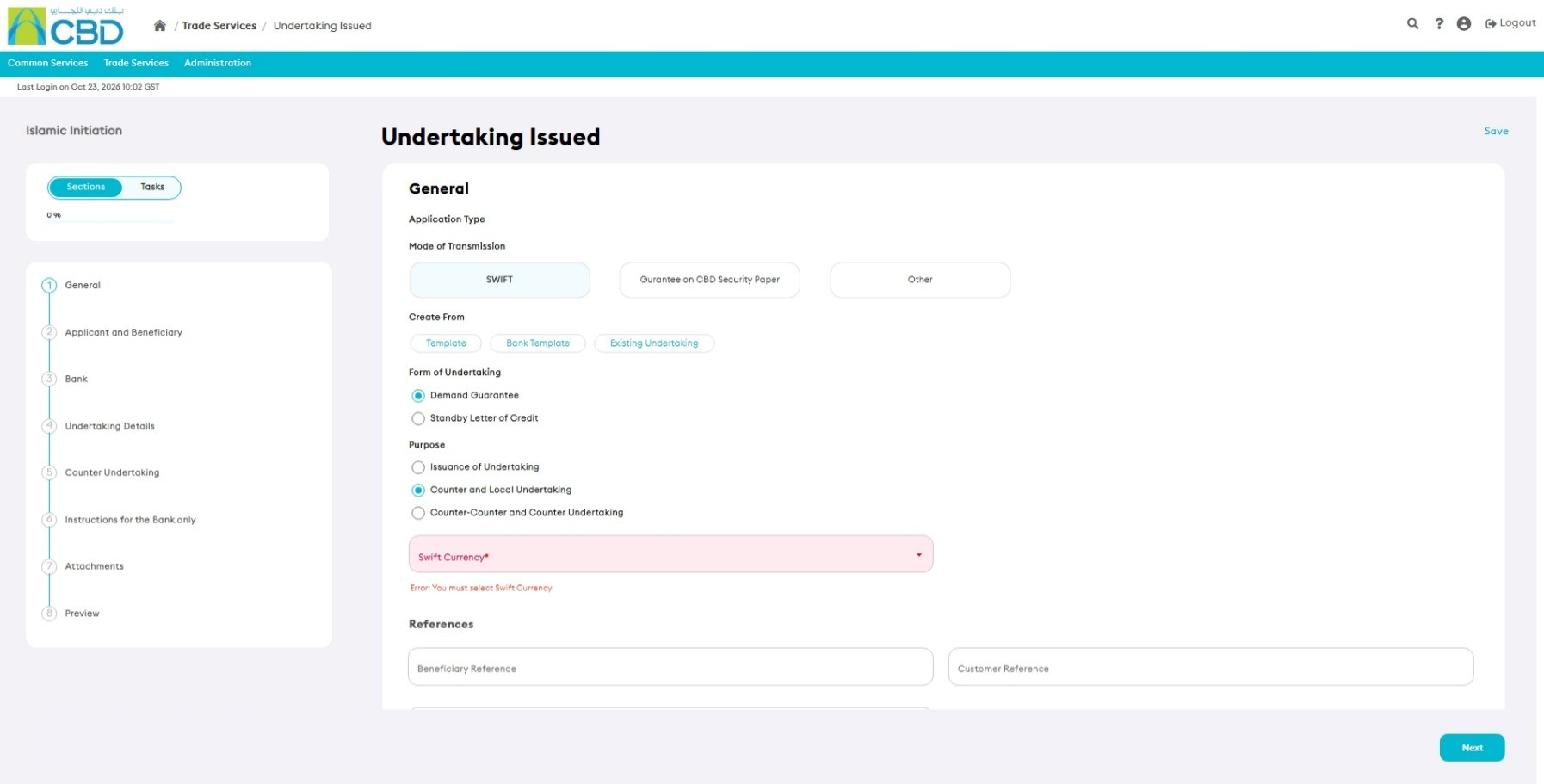
Step 3: Complete the General Details
Enter all mandatory fields marked with a red asterisk (*).
Navigation Tip: Use Next and Previous to move between sections, or select a section directly from the navigation panel on the left side of the screen.
Request for Draft
Enable this option if you want the undertaking wording reviewed before issuance.
The request progresses through the following statuses:
- Wording Under Review
- Final Wording
- New (after issuance)
Mode of Transmission
Select one of the following:
- SWIFT
- Courier / Mail
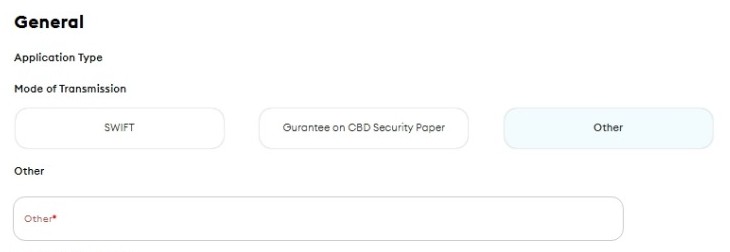
- Other
If Other is selected, additional information must be provided.
Create From
You can create the undertaking using:
- Template
- Bank Template
- Existing Undertaking
Form of Undertaking
Select the required undertaking type:
Demand Guarantee
Selecting this option enables the Extension Details section.
Standby Letter of Credit (SBLC)
Selecting this option enables:
- Confirmation Instructions
- Shipment Details
- Payment Details
Purpose
Select the purpose of the undertaking request.
Available options include:
Issuance of Undertaking
Instructs the bank to issue an undertaking directly to the beneficiary.
Counter and Local Undertaking
Instructs the bank to issue a counter undertaking that will be used by another bank to issue a local undertaking.
Counter-Counter and Counter Undertaking
Instructs the bank to issue a counter undertaking that will subsequently be used for the issuance of another counter undertaking before a third bank issues the local undertaking.
Confirmation Instructions(Standby Letter of Credit only)
Available options:
- Confirm
- May Add
- Without Confirmation
Transfer Indicator
Enable this option if the undertaking is transferable.
Applicable only for the Standby Letter of Credit undertaking type.
Transfer Conditions
Enter the conditions applicable to the transfer of the undertaking.
References
Provide:
- Beneficiary Reference
- Customer Reference
Step 4: Complete Applicant and Beneficiary Details
Applicant Details
The Applicant information is generally pre-populated and non-editable.
This includes:
- Applicant Name
- Applicant Address
Alternate Applicant
Complete this section if the undertaking is being requested on behalf of another entity.
Provide:
- Name
- Address
- Country
Beneficiary Details
You may:
- Select an existing beneficiary
- Create a new beneficiary
- Save a new beneficiary for future use
Provide:
- Beneficiary Name
- Beneficiary Address
- Beneficiary Country
BEI Code
Enter the Business Entity Identifier (BEI), where applicable.
Beneficiary Contact Details
Enable this option if a designated contact person or department should receive undertaking-related communication.
Provide:
- Contact Name
- Address
- Country
Step 5: Complete Bank Details
Bank Name
The Issuing Bank defaults to Commercial Bank of Dubai (CBD) and cannot be modified.
Issuer's Reference
Enter or review the transaction reference associated with the undertaking request.
Issuing Bank Type
Select:
Direct
The undertaking is issued directly by CBD.
Indirect
Another bank is requested to issue the undertaking.
Issuing Bank Details
Where applicable, provide:
- SWIFT Code
- Bank Name
- Bank Address
Beneficiary Bank
Provide:
- SWIFT Code
- Bank Name
- Bank Address
The Beneficiary Bank will advise the undertaking to the beneficiary.
Confirmation Required
Enable this option if confirmation by the Beneficiary Bank is required.
The Confirming Bank details may be pre-populated from the Beneficiary Bank information.
Confirming Bank
Where applicable, provide:
- SWIFT Code
- Bank Name
- Bank Address
Step 6: Complete Undertaking Details
Complete the following undertaking sections:
Type and Expiry
Specify the undertaking type and expiry conditions.
Amount and Charges
Provide:
- Undertaking Currency
- Undertaking Amount
- Variation in Drawing (+/-)
- Issuing Charges
- Correspondent Charges
- Additional Amount Information
Contract Details
Enter the contract information associated with the undertaking.
Terms
Enter the terms and conditions of the undertaking.
Shipment Details
Complete shipment information where applicable.
Note: Shipment Details are available only when the Form of Undertaking is Standby Letter of Credit.
Payment Details
Complete the payment terms applicable to the undertaking.
Step 7: Complete Instructions to Bank
Enter any additional instructions required for processing the undertaking.
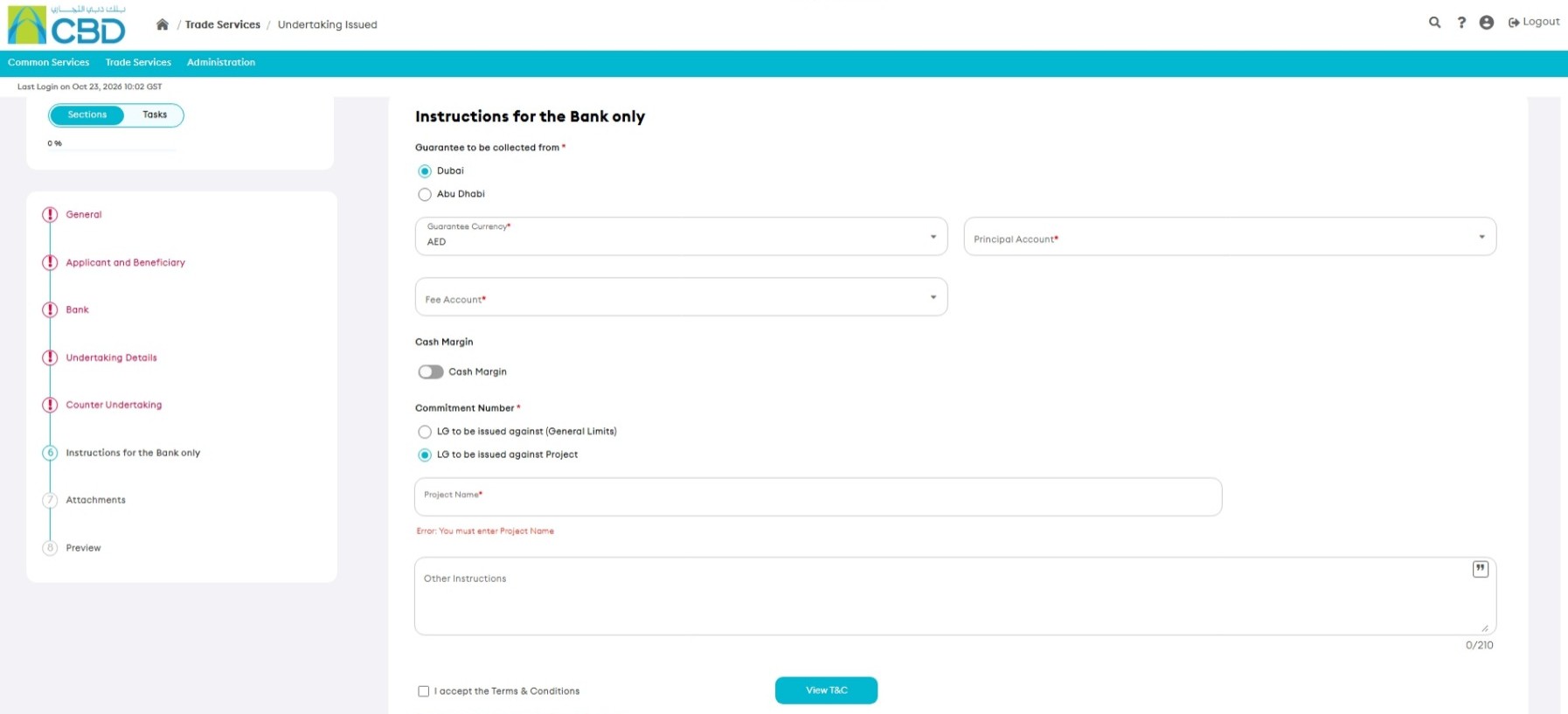

Support Tip: Provide clear instructions to avoid delays in processing or clarification requests from the bank.
Step 8: Upload Supporting Documents
Attach supporting documentation required for the undertaking request.
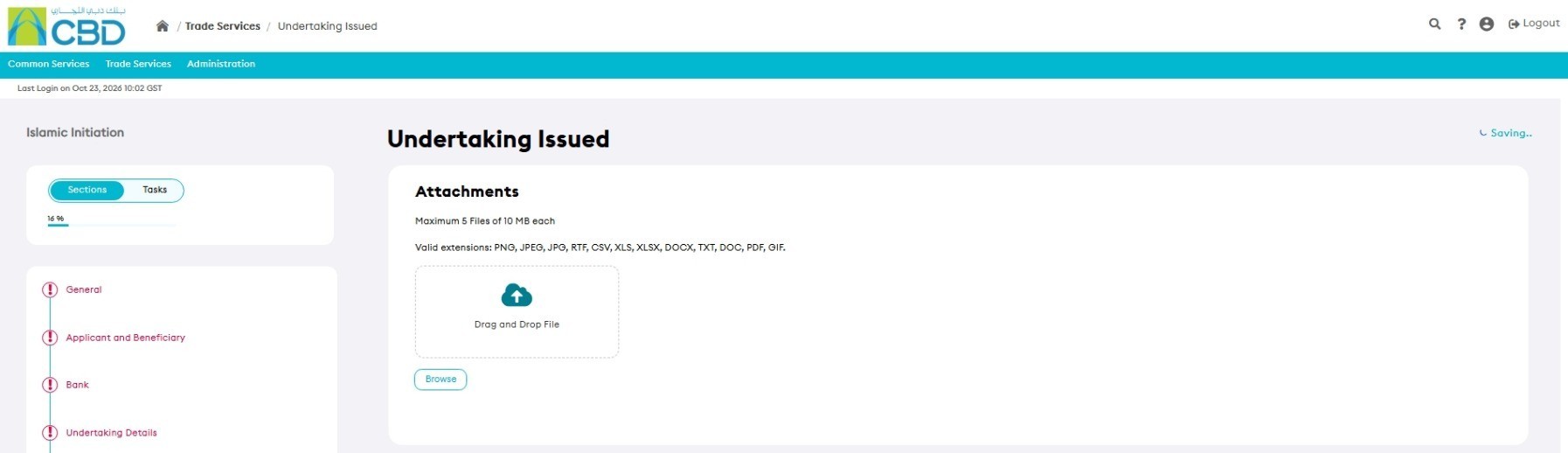
Attachment Requirements
- Maximum of 5 files
- Maximum file size: 5 MB per file
Supported File Types
|
|
|
Examples of Supporting Documents
- Proforma Invoice
- Contract Documents
- Tender Documents
- Supporting Trade Documents
- Specimen Signature
Step 9: Review the Application
Open the Preview section and review all information entered.
Verify:
- General Details
- Applicant Information
- Beneficiary Information
- Bank Details
- Undertaking Details
- Charges
- Contract Information
- Terms and Conditions
- Shipment Details (if applicable)
- Payment Details
- Supporting Documents
If changes are required, return to the relevant section and update the information.
Step 10: Submit the Request
- Review all information carefully.
- Click Submit.
If the request is submitted successfully:
- A confirmation message will be displayed.
- A reference number may be generated for tracking purposes.