
Overview
This guide provides instructions for common login and access management activities in iBusiness, including:
- Resetting a forgotten password
- Unlocking a user account
- Unlocking a Corporate Admin account
- Checking registered devices
1. Forgot Password
Use this process if you cannot remember your password.
Step 1: Start the Password Reset
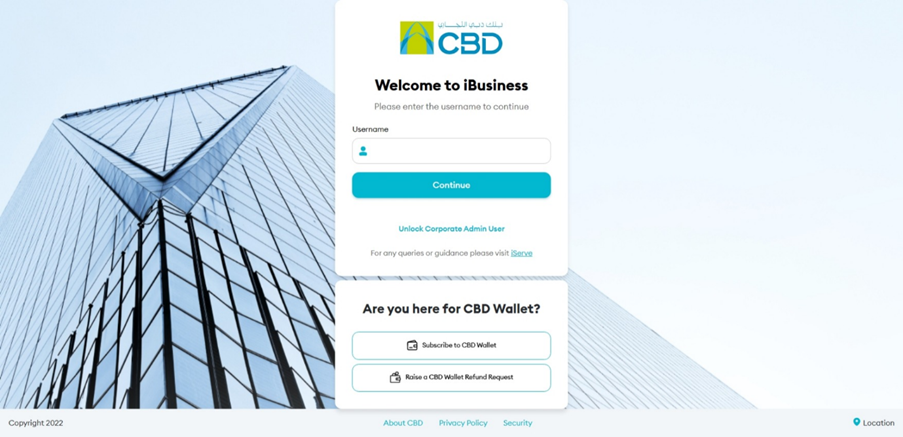
- Open the iBusiness login page.
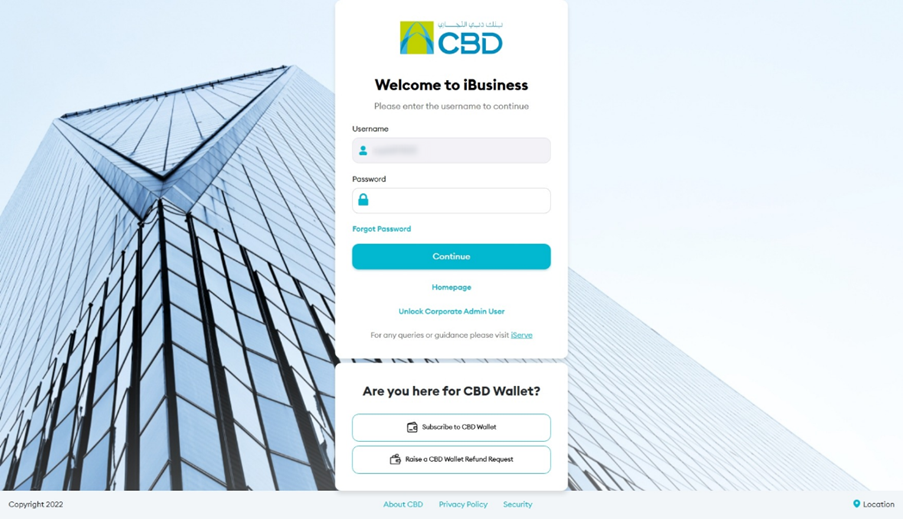
- Enter your User ID.
- Click Continue.
- Select Forgot Password.
Step 2: Verify Your Mobile Number
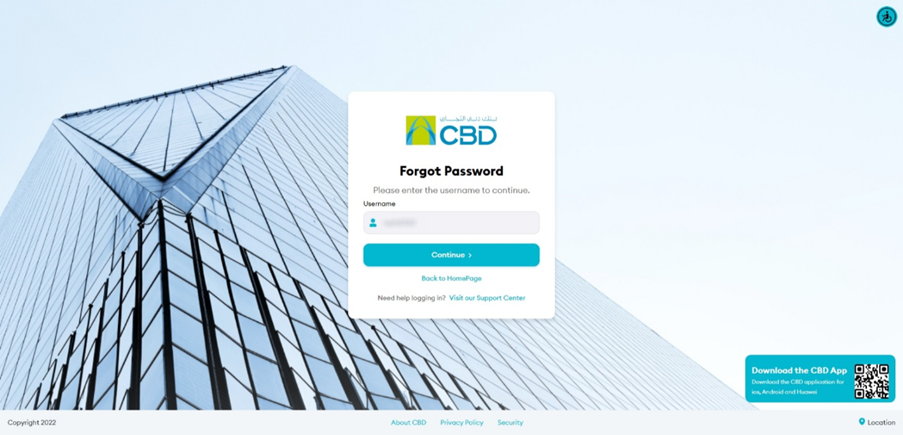
- Confirm your User ID.
- Click Continue.
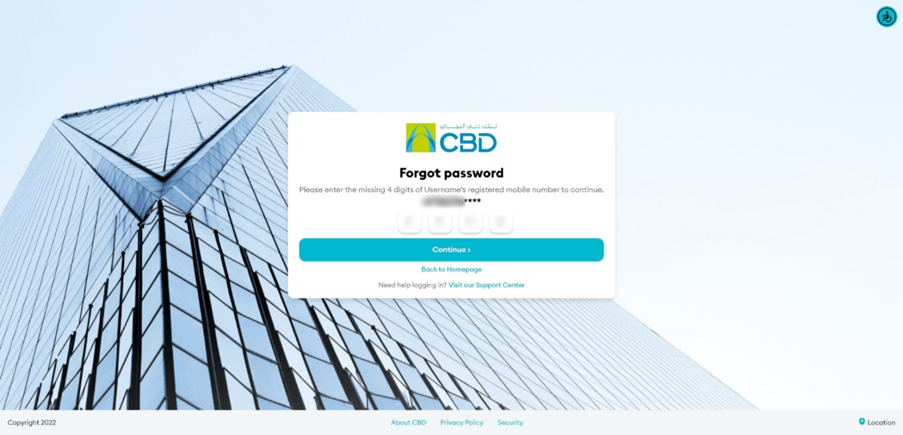
- Enter the last four digits of your registered mobile number.
- Click Continue.
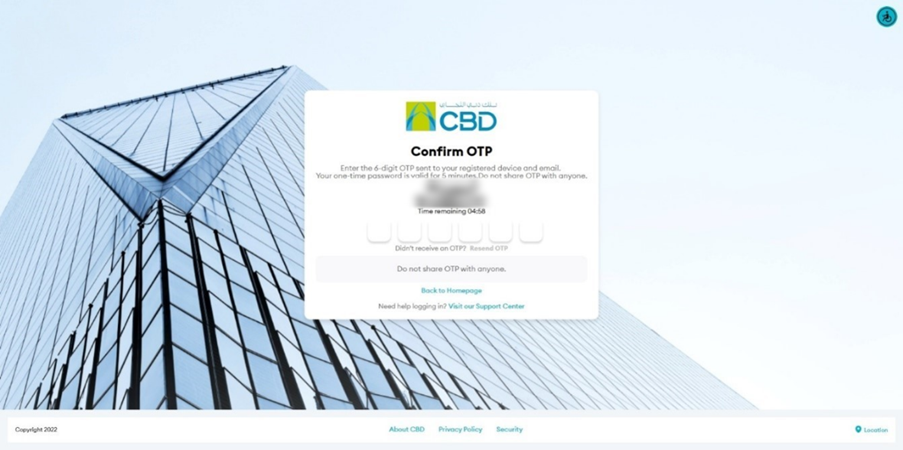
Step 3: Enter the OTP
An OTP will be sent to:
- Your registered mobile number
- Your registered email address
Enter the OTP and continue.
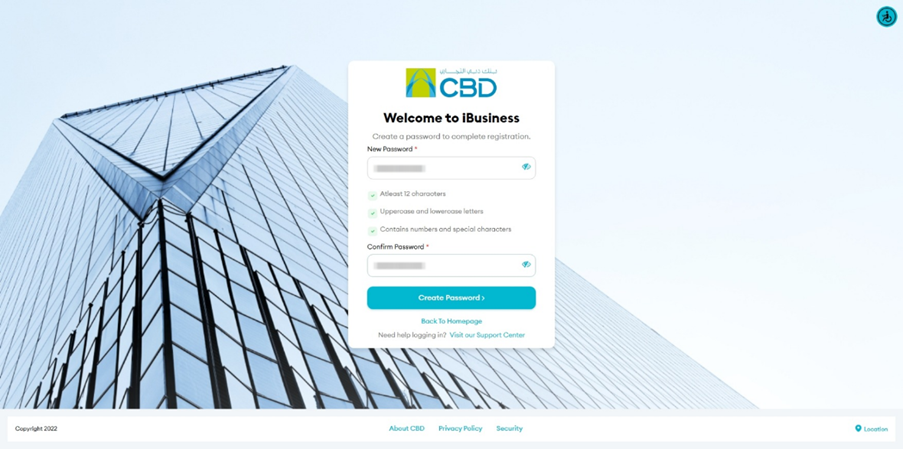
Step 4: Create a New Password
- Enter a new password.
- Confirm the new password.
- Click Submit.
Your password will be updated successfully.
Step 5: Log In
- Click Proceed.
- Return to the login page.
- Enter your:
- User ID
- New Password
- Approve the login request using the iBusiness Mobile App.
2. Unlock a Corporate User
This process is performed by a Corporate Administrator.
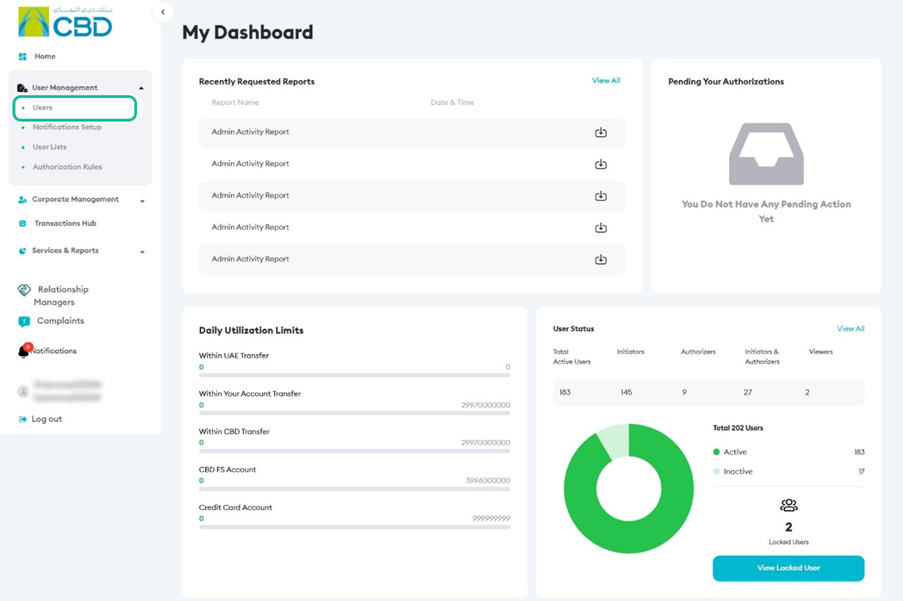
Step 1: Locate the User
- Log in to iBusiness as a Corporate Administrator.
- Navigate to: User Management ➜ Users
- Search for the user with a Locked status.
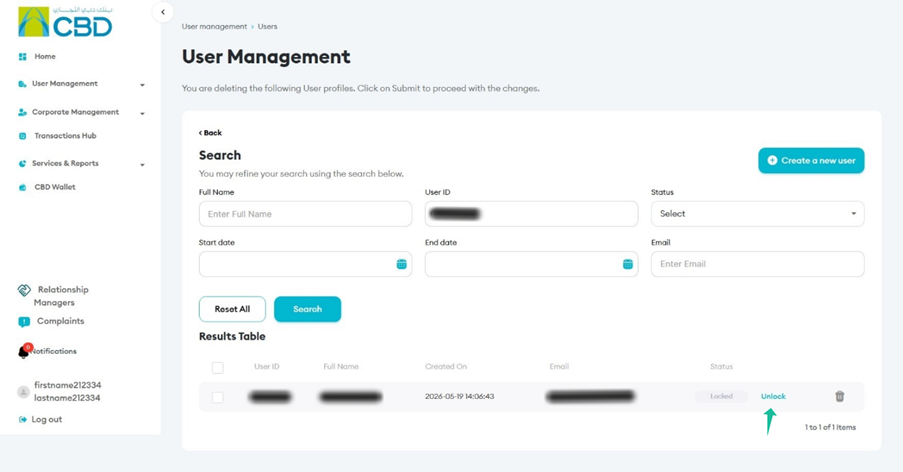
Step 2: Unlock the User
- Locate the locked user.
- Click Unlock.
Step 3: Review and Submit
- Review the user details.
- Confirm the correct user has been selected.
- Click Submit.
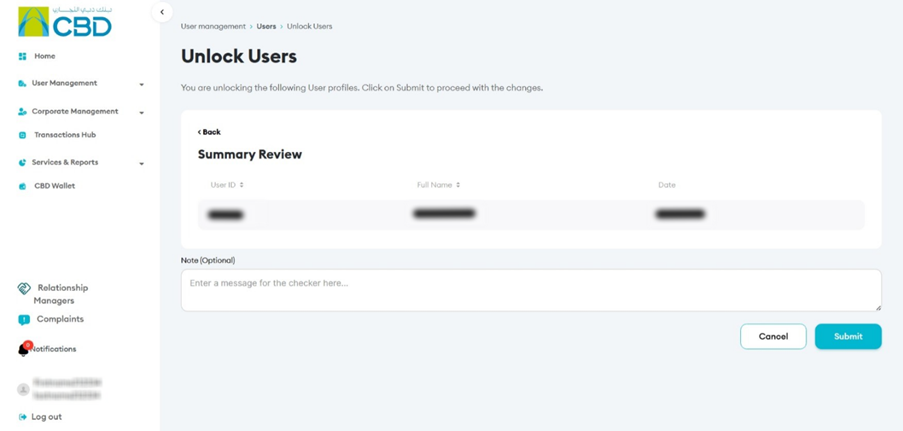
Step 4: Authenticate the Request
Authenticate using:
iBusiness Mobile App
- Approve the notification.
- Complete biometric authentication.
Google Authenticator
- Enter the generated OTP.
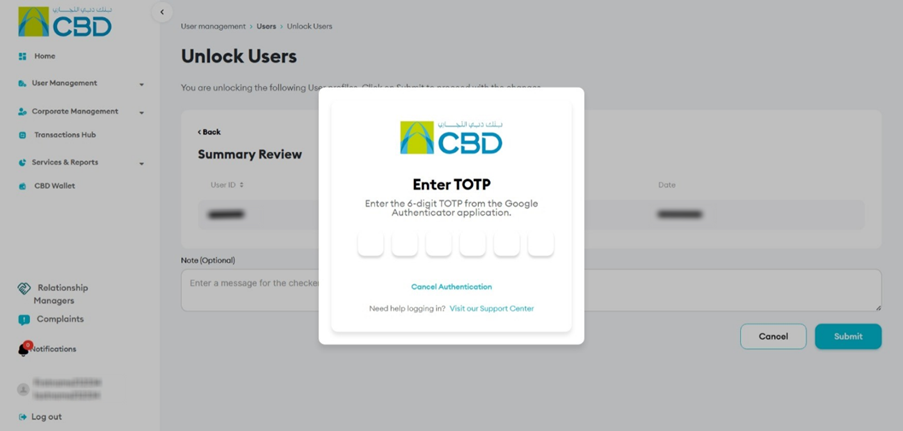
Step 5: Approval (If Maker–Checker Is Enabled)
The Approver must:
- Log in to iBusiness.
- Navigate to: Transactions ➜ Pending Your Authorizations
- Locate the request under Unlock User.
- Review and select: Approve or Reject
3. Unlock a Corporate Admin Account
A Corporate Admin account may be locked after three unsuccessful TOTP attempts.
Step 1: Start the Unlock Process

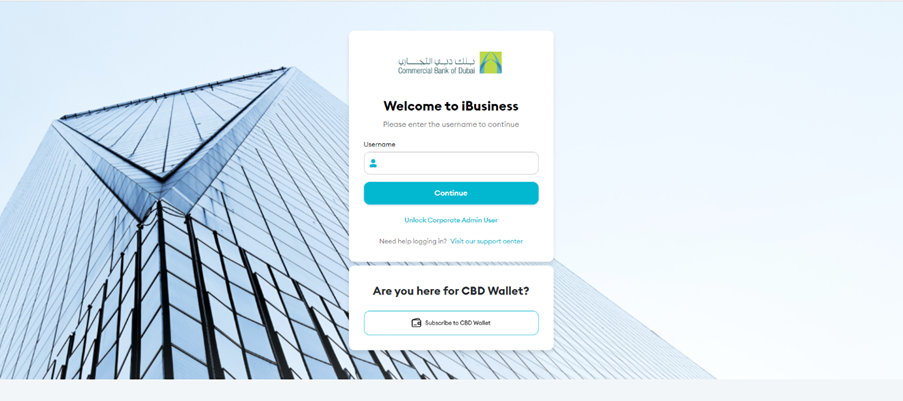
From the login page, click:
Unlock Corporate Admin User
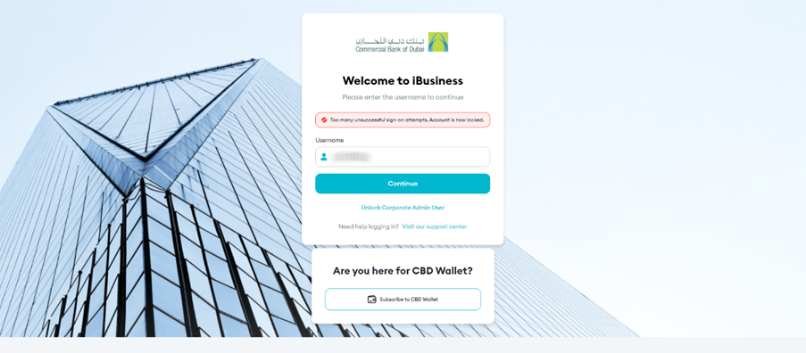
Step 2: Enter the Username
Enter the Corporate Admin username.
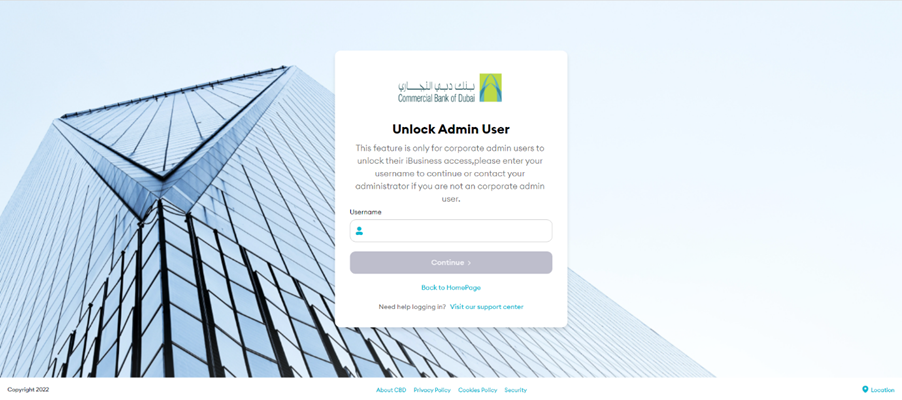
Step 3: Verify the Mobile Number
Enter the requested digits from the mobile number registered to the account.

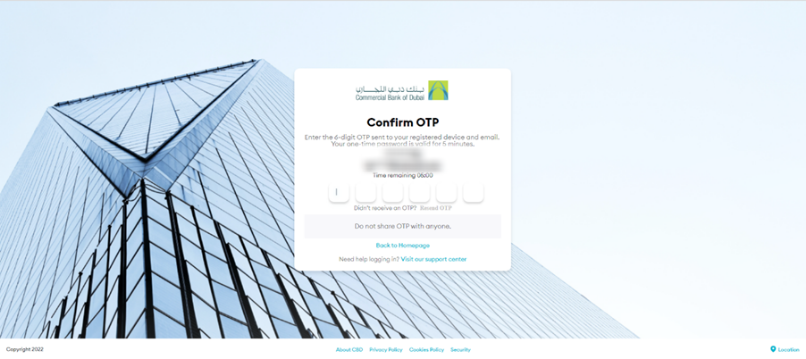
Step 4: Enter the OTP
Enter the OTP received on the registered mobile number.
Step 5: Access Restored
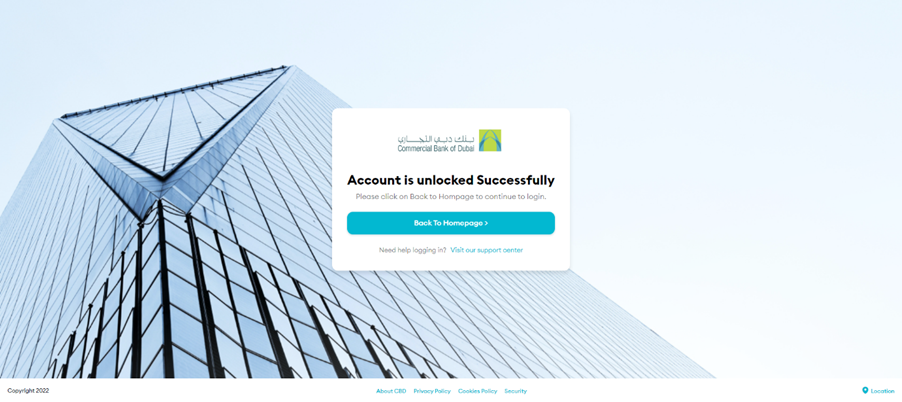
Once verification is successful:
- The account will be unlocked.
- Click Back to Homepage.
- Log in again using your credentials.
4. Manage Registered Devices
Administrators can view and manage devices paired to corporate users.
Common scenarios include:
Check Whether a User Has a Registered Device
Step 1: Open the User Profile
- Log in as Admin.
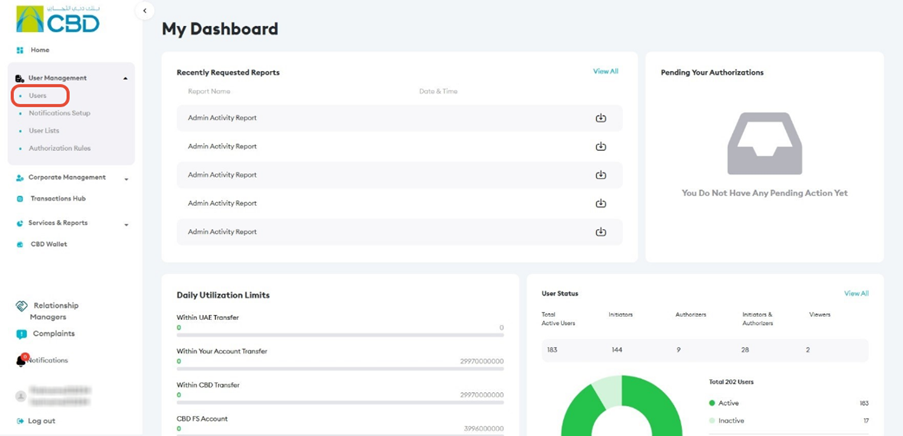
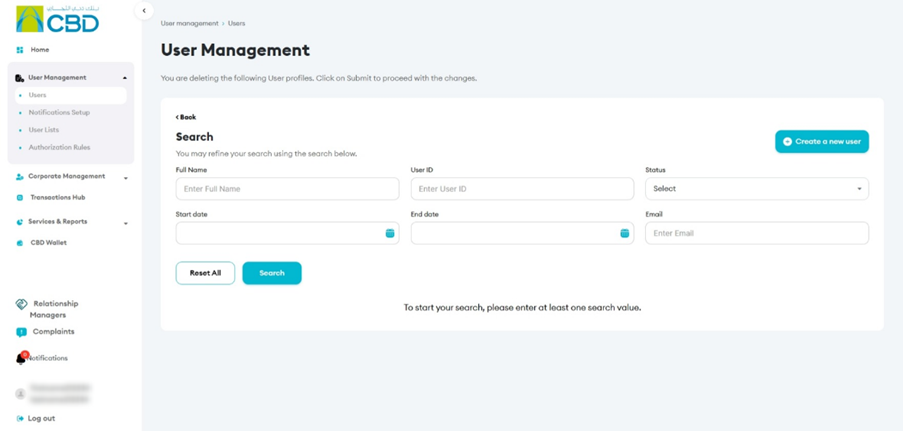
- Navigate to: User Management ➜ Users
- Search for the required user.
Step 2: View Registered Devices
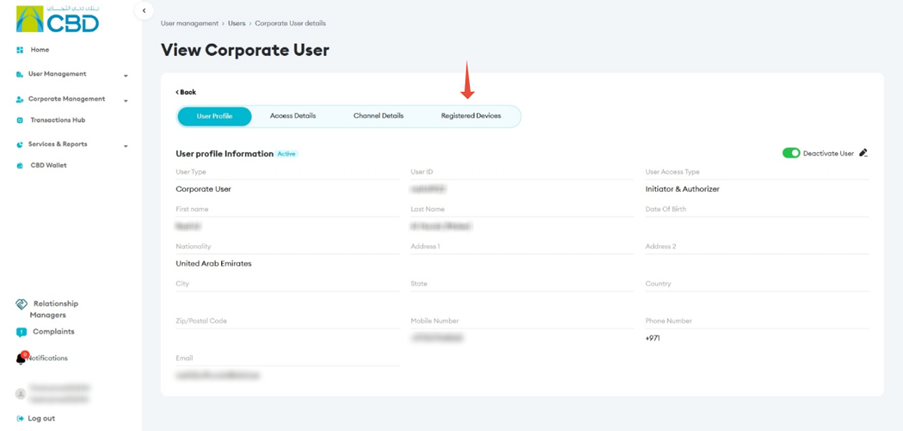
- Open the user profile.
- Select Registered Devices.
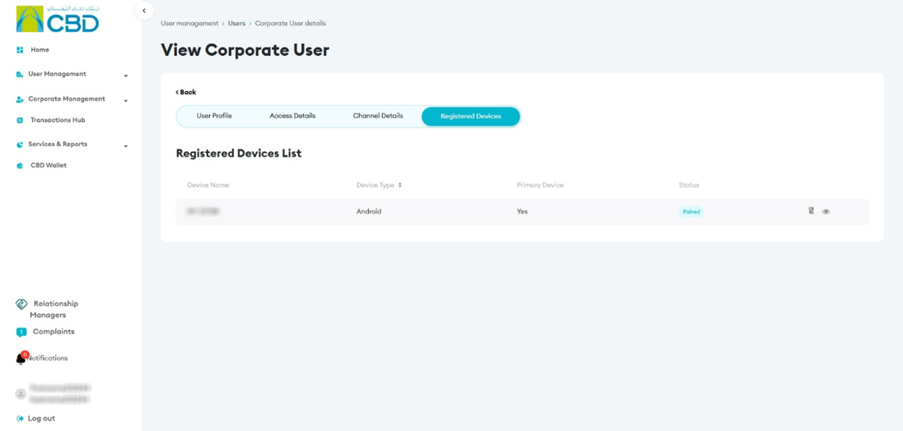
The system will display:
Registered devices (if available):
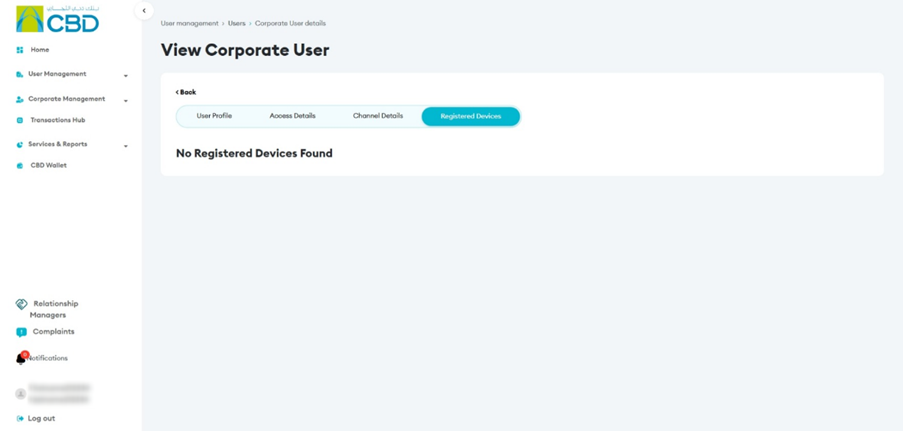
No registered device message (if none exist)
Support Notes / Best Practices
- Always verify the user's identity before unlocking an account.
- Confirm the correct user profile before submitting unlock or device management requests.
- Use device unpairing immediately if a device is lost or stolen.
- Retain reference numbers for tracking and audit purposes.
- Ensure Maker–Checker approval requirements are followed where applicable.
- Never share passwords, OTPs, PINs, or authentication codes.
Frequently Asked Questions (FAQ)
I forgot my password. What should I do?
Use the Forgot Password option on the login page and follow the password reset process. Learn More
My account is locked. What should I do?
Contact your Corporate Administrator or use the unlock process if you are a Corporate Admin. Learn More
Why am I not receiving the OTP?
Check:
- Your mobile network connection.
- Your registered email address.
- Your spam or junk folder.
What should I do if I change my mobile device?
Your Corporate Administrator should unpair the old device before pairing the new device.
- Device Unpairing (Web Portal).
- Device Unpairing (iBusiness Mobile App).
How do I register my device as a new user?
New users must first log in to the iBusiness Mobile App and complete the device registration process before accessing the Web Portal. Learn More
Who can unlock a Corporate User account?
A Corporate Administrator with the appropriate permissions can submit an unlock request. Learn More
Who can manage registered devices?
Corporate Administrators can view and manage registered devices for users under their organization. Learn More