
Login Process
Use this guide to log in to the Next Generation iBusiness Web Application.
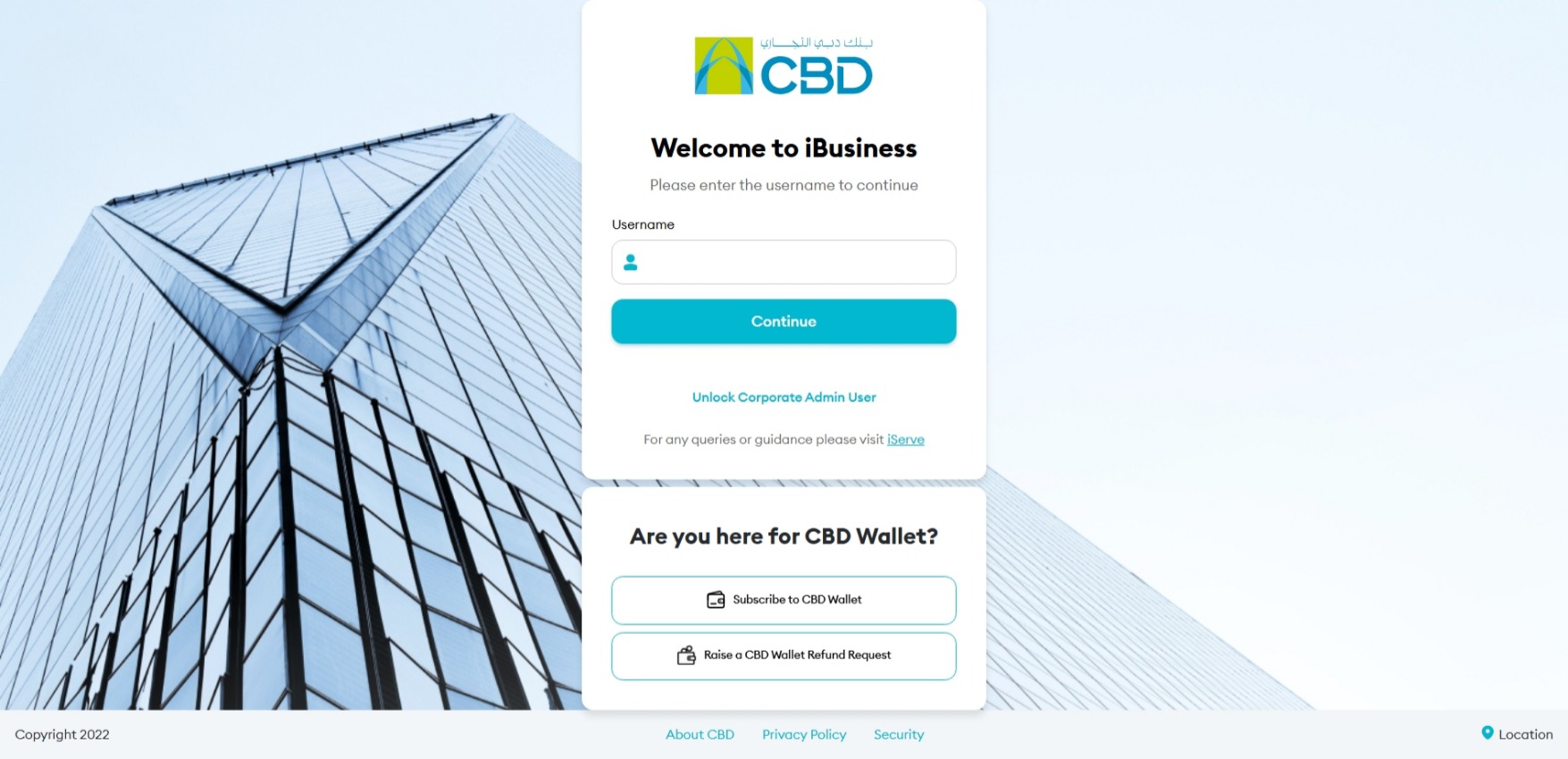
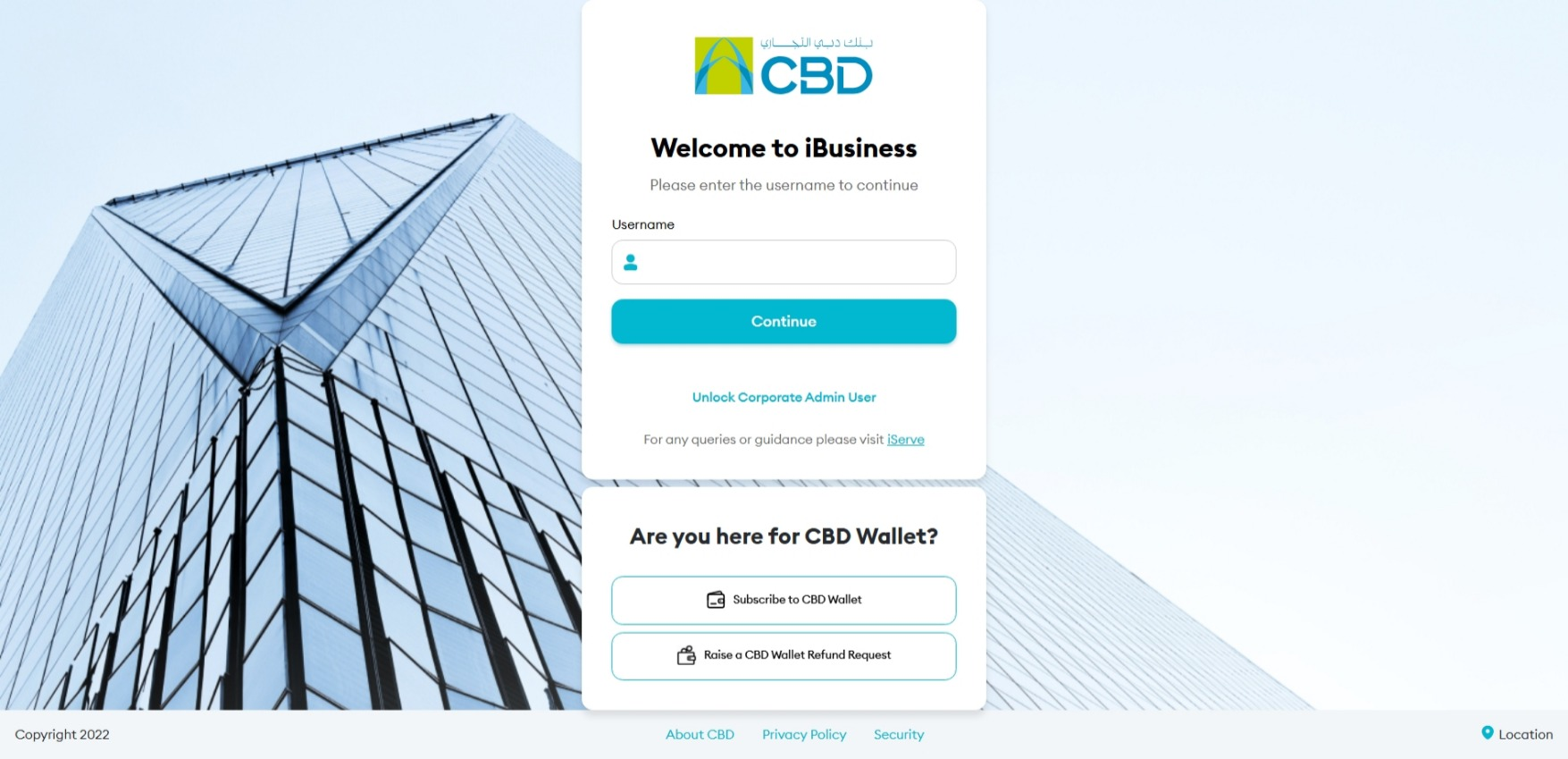
Step 1: Enter your User ID
- Go to the iBusiness login page
- Enter your User ID
- Click Continue
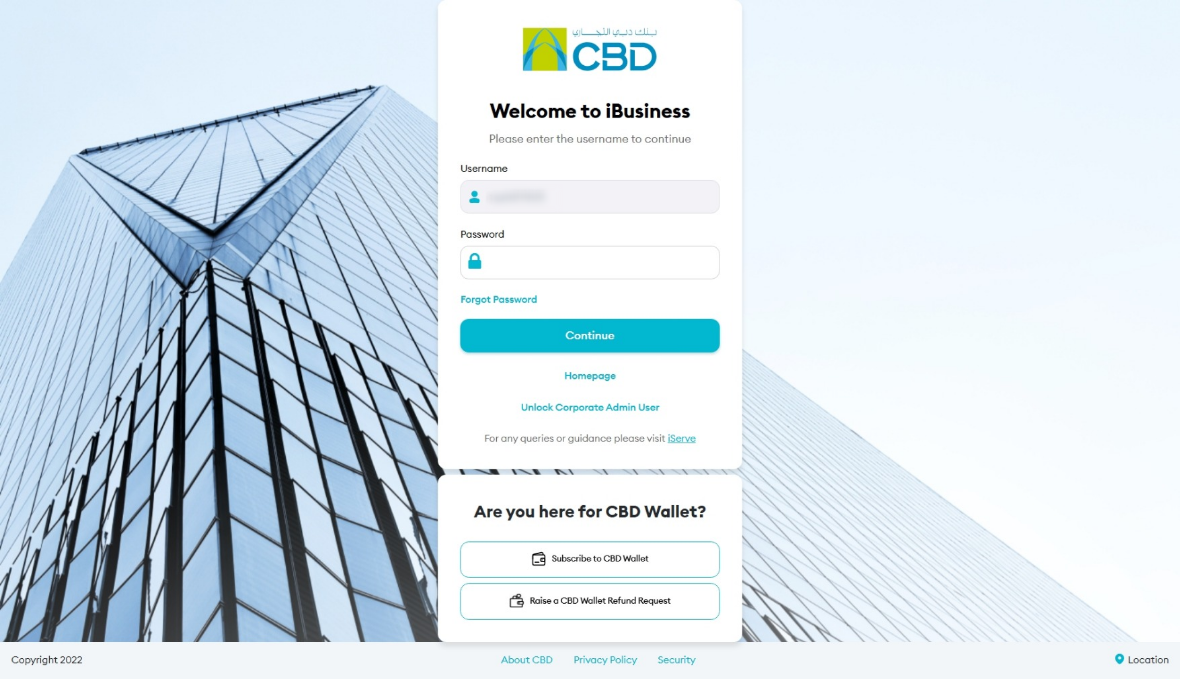
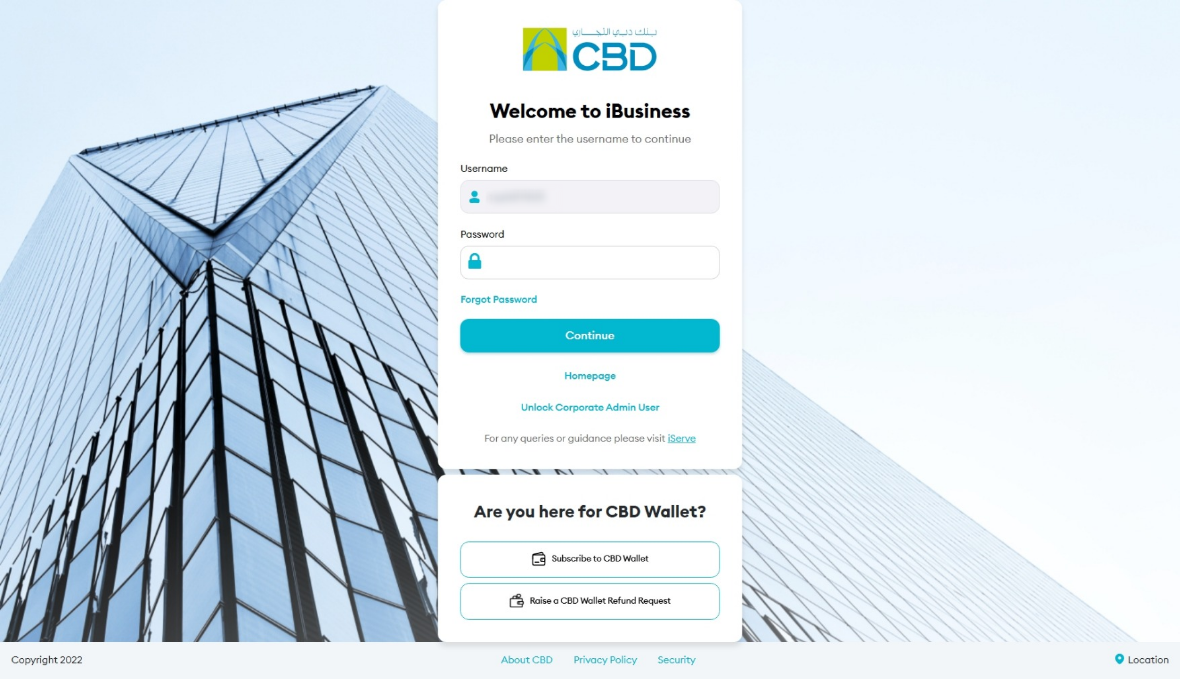
Step 2: Enter your password
- Enter your Password
- Click Continue
Step 3: Approve the login request
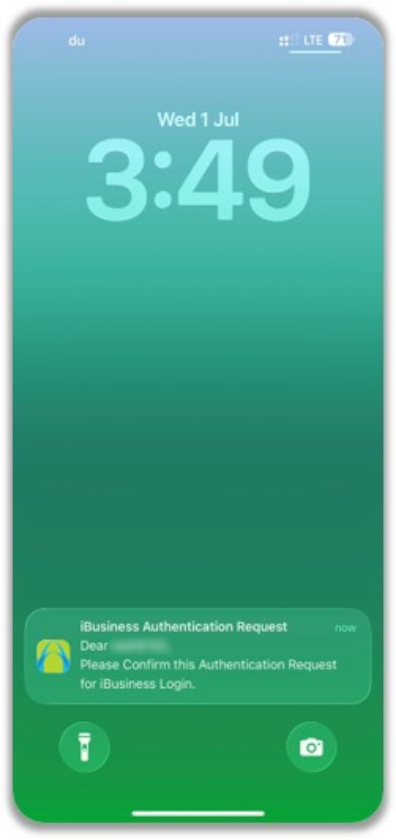
- Step 3: Approve the login request
- A notification will be sent to your registered mobile device
- Open the iBusiness Mobile App
- Review the login request
- Approve using: Face ID / fingerprint
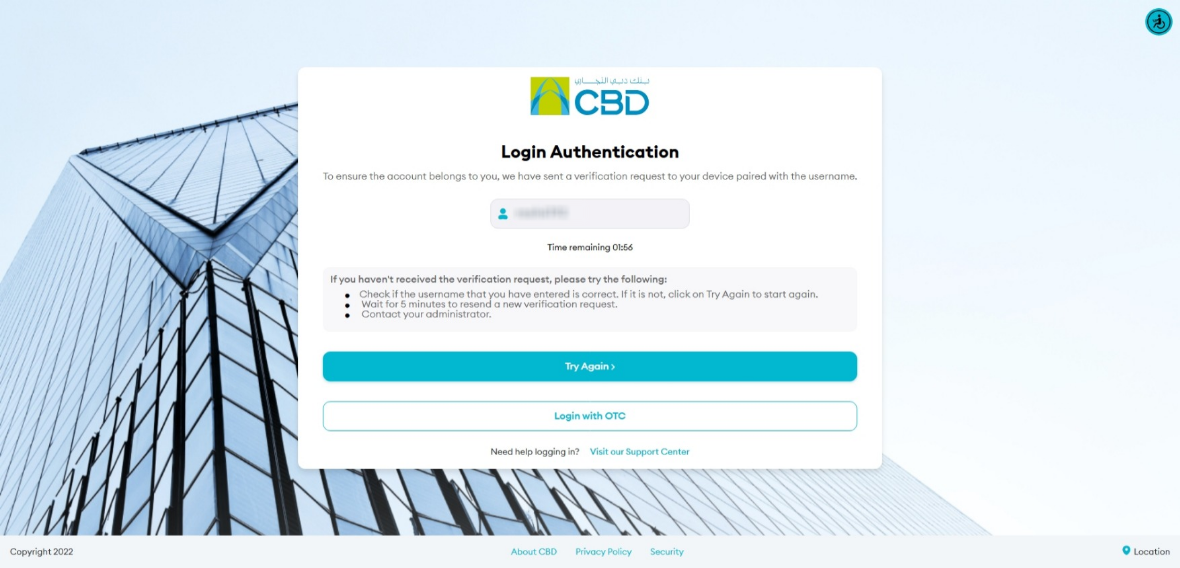
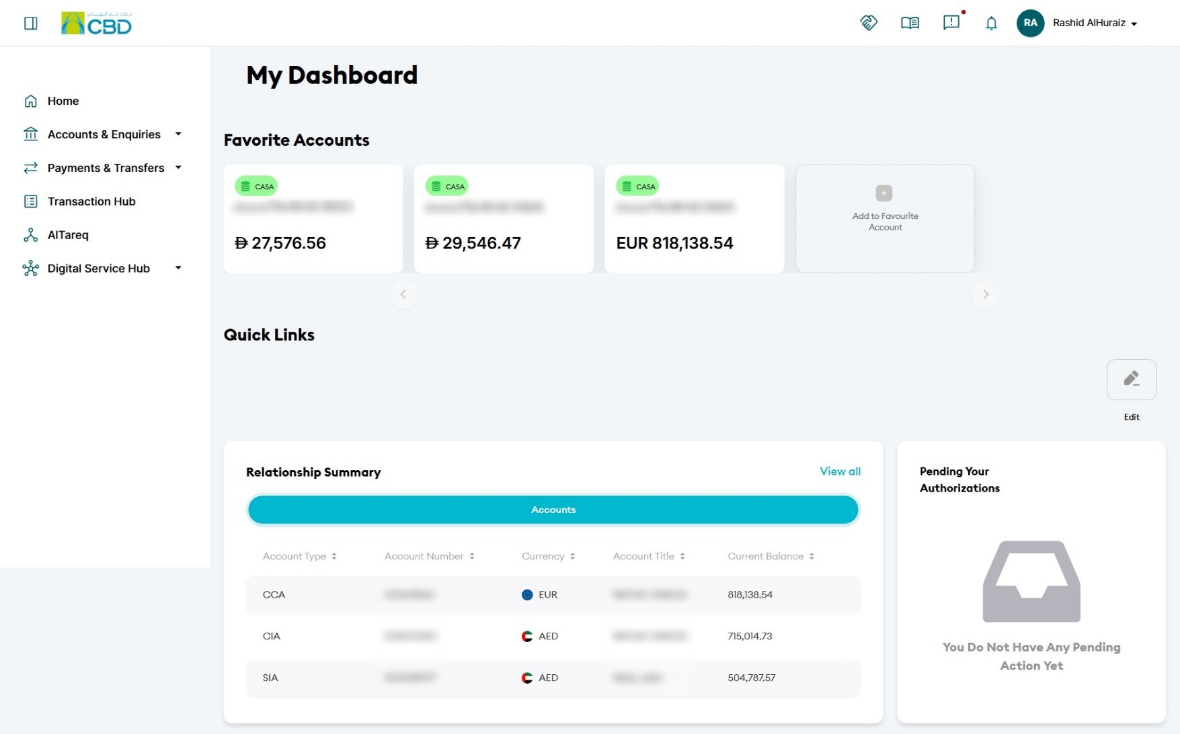
Step 4: Access your account
- Once approved, you will be logged in automatically
Forgot Password Process
Use this section if you cannot remember your password.
Step 1: Start password reset
- Go to the iBusiness login page
- Enter your User ID
- Click Continue
- Click Forgot Password
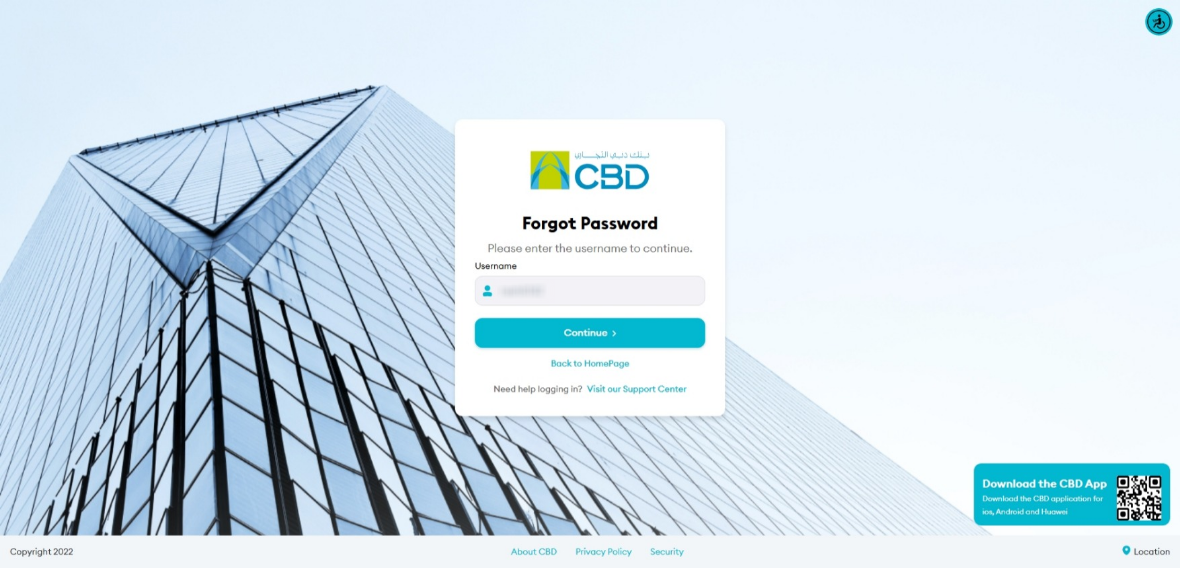
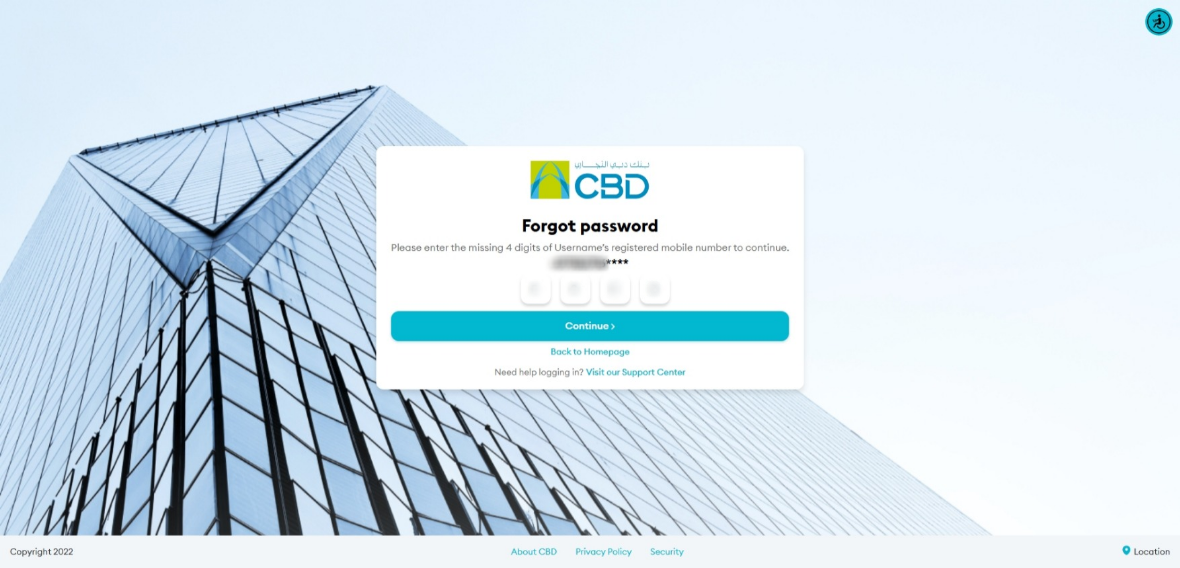
Step 2: Verify your mobile number
- Confirm your Username by clicking Continue
- Enter the last 4 digits of your registered mobile number
- Click Continue
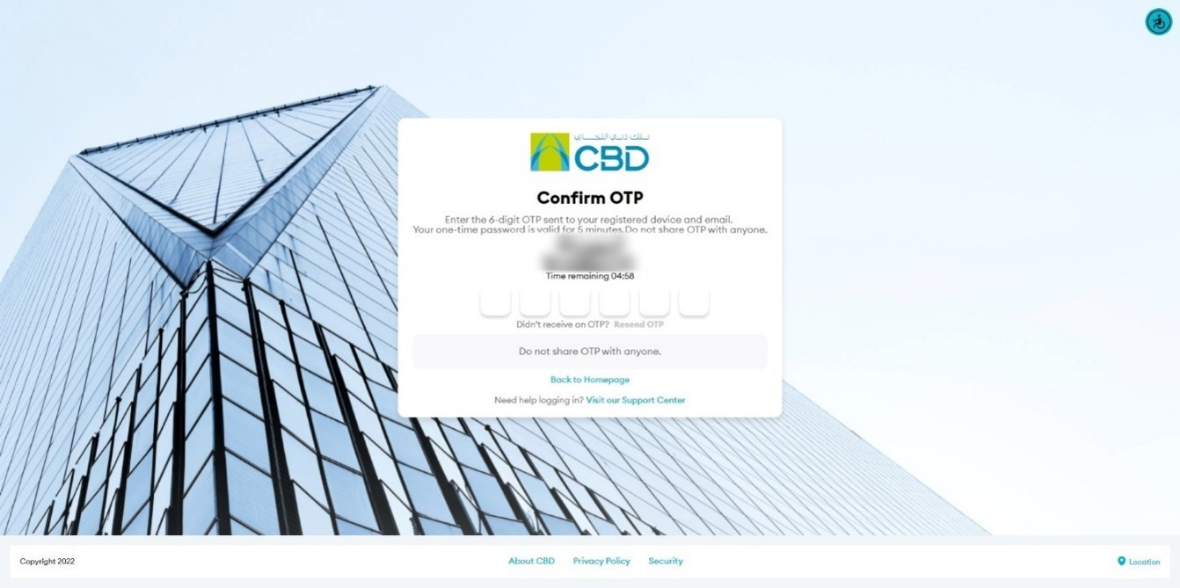
Step 3: Enter OTP
- You will receive a One-Time Password (OTP) on:
- Your registered mobile number
- Your registered email address
- Enter the OTP
Step 4: Set a new password
- Enter your new password
- Confirm the password
- Submit
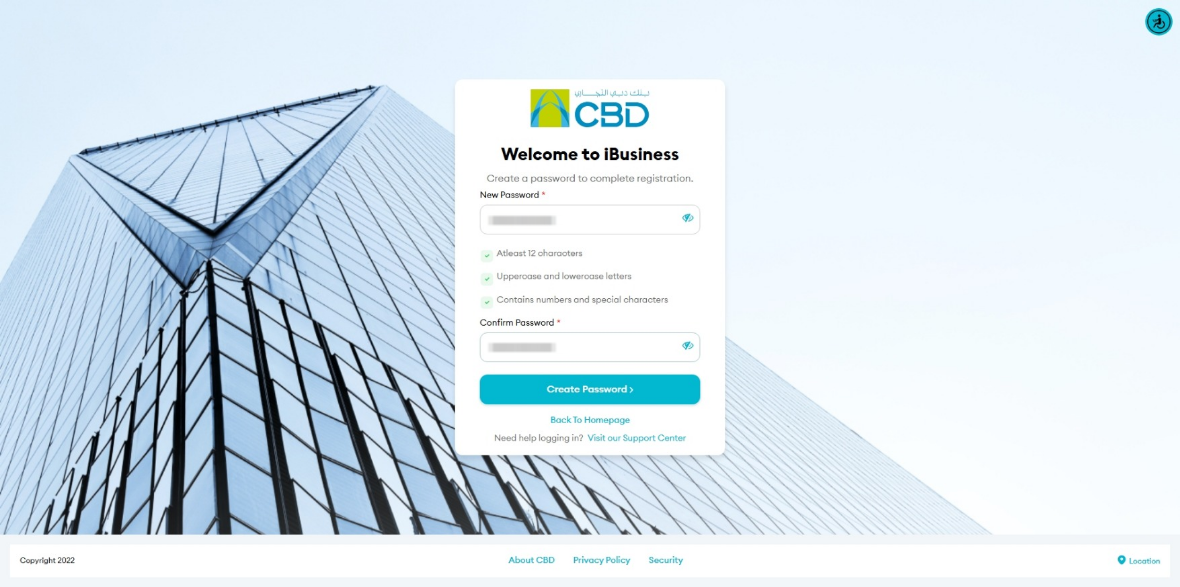
- Your password will be successfully updated
Step 5: Log in with new password
- Click Proceed to return to login
- Enter:
- User ID
- New password
- Approve login via mobile app notification
Helpful Tips
- Keep your mobile device nearby during login
- Ensure notifications are enabled for the iBusiness app
- Use Forgot Password if you cannot access your account
- Contact your administrator if issues persist