
Before You Begin
Download the CBD iBusiness NextGen mobile app from the Apple App Store or Google Play Store.
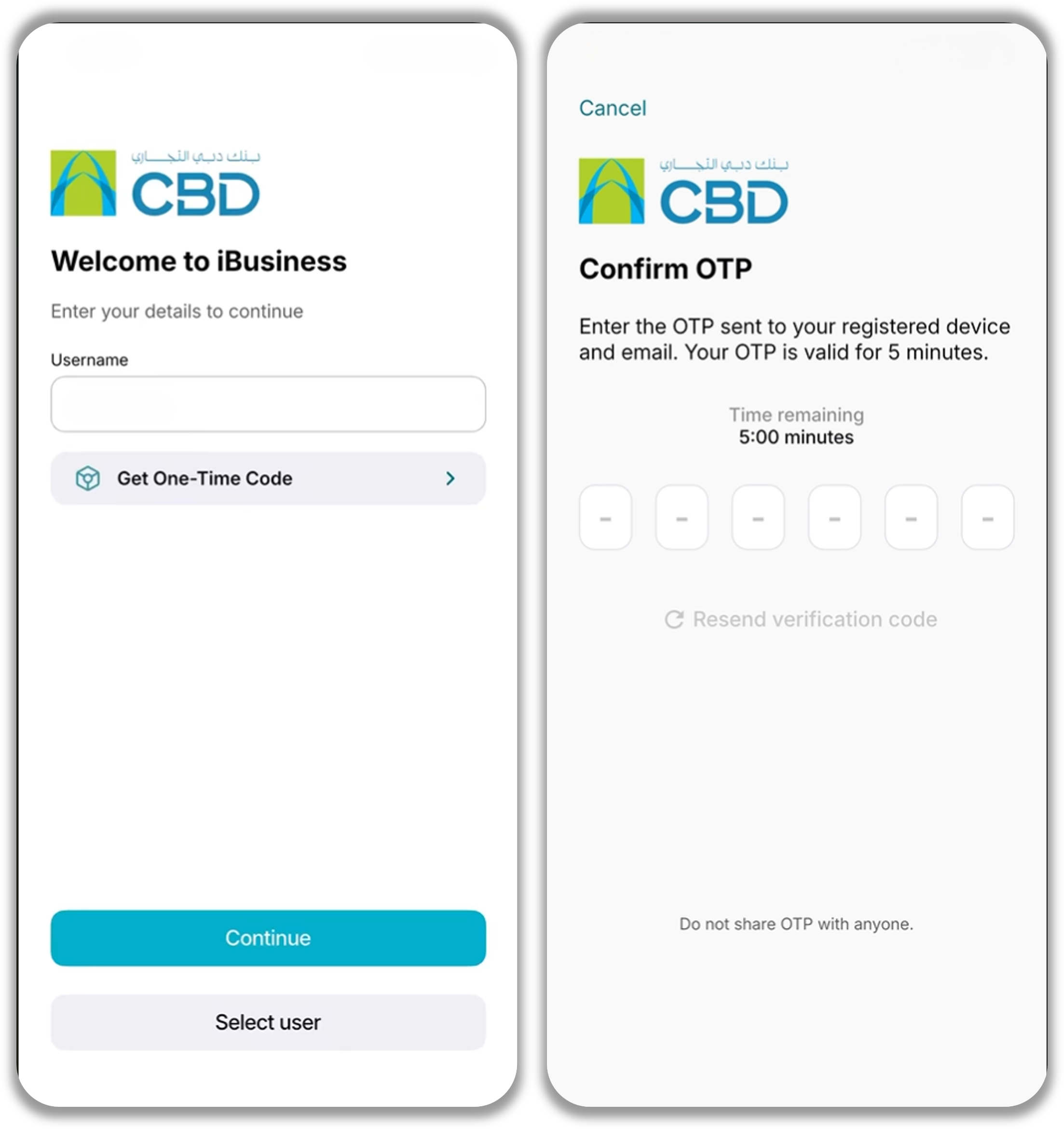
Step 1: Start Registration
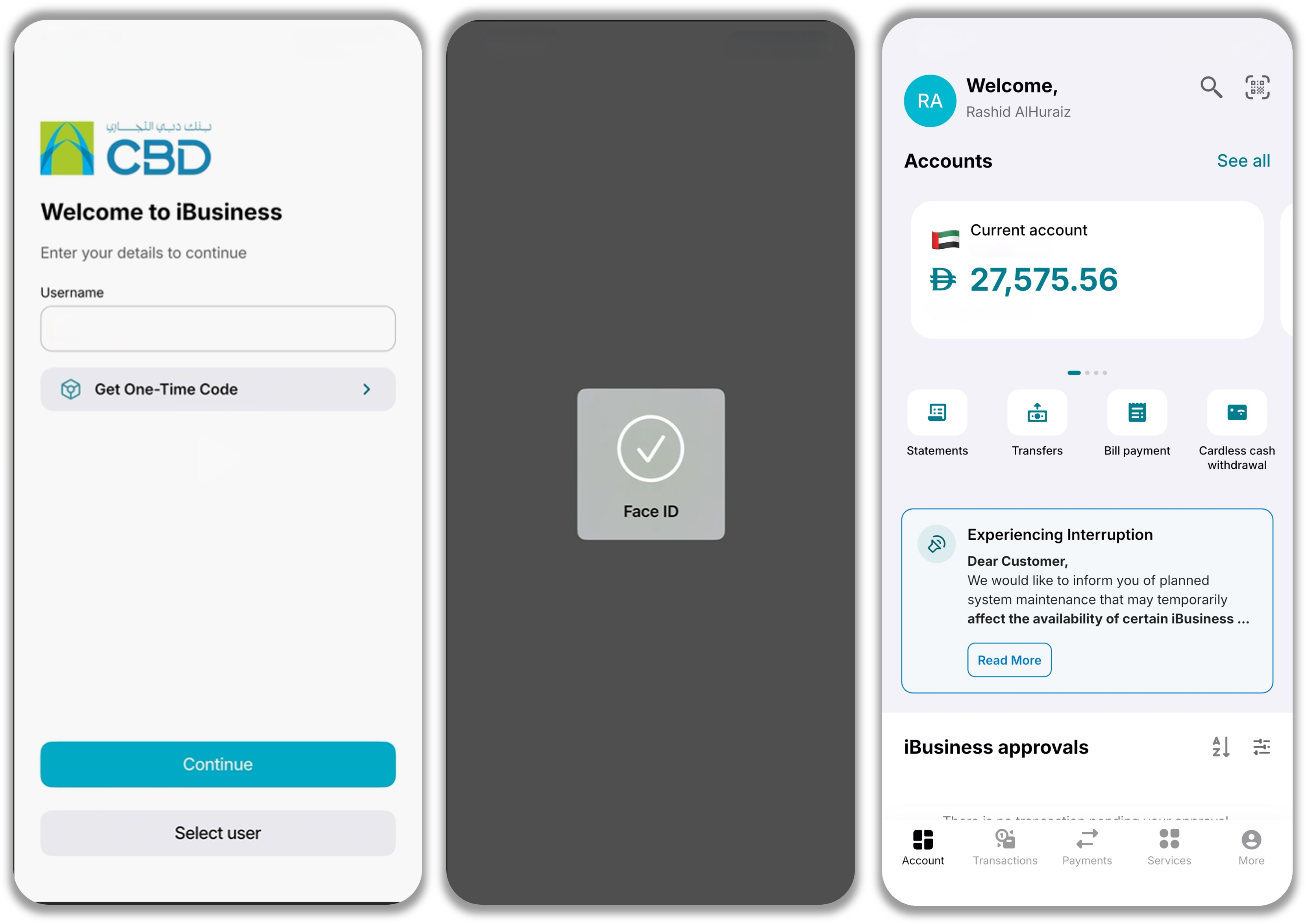
- Open the iBusiness Mobile App.
- Enter your Username.
- Tap Continue.
Step 2: Verify Your Registration
- A One-Time Password (OTP) will be sent to your registered email address.
- Enter the OTP in the app.
- Tap Continue.
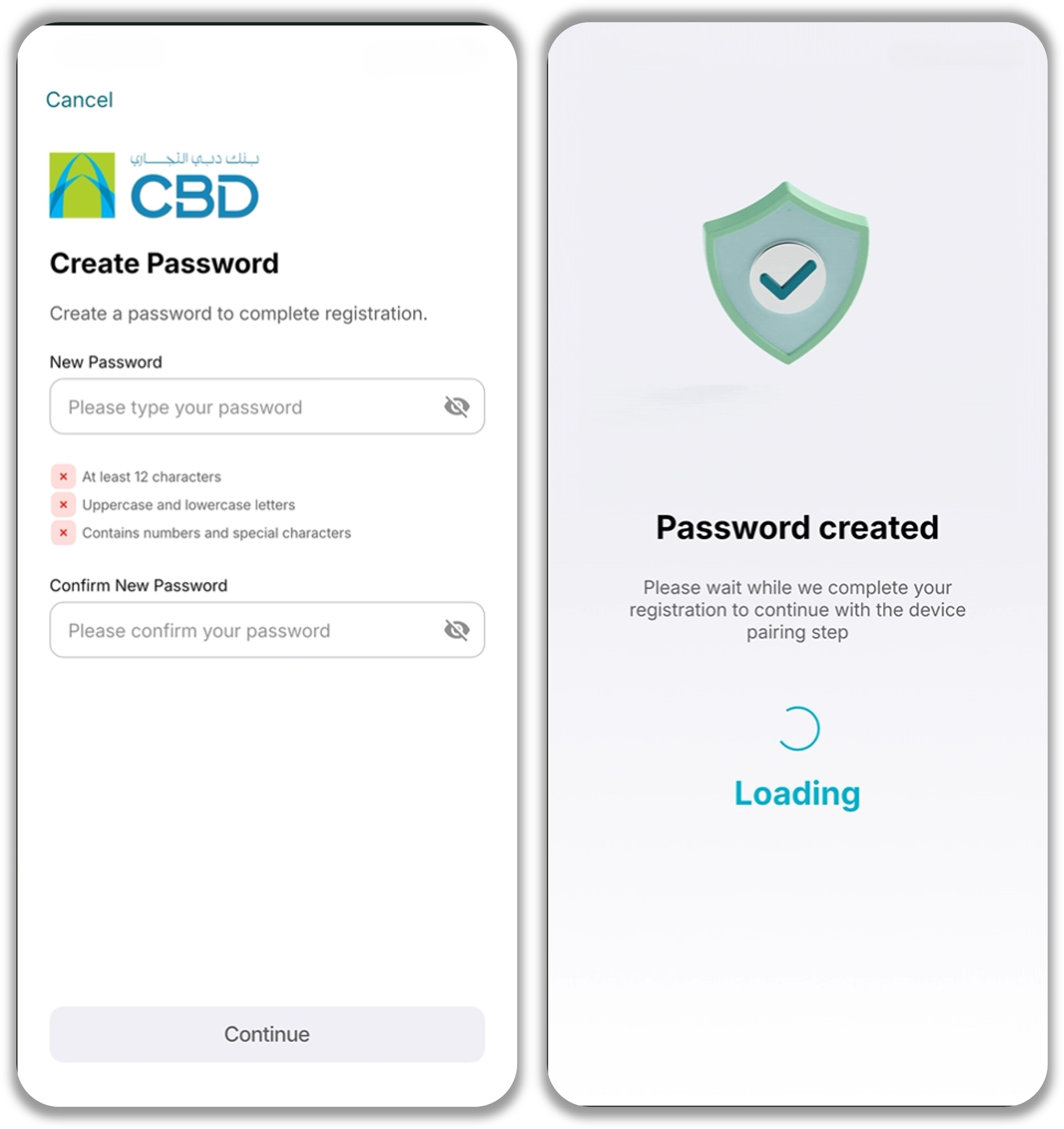
Step 3: Create Your Password
- Enter a new password.
- Re-enter the password to confirm it.
- Ensure the password meets the requirements displayed on the screen.
- Continue once all password requirements have been met.
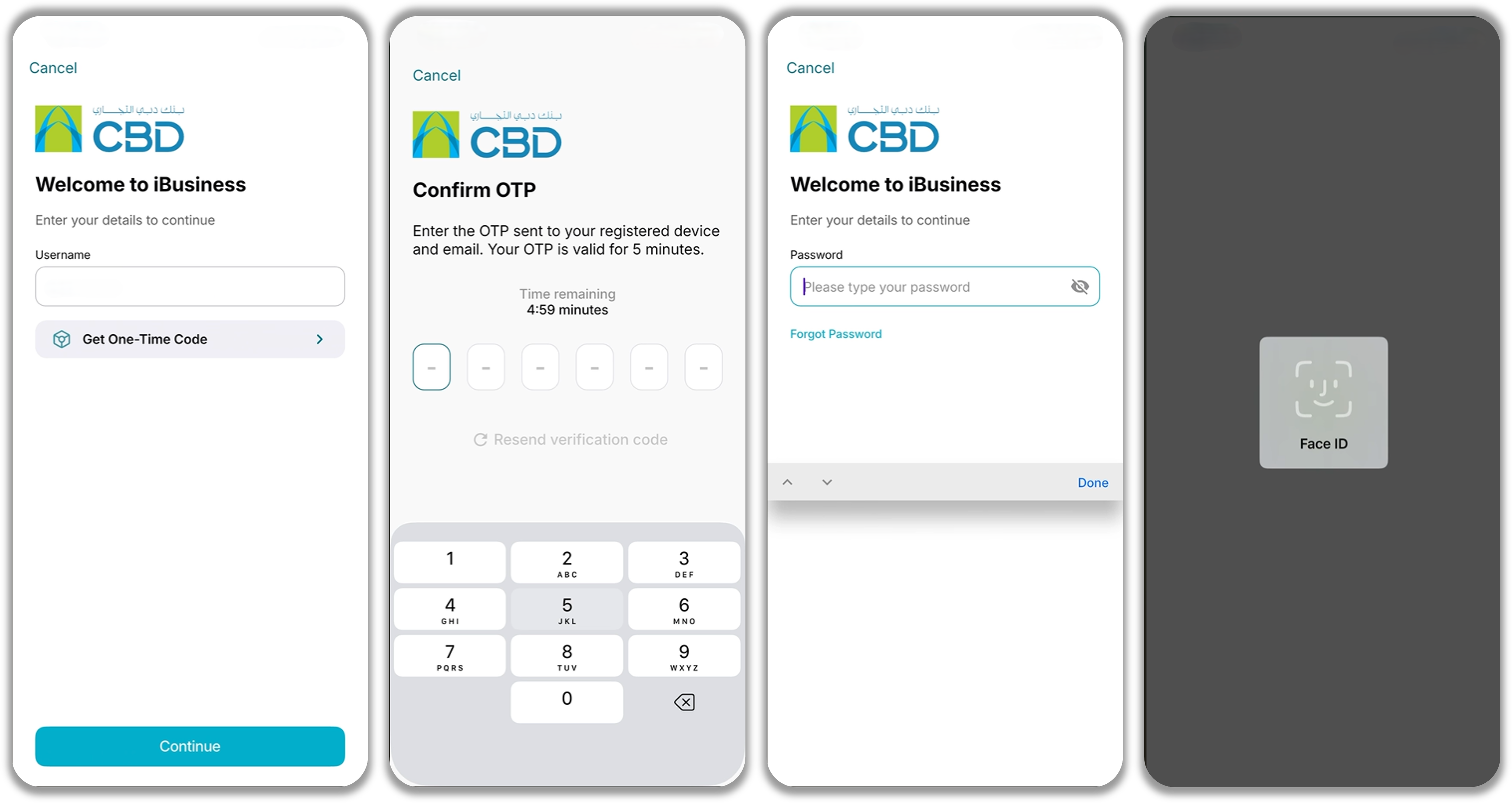
Step 4: Log In or Add a New Device
Use this step to log in after completing your initial registration. You will also follow the same process when you want to add and register a new mobile device to your iBusiness profile.
- Open the iBusiness Mobile App on the device you want to use.
- Enter your Username.
- Enter your Password.
- Tap Continue.
Note: If you are registering a new device, you must first contact your Corporate Administrator to unpair your previously registered device before the new device can be paired successfully.
For detailed instructions, refer to:
Online: Managing Paired Devices for Corporate Users (Admin) Next Gen CIB (iBusiness Web Portal)
Mobile: Managing Paired Devices for Corporate Users (Admin) iBusiness Mobile App
Step 5: Complete Device Pairing
Follow the on-screen instructions to complete the device pairing process.
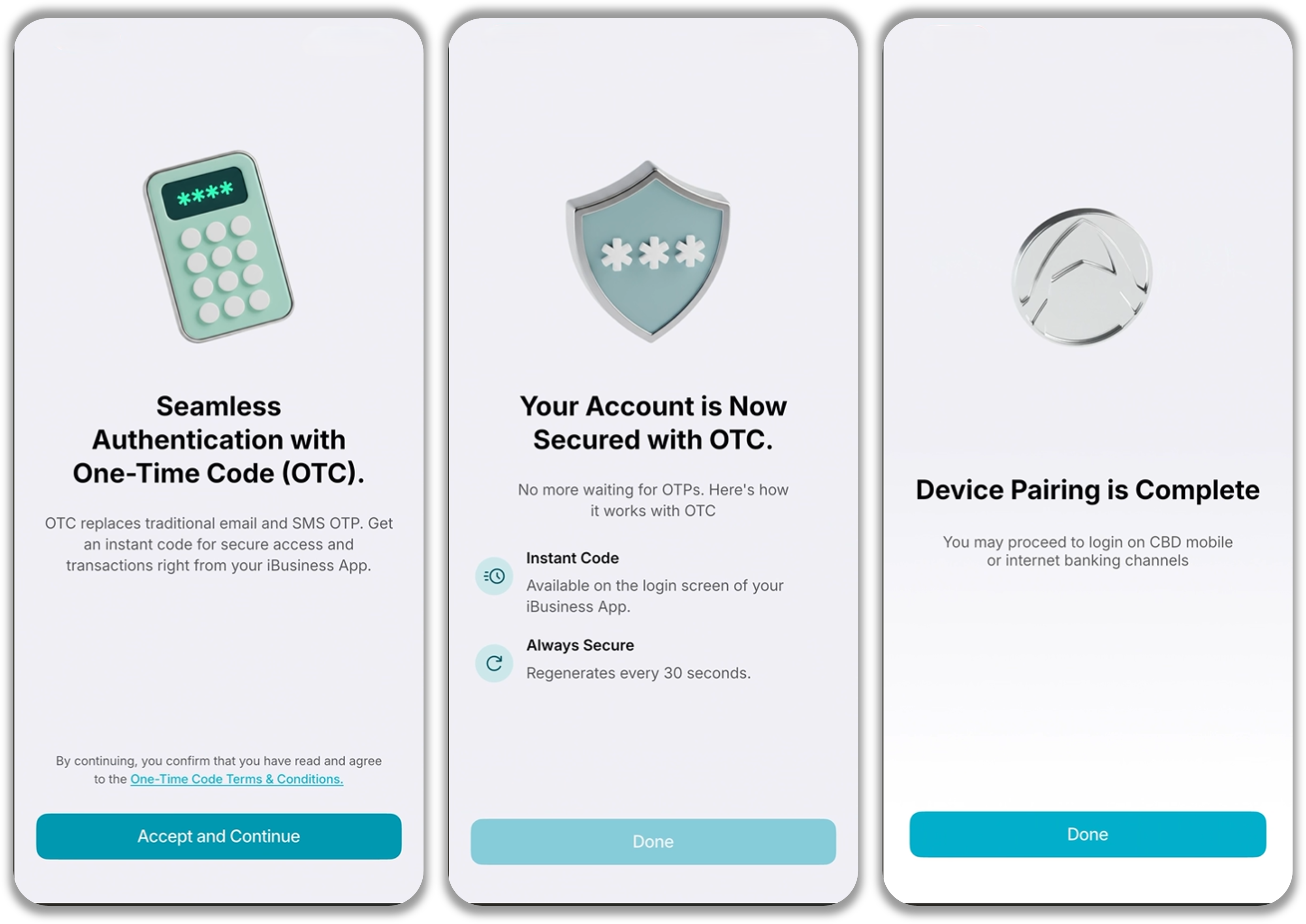
Enable:
- Biometric Authentication, such as Face ID, Touch ID, or the biometric method supported by your device.
- Push Notifications to receive transaction alerts, approval requests, and other important notifications.
Step 6: Access iBusiness Mobile
After registration and device pairing are complete, you can access and use the iBusiness Mobile App.
Support Notes / Best Practices
- Ensure you have access to your registered email address before starting registration.
- Create a strong password that meets the password requirements displayed in the app.
- Enable biometric authentication for faster and more convenient access.
- Enable push notifications so you do not miss important transaction updates or approval requests.
- Never share your password or OTP with anyone.