
Overview
This guide provides step-by-step instructions for creating and submitting an Export Collection request through iTrade.
An Export Collection allows an exporter to submit shipping and trade documents through the banking system for collection of payment or acceptance from the importer (drawee).
Prerequisite: Users must have the appropriate permissions to create and manage Export Collection transactions.
Step 1: Access Export Collection Services
- From the iTrade Dashboard, select Trade Services.
- Click Export Collection.
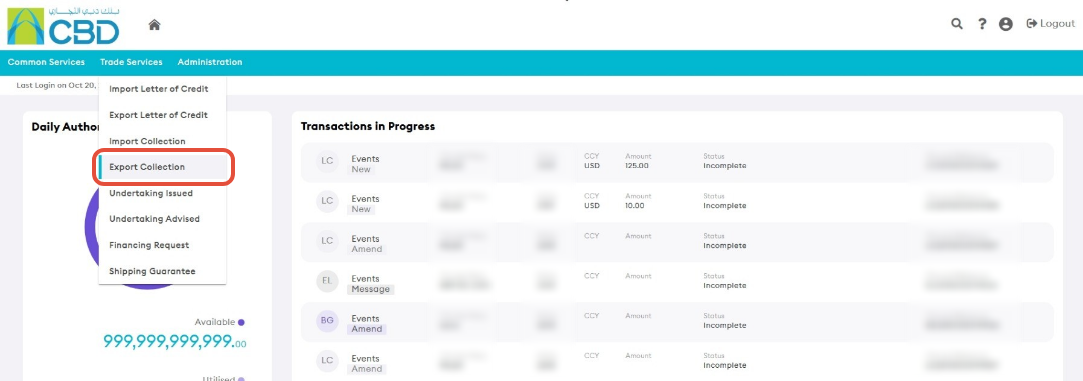
This will open the Export Collection Dashboard.
Step 2: Create a New Export Collection
- Click Request Export Collection.
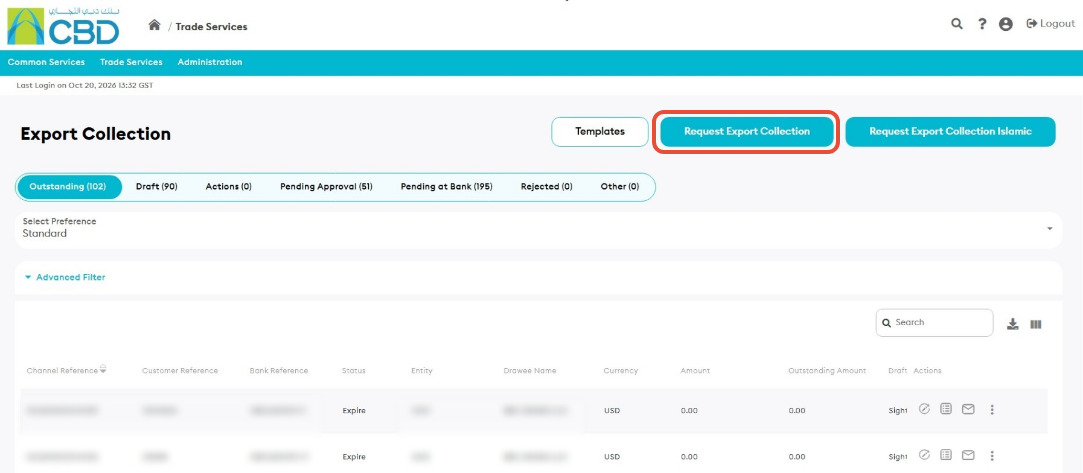
The Export Collection application form will open.
Step 3: Complete the General Details
Enter all mandatory fields marked with a red asterisk (*).
Navigation Tip: Use Next and Previous to move between sections, or select a section directly from the navigation panel on the left side of the screen.
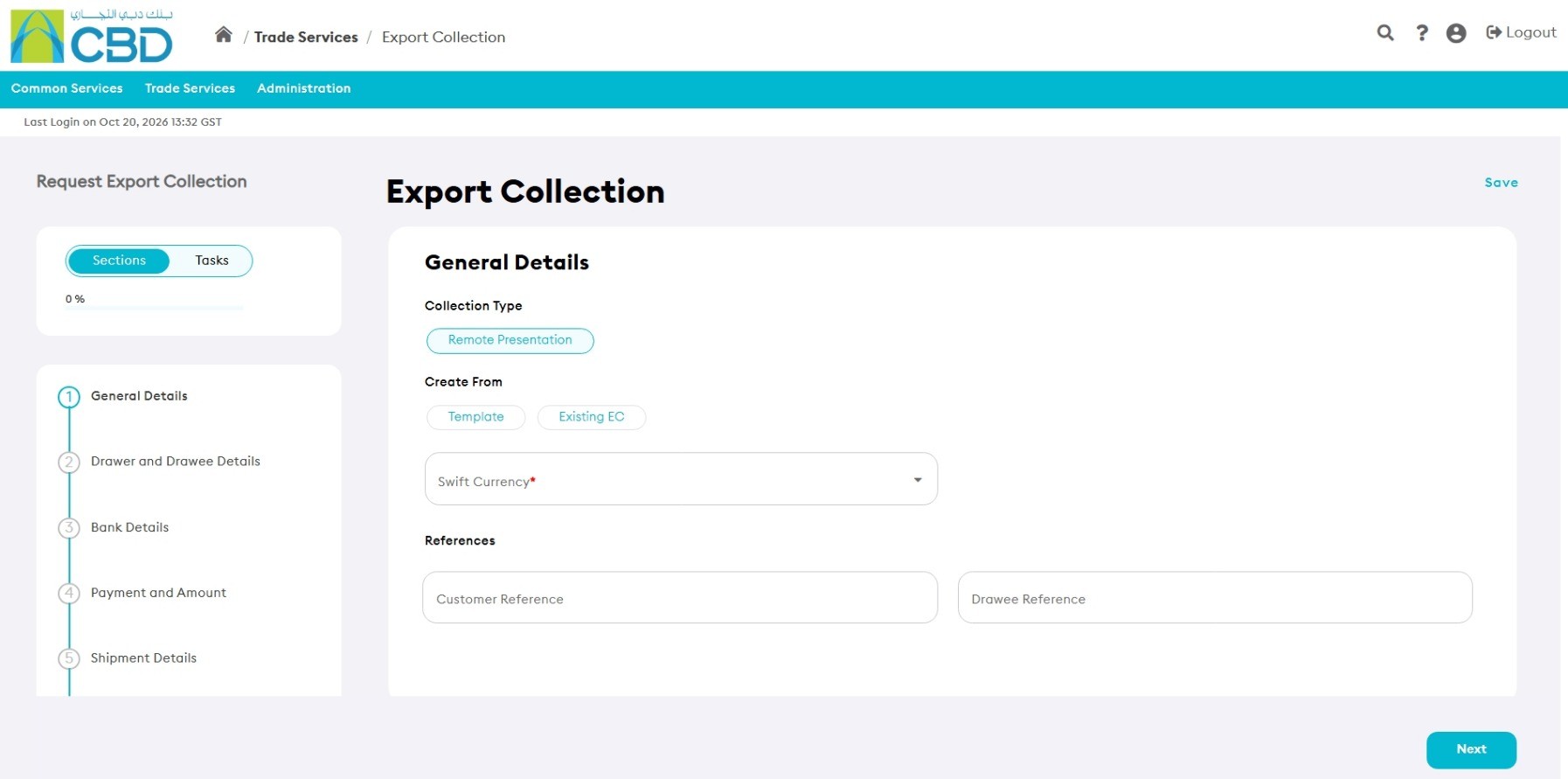
Create From
You may create the Export Collection using:
- Template
- Existing Export Collection (EC)
Mode of Transmission
Select one of the following:
- SWIFT
- Courier / Mail
- Other
If Other is selected, additional details must be provided.
References
Enter the references that will be used internally within your organization to identify the Export Collection.
Step 4: Complete Drawer and Drawee Details
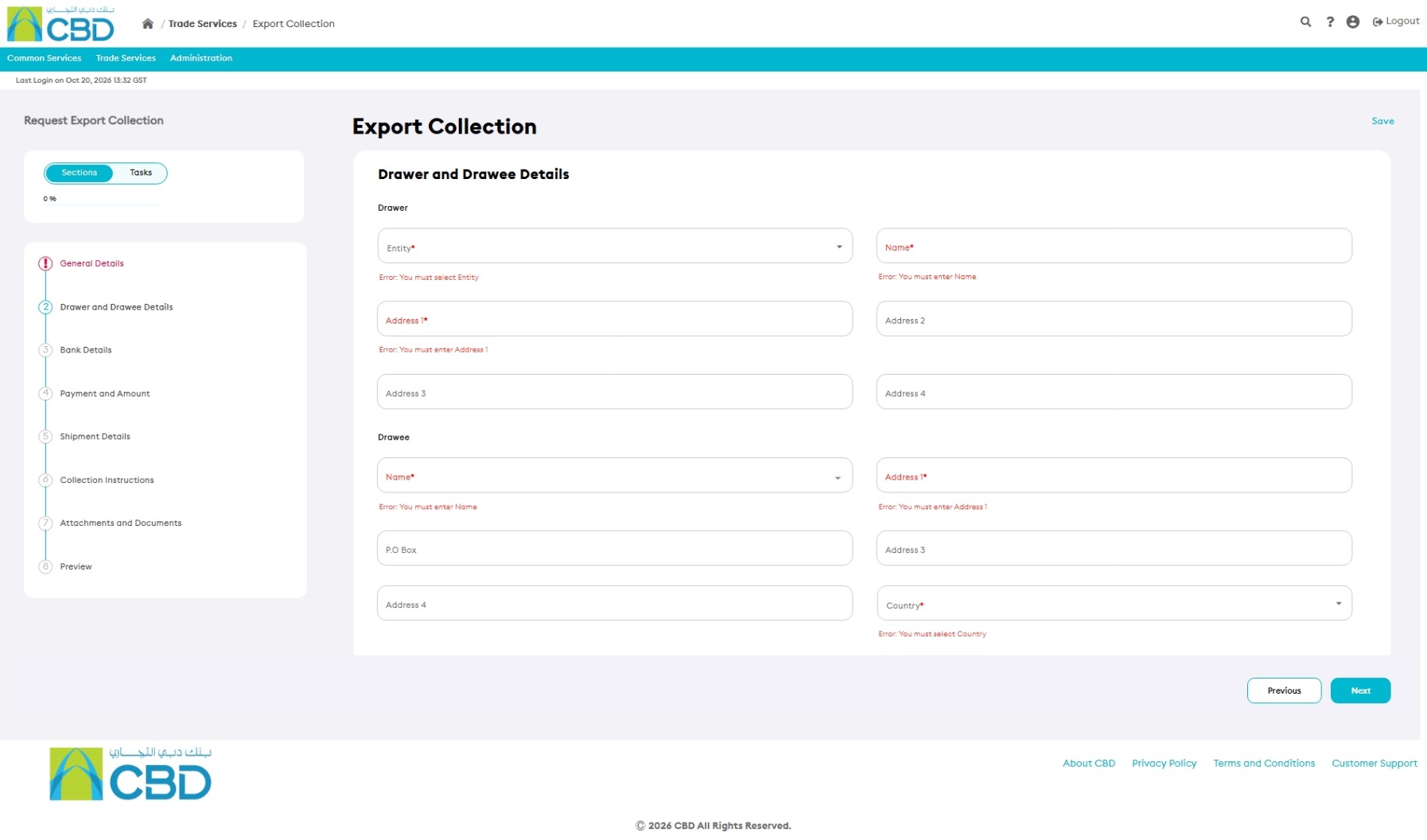
Drawer Details
The Drawer information is populated automatically based on the selected entity.
This includes:
- Name
- Address
Drawee Details
Enter the details of the importer (drawee), including the required identification and address information.
Step 5: Complete Bank Details
Remitting Bank
The Remitting Bank is the bank authorized by the exporter to process the collection.
The default bank is: Commercial Bank of Dubai (CBD).
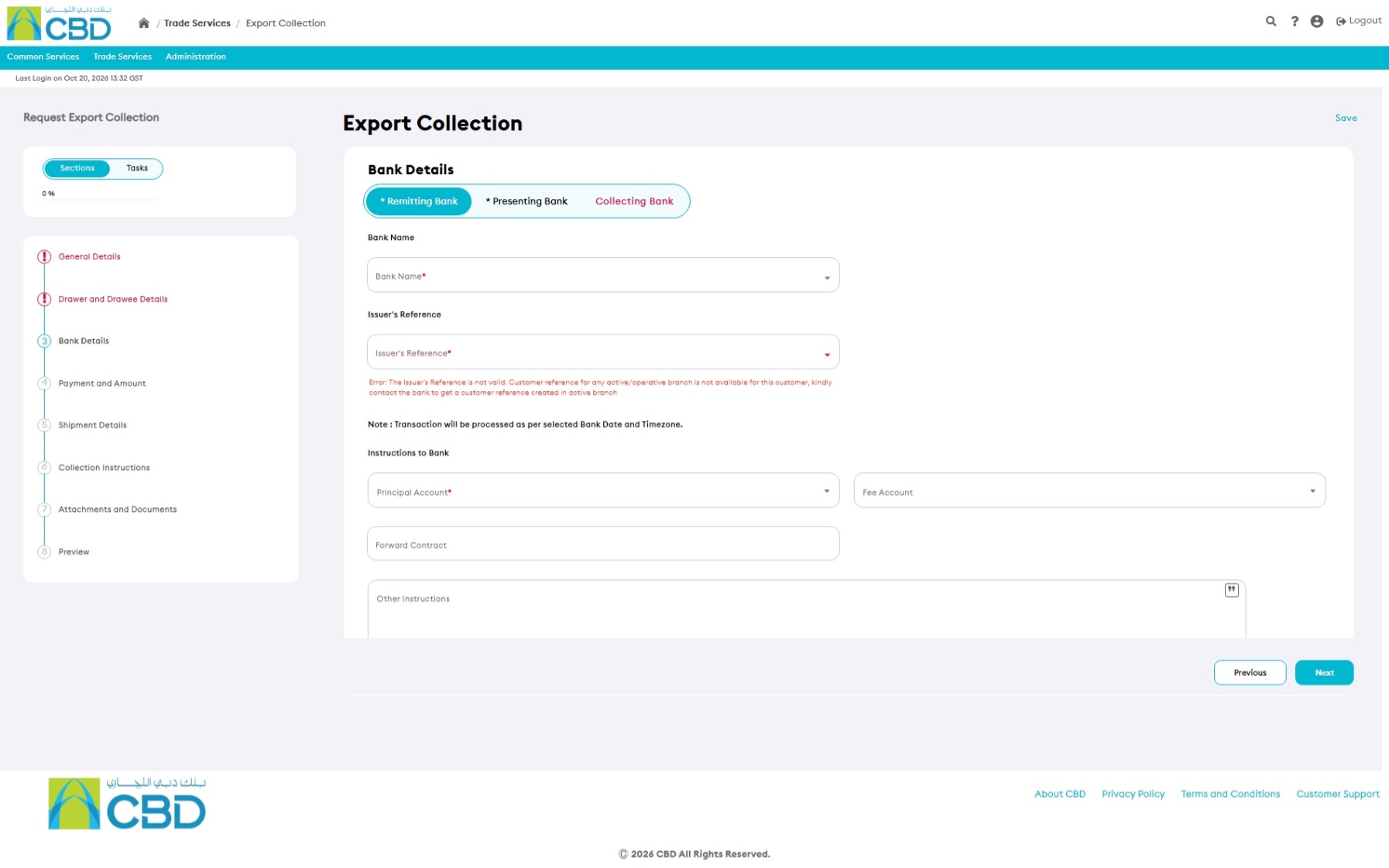
Issuer's Reference
Enter or review the reference associated with the transaction.
Instructions to Bank
Enter any additional instructions required for processing, including:
- Principal Account
- Fee Account
- Special Instructions
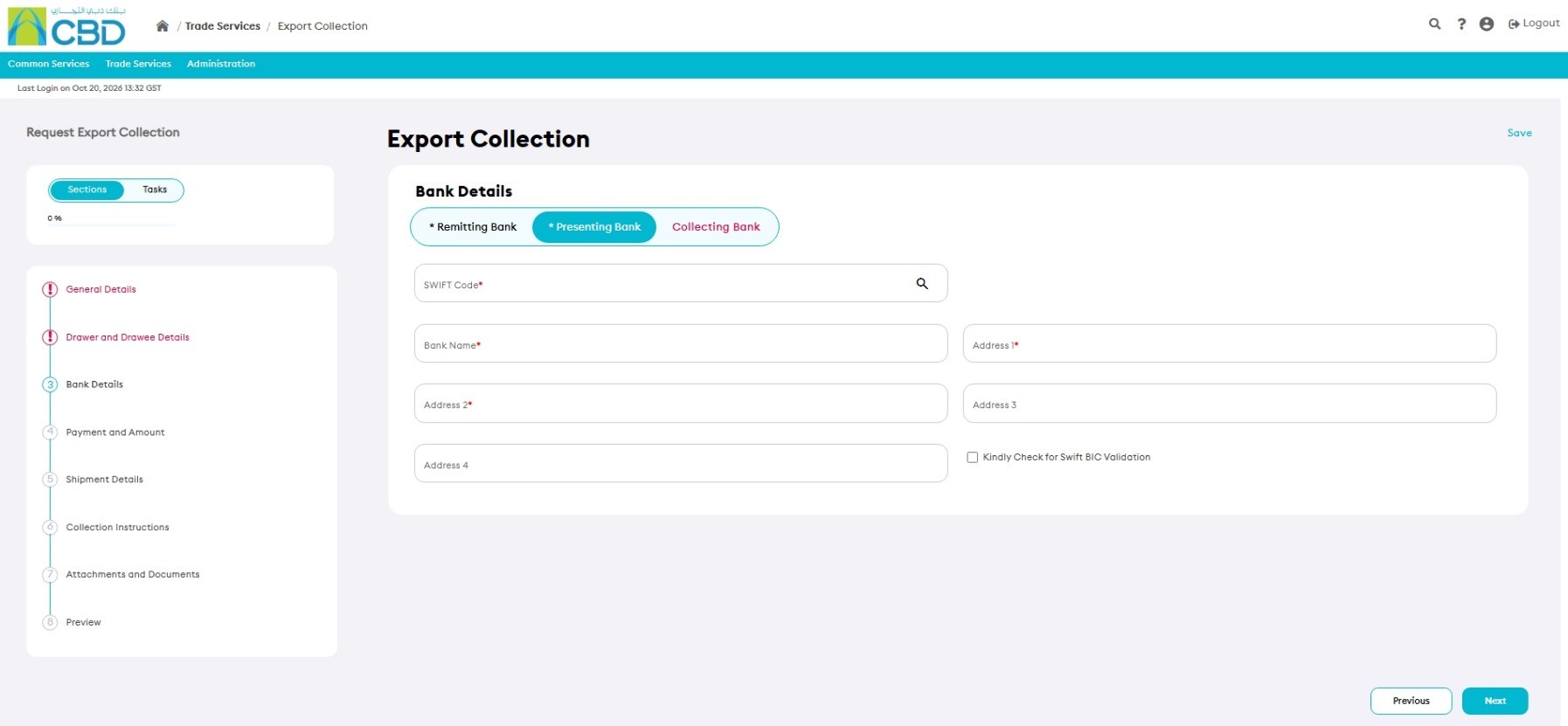
Presenting Bank
The Presenting Bank is responsible for presenting the documents to the importer (drawee).
For direct collections, this information is mandatory.
Provide:
- SWIFT Code
- Bank Name
- Bank Address
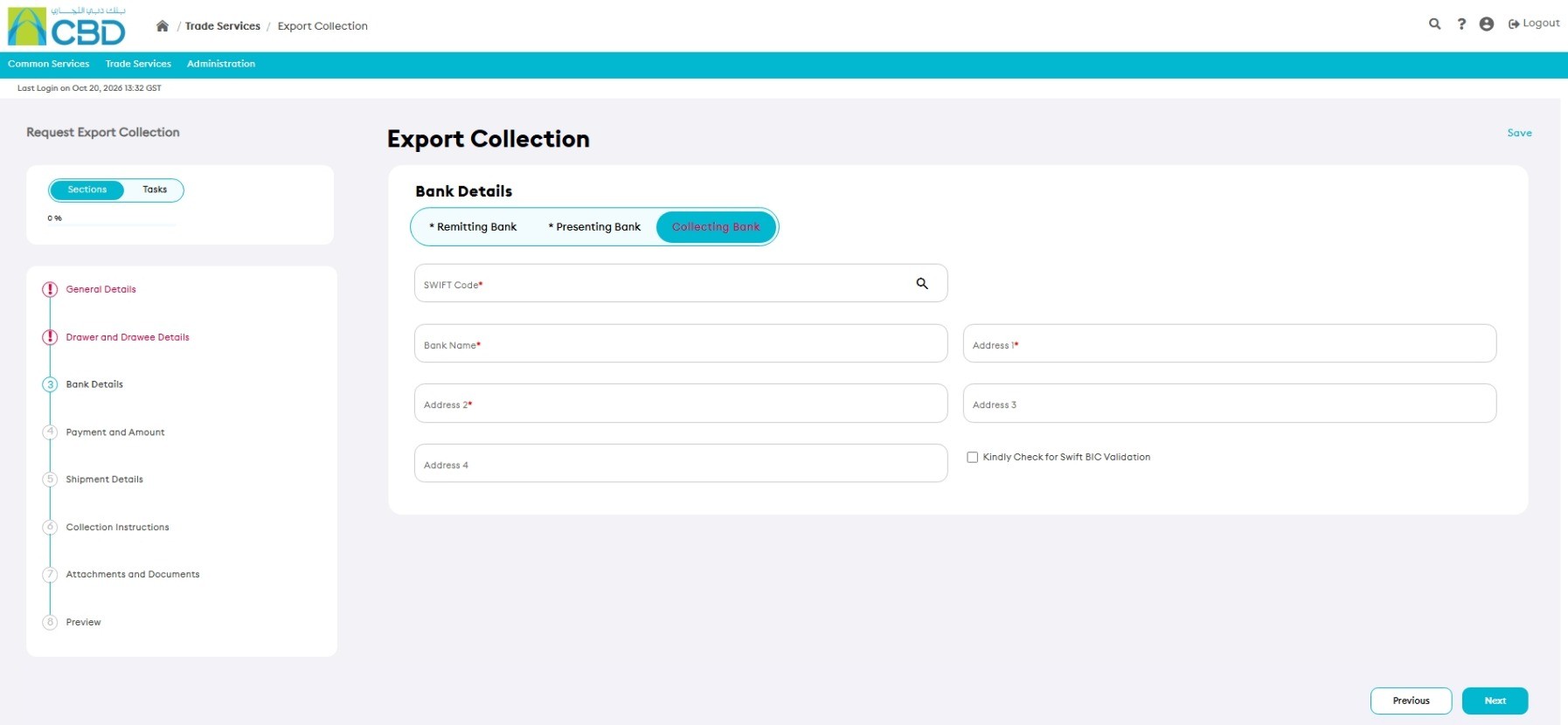
Collecting Bank
Enter the details of the Collecting Bank, where applicable.
Provide:
- SWIFT Code
- Bank Name
- Bank Address
Step 6: Complete Payment and Amount Details
Export Collection Amount
Provide:
- Currency
- Collection Amount
Tenor
Select the applicable tenor:
- Sight / Documents Against Payment (D/P)
- Documents Against Acceptance (D/A)
- Pour Aval
- Other
Important: Select the tenor that matches the payment terms agreed between the exporter and importer.
Step 7: Complete Shipment Details
Provide the shipment information related to the Export Collection.
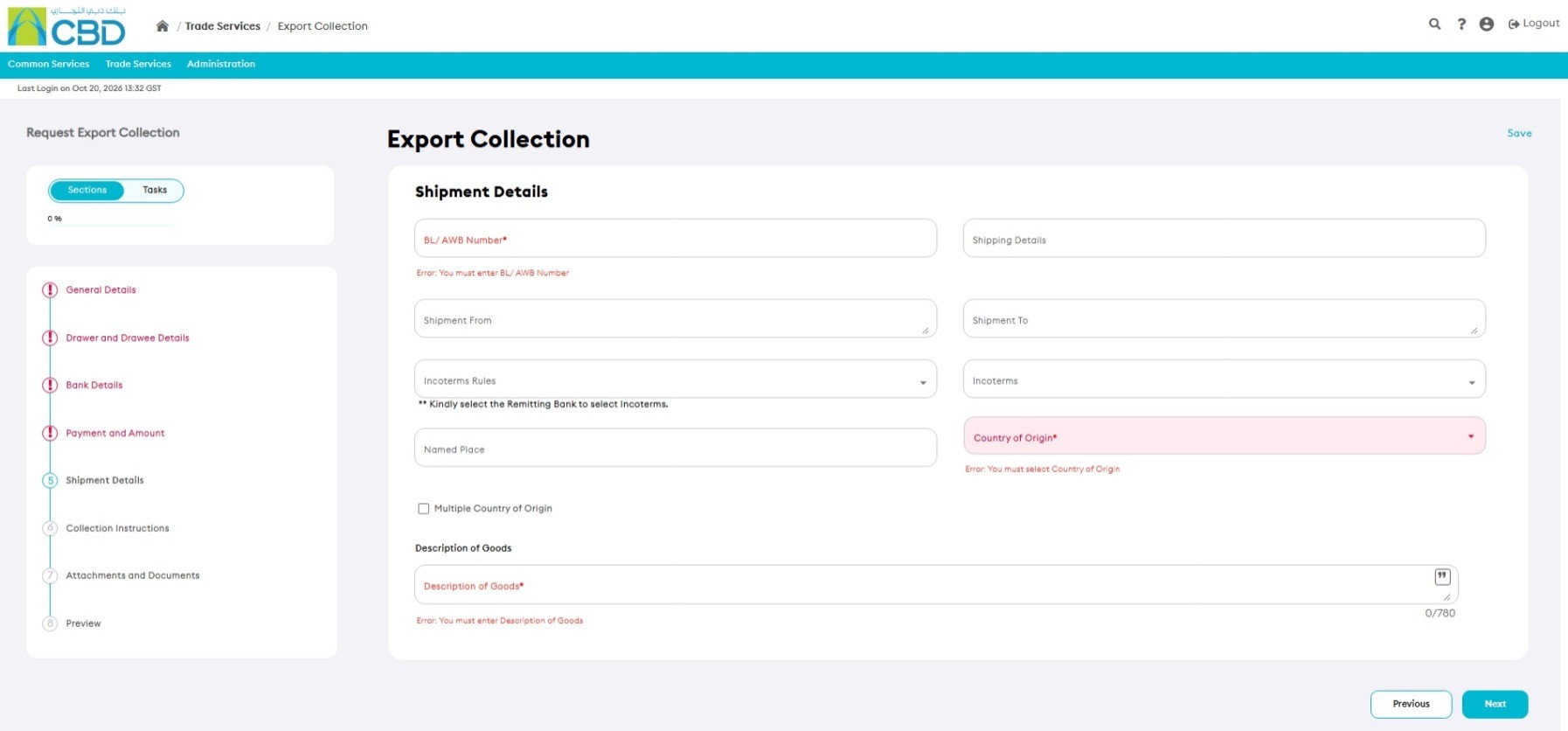
BL / AWB Number
Enter the Bill of Lading (BL) or Air Waybill (AWB) number.
Shipment Details
Enter the shipment information and transportation details.
Shipment From
Enter the port or location from which the goods are shipped.
Shipment To
Enter the destination port or delivery location.
Incoterms Rules
Select the applicable Incoterms version.
Incoterm
Select the Incoterm applicable to the transaction.
Named Place
Specify the location where responsibility and risk transfer according to the selected Incoterm.
Description of Goods
Provide a description of the goods and/or services covered by the Export Collection.
Step 8: Complete Collection Instructions
Enter the collection instructions that will be used for processing the Export Collection.
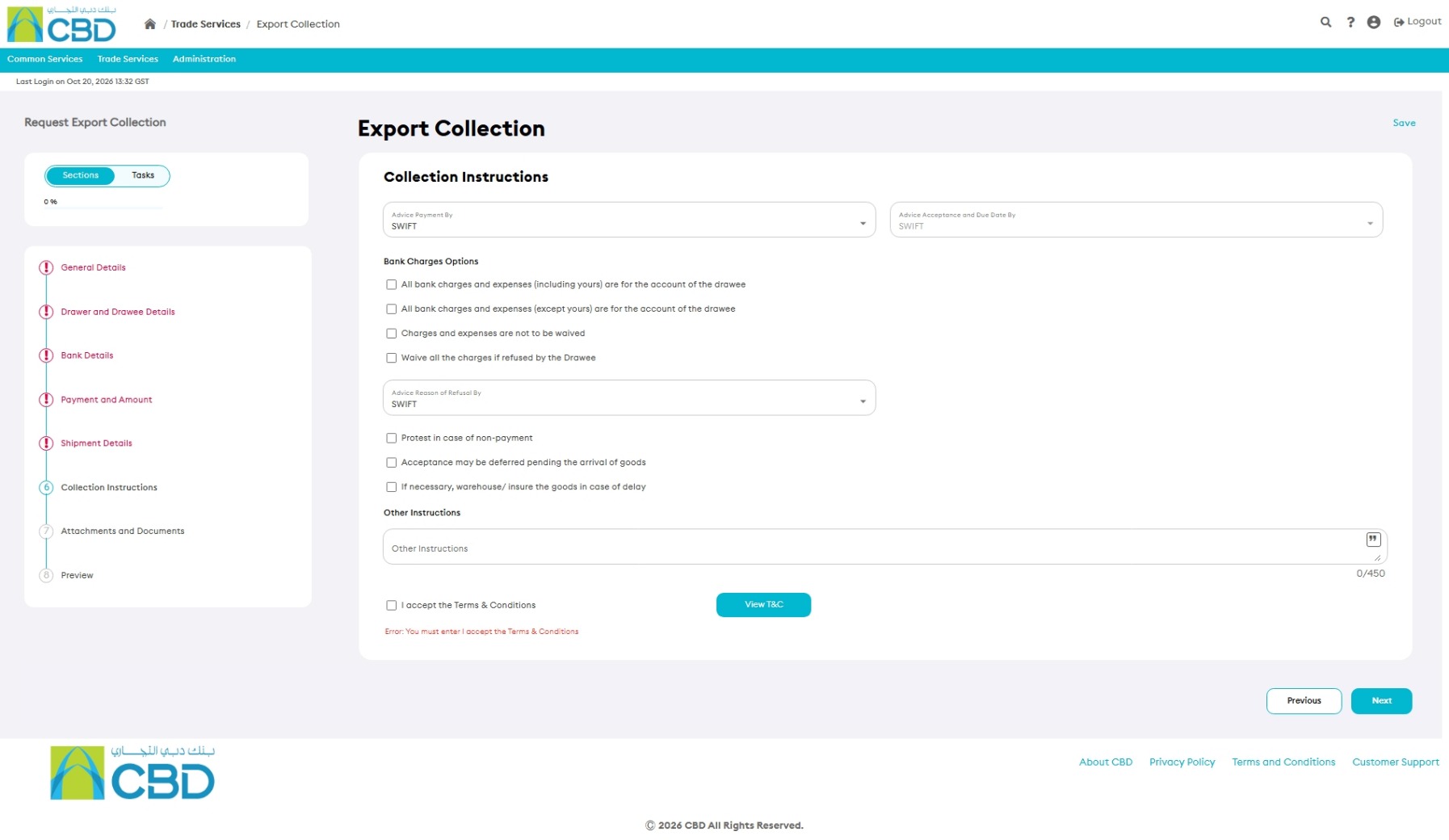
Advice Payment
Select the method to be used for payment advice.
Advice Acceptance and Due Date By
Select the method for acceptance and due date advice.
This option is not available when documents are released against payment.
Bank Charge Options
Select the applicable bank charge options by marking the appropriate checkboxes.
Step 9: Upload Supporting Documents
Attach any supporting documents required for the Export Collection request.
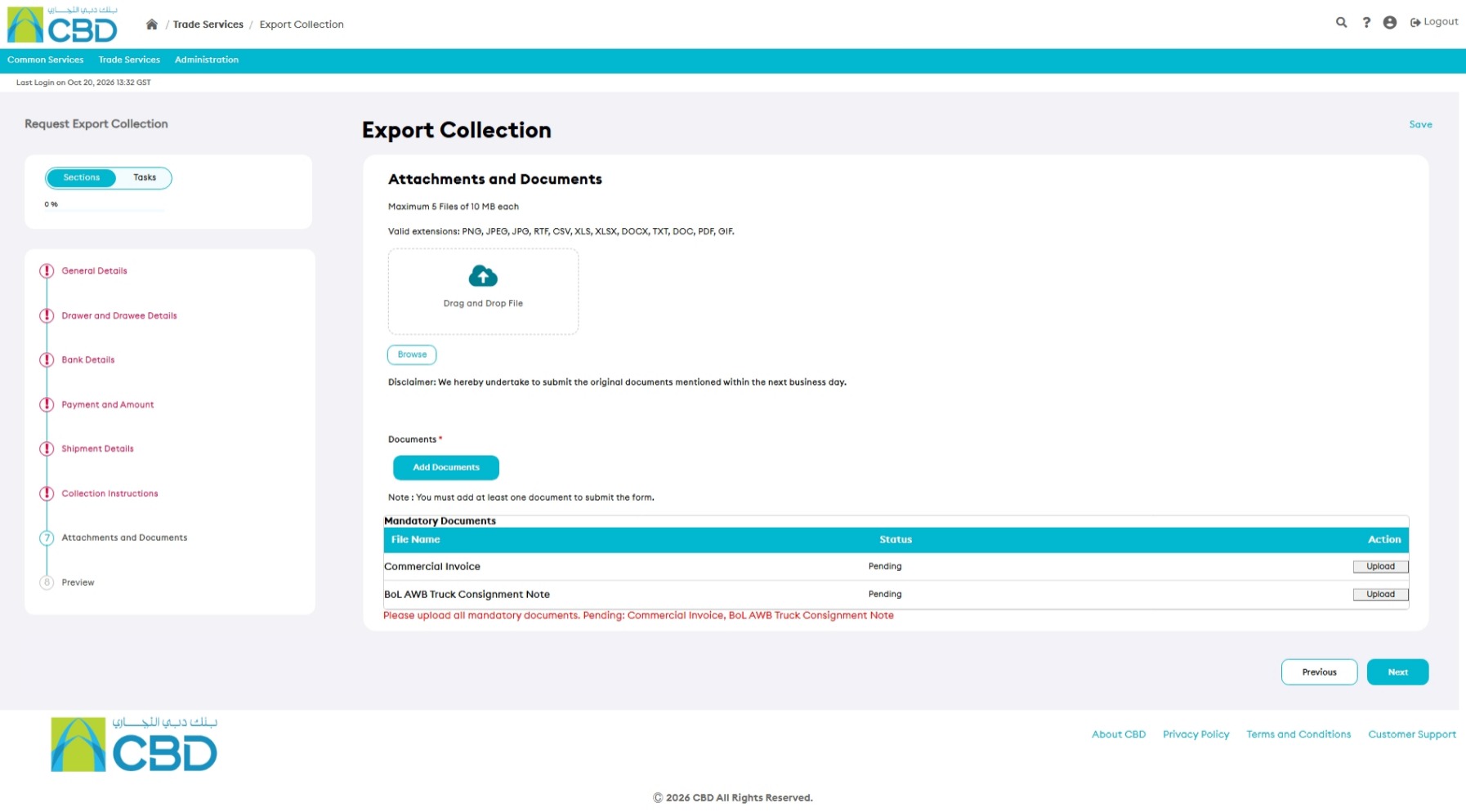
Attachment Requirements
- Maximum of 5 files
- Maximum file size: 5 MB per file
Supported File Types
|
|
|
Examples include:
- Proforma Invoice
- Specimen Signature
- Shipping Documents
- Commercial Documents
Step 10: Review the Application
Open the Preview section and review all information entered.
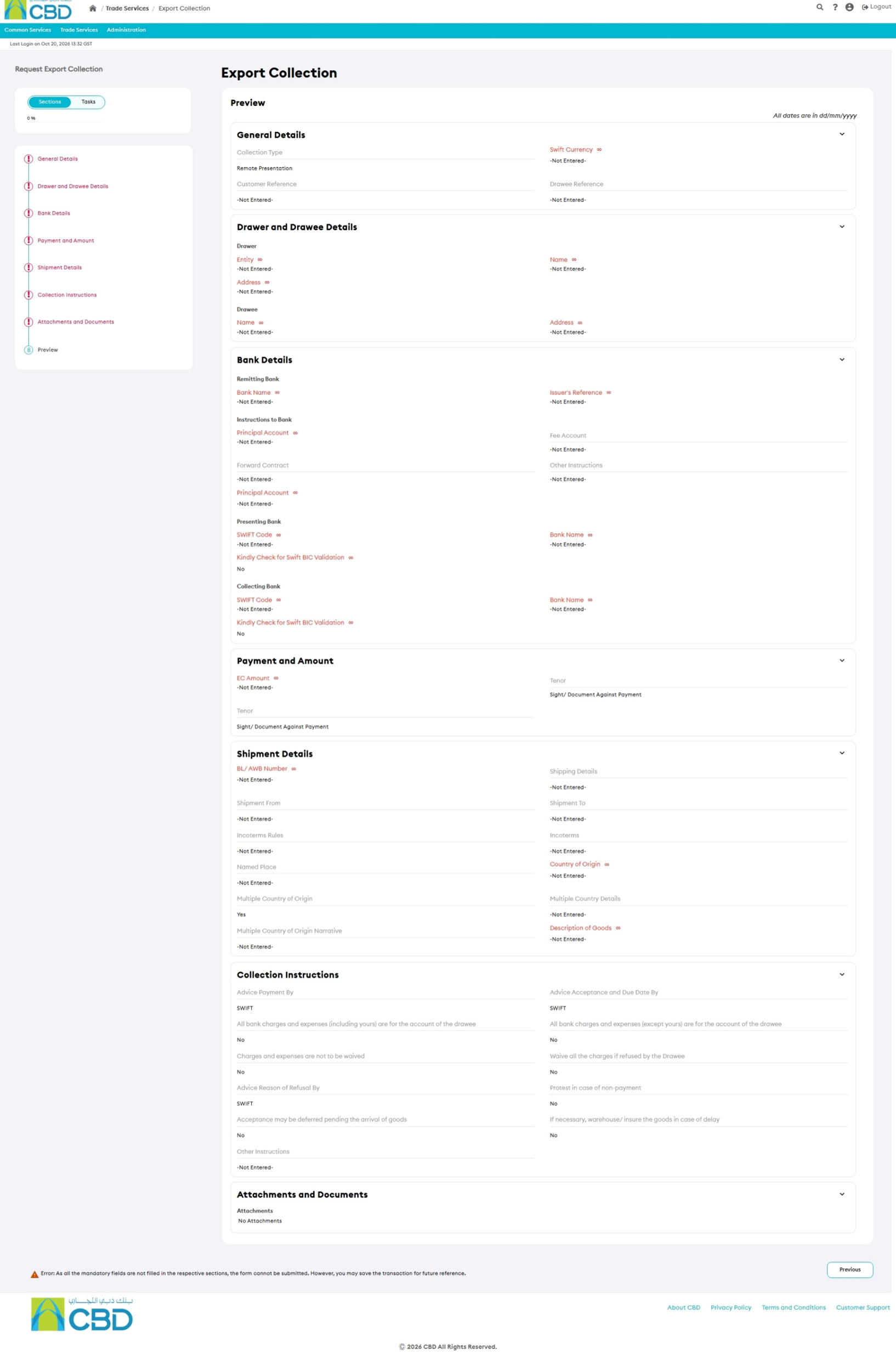
Verify:
- General Details
- Drawer and Drawee Details
- Bank Details
- Collection Amount
- Shipment Information
- Collection Instructions
- Supporting Documents
If changes are required, return to the relevant section and update the information.
Step 11: Submit the Request
- Review all information carefully.
- Click Submit.
If the request is submitted successfully, an acknowledgment message will be displayed.