
Overview
This guide explains how to access the Export Collection Dashboard in iTrade and understand the different transaction statuses available.
The Export Collection Dashboard provides a centralized view of all Export Collection transactions and allows users to:
- Monitor Export Collection requests
- Track transaction status
- Review transactions requiring action
- View pending approvals
- Monitor requests awaiting bank processing
- Access rejected or archived transactions
- Create new Export Collection requests
- Manage Export Collection templates
Prerequisite: Users must have the appropriate permissions to access and manage Export Collection services. If access is unavailable, contact your Corporate Administrator.
Step 1: Access the Export Collection Dashboard
- From the iTrade Dashboard, select Trade Services.
- Click Export Collection.
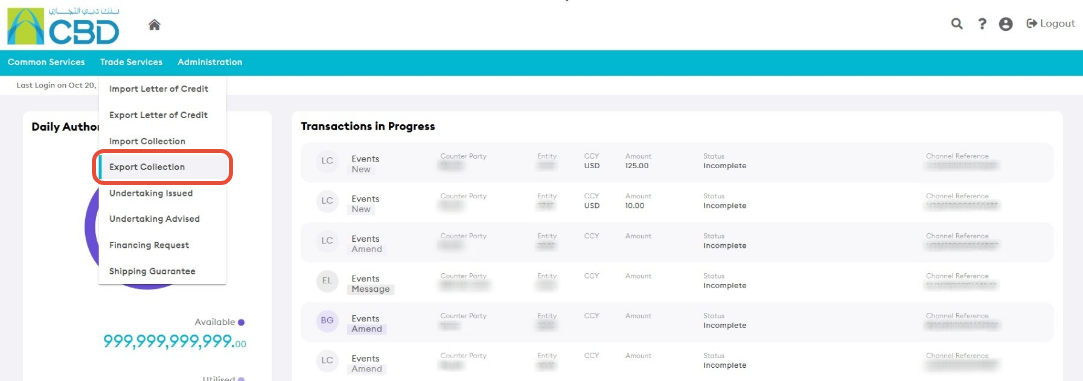
The Export Collection Dashboard will display all Export Collection transactions grouped by status.
Step 2: Review the Dashboard Status Tabs
The dashboard organizes Export Collection transactions into different status categories to help users track and manage requests.
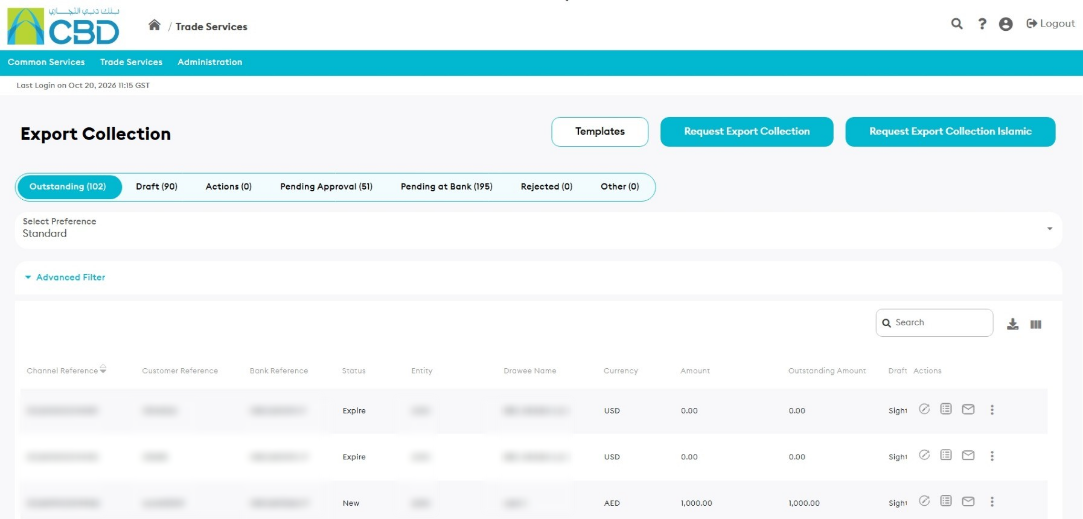
Outstanding
The Outstanding tab displays:
- Active Export Collection transactions
- Outstanding transactions
- Expired Export Collection records
Available for: Maker users.
Draft
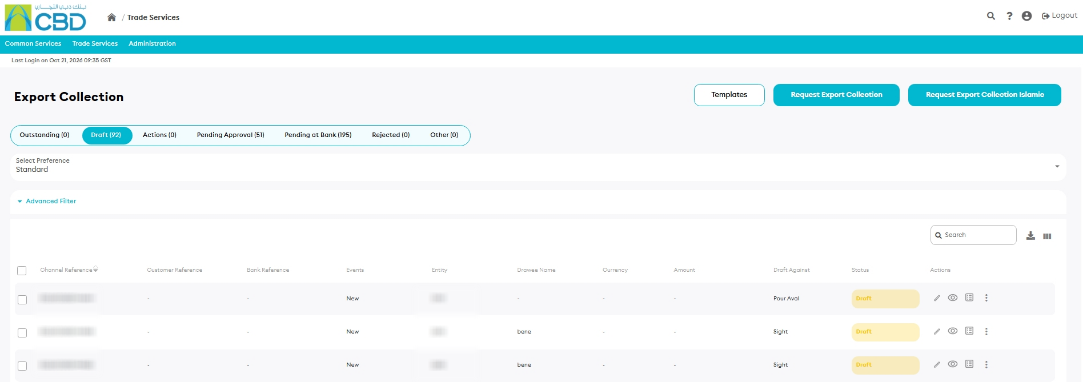
The Draft tab displays:
- Export Collection requests saved as drafts
- Transactions returned by an Approver for amendment or correction
This tab allows users to continue working on incomplete requests.
Actions
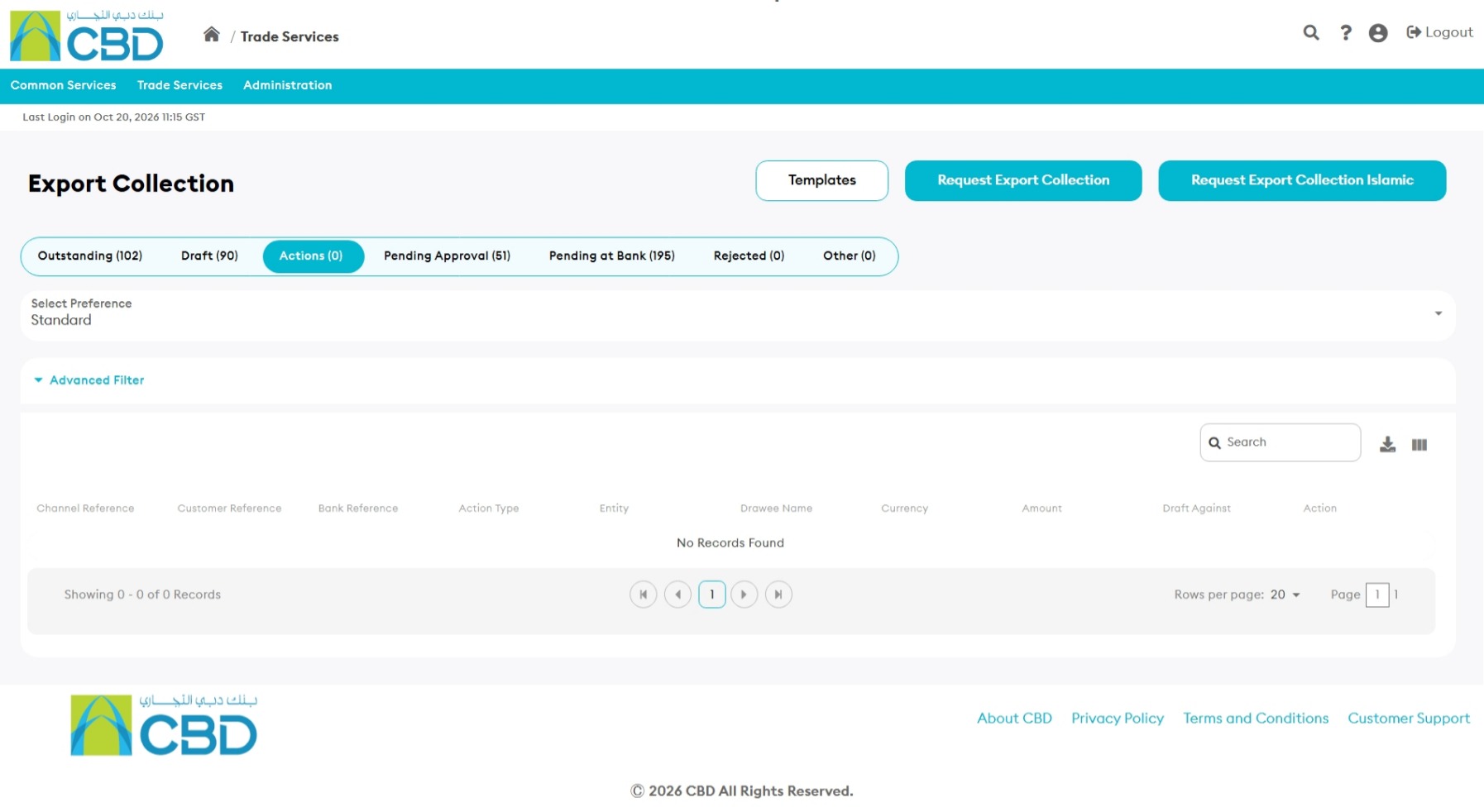
The Actions tab displays Export Collection transactions that require additional action from the customer.
Examples may include:
- Requests for additional information
- Bank queries
- Outstanding customer actions
Available for: Maker users.
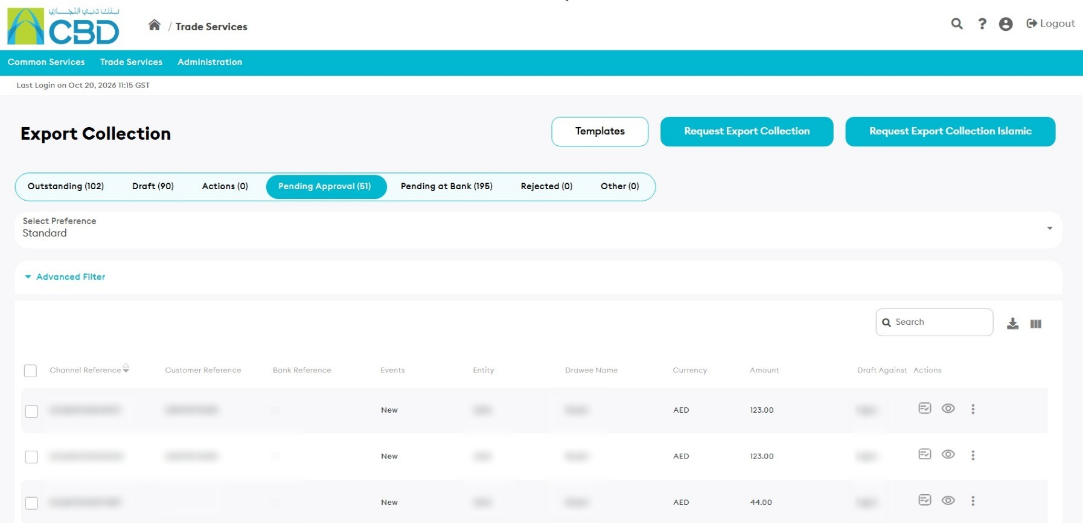
Pending Approval
The Pending Approval tab displays Export Collection transactions awaiting approval from another user within the organization.
Available for: Checker users.
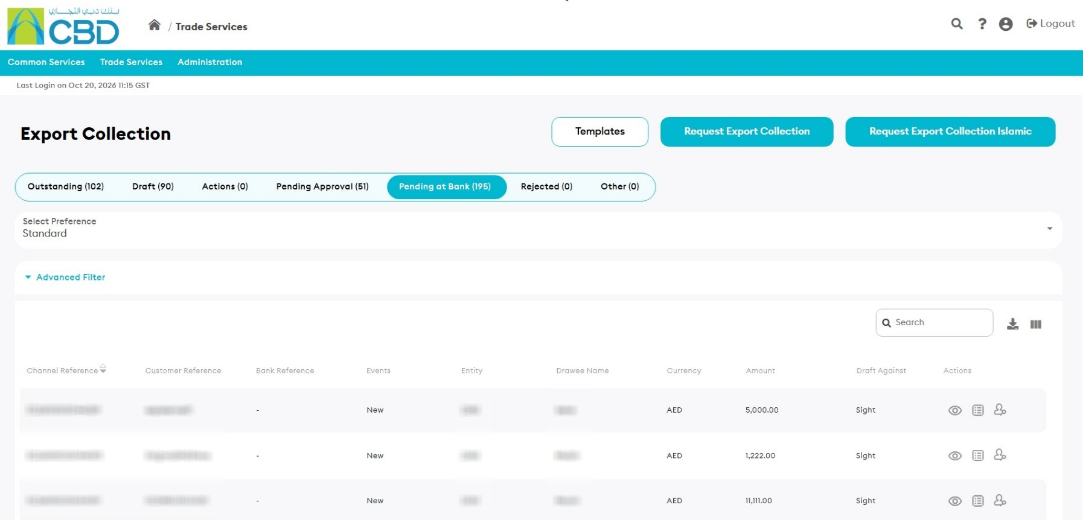
Pending at Bank
The Pending at Bank tab displays Export Collection requests that have been submitted successfully and are awaiting review or processing by the bank.
Available for: Maker users.
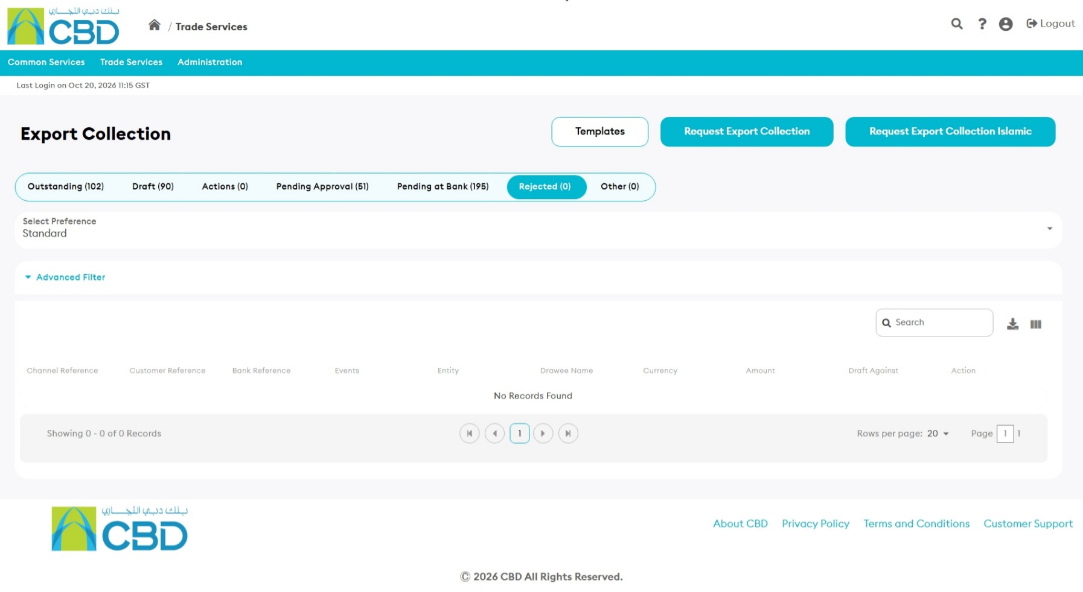
Rejected
The Rejected tab displays Export Collection transactions that have been rejected by the bank.
Rejected transactions are typically assigned the status:
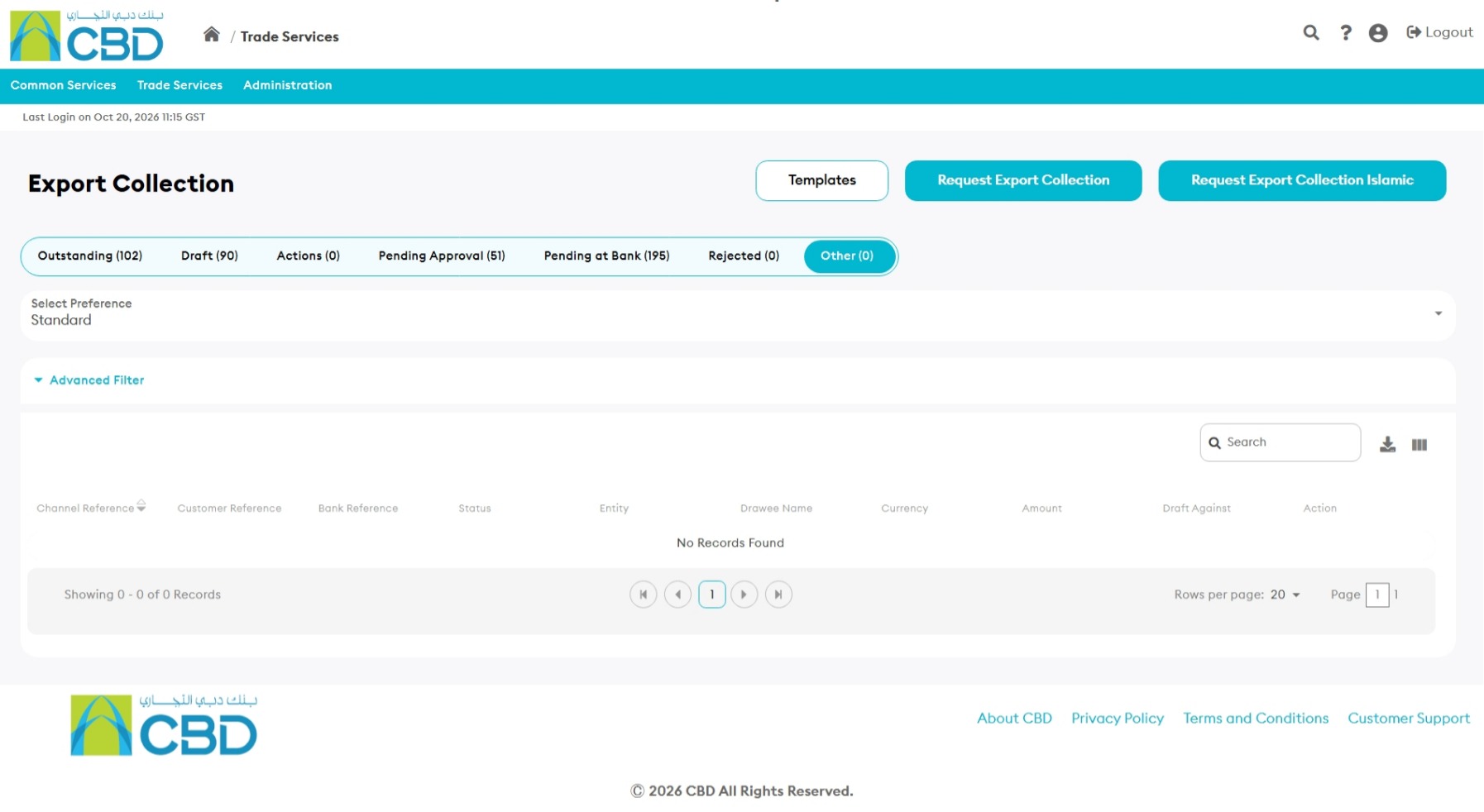
Other
The Other tab displays Export Collection transactions that are:
- Expired
- Archived
- Purged by the bank
These transactions are available for inquiry purposes only.
No amendments, messages, or further actions can be performed on transactions within this section.
Step 3: Use Dashboard Functions
The Export Collection Dashboard provides quick access to commonly used actions.
Templates
Use this option to:
- Create Templates
- Edit Templates
- Delete Templates
Templates can be used to simplify the creation of future Export Collection requests.
Request Islamic Export Collection
Use this option to initiate a new Islamic Export Collection request.
Related Guide:
Apply for an Islamic Export Collection – iTrade [Link to guide]
Request Export Collection
Use this option to initiate a new standard Export Collection request.
Related Guide:
Apply for an Export Collection – iTrade [Link to guide]
Search and Filter Transactions
The Export Collection Dashboard includes search and filtering tools to help locate specific transactions.
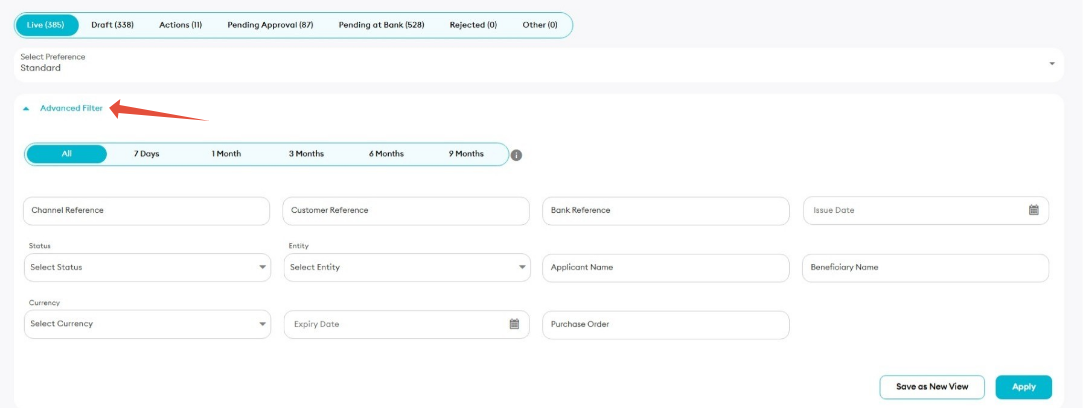
You can search using criteria such as:
|
|
|
Use the available filters to narrow the transaction list and quickly locate the required Export Collection request.
Support Tip: Save frequently used filter combinations as custom views, where available, to simplify future searches.
Customize Table Columns
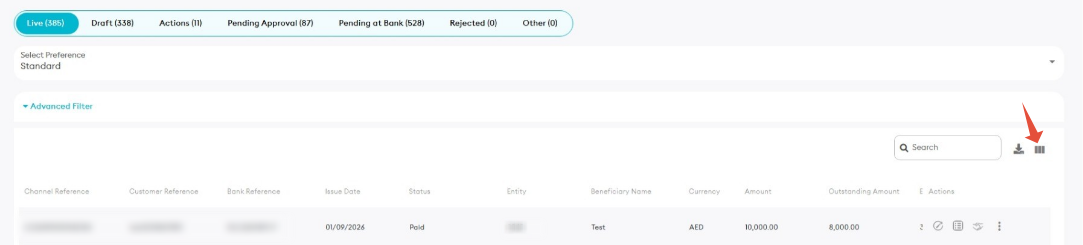
The transaction grid can be customized to display only the information relevant to your workflow.
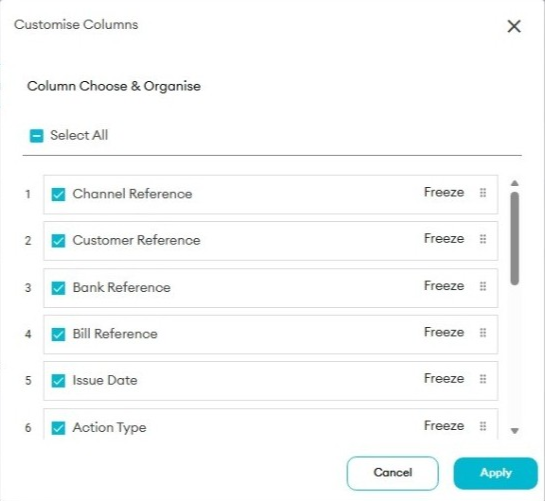
Common columns may include:
|
|
|
Users can:
- Show or hide columns
- Reorder columns
- Save preferred layouts
- Freeze important columns for easier viewing
Note: Available columns may vary depending on the selected dashboard view and transaction type.