
Overview
This guide explains how to create, assign, manage, and complete tasks within iTrade.
The Task feature allows users to create reminders, assign activities to themselves or other users, track pending actions, and add comments related to a transaction or request. Tasks help users monitor outstanding activities and improve collaboration during transaction processing.
Step 1: Access the Task Feature
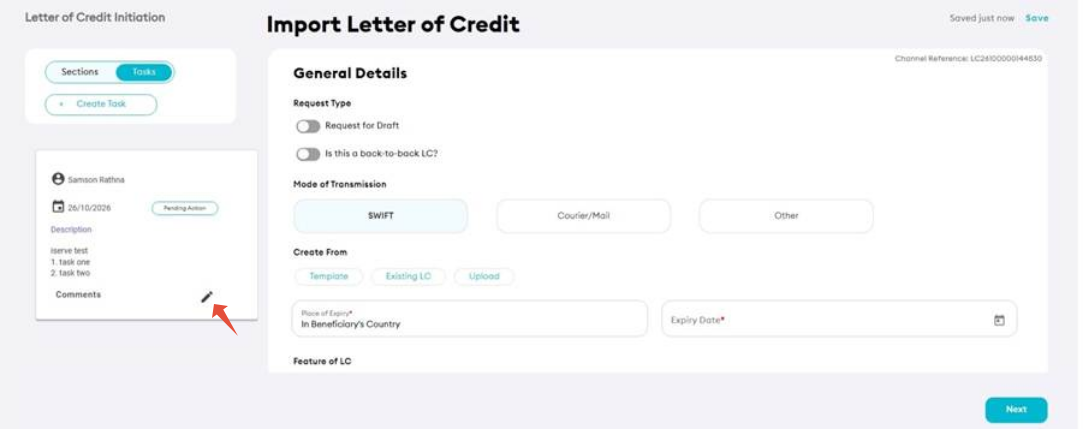
When creating or reviewing a transaction, the Task option is available on the left side of the screen.
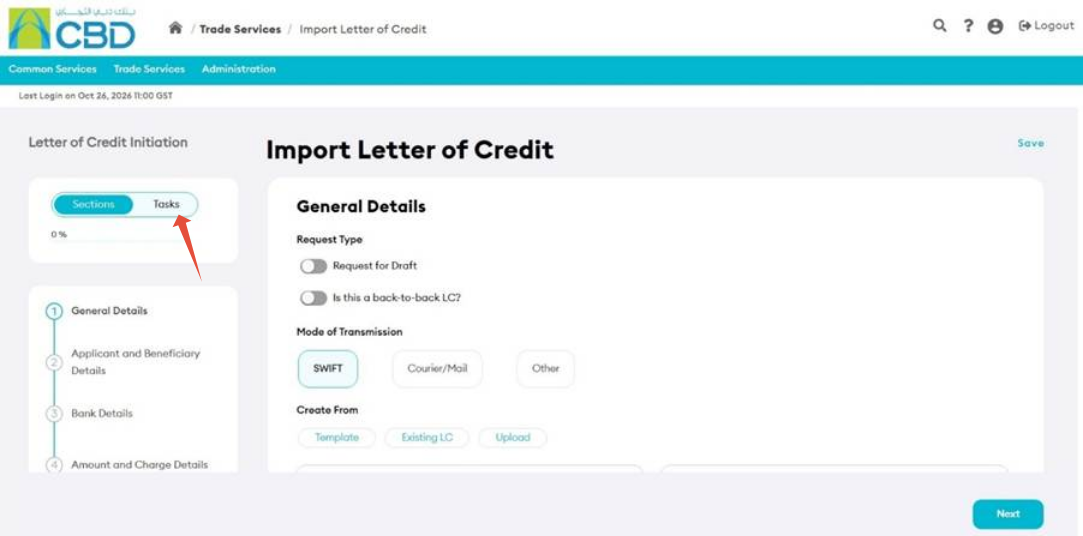
- Open the relevant transaction or request.
- Click Task from the left-hand menu.
- The task creation window will open.
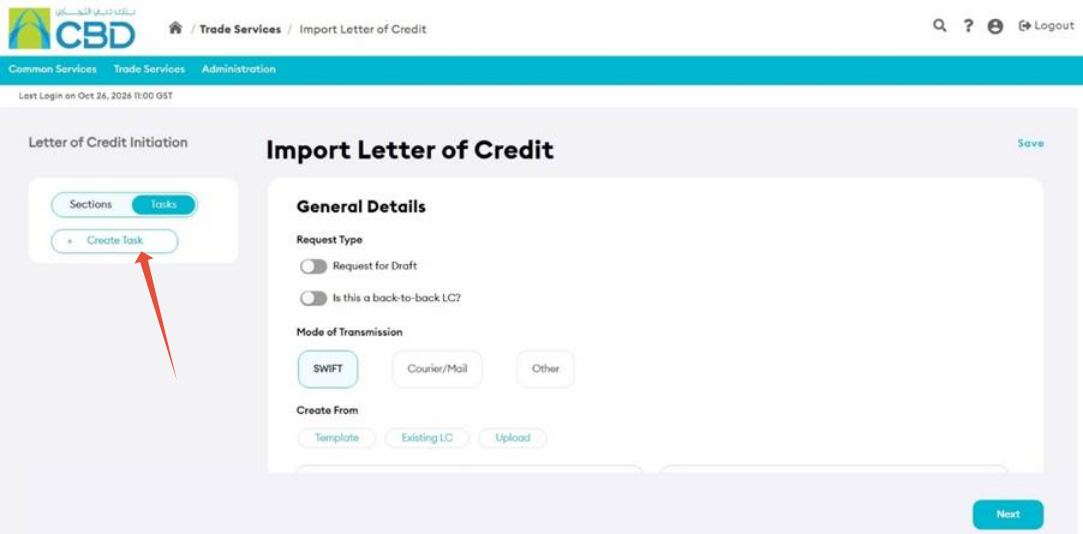
Step 2: Select the Task Type
iTrade supports three task types.
Self Task
A Self Task is assigned to yourself and can be used as a personal reminder or follow-up item.
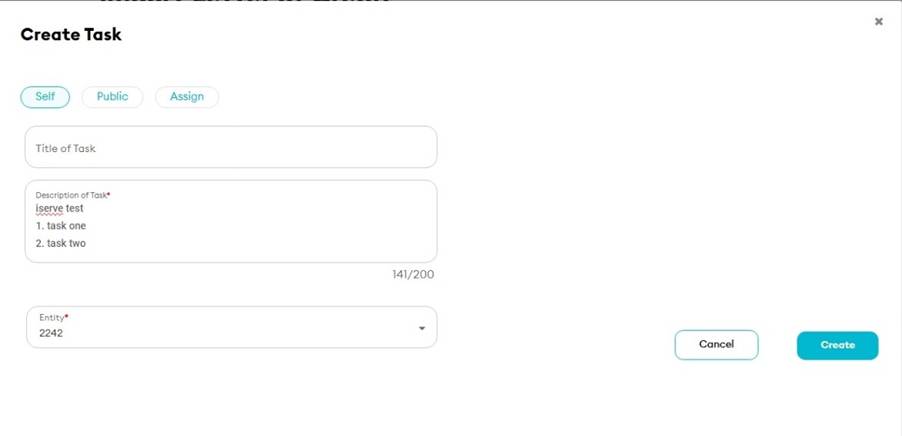
Use this option when you want to track an activity that only requires your attention.
Public Task
A Public Task is visible to other authorized users who have access to the transaction.
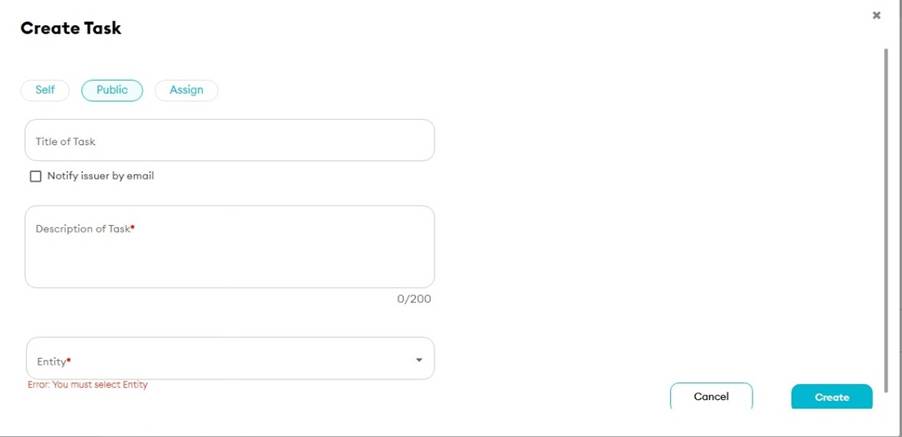
Use this option when the task is relevant to multiple users working on the same transaction.
Assigned Task
An Assigned Task can be allocated to another user for follow-up or action.
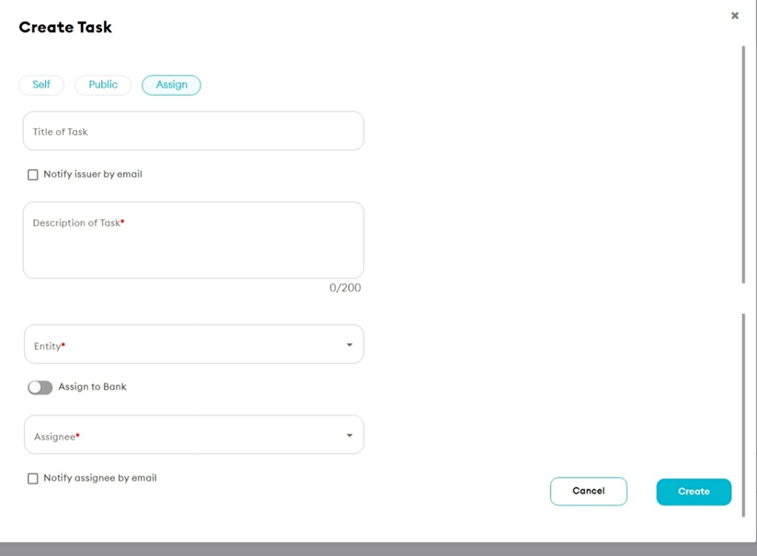
Use this option when responsibility for the task needs to be delegated to another user.
Step 3: Create the Task
After completing the task details:
- Review the task information.
- Click Create.
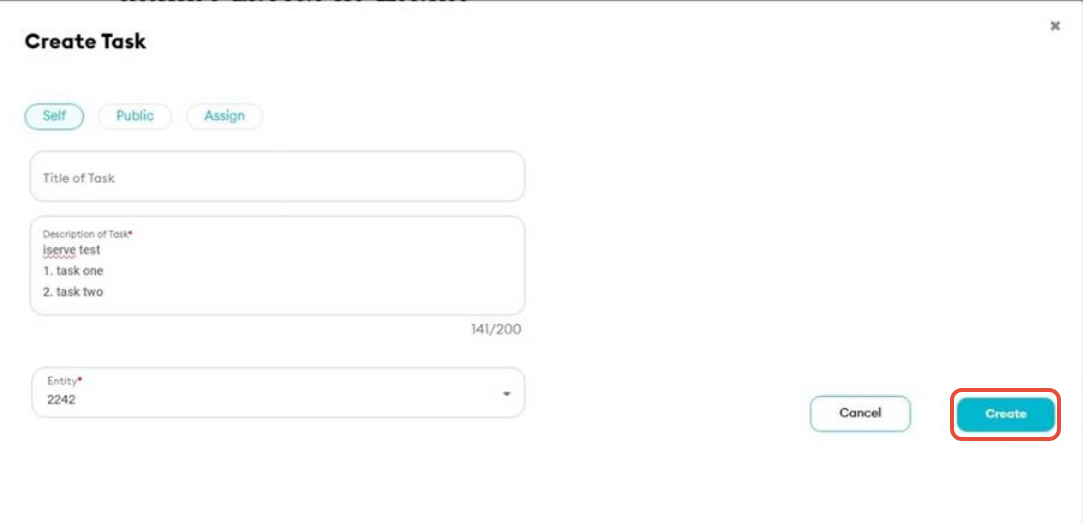
The task will be saved and linked to the transaction.
Step 4: Access Existing Tasks
To manage existing tasks:
- Navigate to the Task tab.
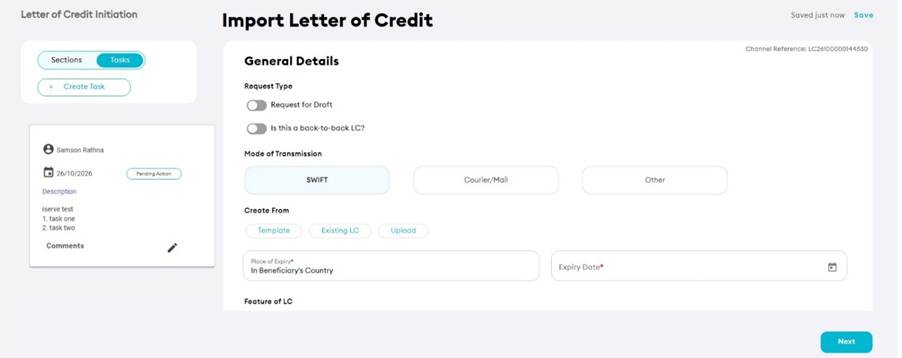
All tasks associated with the transaction will be displayed.
Step 5: Complete a Task
To mark a task as completed:
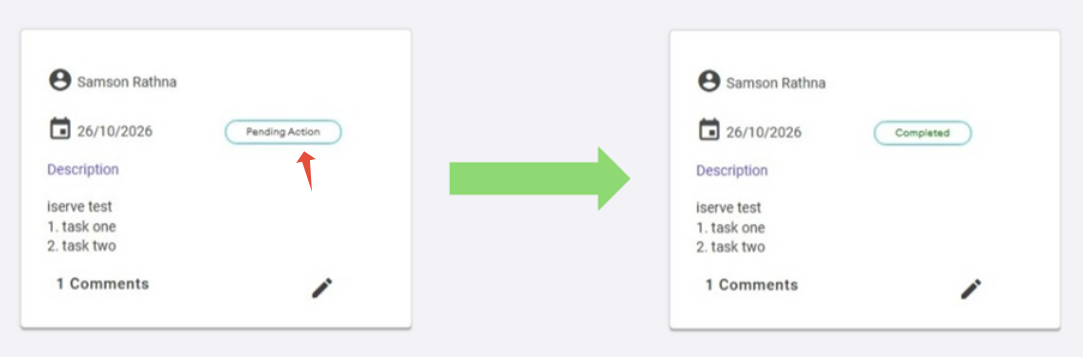
- Locate the task in the task list.
- Click Pending Action.
- Update the task status as required.
- Mark the task as completed.
Once completed, the task status will be updated accordingly.
Step 6: Add Comments to a Task
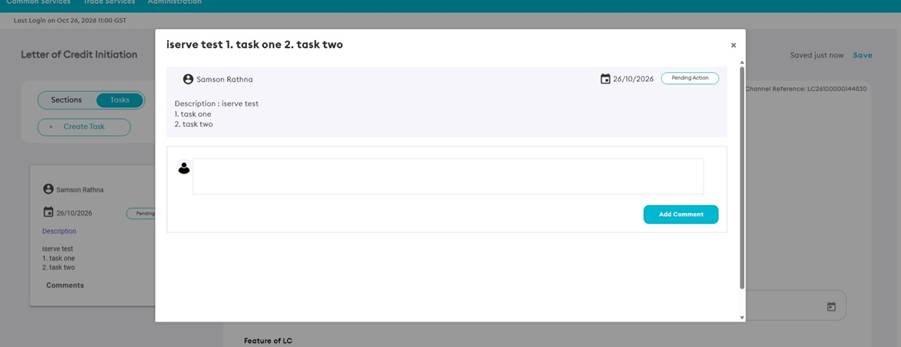
Users can add comments to provide updates, instructions, or additional information.
- Locate the task.
- Click the Pen icon

- Enter the required comments.
- Save the update.
Comments are stored against the task and can be reviewed by users with access to the task.
Step 7: Manage Multiple Tasks
Multiple tasks can be created and tracked simultaneously for the same transaction.
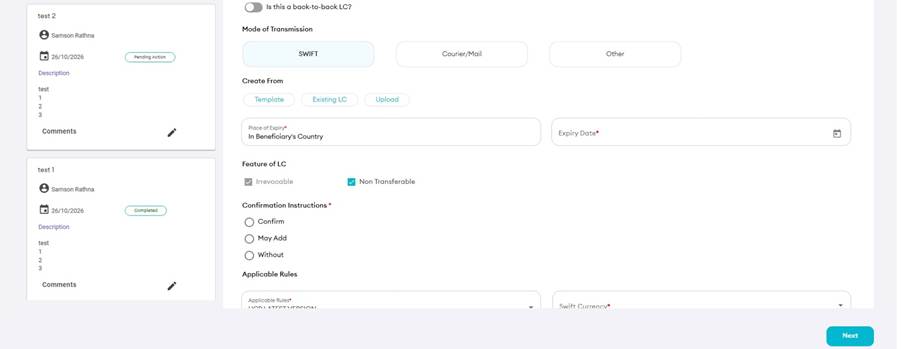
This allows users to manage several actions, reminders, or assignments associated with a single transaction.